How can we help?
Step by step guides to every screen in Slate, shown with real screenshots. 45 articles and counting.
Start here
New to Slate? These three take you from your first sign-in to going live.
Getting started
Your account, the dashboard, the setup checklist and going live.
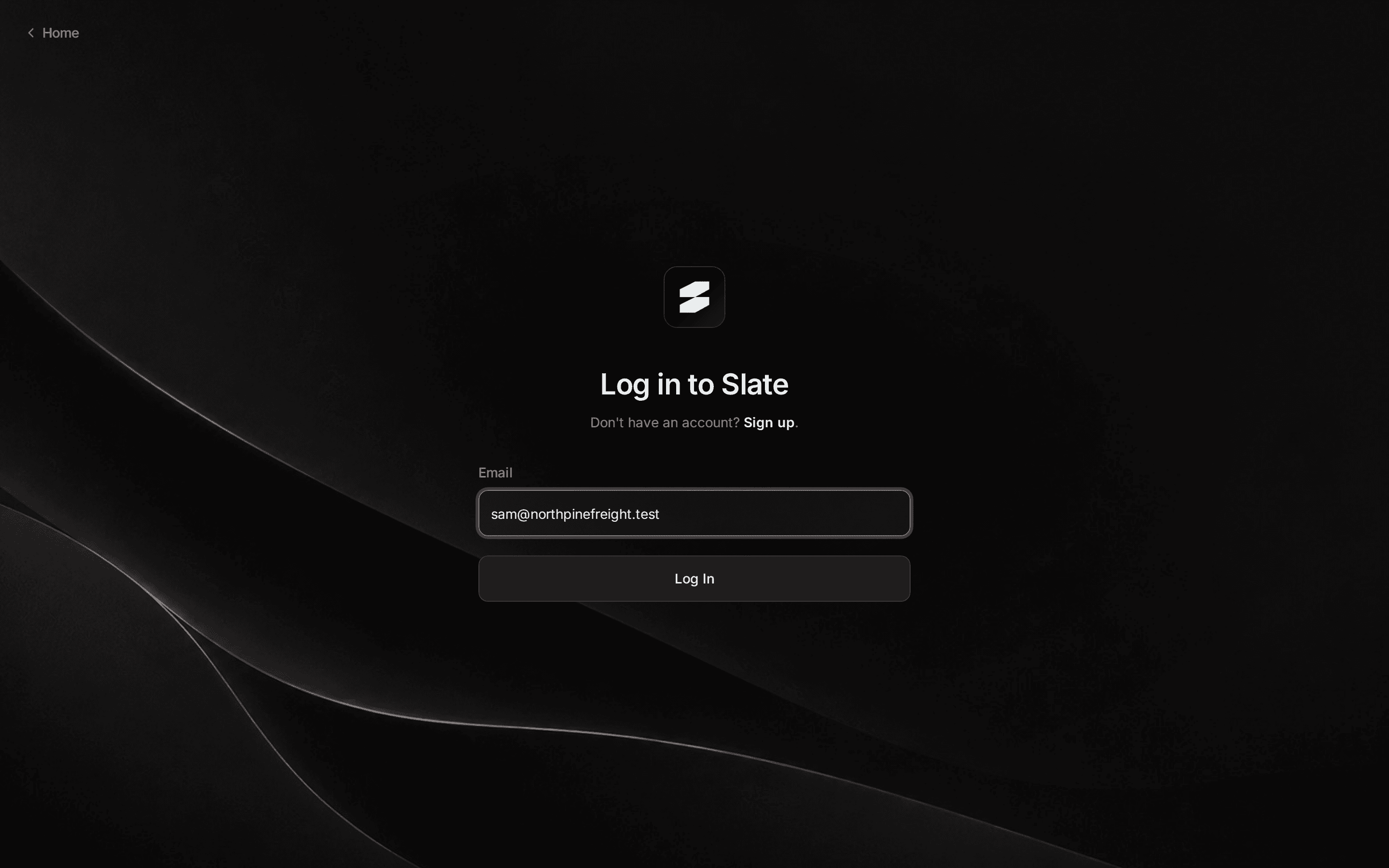 Create your account and sign inSet up your Slate account, choose a password, sign in, and switch between sandbox and live. Plus quick fixes when signing in doesn't work.
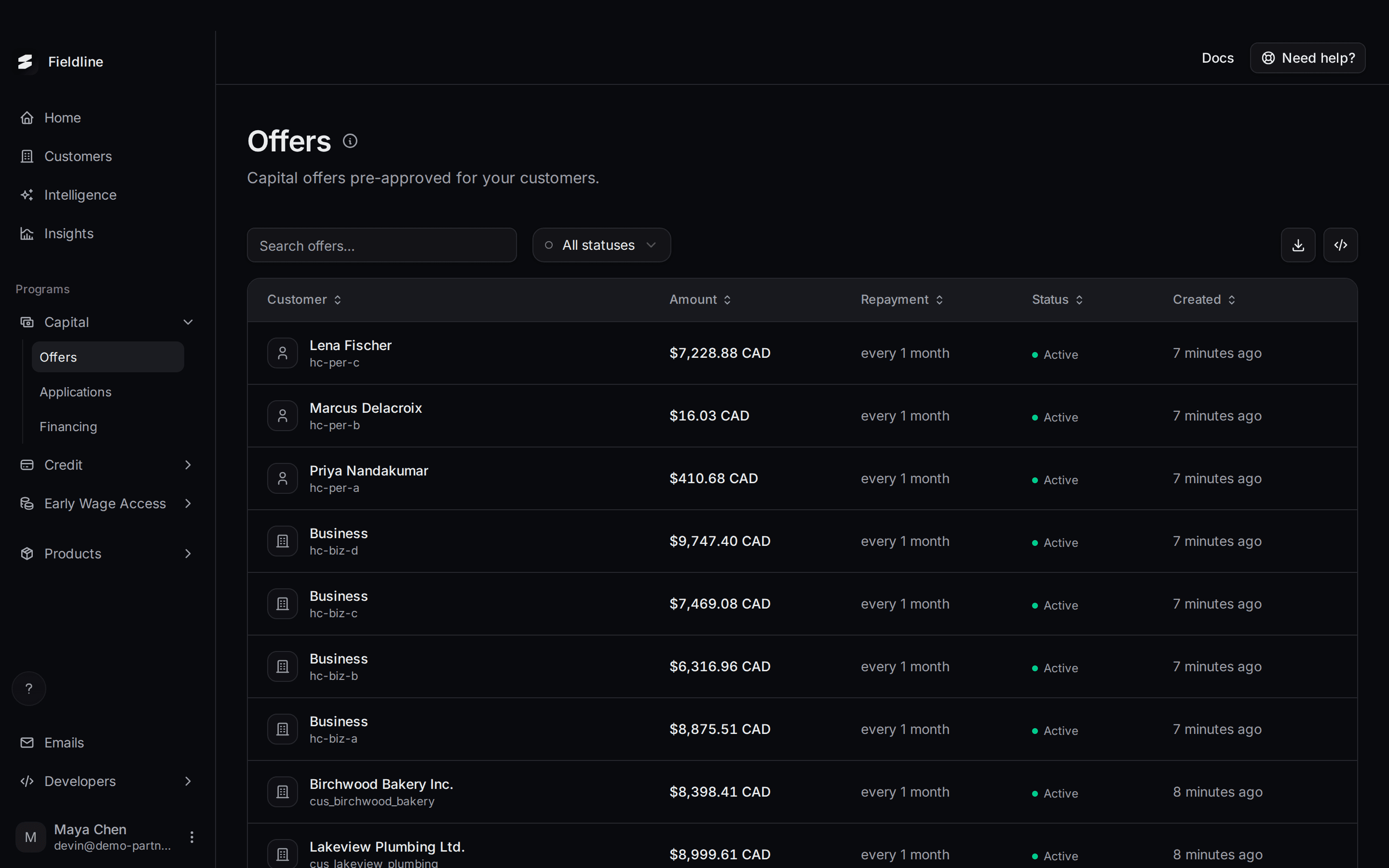 Find your way around the dashboardA guided look at the Slate partner dashboard: the left menu, the top bar, the help panel, tables, status dots and the account menu.
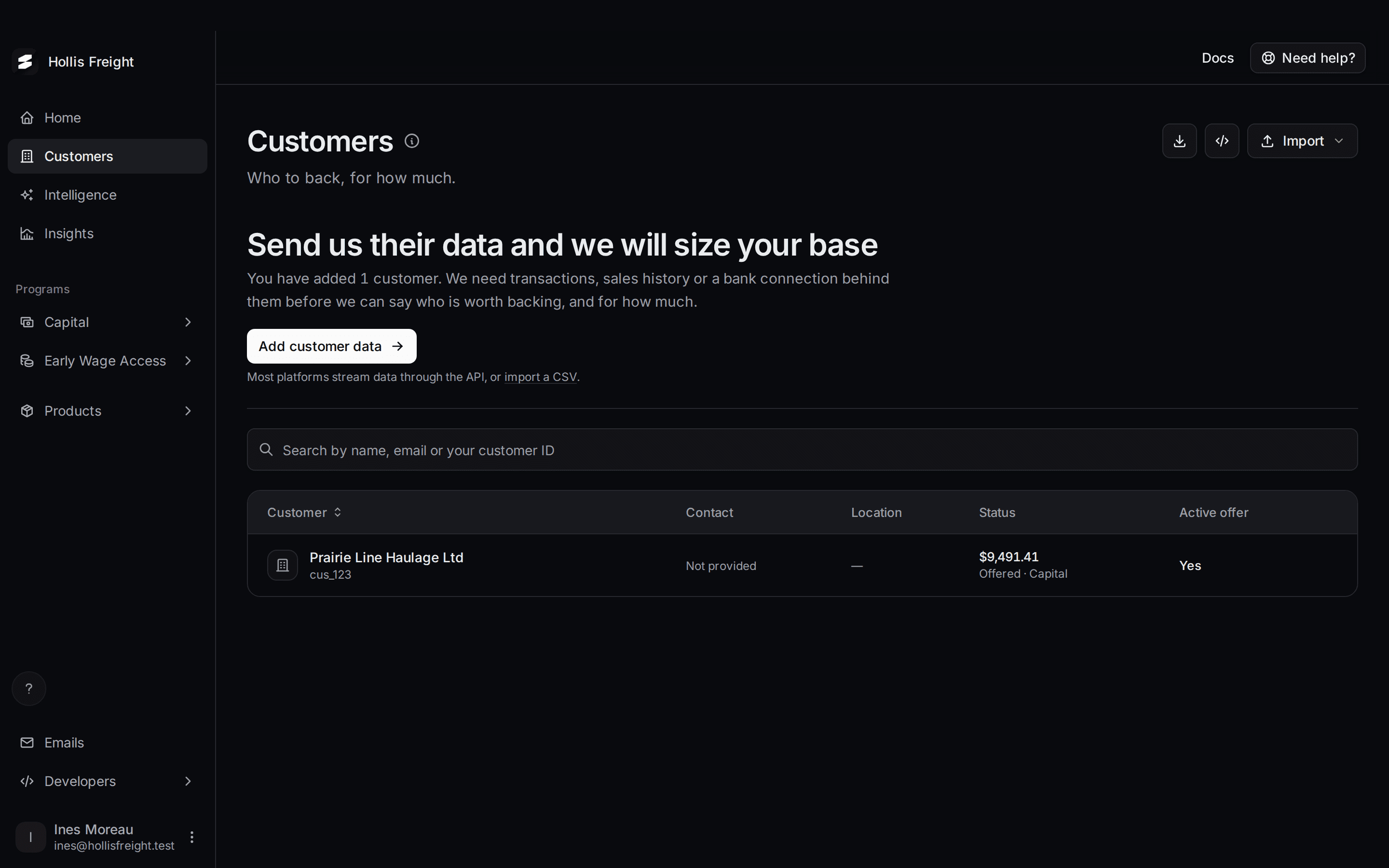 Sandbox and live: what's differentWhat the sandbox and live dashboards are, how to tell which one you're in, what changes between them, and how to switch.
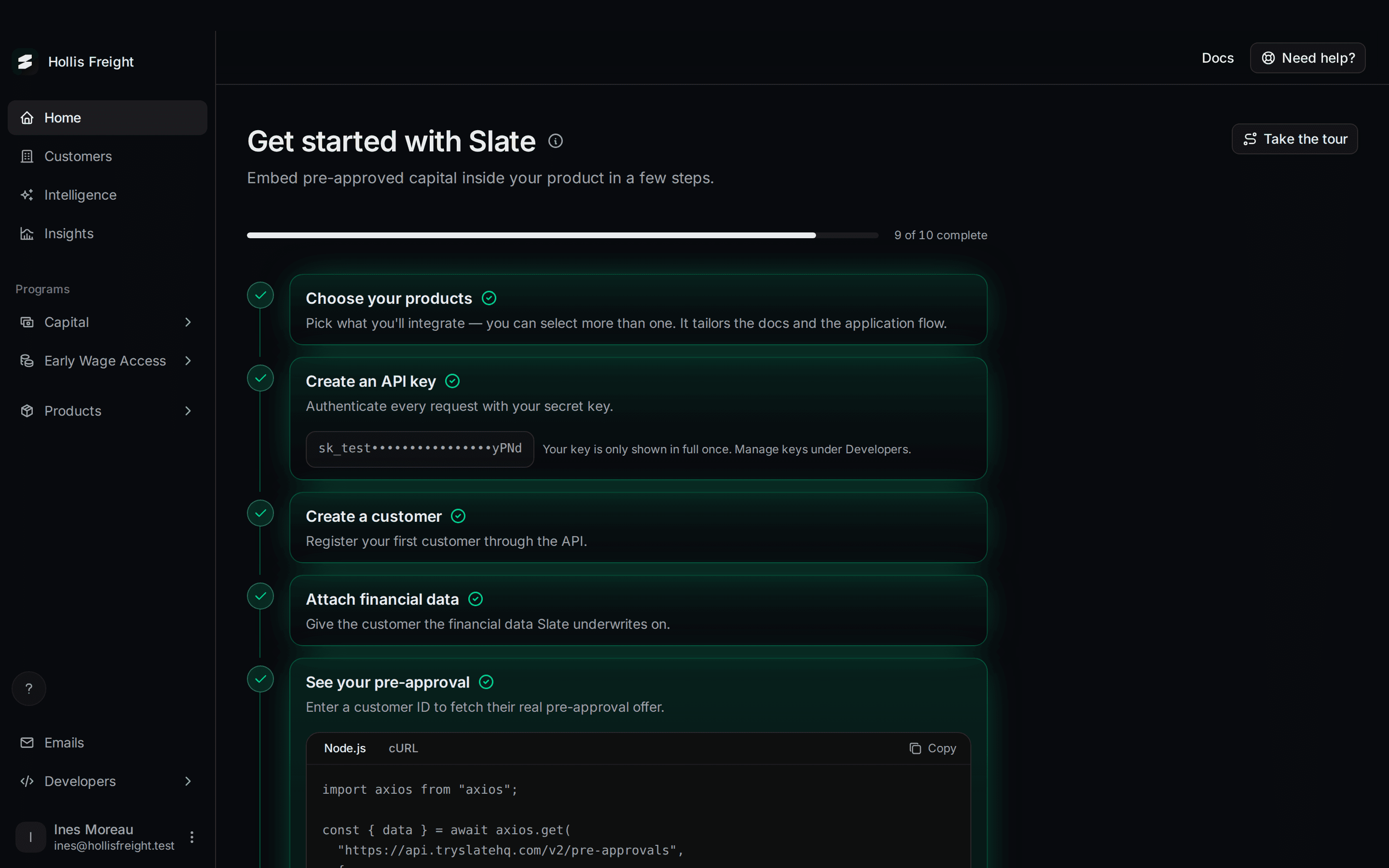 Get started with the setup checklistThe ten steps on your Home page that take you from a new sandbox account to going live, one by one, and which ones tick on their own.
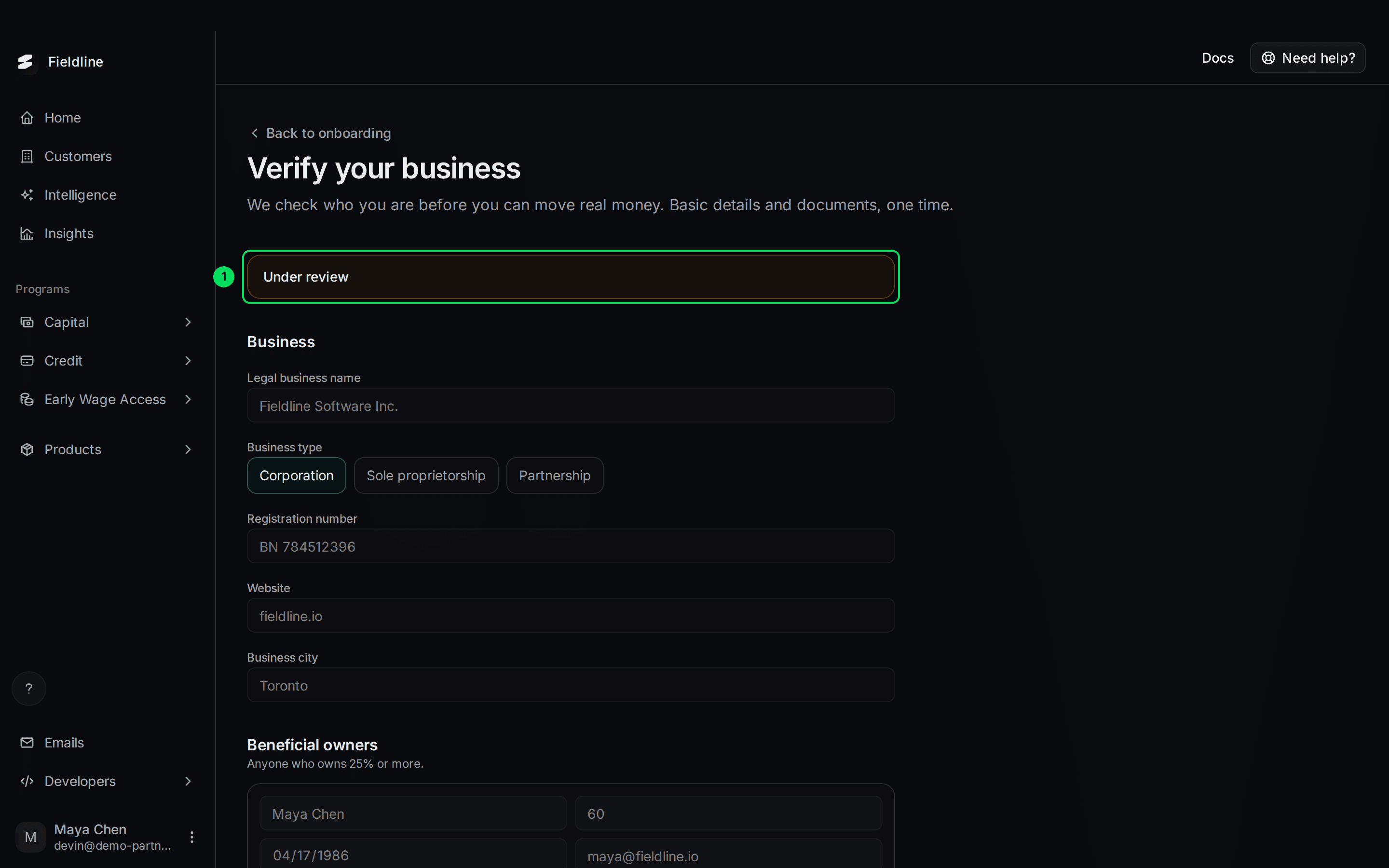 Verify your businessFill in your company details, add your owners, upload two documents and send them to Slate for review. What each review result means and what to do next.
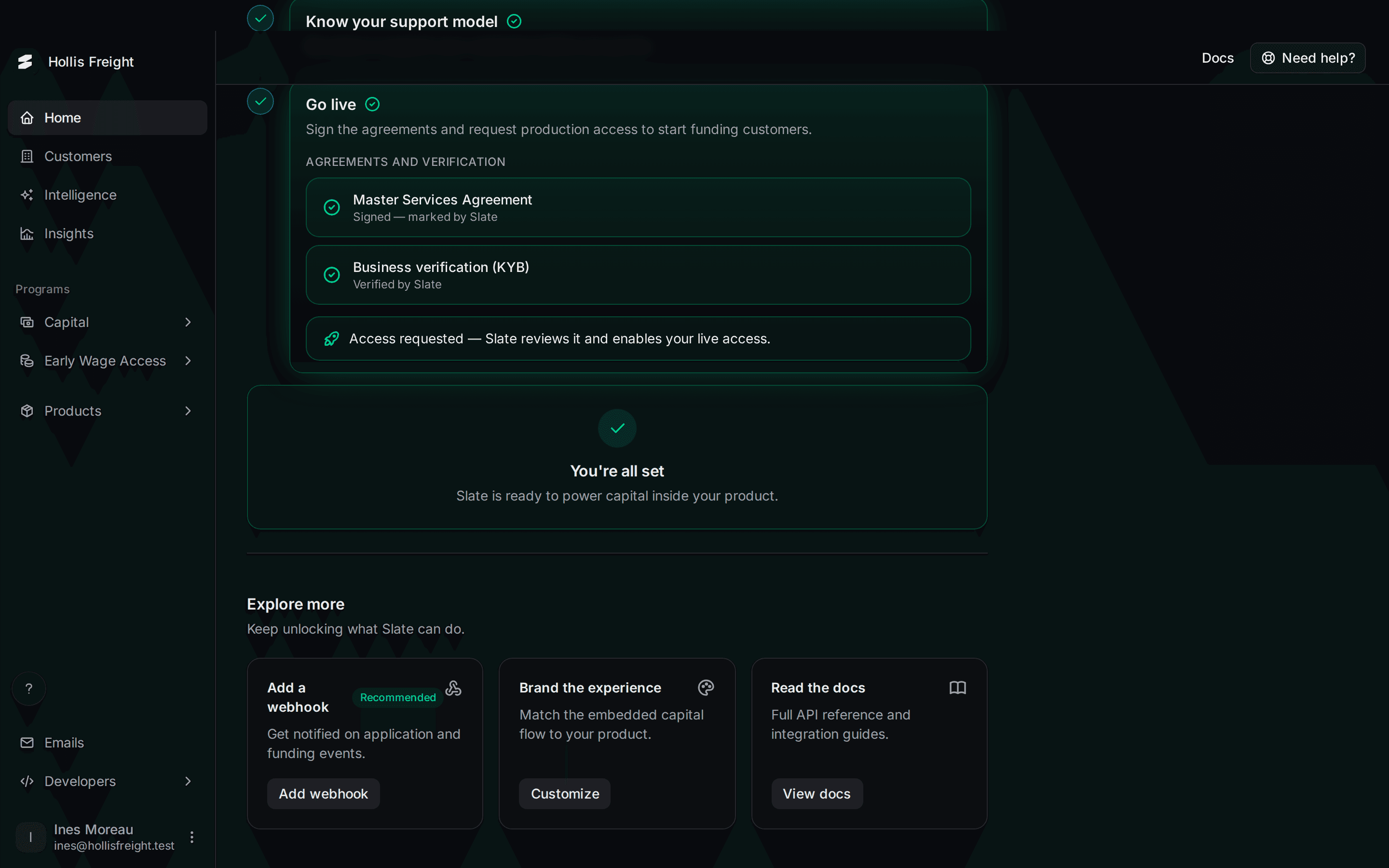 Go liveThe three things you need before Slate turns on live access, how to request it, what you'll see while Slate reviews, and what to do once you're live.
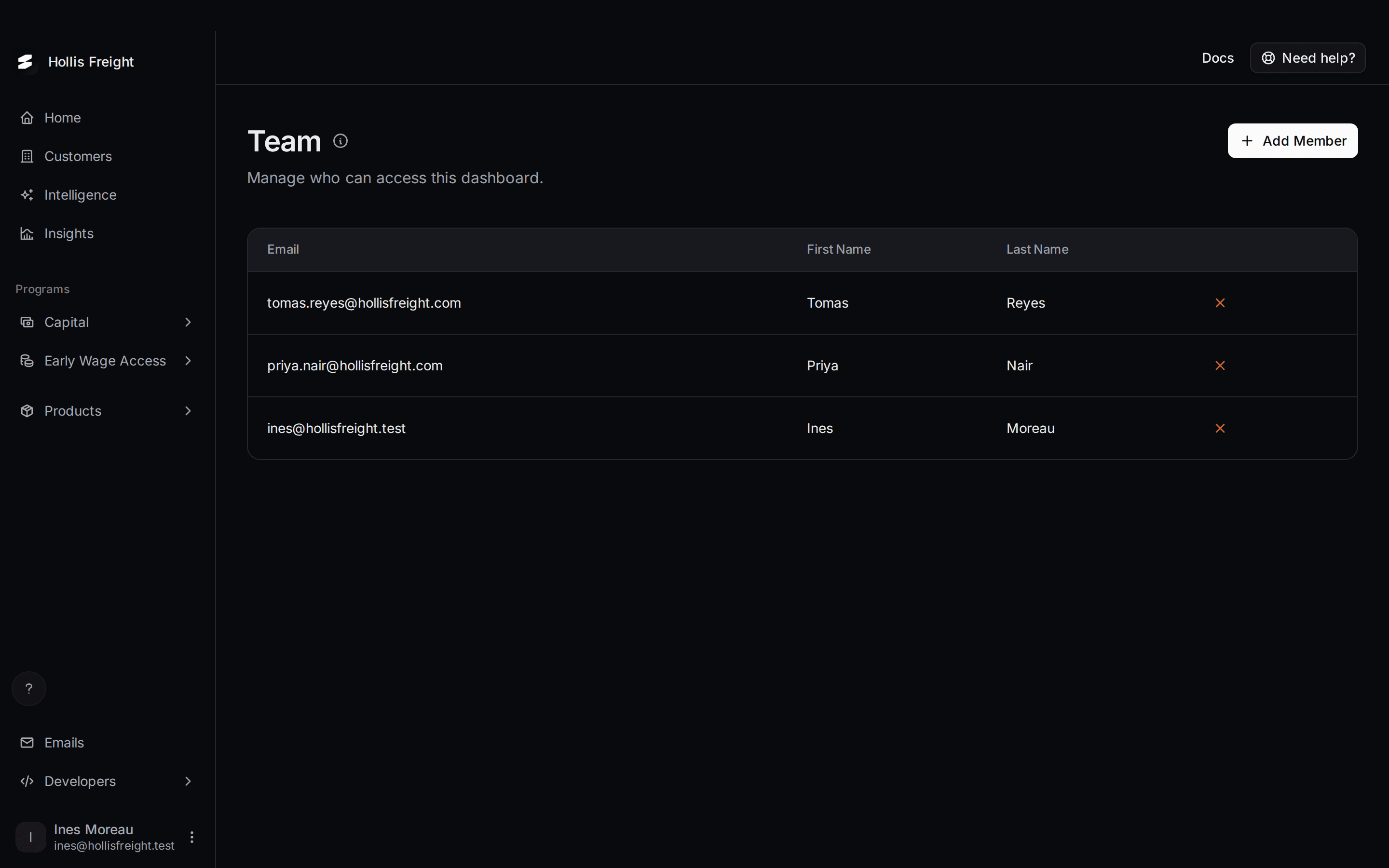 Add and remove team membersInvite teammates to your Slate dashboard, see who has access, and remove someone who has left.
Customers
Adding customers, sending links, imports, Intelligence and Insights.
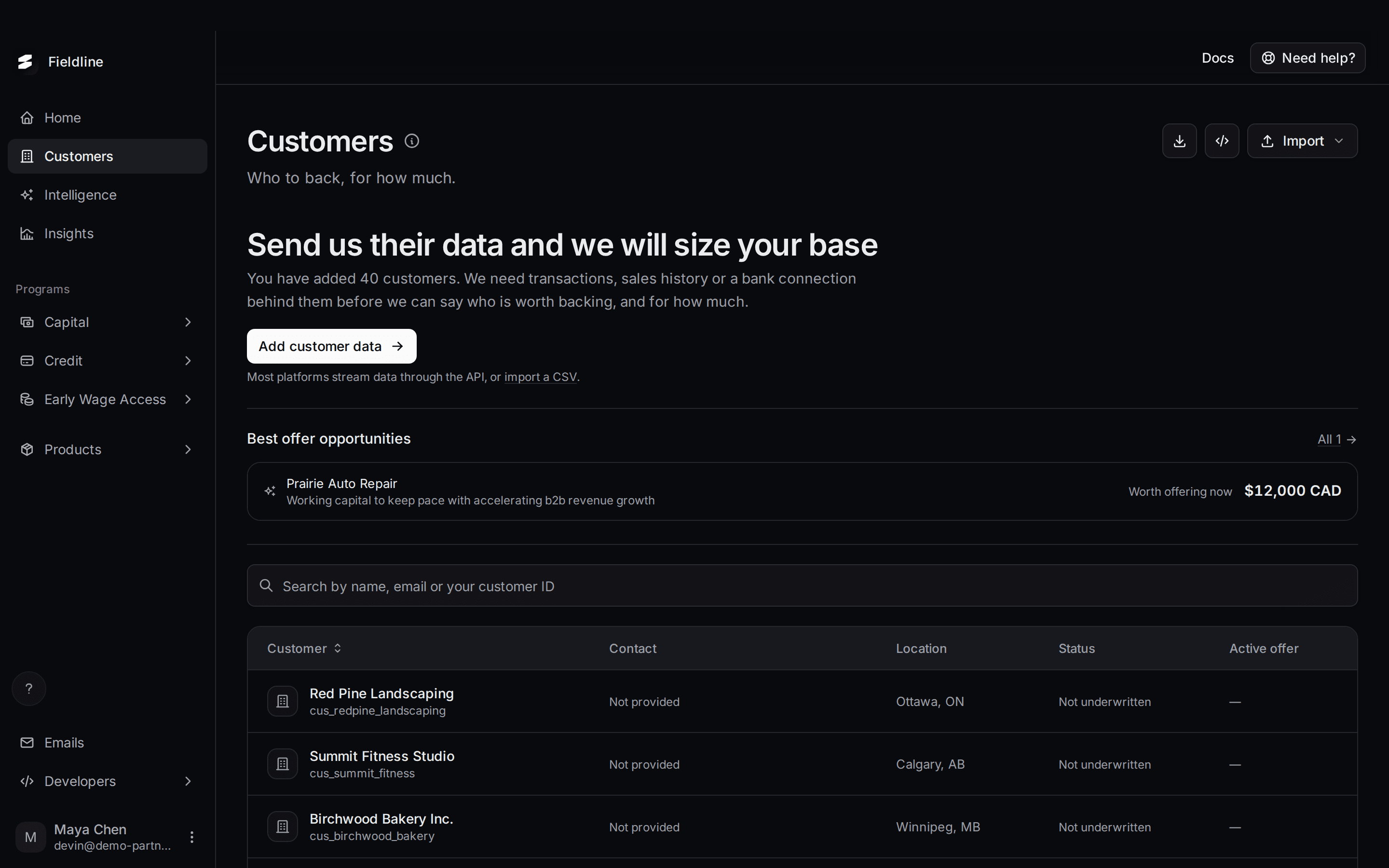 Your Customers pageEvery business and person you have sent to Slate, what Slate knows about them, and which ones hold an offer. Learn to read the list, open a customer and move them to another product.
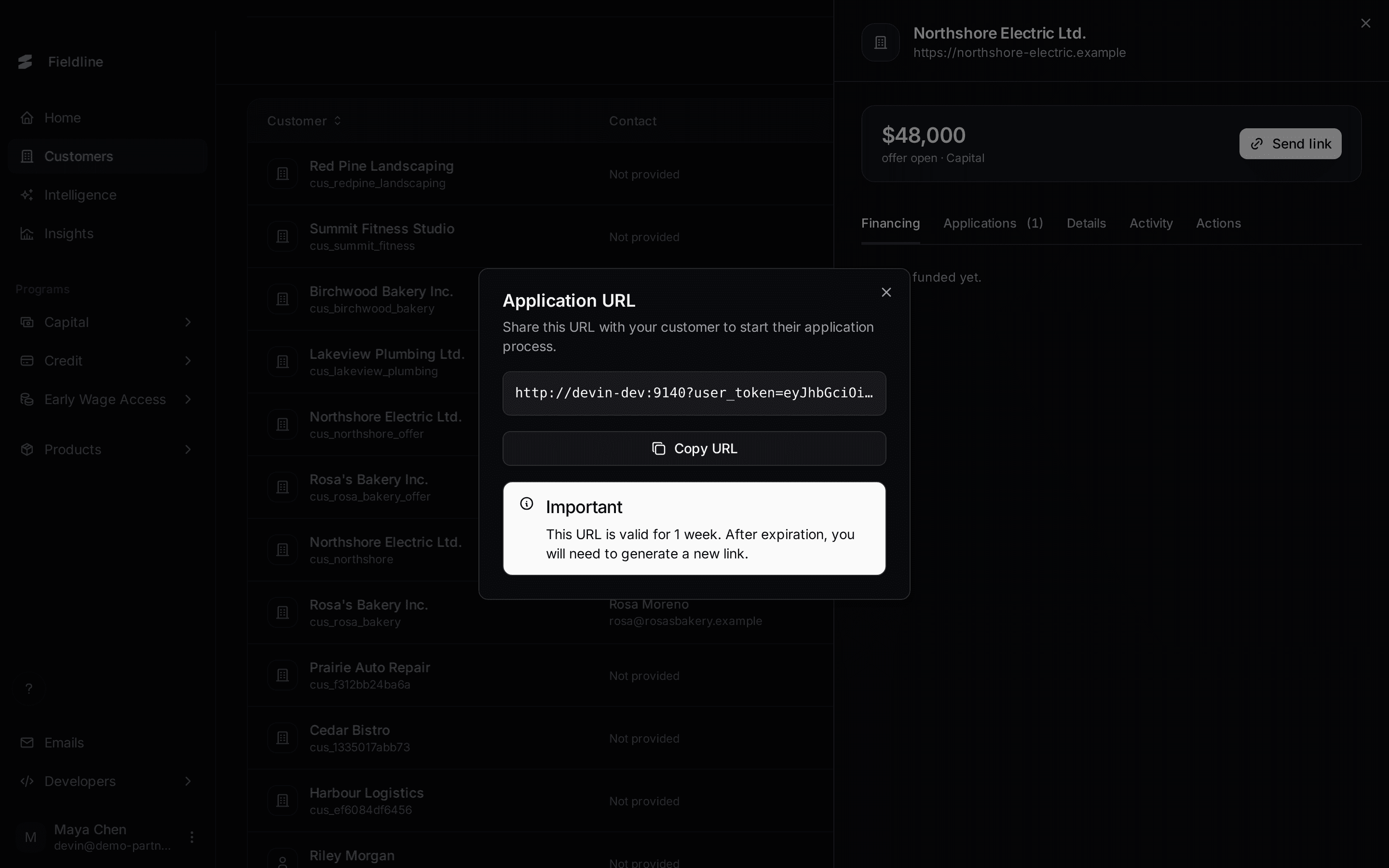 Send a customer their application linkCreate a link a customer can open to apply for the offer they hold. Learn where the button is, how long the link lasts and what your customer sees.
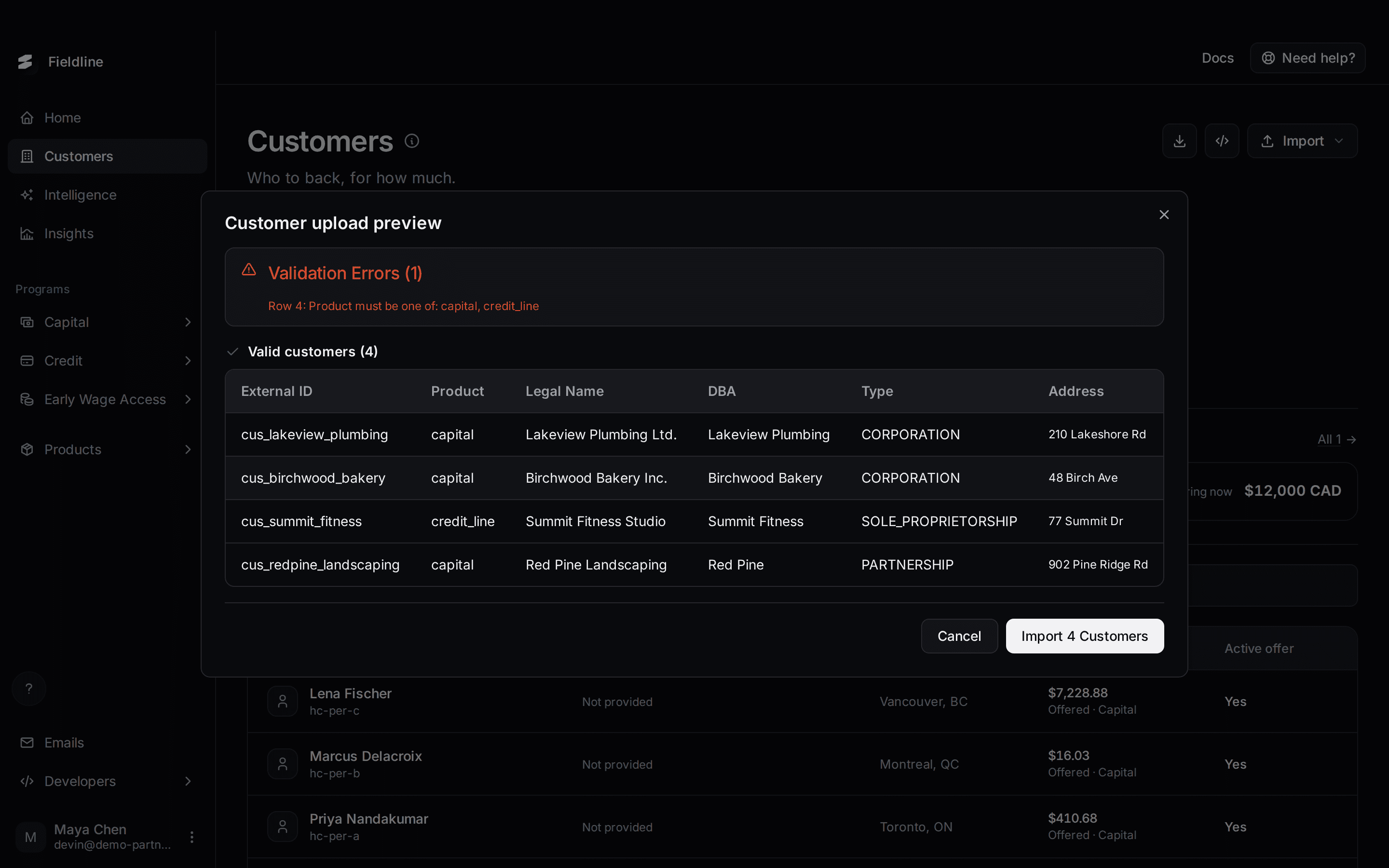 Import customers from a spreadsheetAdd many customers at once from a CSV file. Covers the columns, the rules, how to fix errors and what happens when you confirm.
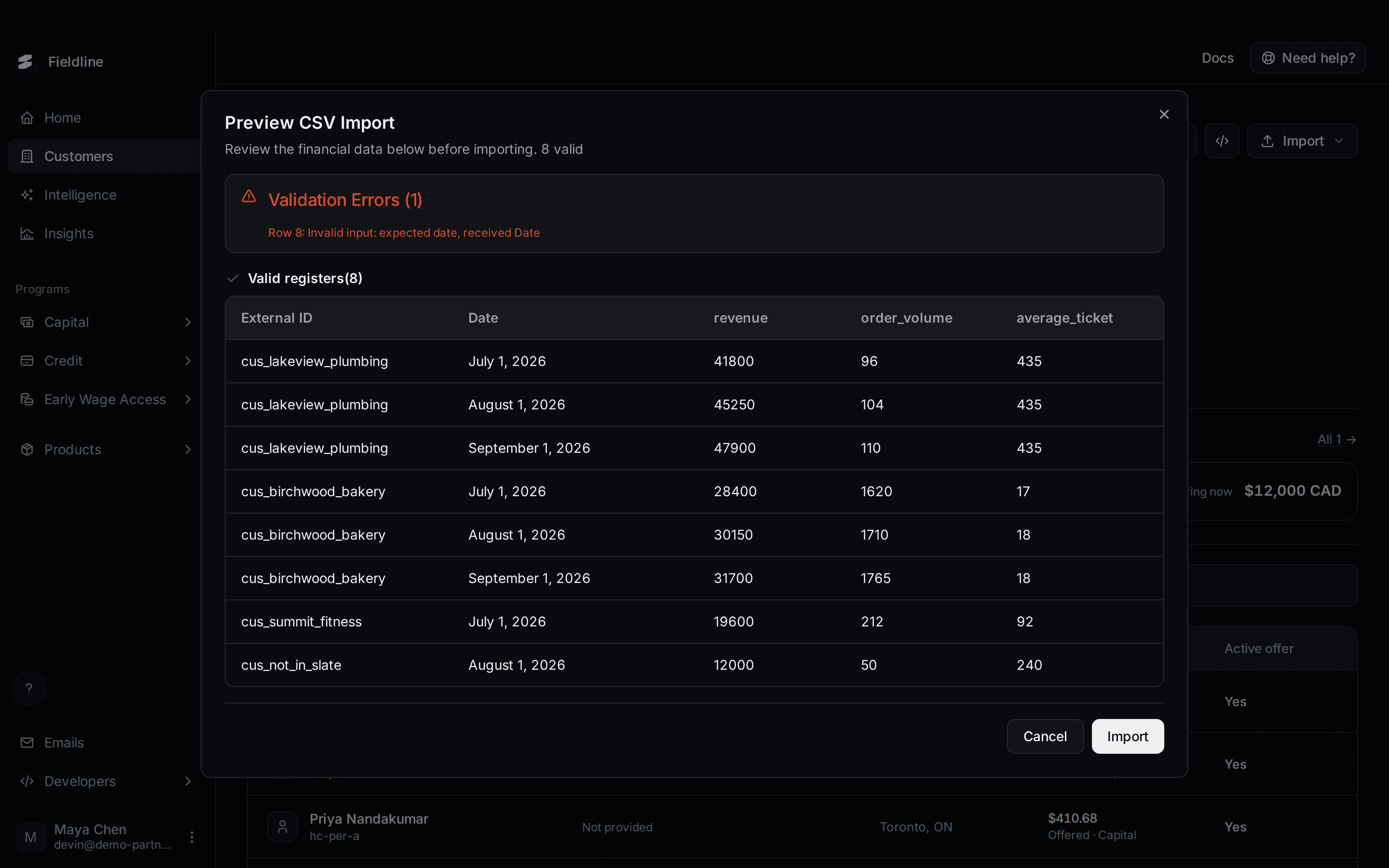 Import financial data from a spreadsheetGive Slate the numbers behind your customers, such as monthly revenue, by uploading a CSV. Covers the columns, errors and what happens next.
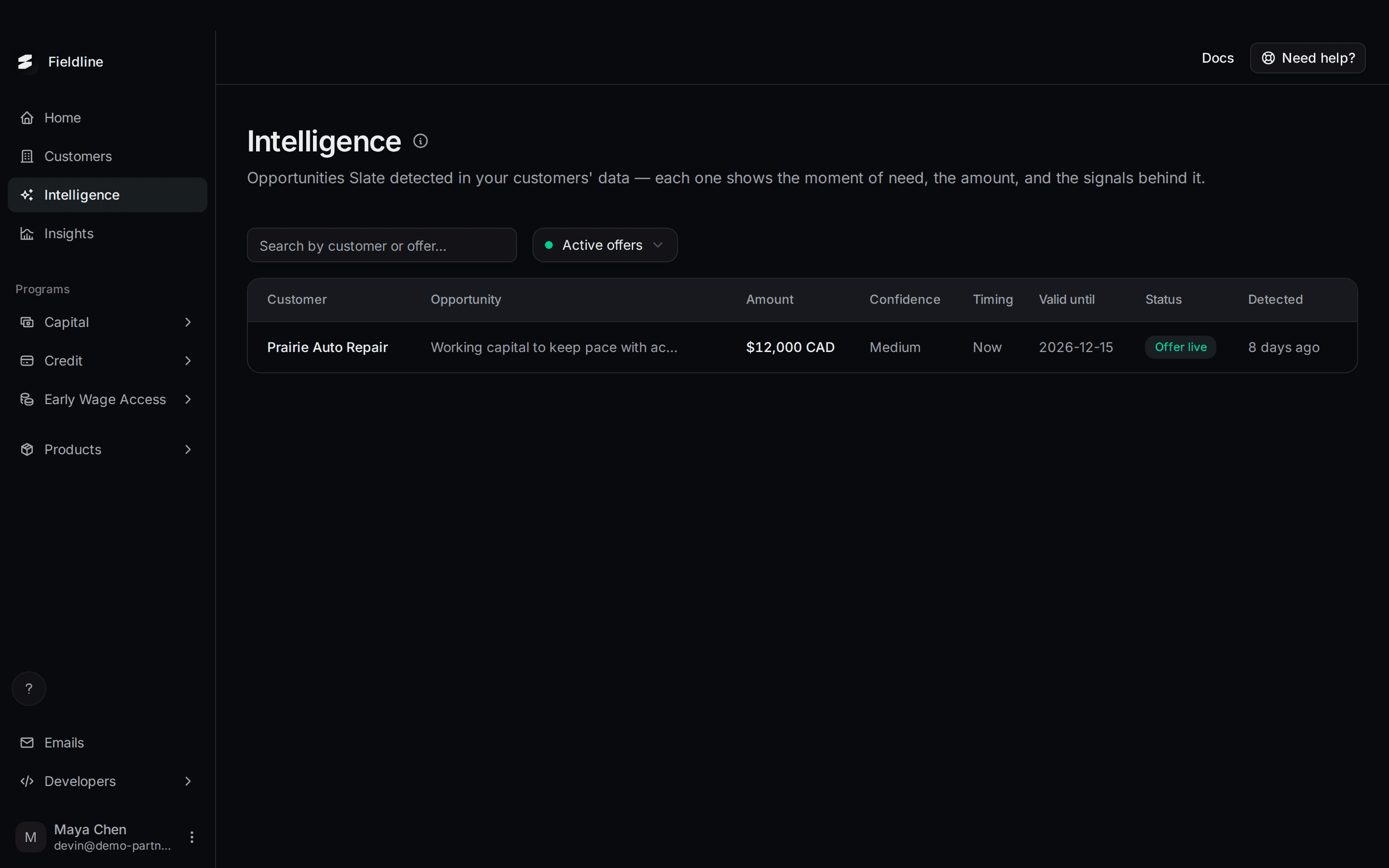 Intelligence: customers who may need capital nowRead the Intelligence page: the opportunities Slate spots in your customers' data, how sure Slate is, and when to act.
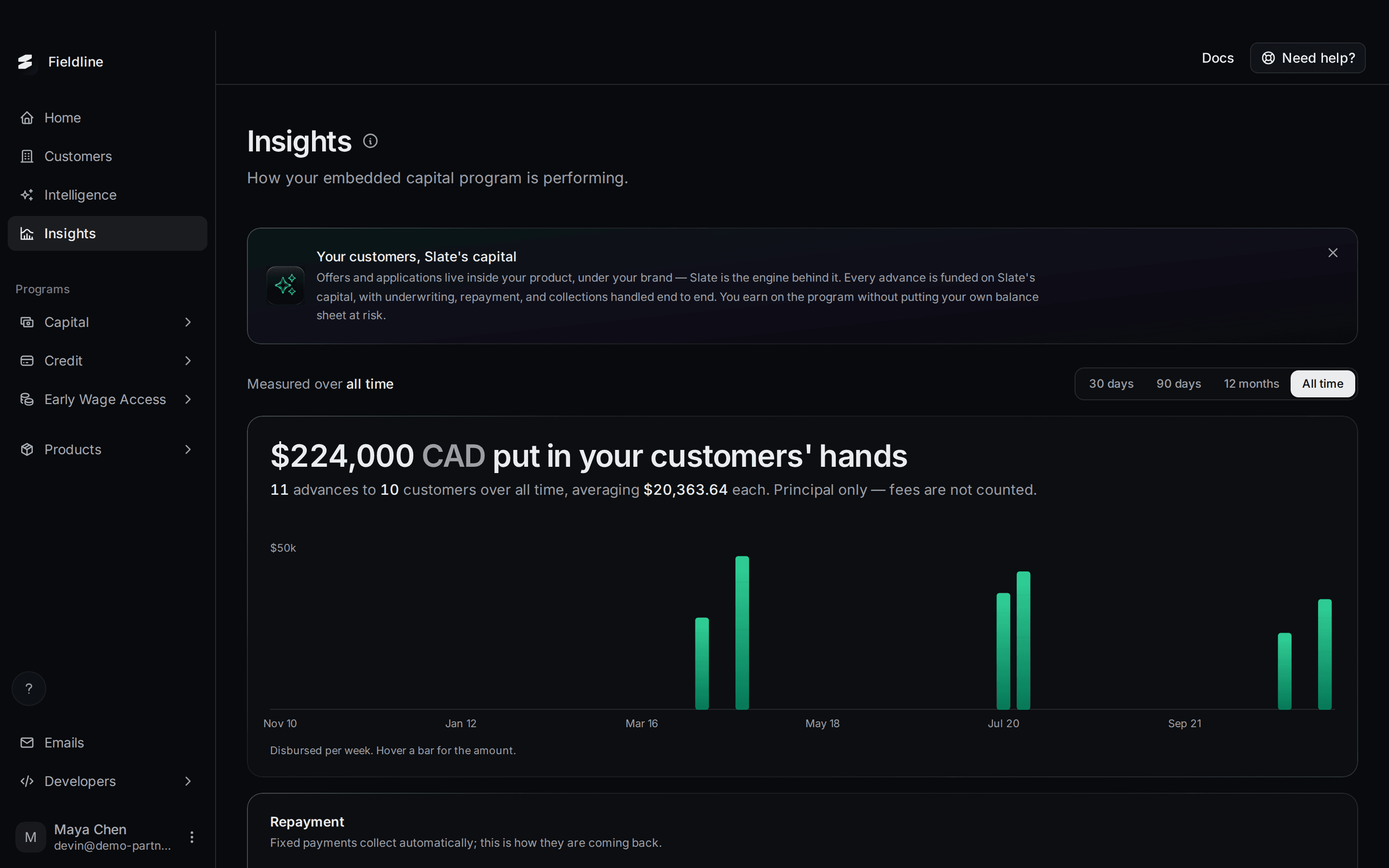 Insights: how your program is doingRead every number on the Insights page: money funded, repayment, the conversion funnel, approval rate and the status of your advances.
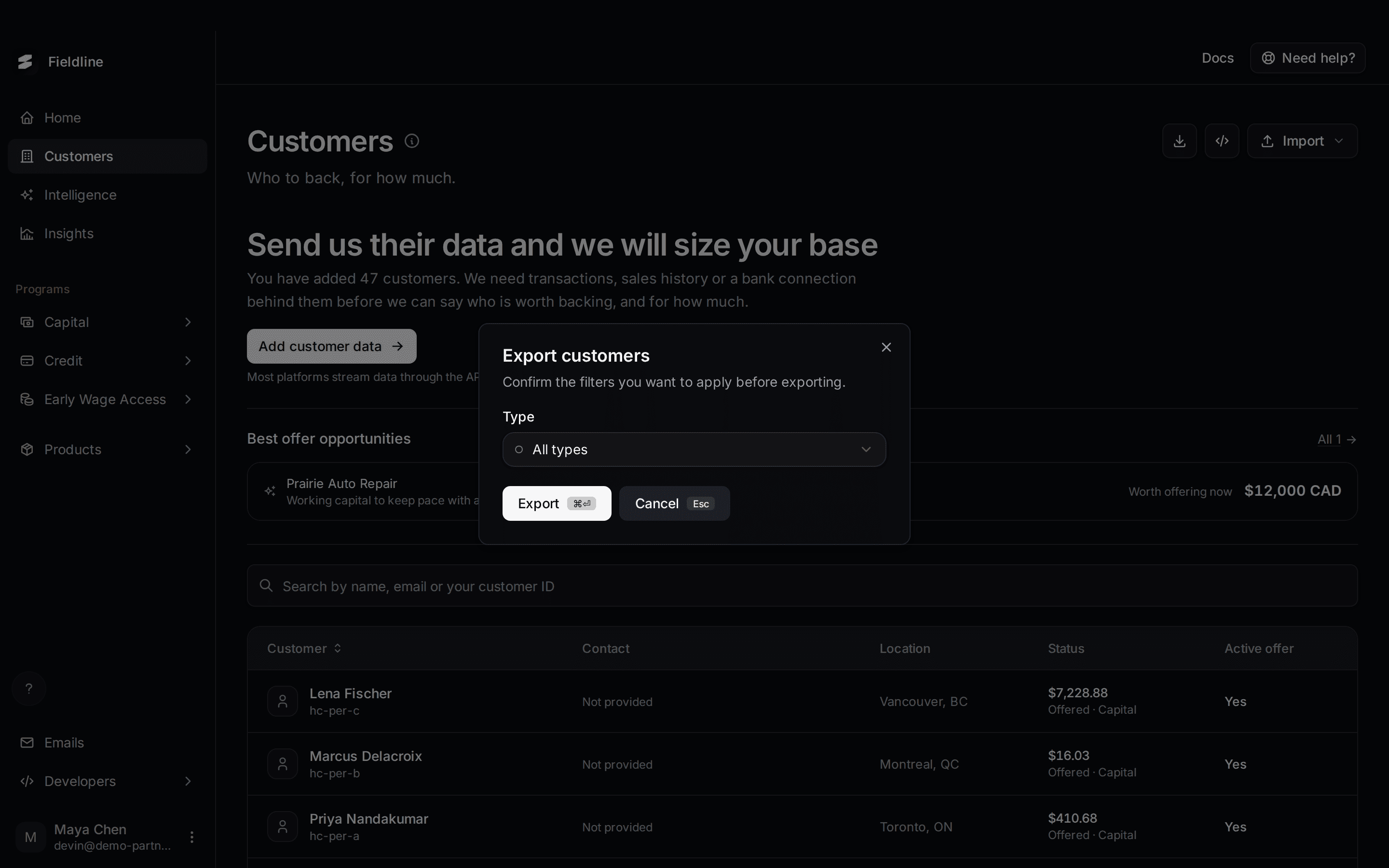 Export a table to CSVSave any list in your dashboard as a spreadsheet. Includes the one limit to know about, and how to get more than one page of rows.
Capital
Offers, applications and financing for advances.
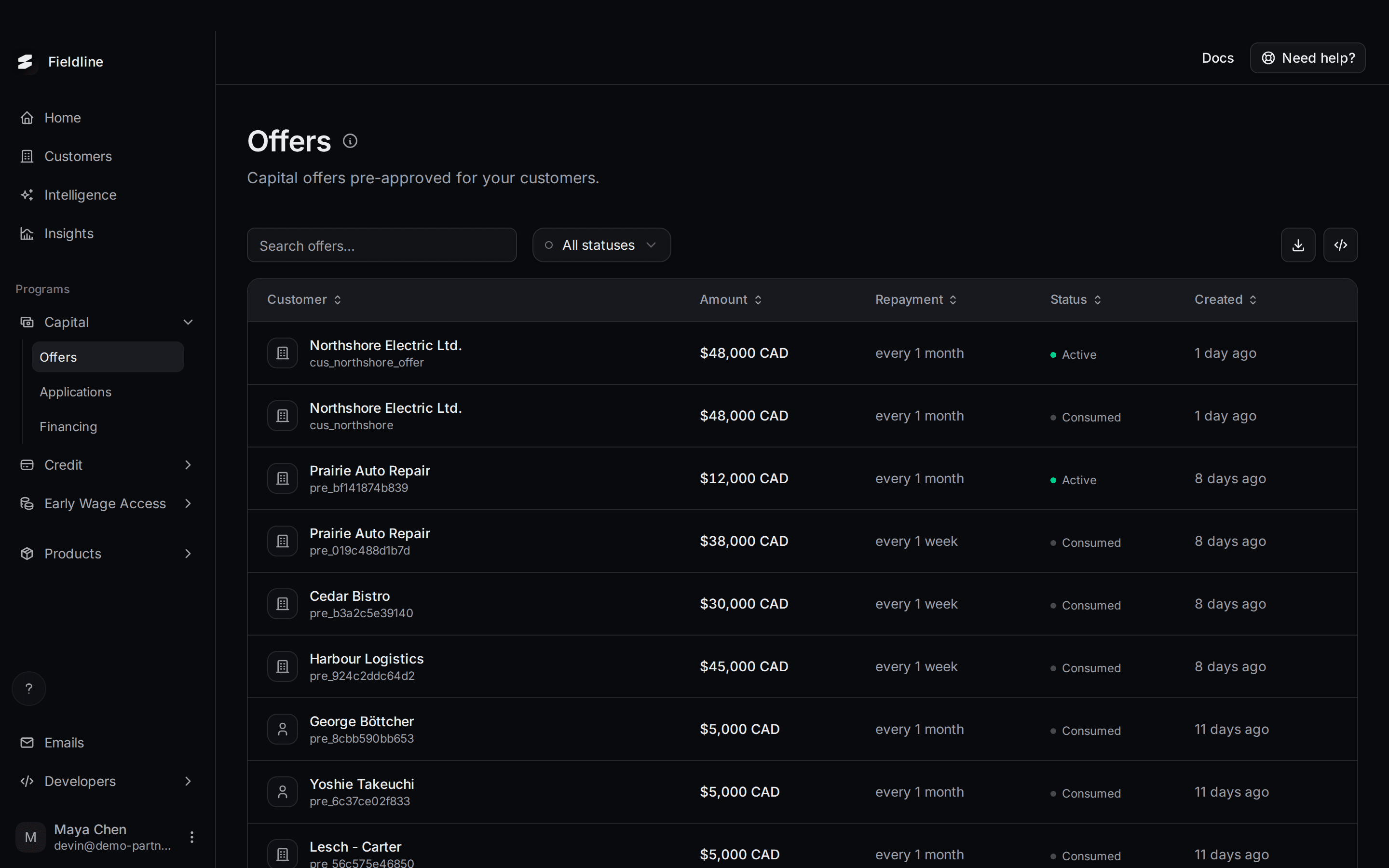 See the capital offers Slate approved for your customersWhat an offer is, what each column and status means, how to find an offer, and how to share the application link with your customer.
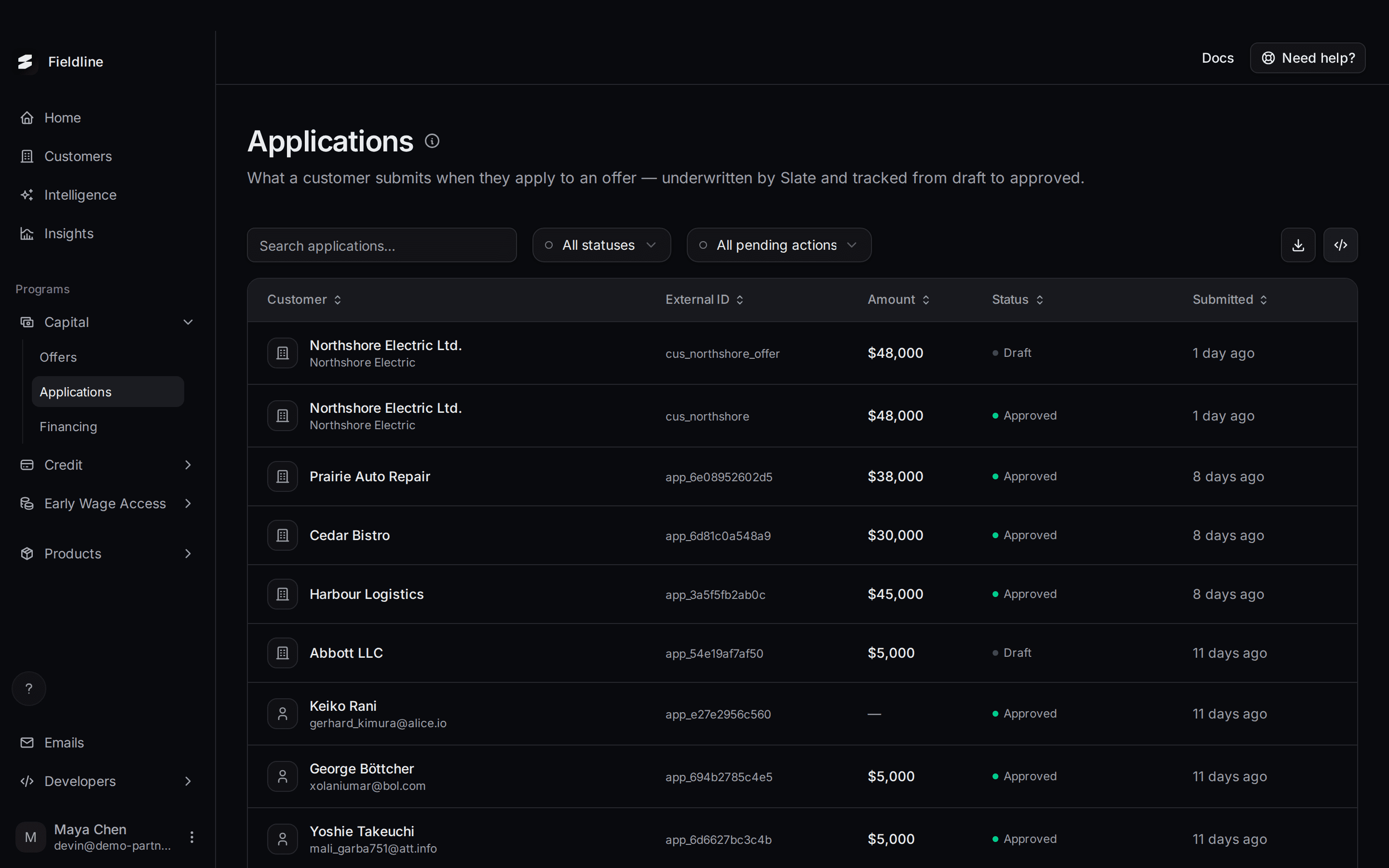 Track your customers' capital applicationsEvery application status from Draft to Approved, what each pending action means, and how to read an application's progress and timeline.
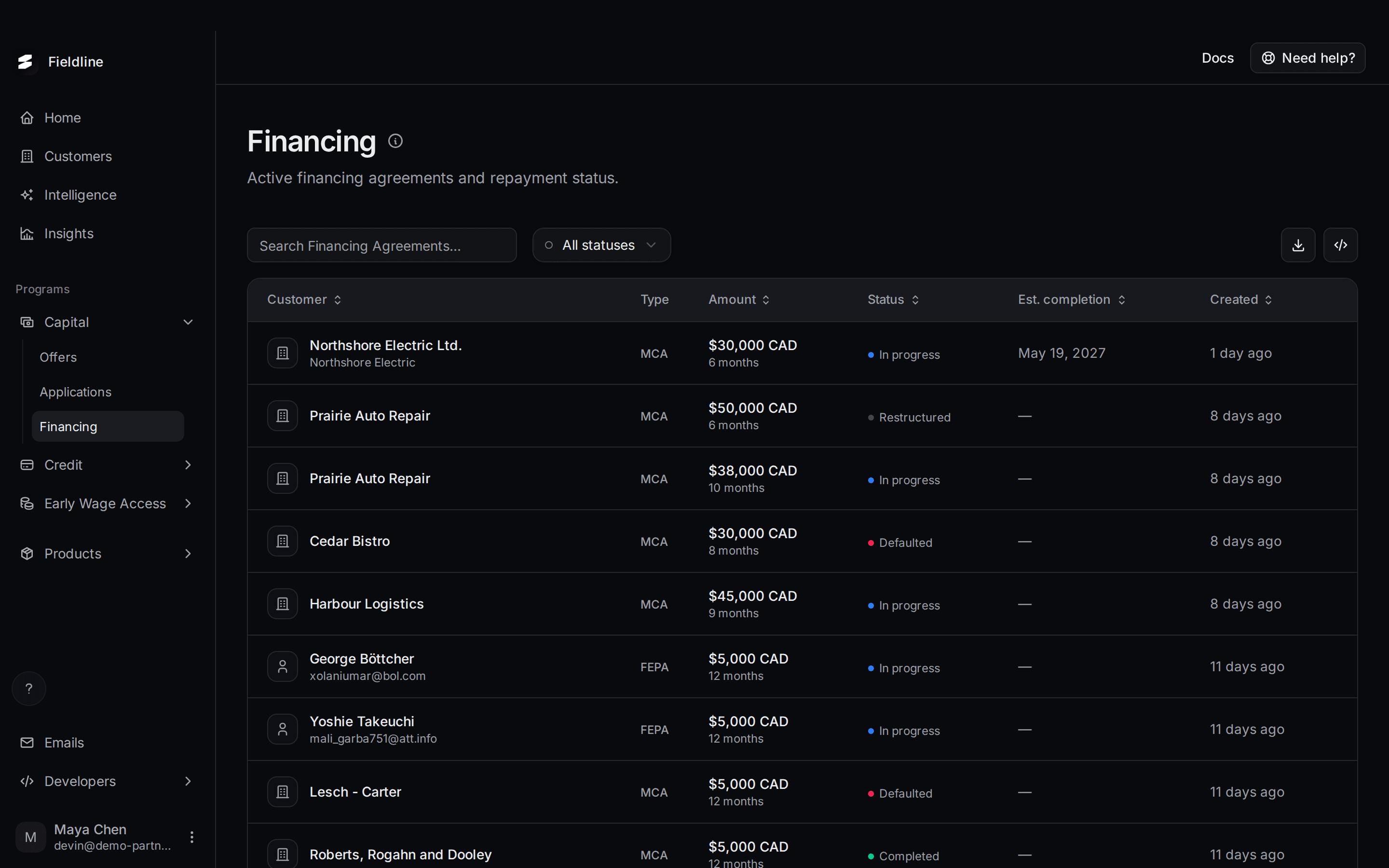 Follow your customers' financing and repaymentsWhat a financing agreement is, what every column and status means, and how to read the repayment schedule and payment history.
Credit lines
Credit line offers, accounts and the draws taken against them.
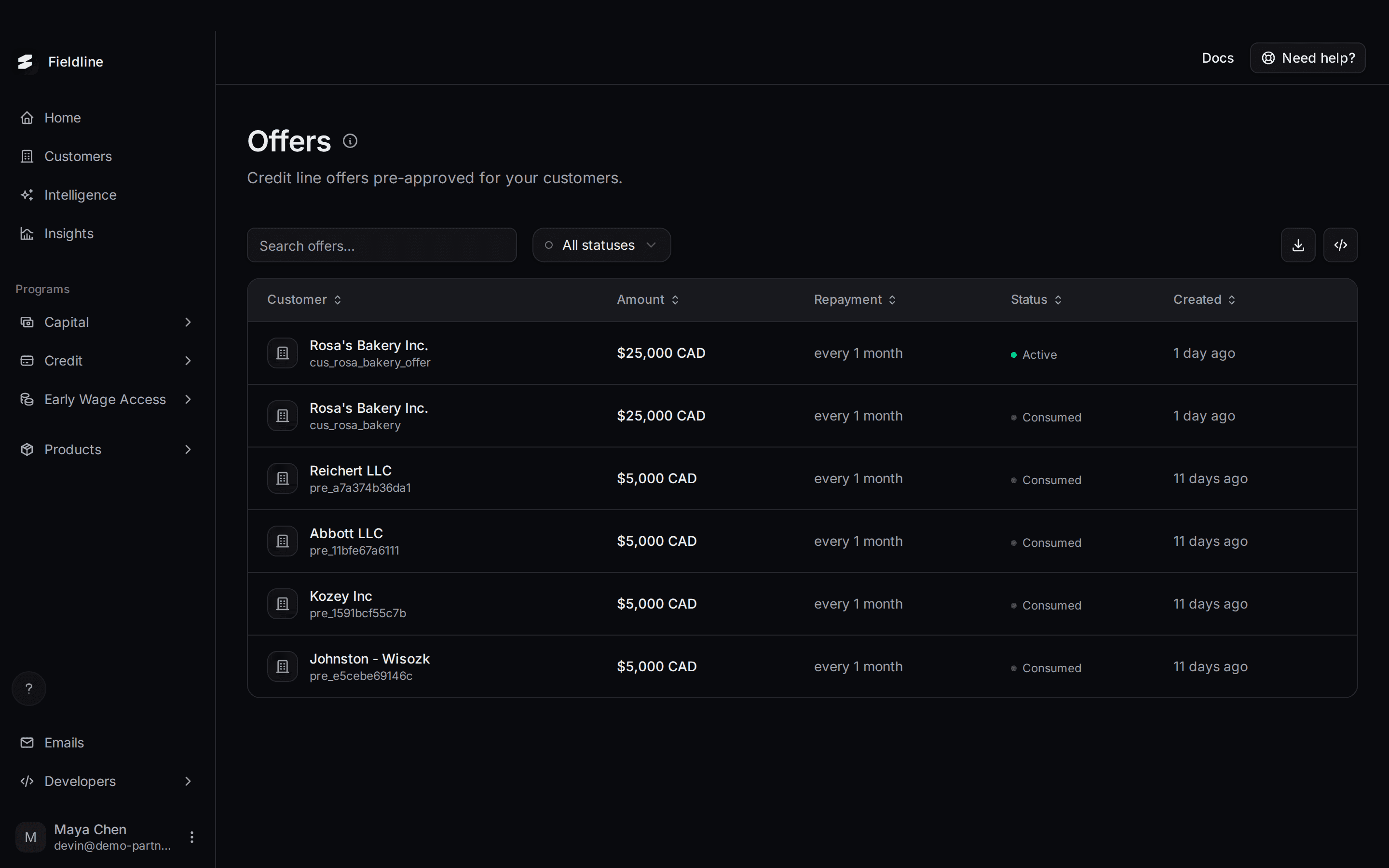 How a credit line works, and the Offers pageA short tour of how a Slate credit line works from offer to repayment, then how to read the Credit Offers page and send a customer their link.
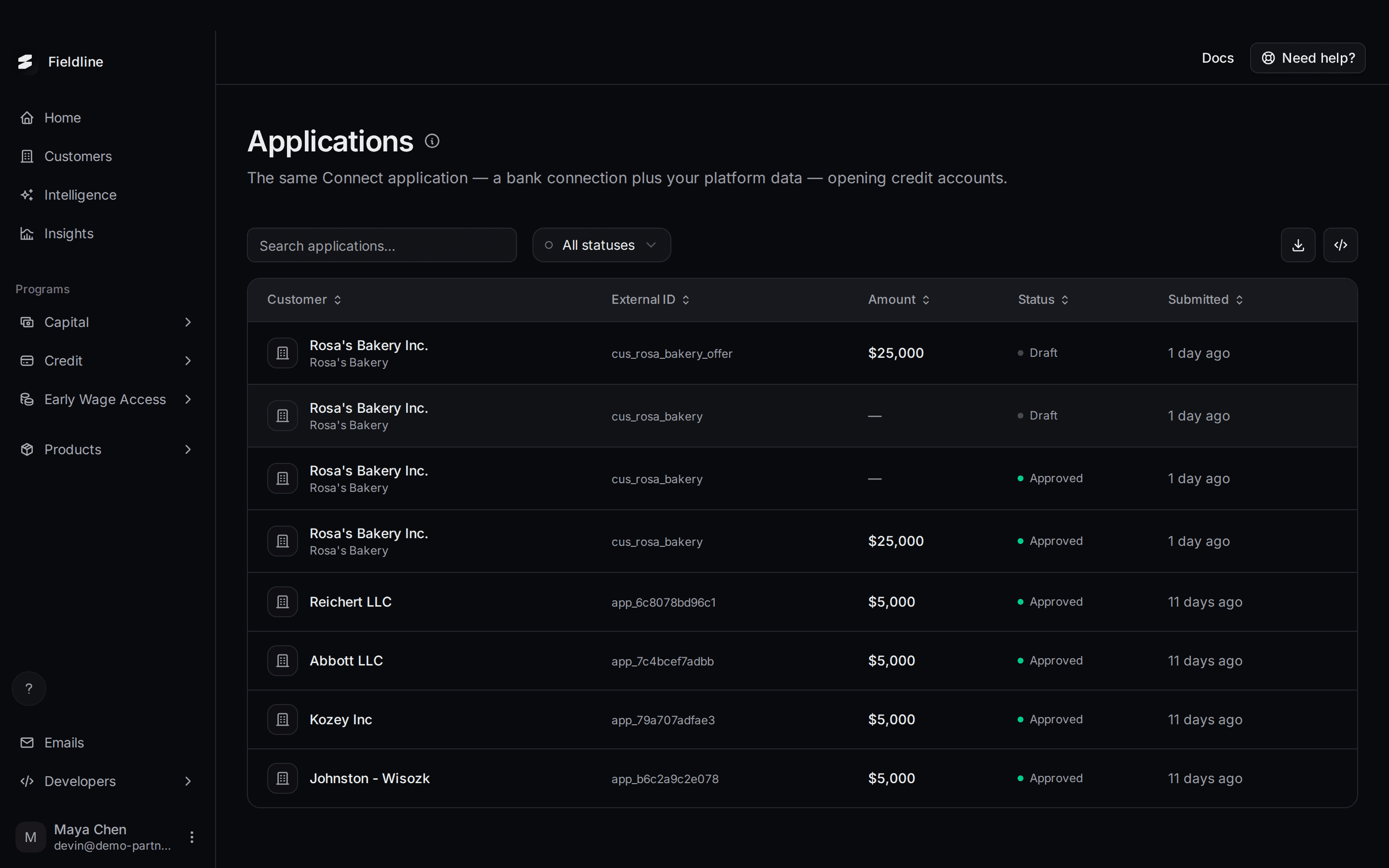 Follow credit line applicationsSee where each customer is in their credit line activation application, what each status means, and what you need to do (usually nothing).
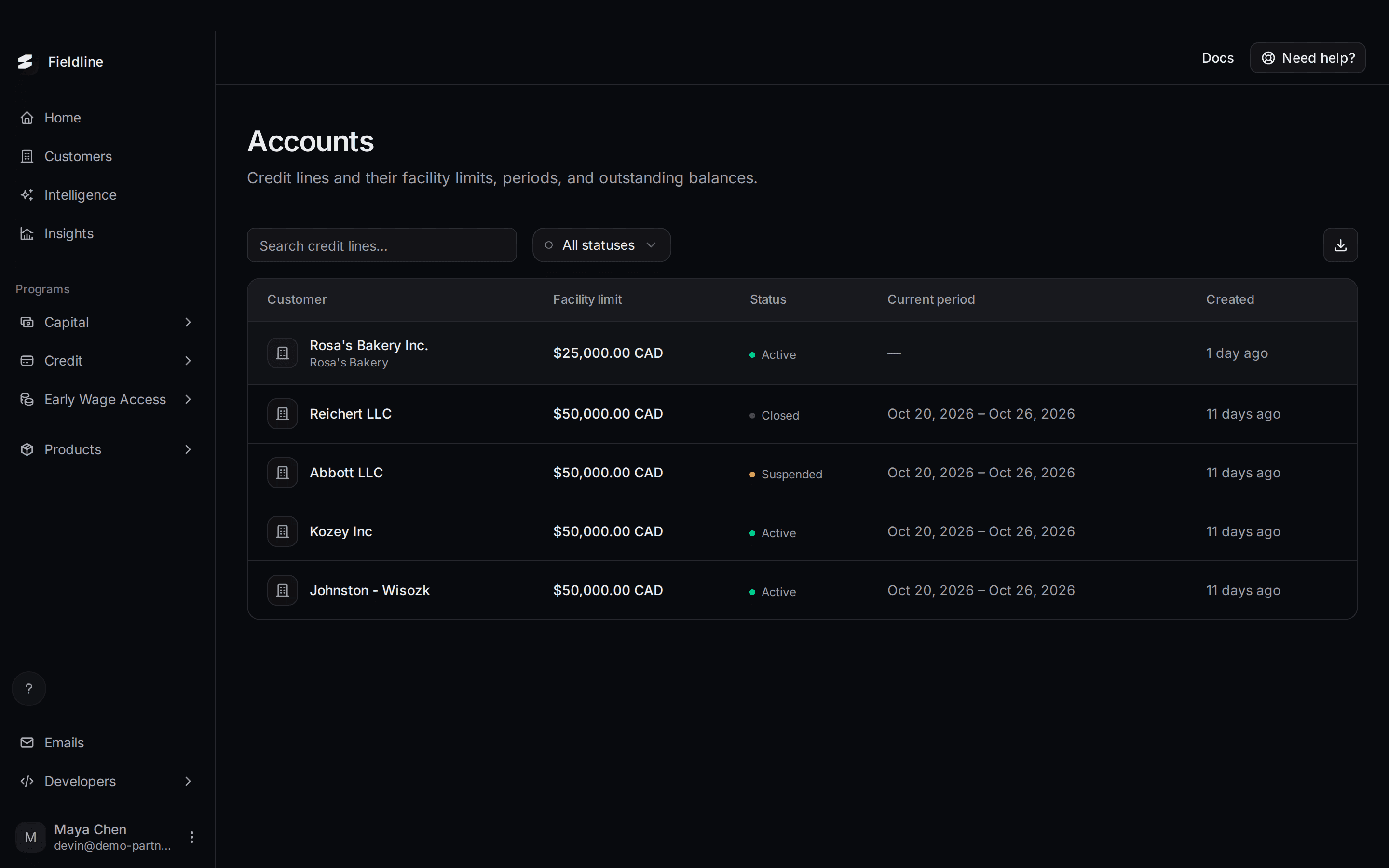 Read your customers' credit line accountsWhat a credit line account is, what the columns and statuses mean, and how to read the detail panel for an Active, Suspended or Closed line.
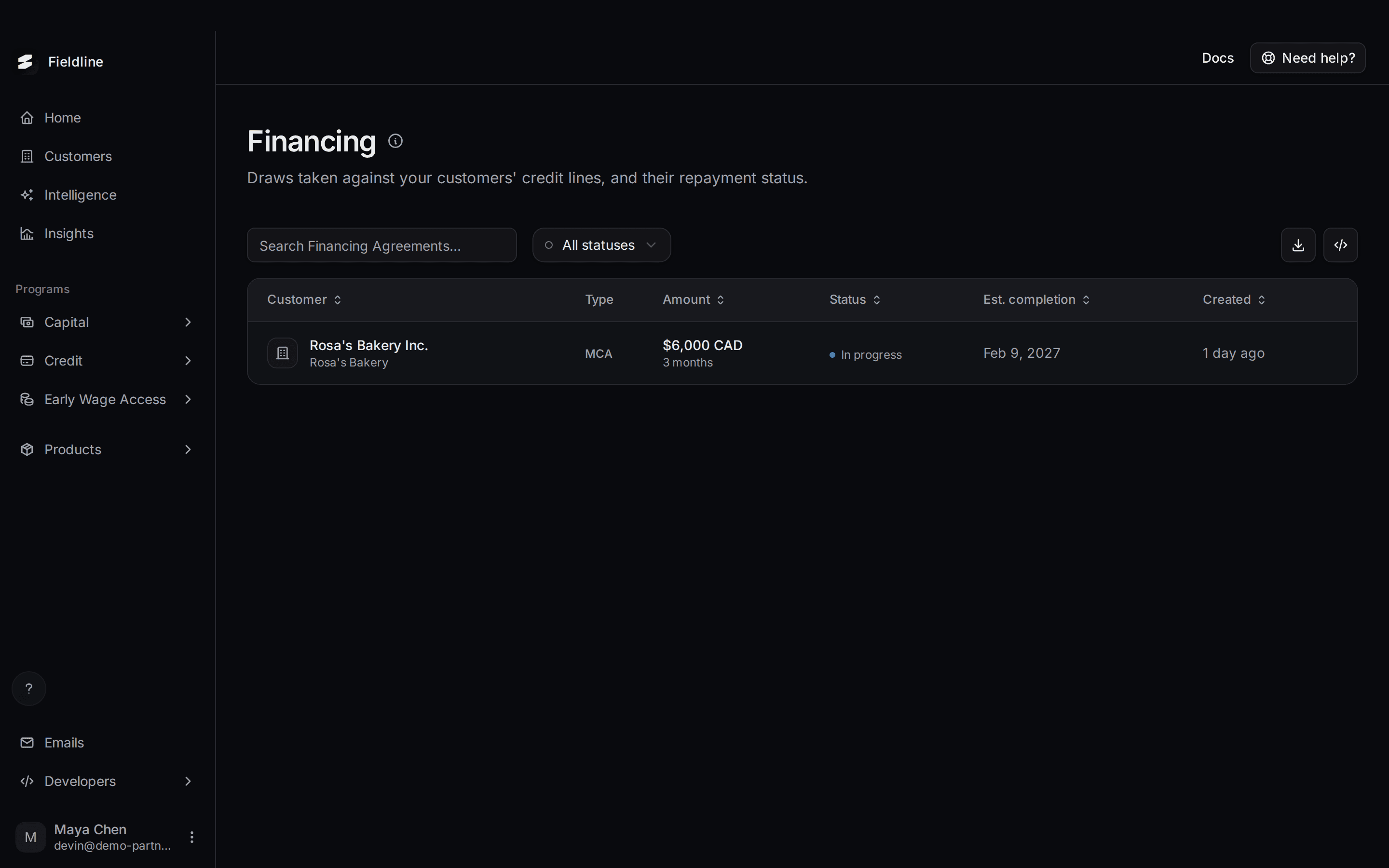 Track credit line draws and repaymentSee every draw your customers take from their credit lines, how each one is being repaid, and how to look at one customer's draws only.
Early Wage Access
Advances your workers take against hours they have already worked.
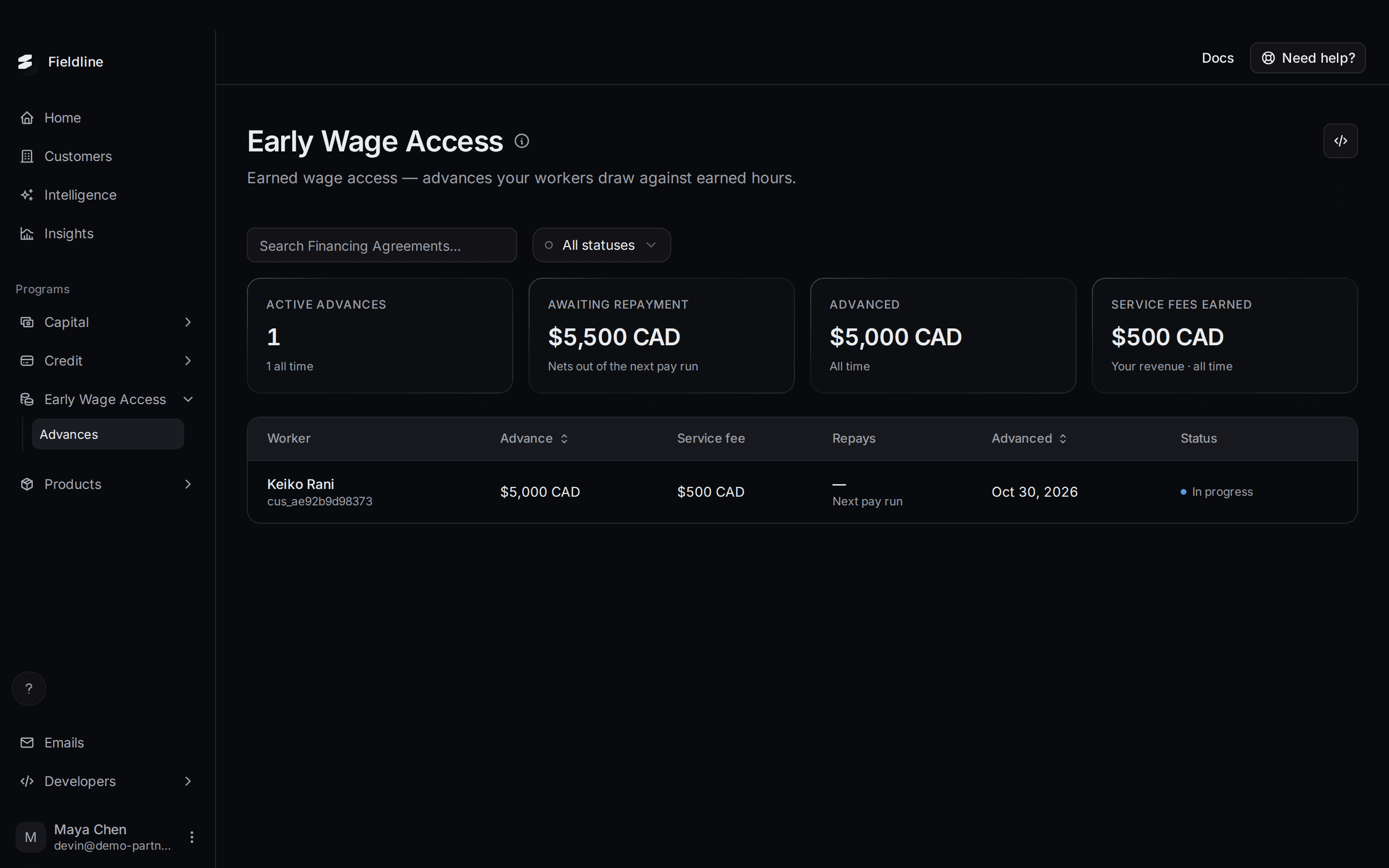
Products you embed
The banners, flows and experiences you put inside your product.
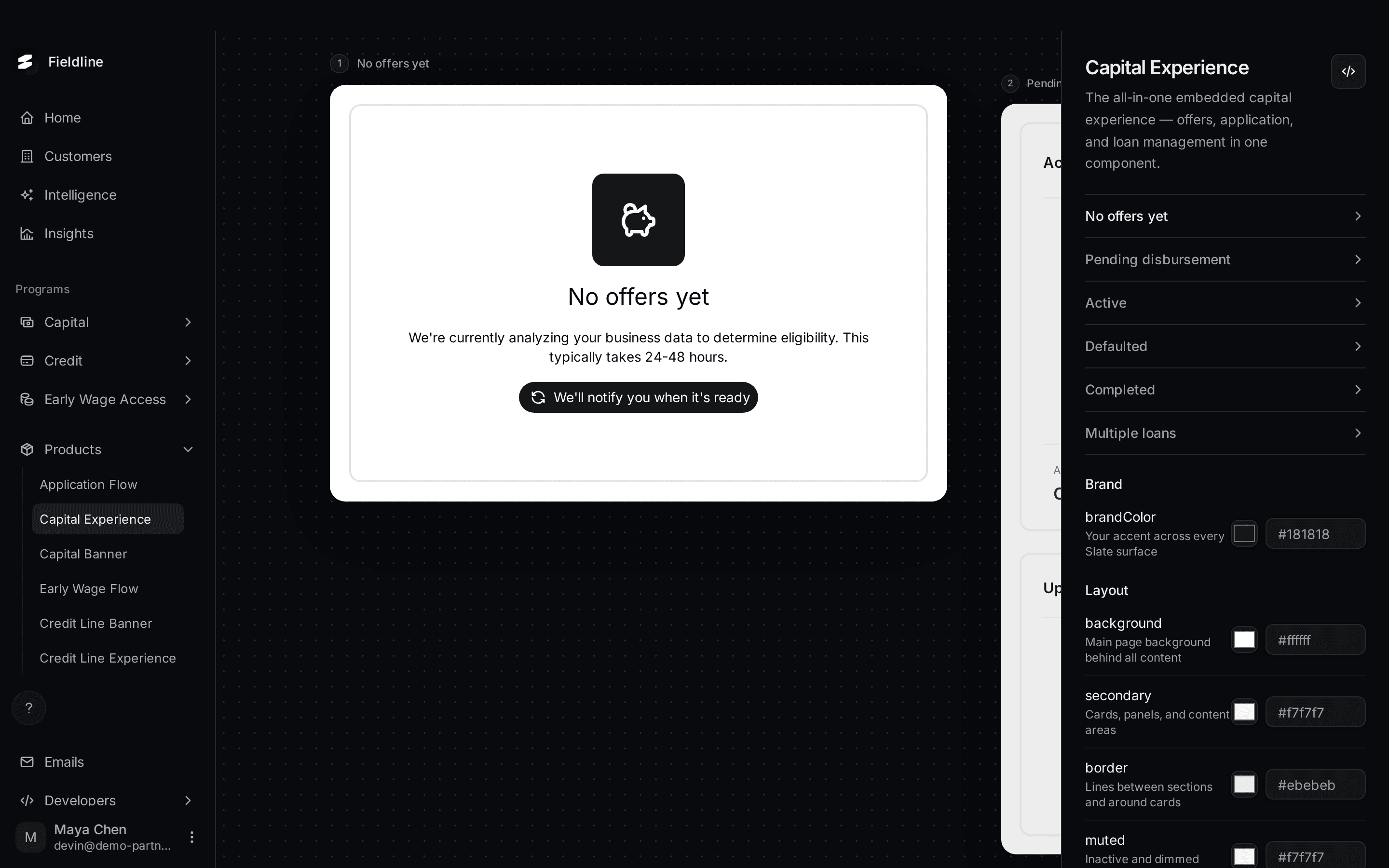 How the products you embed workSlate gives you ready-made screens you can put inside your own product. This page explains each one, when to use it, and how to add it to your site.
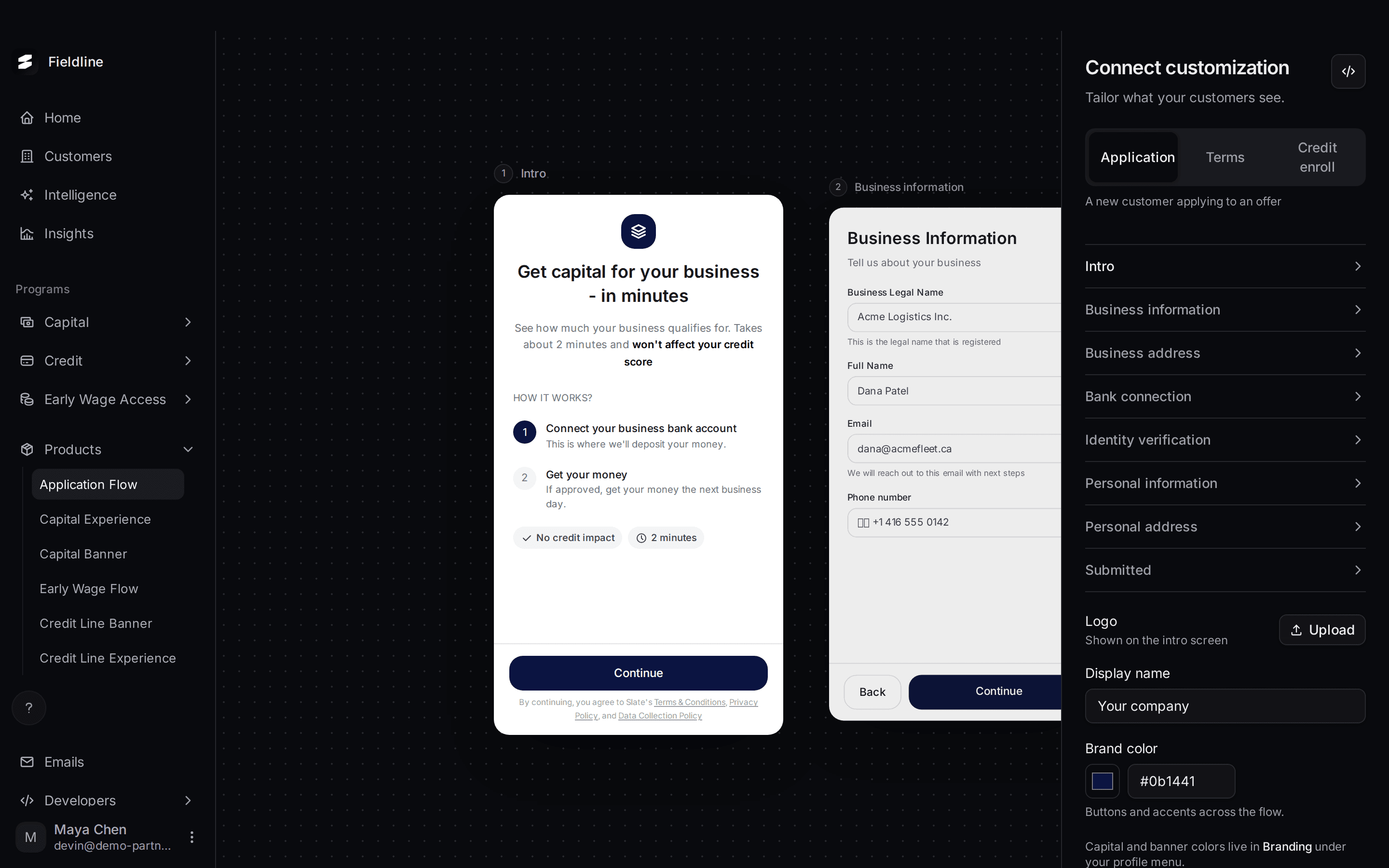 Application Flow: what your customers fill inApplication Flow is the application your customers complete. This page shows every screen and what it asks for.
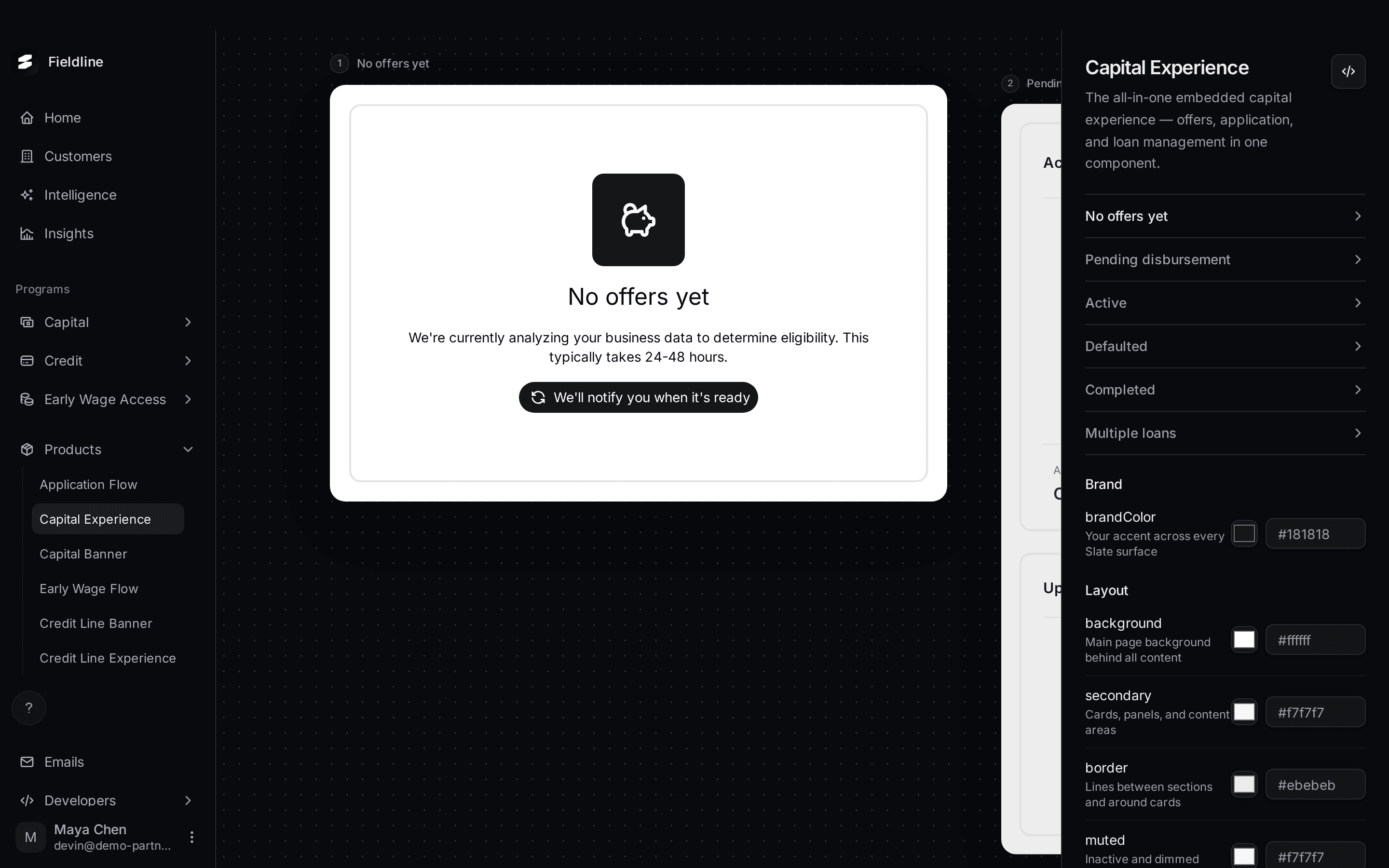 Capital Experience: the whole journey in one screenCapital Experience is one screen that shows a customer their offer, their application and their advances. Preview all six states here.
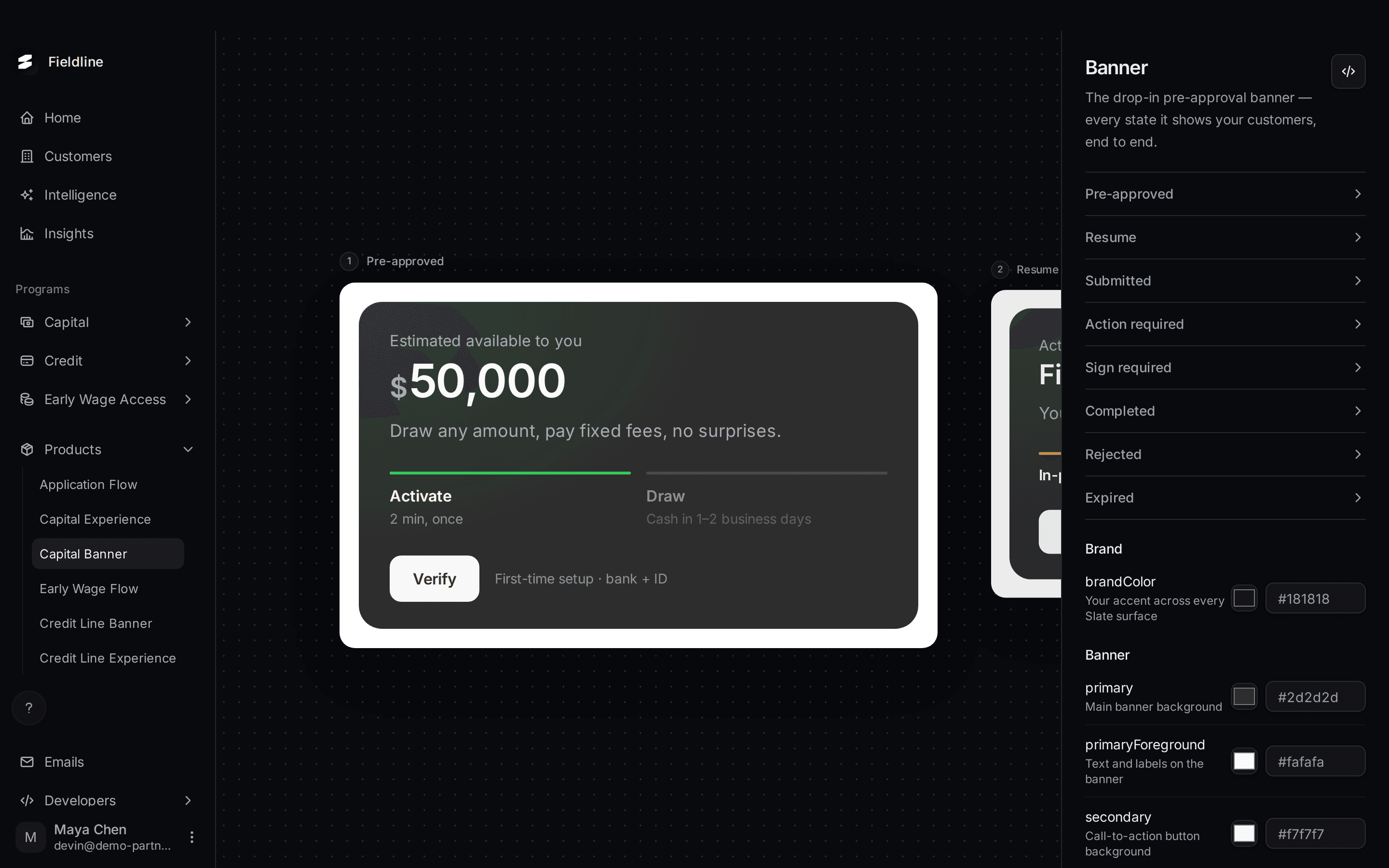 Capital Banner: every state your customers seeThe Capital Banner tells a customer where they are, from "You're pre-approved" to "Your funds will arrive". See all eight states and what each one means.
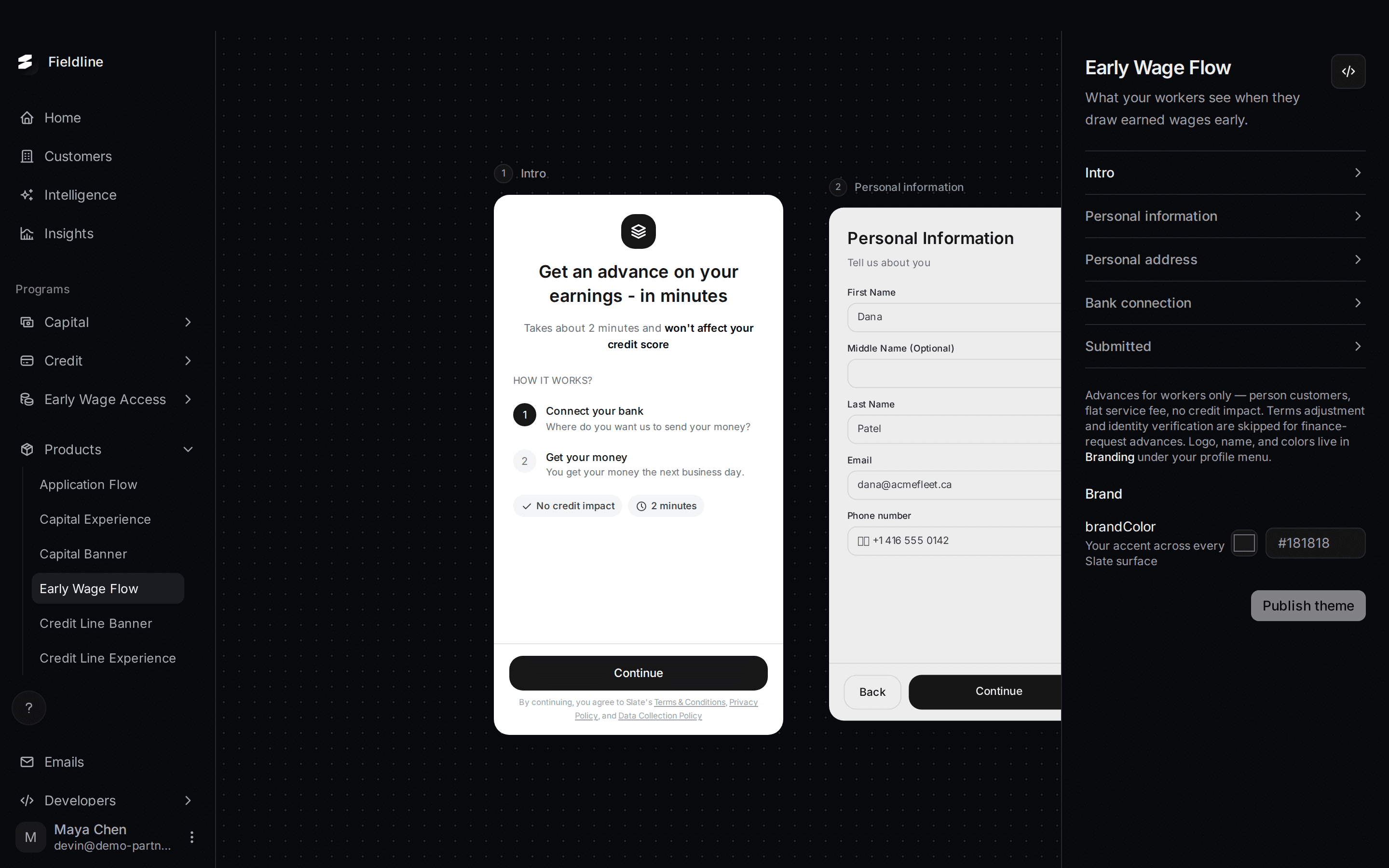 Early Wage Flow: what your workers seeEarly Wage Flow is the short application for a worker who takes part of their pay early. Preview its five screens and copy the code.
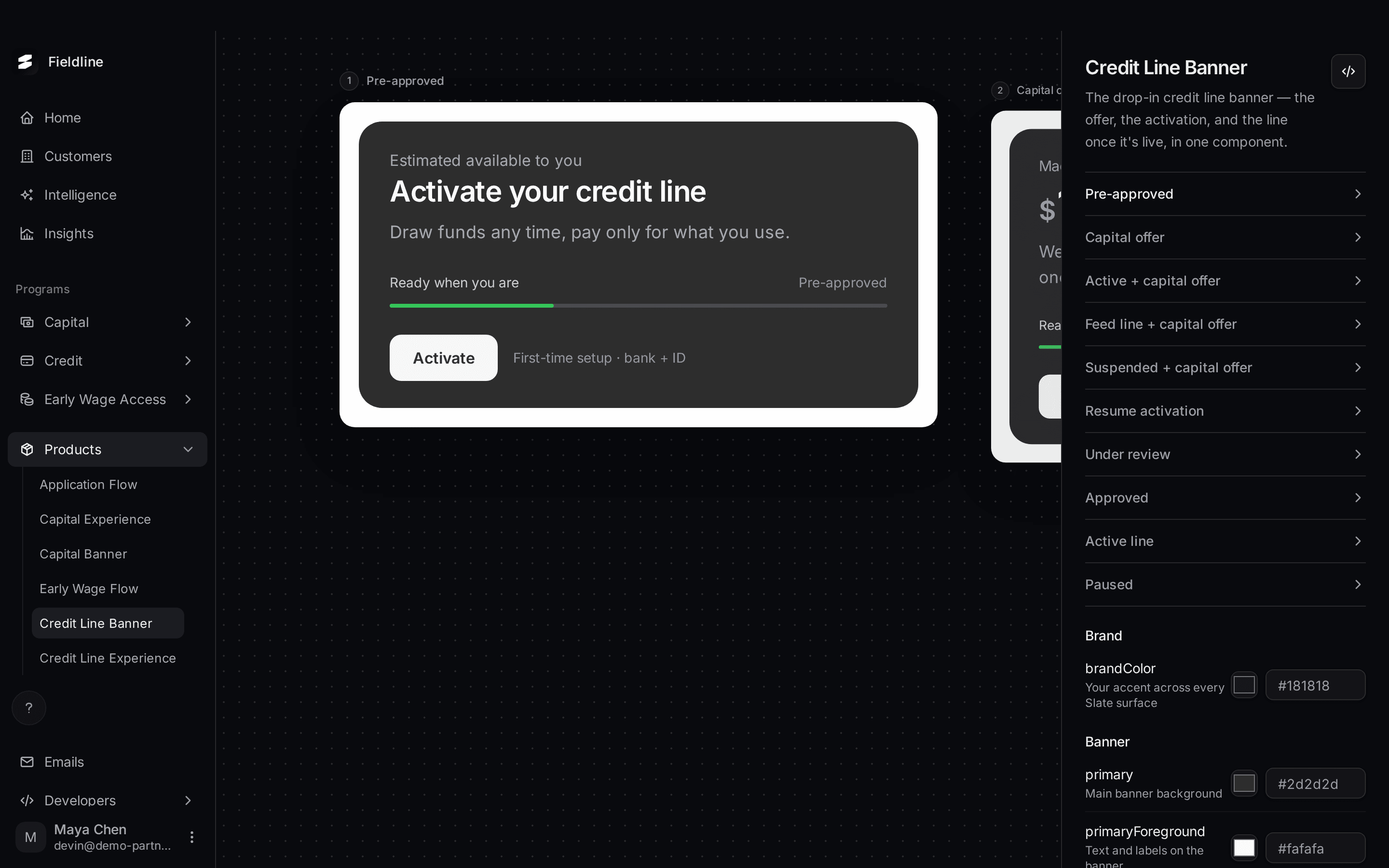 Credit Line Banner: every state your customers seeThe Credit Line Banner shows a customer their credit line offer, their activation progress and their available credit. See all ten states.
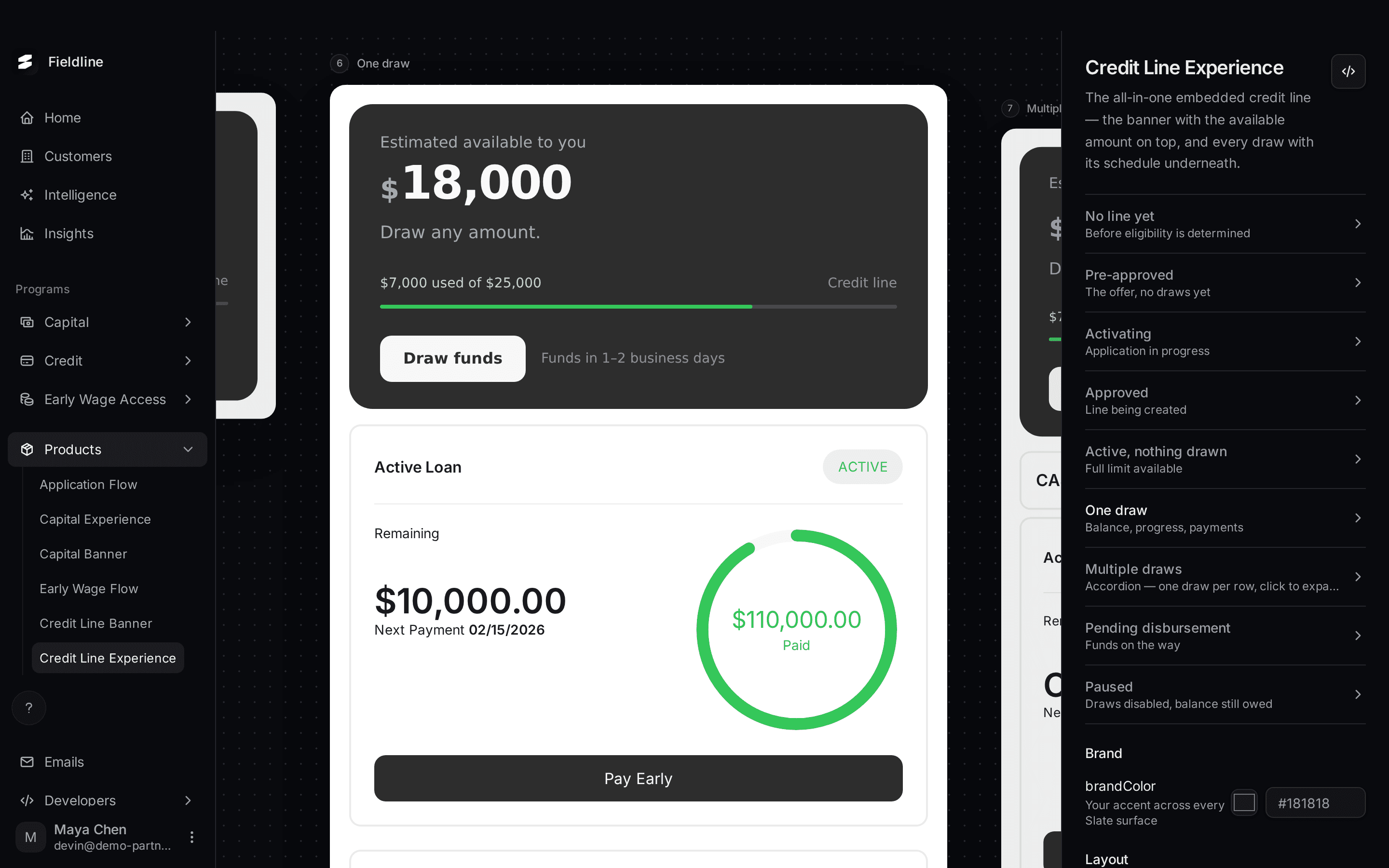 Credit Line Experience: the whole credit line on one screenThe Credit Line Experience shows the banner with the available credit on top, and every draw underneath. See all nine states.
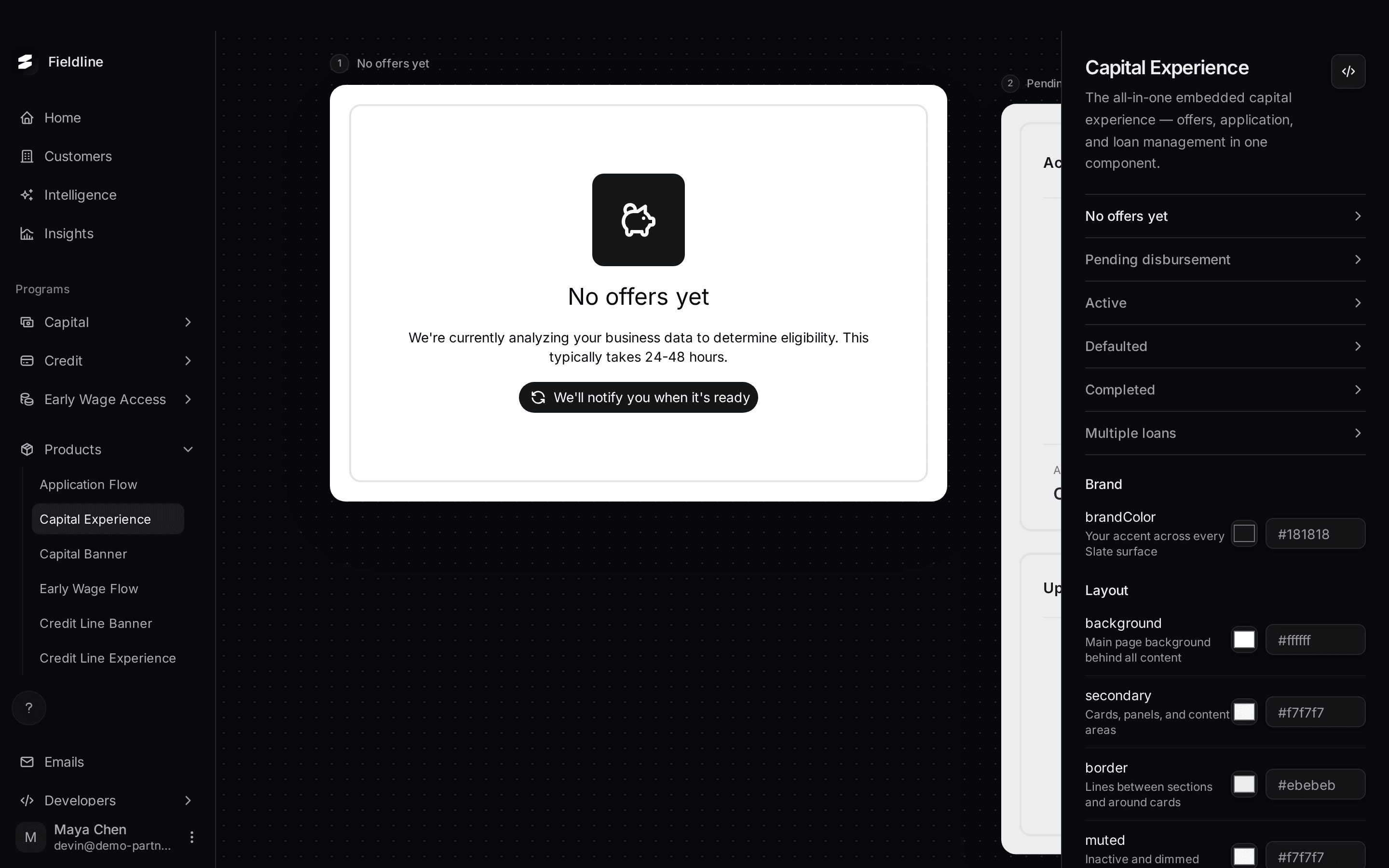 Match Slate to your brand coloursSet the colours your customers see in Slate screens so they match your product. Change a colour, watch the preview update, then publish.
Emails
What Slate sends your customers, and from which address.
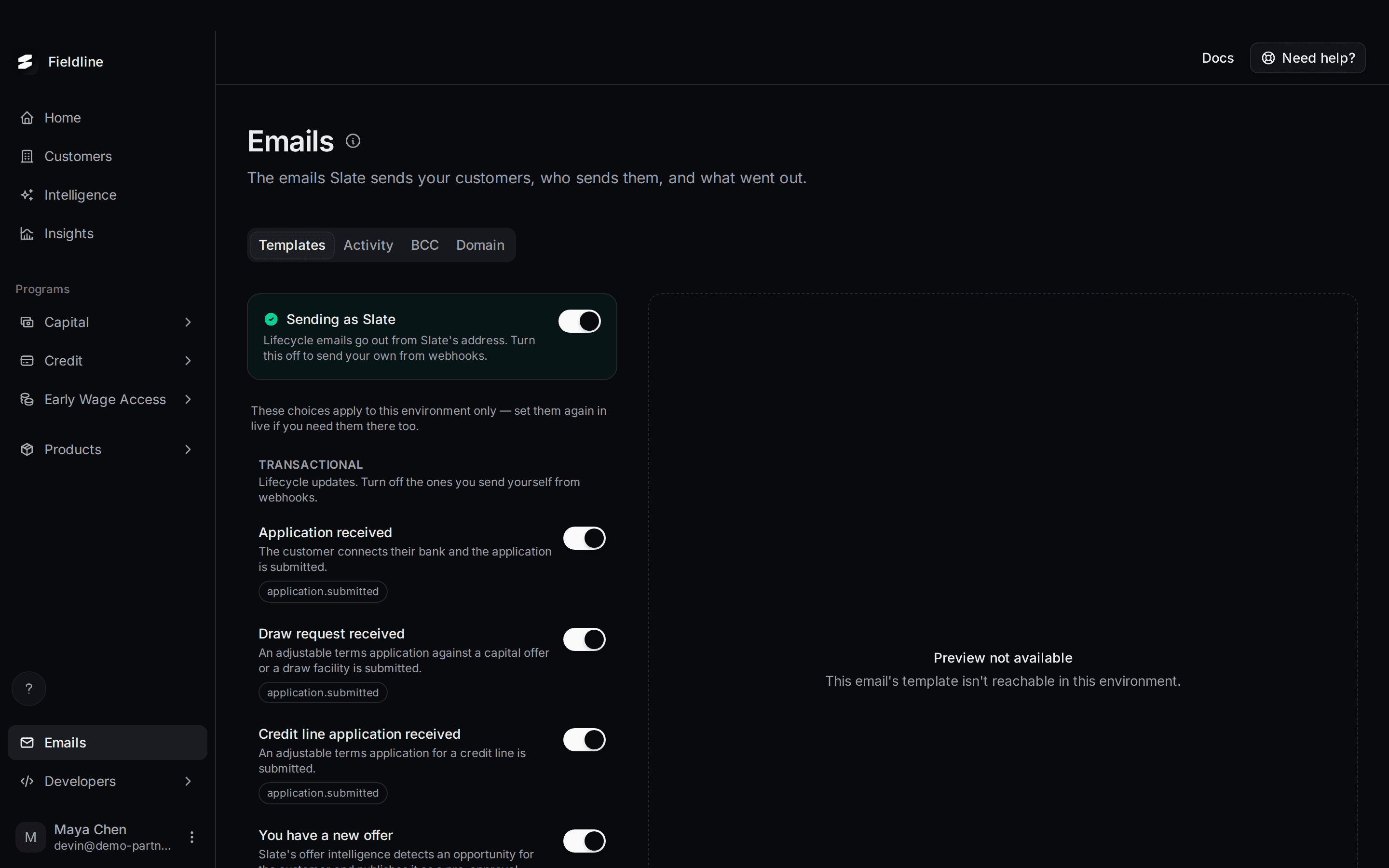 Choose who sends your customers' emailsPick whether Slate, your own domain, or your own system sends the emails your customers get. See all 18 emails, when each is sent, and how to switch them on or off.
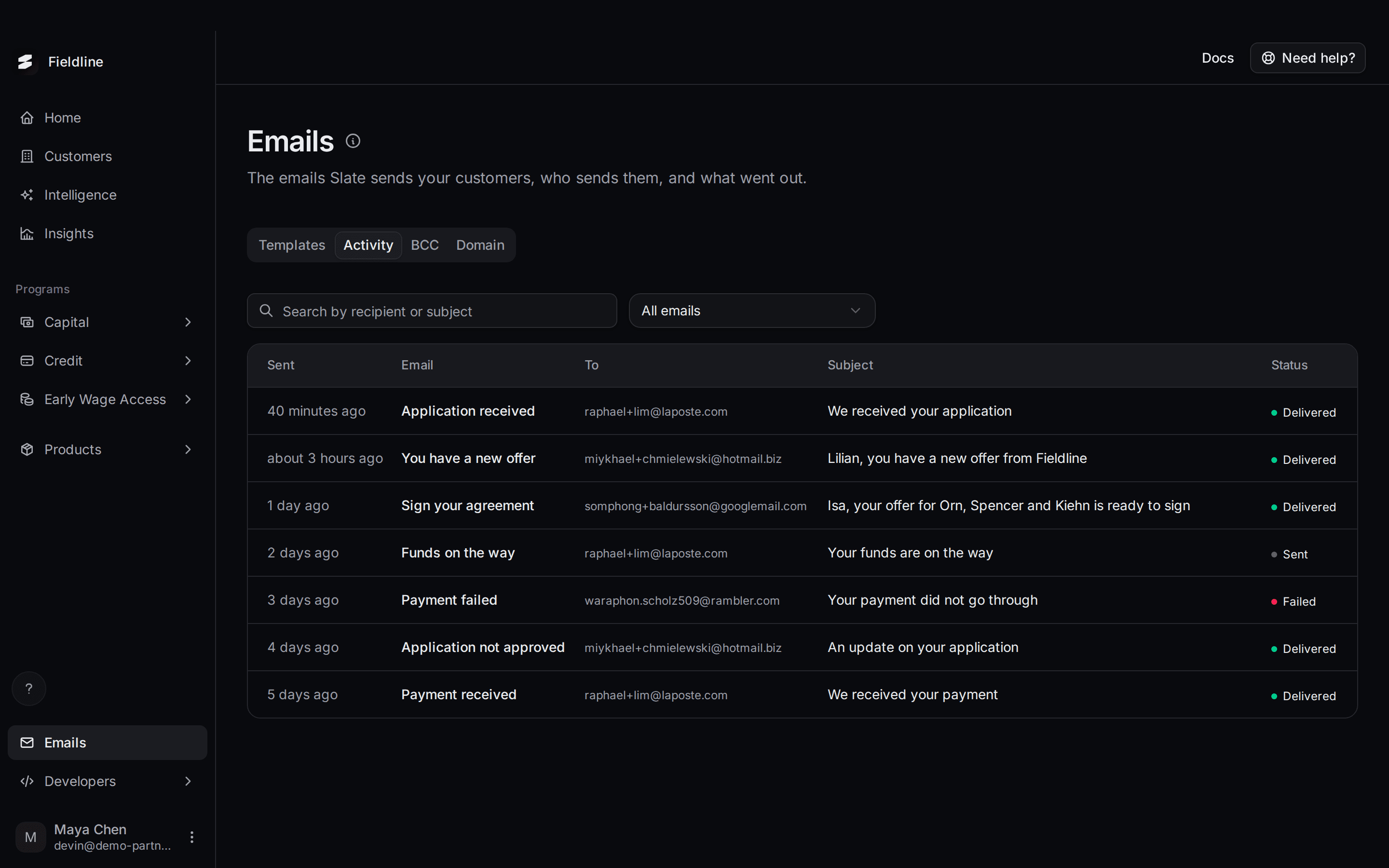 Check which emails were sent to your customersSee every email Slate sent your customers, whether it arrived, and exactly what it said.
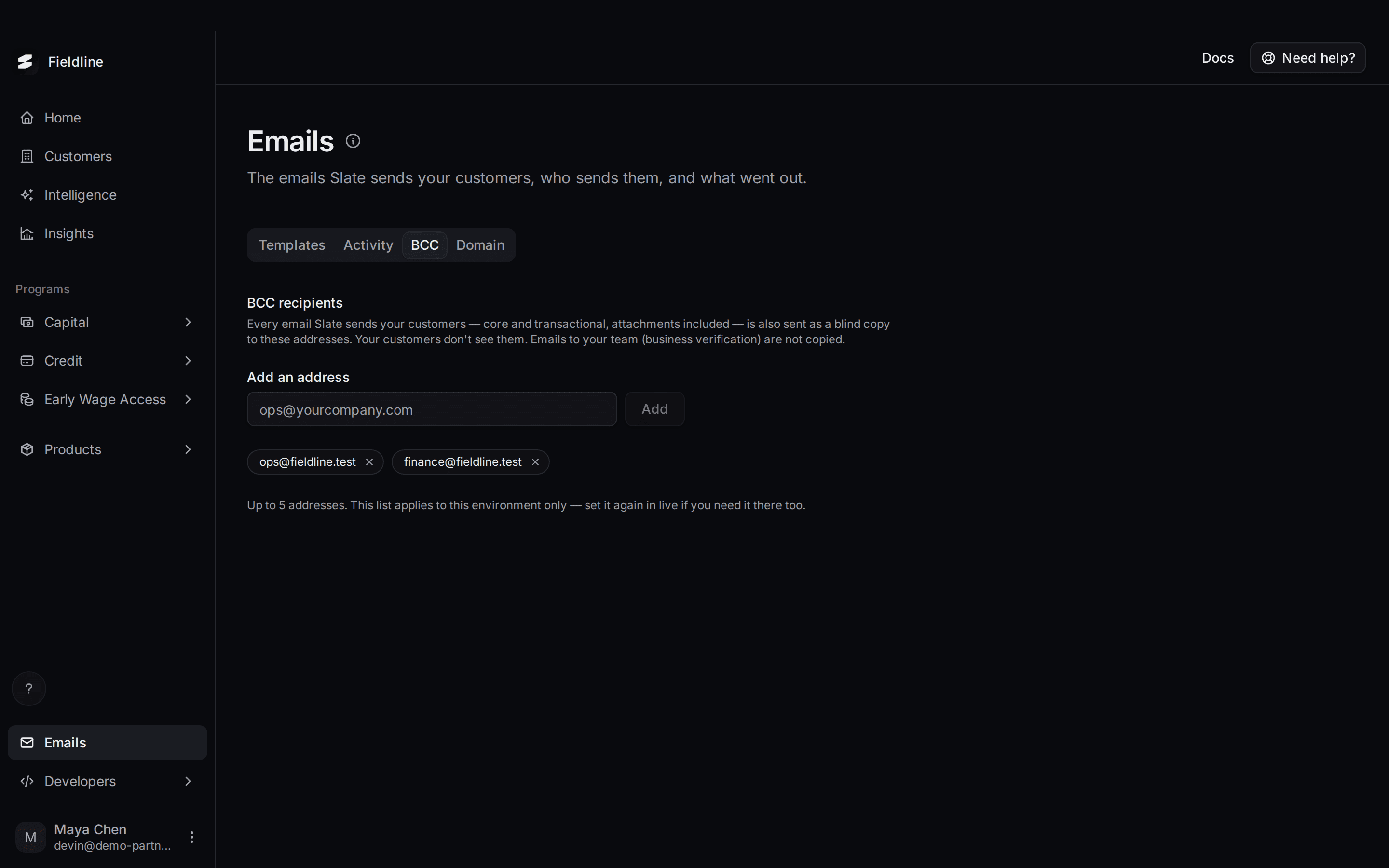 Copy your team on customer emails (BCC)Add up to five addresses that get a hidden copy of every email Slate sends your customers.
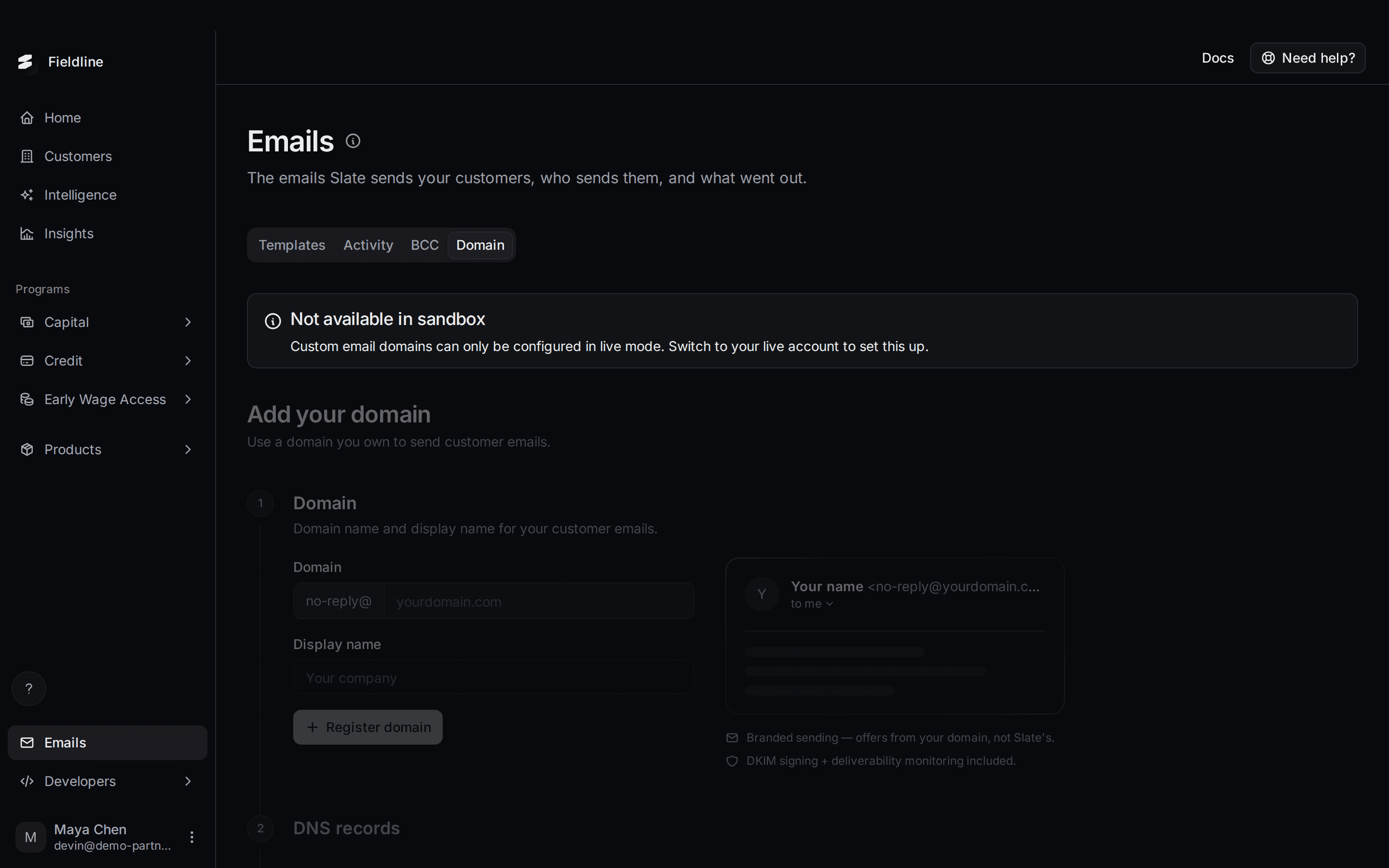 Send emails from your own domainMake customer emails come from your own web address instead of Slate's. This works in live mode only. Here is what you will do.
Developers
API keys and webhooks.
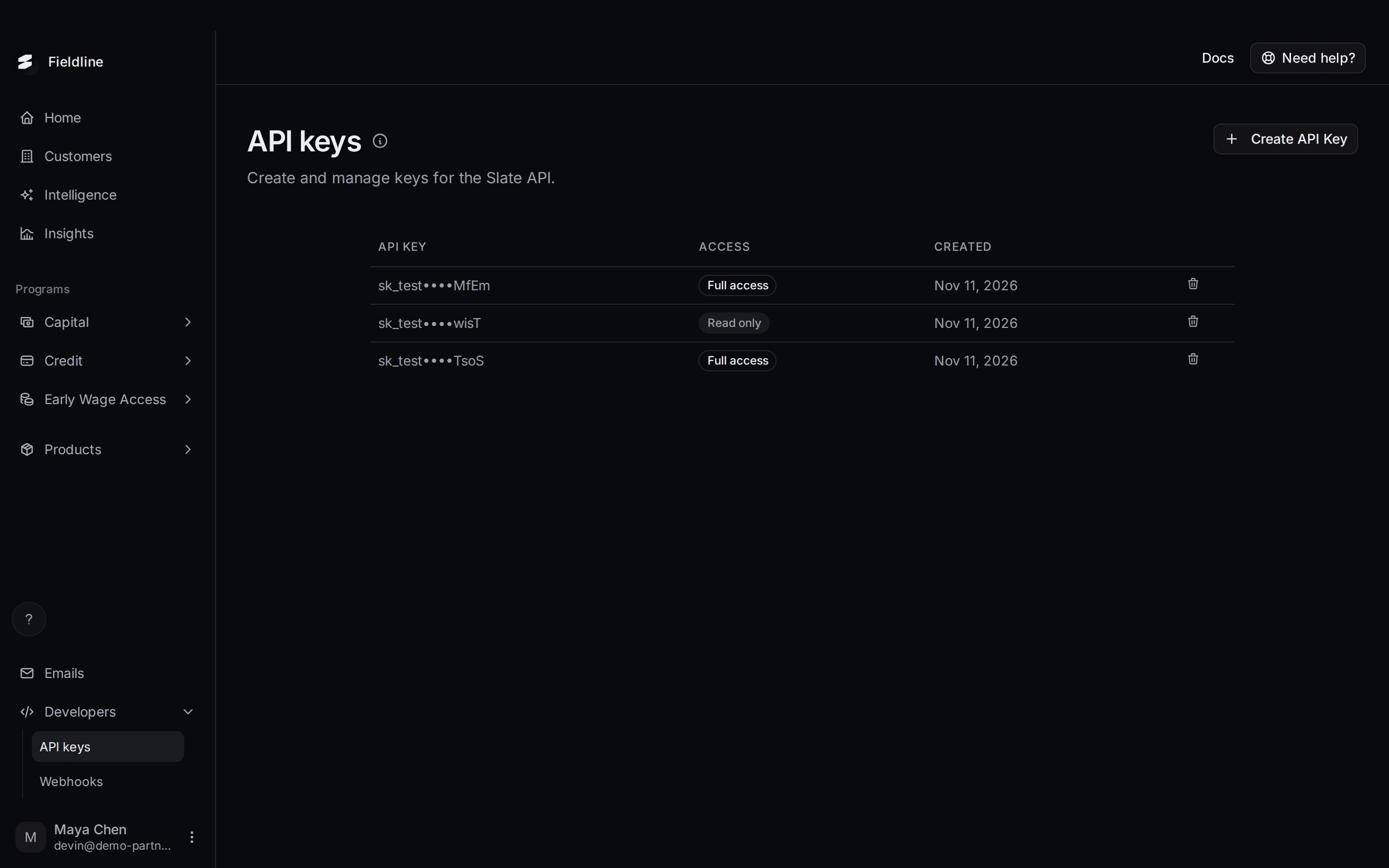 Create and manage API keysCreate an API key, choose full or read-only access, copy it safely, and revoke it. Includes a working example request.
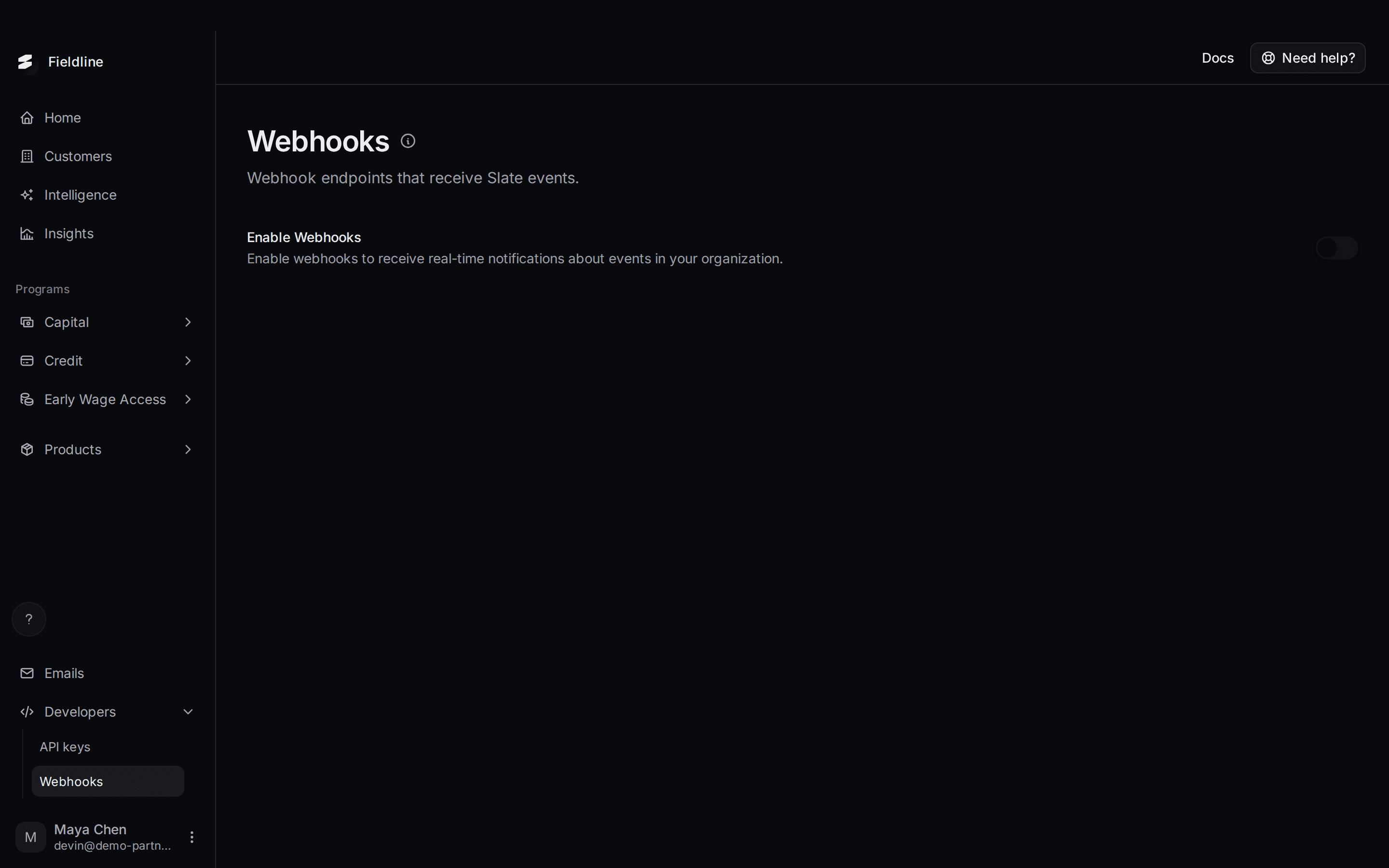 Get notified when things happen (webhooks)Turn on webhooks so your systems hear about new applications, approvals, payments and more as they happen. Includes every event, the message format and how to check it is really from Slate.
New products
Rally follow-ups, Slate Verify and Signals.
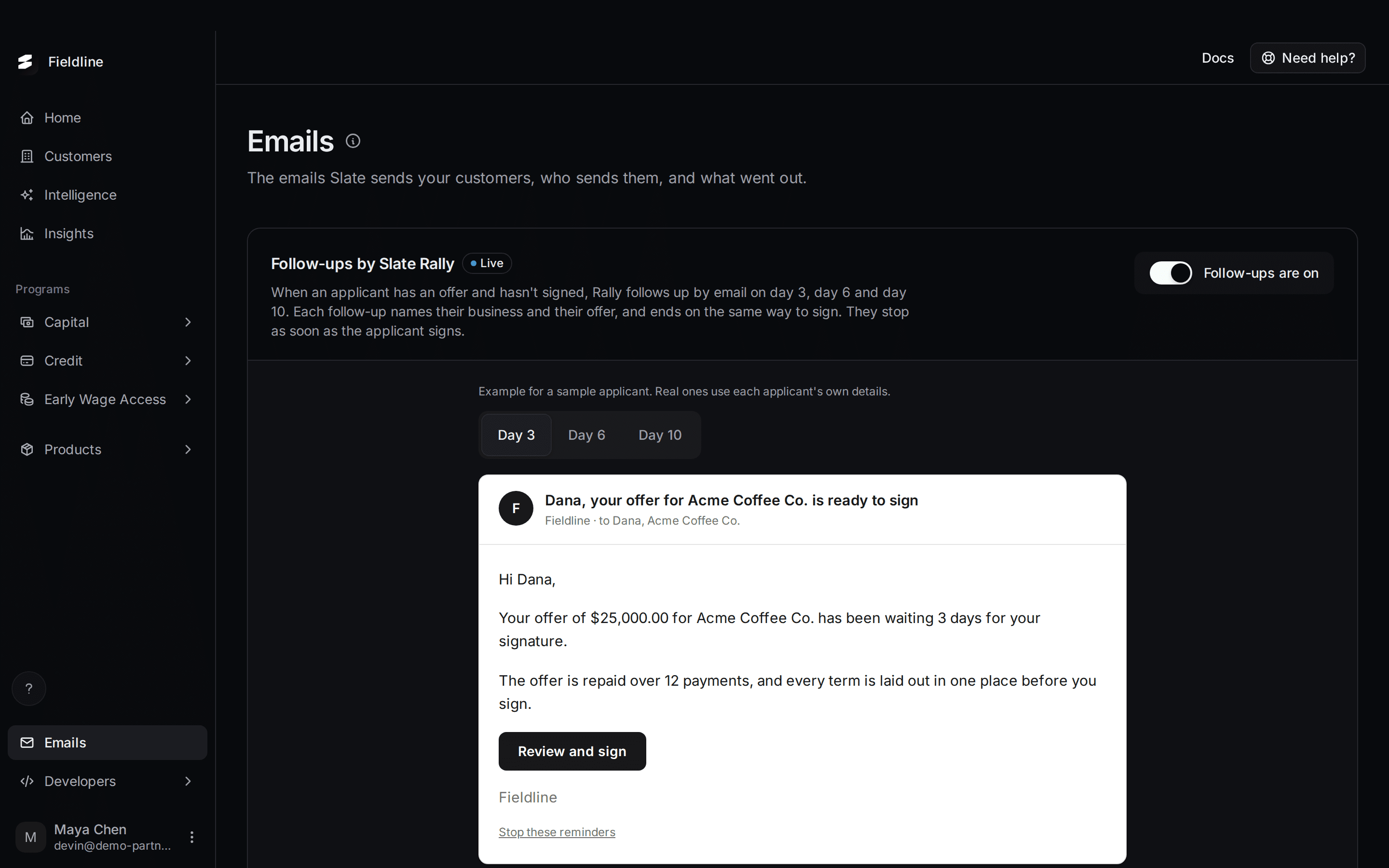 Send follow-up emails to applicants who haven't signedTurn on Slate Rally to email applicants who have an offer but haven't signed. Learn when follow-ups go out, what they say, and how to see what was sent.
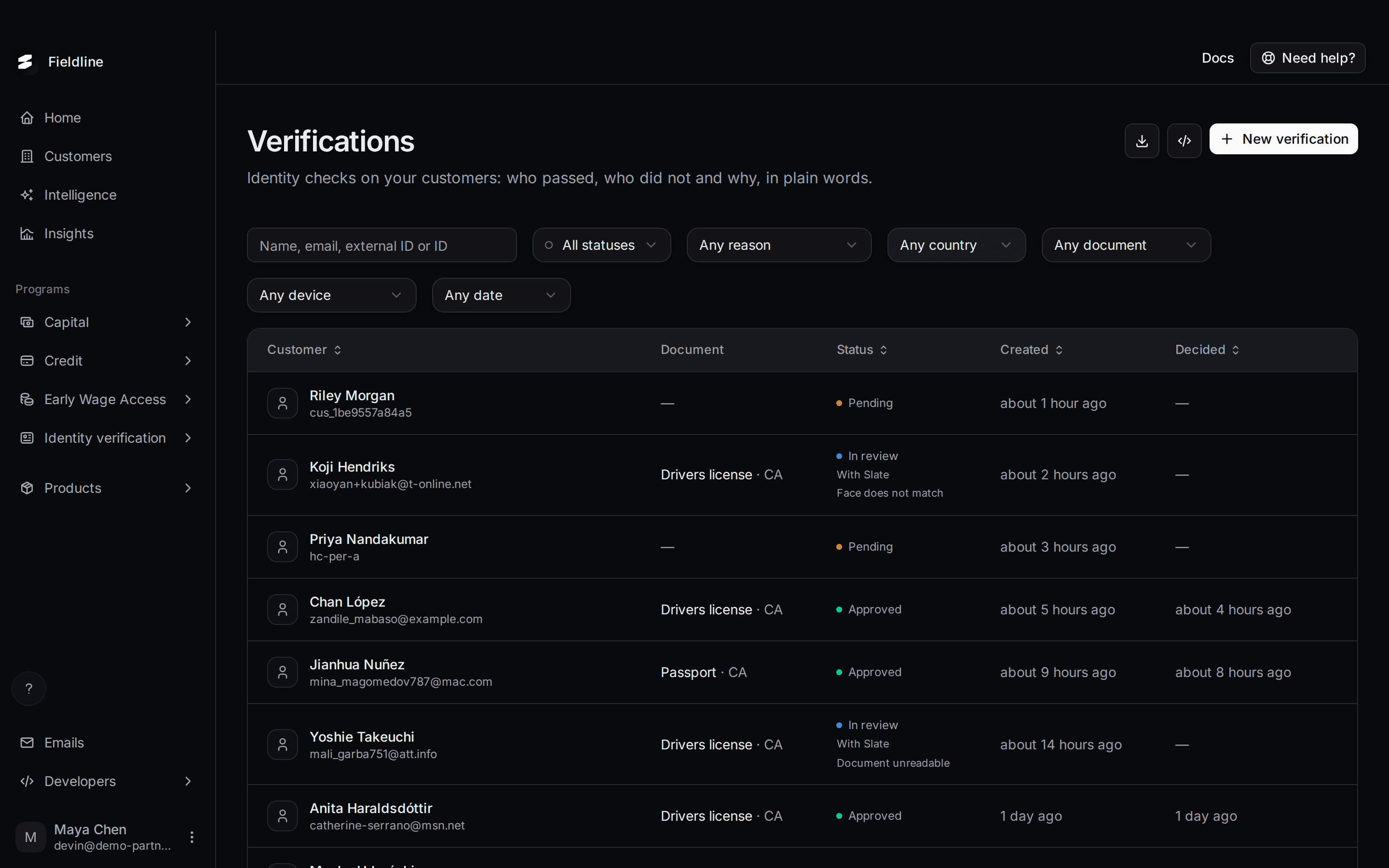 Verify your customers' identity with Slate VerifySend a customer a link, they photograph their ID and take a selfie, and Slate tells you who passed and why. Step by step, with every screen.
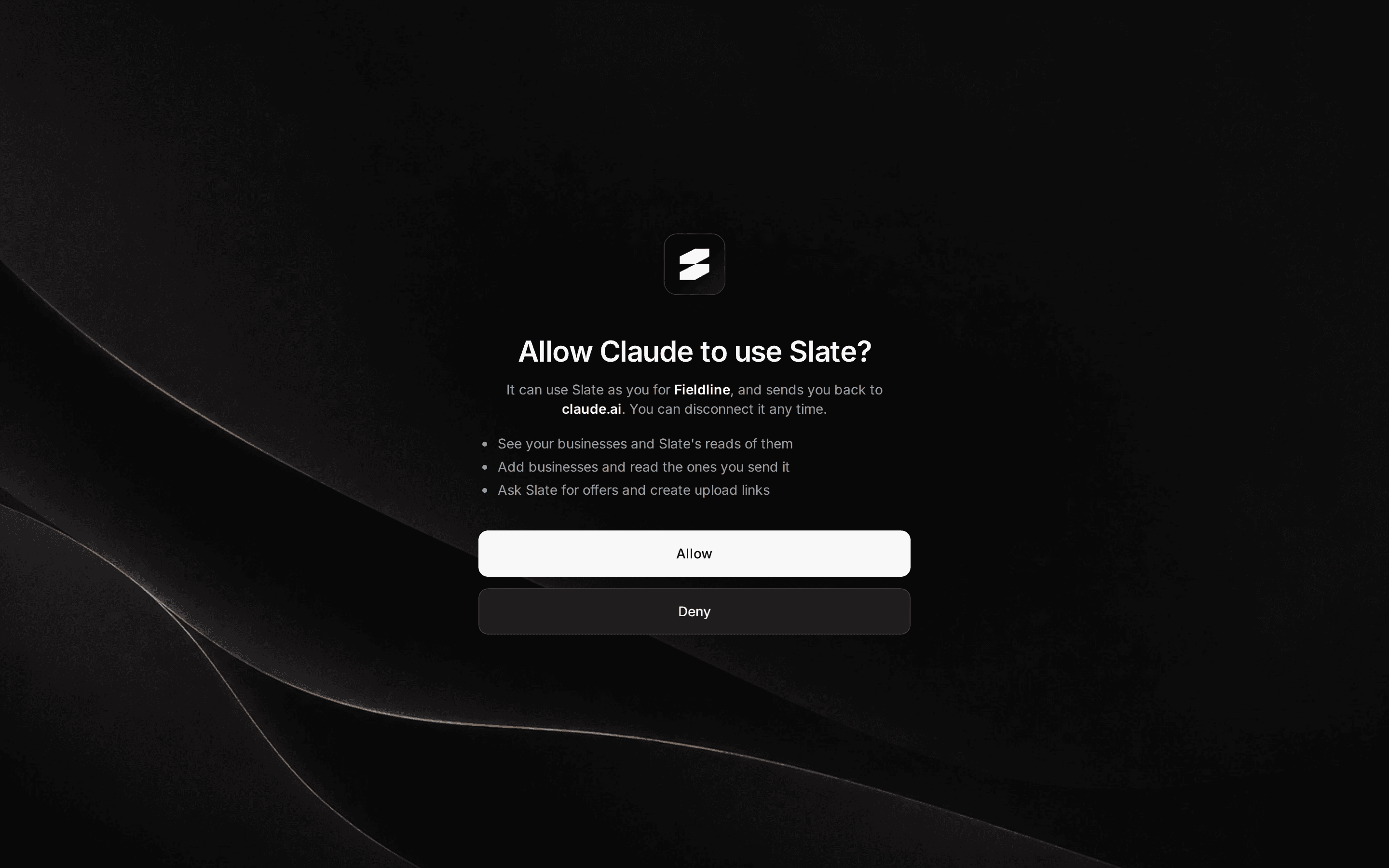 Use Slate Signals from Claude and other AI toolsConnect an AI assistant to Slate, then ask it to read a business the way Slate does and send the ones worth backing to a Slate underwriter.
Guiding your applicants
Every screen your customers see, and what to tell them when they are stuck.
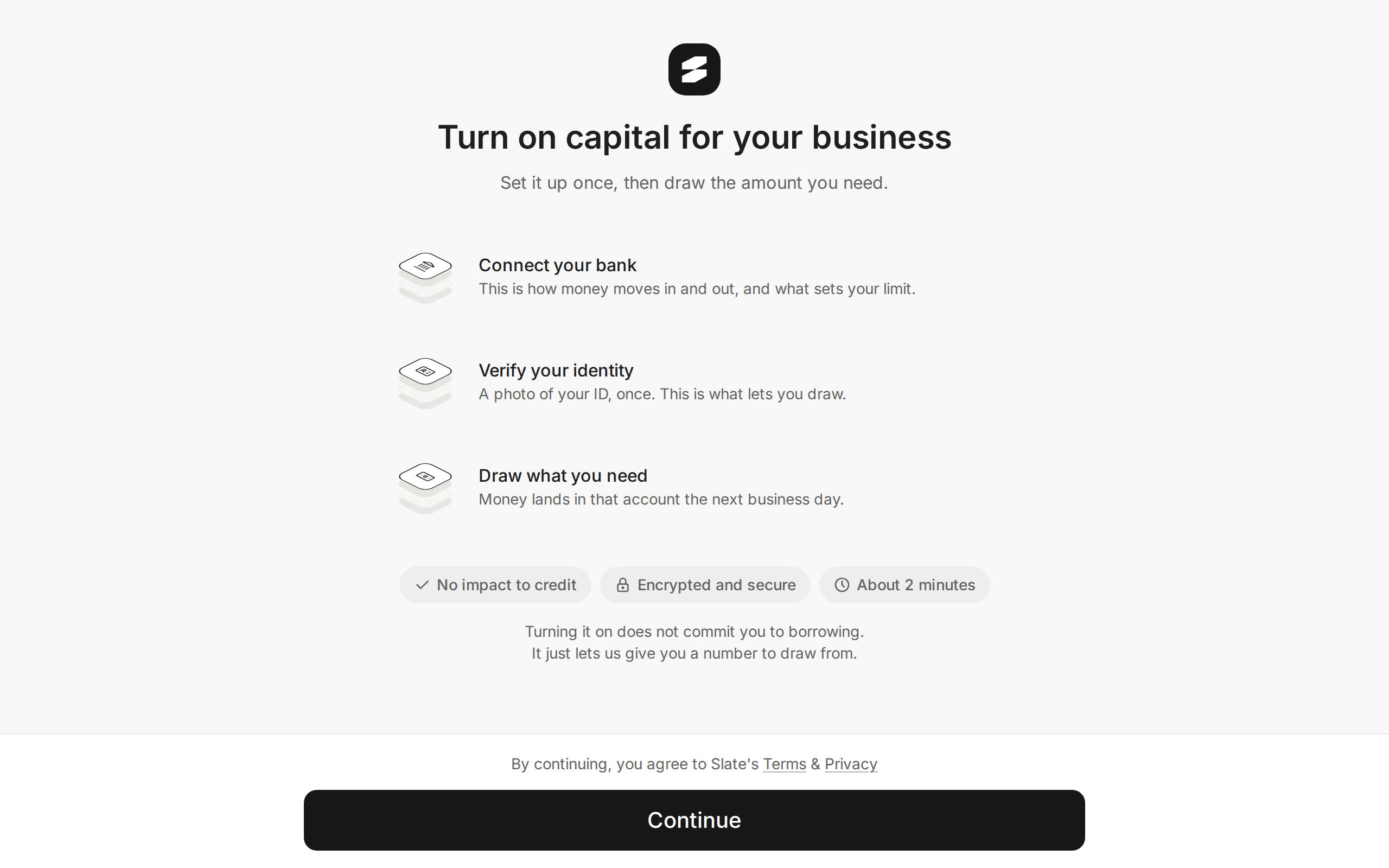 What your customer goes through when they applyThe whole customer journey on one page: how they arrive, what they are asked, how long it takes, what happens next, and how they pick it up again later.
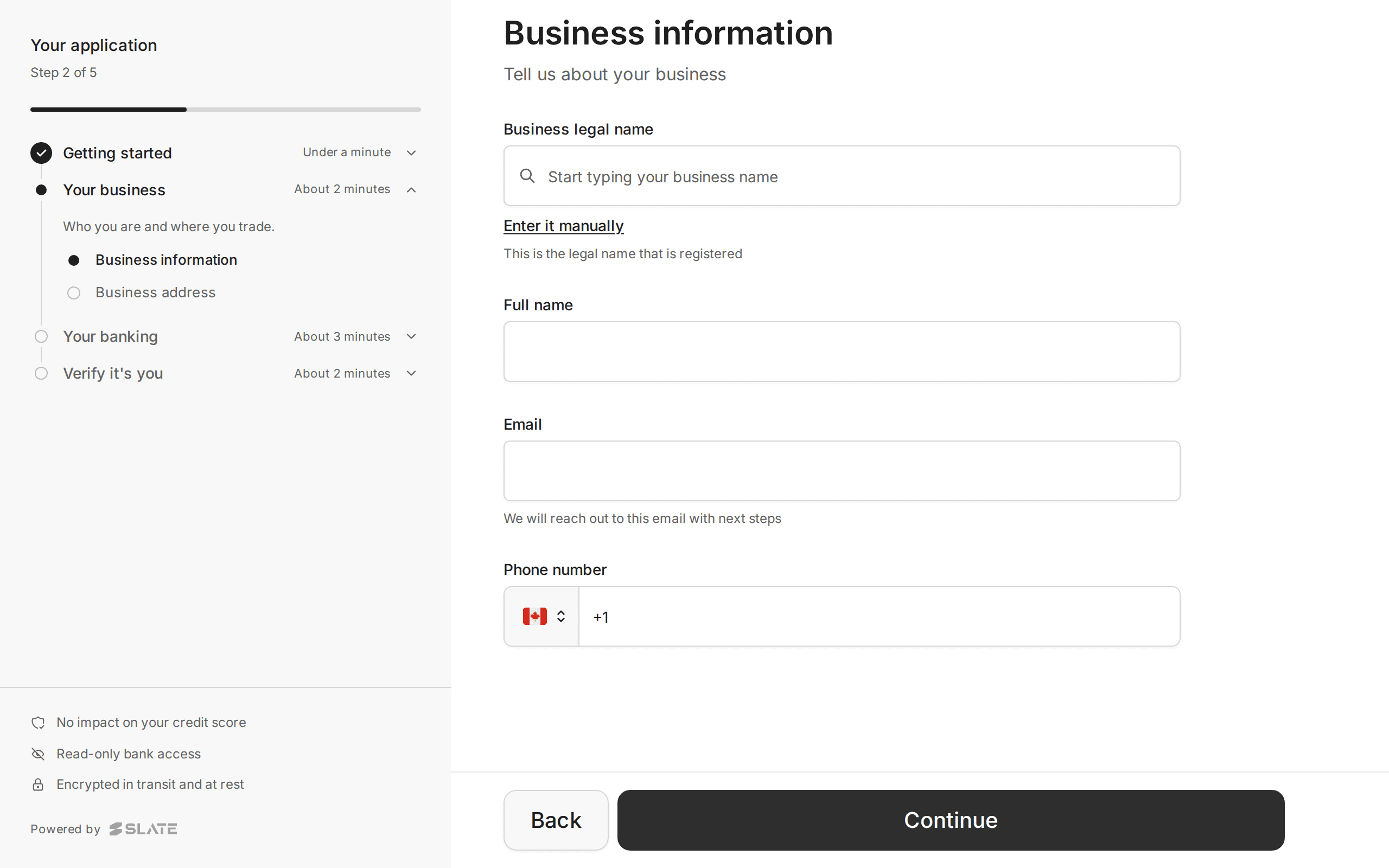 The application, screen by screenEvery screen of the application, what each field wants, the messages your customer may see, and what to say on the phone. Desktop and phone views.
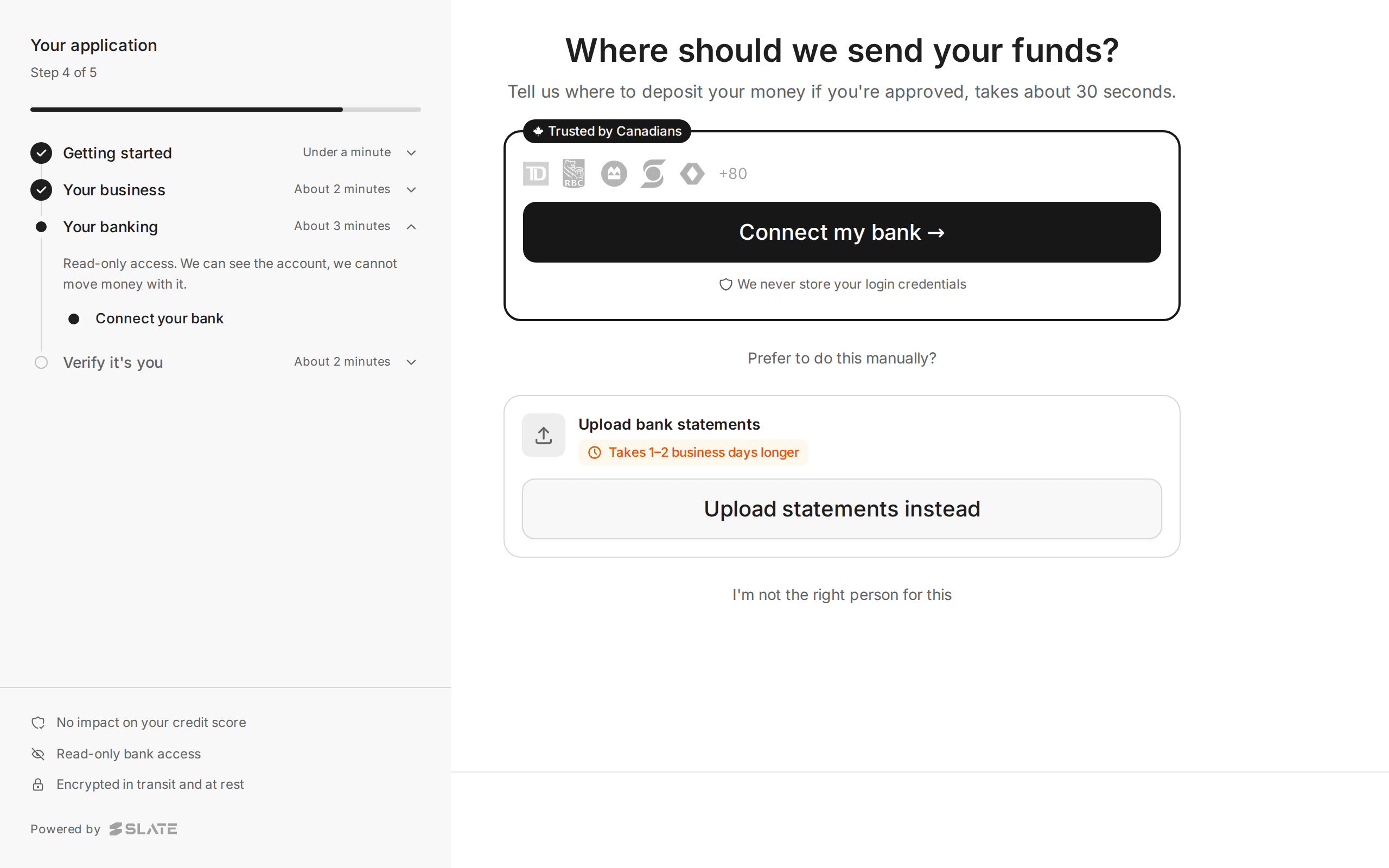 Connecting a bank accountThe bank step explained: how your customer connects their bank, what to do when their bank is not listed or the connection fails, and the other ways to finish.
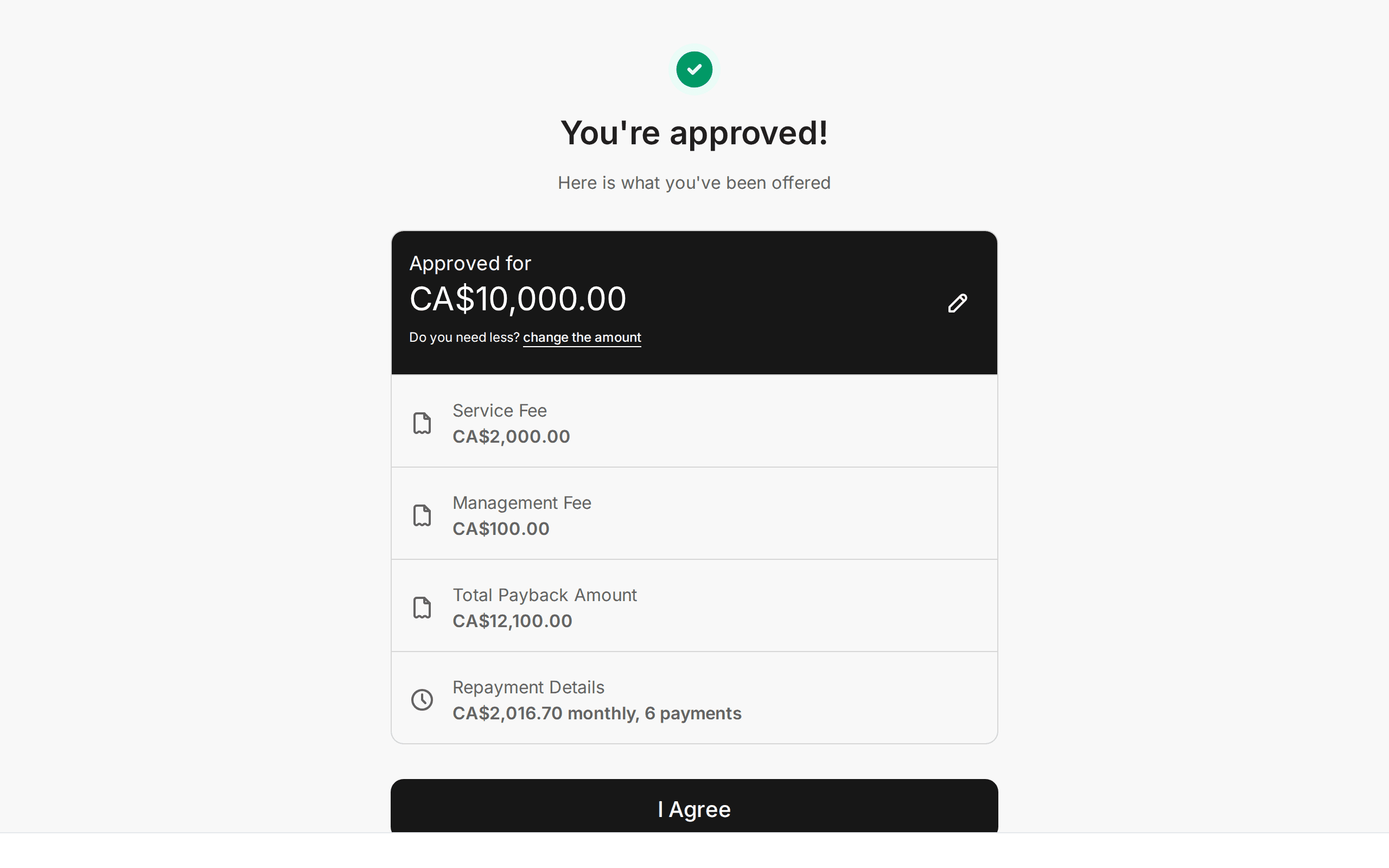 After approval: the tasks your customer may be asked to doVerify identity, sign the agreement, confirm updated terms, verify or reconnect a bank. What each task looks like and how to talk a customer through it.
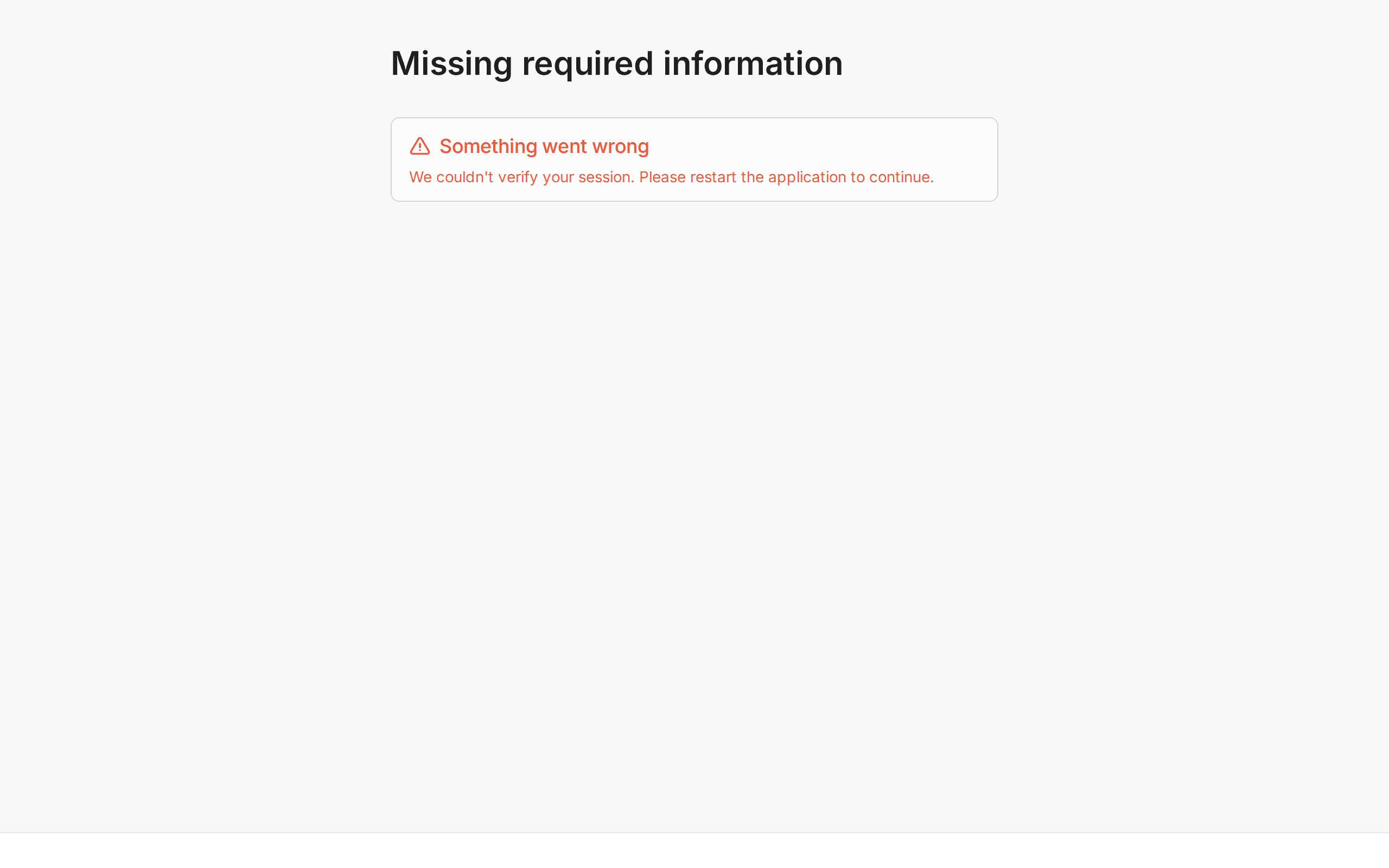
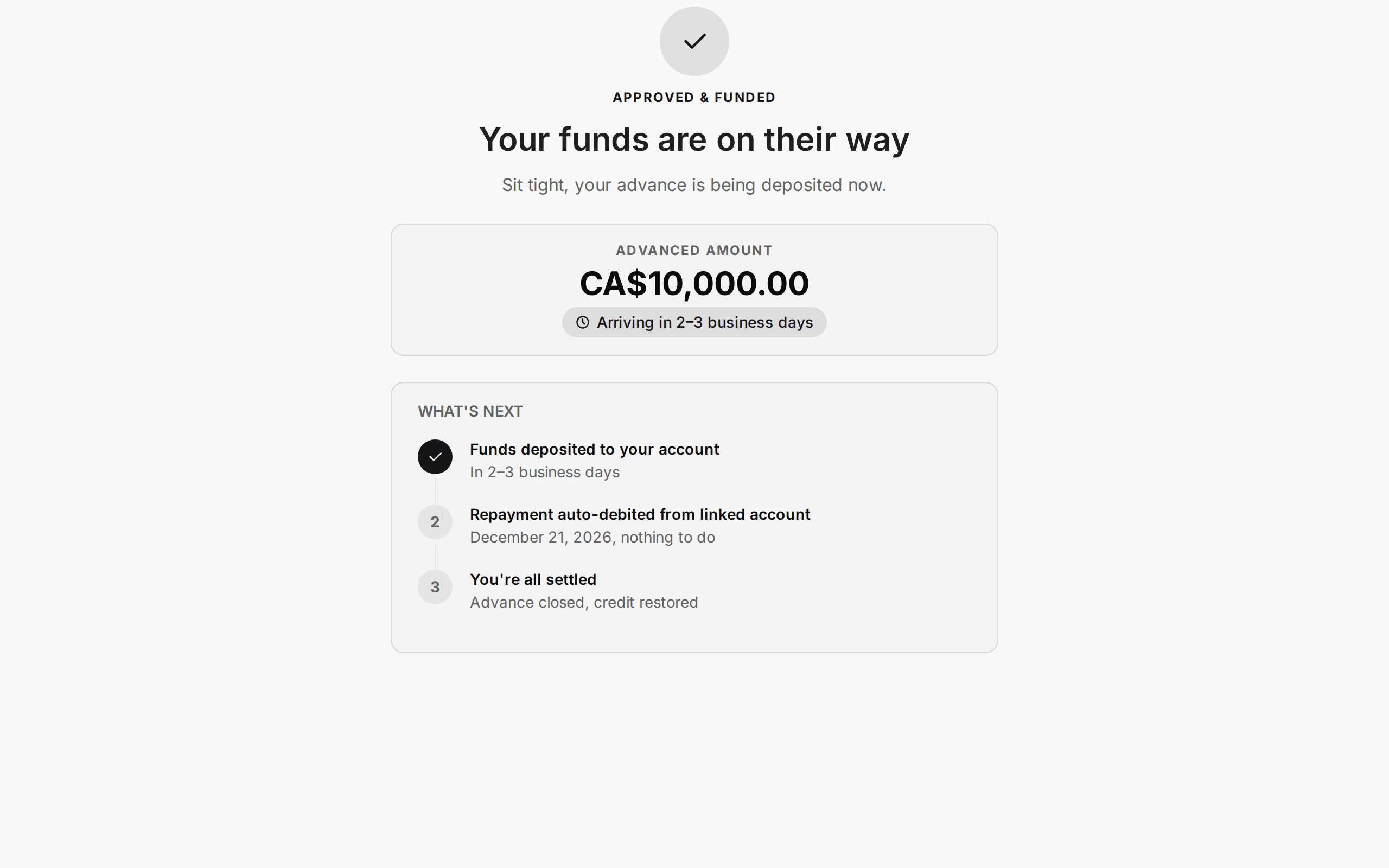 The screens at the end: submitted, approved, declined and errorsEvery end screen your customer can land on, what it means, and what to say. Includes the expired offer, missing information and error screens.
 Support playbook: what to say when a customer is stuckThe most common customer problems with the application, each with what to ask, what to say and what to do.
Still need help?
We reply within 24 business hours.
Email support
Tell us your account email and the screen you are on. [email protected]
For developers
Every endpoint, with examples, in the API reference.