Help Center / Guiding your applicants
Connecting a bank account
The bank step explained: how your customer connects their bank, what to do when their bank is not listed or the connection fails, and the other ways to finish.
7 min read · Updated November 10, 2026
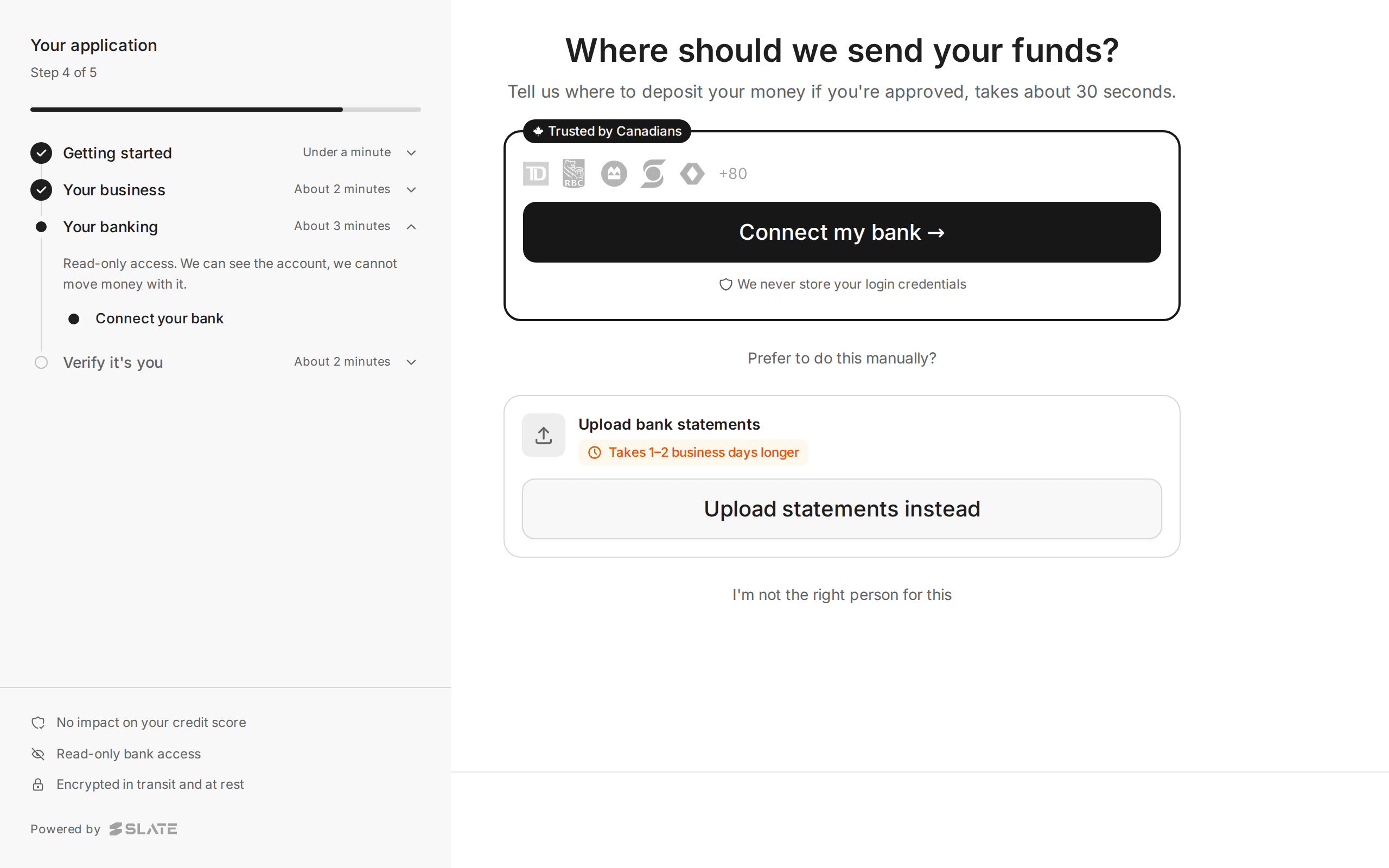
The bank step asks "Where should we send your funds?". Slate uses it to see the account and to send the money if the application is approved. This is where customers most often need help.
The step has one main route and three side routes. Know all four, and you can get almost any customer through.
The main route: connect the bank
The screen says: "Tell us where to deposit your money if you're approved, takes about 30 seconds." It shows "Trusted by Canadians" with a row of bank logos, and the line "We never store your login credentials".
Slate gets read-only access. The left panel says: "Read-only access. We can see the account, we cannot move money with it."
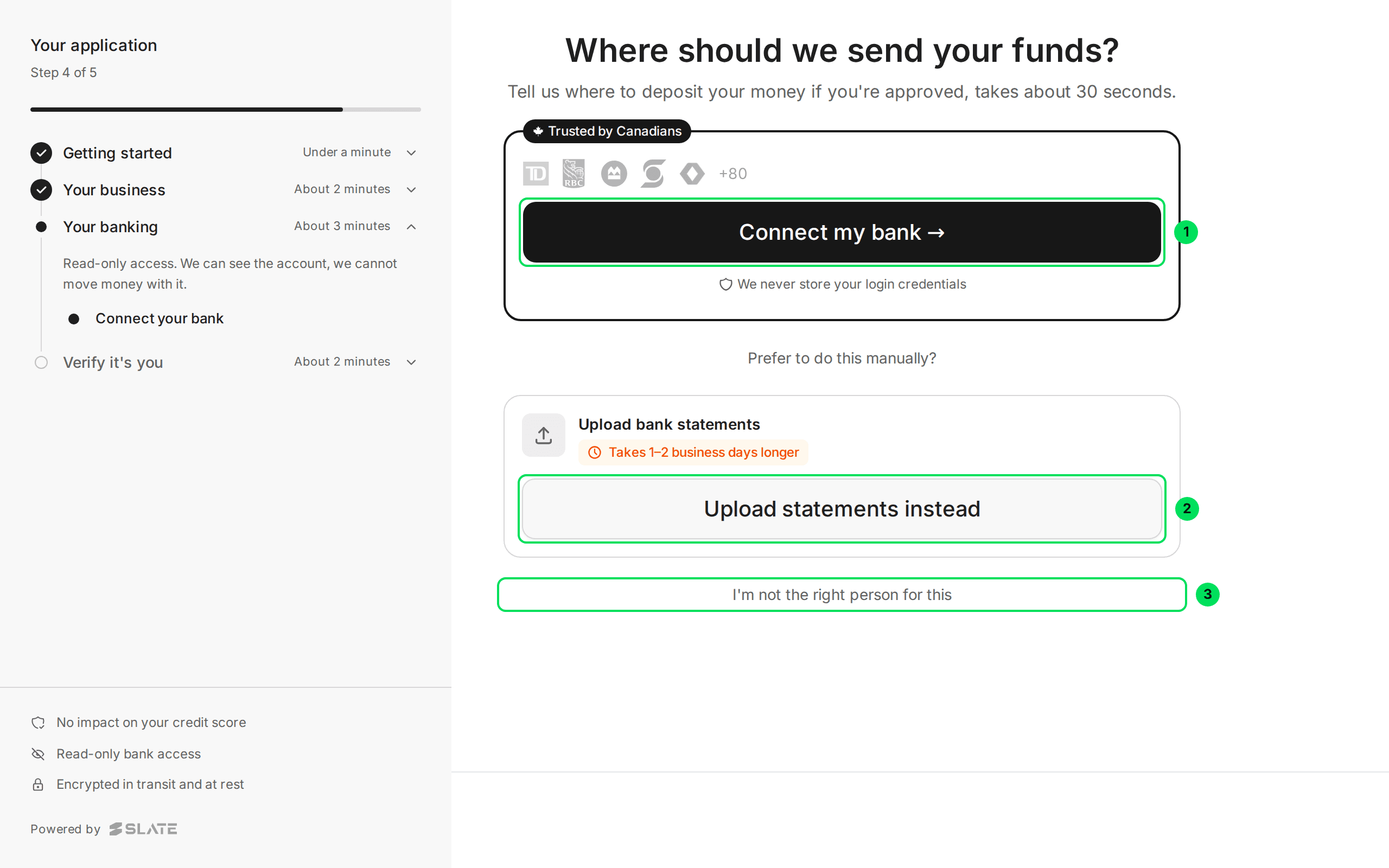
- Connect my bank: opens the secure bank connection window.
- Upload statements instead: the manual route, for banks that will not connect.
- I'm not the right person for this: sends the step to a colleague.
Select Connect my bank
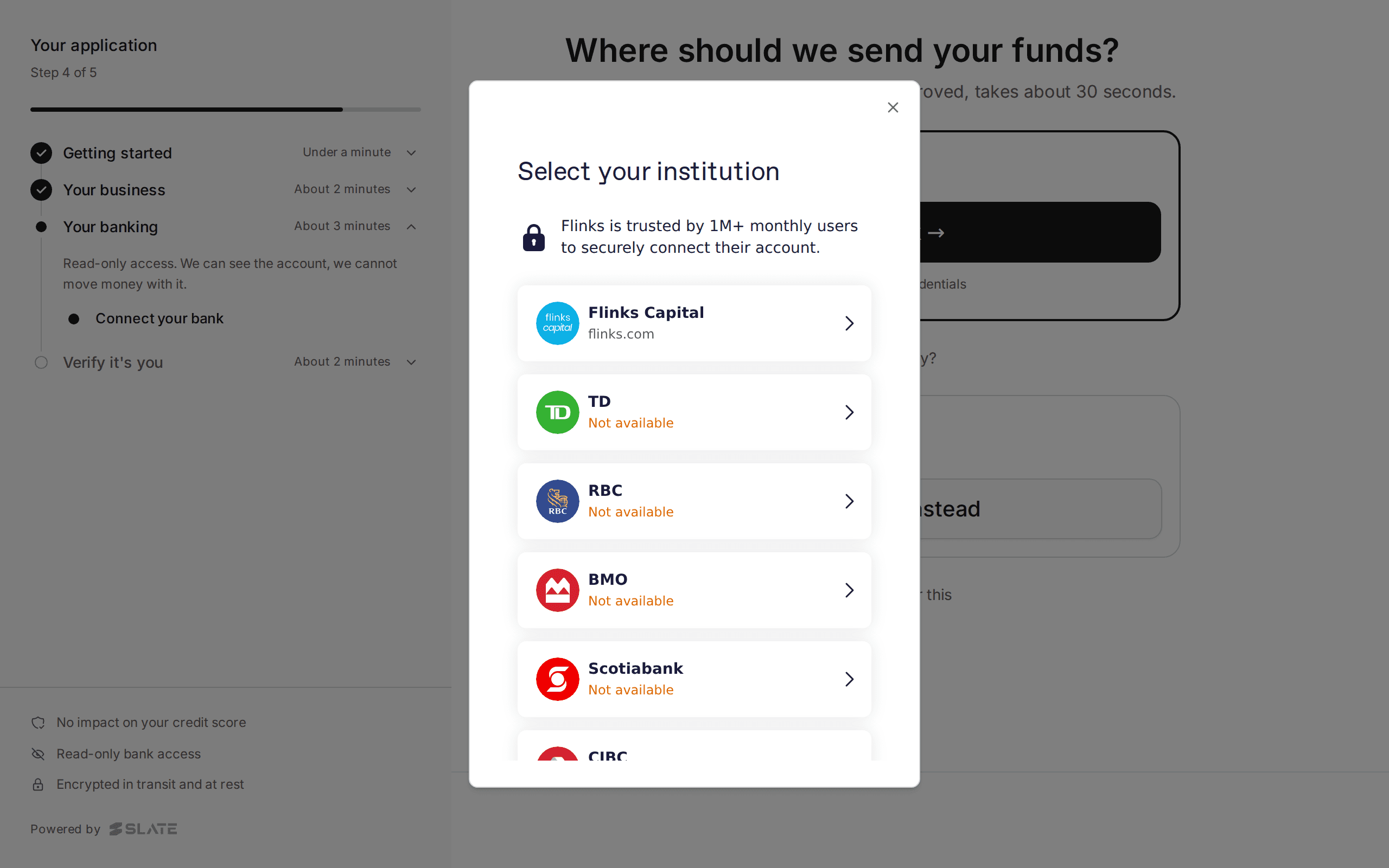
A window opens on top of the application. It is run by a bank-connection provider, not by Slate or by you.
Pick the bank
The window is titled Select your institution. Your customer picks their bank from the list.
Sign in to the bank
Your customer types their own online banking sign-in in the provider's window. The screen promises "We never store your login credentials".
Wait for Bank Connected
When the connection works, the window closes on its own. The screen changes to Bank Connected. Your customer selects Continue, which submits the application.
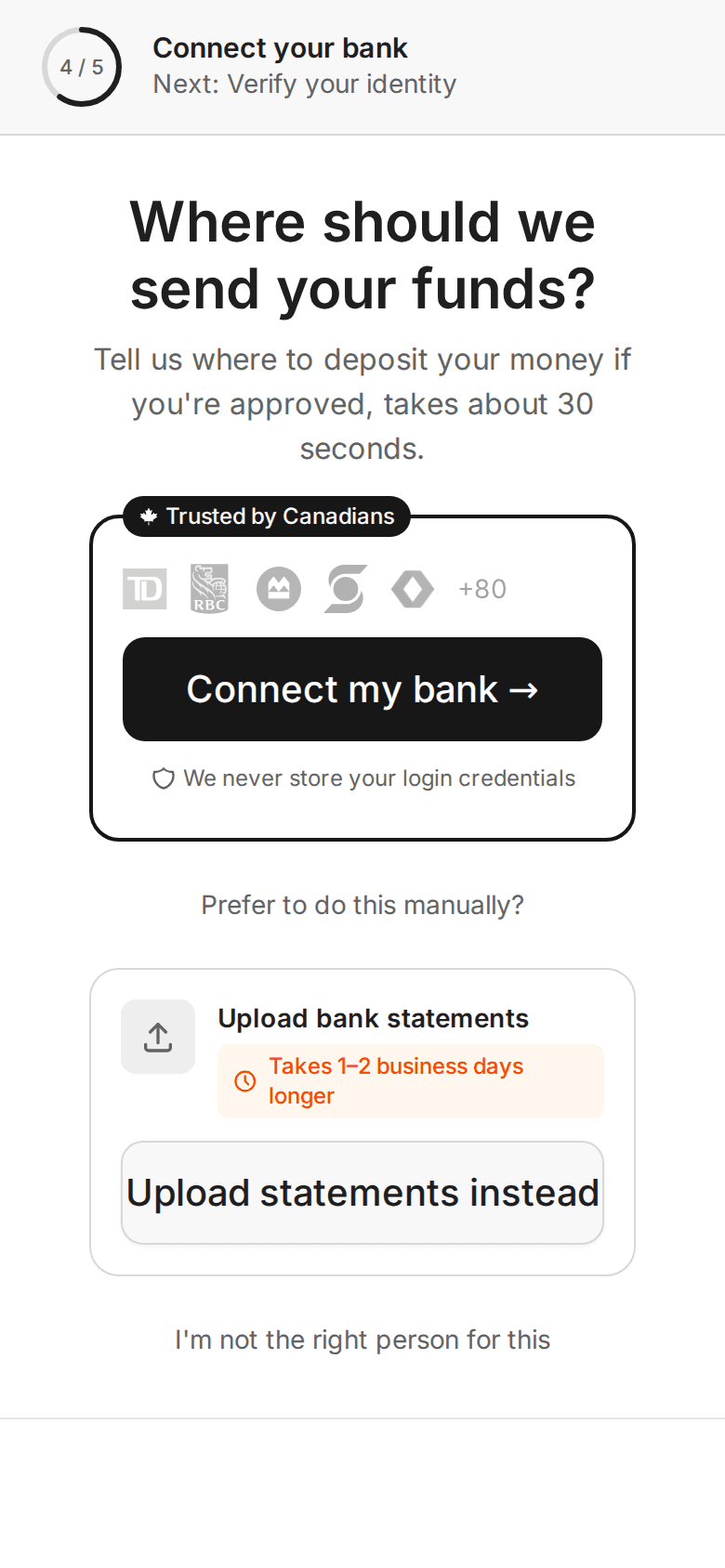
On a phone the screen is one column with a progress ring at the top ("4 / 5").
Which provider will my customer see?
Your customer sees one of two bank-connection windows. Slate picks it by the country on the customer's address and how your program is set up.
- Flinks is the standard. It is what your customer sees unless your program is set up differently. The window is called Select your institution.
- ZumRails is used for customers in a country where your program is set up for it. It opens as a narrow window.
Customers never choose between them.
Stripe does not appear as a way to connect a bank. It is used only in one special task, where Slate verifies an account with small test deposits. See After approval: the tasks.
What if the bank is not listed or will not connect?
Do not retry more than once or twice. Use another route.
- Ask your customer to close the connection window with the X.
- Pick Upload statements instead.
That is the right answer for a bank that is missing from the list, a bank that is "Not available", a window that fails, or a customer who would rather not sign in.
Route two: upload bank statements
This route takes 1 to 2 business days longer, because Slate reads the statements by hand. The bank step says so under Upload bank statements.
Select Upload statements instead
The Upload bank statements screen opens. It says "We'll review them and get back to you within 1-2 business days."
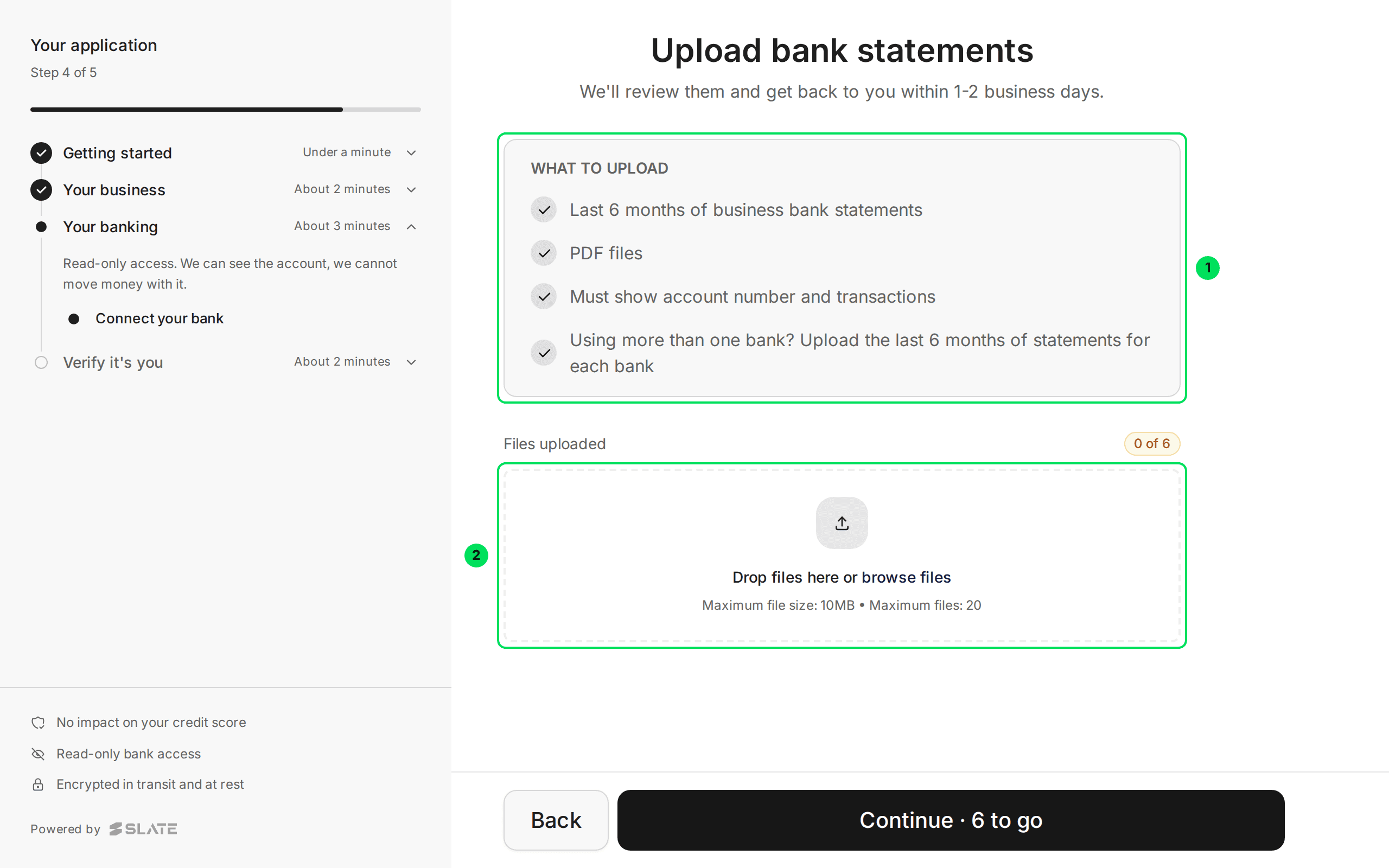
- What to upload: the last 6 months of business bank statements, as PDF files, showing the account number and transactions. If the business uses more than one bank, upload the last 6 months for each.
- Drop files here or browse files: drag the PDFs in, or select browse files. The limit is 10MB per file and 20 files.
Add the statements
A counter beside Files uploaded shows progress, for example 0 of 6. The button at the bottom reads Continue once 6 files are in, and Continue · 6 to go before that.
Select Continue
If your customer selects it too early, a red message says how many are missing.
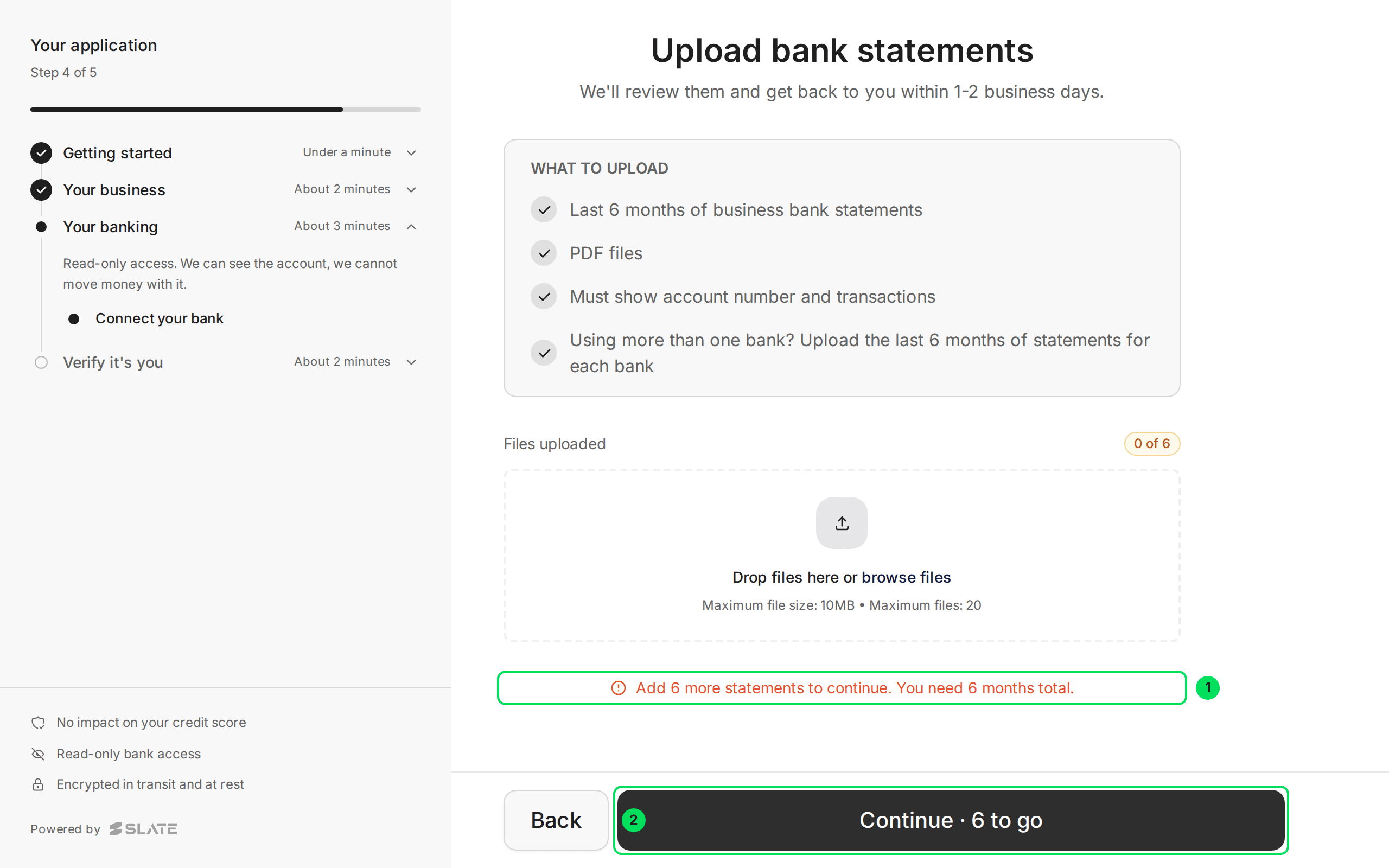
- Add 6 more statements to continue. You need 6 months total.: the message shown when too few files are added.
- Continue · 6 to go: becomes Continue when enough files are added.
Selecting Continue with enough files submits the application. Slate then reviews it by hand.
If a file shows Upload failed, a Retry button sits next to it. Check the file is a PDF under 10MB, then try again.
Route three: enter banking details (Early Wage Access)
Early Wage Access customers do not see Upload statements instead. They see Enter details manually. It opens Enter your banking details, with the text "Find these on a void cheque or in your banking app."
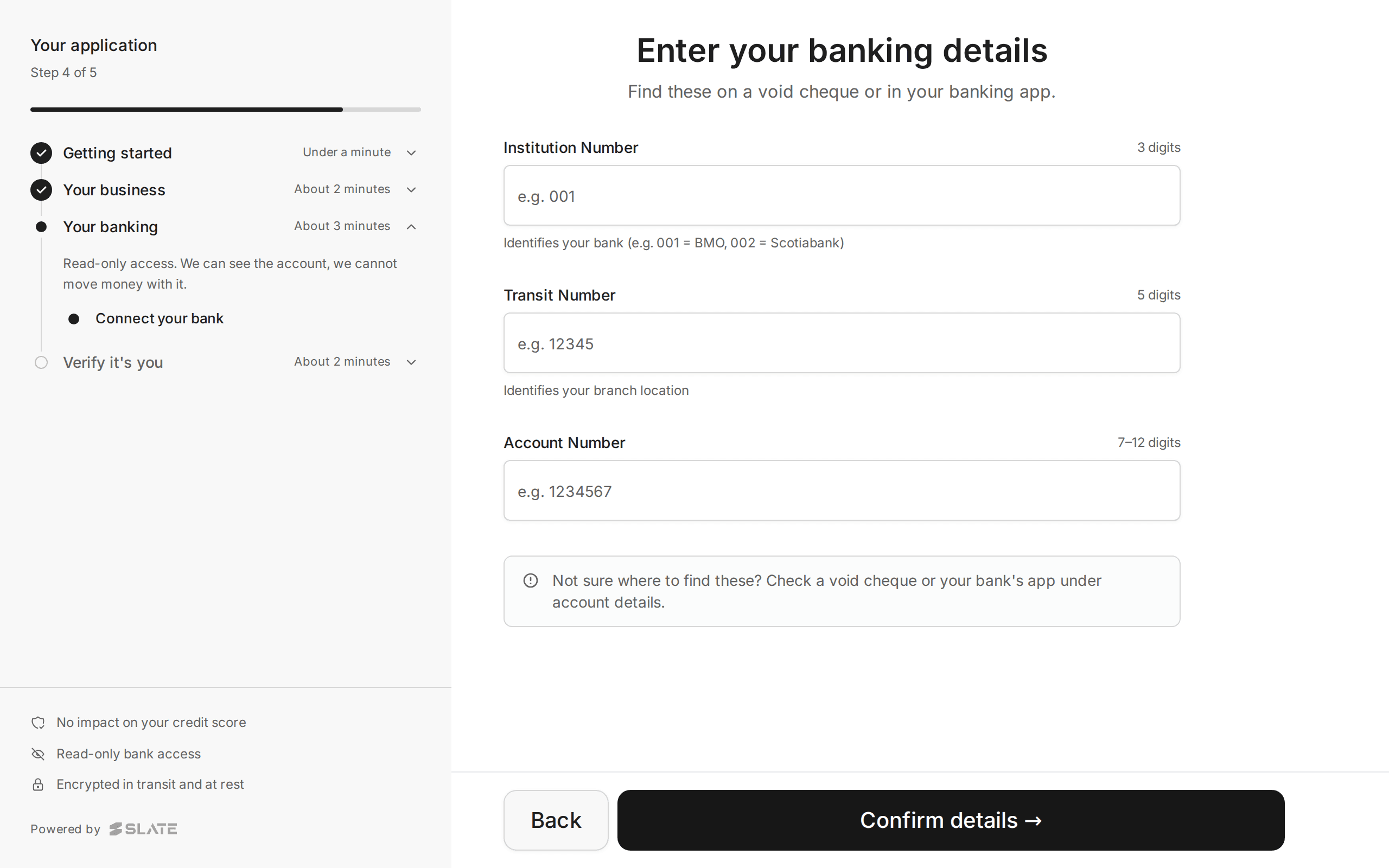
It asks for three numbers. Only Canadian accounts work here.
- Institution Number: exactly 3 digits. It identifies the bank. For example, 001 is BMO and 002 is Scotiabank.
- Transit Number: exactly 5 digits. It identifies the branch.
- Account Number: 7 to 12 digits.
All three are on a void cheque, and in the bank's app under account details. The button reads Confirm details →.
Route four: "I'm not the right person for this"
Business owners often do not handle the bank account. This route lets them hand the step to whoever does.
Select I'm not the right person for this
The link is under the bank choices. A window called Send to someone else opens.
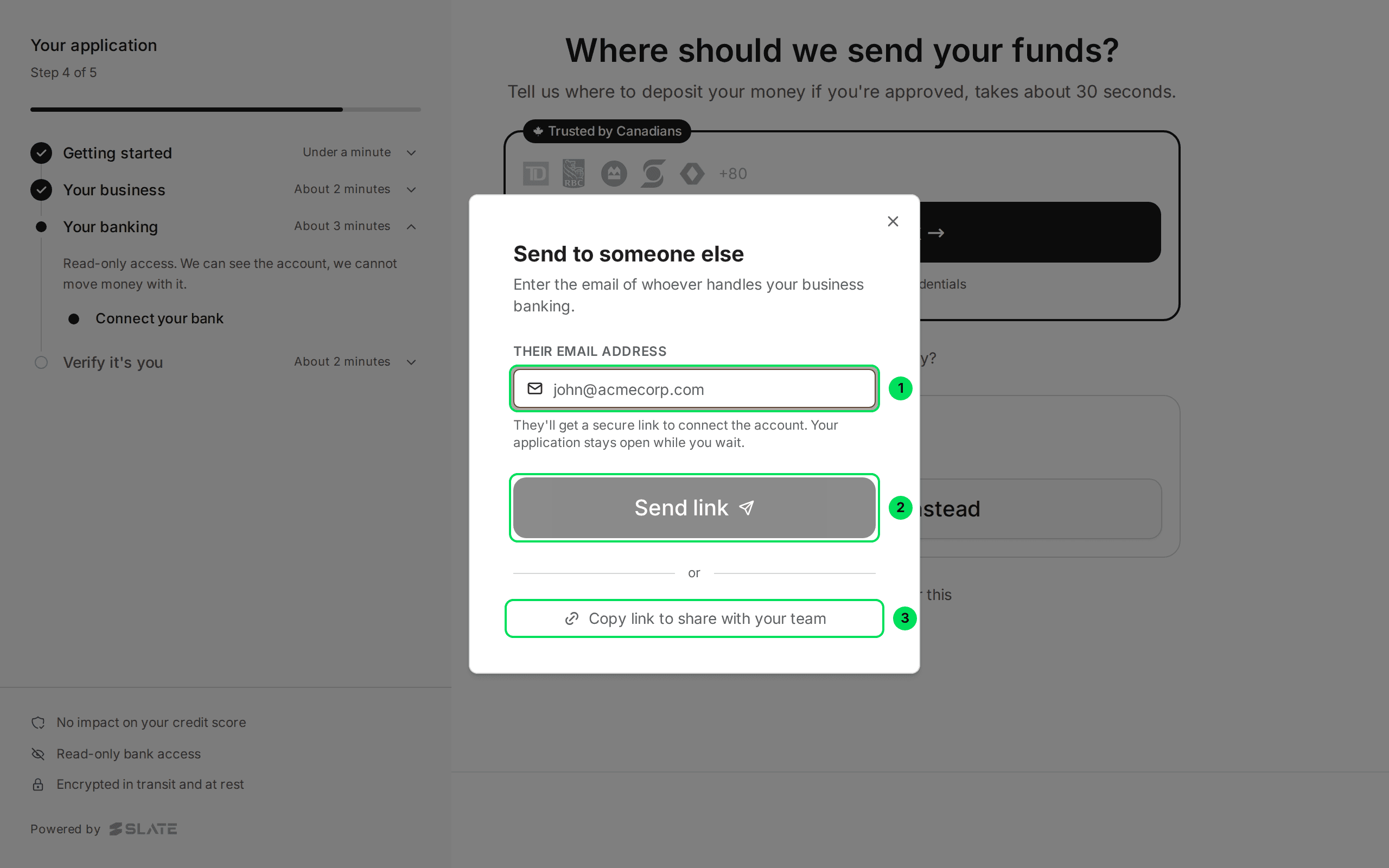
- Their email address: the email of whoever handles the business banking.
- Send link: emails them a secure link.
- Copy link to share with your team: copies the link so your customer can send it themselves.
Type their email and select Send link
The window says "They'll get a secure link to connect the account. Your application stays open while you wait."
Your colleague opens the link and connects the bank. Meanwhile your customer's application stays open and saved.
If something goes wrong
The bank connection window closes without "Bank Connected"
Ask your customer to select Connect my bank once more. If it fails again, use Upload statements instead.
The screen did not change after the bank connected
The application checks every 5 seconds. Wait a moment. If nothing changes, refresh the page. The application is saved, so your customer returns to the bank step.
My customer sees no Upload statements button
They are probably an Early Wage Access customer. Use Enter details manually instead.
My customer wants to reconnect a bank later
Slate may ask for this after approval. See After approval: the tasks.
Learn more about Slate Capital.
Still stuck? Email [email protected] with your account email and the screen you are on. We reply within 24 business hours.