Help Center / Guiding your applicants
After approval: the tasks your customer may be asked to do
Verify identity, sign the agreement, confirm updated terms, verify or reconnect a bank. What each task looks like and how to talk a customer through it.
7 min read · Updated November 10, 2026
After your customer submits, Slate reviews the application. When Slate needs something from the customer, it adds a task. Your customer gets an email and a link, and opens the task.
You will see the same tasks in your dashboard. On Applications the status reads Needs action, with the task name under it, such as Identity verification or Contract signature.
A customer may have more than one task. The app opens the first one. When every task is done, the application goes back to Slate for review.
The tasks at a glance
- Identity verification: your customer photographs their ID. Usually created at the same time as the contract.
- Contract signature: your customer reads the offer and selects I Agree.
- Counter offer (shown as Confirm adjusted terms): Slate changed the terms and your customer confirms the new ones.
- Bank reconnection: your customer links their bank again.
- Bank verification: your customer confirms small test deposits.
If you opened a task link and nothing is waiting, the app opens the application's normal screen instead. For example a finished application shows its result.
Verify your identity
Slate asks for a photo of a government ID once. The screen is headed Your offer is ready, with "Verify your identity to unlock your offer".
Open the task
The screen shows three ID types: License, Passport and State ID. Under them it says "Bank-level encryption" and "~30 seconds". It also names the verification provider, for example "Verified by Didit".
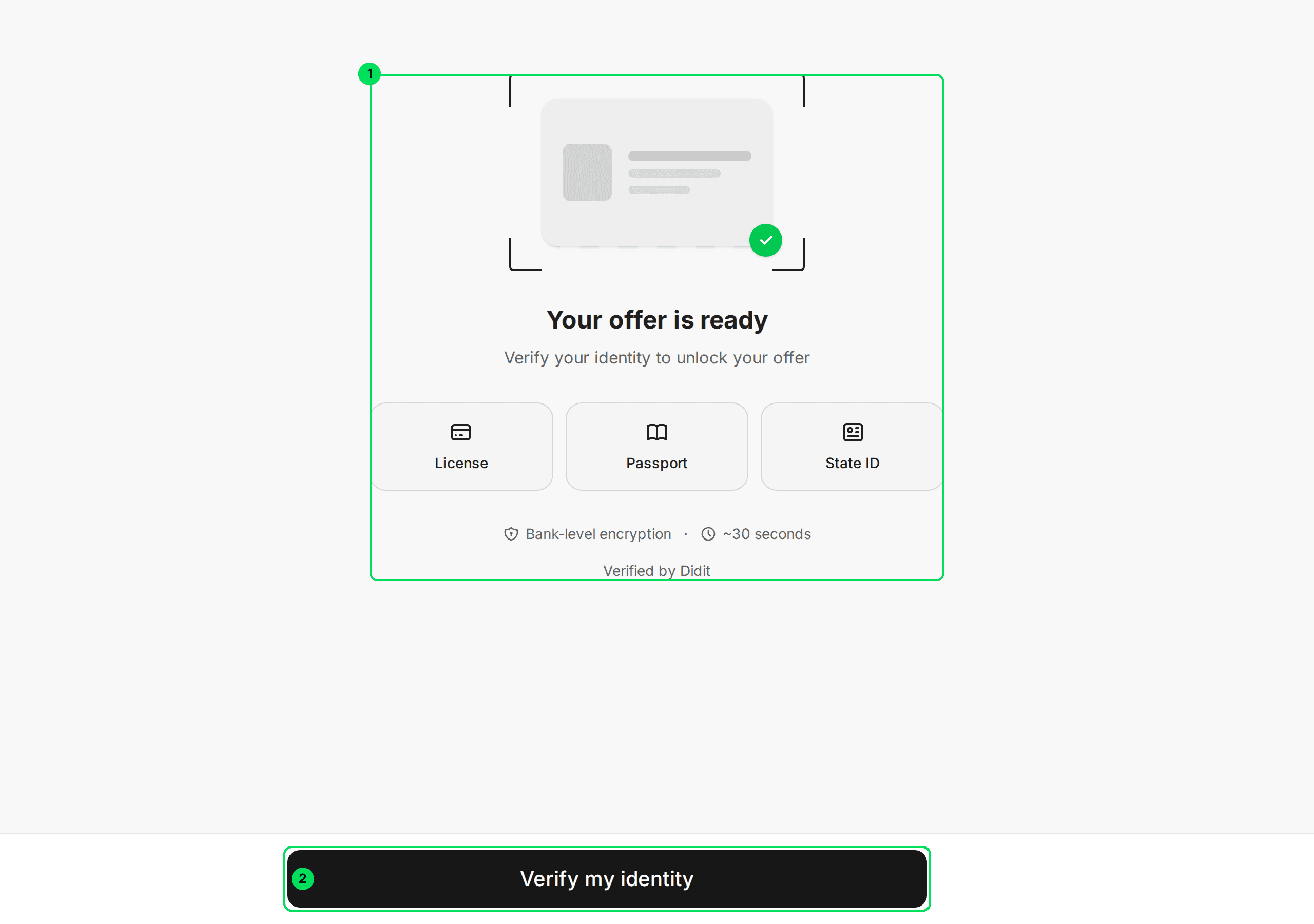
- Your offer is ready: the task card. It shows the three ID types your customer can use.
- Verify my identity: opens the verification window.
Select Verify my identity
A window from the verification provider opens. Your customer follows its prompts and photographs their ID. It needs the device's camera, so they must allow camera access when asked.
Wait for the result
The app shows "Verifying your identity..." and "Do not close this window." The check usually takes a few seconds.
If the check fails, the screen says We couldn't verify your identity, with the reason and "Check that your document is valid and readable, then try again." The camera window restarts for a new attempt.
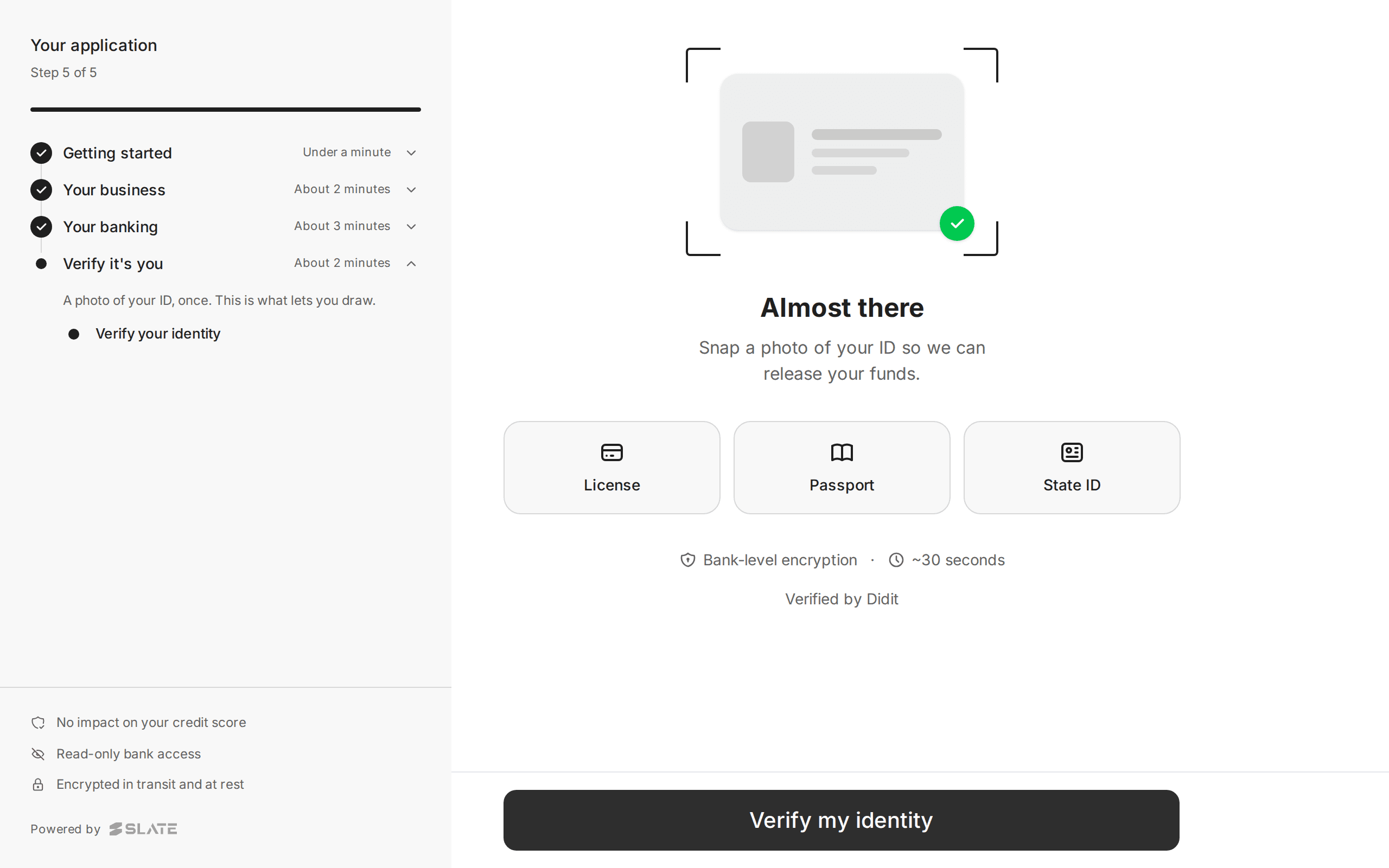
In some applications identity verification comes before submitting, as Step 5 of 5 with the headline Almost there and "Snap a photo of your ID so we can release your funds." That is the adjust-terms version.
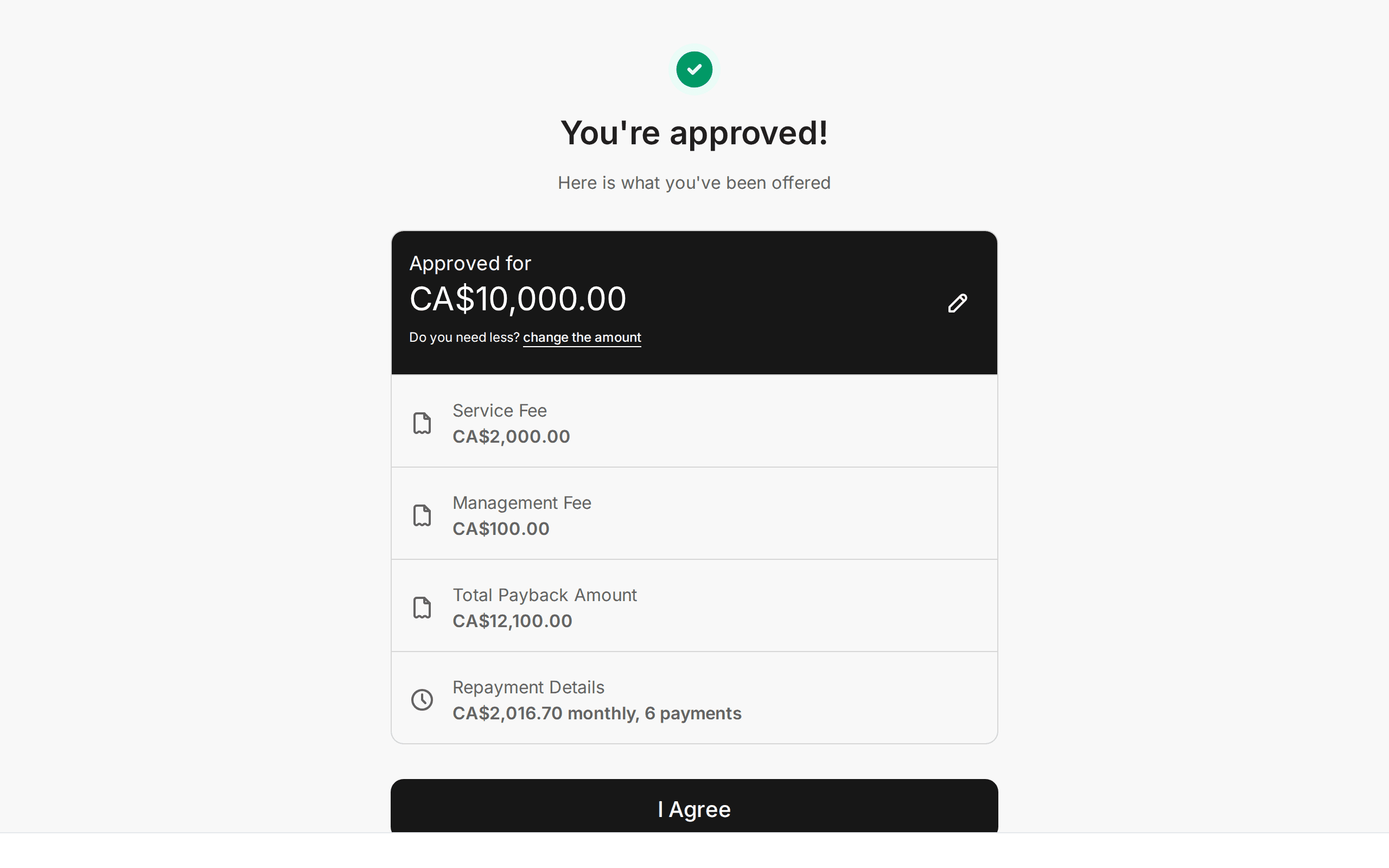
Sign the agreement
The screen is headed You're approved! with "Here is what you've been offered".
Read the amount
At the top is Approved for and the amount.
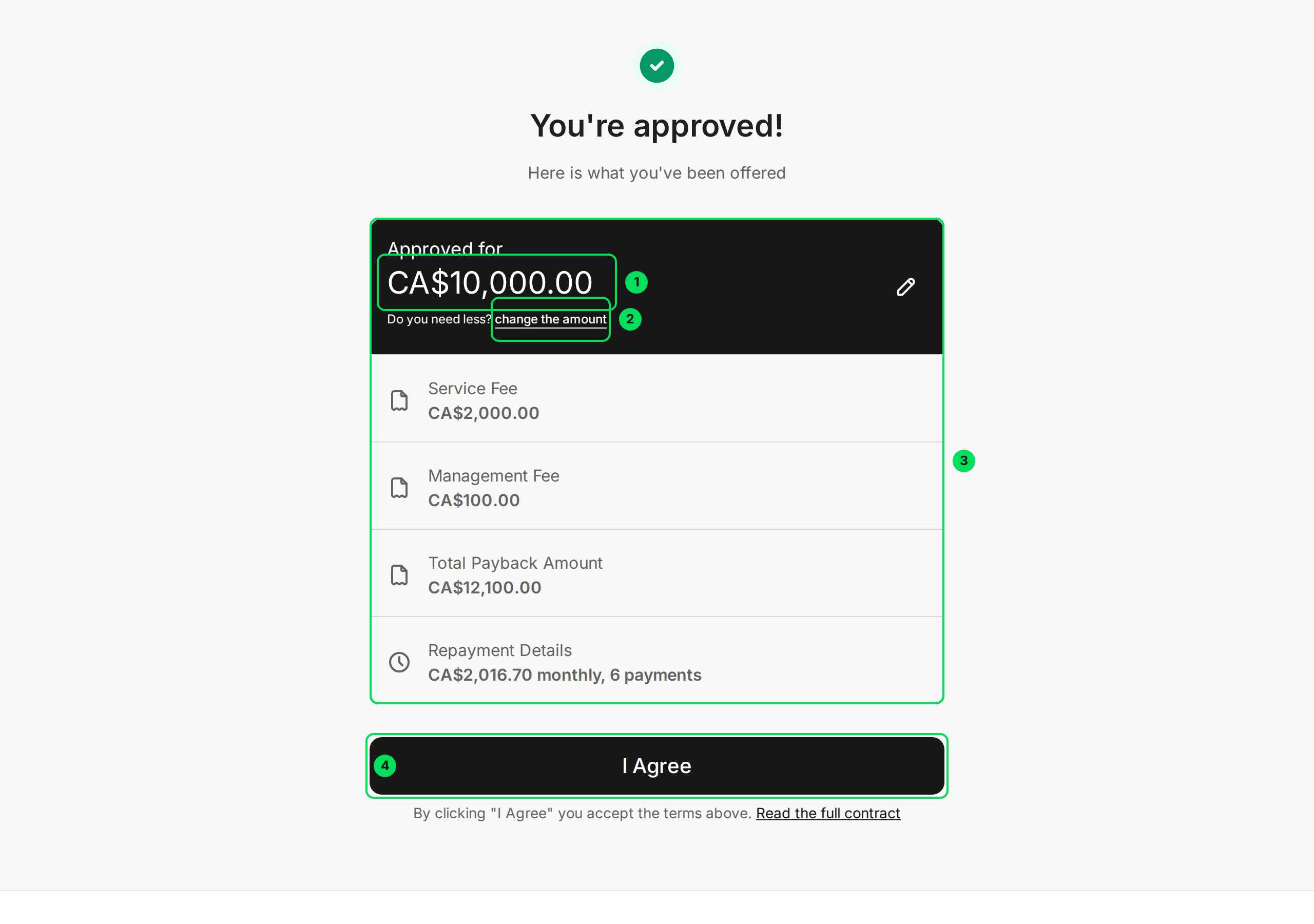
- Approved for: the most Slate will advance.
- change the amount: lets your customer take less. It is next to "Do you need less?".
- Service Fee, Management Fee, Total Payback Amount and Repayment Details: the cost and the repayment plan. Repayment reads, for example, "monthly, 6 payments".
- I Agree: accepts the terms.
Choose a lower amount, if wanted
Select change the amount. A window called Customize Your Amount opens.
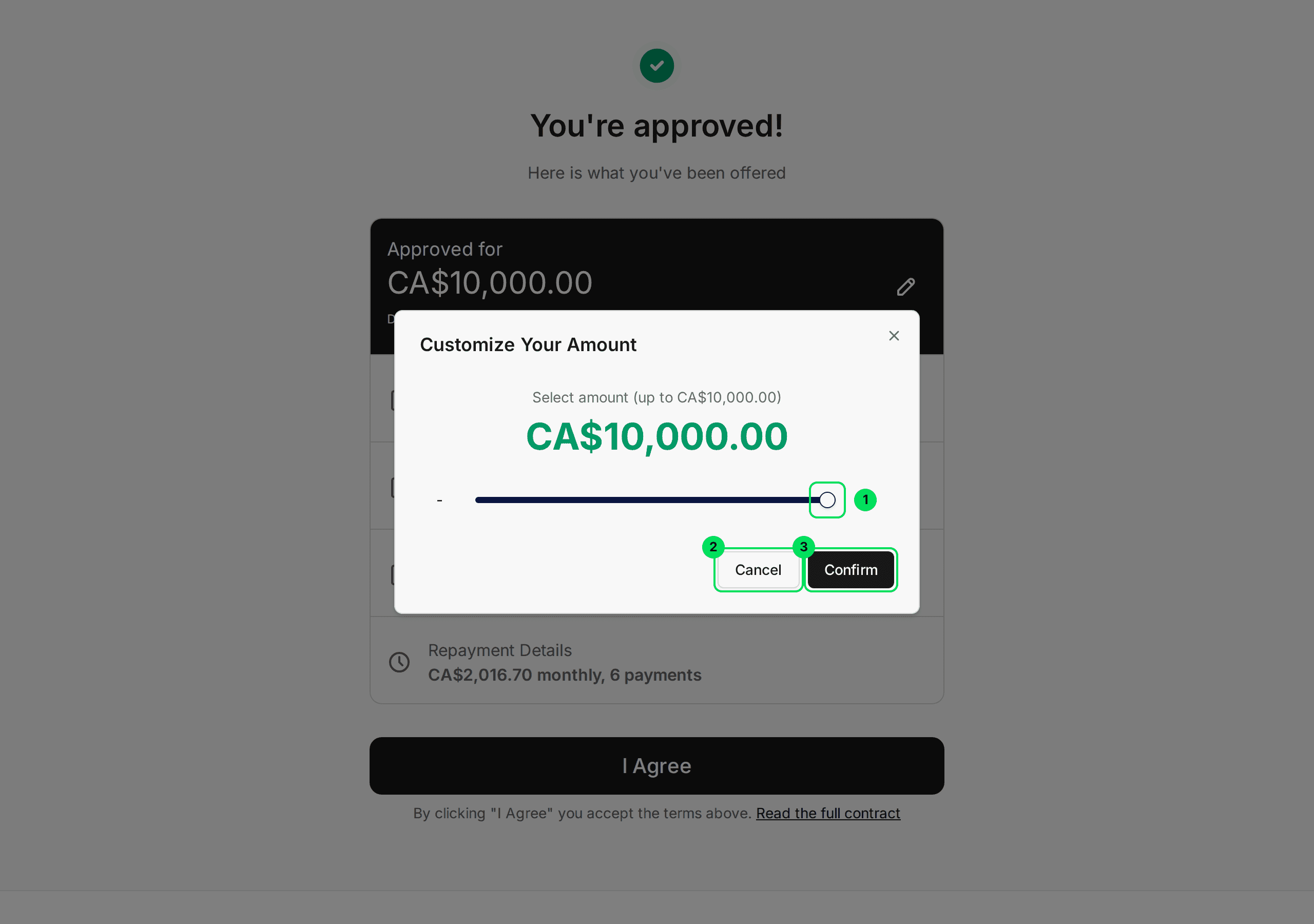
- Slider: drag to a lower amount. It can never go above the approved amount.
- Cancel: closes the window and keeps the original amount.
- Confirm: saves the new amount.
Select I Agree
The text under the button says: "By clicking "I Agree" you accept the terms above." The words Read the full contract link to the whole document.
Look for the confirmation
The button shows Processing... and then your customer sees Contract accepted! and "Your acceptance has been recorded." After a moment the Approved & Funded screen opens.
Signing creates the financing agreement. It also marks the application Approved in your dashboard.
Confirm updated terms
Sometimes Slate offers different terms from the ones your customer asked for. Your customer gets an email with the subject "Updated terms to confirm". The screen is headed Updated offer from your lender, with "Review your new terms".
It shows the amount, how many months they pay it back over, when payments start, and a fee breakdown. The button reads Agree & accept with the amount.
Your customer has to confirm before the deadline. The default is 90 days from when Slate sent the terms. If they miss it, the application closes. See Outcomes.
In your dashboard this task shows as Counter offer.
Reconnect a bank
Slate may ask your customer to connect their bank again, for example when a connection stopped working. The screen is the normal bank screen with a title and description for the task. See Connecting a bank account for every route.
When the bank is connected again the task is done, and the application goes back to review. For a credit line, the customer sees Bank Reconnected and "Your bank account is connected again, and your credit line stays open. Nothing else is needed from you."
Verify a bank with test deposits
For some accounts Slate checks ownership with two small deposits. The screen is headed with "Microdeposits on the way" and the date they should arrive.
Your customer waits for the deposits, then does one of two things, depending on what Slate sent:
- Enter Descriptor Code: they type the 6 characters from the test transaction (for example SM11AA) and select Verify Code.
- Enter Microdeposit Amounts: they type the two amounts, in cents, each from 1 to 99. For example, 32 and 45. Then they select Verify Amounts.
When it works, the screen says "Verification successful!" and "Your bank account has been verified."
This task is created by Slate staff. It is rare.
If something goes wrong
The customer says "I can't find the email"
Ask them to check junk mail, or generate a fresh link yourself. Opening the link goes to the right task. See Send an application link.
The link opens a different screen than expected
The app shows whatever is next for that application. If no task is waiting, it opens the application's current screen or its result.
The customer wants a different amount on the contract
They can lower it with change the amount. They cannot raise it above what Slate approved.
The ID check keeps failing
Ask for a clearer photo of a valid, readable ID in good light. If it still fails, ask them to try a different device.
Learn more about Slate Capital.
Still stuck? Email [email protected] with your account email and the screen you are on. We reply within 24 business hours.