Help Center / Emails
Check which emails were sent to your customers
See every email Slate sent your customers, whether it arrived, and exactly what it said.
3 min read · Updated November 10, 2026
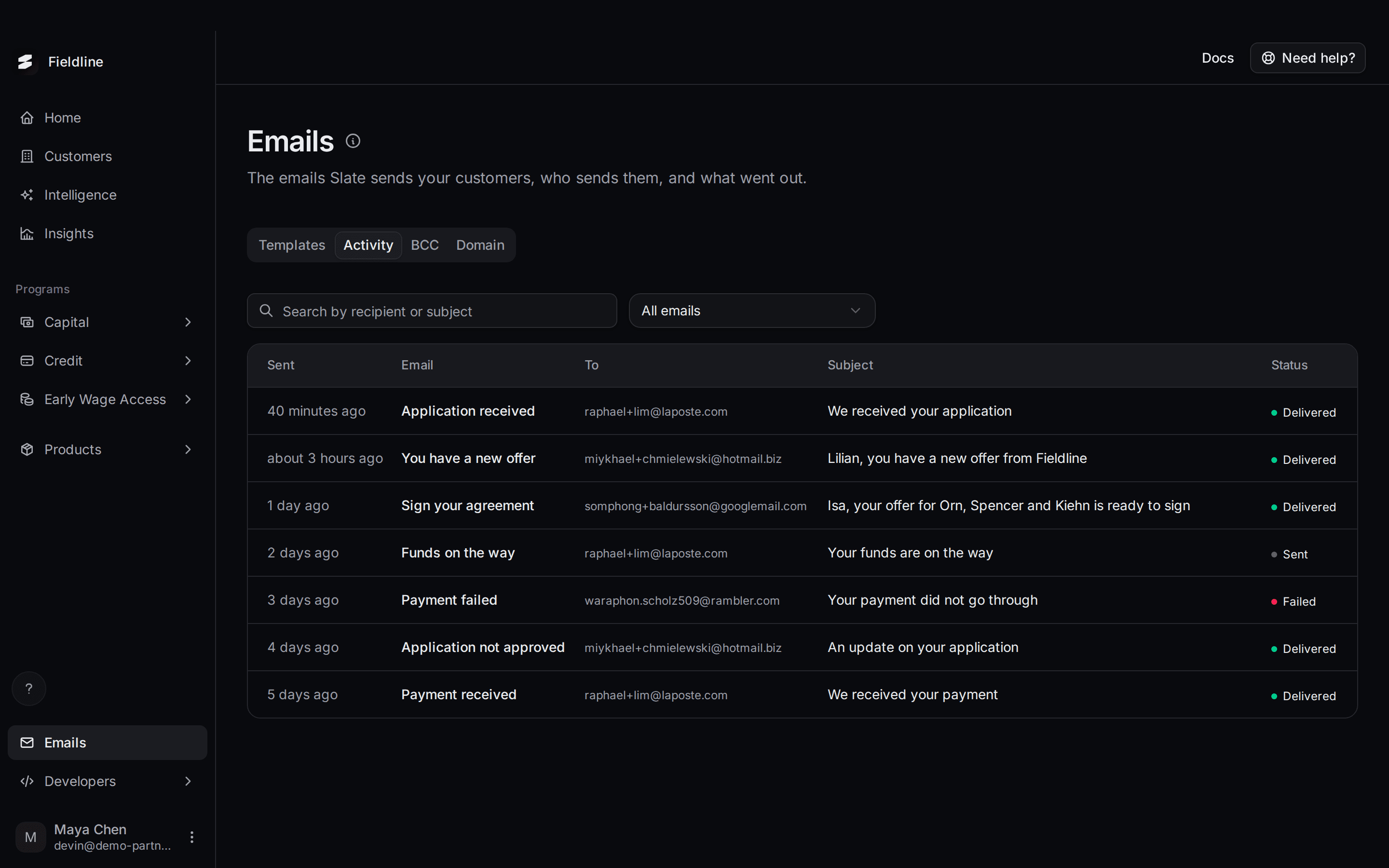
The Activity tab lists every email Slate sent to your customers, newest first. Use it when a customer says "I never got that email".
Find it under Emails in the menu on the left, then the Activity tab.
Find an email
Open the Activity tab
Select Emails in the menu, then select Activity.
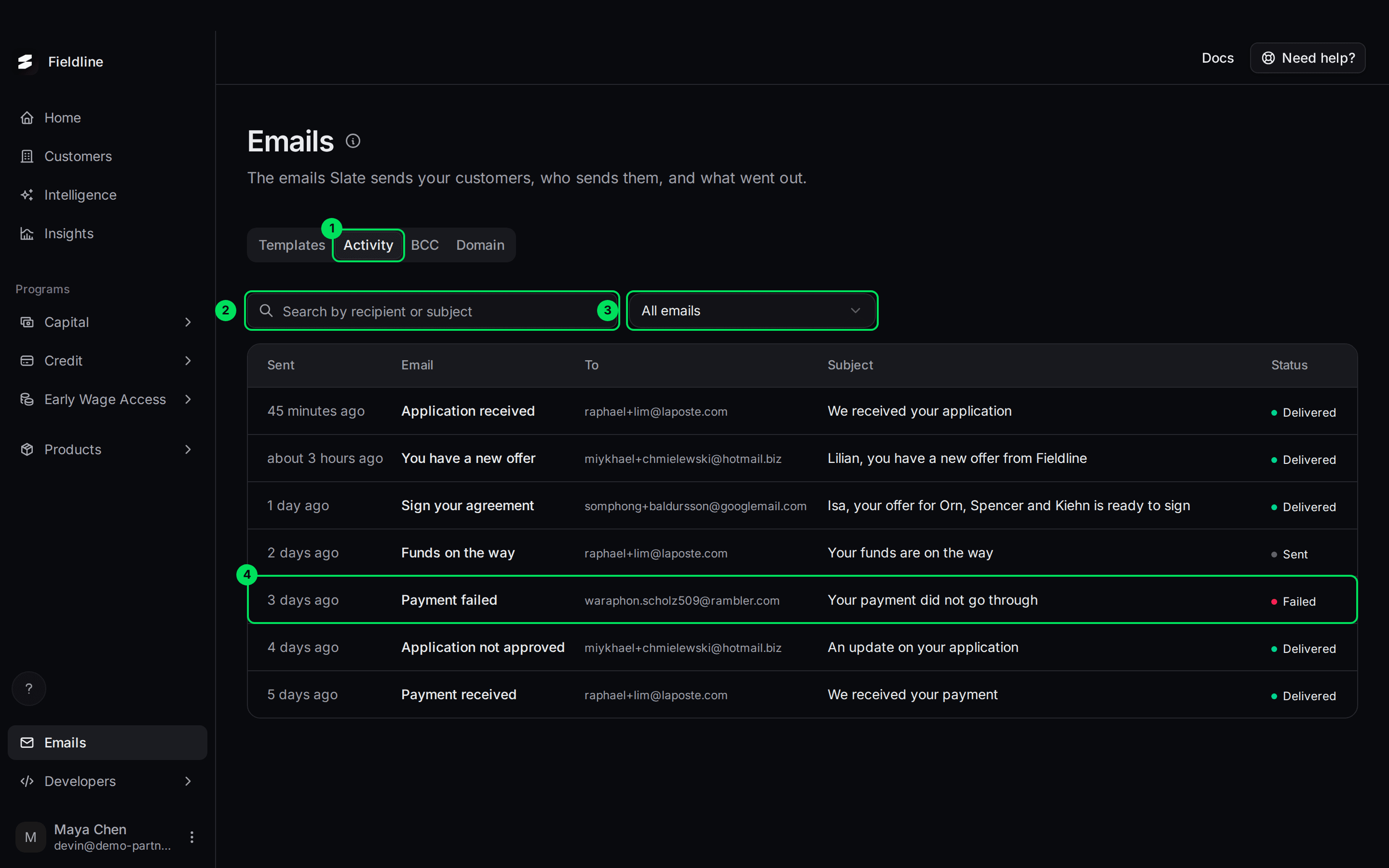
- Activity: the tab.
- Search by recipient or subject: type part of an email address or a subject line.
- All emails: narrows the list to one kind of email.
- A row: select it to open that email.
Search or filter
Type in the search box. The list updates after a moment.
To see one kind of email, select All emails and pick a name, for example Payment failed. Searching or filtering sends you back to the first page.
If nothing matches, you see No emails match. Try another email name or a different search.
Read the list
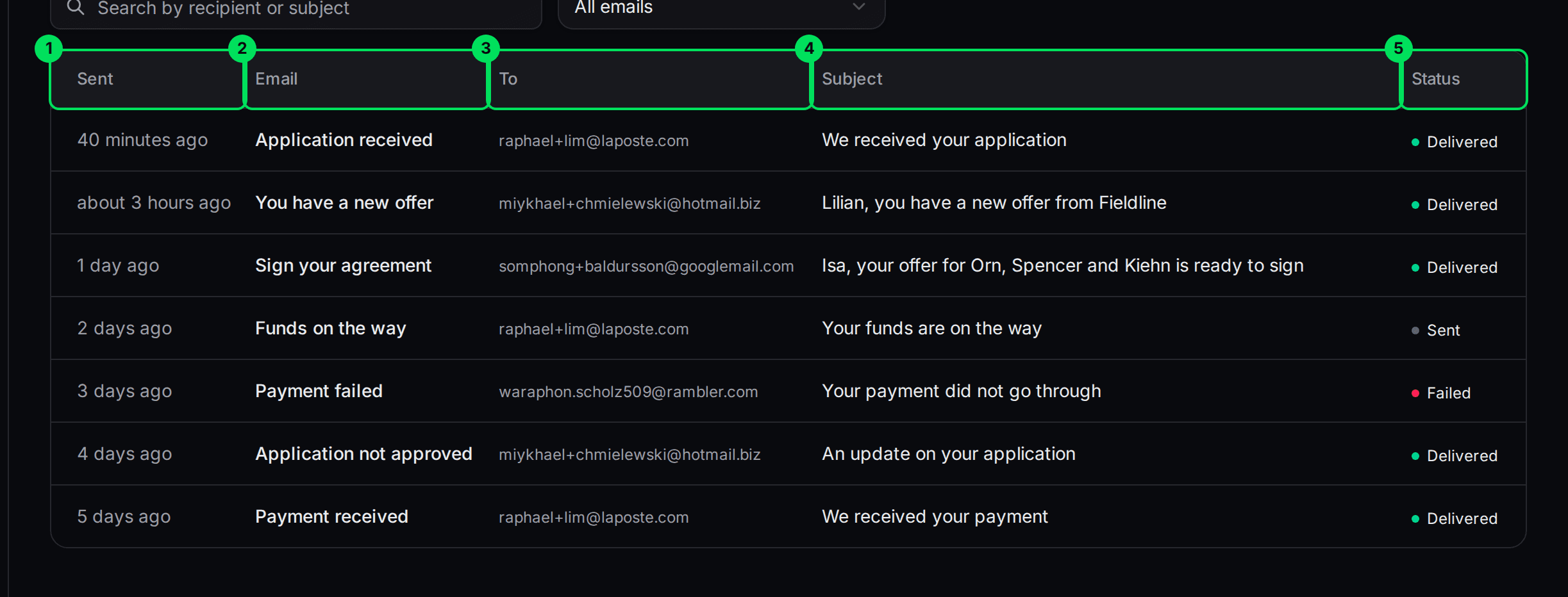
- Sent: how long ago the email was sent.
- Email: which of the 18 emails it is. See Choose who sends your customers' emails.
- To: the customer's email address.
- Subject: the subject line the customer saw.
- Status: whether it arrived.
Use Show per page under the table to see more rows, and the page numbers to move between pages.
What the statuses mean
- Sent: Slate handed the email to the customer's mail provider. It may still be on its way, or the provider may be retrying. Check again later.
- Delivered: the customer's mail provider accepted it. No action needed.
- Failed: the email did not arrive. It bounced, was rejected, or the address is blocked. Open the email to see the reason, then fix the address on the customer.
Open an email
Select a row
Select any row. A panel slides in from the right.
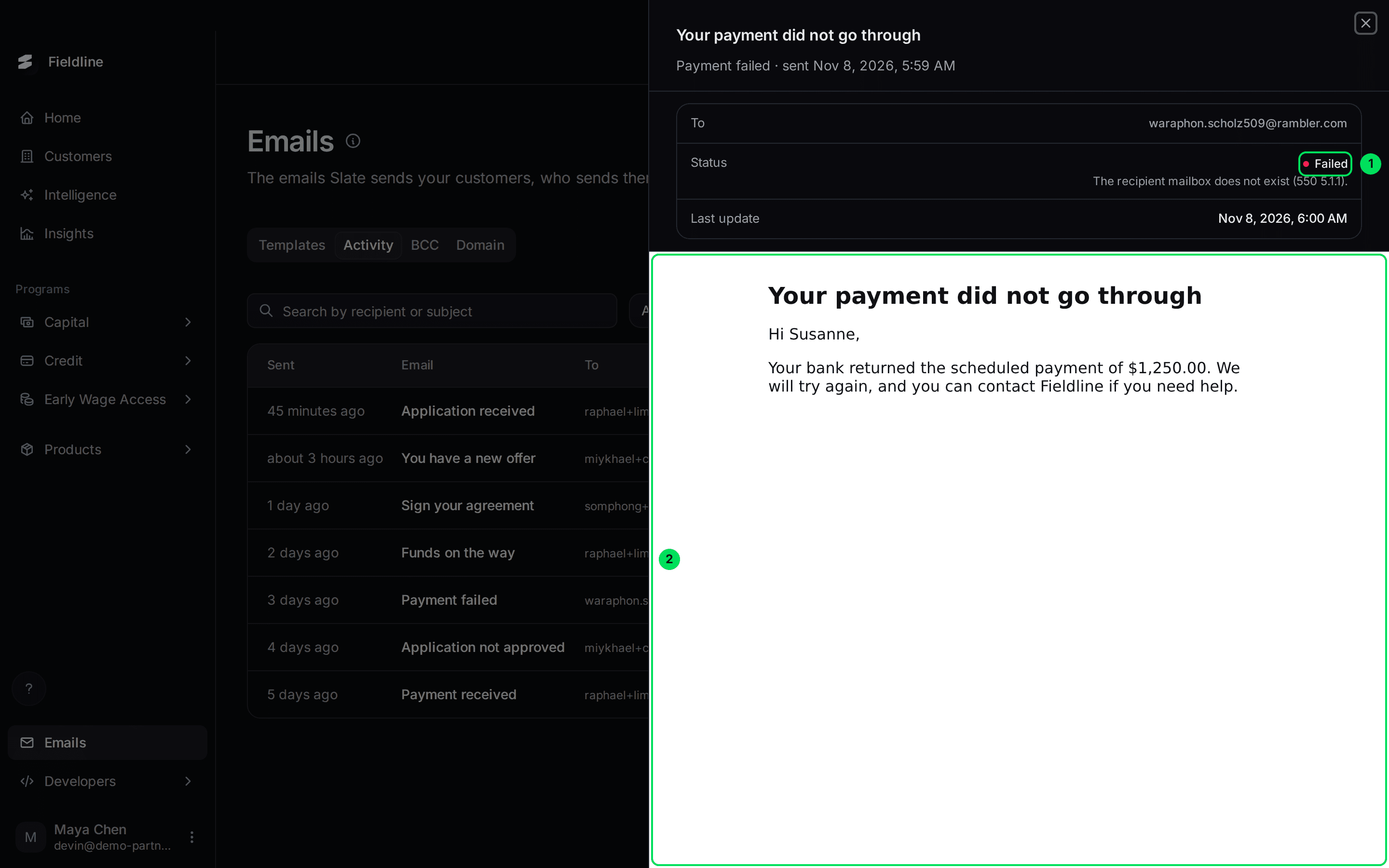
- Status: the delivery status, with the reason if the email failed.
- The email itself, shown exactly as your customer received it.
Read the details
The panel also shows the email name and when it was sent, who it went to, and the time of the Last update. If the customer reported the email as spam, you also see Reported as spam with the time.
Close the panel
Select the X at the top right, or press Esc.
If something goes wrong
I see "Content not available yet"
Slate asks the email provider for the email's text the first time you open it. Sometimes the provider is not ready. Close the panel and open the email again in a moment.
The list says "No emails sent yet"
Nothing has gone out yet. Emails appear here as soon as Slate sends them. If you expected one, check that the email is switched on. See Choose who sends your customers' emails.
Can I filter by date?
Not yet. Use the search box and the email filter instead.
Learn more about sending from your own domain.
Still stuck? Email [email protected] with your account email and the screen you are on. We reply within 24 business hours.