Help Center / Emails
Choose who sends your customers' emails
Pick whether Slate, your own domain, or your own system sends the emails your customers get. See all 18 emails, when each is sent, and how to switch them on or off.
8 min read · Updated November 10, 2026
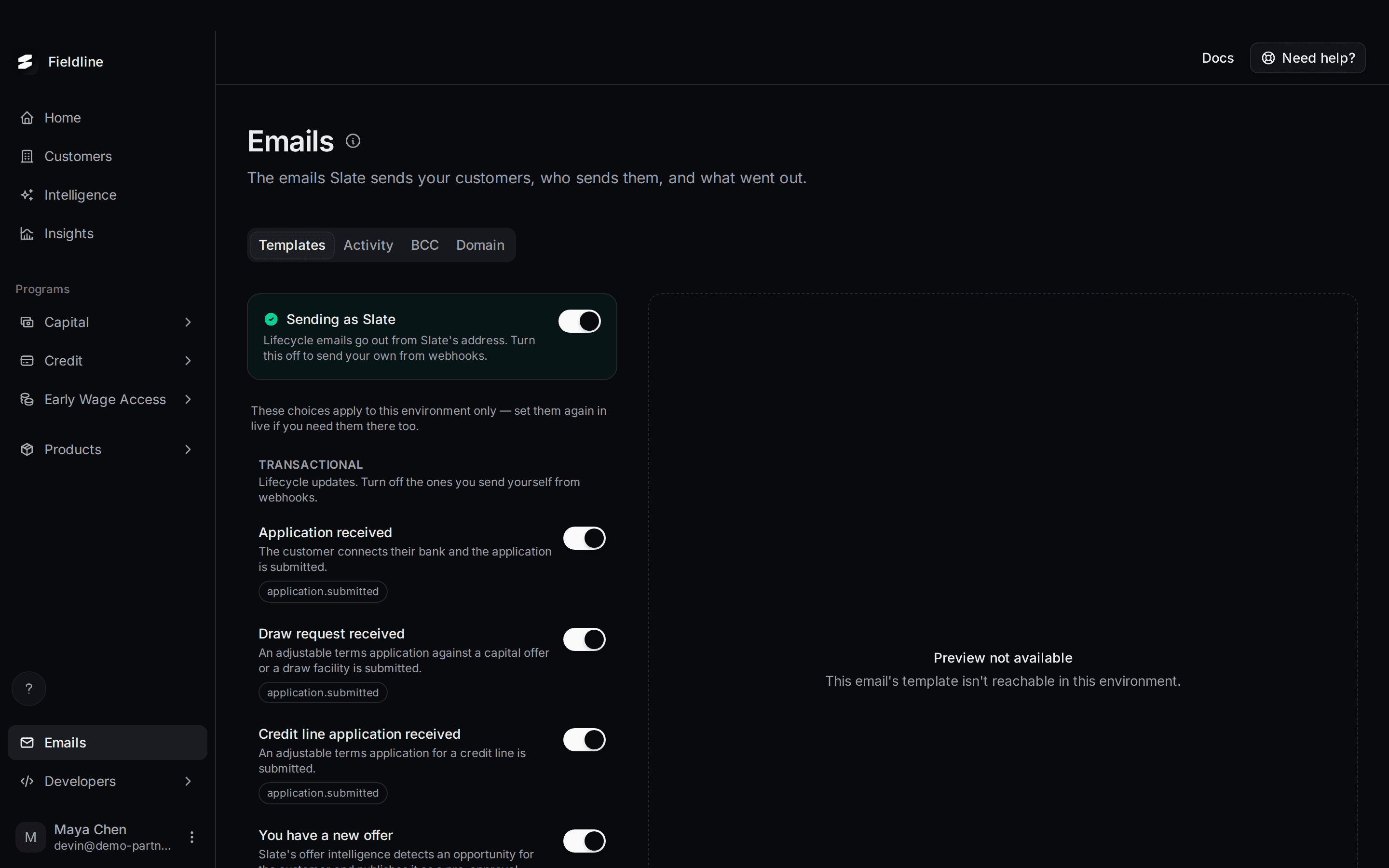
Slate emails your customers at key moments: when they apply, when their agreement is ready, when funds are on the way. On the Templates tab you decide who sends those emails and which ones go out.
Find it in the menu on the left: Emails. The settings apply to one environment only, so set them again in live after you set them in sandbox.
Open the Emails page
Select Emails in the menu on the left. The page opens on the Templates tab.
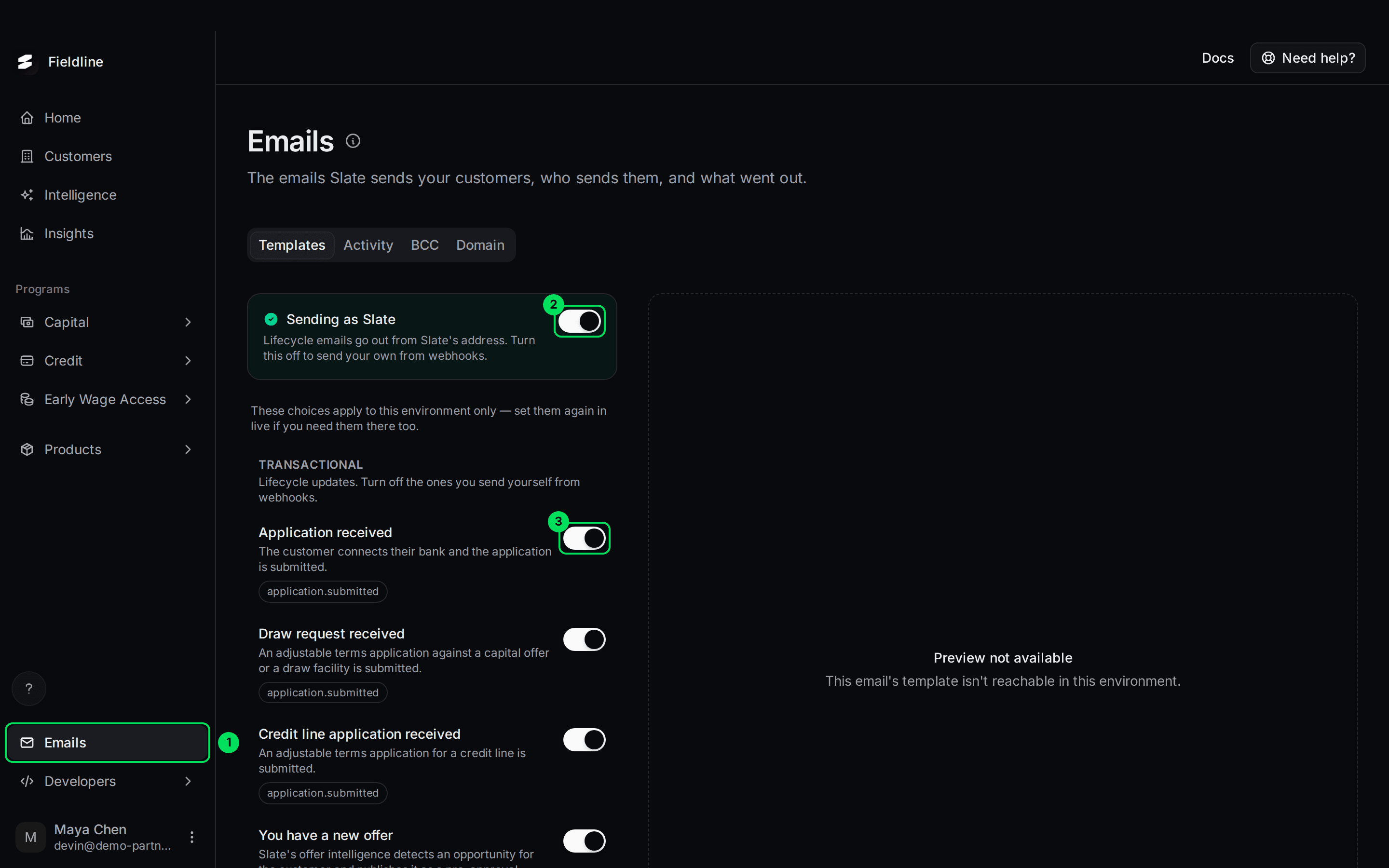
- Emails: the menu item that opens this page.
- Send transactional emails as Slate: the main switch for who sends the lifecycle emails.
- Application received: one email, with its own on and off switch.
Look at the four tabs
The page has four tabs.
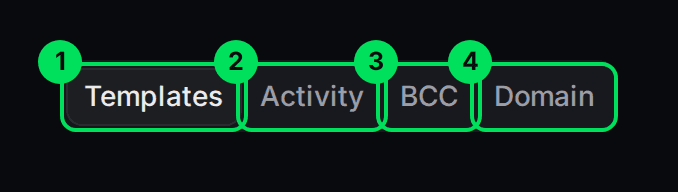
- Templates: every email, who sends it, and the on and off switches.
- Activity: a list of the emails that were sent. See Check what was sent.
- BCC: addresses that get a hidden copy. See Copy your team on customer emails.
- Domain: send from your own web address. See Send emails from your own domain.
The three choices
You pick one of three ways to handle customer emails. In your sandbox dashboard, the choice is on the Home checklist, in the step Set up customer emails.
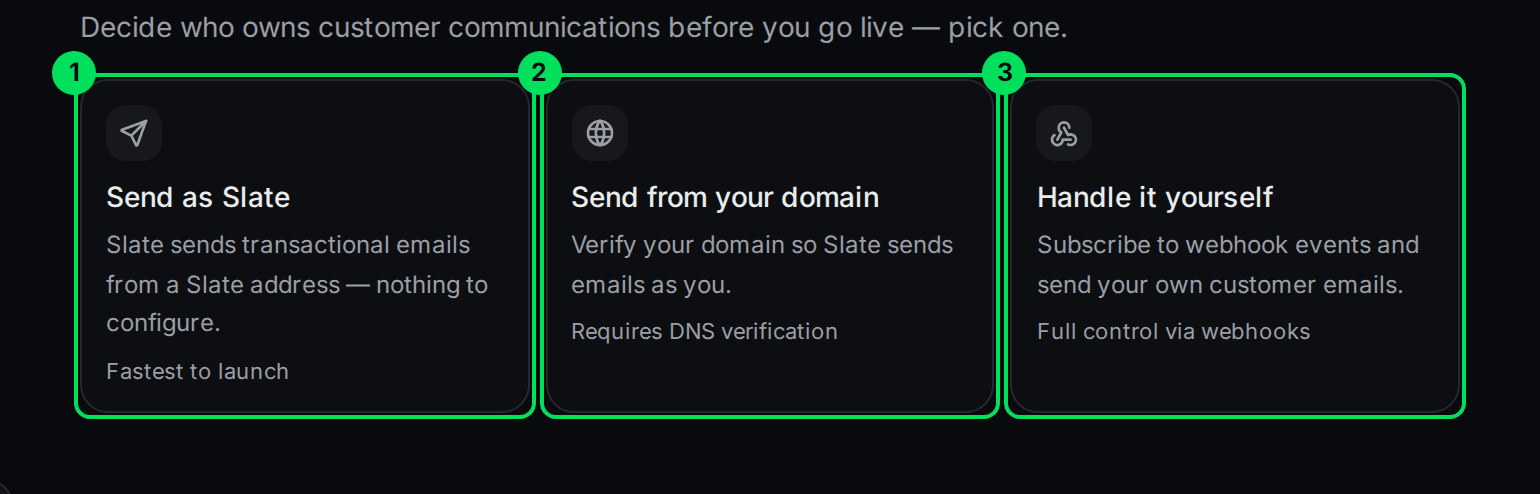
- Send as Slate: Slate sends the emails from a Slate address. Nothing to set up. This is the fastest way to start.
- Send from your domain: you prove you own a web address, and Slate sends the emails as you. This needs DNS changes and works in live only.
- Handle it yourself: you send your own emails, using webhooks to know when something happens. Slate only sends the core emails.
Here is what each choice means in practice.
- Send as Slate: the sender is
[email protected]. All 18 emails go out unless you turn some off. - Send from your domain: the sender is
no-reply@plus your domain, with the display name you choose. Until your domain is verified, emails still go out from Slate's address. - Handle it yourself: the 10 transactional emails are off. The 8 core emails still go out, because they carry documents or actions your customer needs.
Turn Slate's sending on or off
The panel at the top of the Templates tab shows what you chose. It has two looks.
Check the panel at the top
When Slate sends your emails, the panel says Sending as Slate.
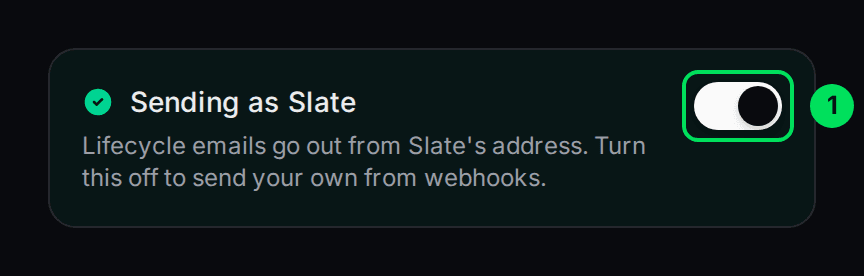
- Send transactional emails as Slate: the switch is on. Turn it off if you want to send your own.
Turn the switch off to handle emails yourself
Select the switch. The panel changes to Transactional emails are off. Slate now sends only the core emails.
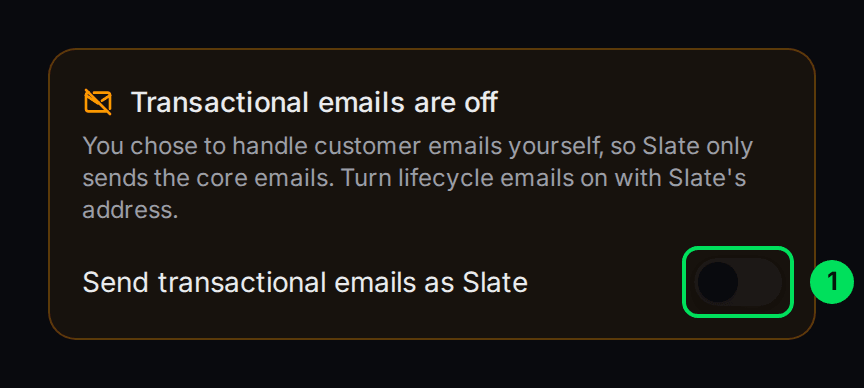
- Send transactional emails as Slate: the switch is off. Select it again to turn Slate's sending back on.
If you have a verified domain, the panel says Sending from and your domain instead. Your domain then sends every email.
Turn one email on or off
Each transactional email has its own switch. Turn one off when you send your own version.
Find the email in the Transactional list
Scroll to the Transactional list. Each email shows its name, a short description, and the event that triggers it.
Select its switch
The switch turns grey when the email is off. Slate stops sending it straight away. Select the switch again to turn it back on.
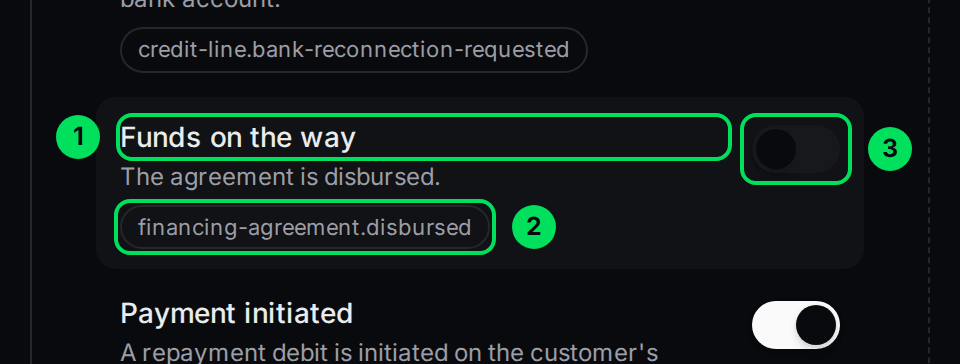
- Funds on the way: the email's name.
- financing-agreement.disbursed: the event that triggers it. See the list below.
- The switch: grey means the email is off.
If the main switch is off, the individual switches are greyed out and cannot be changed. Turn Slate's sending back on first.
The core emails you cannot turn off
Core emails are marked Always sent, with a small lock. They carry things your customer cannot do without, like an agreement to sign. Slate sends them whichever choice you make.
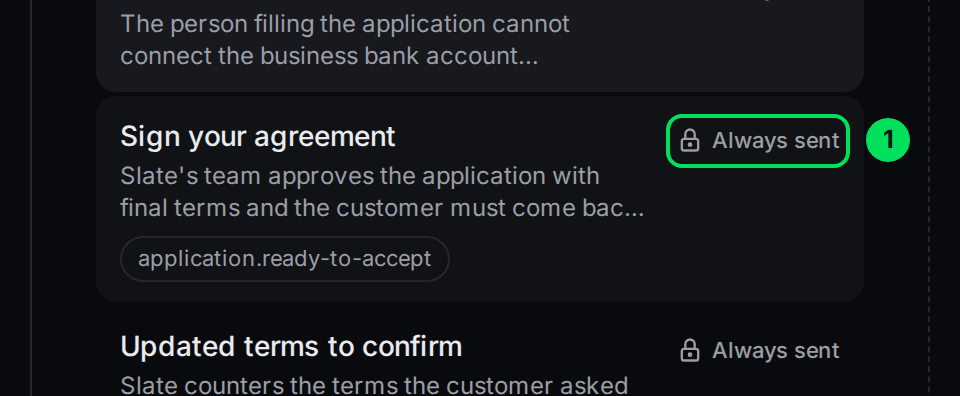
- Always sent: this email cannot be turned off.
All 18 emails and when they are sent
Each email below lists the event that triggers it. The same event is also sent to your systems as a webhook. See Get notified by webhooks.
Emails go to the customer's email address on file. If a customer has no email, nothing is sent, and the rest of the flow carries on.
Core emails (always sent)
- Connect your bank: the person filling in the application cannot connect the business bank account, so someone else must. No webhook event.
- Sign your agreement (
application.ready-to-accept): Slate has approved the application with final terms, and the customer must come back to sign. - Updated terms to confirm (
application.terms-countered): Slate offers different terms from the ones the customer asked for. Sent every time Slate counters. - Your agreement (
financing-agreement.created): the customer accepted the terms and the agreement now exists. The agreement PDFs are attached. - Your credit line is ready (
credit-line.created): a credit line was approved and set up. - Your credit limit changed (
credit-line.limit-changed): Slate raised or lowered the credit line limit. - Application not approved (
application.rejected): the application was turned down, by the automatic decision or by Slate's team. It includes the reasons when Slate shares them, and the date the customer can apply again (90 days). - Payment failed (
financing-agreement.payment.failed): the bank returned or cancelled a scheduled payment.
Transactional emails (you can turn these off)
- Application received (
application.submitted): the customer connected their bank and submitted. It shows the amount and says to expect a decision in 24 hours. Not sent for Early Wage Access requests. - Draw request received (
application.submitted): a customer submitted a request against a capital offer or a draw facility. - Credit line application received (
application.submitted): a customer submitted a credit line application. - You have a new offer (
opportunity.offer.created): Slate found a good moment for an offer and published it. It has a one-click apply link that works for 7 days. - Reconnect your bank (
credit-line.bank-reconnection-requested): Slate asks a credit line customer to link their bank again by a deadline. - Funds on the way (
financing-agreement.disbursed): the money was sent. It shows the amount, the last 4 digits of the account, and an expected arrival of 3 business days. In sandbox the account digits show0000. - Payment initiated (
financing-agreement.payment.initiated): a payment was started on the customer's account. - Payment received (
financing-agreement.repayment): a payment went through. - Agreement paid in full (
financing-agreement.completed): the last payment went through, and nothing more is owed. - A new, larger offer is available (
preapproval.created): paying off an agreement earned the customer a new offer.
Preview an email
Select any email in the list to see it on the right. You see the subject and the email as your customer gets it, filled in with sample details and your brand colour.
If the right side says Preview not available, the template could not be loaded right now. Try again in a minute.
If something goes wrong
Why are the switches greyed out?
The main switch, Send transactional emails as Slate, is off. Turn it on, or verify your own domain, and the individual switches work again.
Why did my customer not get an email?
Check these in order.
- The customer has no email address on file. Slate sends nothing in that case.
- The email is a transactional one and you turned it off, or you chose to handle emails yourself.
- Open the Activity tab and search for the customer's address. It shows whether the email was sent, delivered or failed. See Check what was sent.
I set this up in sandbox. Why is live different?
Sandbox and live keep separate settings. Set your choice again in live.
Learn more about sending from your own domain.
Still stuck? Email [email protected] with your account email and the screen you are on. We reply within 24 business hours.