Help Center / Customers
Import customers from a spreadsheet
Add many customers at once from a CSV file. Covers the columns, the rules, how to fix errors and what happens when you confirm.
5 min read · Updated November 10, 2026
You can add many customers at once by uploading a CSV file, a spreadsheet saved as plain text. It is the quickest way to register a list you already have.
You'll need: a CSV file with one row per customer, and each customer's own ID from your system. The file can hold businesses or people, but not both.
Import a file
Open Import
Select Customers in the menu, then Import at the top right.
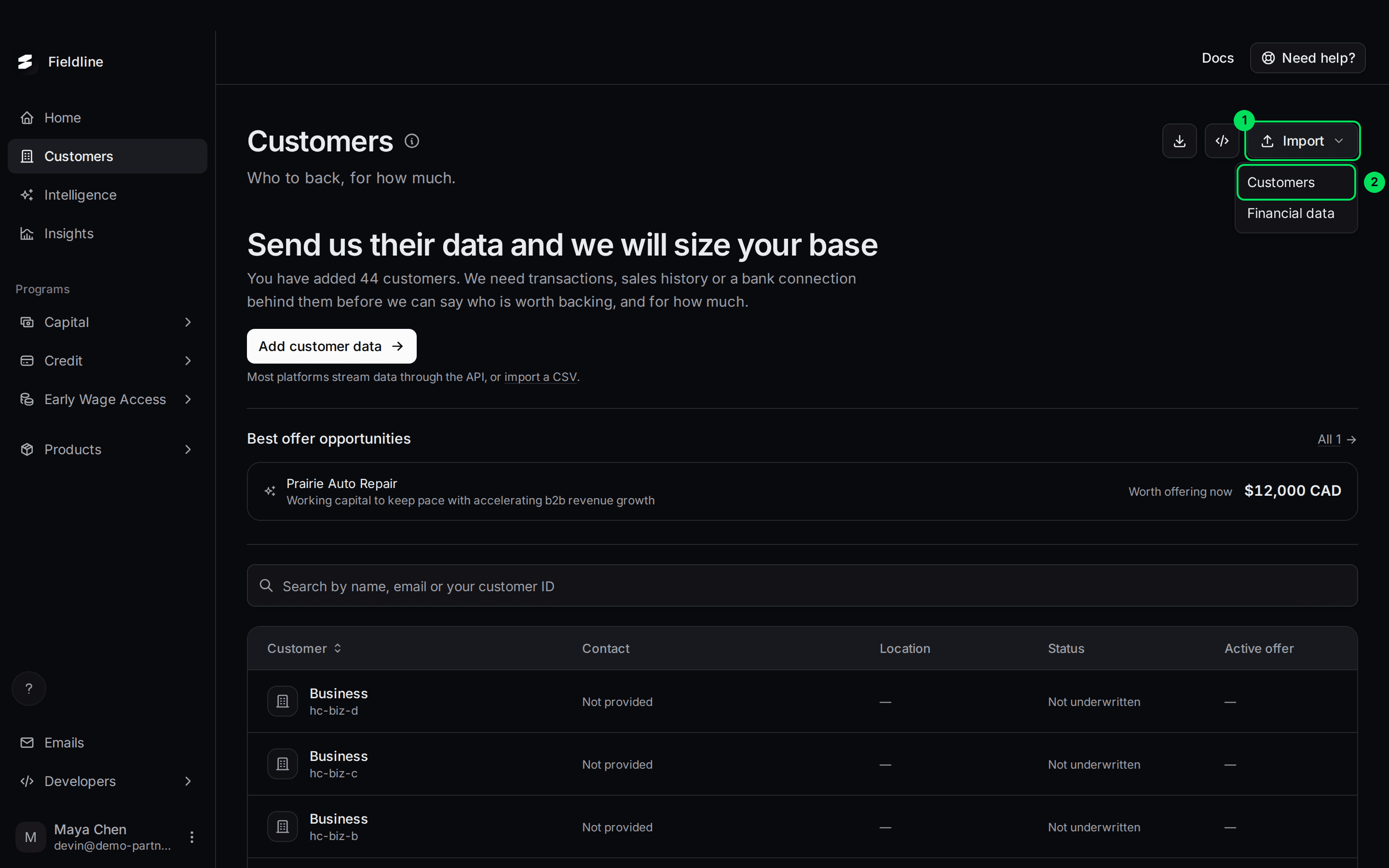
- Import: opens a short menu.
- Customers: imports a list of customers. The other option, Financial data, is covered in Import financial data.
Choose the customer type
Select Business or Person. One file holds one type.
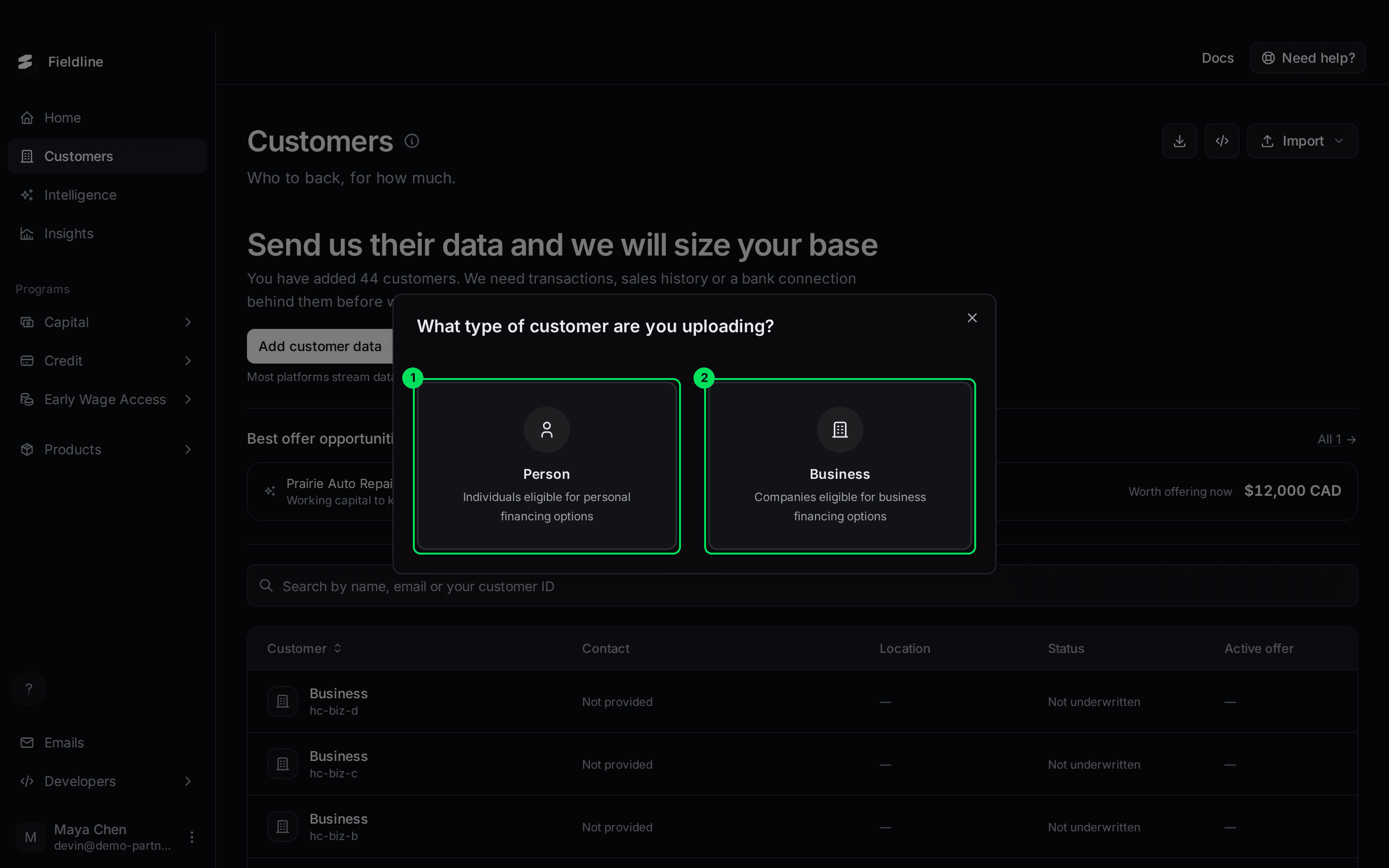
- Person: individuals.
- Business: companies. We use this one below.
Get the template (optional)
Select Download Template. It saves a sample CSV with the right column names and ten made-up rows. Delete the sample rows and add your own.
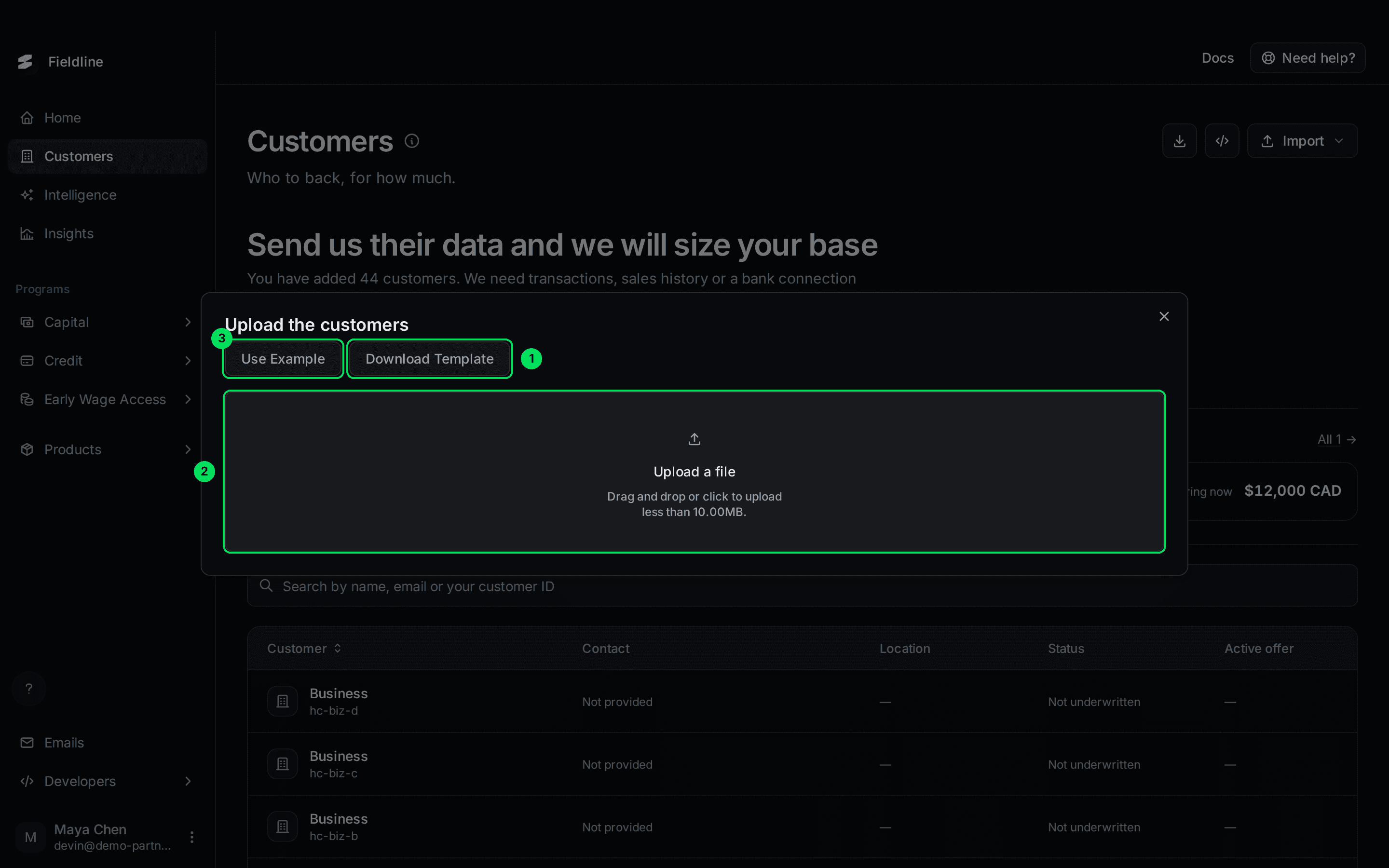
- Download Template: a sample file for the type you chose.
- Upload a file: drag your CSV here, or select the area to browse. Files must end in
.csvand be under 10 MB. - Use Example: loads the sample rows without a file. It only appears in sandbox.
Upload your file
Drop your CSV on the upload area. A message at the top says whether it was read, for example Parsed with 1 error(s).
Check the preview
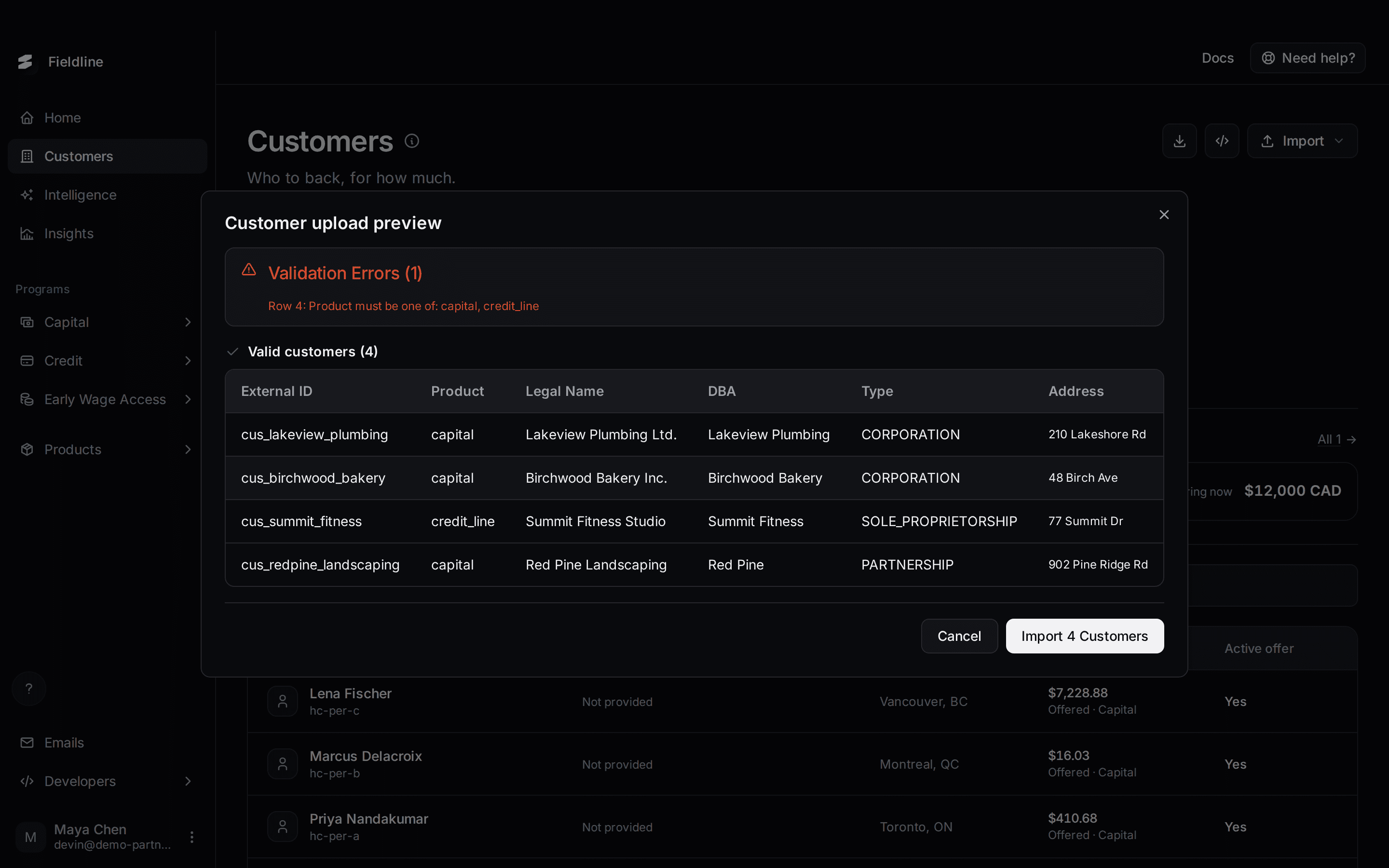
The Customer upload preview shows what Slate understood.
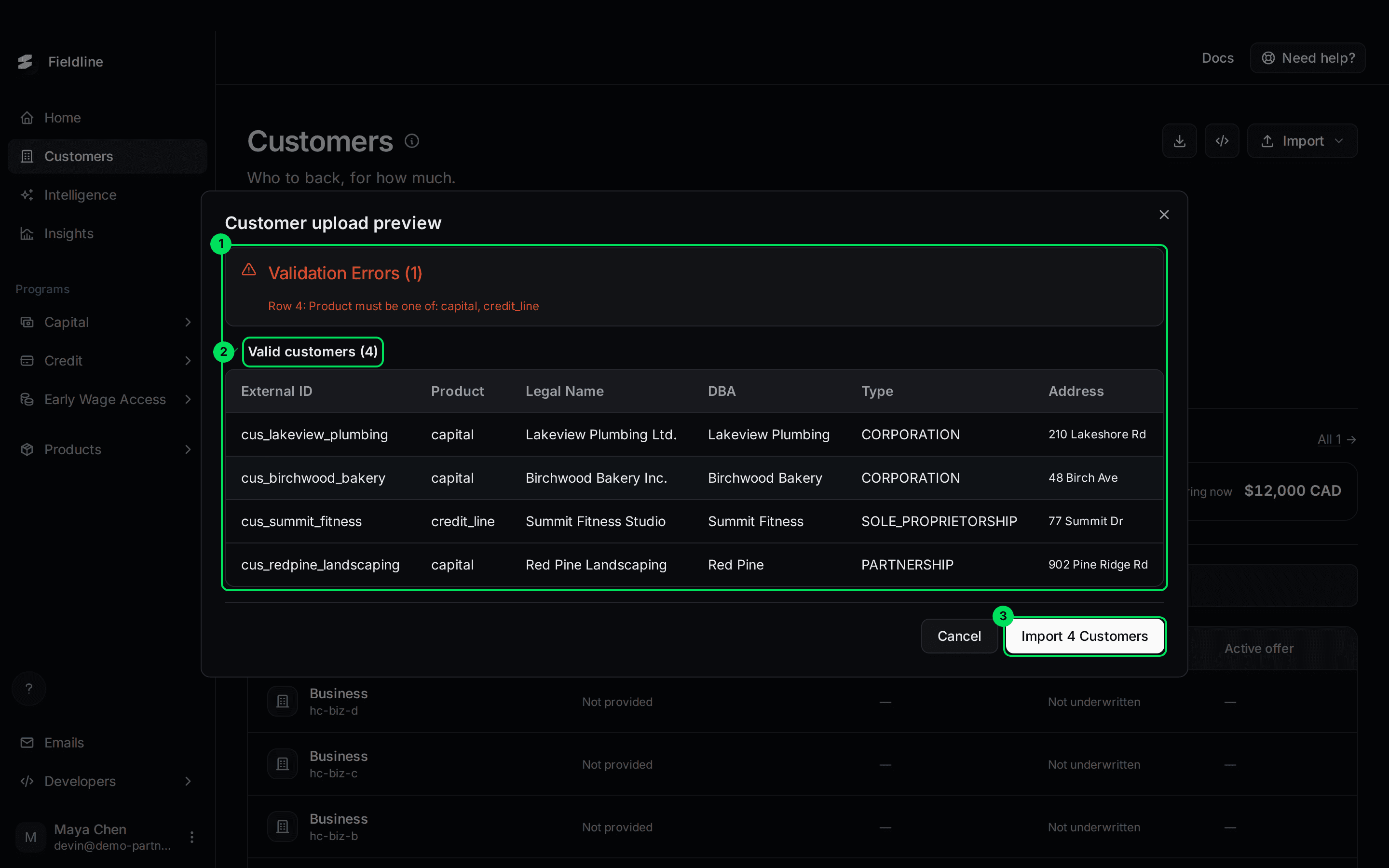
- Validation Errors: rows Slate cannot import. Each line names the row and the problem.
- Valid customers: the rows that will be imported. Scroll sideways to see every column.
- Import 4 Customers: imports the valid rows. The number matches the list.
Select Import
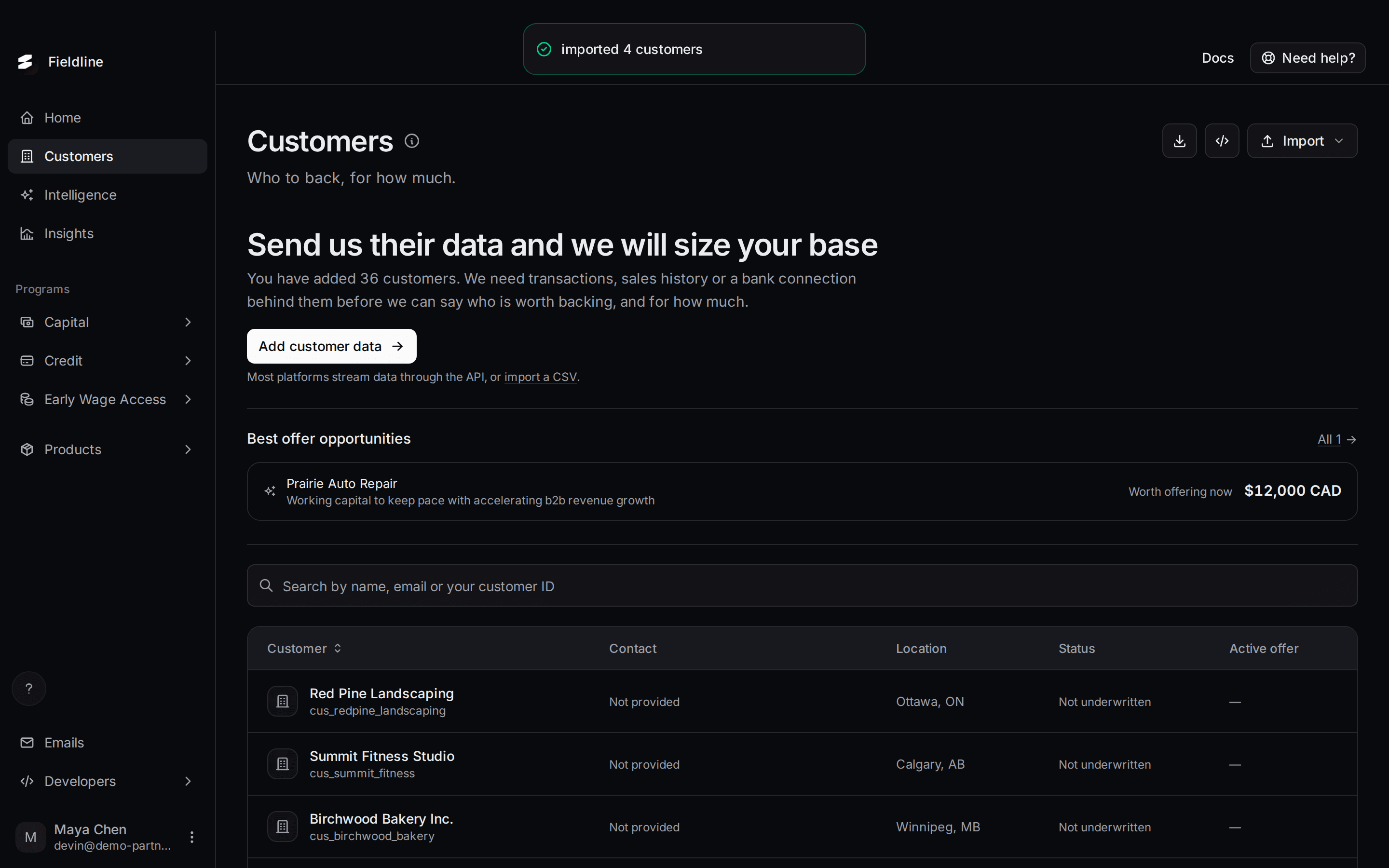
Slate adds the customers one at a time. A message at the top says imported 4 customers.
What goes in a business file
The first row must hold these column names, spelled exactly like this, including capital letters.
Required:
externalId: your own ID for the customer. It must be unique.productType:capitalorcredit_line. Required if your company offers both. If you offer one, you can leave it empty.
Optional:
legalName,dba(trading name) andwebsite.type:CORPORATION,SOLE_PROPRIETORSHIPorPARTNERSHIP.address1,address2,city,state,postalCodeandcountry(CAorUS). Slate saves the address only ifaddress1,city,state,postalCodeandcountryare all filled in.contactEmail,contactPhoneandcontactFullName. See the note below.
Only externalId is truly needed, so you can import a list of IDs now and attach data later.
What goes in a person file
Required:
externalId,firstName,lastName.address1,city,state,postalCodeandcountry(CAorUS).birthdate, written asYYYY-MM-DD, for example1988-04-23.productType: same rule as above.
Optional: middleName, address2, email and phone.
Phone numbers use the international format with a plus sign, for example +14165550100.
Fix the errors
Slate names the row and the problem. Row numbers count your data rows, so the first customer under the column names is Row 1.
The example below fails because productType says line_of_credit.
Row 4: Product must be one of: capital, credit_line
Fix that cell, save, and upload the file again. Slate may show a new problem on the next try if the row has more than one.
If something goes wrong
"Invalid file type"
The file does not end in .csv. In Excel or Numbers, choose Save as or Export and pick CSV.
"Duplicated External ID"
A customer with that externalId already exists. If you upload a file twice, every row fails this way.
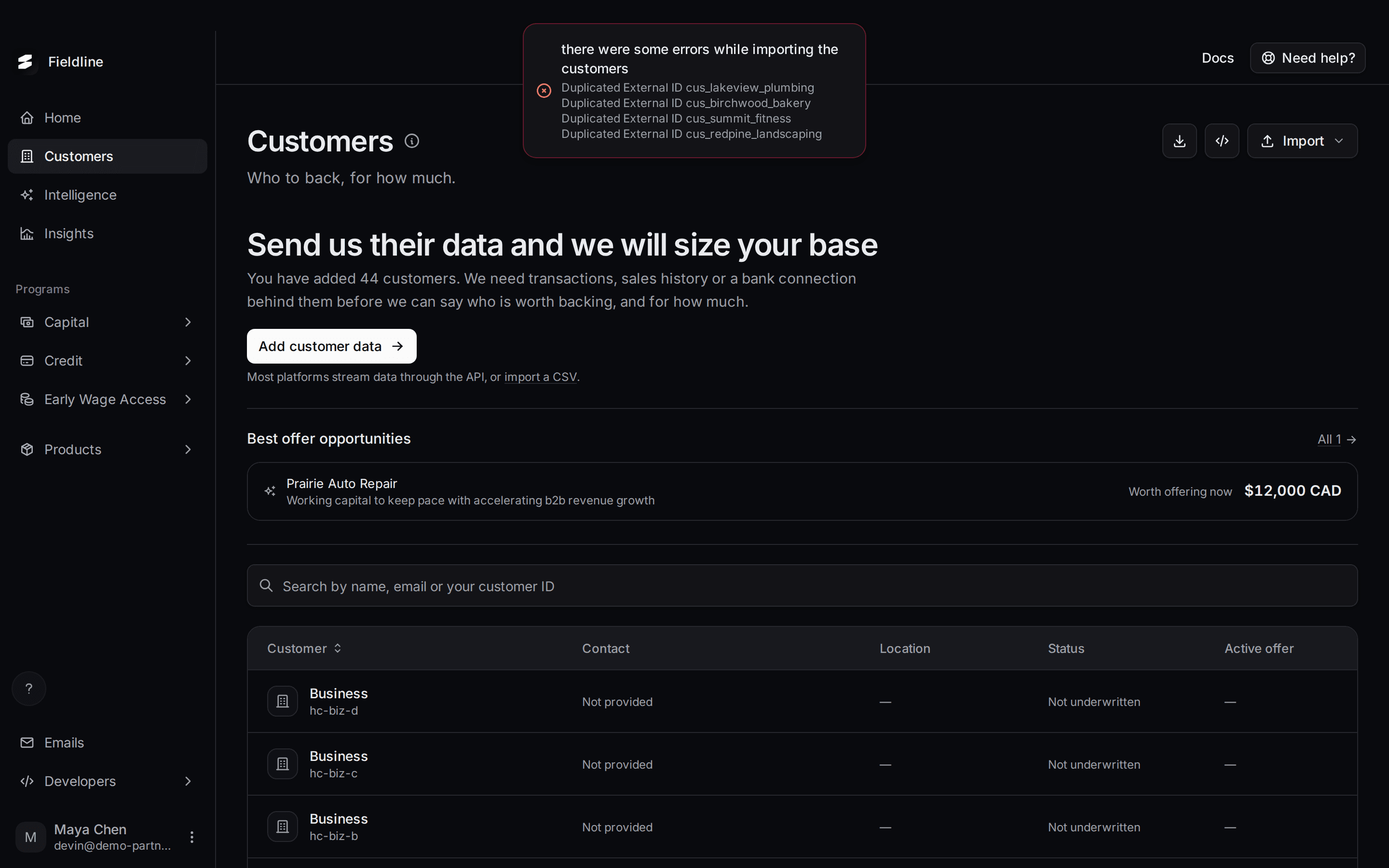
Remove the rows that already imported, or give the new ones fresh IDs.
Some rows imported and some did not
Slate adds rows one at a time, so earlier rows stay even if a later one is rejected. The message lists each rejected row.
Where are my customers?
Open Customers and search for one by name or ID. New customers show Not underwritten until Slate has data on them.
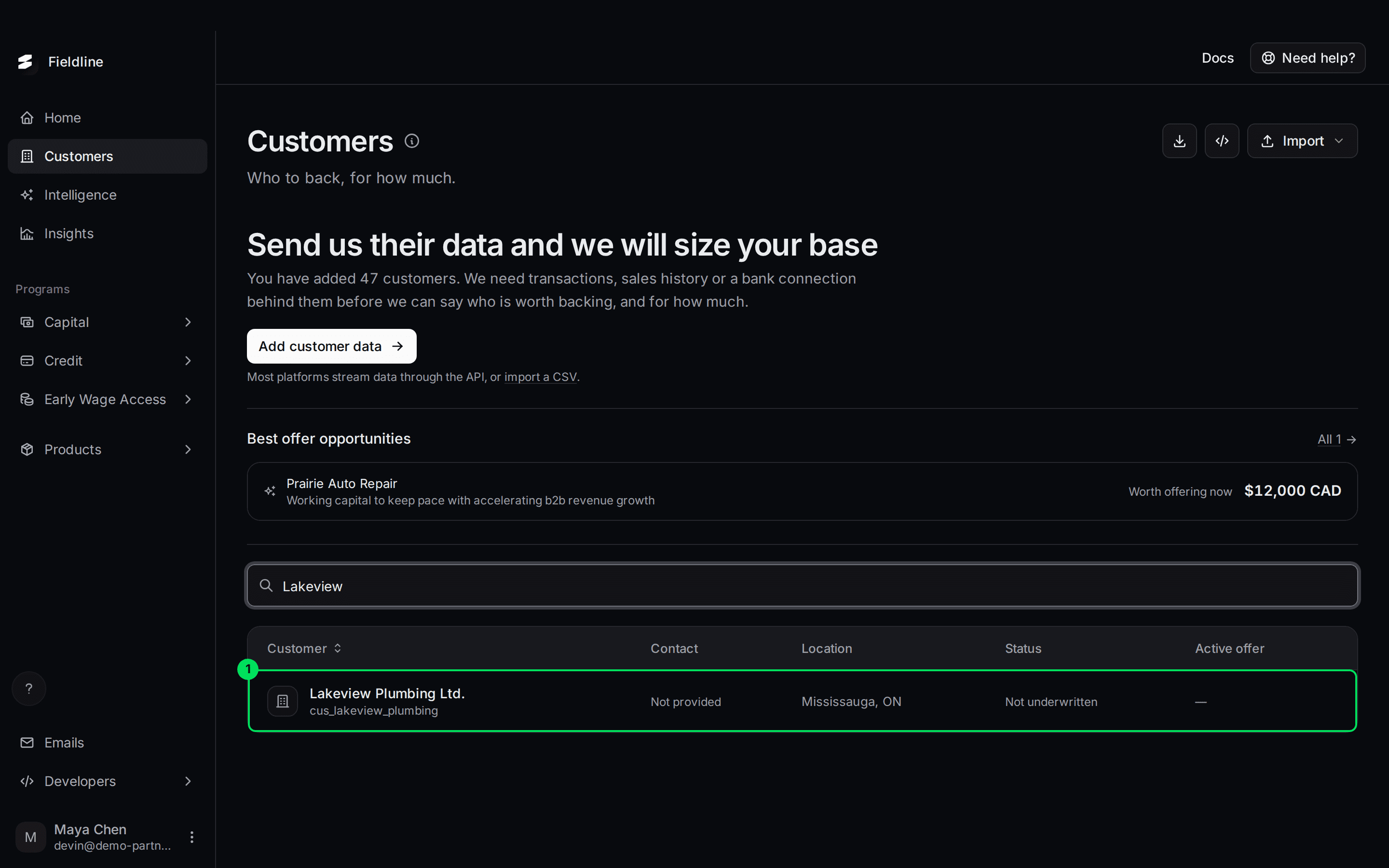
- The imported customer: shown with Mississauga, ON as its location and Not underwritten as its status.
Next, give Slate their numbers: Import financial data.
Learn more about Slate Signals.
Still stuck? Email [email protected] with your account email and the screen you are on. We reply within 24 business hours.