Help Center / Customers
Your Customers page
Every business and person you have sent to Slate, what Slate knows about them, and which ones hold an offer. Learn to read the list, open a customer and move them to another product.
8 min read · Updated November 10, 2026
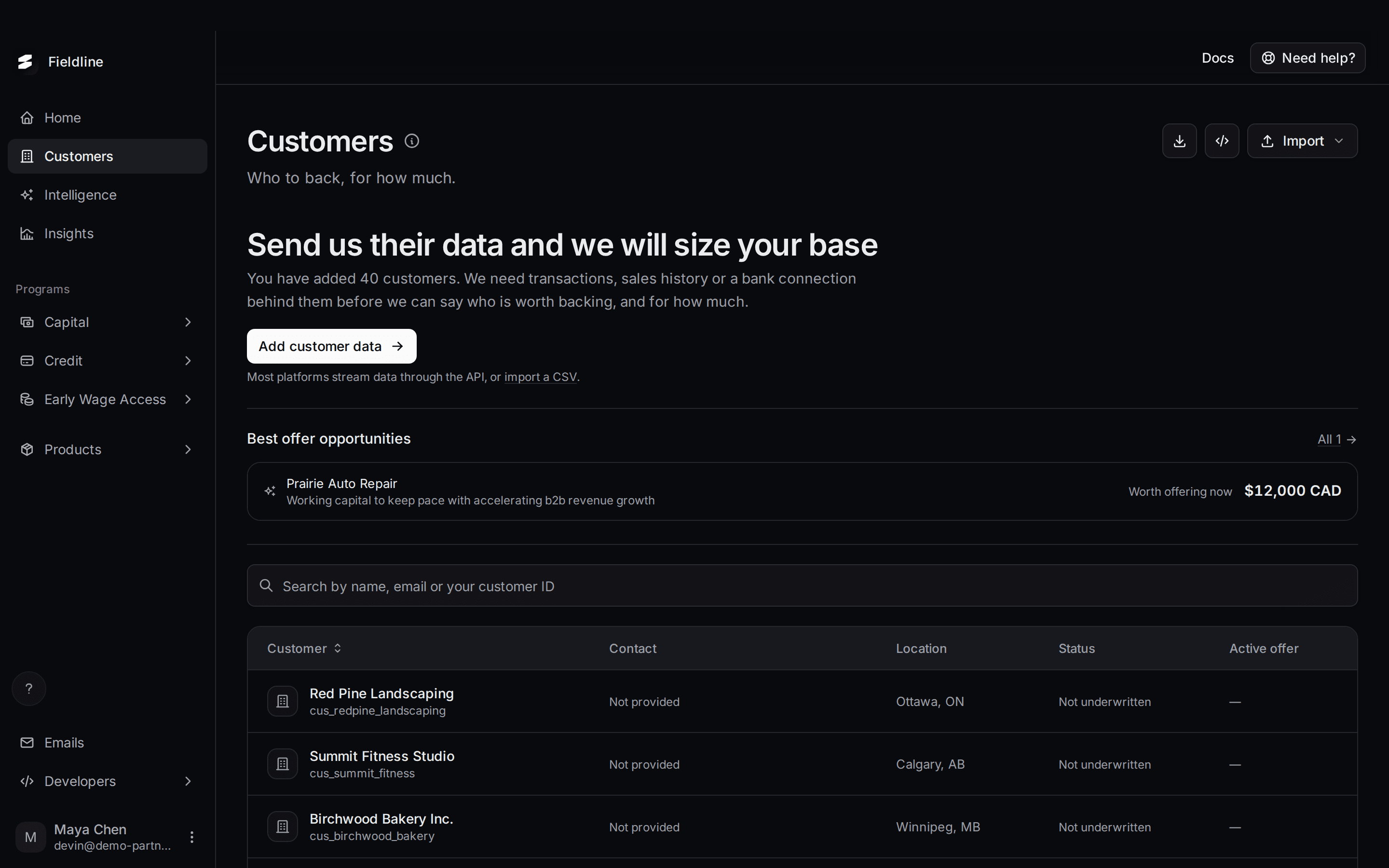
The Customers page lists every business or person you have registered with Slate. It shows who holds an offer, who is still waiting on data, and what each customer has done so far.
Find it in the menu on the left: select Customers. Anyone on your team can use it, in sandbox and in live.
What you see on the page
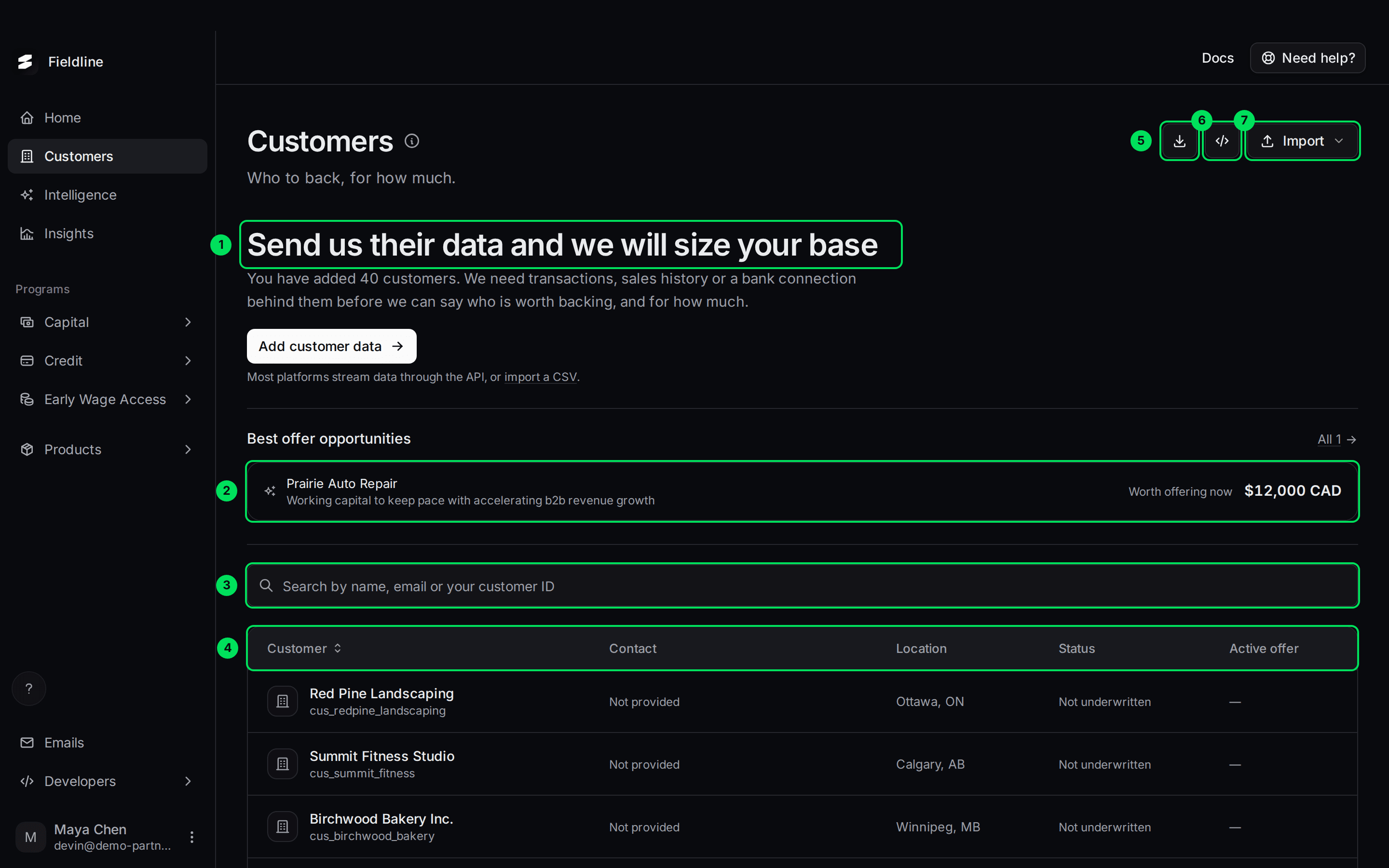
- The data prompt ("Send us their data and we will size your base"): shown while Slate has not yet sized any of your customers. It tells you how many customers you have added and what Slate still needs.
- Best offer opportunities: the customers Slate thinks are worth an offer right now. See Intelligence.
- Search: finds a customer by name, email or your own customer ID.
- The table: one row per customer. Select a row to open that customer.
- Export (download icon): saves the table as a spreadsheet. See Export a table to CSV.
- API (the
</>icon): shows the code your developers use to read and add customers. - Import: adds customers or financial data from a spreadsheet.
The data prompt
Slate cannot say who is worth backing until it has data on them. The prompt reads "Send us their data and we will size your base", and says how many customers you have added.
- Select Add customer data to open the API panel.
- Select import a CSV in the line underneath to upload a spreadsheet instead. See Import financial data.
Once Slate has sized some of your customers, the prompt changes. It shows how many customers Slate has sized, how much is on the table, and a Size button for the rest.
Best offer opportunities
This strip shows up to five customers Slate has spotted. Each line has the customer's name, the reason, when to act (Worth offering now, Worth offering within 30 days or Worth offering within 90 days) and the amount.
Select All 1 (the number changes) to go to Intelligence. The strip is hidden when there is nothing to show.
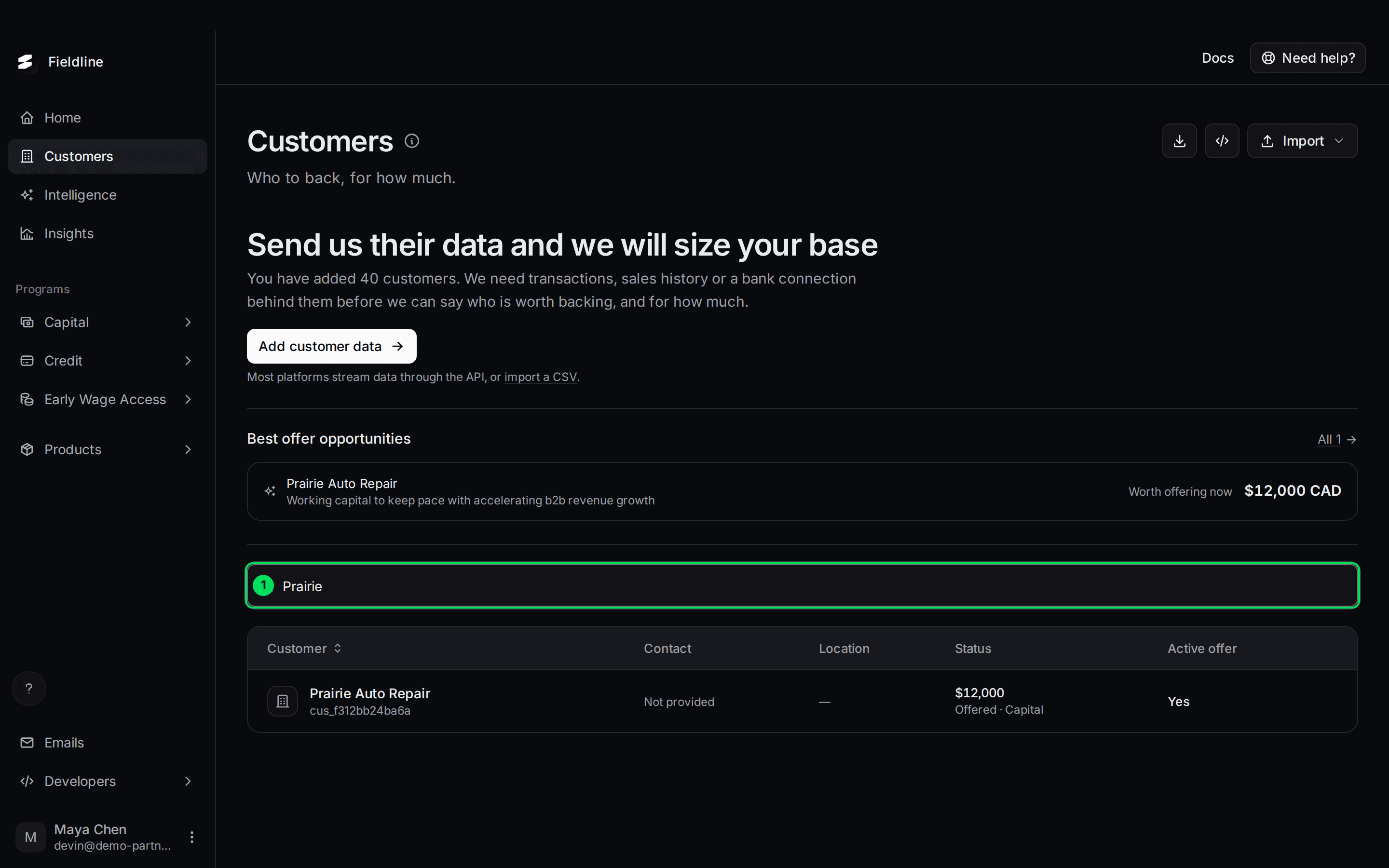
Search
Type part of a name, an email or your own customer ID. The table updates as you type. Clear the box to see everyone again.
Read the table
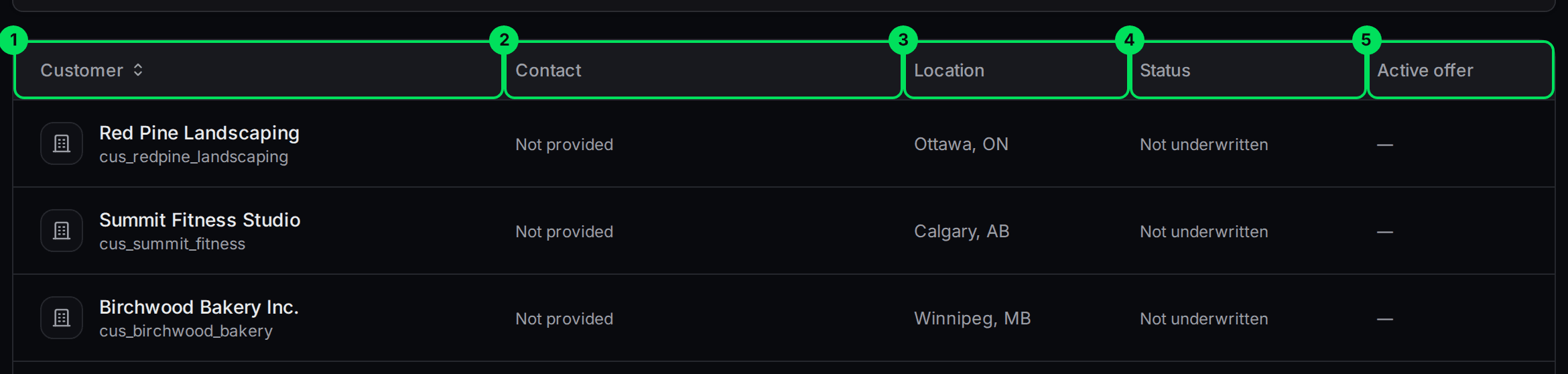
- Customer: the business or person's name. Underneath is your own customer ID. Select the header to sort.
- Contact: the contact name and email. It says Not provided when you have not sent one.
- Location: city and province or state, or a dash if there is no address.
- Status: where the customer stands with Slate. See the list below.
- Active offer: Yes if the customer holds an open offer today.
What each status means
- $ amount with "Offered · Capital" or "Offered · Credit line": the customer holds an open offer. The amount is the most they can take. Open the customer to send them an application link.
- Not underwritten: Slate has not looked at this customer yet. It needs data first. Send transactions, sales history or a bank connection.
- No offer: Slate looked and has no open offer for them today.
- Offer expired: the last offer ran out. The old amount shows as "was $X".
Active offer reads Yes when an offer is open, No when Slate looked and found nothing, and a dash when nobody has looked yet. A dash does not mean a customer was declined.
Open a customer
Select any row. A panel slides in from the right.
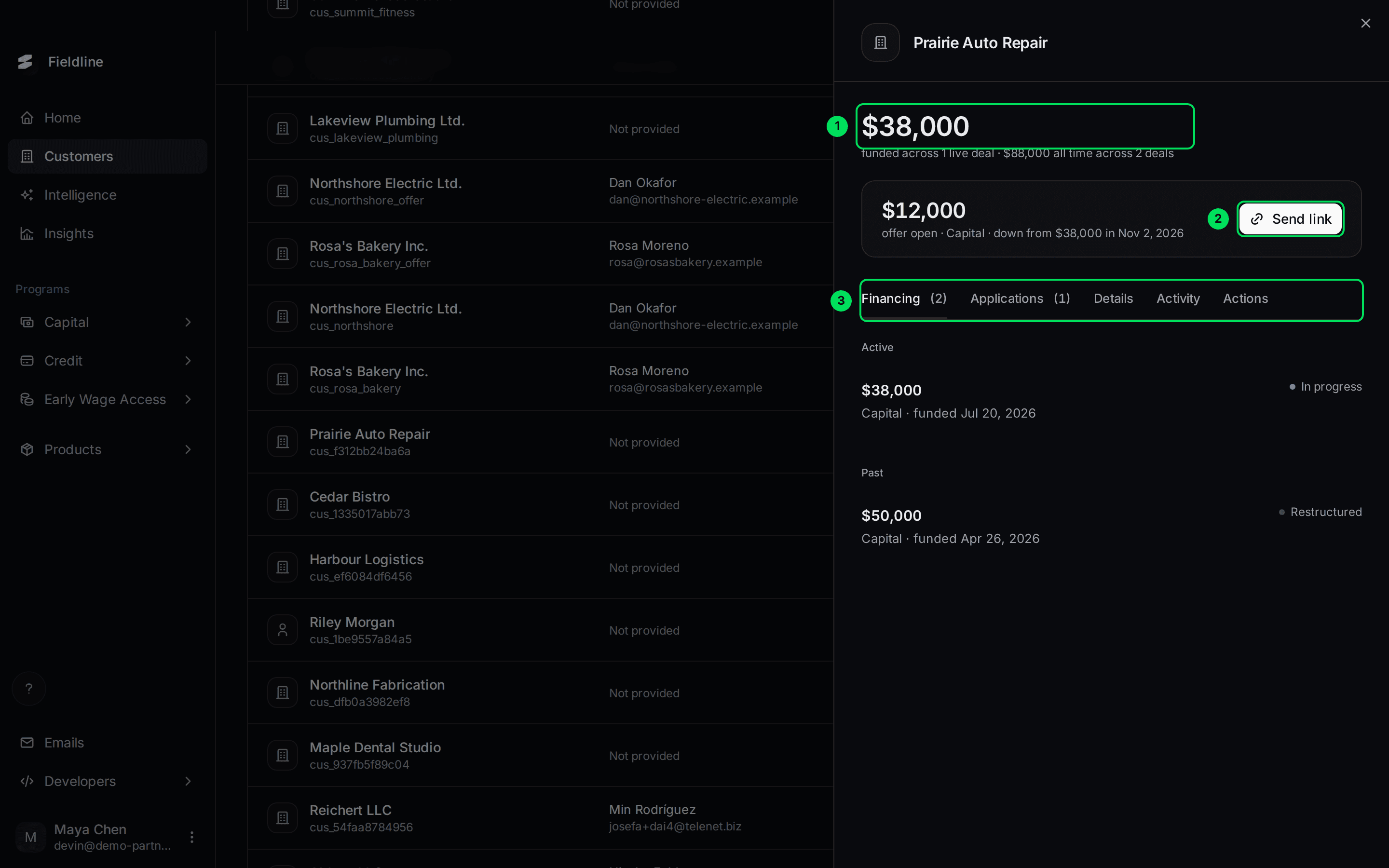
- Funding summary: how much is funded across live deals, and how much all time. Select it to see that customer's financing.
- The offer: the amount of the open offer and its product. Send link creates an application link. See Send an application link.
- Tabs: Financing, Applications, Details, Activity and Actions.
If a customer has no product yet, the panel says No product set. Place them on Capital or Credit line from the Actions tab before you extend an offer.
The offer line also shows when the amount changed, for example "down from $38,000 in Nov 2, 2026".
Financing tab
Every advance funded to this customer. They are grouped Active and Past. Each line shows the amount, the product, the funded date and the status (for example In progress or Restructured). It says Nothing funded yet. when there is none. Select a line to open the agreement.
Applications tab
Every application the customer started.
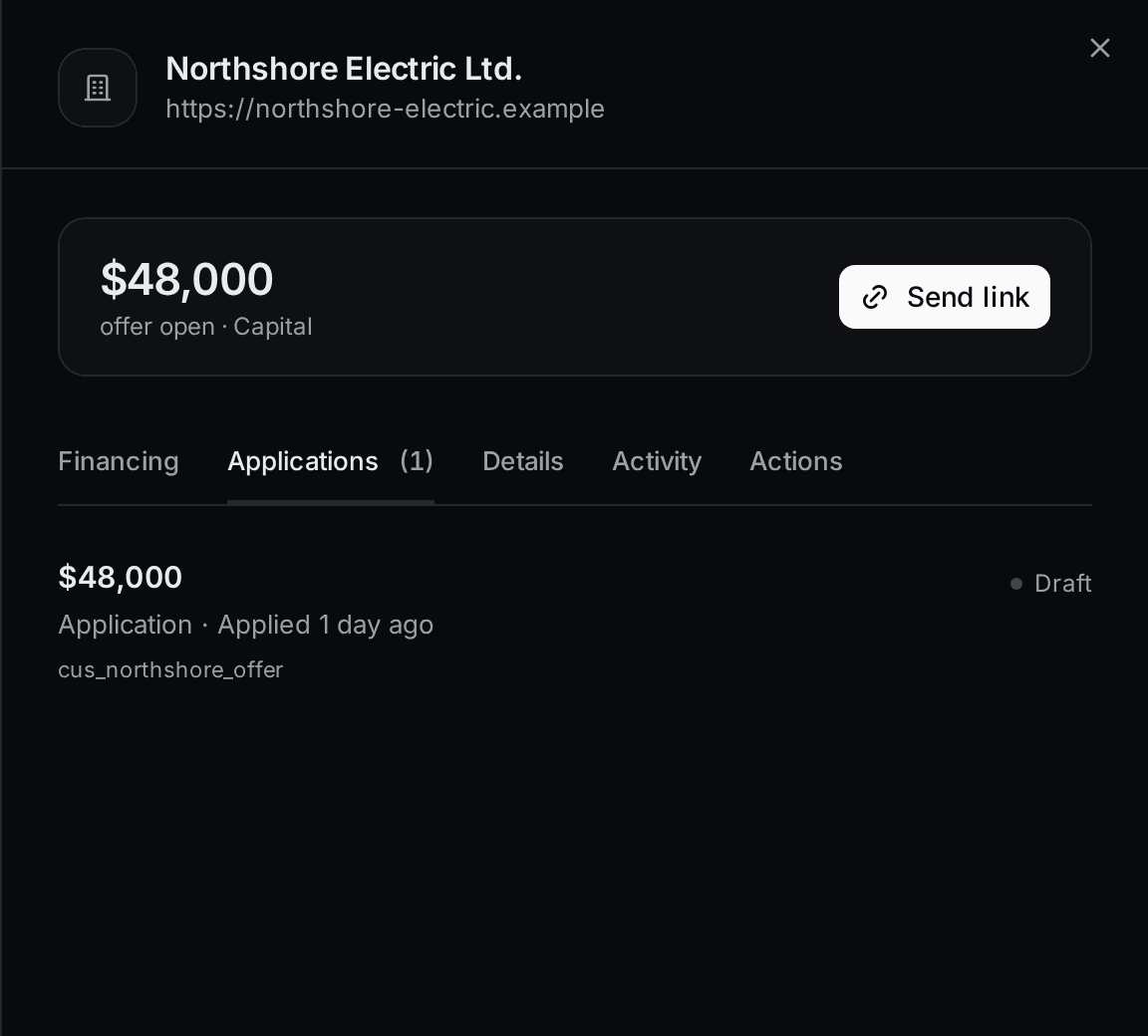
Each line shows the amount, when they applied, your customer ID and the status. A Draft is an application the customer started and has not submitted. For all statuses, see Applications.
Details tab
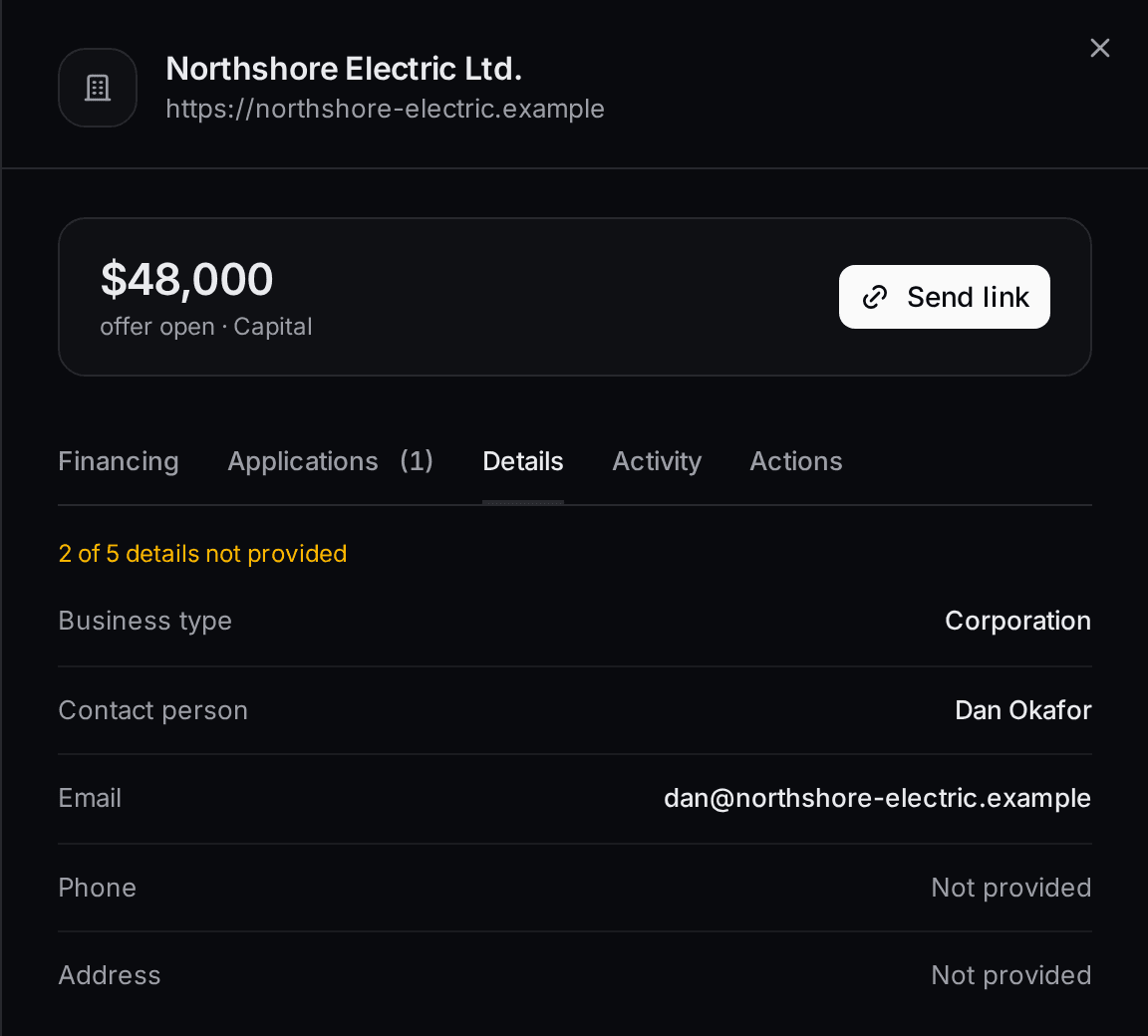
The top line counts what is missing, for example "2 of 5 details not provided". Below it are the business type, contact person, email, phone and address.
Under Record you will find the customer's Slate ID and your own external ID. Each can be copied. Your developers need these to find the customer through the API.
Activity tab
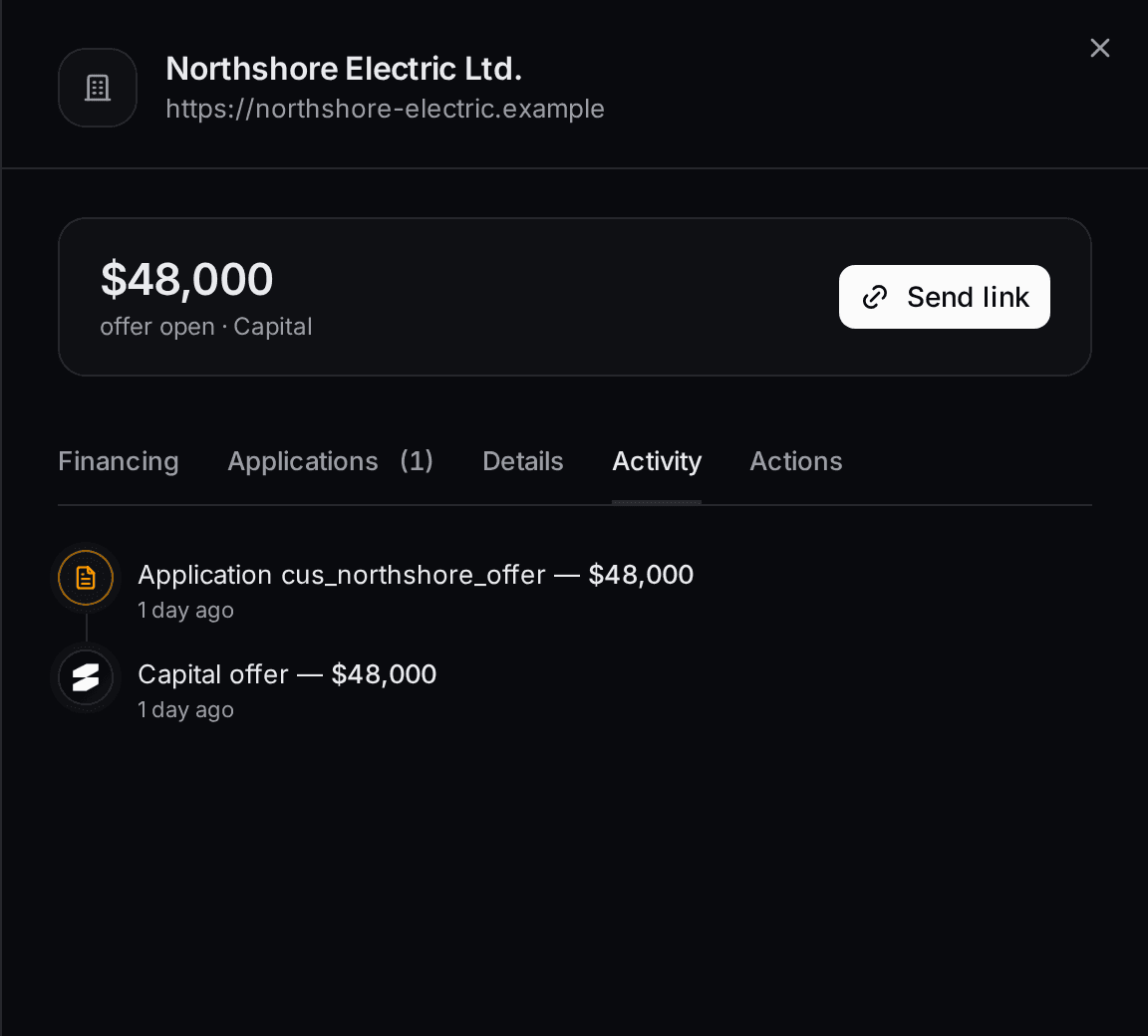
A timeline of offers, applications and funding, newest first. An offer shows as Open, Taken up or Expired.
Actions tab
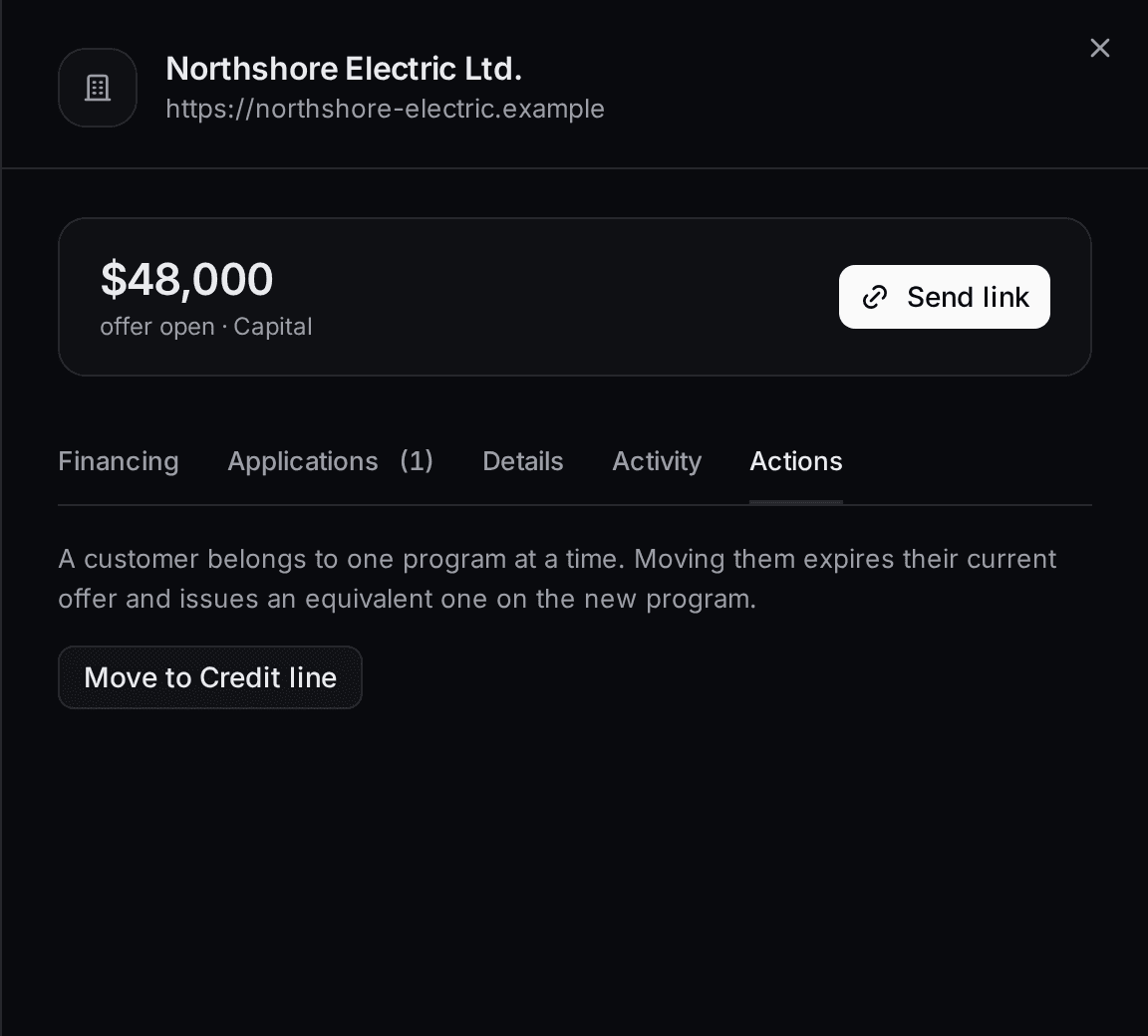
Holds one button: Move to Credit line or Move to Capital, depending on where the customer is now. You only see products your company offers.
Move a customer to another product
A customer belongs to one product at a time: Capital or Credit line. Use this when you gave a customer the wrong one.
Open the customer and select Actions
Select the customer's row, then the Actions tab.
Select Move to Credit line (or Move to Capital)
A confirmation opens. It says "This customer moves from Capital to Credit line."
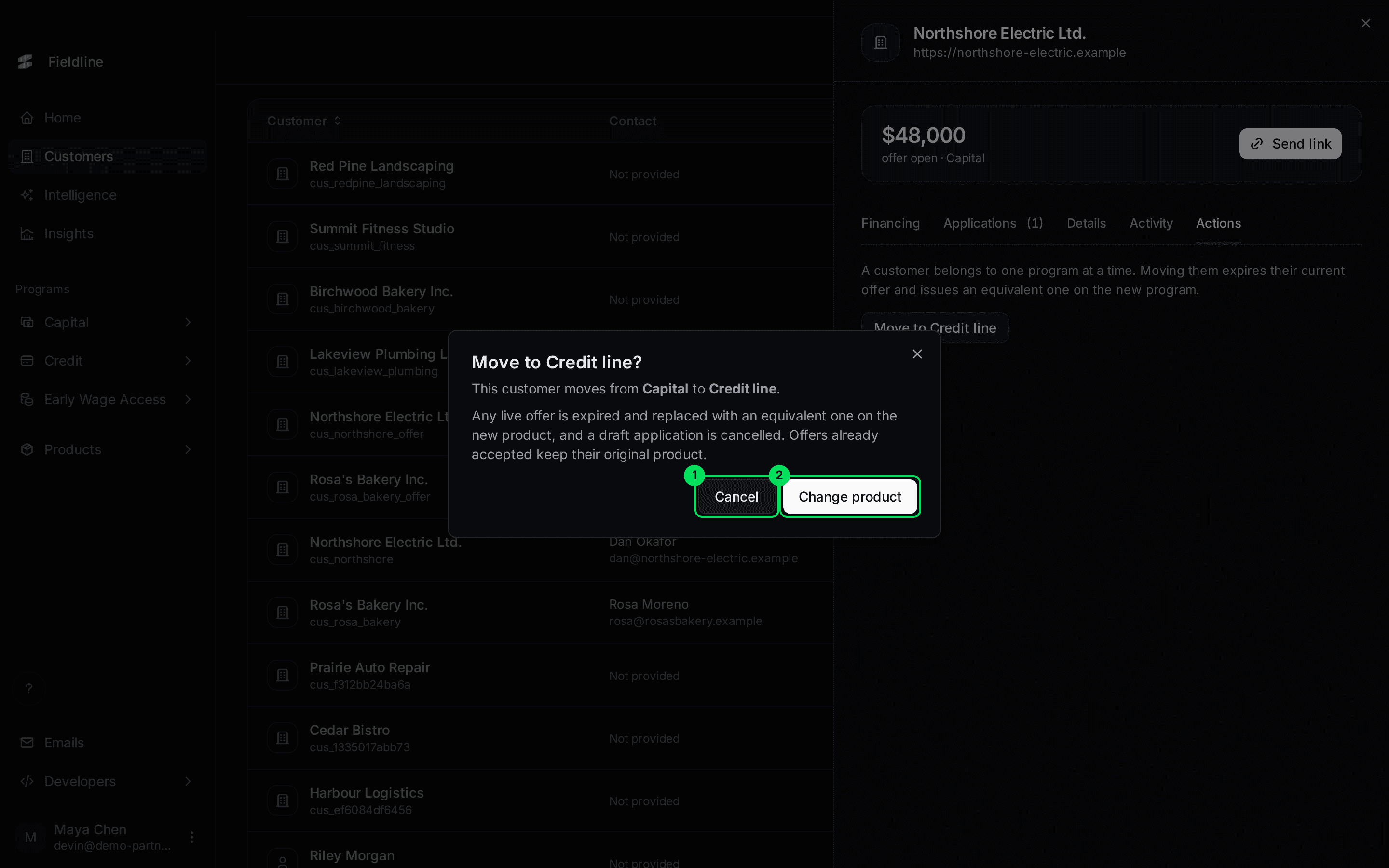
- Cancel: closes the box and changes nothing.
- Change product: moves the customer.
Select Change product
You see Product changed and the panel closes.
What happens when you confirm:
- Any live offer expires and Slate issues an equivalent one on the new product.
- A draft application is cancelled.
- Offers the customer already accepted keep their original product.
Use the API panel
Select the </> icon at the top right.
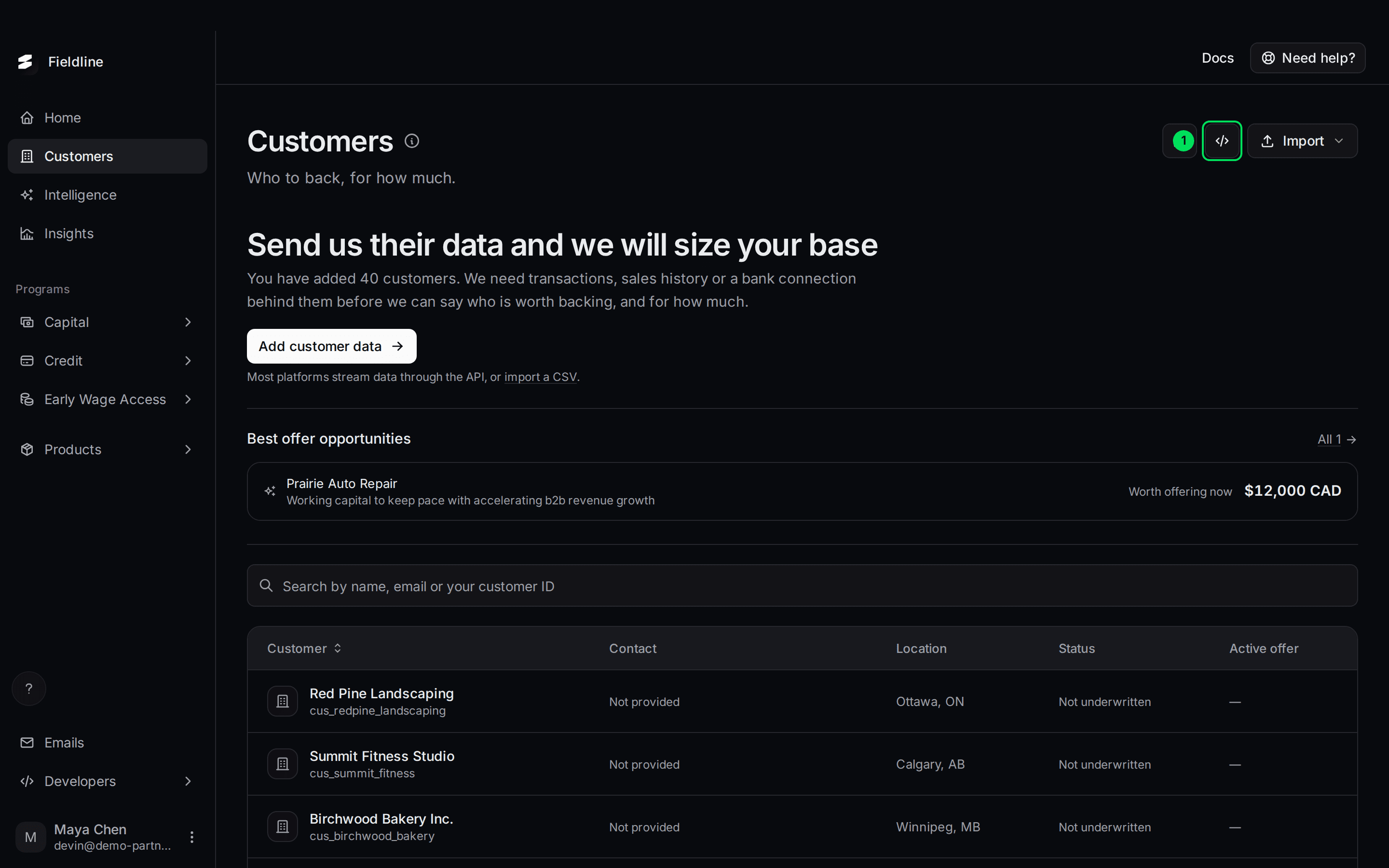
- API (
</>): opens the Customers API panel.
A panel opens with ready-made examples your developers can copy.
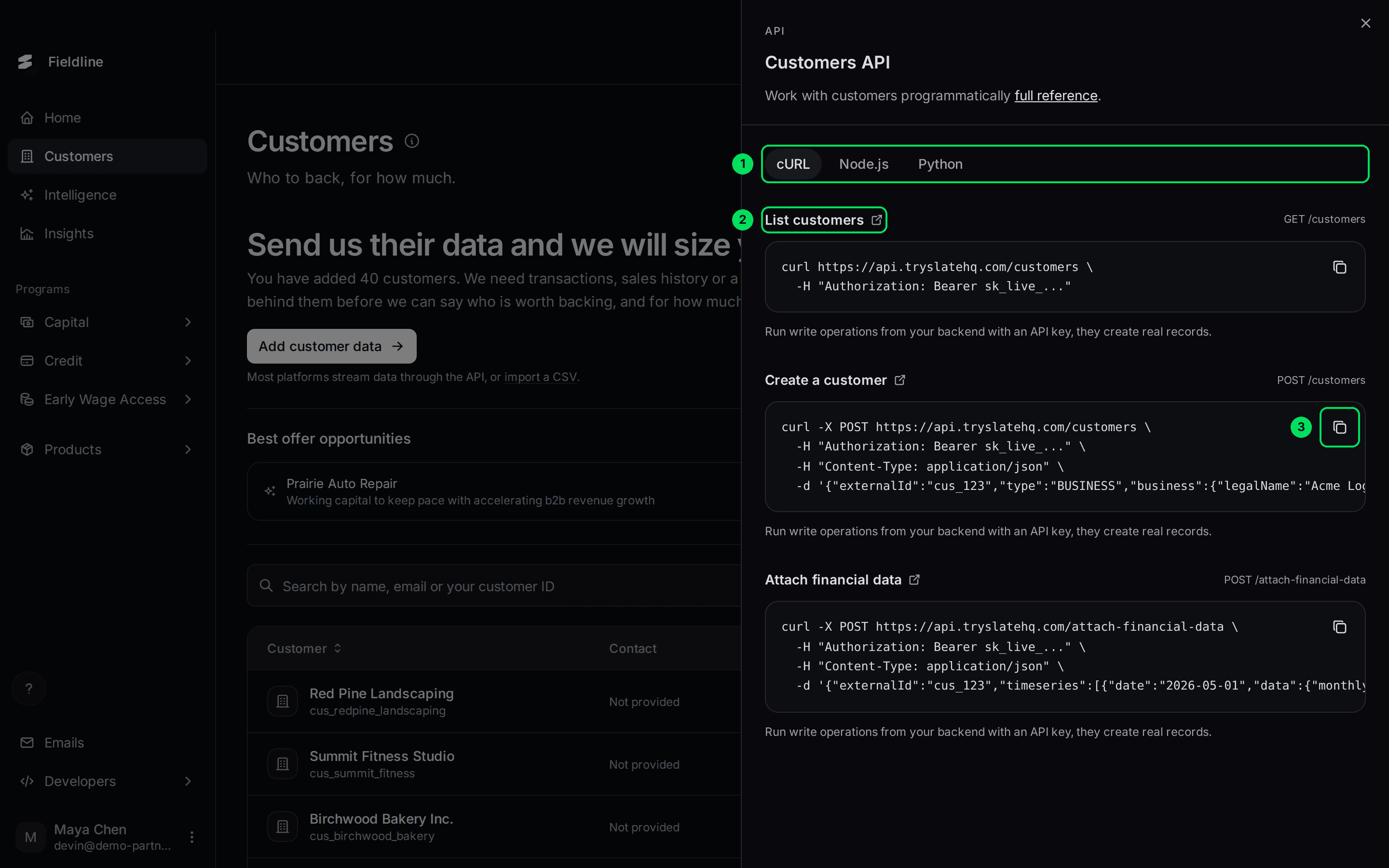
- cURL, Node.js, Python: pick the language you want.
- List customers: the first example. Others cover creating a customer and attaching financial data.
- Copy: copies that example.
The examples that change data are for your backend only. Running them creates real records.
Next steps
- Import customers from a spreadsheet
- Import financial data
- Send an application link
- Export a table to CSV
If something goes wrong
A customer I just added says "Not underwritten"
That is normal. Slate looks at customers once it has data on them. Send transactions, sales history or a bank connection. See Import financial data.
There is no Send link button
The button only shows when the customer holds an open offer. Check the Status column. If it says Offer expired or No offer, there is no link to send.
Contact says "Not provided" after a CSV import
The contact columns in a business CSV are checked but not saved at the moment. Add contacts through the API instead. See Import customers.
Learn more about Slate Signals.
Still stuck? Email [email protected] with your account email and the screen you are on. We reply within 24 business hours.