Help Center / Guiding your applicants
The application, screen by screen
Every screen of the application, what each field wants, the messages your customer may see, and what to say on the phone. Desktop and phone views.
10 min read · Updated November 10, 2026
Use this page to walk a customer through the application while they have it open. Each screen is shown as your customer sees it, with the exact words on it.
The steps depend on who is applying and what you already told Slate. A business sees business steps. An individual sees personal steps. Anything you already sent is skipped or filled in for them.
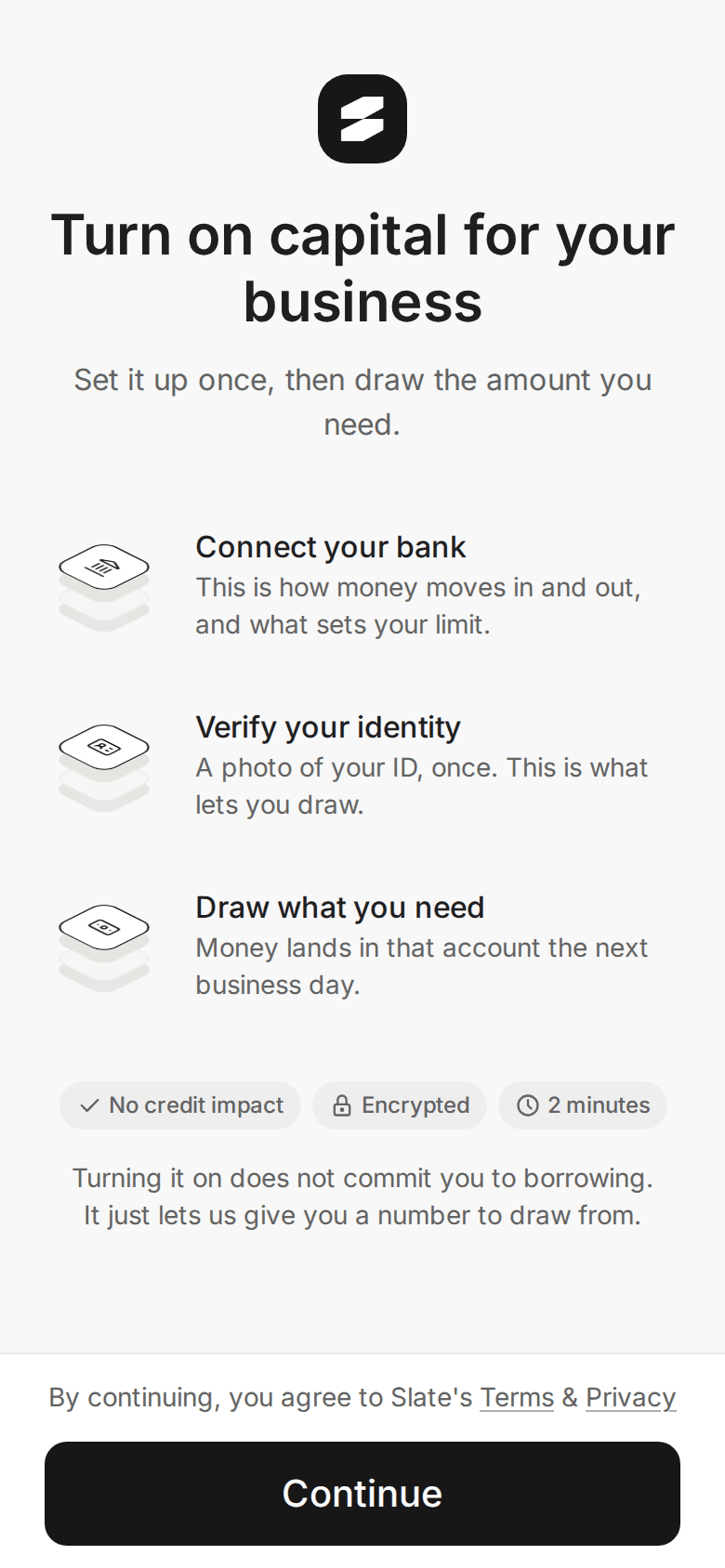
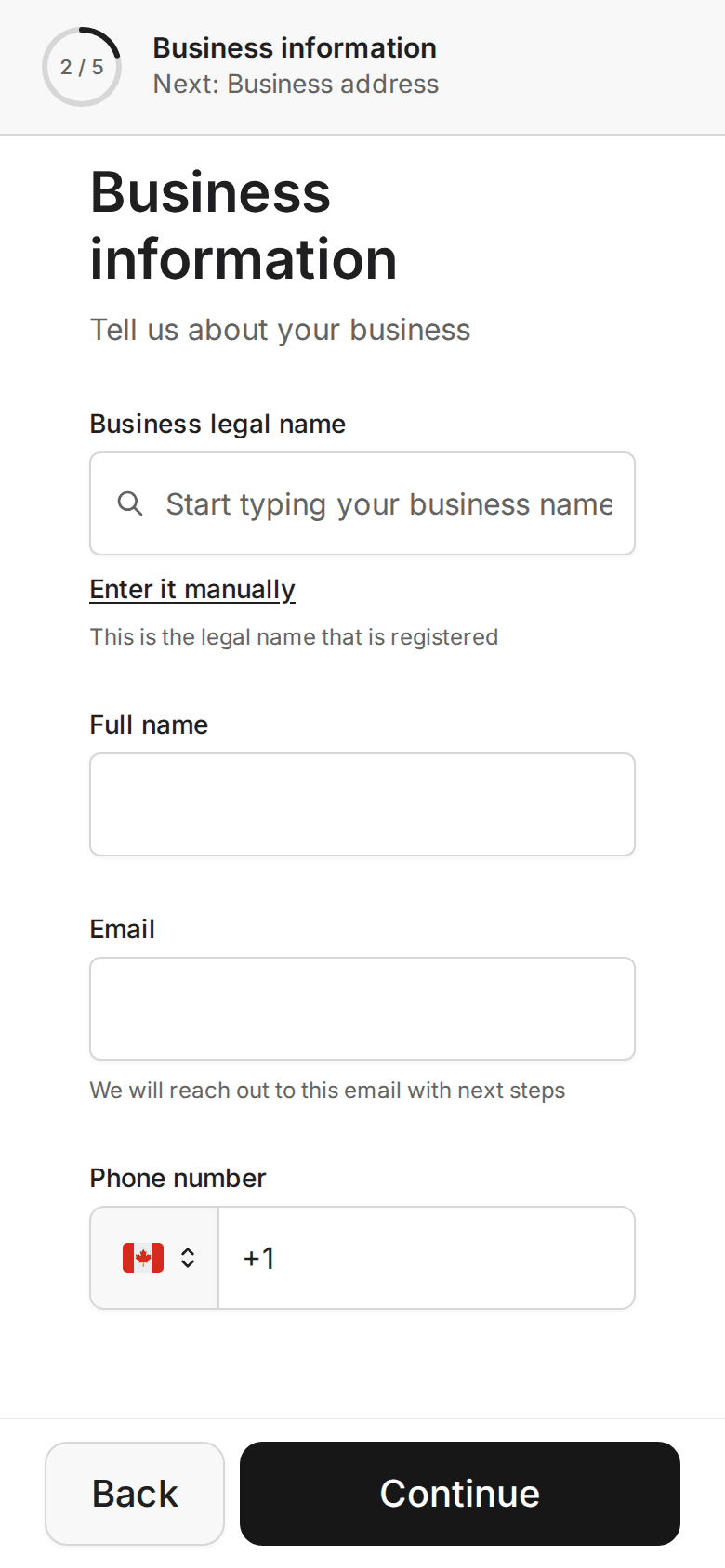
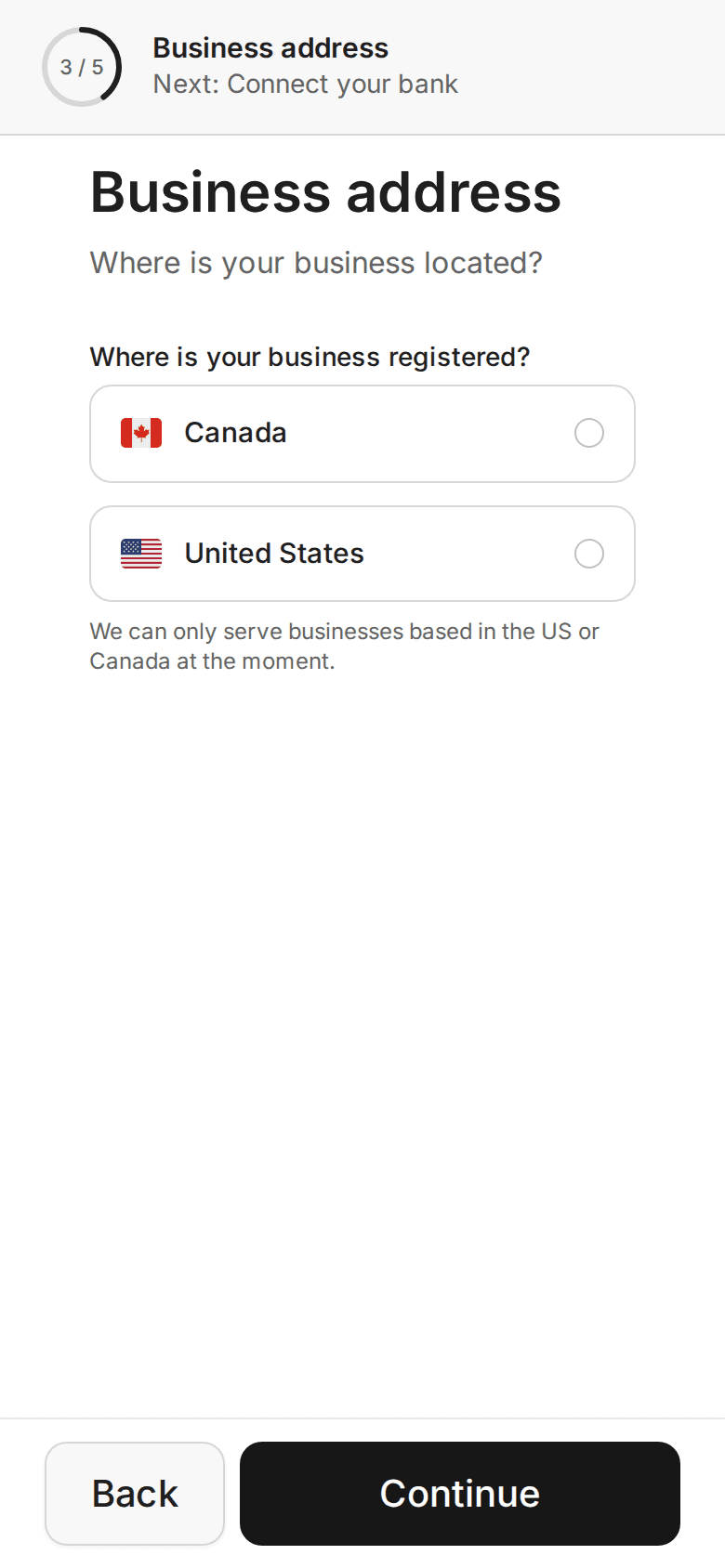
Many customers use a phone. The phone version has the same steps, stacked in one column with a small progress ring at the top.
The Intro screen
Every application opens with a short explanation. The headline depends on the product. A business sees "Turn on capital for your business". An individual sees "Turn on advances on your earnings".
Ask your customer to read the three moves
The screen lists three things: Connect your bank, Verify your identity, and then drawing the money. It also says turning it on does not commit them to anything.
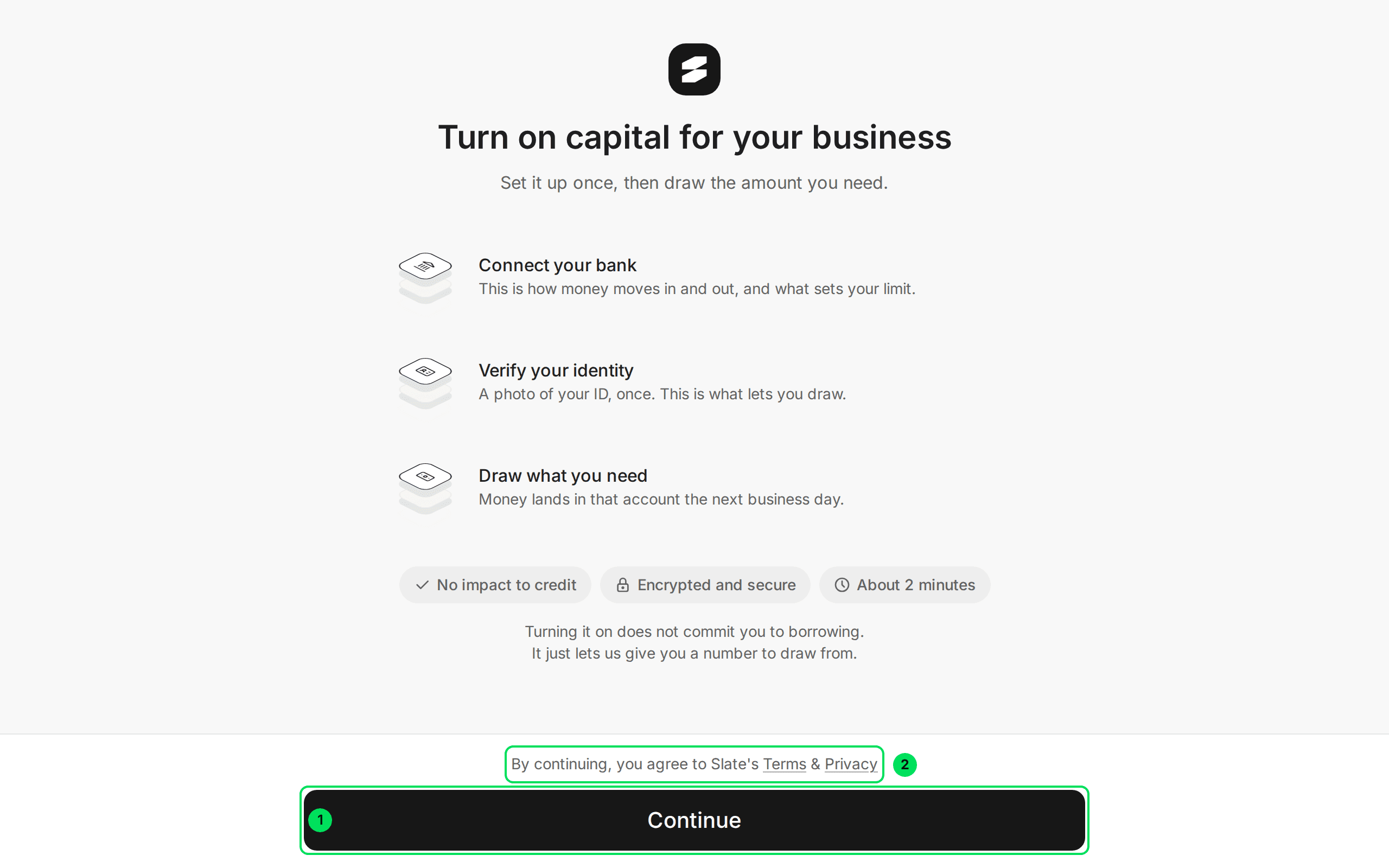
- Continue: starts the application.
- By continuing, you agree to Slate's Terms & Privacy: selecting Continue counts as agreeing. Both words are links to the full text.
Select Continue
The first form opens.
If you open the application from an embed set to skip the intro, your customer goes straight to the first form.
Business information
This screen asks who the business is and who to contact. Individuals skip to Personal information.
Find the business name
Your customer types the legal name in the box and picks it from the list. The list comes from the Canadian business registry.
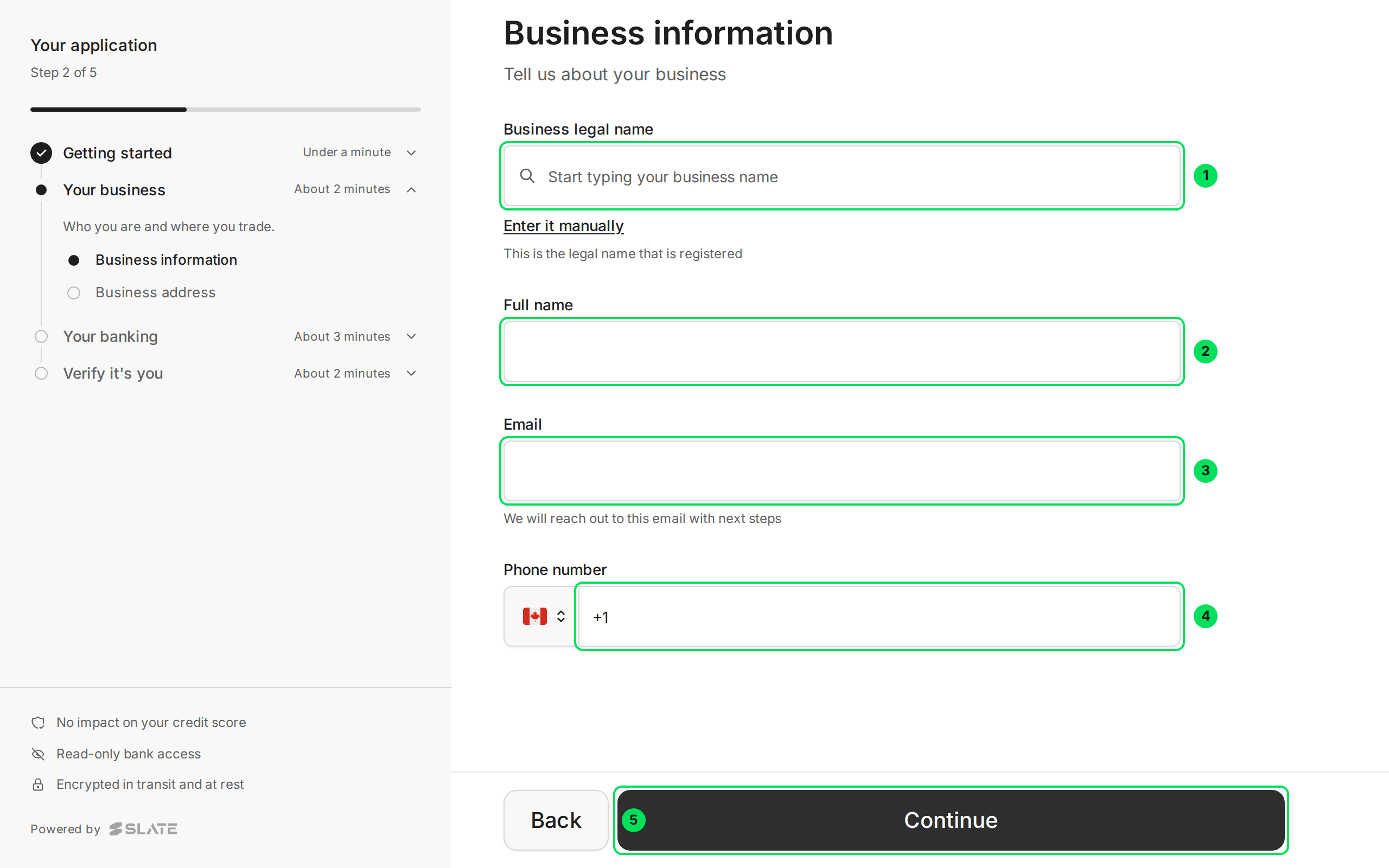
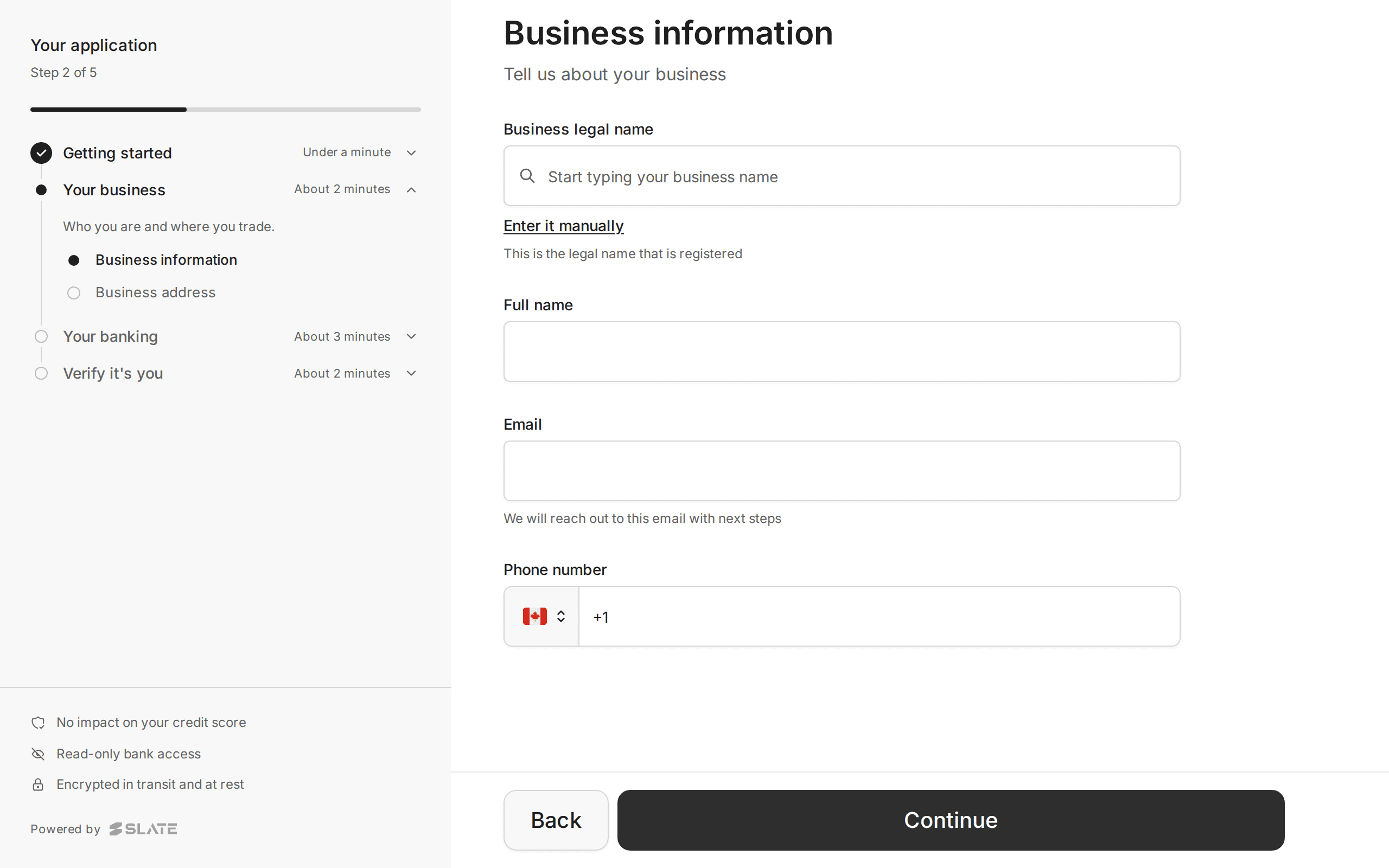
- Business legal name: starts a search. Your customer types and picks their business.
- Full name: the person we should talk to.
- Email: where Slate sends next steps. The note under it says "We will reach out to this email with next steps".
- Phone number: Canada is the default country. Change the flag for a US number.
- Continue: saves this step and moves on.
If the business is not found, enter it by hand
Slate searches Canadian businesses only. If nothing matches, the screen says so and offers Enter it manually.
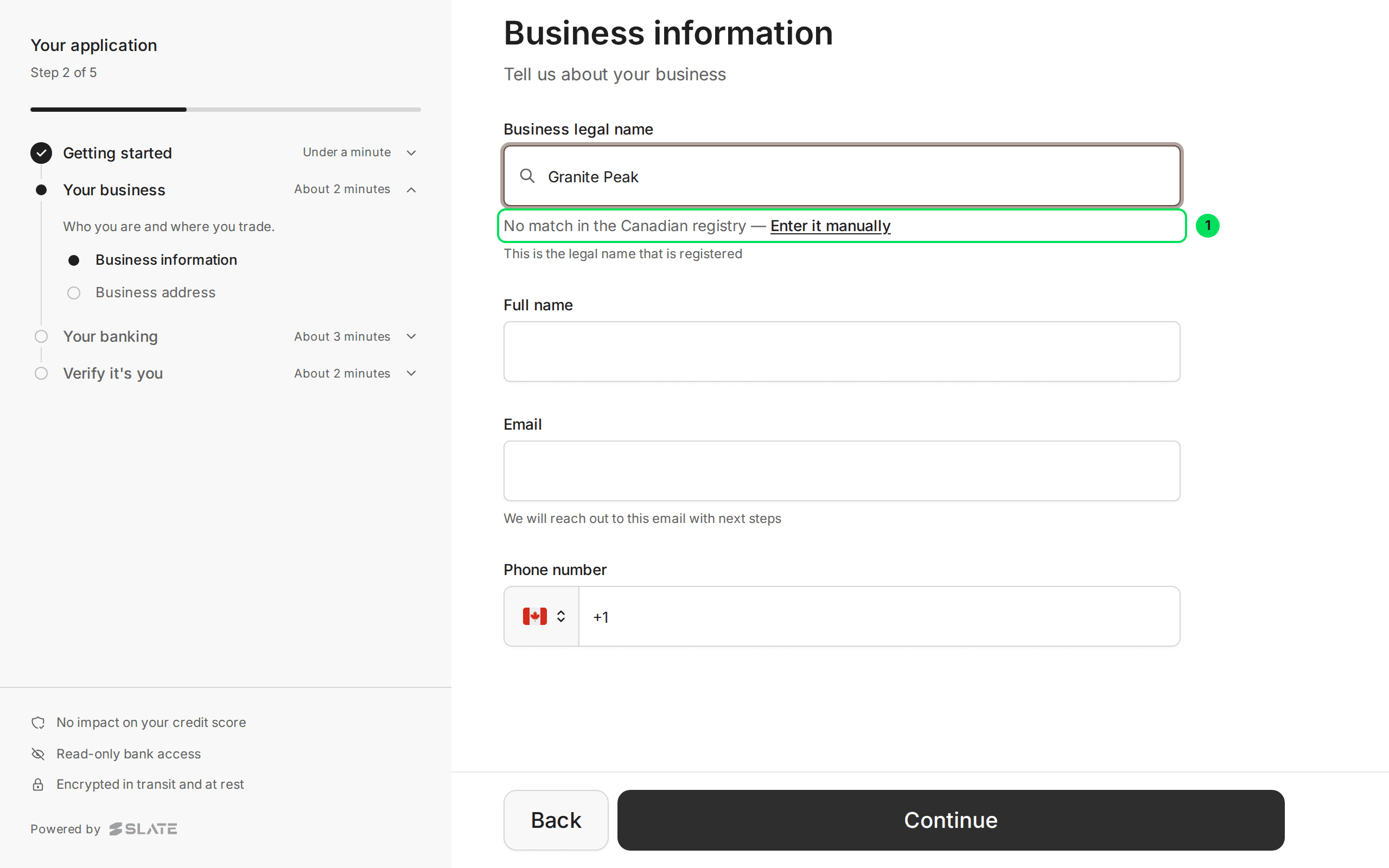
- No match in the Canadian registry: shown when the search finds nothing. Select Enter it manually next to it.
A US business should also choose Enter it manually, then type the registered name.
Type the name exactly as registered
After you select Enter it manually, the box becomes a plain text field. The link underneath changes to Search the registry instead, which switches back.
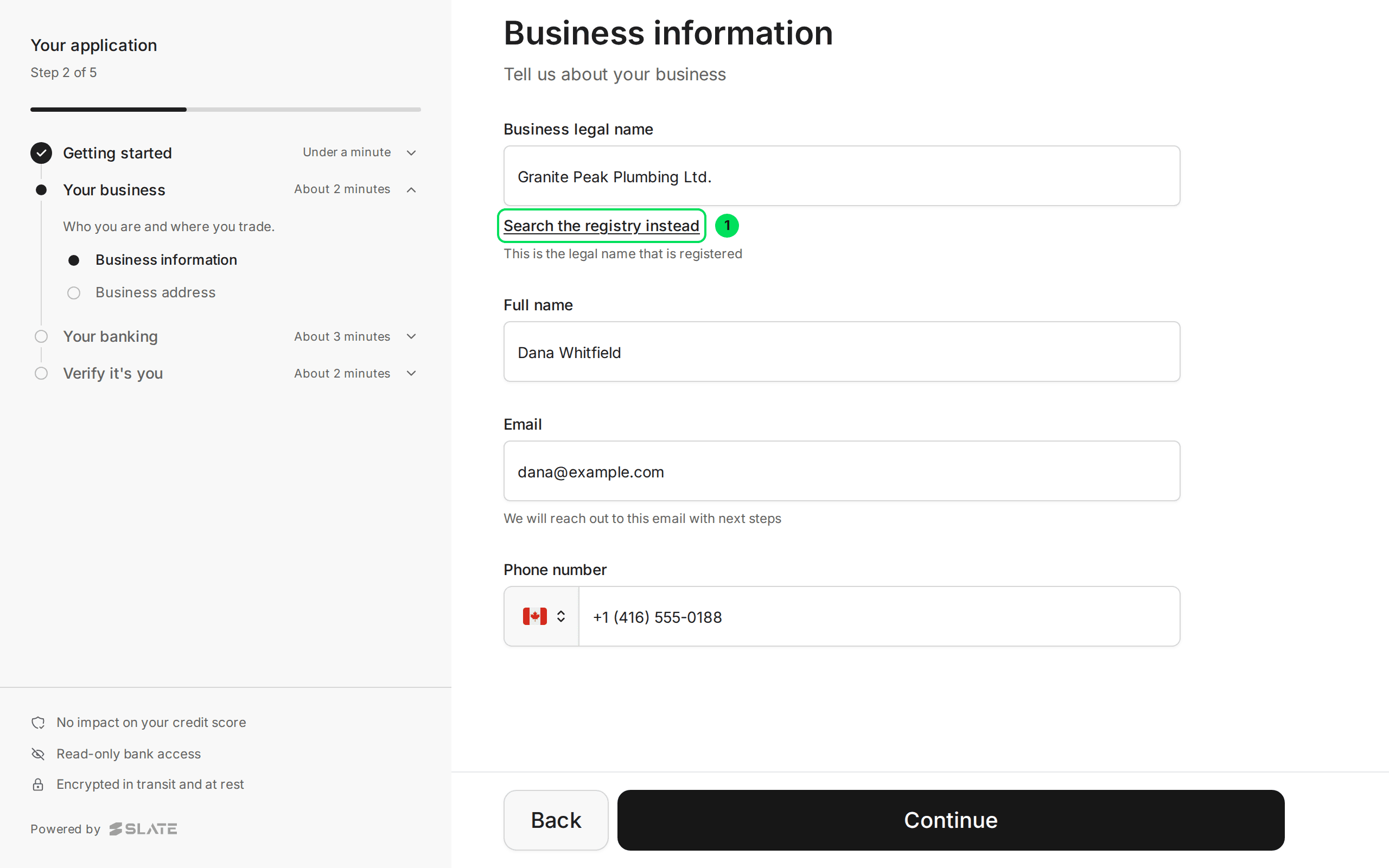
- Search the registry instead: goes back to searching.
Fill in the contact details and select Continue
Type the full name, email and phone number. Then select Continue.
Fields you already sent are locked
When you gave Slate a name, contact or email for the customer, those fields are filled in and greyed out. Under each is the line "We already have this on file. Not right? Change it".
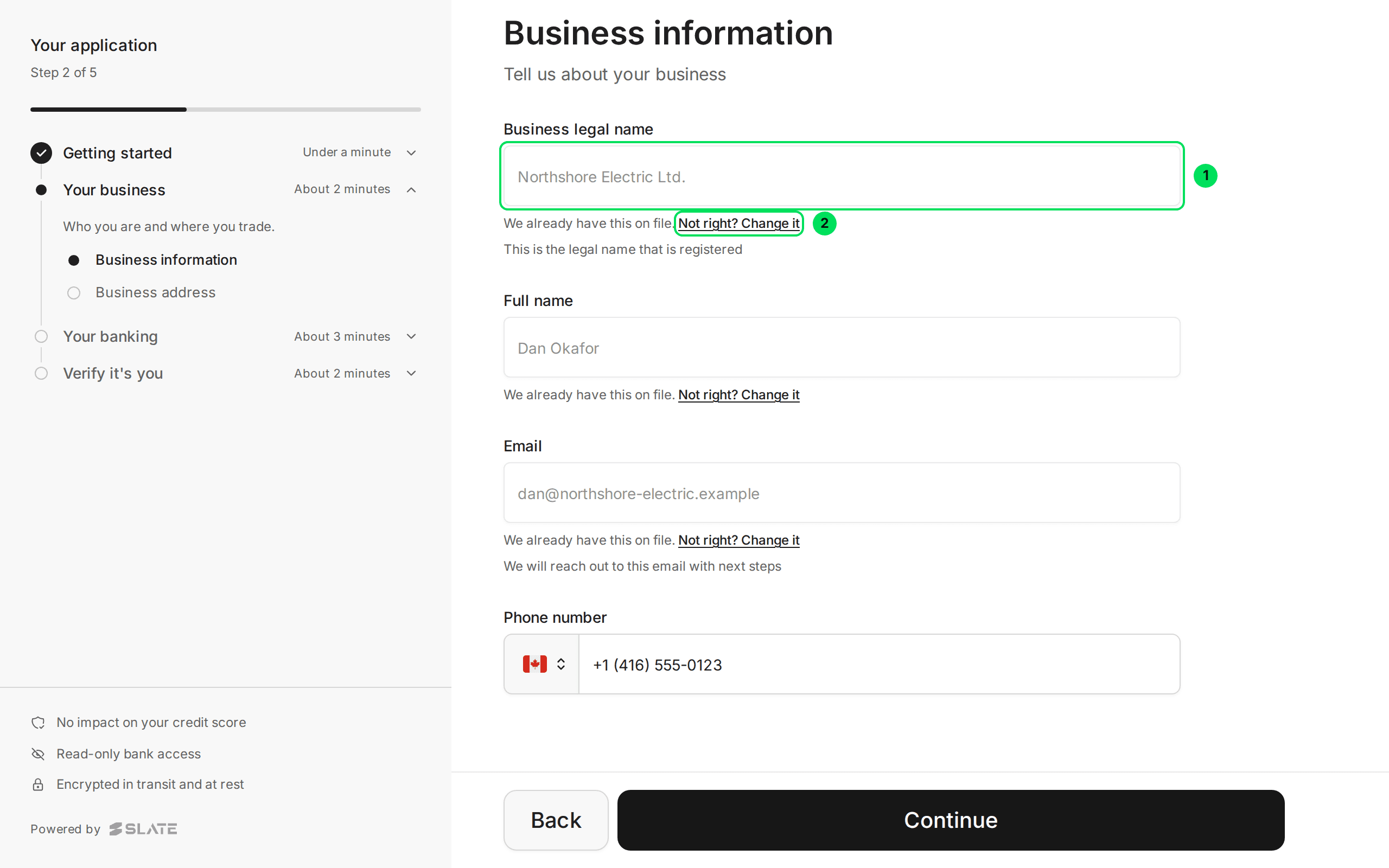
- Business legal name: greyed out because Slate already has it.
- Not right? Change it: unlocks the field so your customer can correct it.
If the details are correct, your customer does nothing and selects Continue.
To correct a field, select Not right? Change it. The field opens and a note says "You're changing what we already had on file."
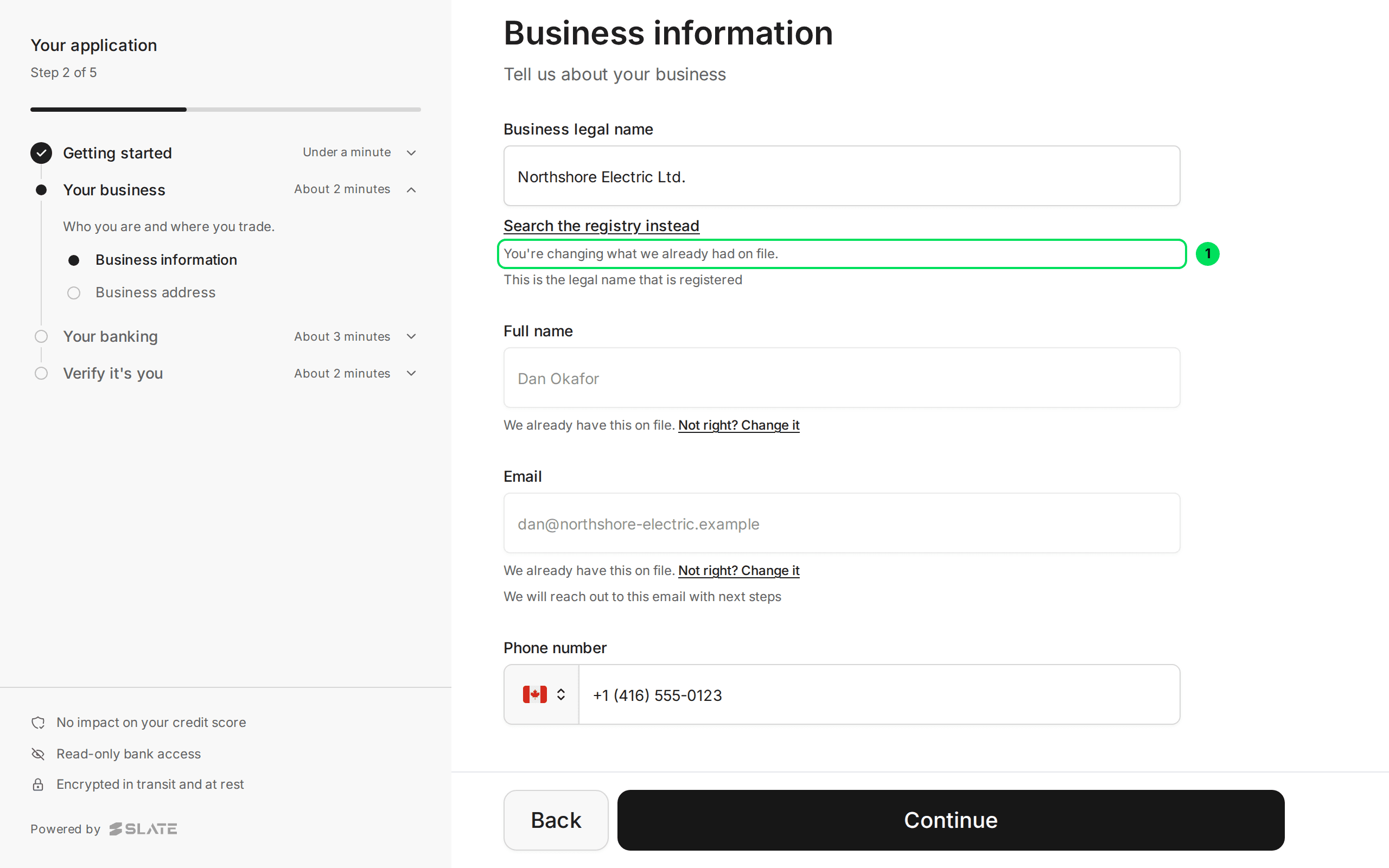
- You're changing what we already had on file.: confirms the field is now open for editing.
Messages on the business information screen
If your customer selects Continue with something missing, red messages appear under the fields. Nothing is lost. They fix the fields and select Continue again.
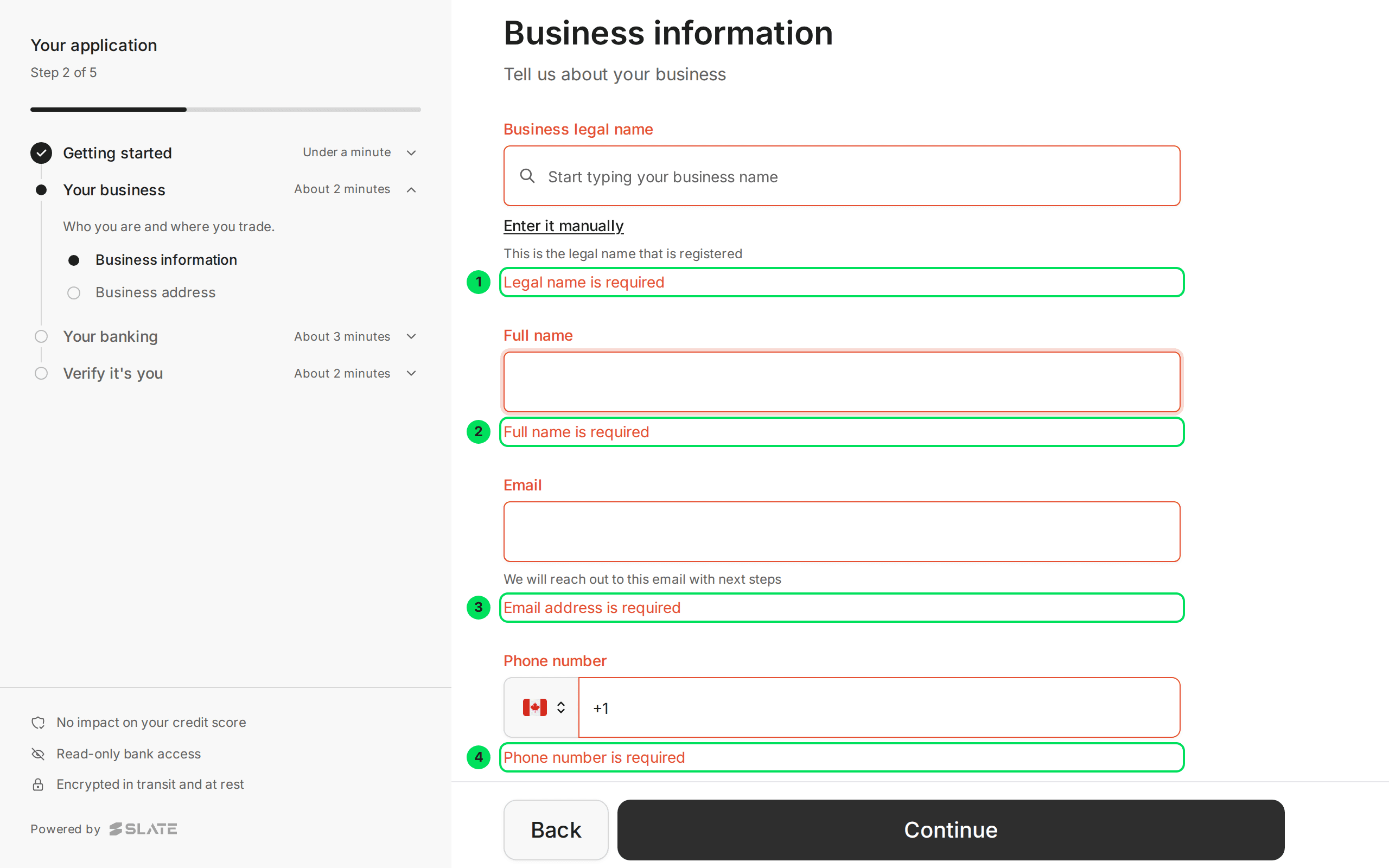
- Legal name is required
- Full name is required
- Email address is required
- Phone number is required
Other messages you may hear about:
- Please enter a valid email address (e.g., [email protected]): the email is missing the @ or a domain.
- Legal name must be less than 200 characters: the name is too long.
- Phone number must be less than 20 characters: too many digits. Remove spaces and extra symbols.
Business address
This screen asks where the business is registered.
Pick the country
The two choices are Canada and United States. The screen notes that Slate can only serve businesses based in the US or Canada at the moment.
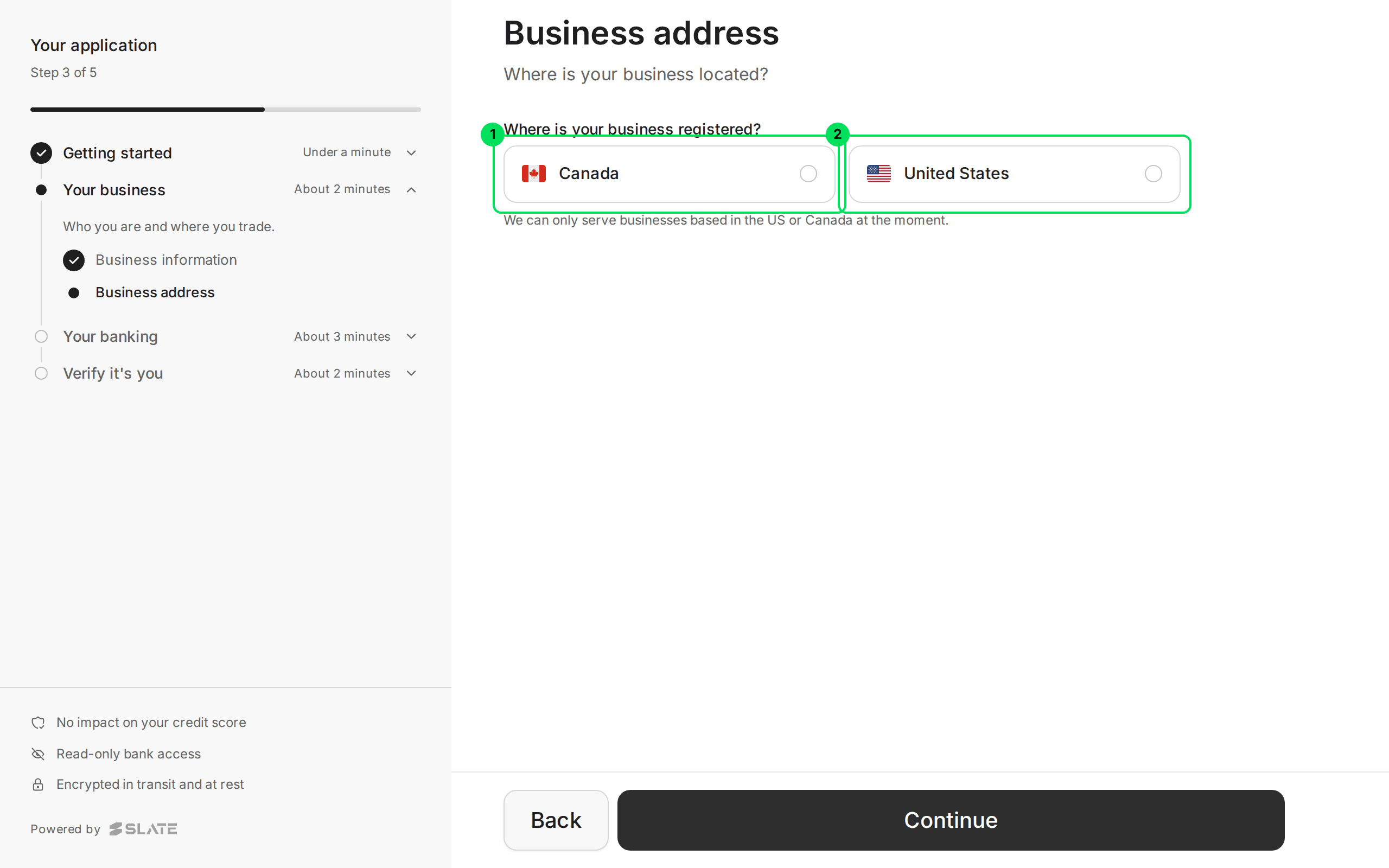
- Canada: shows a province list.
- United States: shows a state list.
Pick the province or state
A Province (or State) list appears. Under it is a Street address search box and an Enter it manually link.
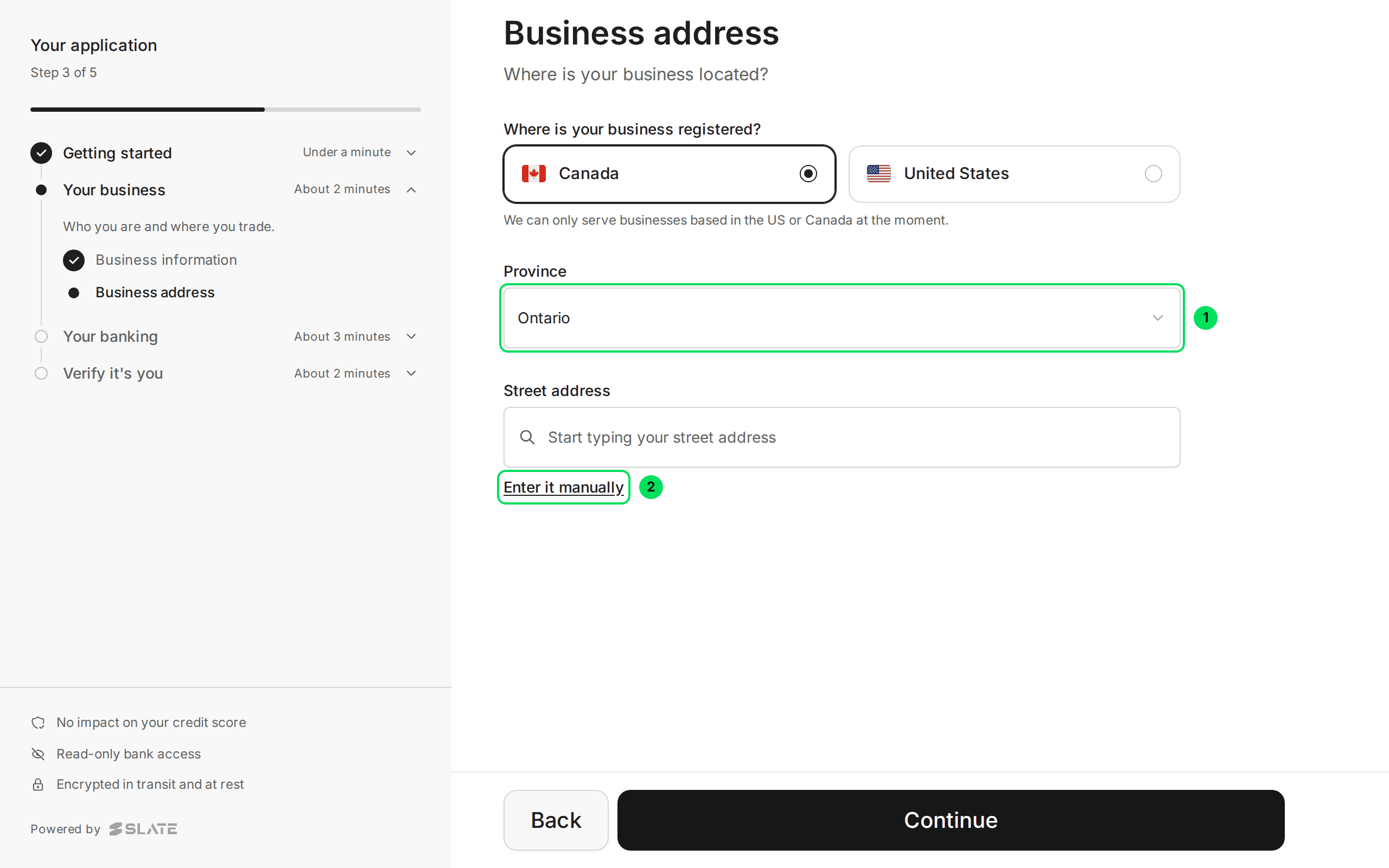
- Province: choose where the business is registered.
- Enter it manually: use this if the address search does not find the street.
Type the address
After Enter it manually, four boxes appear: Street address, Suite or unit (optional), City and Postal code (a US customer sees ZIP code).
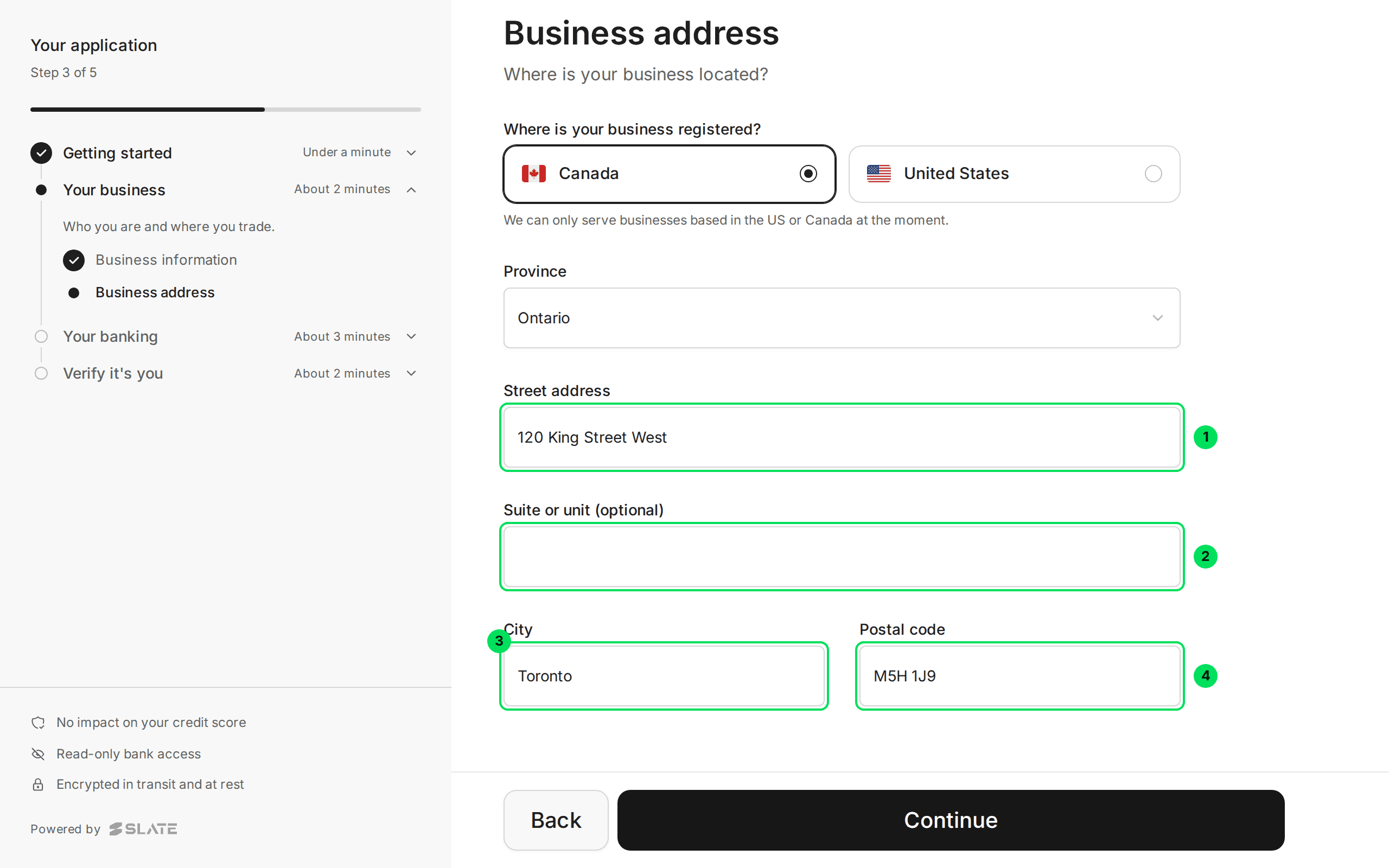
- Street address: street number and name.
- Suite or unit (optional): leave empty if there is none.
- City
- Postal code
Select Continue
If anything is missing, red messages appear. The next step is the bank connection.
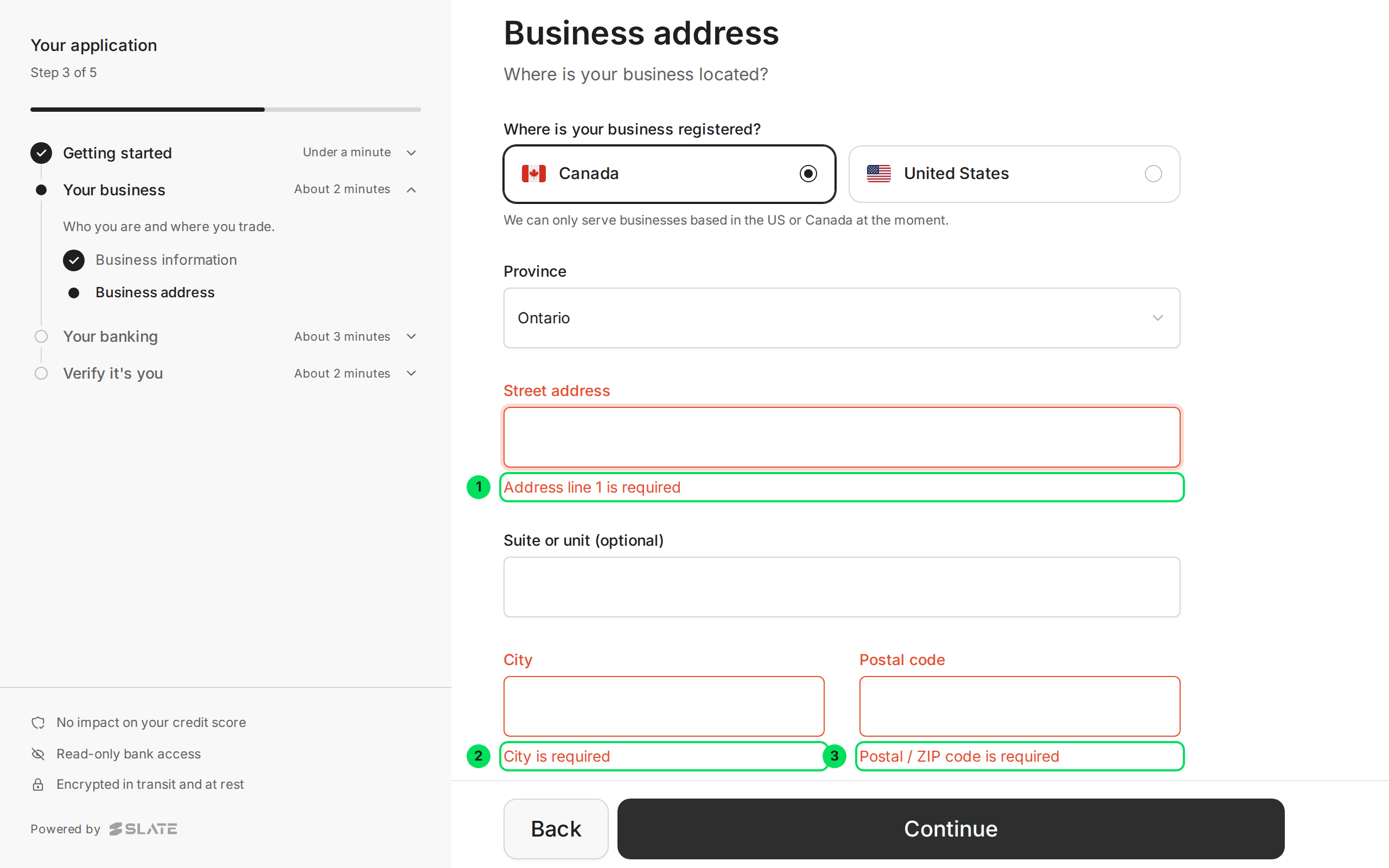
- Address line 1 is required
- City is required
- Postal / ZIP code is required
Other messages: Country is required (they have not picked Canada or United States), and Address line 1 must be less than 100 characters (the street line is too long).
Personal information
Individuals see this instead of the two business screens. It asks for First name, Middle name (optional), Last name, Email and Phone number.
The first screen for an individual reads "Turn on advances on your earnings".
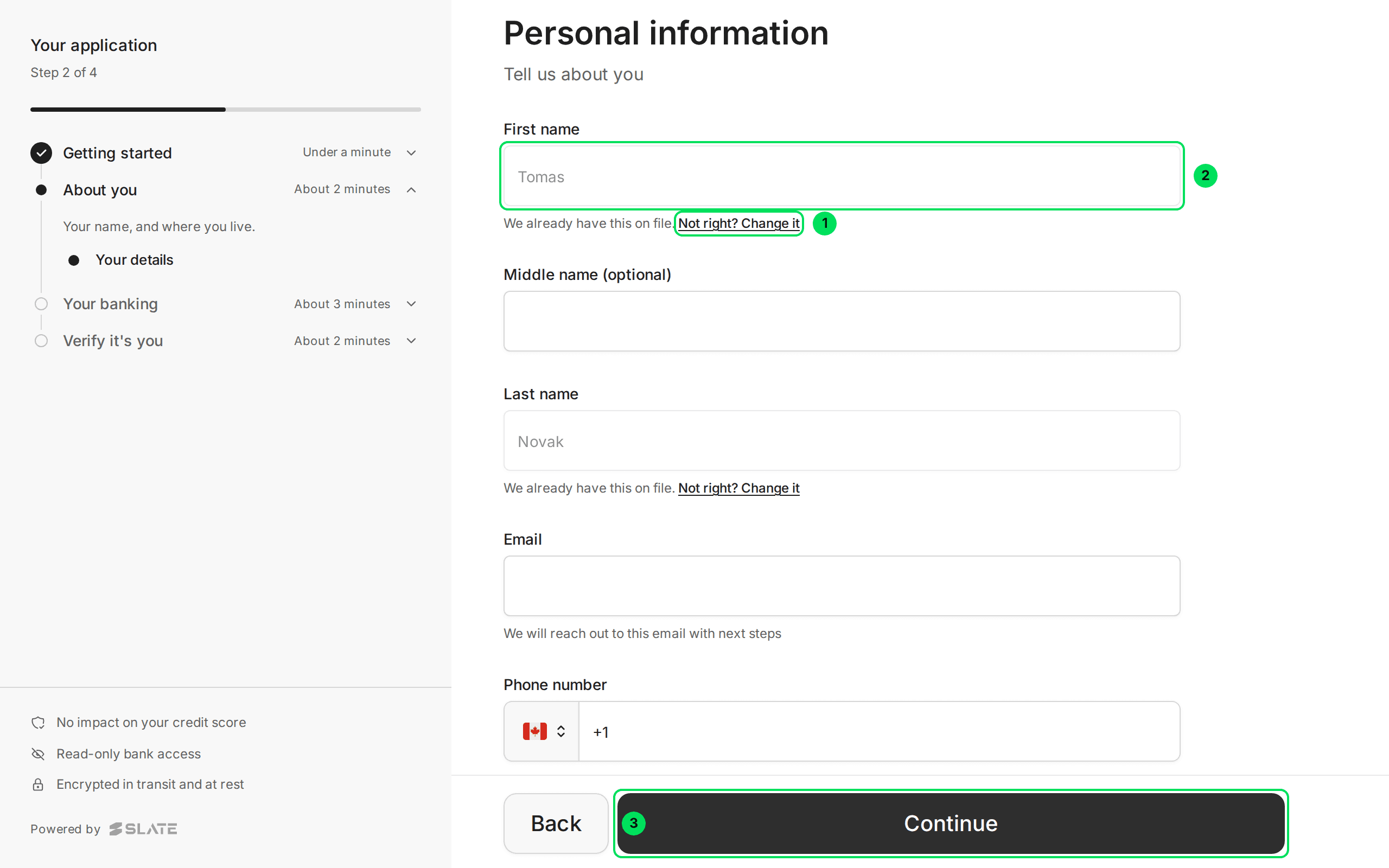
- Not right? Change it: unlocks a field Slate already has, such as the first name.
- First name: filled in from the record you sent.
- Continue: saves and moves on.
Date of birth is not asked on this screen. It comes from the record you sent Slate.
The next screen, Your address ("Where do you live?"), has the same fields as the business address. Customers whose address you already sent never see it. In that case the application goes from personal information straight to the bank step.
How much today?
Some applications include a step where your customer picks how much to take and how long to pay it back. It appears when your product is set up that way, for example with an embedded adjust-terms experience.
Read the screen
It opens with "Of the" and the most your customer can take, then the headline How much today?.
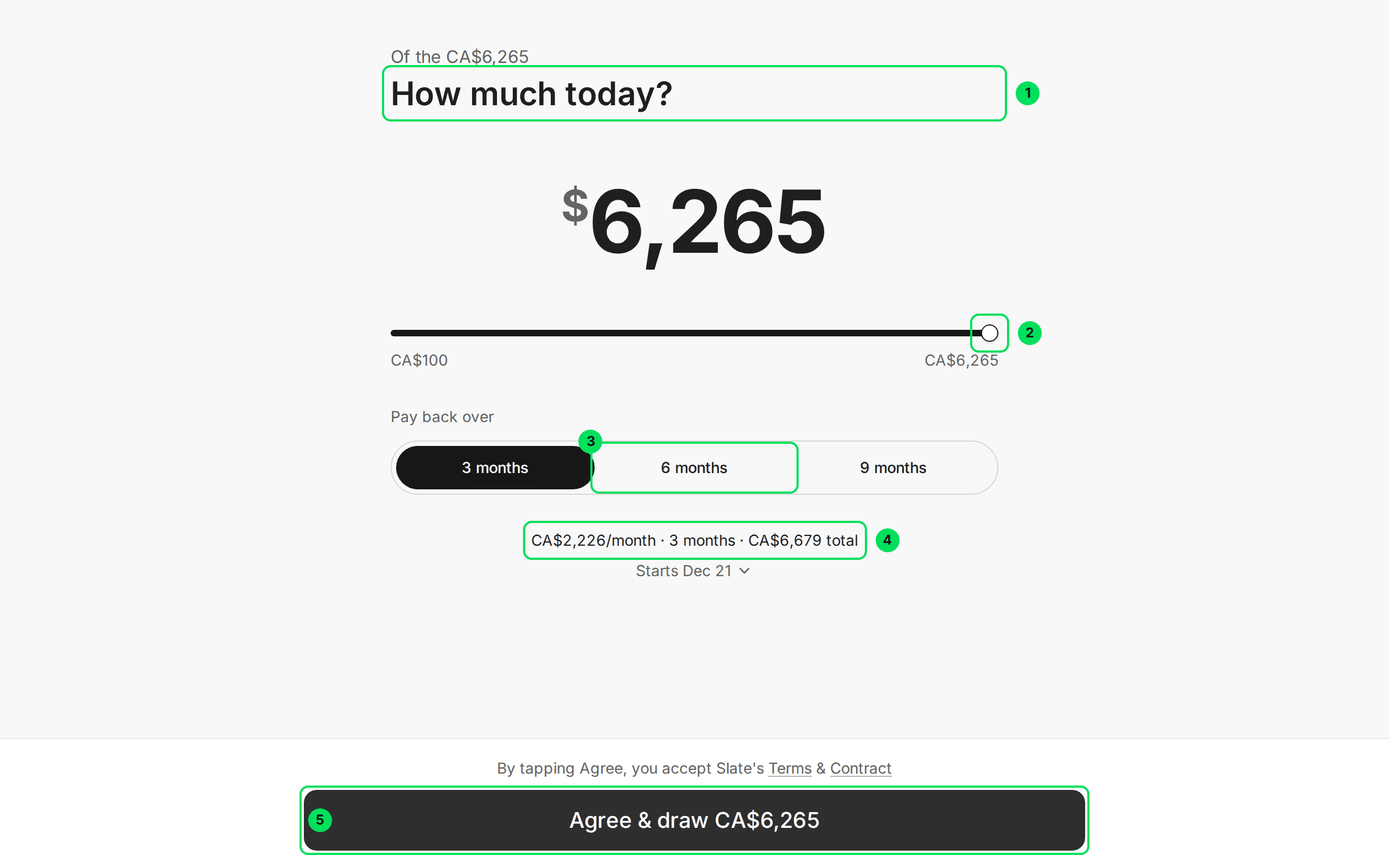
- How much today?: the heading. The large number is the amount chosen.
- Slider: drag to change the amount. The lowest is $100.
- 6 months: the choices under "Pay back over" are 3 months, 6 months and 9 months.
- Monthly summary: the payment each month, the number of months and the total to pay back.
- Agree & draw: confirms the amount and terms. The amount is shown on the button.
Check the schedule
Select the line that starts with Starts. It opens the full list of payments.
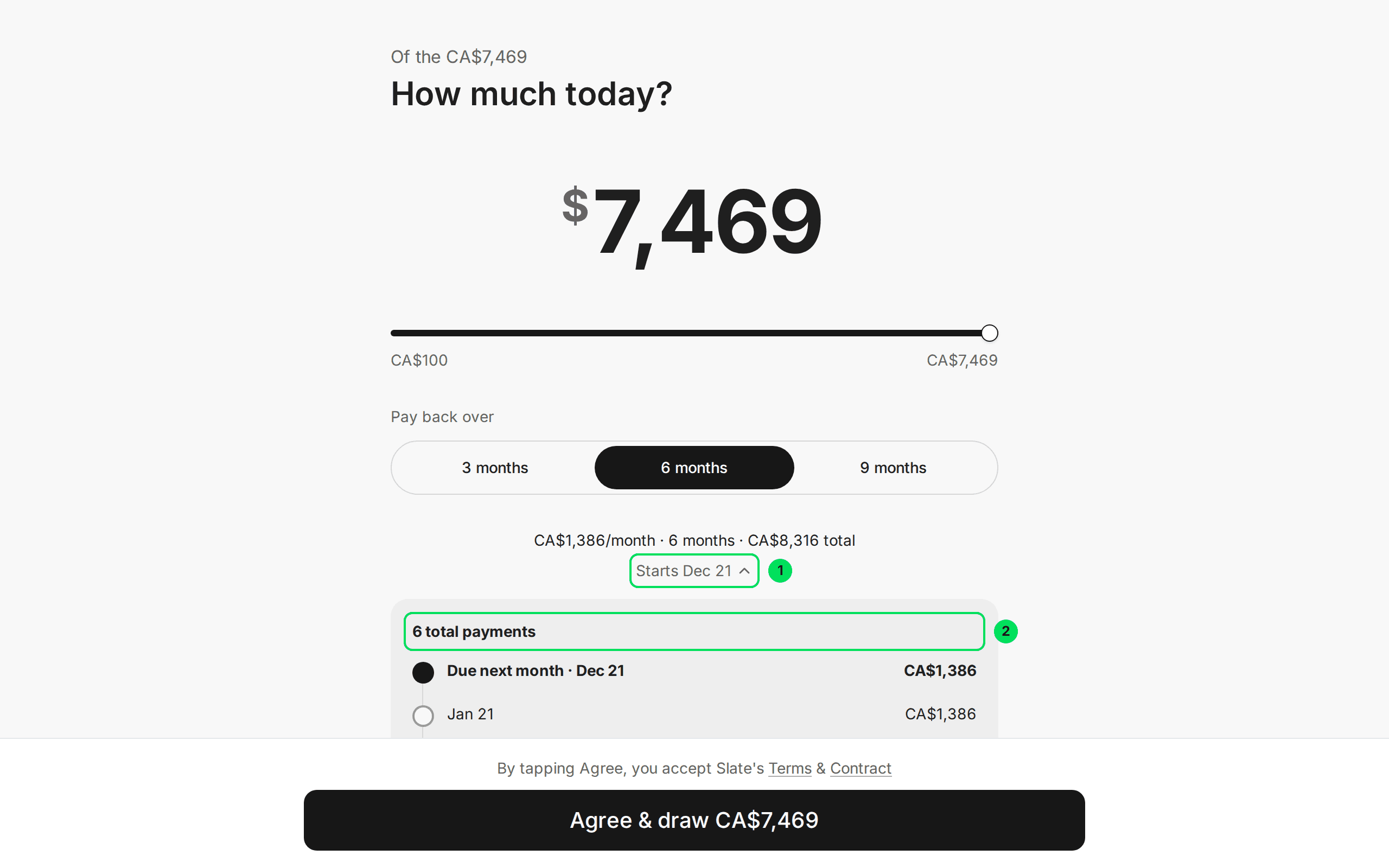
- Starts: the date of the first payment. Select it to open or close the list.
- 6 total payments: the list of payment dates and amounts. The screen adds that the due dates are close estimates.
Select Agree & draw
Below the button the screen says "By tapping Agree, you accept Slate's Terms & Contract". Selecting the button counts as agreeing.
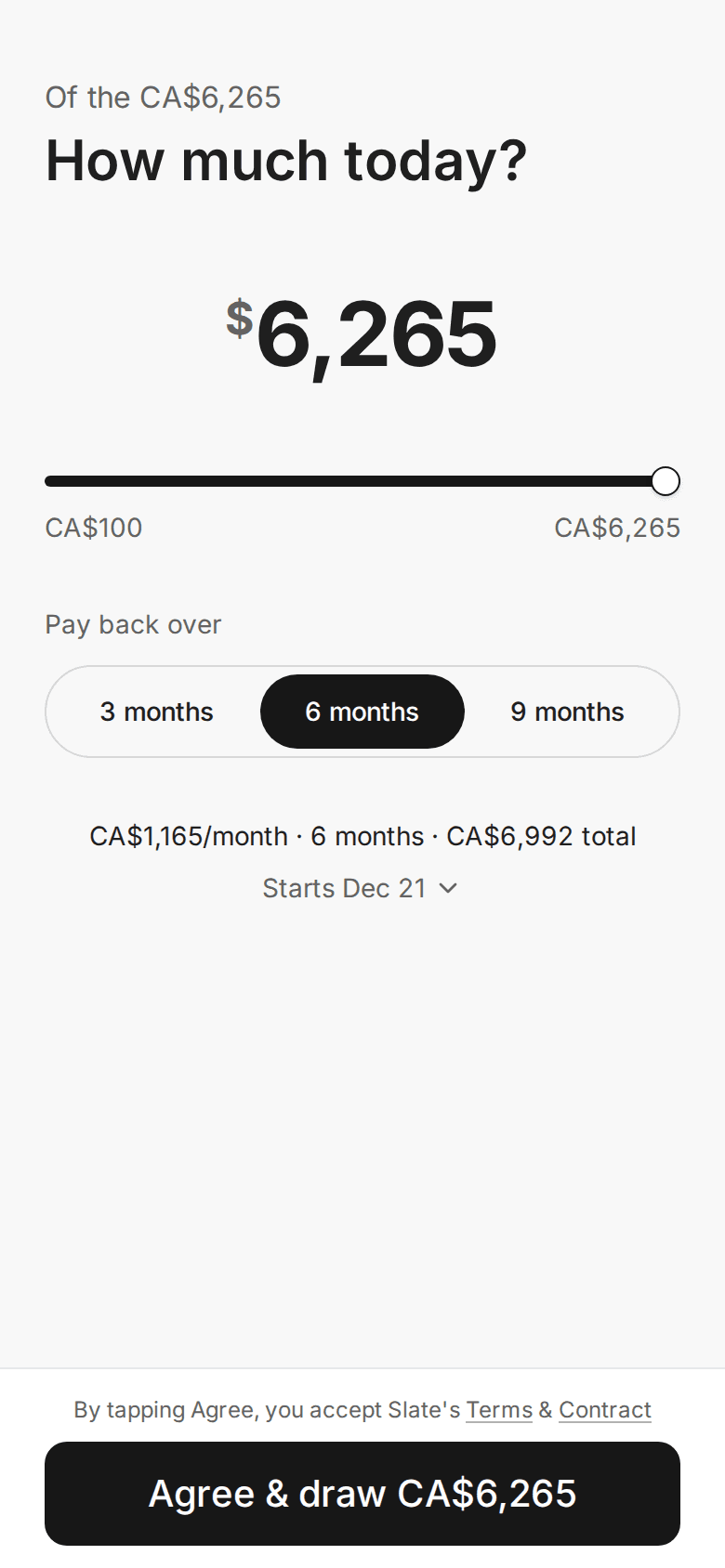
If your customer leaves and comes back, the button reads Continue with and the amount instead, because their terms were already saved.
The amount can never be higher than the offer. The screen shows the most they can take next to the slider.
Last step: bank and identity
After the details, your customer connects a bank. See Connecting a bank account.
In most applications the bank step is the last one. Connecting the bank submits the application. Identity verification and signing come after Slate approves. See After approval: the tasks.
In the adjust-terms version, identity verification comes before the application is submitted.
If something goes wrong
My customer cannot select Continue
They are probably missing a field. Scroll up. Red messages show what is missing.
The wrong name is locked in
Select Not right? Change it under the field, then type the correct value.
My customer closed the page halfway
Nothing is lost. The application saves at each step. They open the same link and land where they stopped.
Learn more about Slate Capital.
Still stuck? Email [email protected] with your account email and the screen you are on. We reply within 24 business hours.