Help Center / Credit lines
Follow credit line applications
See where each customer is in their credit line activation application, what each status means, and what you need to do (usually nothing).
4 min read · Updated November 10, 2026
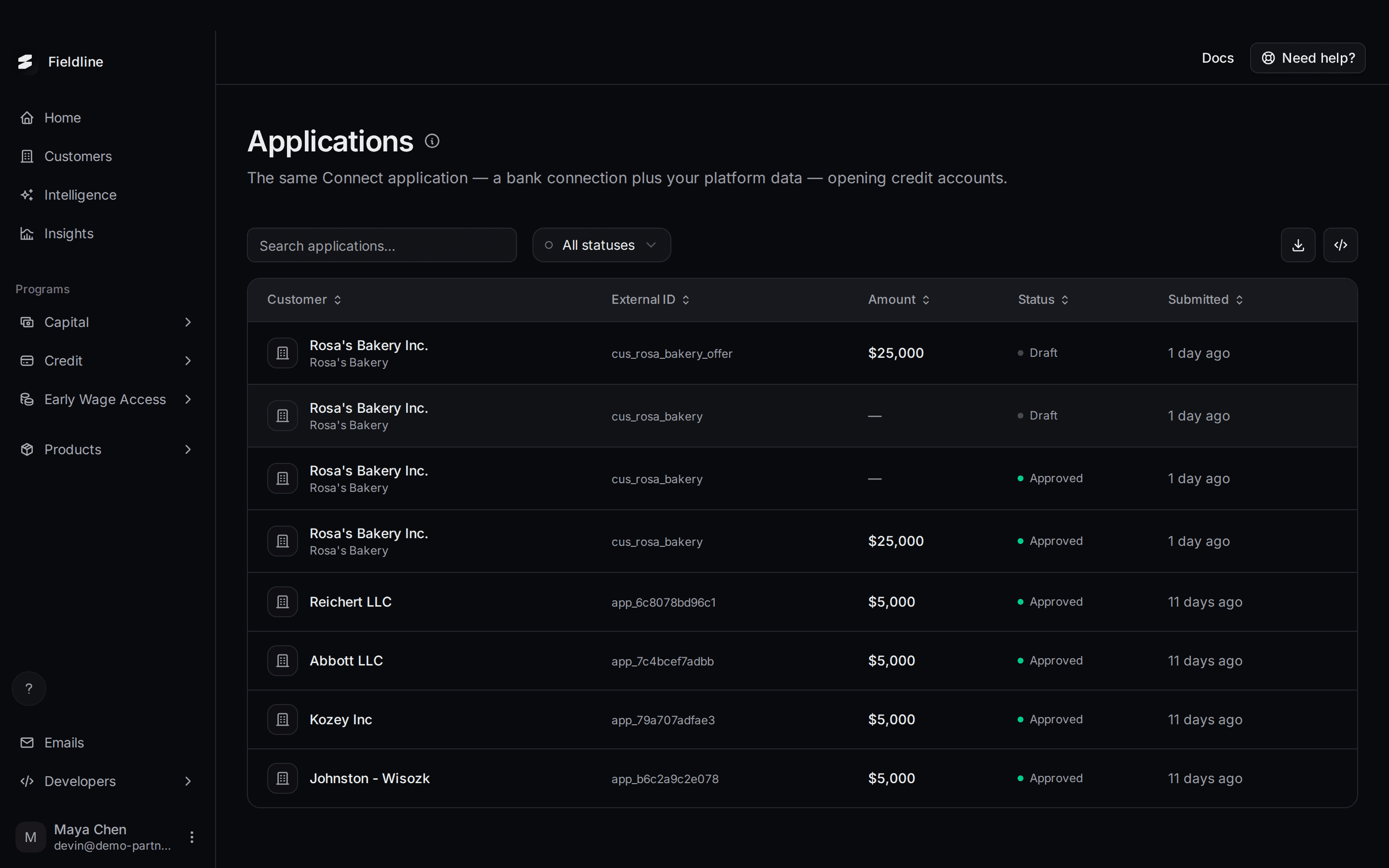
An application is what a customer completes to turn a credit line offer into a real credit line. This page lists every one. You use it to see who has started, who is waiting, and who is done.
Where to find it: select Credit in the left menu, then Applications. The Credit group only shows for partners with the Credit program. For the full path from offer to repayment, see Credit line offers.
What the page shows
The page title says it: the same Connect application, a bank connection plus your platform data, opening credit accounts. The customer uses the same application as a capital customer. They connect their bank, Slate combines it with your data, and Slate decides.
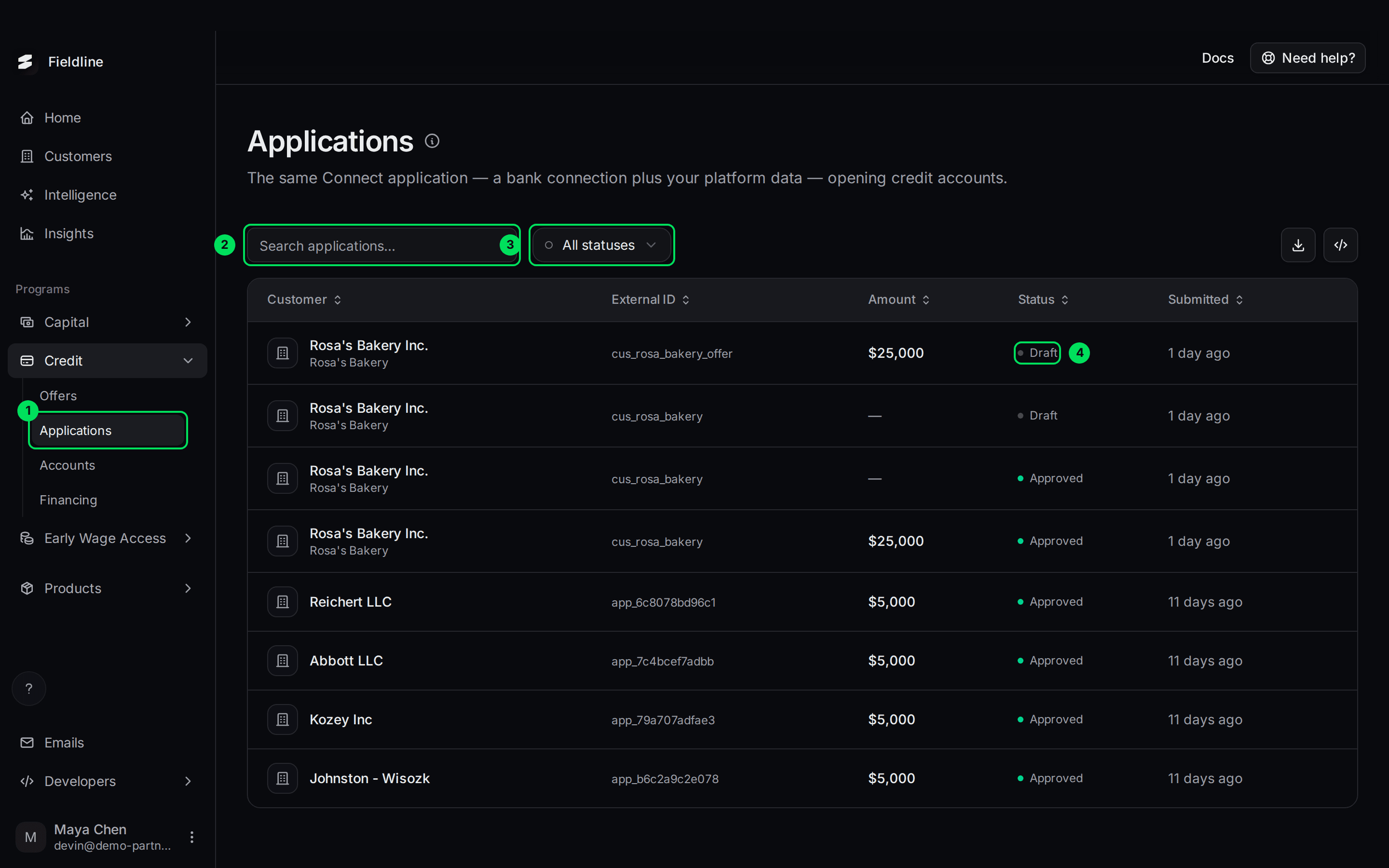
- Applications: this page, under Credit.
- Search applications...: searches the list.
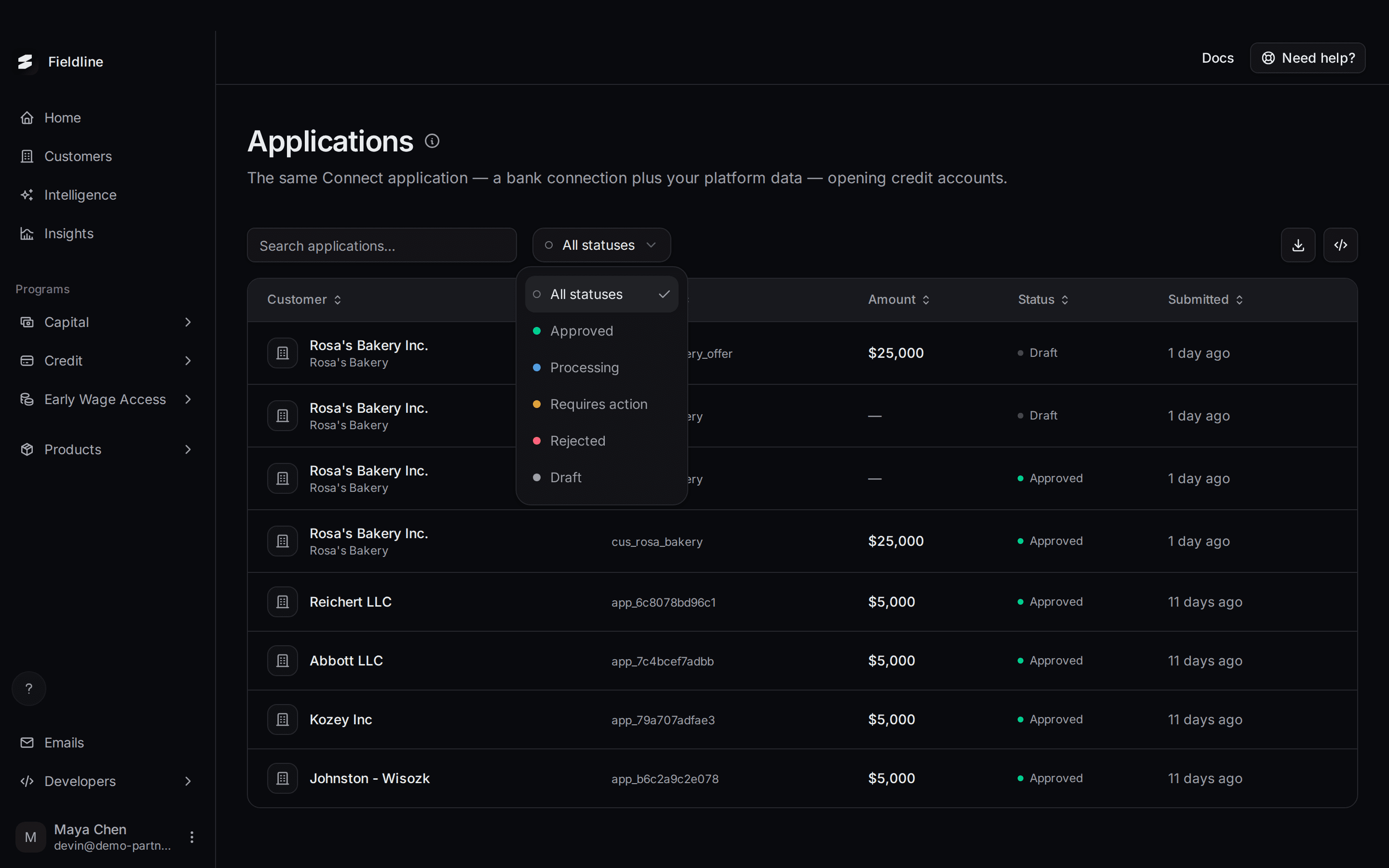
- All statuses: filters by status.
- Draft: the status of each application.
The columns are:
- Customer: the business name, with the business's display name below.
- External ID: your own ID for the customer (or Slate's application ID).
- Amount: the credit line amount being applied for. A dash means no amount is attached.
- Status: where the application stands.
- Submitted: how long ago the application was created.
Select a column title to sort. The download button exports the rows loaded on the page, so raise per page to 100 first for a full export.
What each status means
- Draft: the customer has opened the application and is filling it in. Nothing for you to do. Send a gentle reminder if it sits for days.
- Processing: the customer submitted it and Slate is reviewing it. No action from you.
- Requires action: Slate is waiting on the customer. Open the application to see what is outstanding, then nudge the customer.
- Approved: Slate approved it. A credit line account follows. Check Credit, Accounts.
- Rejected: the application did not meet Slate's criteria. The customer has been told. The panel lists the reasons when Slate recorded them.
Other statuses exist but are not in the filter menu: Cancelled and Expired. They show on the row when they apply.
Open an application
Select a row
Select any application. A panel opens on the right.
Read the headline
The top line tells you the state in plain words. This approved example says Approved, then "ready to fund".
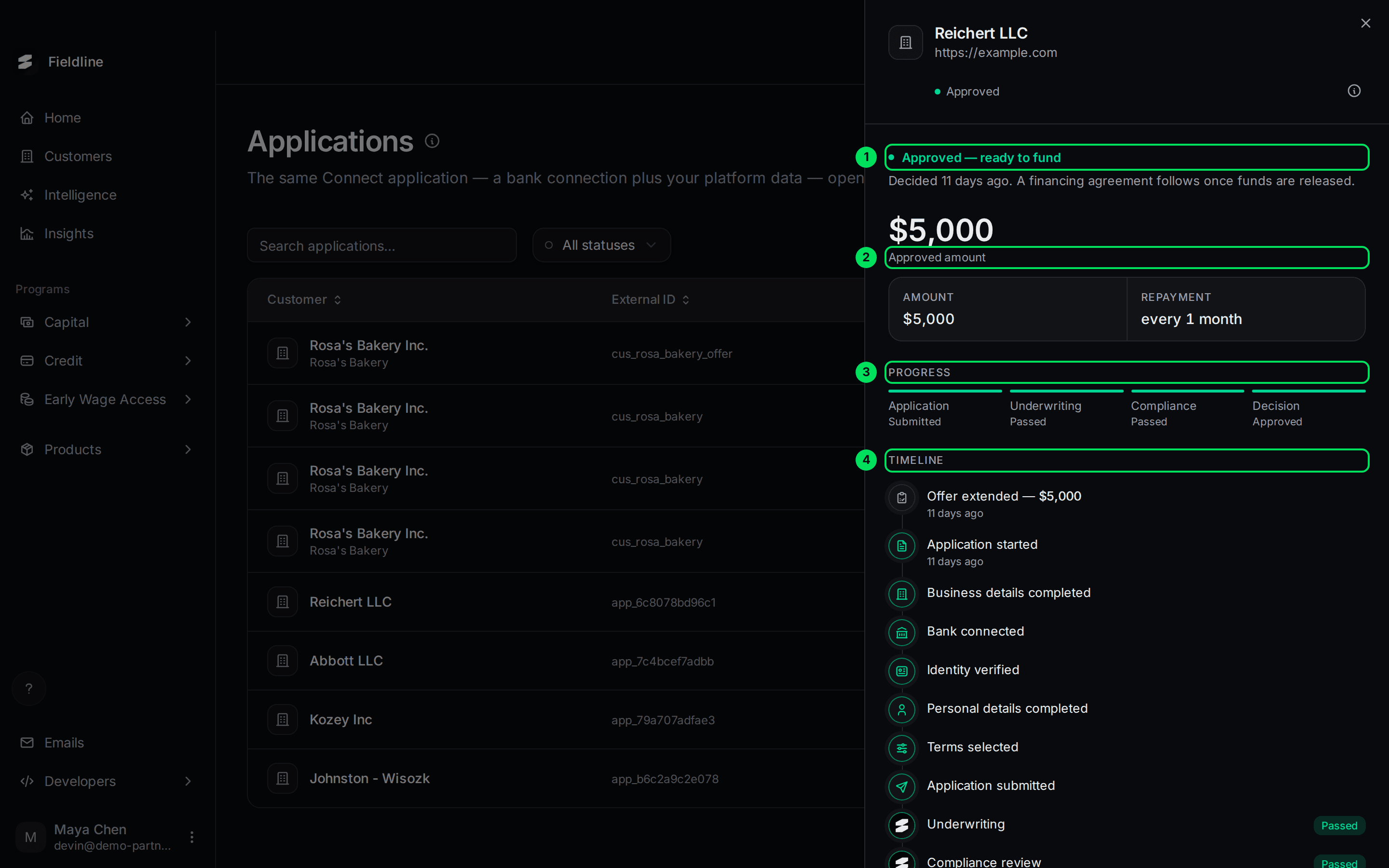
- Approved: the headline at the top. A sentence below it says what happens next.
- Approved amount: the amount Slate approved. For a draft it says Applied for instead.
- Progress: four stages in order: Application, Underwriting, Compliance, Decision.
- Timeline: every event, newest at the bottom, with times.
Check the timeline for stuck steps
The timeline lists the customer's steps: Business details, Bank connection, Identity verification, Personal details and Terms selection. Slate's Underwriting and Compliance review show Passed, In review, or Failed once the customer submits.
What a draft looks like
A draft panel says "Not submitted yet" and shows where the customer is. Progress stays on In progress, and the later stages are empty.
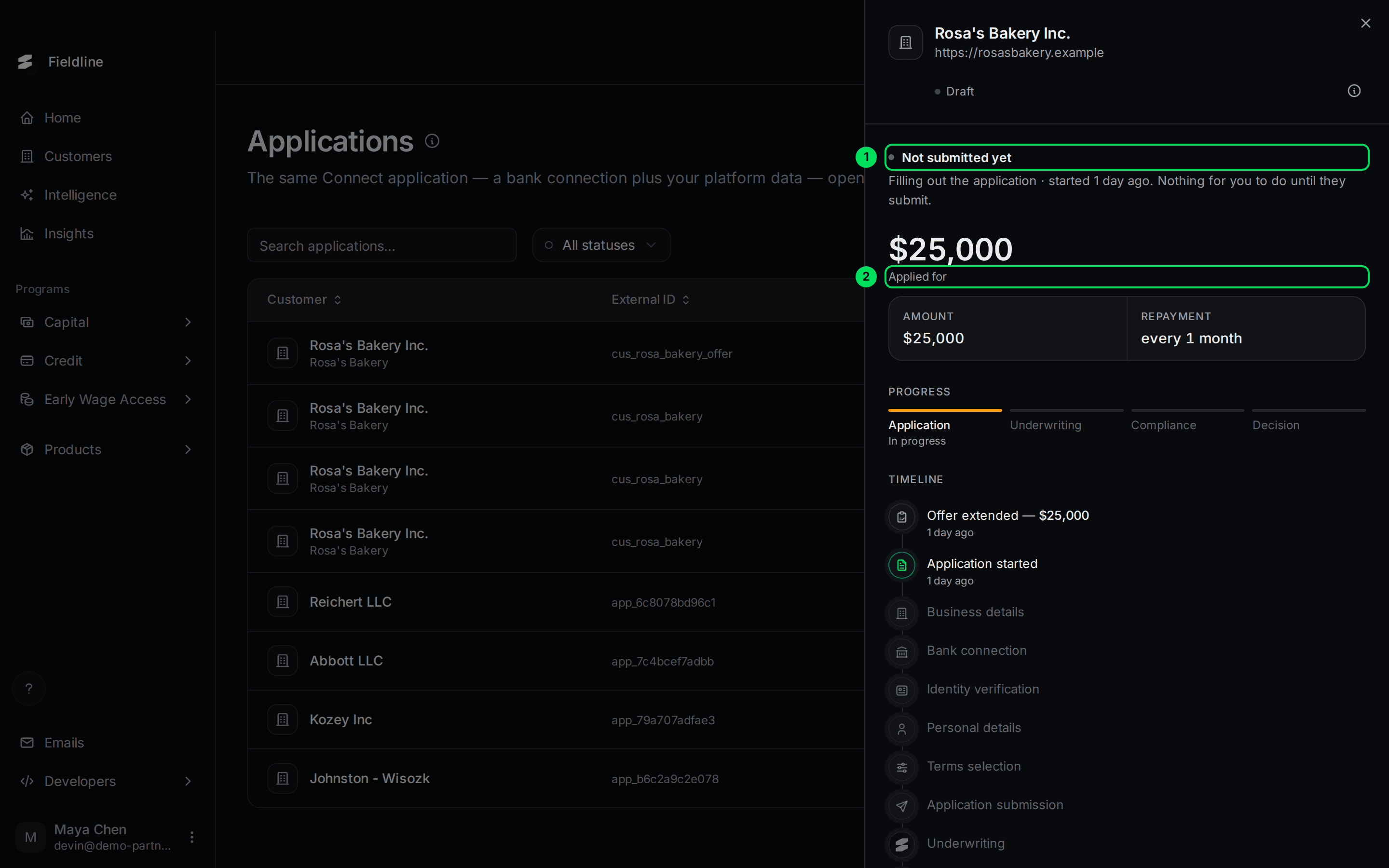
- Not submitted yet: the customer is still filling it in. Nothing to do until they submit.
- Applied for: the amount on the offer.
What you do as the partner
Mostly, you wait. Slate reviews and decides. Your part:
- Make sure the customer received their link. See Credit line offers.
- Watch for Requires action and nudge the customer.
- When it reads Approved, check Accounts for the new credit line.
To see what the customer sees at each step, read Guiding your applicants.
If something goes wrong
The application has been a Draft for days
The customer started it and stopped. Remind them, or generate a fresh link from their offer. See Credit line offers.
An application is Approved but I see no account
Open Credit, Accounts and search the customer's name. If it isn't there, contact Slate.
I see two applications for one customer
A customer can have more than one application record over time. Look at the Submitted column and the status of each.
Learn more about the Slate credit line.
Still stuck? Email [email protected] with your account email and the screen you are on. We reply within 24 business hours.