Help Center / Guiding your applicants
What your customer goes through when they apply
The whole customer journey on one page: how they arrive, what they are asked, how long it takes, what happens next, and how they pick it up again later.
5 min read · Updated November 10, 2026
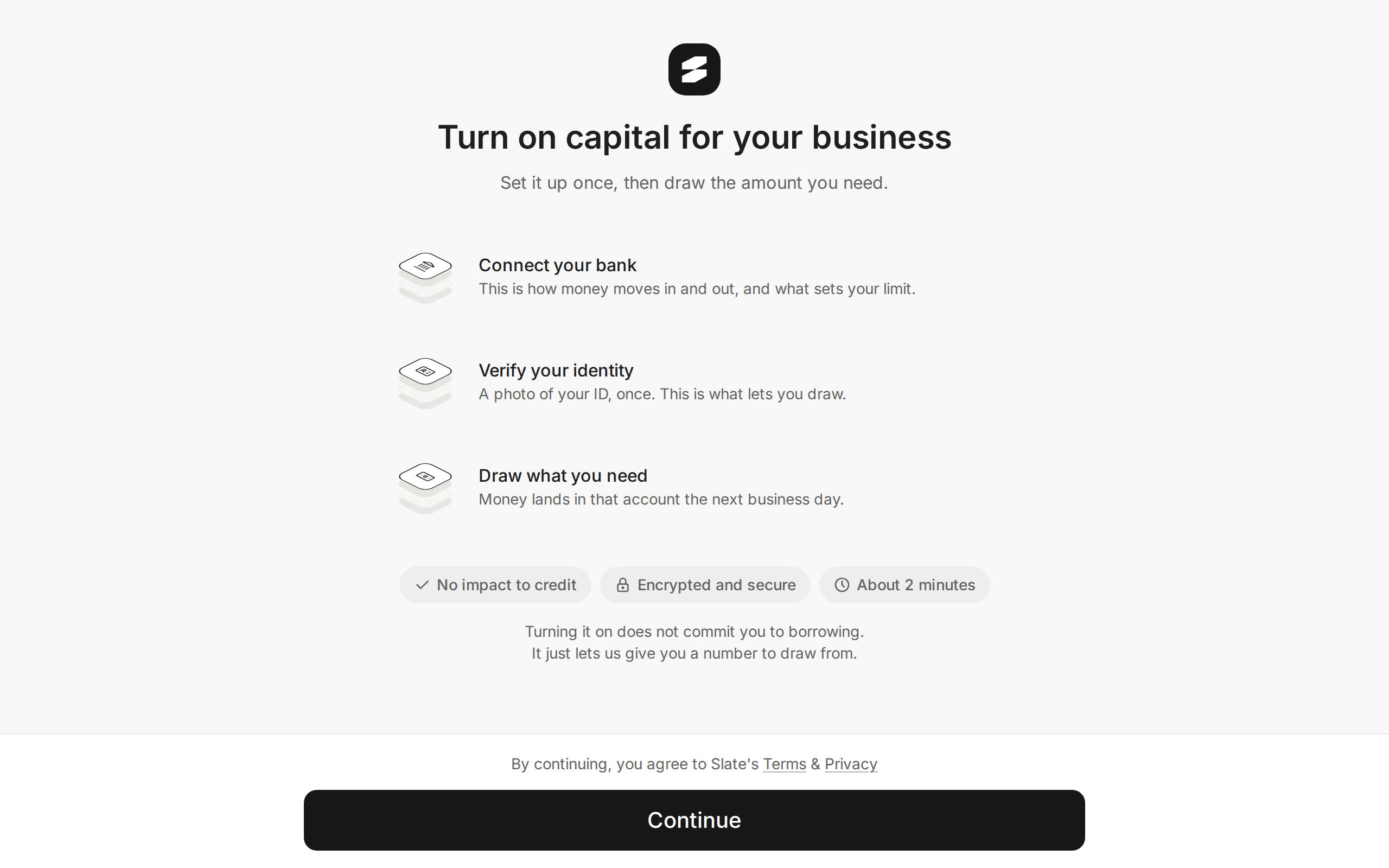
This section is for the people at your company who help customers with their Slate application. Start here for the big picture, then use the other pages to walk a customer through a specific screen on the phone.
Your customer never creates a Slate account or signs in. A link carries them straight into their own application.
How your customer arrives
Every way in uses the same secure link. The link already knows who your customer is, so there is nothing to sign in to.
- A link you send from the dashboard. You open an offer and select Generate Application Link. The link works for 1 week.
- A link in a Slate email. Slate emails your customer at key moments, for example when they have a new offer, need to sign, or have updated terms to confirm. Each email opens the right screen with one click. Links in emails last 1 week.
- Your own product. If you embed Slate, your customer applies inside your app. Your system asks Slate for a link for each customer, and it lasts 1 day. See Embed overview.
- A colleague's link. On the bank step a business owner can send the link to the person who handles the bank account.
Open the customer's offer
Go to Capital, then Offers, and select the offer. Only offers that are open (not expired) can have a link.
Select Generate Application Link
A window shows the link.
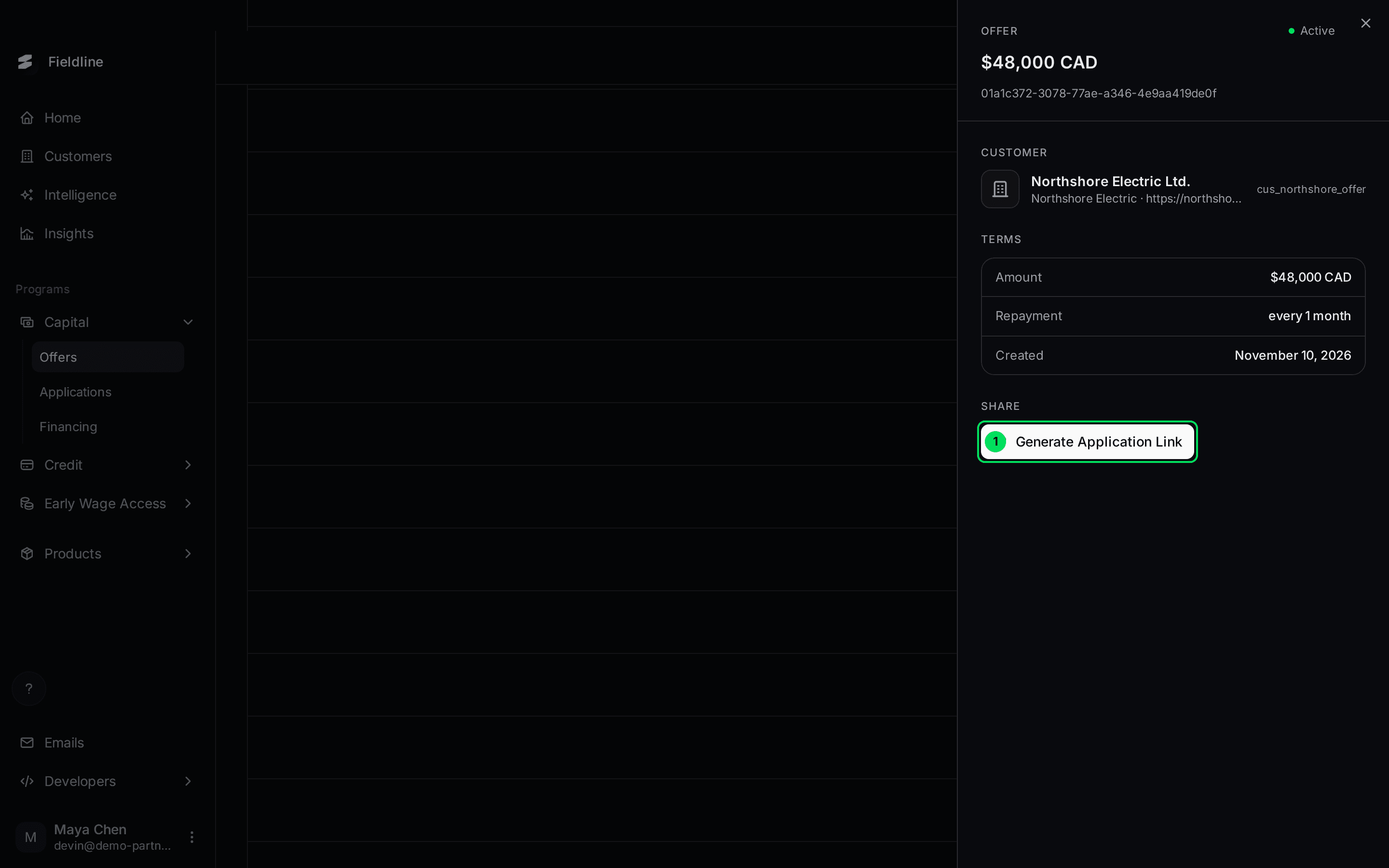
- Generate Application Link: creates a fresh link for this customer.
Copy the link and send it
Select Copy URL. Paste it into an email or message to your customer.
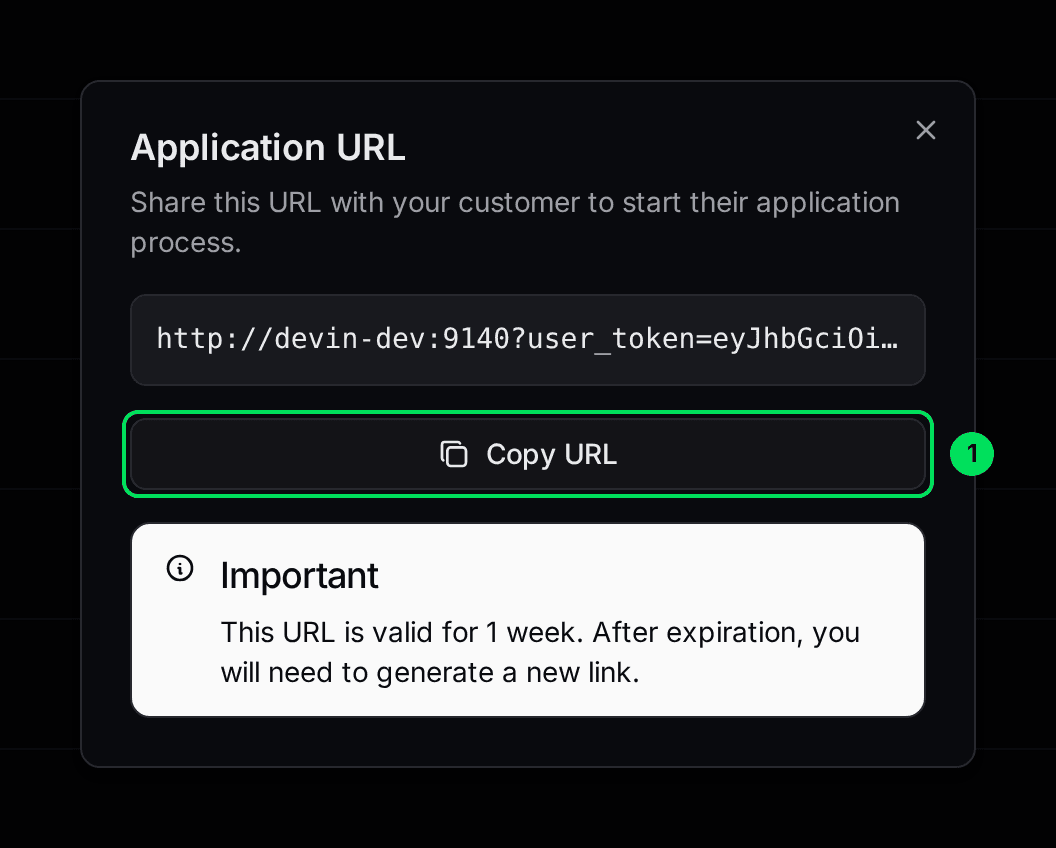
- Copy URL: copies the whole link. Send all of it, not a part.
More on sending links: Send an application link.
What your customer is asked
The first screen explains what is about to happen. Your customer then sees a short list of steps, shown in a panel on the left (on a phone, a small progress ring at the top).
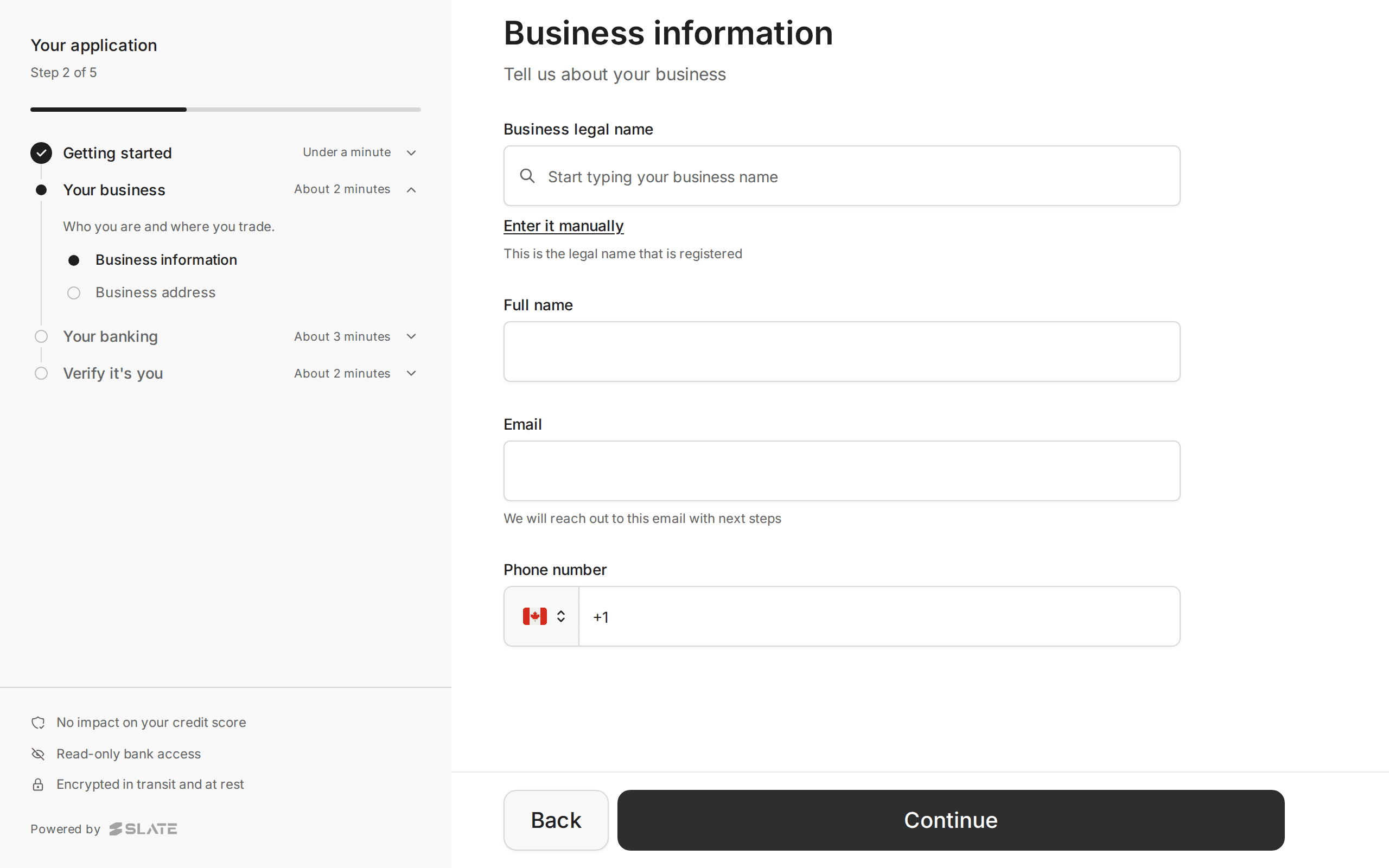
The panel groups the work like this, with the times shown on screen:
- Getting started: under a minute.
- Your business (or About you for an individual): about 2 minutes.
- Your banking: about 3 minutes.
- Verify it's you: about 2 minutes.
Added up, that is about 8 minutes if every step shows. Most of the time goes on the bank connection.
Slate skips anything you already sent about the customer. If you gave Slate the business name, contact and address, those steps never appear, or the fields are filled in and locked. Details are in The application, screen by screen.
At the bottom of the panel, three promises are always visible: No impact on your credit score, Read-only bank access and Encrypted in transit and at rest. Point these out if a customer hesitates.
What happens after they submit
- Submitted. Your customer sees "We'll take it from here" and Slate reviews the application. See Outcomes.
- Slate may ask for more. Your customer gets an email with a link. The usual asks are to verify their identity and sign the agreement. See After approval: the tasks.
- Approved. Once the agreement is signed, the customer sees "Approved & Funded" and the money is on its way.
- Declined or expired. Either way your customer is told to contact you. See Outcomes.
Can your customer stop and come back?
Yes. The application saves at every step. When your customer opens the link again, they land on the step where they stopped, as long as the application has not been submitted.
If the link has expired, generate a new one. See Support playbook.
If something goes wrong
- The page shows a spinner and never loads: the link is probably expired or damaged. Send a fresh one.
- The page says "Missing required information": the link was cut off. Send it again in full.
Both fixes, and a dozen more, are in the Support playbook.
Learn more about Slate Capital.
Still stuck? Email [email protected] with your account email and the screen you are on. We reply within 24 business hours.