Help Center / Credit lines
How a credit line works, and the Offers page
A short tour of how a Slate credit line works from offer to repayment, then how to read the Credit Offers page and send a customer their link.
6 min read · Updated November 10, 2026
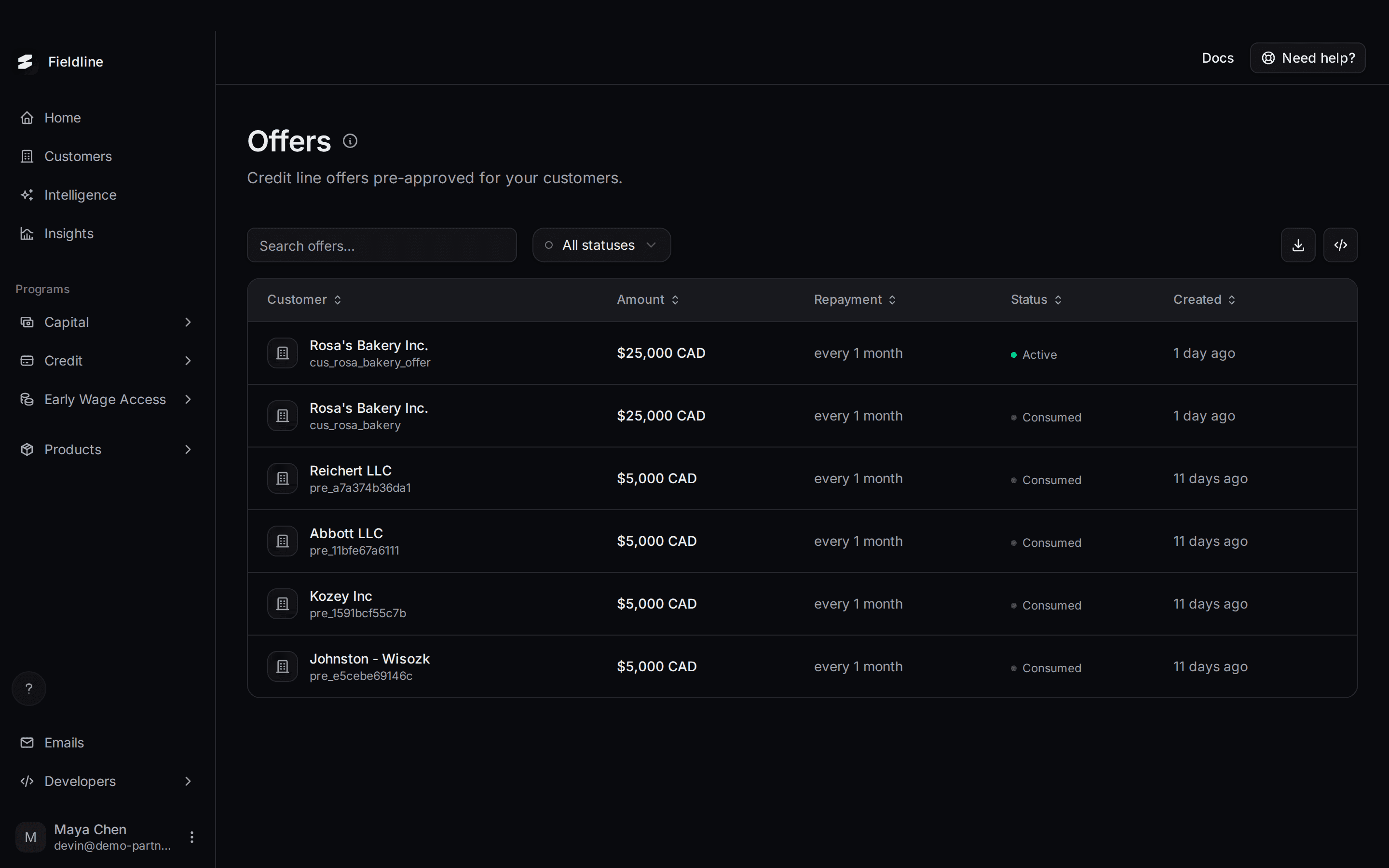
A credit line gives your customer a limit they can draw from whenever they need cash. The Credit pages in your dashboard follow it from the first offer to the last repayment. This page explains the whole path, then covers the first stop: Offers.
How a credit line works, start to finish
Every credit line follows the same five stops. Each one has its own page under Credit in the menu.
- Offer: Slate pre-approves a customer for a credit line amount. You see it under Credit, Offers. You can't create offers yourself.
- Activation application: the customer opens their link, connects their bank, and confirms who they are. You follow this under Credit, Applications. See Credit line applications.
- Account: once the application is approved, the customer has a credit line account with a limit. You see it under Credit, Accounts. See Credit line accounts.
- Draw: the customer takes money out of the line. Each draw is its own deal with its own repayment plan. You see draws under Credit, Financing. See Credit line draws.
- Repayment: the customer pays each draw back on its schedule. Paid-back money frees up room on the line again.
Not every credit line works the same way
Slate runs more than one kind of credit line. The customer's panel on the Customers page names the kind: Draw facility, Credit line or Card program.
- Draw facility: the customer takes money in separate draws. The panel shows how much is out across how many draws. The Credit Line Banner and Credit Line Experience pages under Products apply only to this kind. See Credit line banner and Credit line experience.
- Credit line: the panel shows a statement balance and a minimum payment with a due date. The line works in periods.
- Card program: the panel shows spending still pending this period, and money out from past periods.
The demo account in these articles has draw facility lines and period-based lines. Each article says which kind a screen applies to.
Find the Offers page
Open the Credit menu
Select Credit in the menu on the left. The group opens and shows four pages.
Select Offers
Select Offers. The page lists every credit line offer Slate has made for your customers.
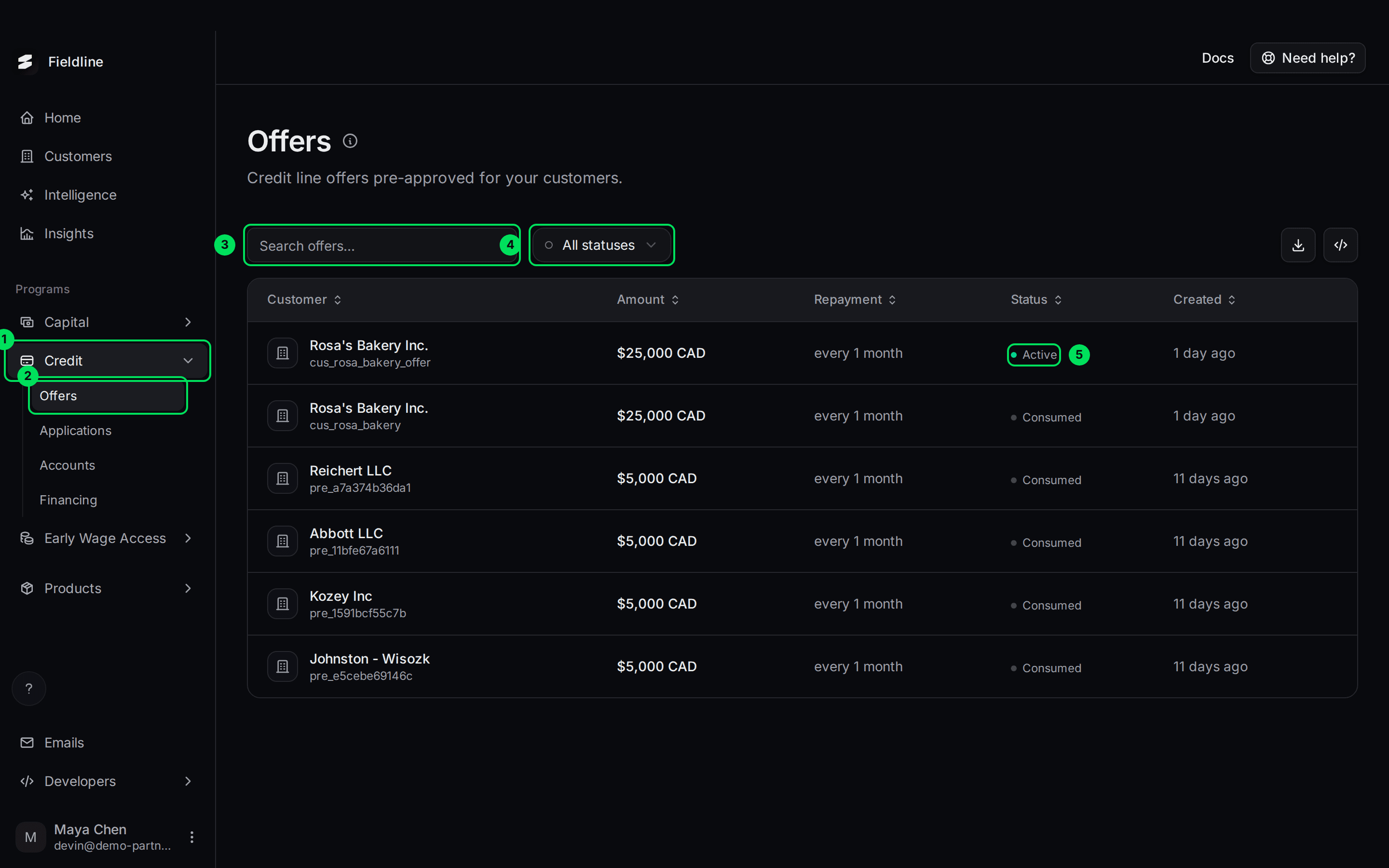
- Credit: opens the Credit group in the menu.
- Offers: this page.
- Search offers...: searches the list.
- All statuses: filters the list by status.
- Active: the status of each offer. Only Active offers can still be taken up.
What the columns mean
- Customer: the business, with your own ID for them (or Slate's offer ID) underneath.
- Amount: the credit line limit Slate is offering.
- Repayment: how often the customer repays, for example "every 1 month".
- Status: where the offer stands. See the next section.
- Created: how long ago Slate made the offer.
Select a column title to sort by it. Use the download button at the top right to export the rows to a spreadsheet. The export only includes rows loaded on the page, so raise the per page number to 100 first if you have many offers.
What each offer status means
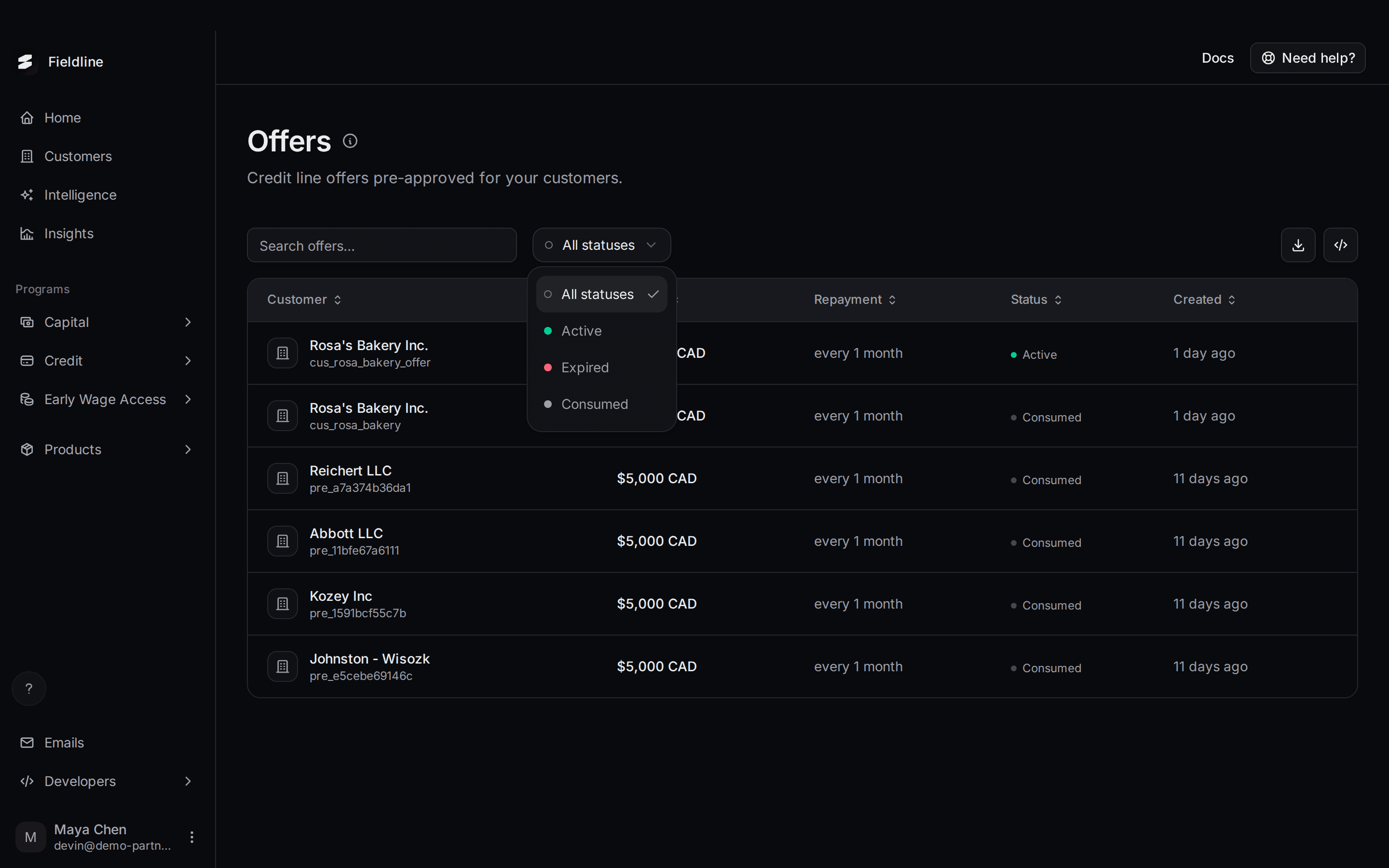
- Active: the offer is open. Your customer can still take it up. Send them their link if they haven't applied.
- Consumed: the customer took it up and their application was approved. Nothing for you to do. Look under Accounts for the new credit line.
- Expired: the offer lapsed before it was taken up, or Slate replaced it. If the customer still wants credit, ask Slate for a new offer.
Use the All statuses menu to show just one of these.
Send a customer their application link
Only Active offers have a link. The customer opens it to start their activation application.
Open the offer
Select the offer's row. A panel opens on the right.
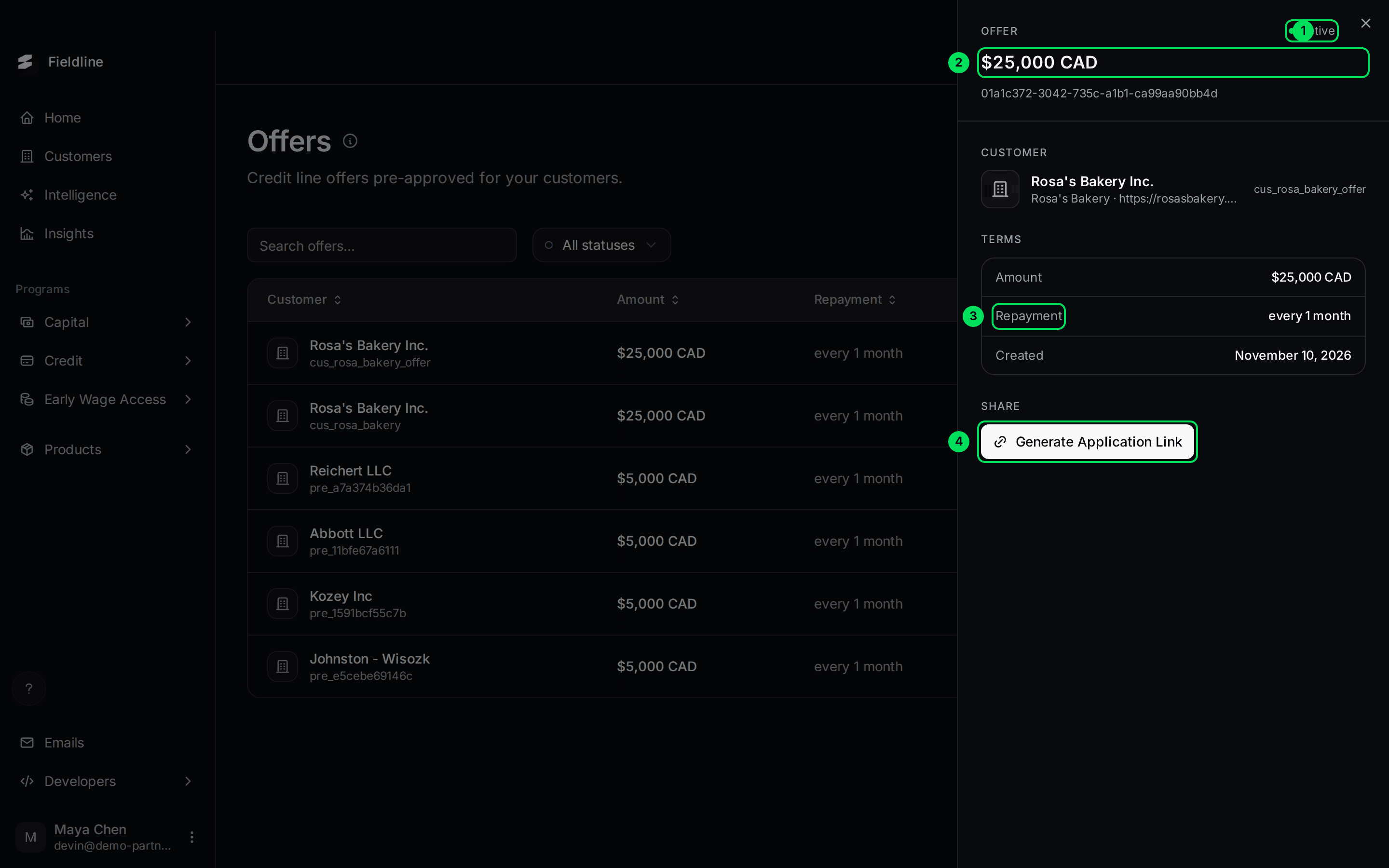
- Active: the offer's status.
- $25,000 CAD: the amount offered.
- Repayment: how often the customer repays.
- Generate Application Link: makes the link for this offer.
Select Generate Application Link
A box shows the link. Select Copy URL.
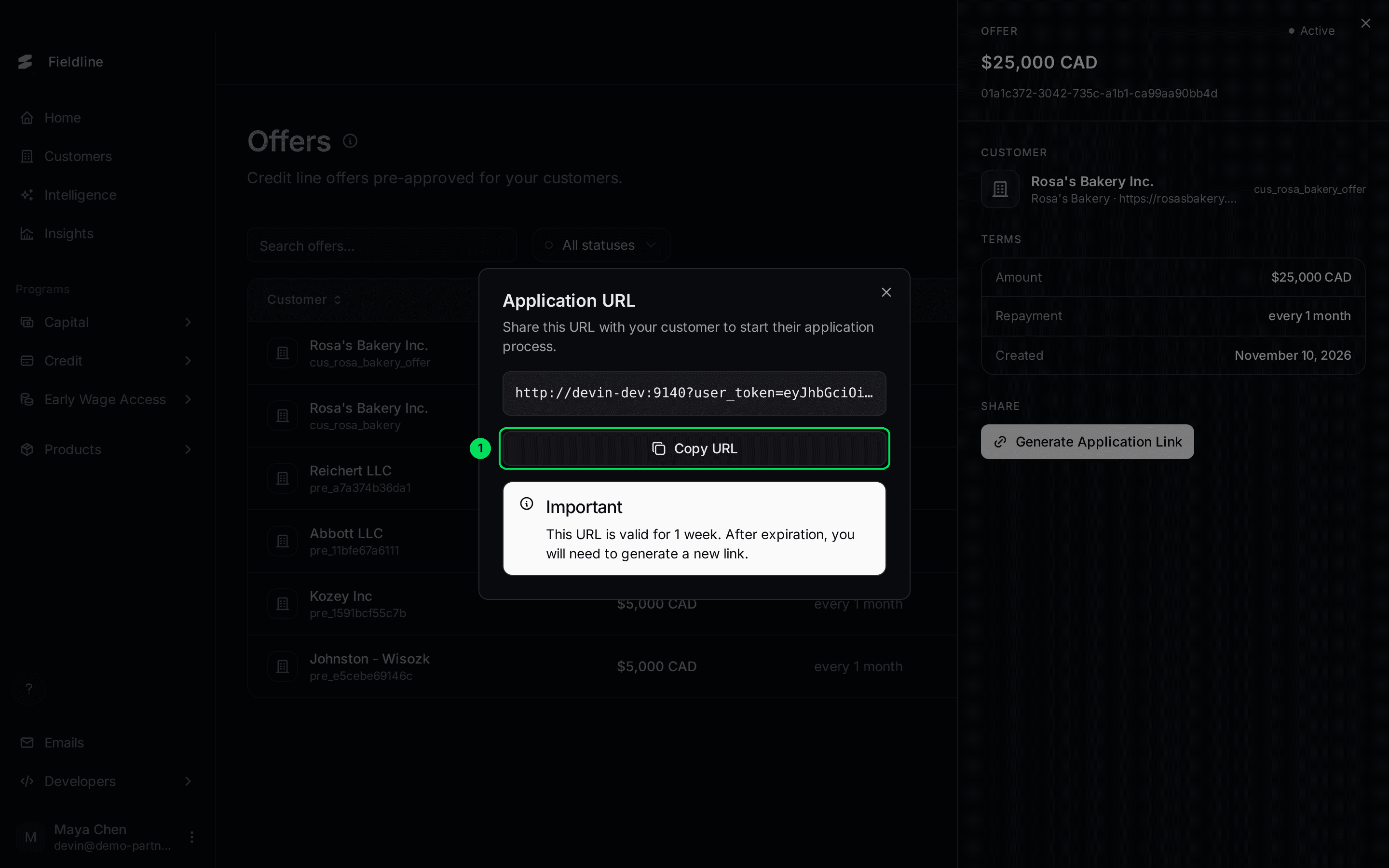
- Copy URL: copies the link so you can paste it in your own email or message.
Send it to your customer
Paste the link into your own message. The box says the link is valid for 1 week. After that, generate a new one.
If something goes wrong
I can't see the Credit menu
Slate hasn't switched the Credit program on for your company. Contact your Slate representative.
The Offers page is empty
The page stays empty until Slate pre-approves someone. Slate makes offers from the data you send. Partners can't create them. See Send financial data.
I can't generate a link
Links exist only for Active offers. A Consumed or Expired offer has no link.
The customer says their link stopped working
Links last 1 week. Open the offer and select Generate Application Link again.
Learn more about the Slate credit line.
Still stuck? Email [email protected] with your account email and the screen you are on. We reply within 24 business hours.