Help Center / Emails
Send emails from your own domain
Make customer emails come from your own web address instead of Slate's. This works in live mode only. Here is what you will do.
4 min read · Updated November 10, 2026
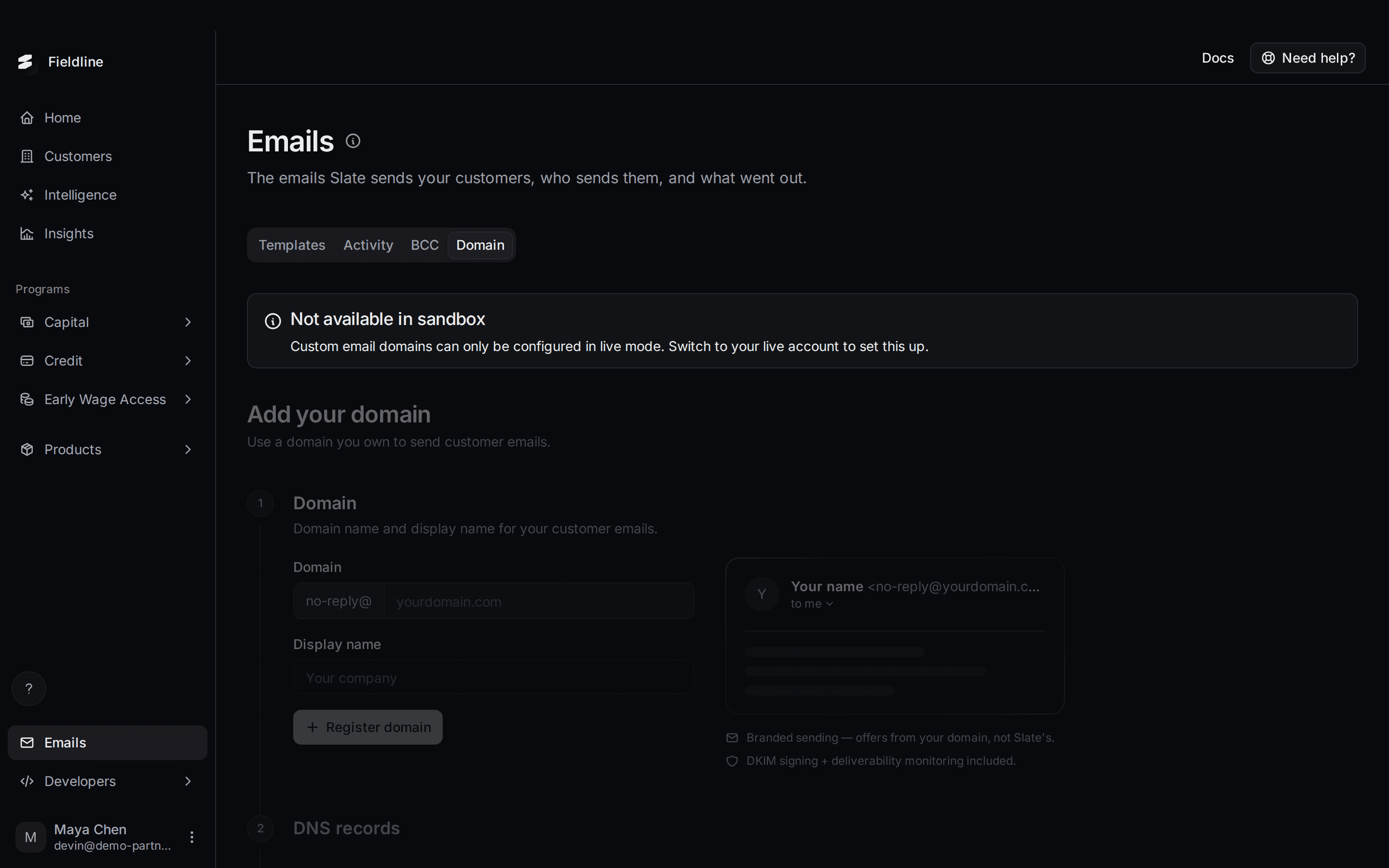
You can make your customers' emails come from your own web address, for example [email protected], instead of from Slate. Customers then see your name in their inbox.
This works in live only. You cannot try it in sandbox.
What sandbox shows
In sandbox, the Domain tab is switched off. It says Not available in sandbox, and the form is greyed out. In sandbox, emails always go out from Slate's address.
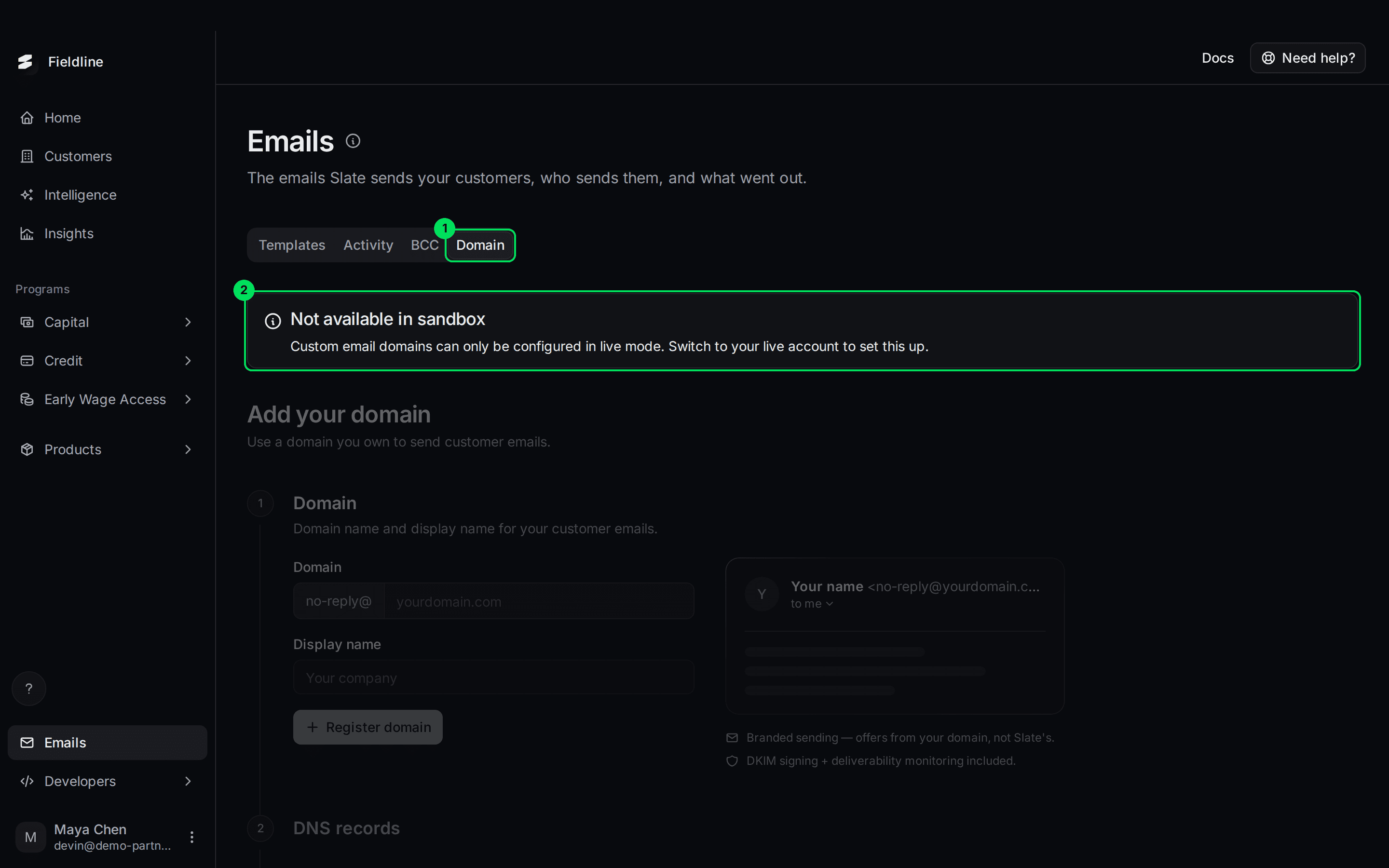
- Domain: the tab.
- Not available in sandbox: custom domains can only be set up in live mode.
Before you start
You'll need:
- A domain you own, such as
yourcompany.com. - Access to your domain's DNS settings, usually at the company where you bought the domain. A developer or IT person can do this part.
You can only have one domain. The sender is always no-reply@ plus your domain. You cannot choose a different name before the @ sign.
Set it up (live only)
Open the Domain tab in live
In your live dashboard, select Emails, then Domain.
Enter your domain and display name
Type your domain in Domain. The page shows no-reply@ in front of the box for you.
Type your name in Display name. This is the name customers see as the sender. It starts as your organization's name.
A preview on the right shows how the sender will look.
Select Register domain
A message says Domain registered and asks you to add the DNS records.
Add the DNS records at your registrar
The page lists the records to add, with these columns: Type, Name, Content, TTL, Priority and Status. Each value has a copy button.
Add every record to your domain's DNS settings exactly as shown. A TTL of "Auto" is fine. They are the standard records that let your domain prove it may send mail (DKIM and SPF).
The exact records come from Slate's email provider for your domain, so copy them from the page. Do not type them from memory.
Select Verify records
The page says Checking records and updates on its own. This can take a few minutes, because DNS changes need time to spread.
Wait for Mail flow is live
When every record shows Verified, a message says Domain verified and the page says Mail flow is live. Customers now receive emails from your display name and no-reply@ your domain.
What the statuses mean
- Pending: you registered the domain, but the records have not been checked yet. Add them, then select Verify records.
- Verifying: Slate is checking your records. Wait a few minutes.
- Verified: every record is correct. Emails now send from your domain.
- Failed: a record is wrong or missing, or has not spread yet. Check the values, then select Retry verification.
Until the domain is verified, emails keep going out from Slate's address.
Change your domain or display name
Select Edit, change the domain or the display name, then select Update domain. Select Cancel to leave things as they are.
If something goes wrong
Verification failed
Open your DNS settings and compare each value with the page. Common causes: a typo, a value pasted with extra spaces, or a record added to the wrong domain. Fix it, then select Retry verification.
It still says Verifying after an hour
DNS changes can be slow at some registrars. Wait a bit longer, then select Retry verification. If it still fails, contact Slate support from the Need help? button.
I want to turn off one email, not switch domains
Use the switches on the Templates tab. See Choose who sends your customers' emails.
Learn more about sending from your own domain.
Still stuck? Email [email protected] with your account email and the screen you are on. We reply within 24 business hours.