Help Center / Getting started
Add and remove team members
Invite teammates to your Slate dashboard, see who has access, and remove someone who has left.
5 min read · Updated November 10, 2026
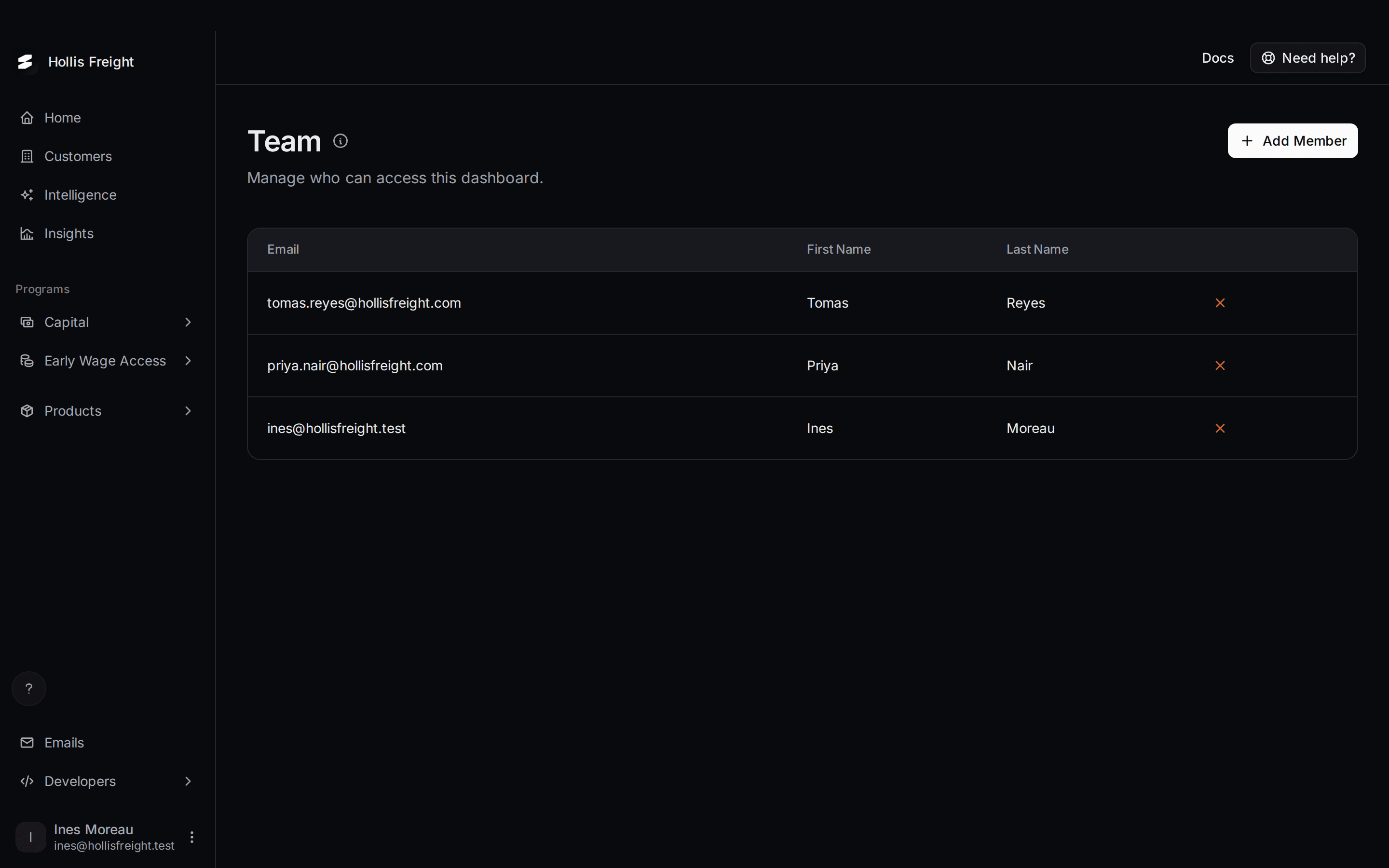
The Team page lists everyone who can sign in to your dashboard. Use it to invite a teammate or to remove someone who has left.
Where to find it: select your name at the bottom left, then Team. There's no Team item in the main menu.
See who's on your team
Open the account menu
Select your name at the bottom left.
Select Team
The page lists each person's email and name.
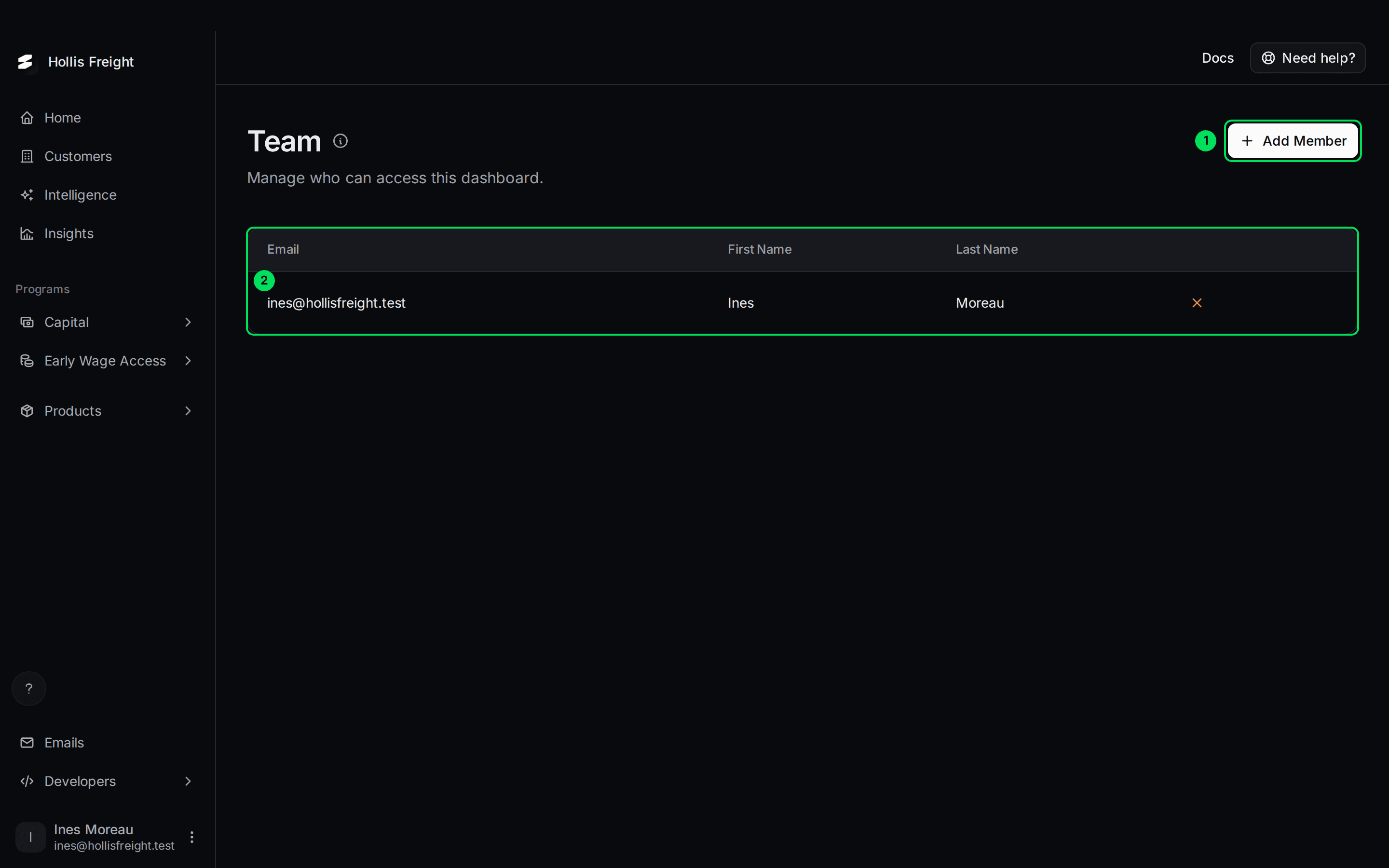
- Add Member: opens the form to invite someone.
- The list: one row for each person, with Email, First Name, Last Name and a red X at the end.
Only people who can sign in are listed. Someone you've removed doesn't show.
Add a team member
Select Add Member
It's the button at the top right.
Fill in the form
A window called New Member opens. It says: "They will receive an email with an invitation to join the platform."
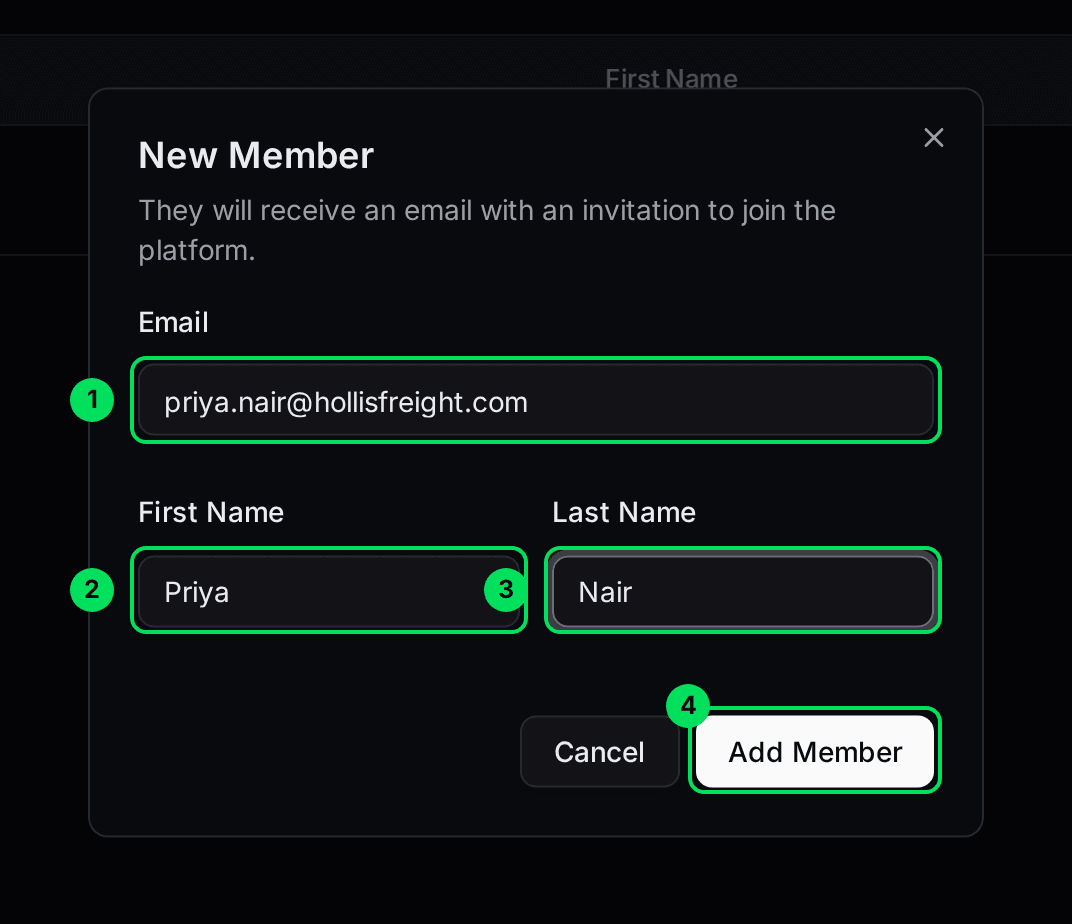
- Email: your teammate's work email.
- First Name.
- Last Name.
- Add Member: sends the invitation.
All three fields are required. If one is missing or the email isn't valid, the form says so.
Select Add Member
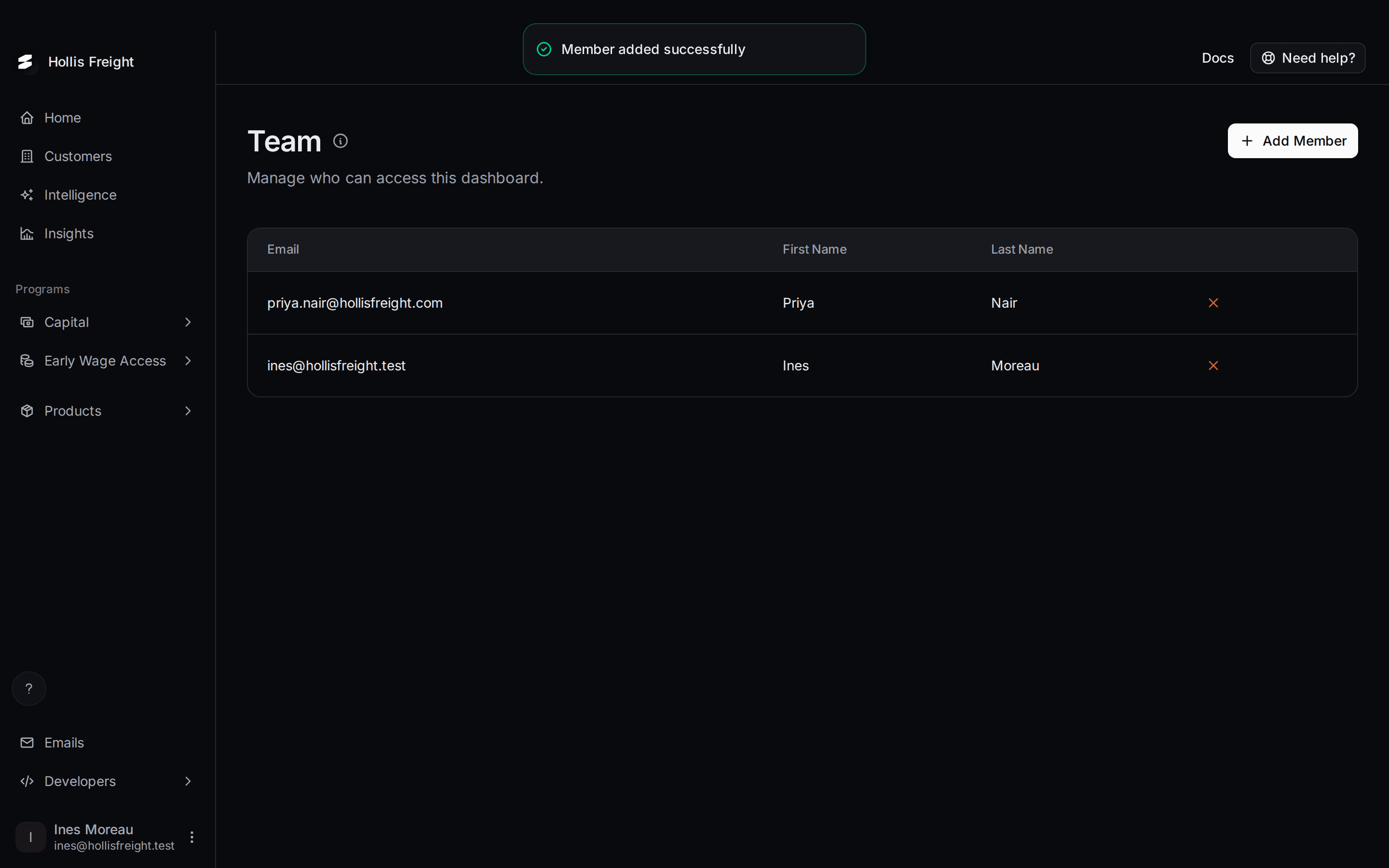
You'll see "Member added successfully". The person appears in the list straight away.
What your teammate gets
They get an email with a code. They use it to choose a password and sign in. What they see is covered in Create your account and sign in. Point them to the section called "If a teammate invited you".
The person shows in your list as soon as you add them. The list doesn't show whether they've accepted yet.
Remove someone from your team
Removing a person is called deactivating. It takes away their access.
Select the X on their row
It's the red X at the end of the row.
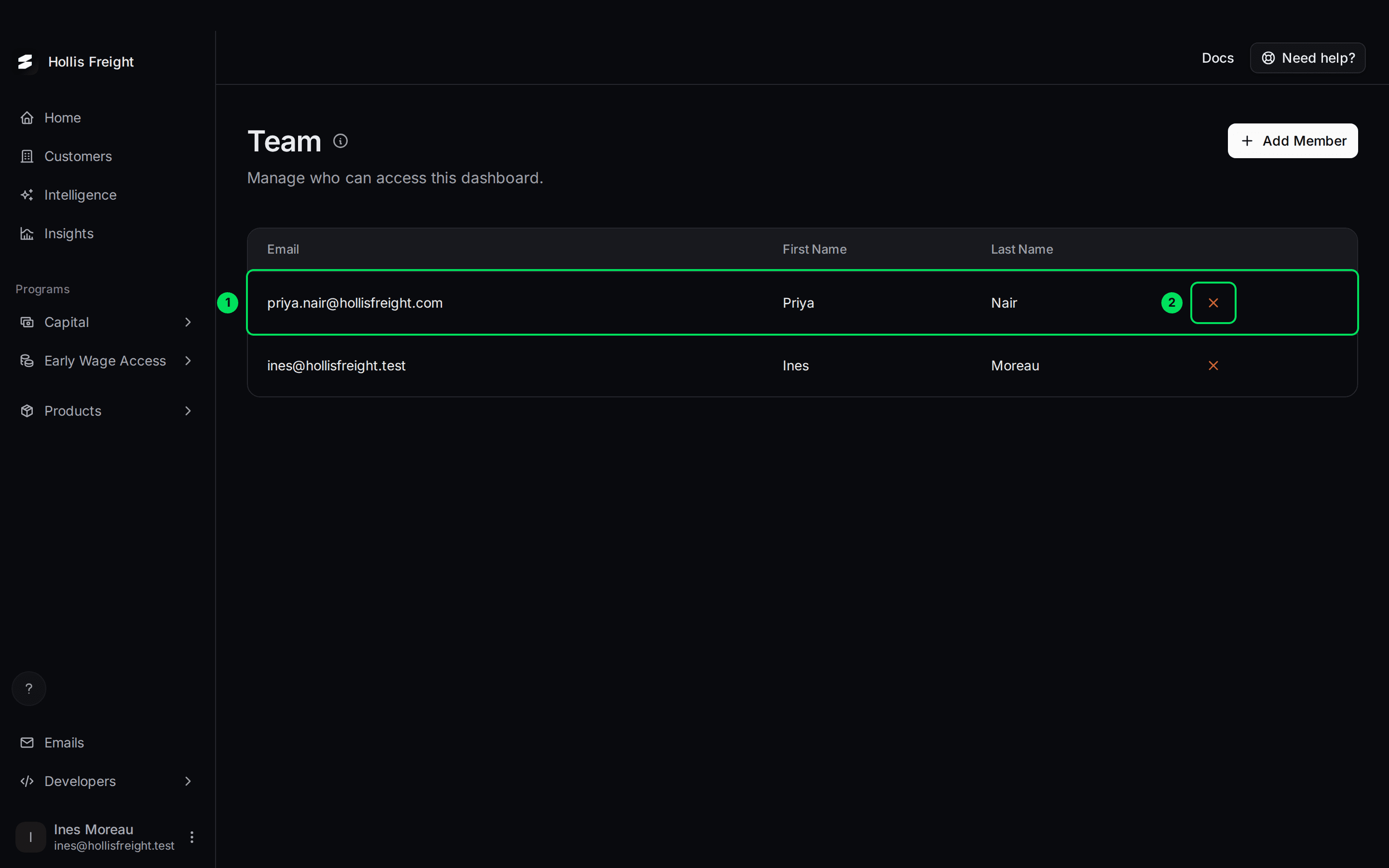
- The row: the person you're removing.
- X: opens the confirmation window.
Type their email to confirm
A window called Deactivate User asks: "Are you sure you want to deactivate" them. It says this removes their access to the platform. Type their email in the box.
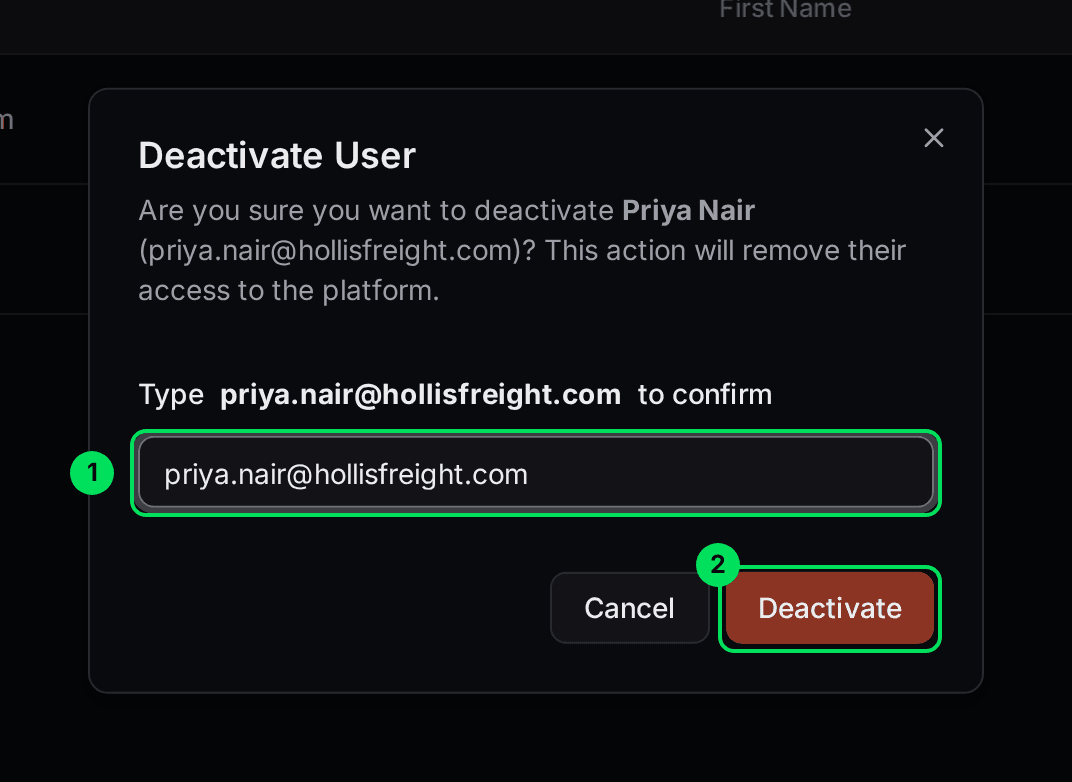
- Type the email to confirm: the box that checks you've picked the right person.
- Deactivate: removes their access.
Select Deactivate
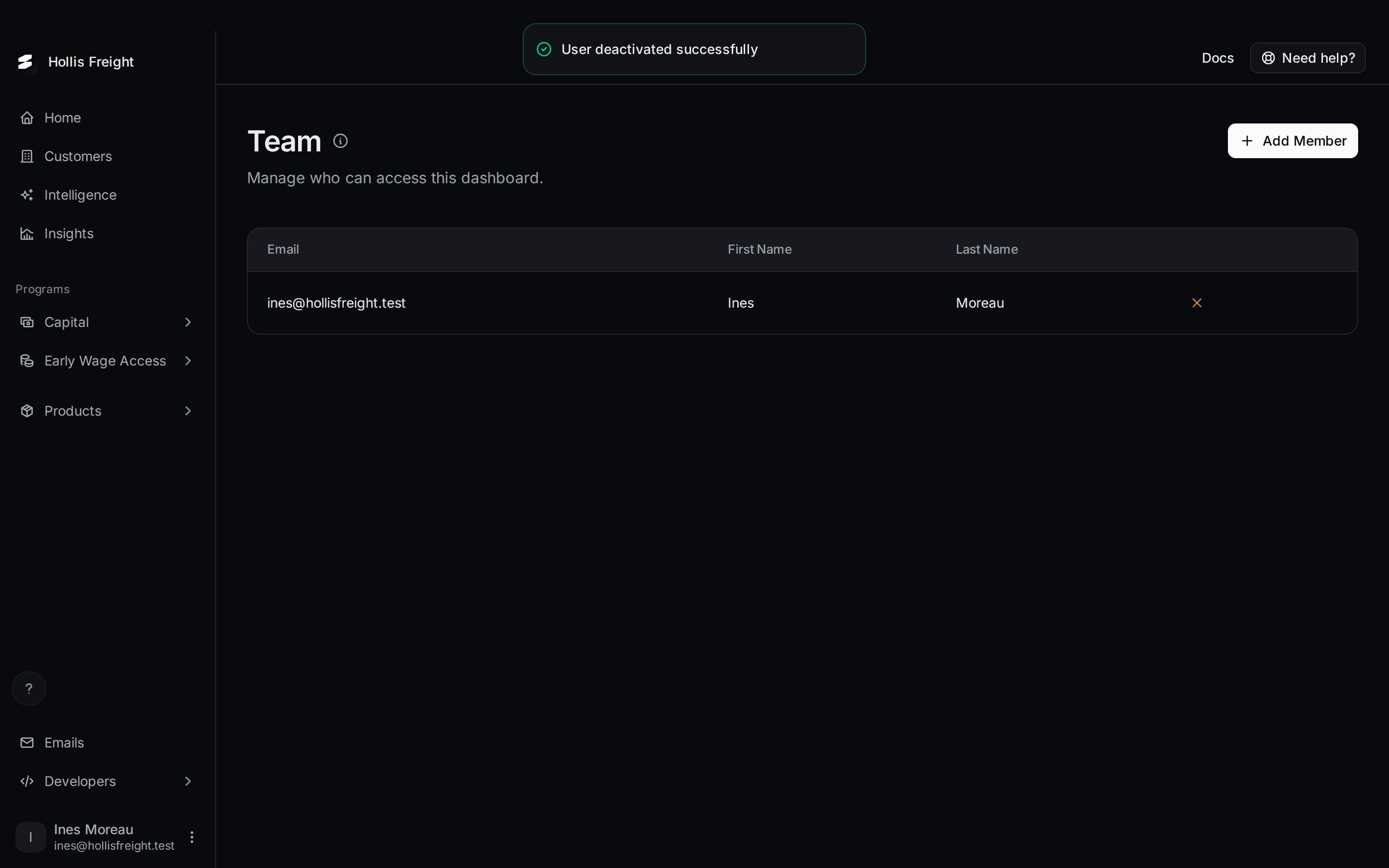
You'll see "User deactivated successfully". The person disappears from the list.
Add someone back
Add them again with Add Member, using the same email. Their access comes back and they get a new code by email.
If something goes wrong
I see "Failed to add member. Please try again."
One reason is that the person is already on your team. Check the list for their email. If they're not there, try again, and contact Slate support if it keeps failing.
I can't deactivate myself
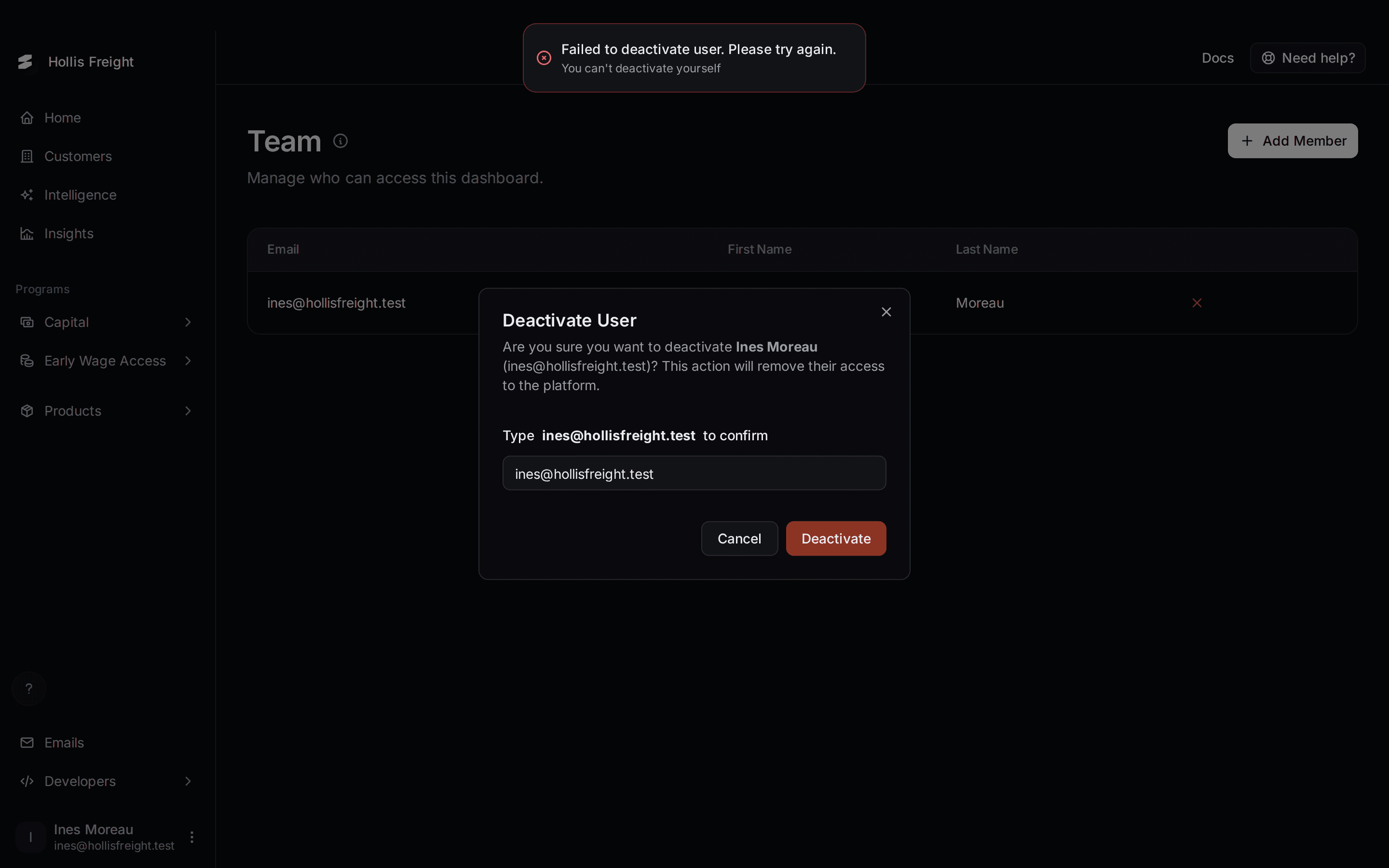
You'll see "Failed to deactivate user. Please try again. You can't deactivate yourself". The X button works on your own row, but Slate won't let you remove yourself. Ask a teammate to do it, or contact Slate support.
My teammate didn't get the email
Ask them to check their spam folder. Then see Create your account and sign in. If they still can't find it, remove them and add them again to send a new code.
I need someone to have less access
That isn't possible. Everyone you add has full access.
Learn more about the Slate platform.
Still stuck? Email [email protected] with your account email and the screen you are on. We reply within 24 business hours.