Help Center / Getting started
Create your account and sign in
Set up your Slate account, choose a password, sign in, and switch between sandbox and live. Plus quick fixes when signing in doesn't work.
8 min read · Updated November 10, 2026
Everything you need to get into your Slate dashboard, and back in when something goes wrong.
Slate has two dashboards. You start in the first one.
- Sandbox is for building and testing. Nothing there touches real money or real customers. Address: partners-sandbox.tryslatehq.com
- Live is your real program. You can't sign up for it: Slate turns it on for you when you're ready. Address: partners.tryslatehq.com
The two never share anything. A customer, key or setting made in one doesn't appear in the other.
Create your account
You do this once per company. Takes about two minutes.
Open the sign-up page
Fill in the form
Every field is required.
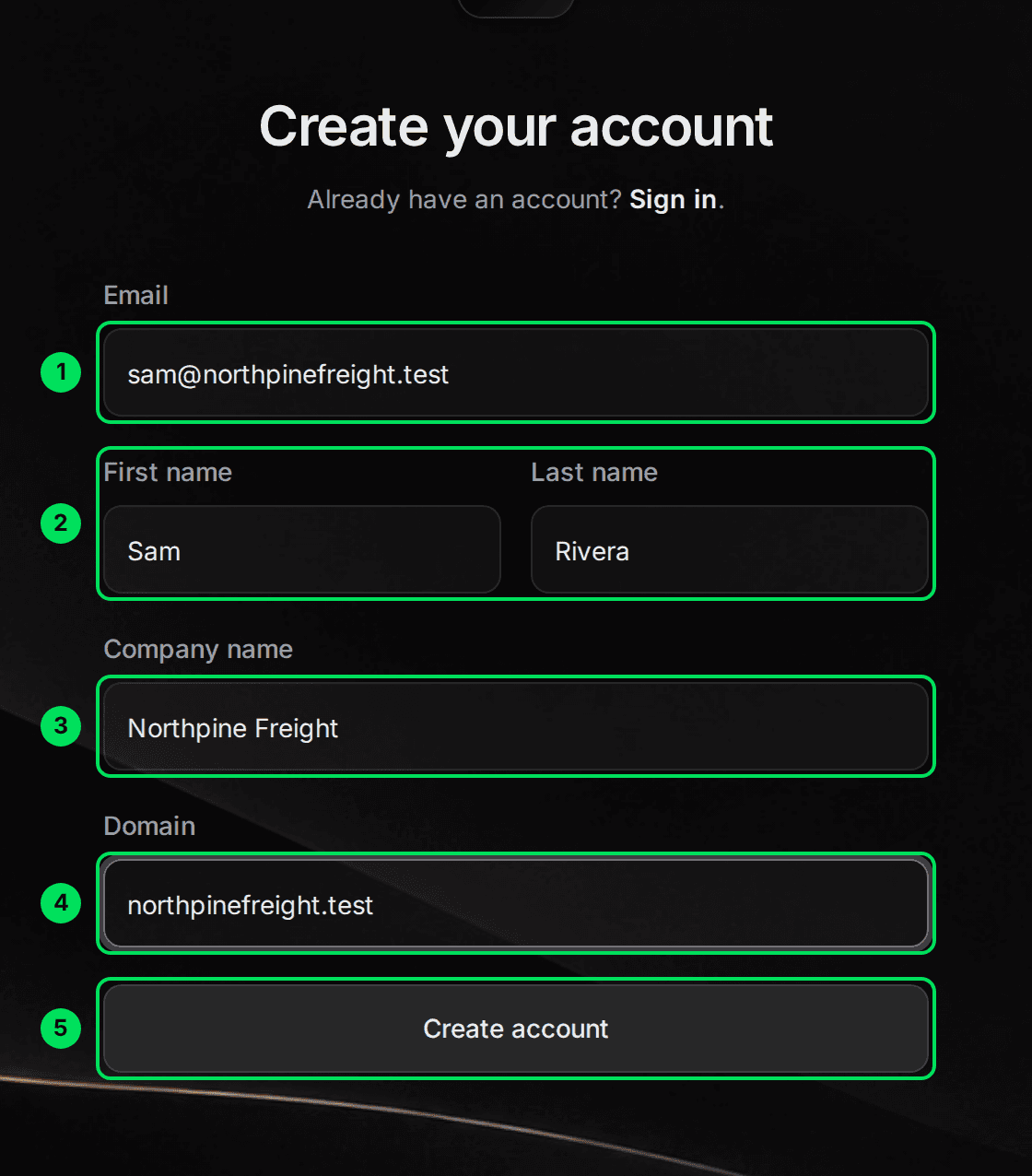
- Email: your work email. You'll sign in with it, and your codes go there.
- First name and Last name.
- Company name: as your customers know it. It shows at the top of your dashboard.
- Domain: your company's website, without
https://orwww. For examplenorthpinefreight.com. - Create account: sends the form.
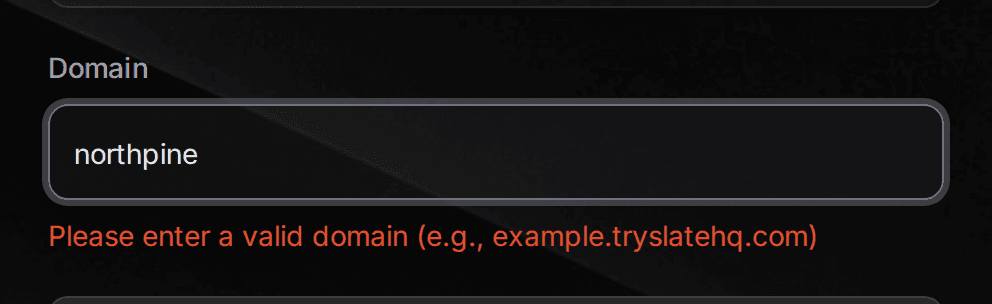
Select Create account
Slate emails you a six character code and opens the Set Password screen. Keep this tab open.
Set your password
Find the code in your email
It arrives within a minute or two. Check spam if you don't see it.
Enter the code and choose a password
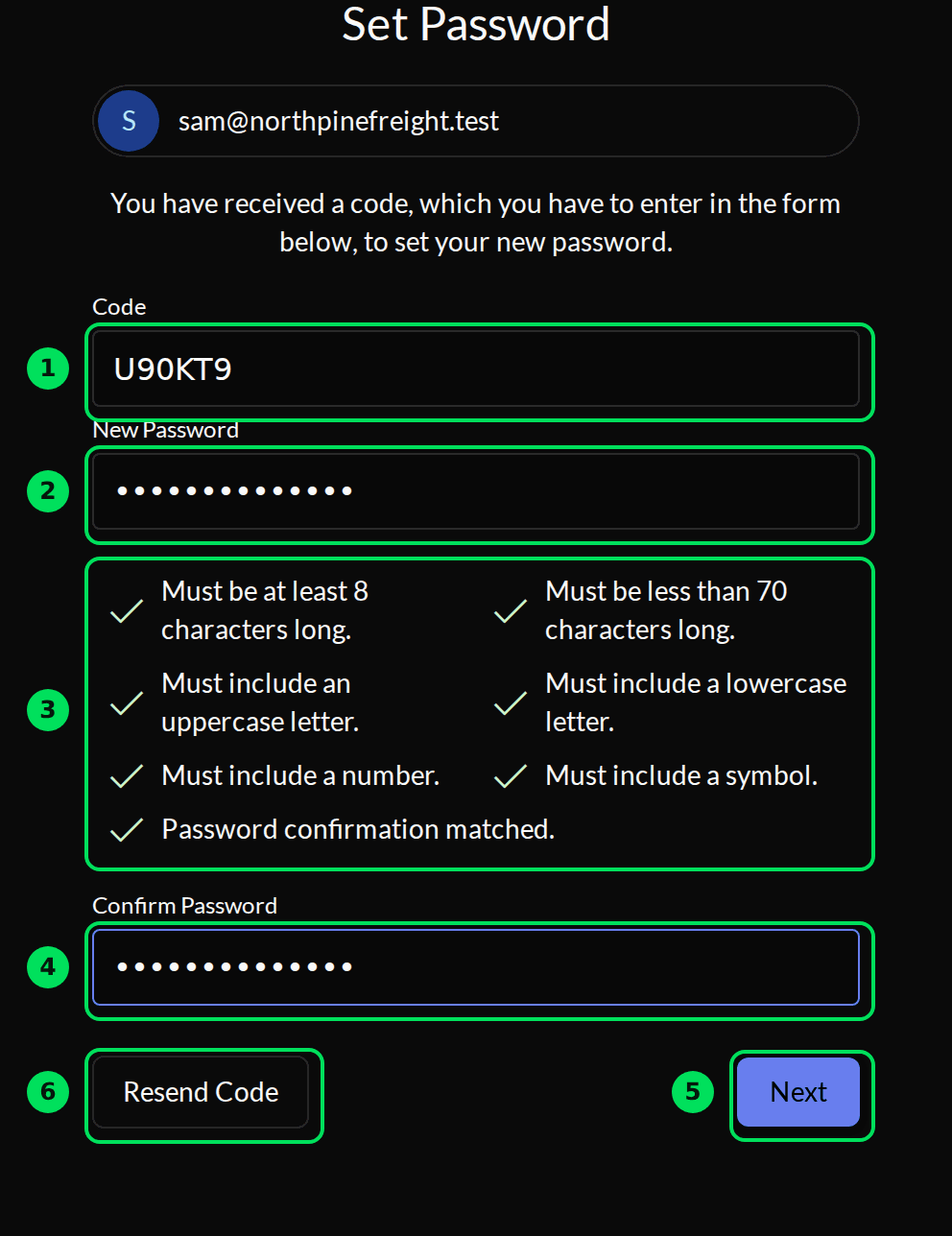
- Code: the six characters from the email, no spaces.
- New Password.
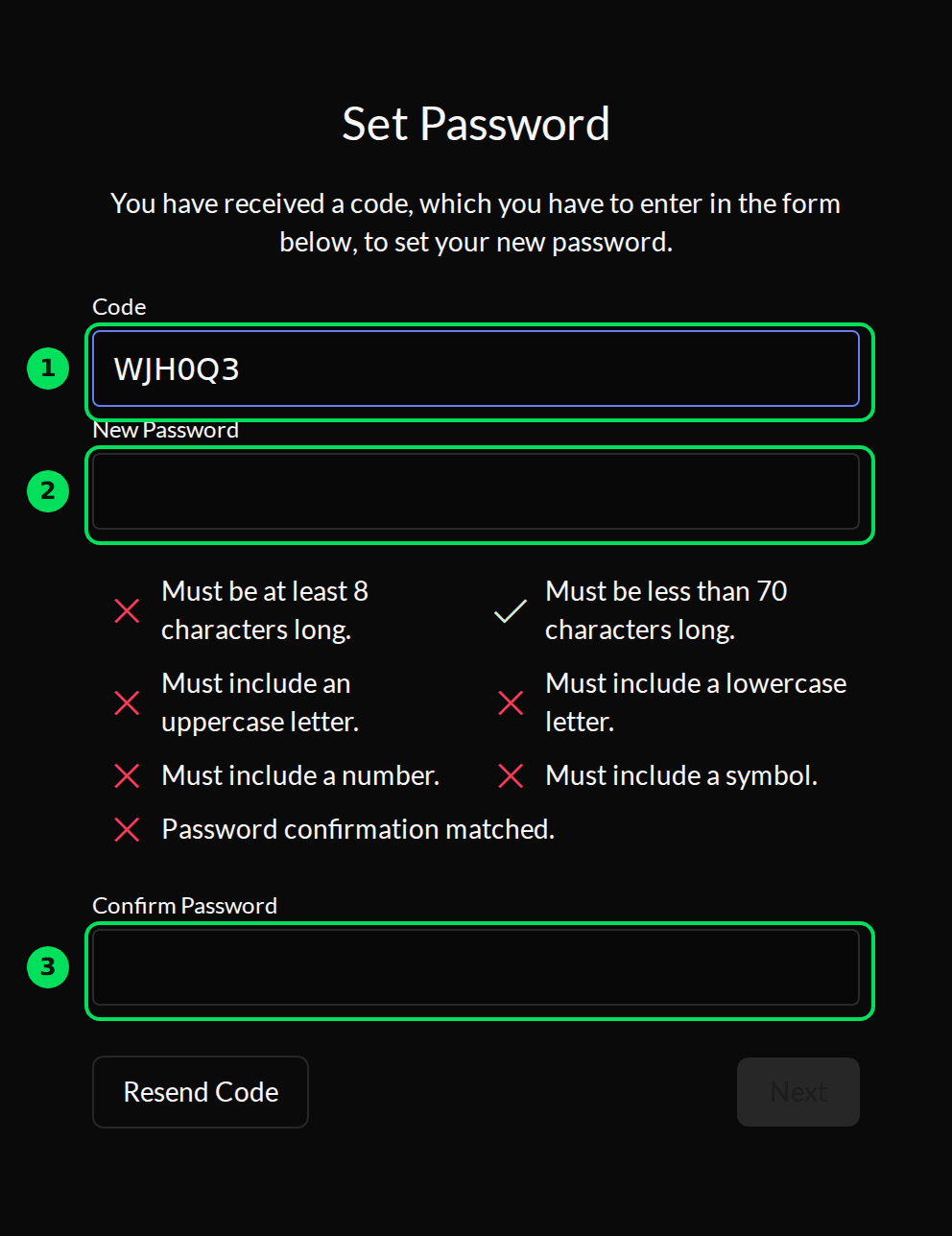
- The rules: each one turns into a tick when you meet it. You need 8 or more characters, an uppercase letter, a lowercase letter, a number and a symbol.
- Confirm Password: type it again.
- Next: stays grey until every rule is ticked.
- Resend Code: if the email hasn't come, or the code expired. Only the newest code works.
Select Next, then Next again
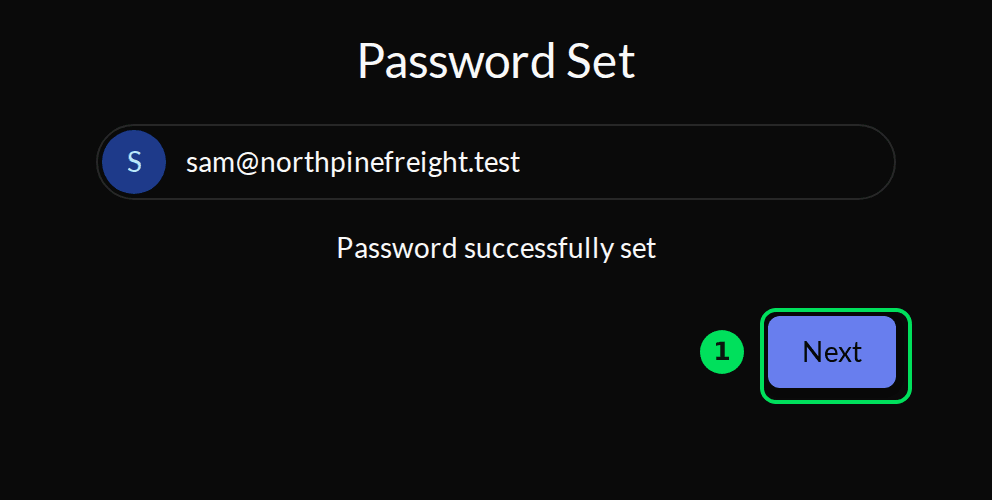
You'll see Password successfully set. Select Next, type your new password, and select Next again.
Add a second sign-in step (recommended)
The first time you sign in, Slate offers two-step verification. With it on, a stolen password alone can't open your dashboard.
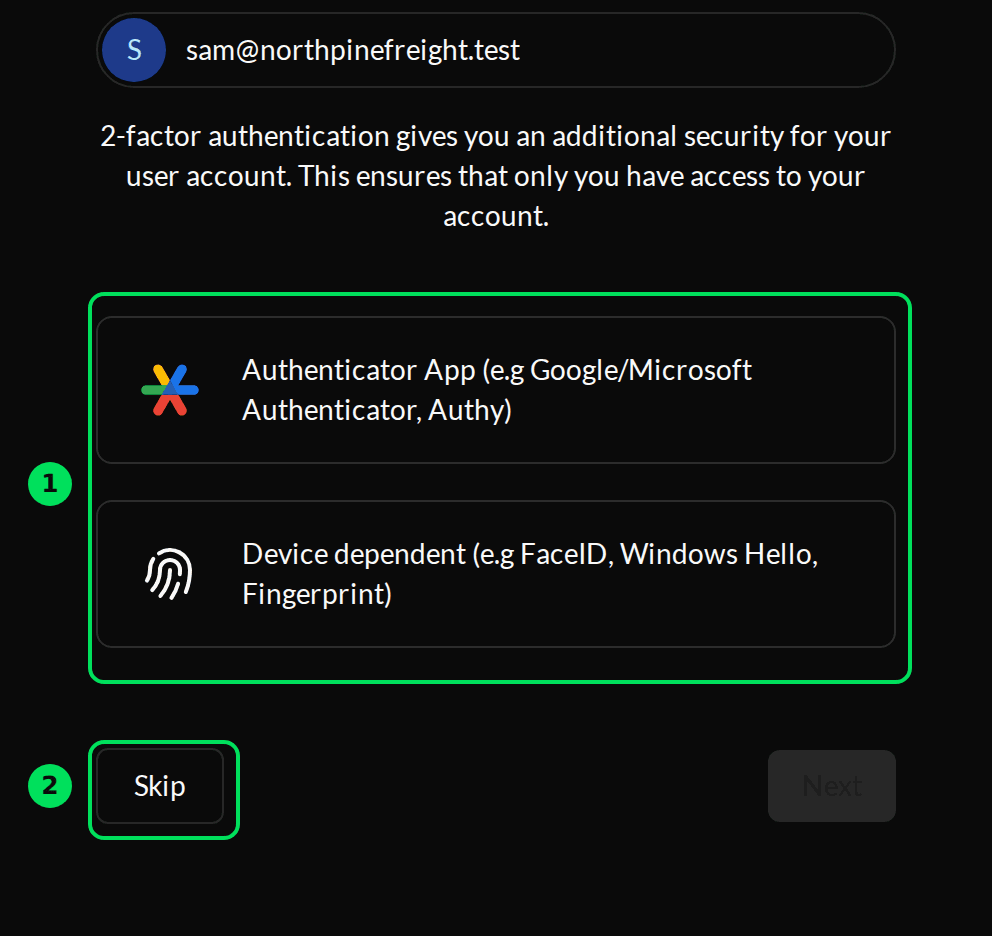
- Pick a method. Authenticator App works with Google Authenticator, Microsoft Authenticator or Authy: scan the QR code, then type the six digits the app shows. Device dependent uses Face ID, Touch ID or Windows Hello on this computer.
- Skip goes straight to your dashboard. Slate will offer it again later.
Your first look
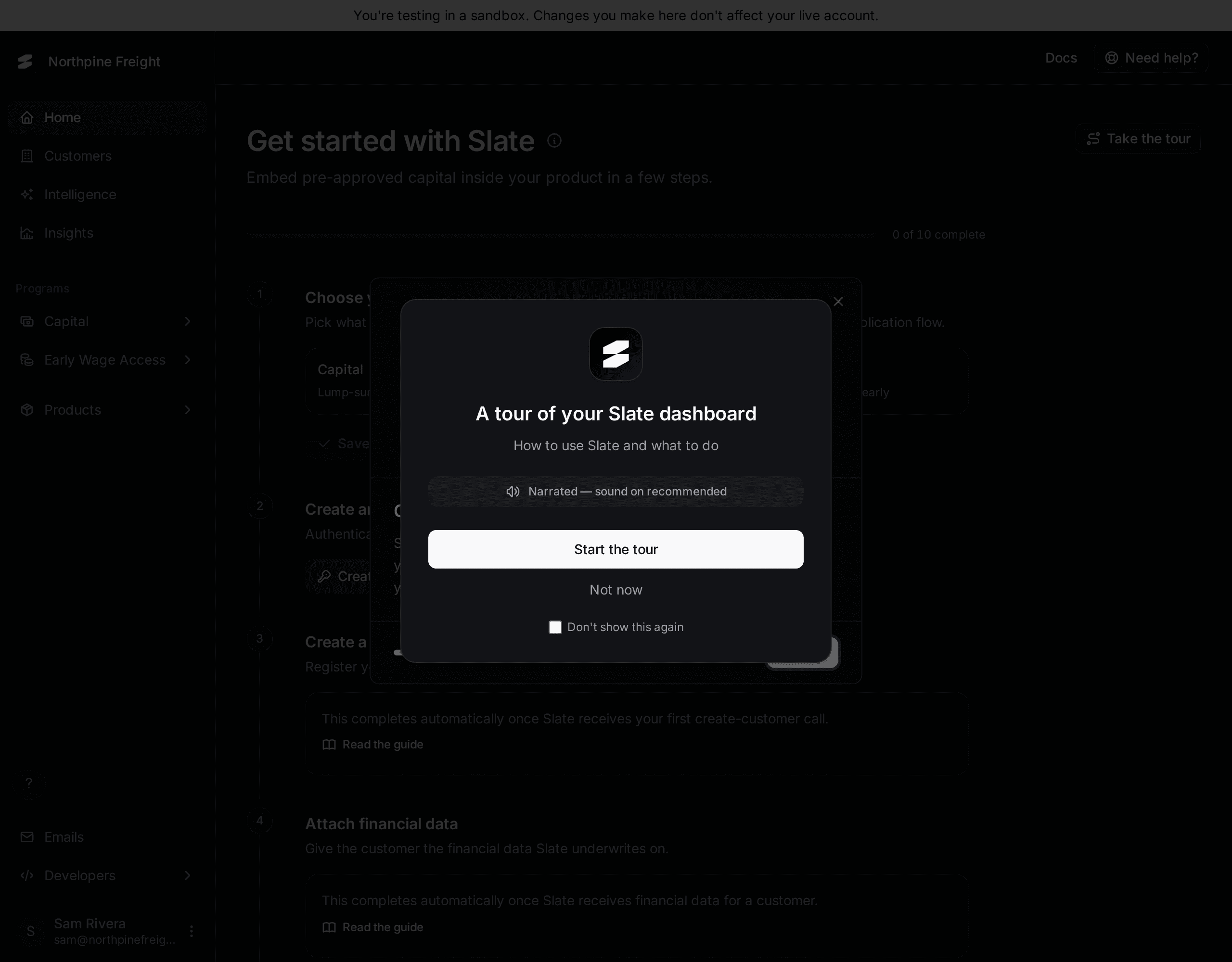
You land on Home in sandbox. The first time, a short welcome tour opens. Select Next to step through it, or the X to close it.
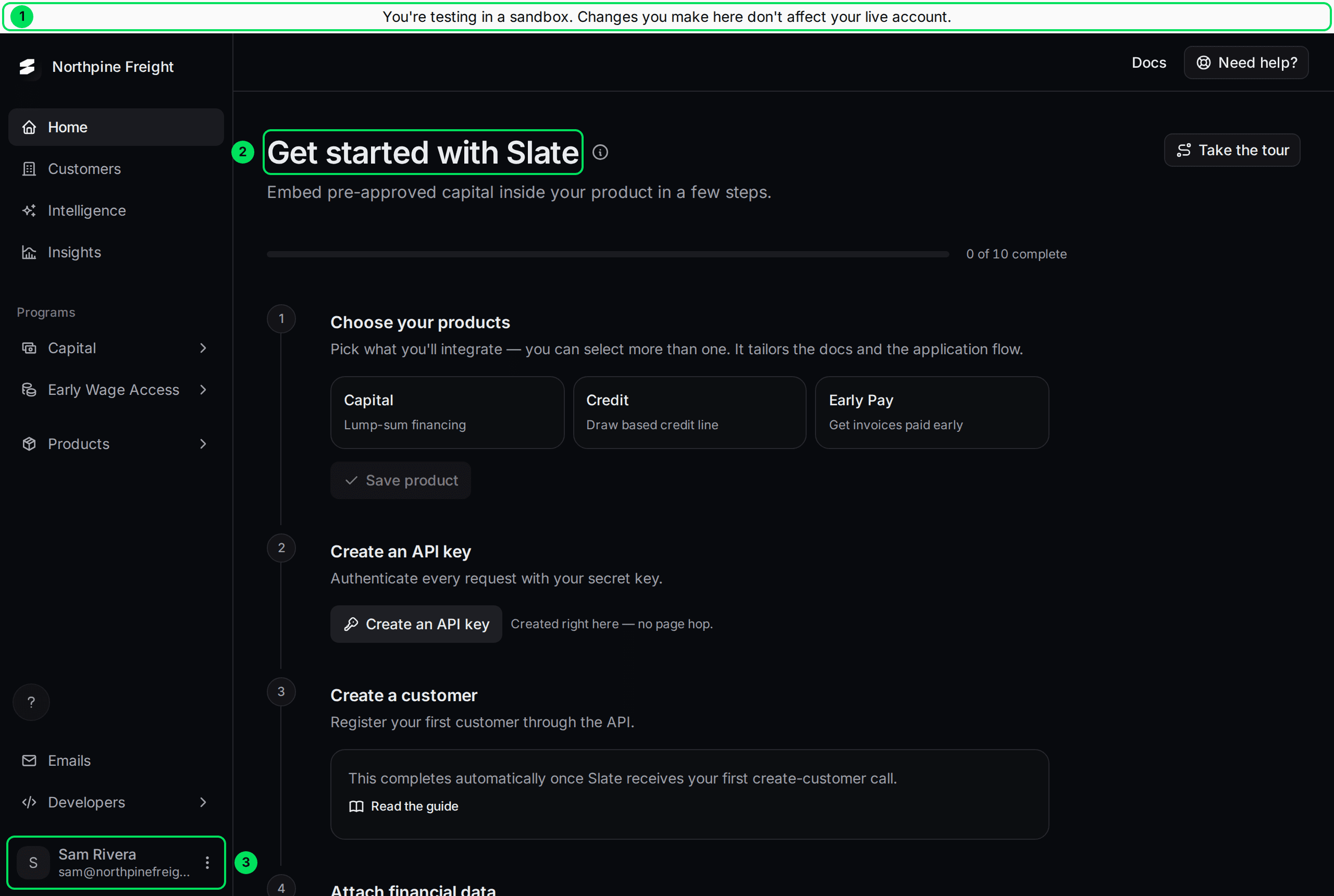
- The grey bar means you're in sandbox. Nothing here affects real customers or money.
- Get started with Slate is your setup checklist. It takes you from here to live. See The setup checklist.
- Your name opens the account menu.
Sign in next time
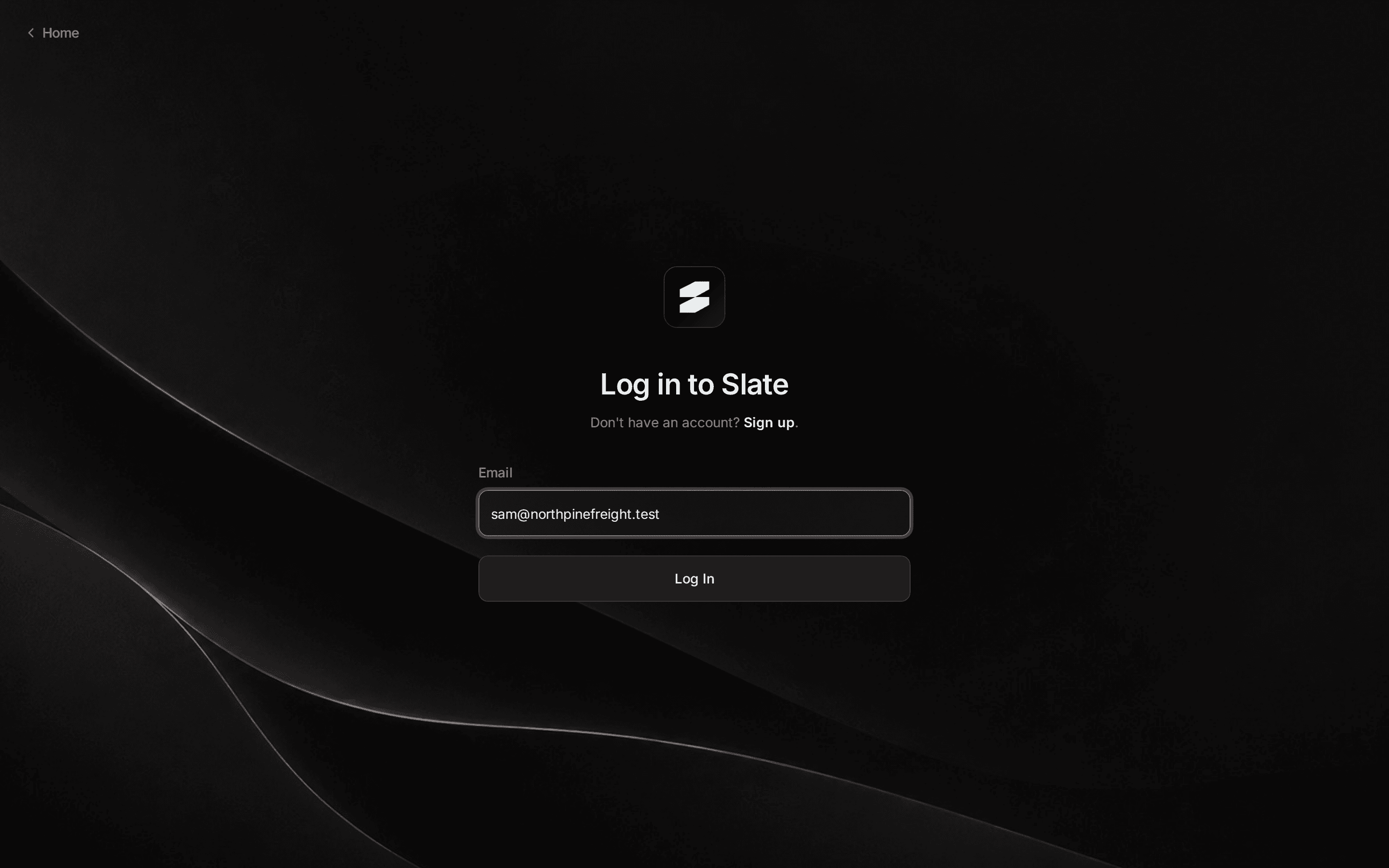
Go to your dashboard's address
Live: partners.tryslatehq.com. Sandbox: partners-sandbox.tryslatehq.com.
Enter your email and select Log In
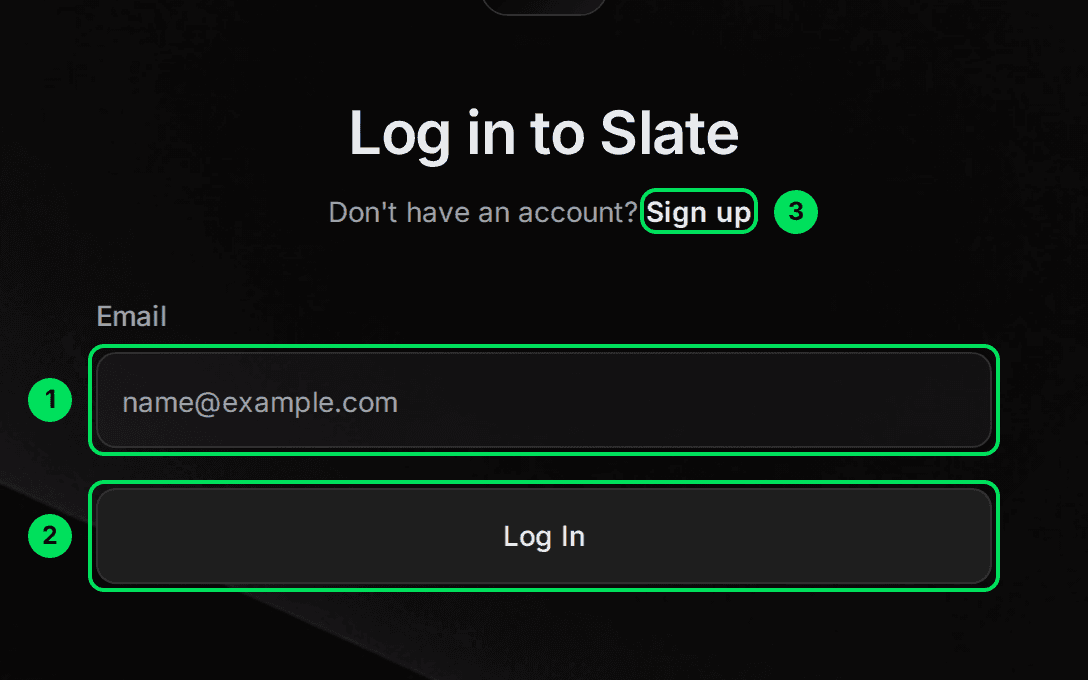
- Email: the one you signed up with.
- Log In: there's no password on this page. It comes next.
- Sign up: only for a brand new company. Don't use it if you already have an account.
Enter your password and select Next
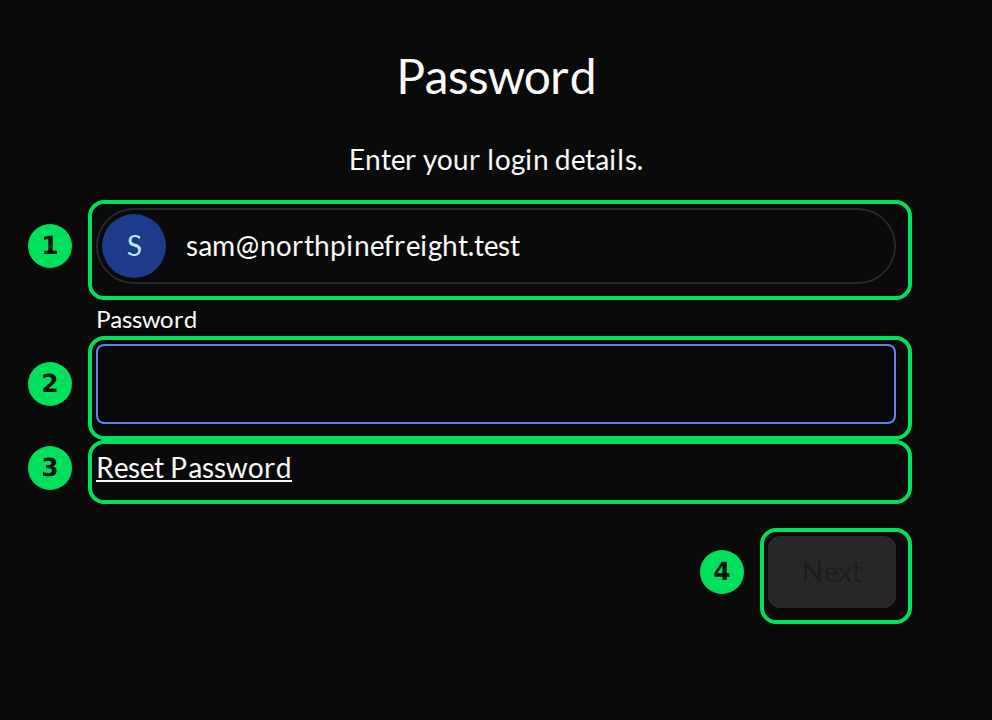
- The account you're signing in to. Not yours? Go back and fix the email.
- Password.
- Reset Password: if you've forgotten it.
- Next.
If you turned on two-step verification, Slate asks for your code next. Then your dashboard opens.
The account menu
Select your name in the bottom left corner, on any page.
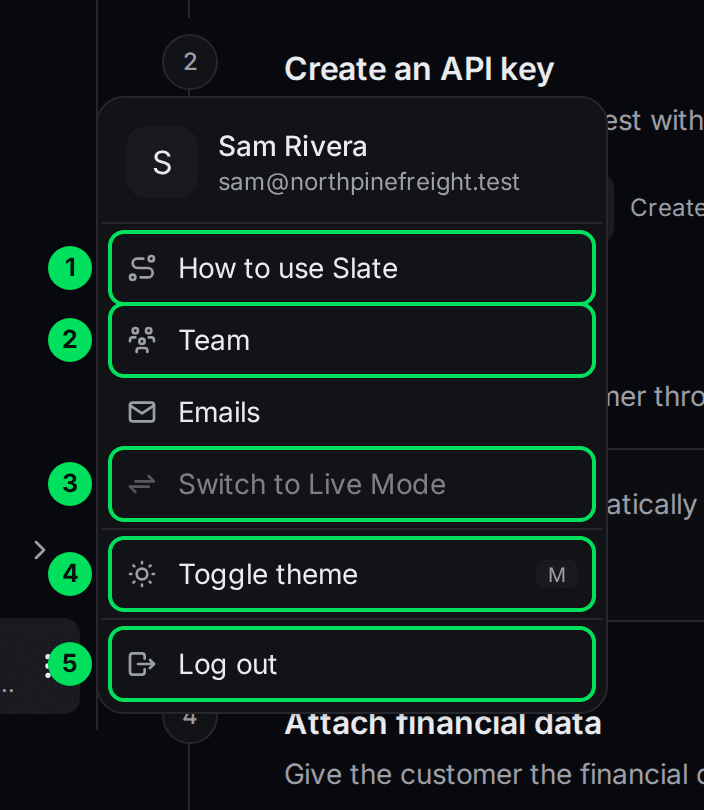
- How to use Slate: replays the guided tour.
- Team: invite and remove colleagues. See Your team.
- Switch to Live Mode: moves you to your live dashboard (in live it says Switch to Sandbox Mode). Grey until Slate turns on live for you. You may need to sign in again after switching.
- Toggle theme: dark or light. Shortcut: press M.
- Log out.
If a teammate invited you
Someone on your team adds you from Team. You get an email with a code and a button.
Select the button in the email
It opens E-Mail Verification with your code already filled in.
Choose a password and select Next
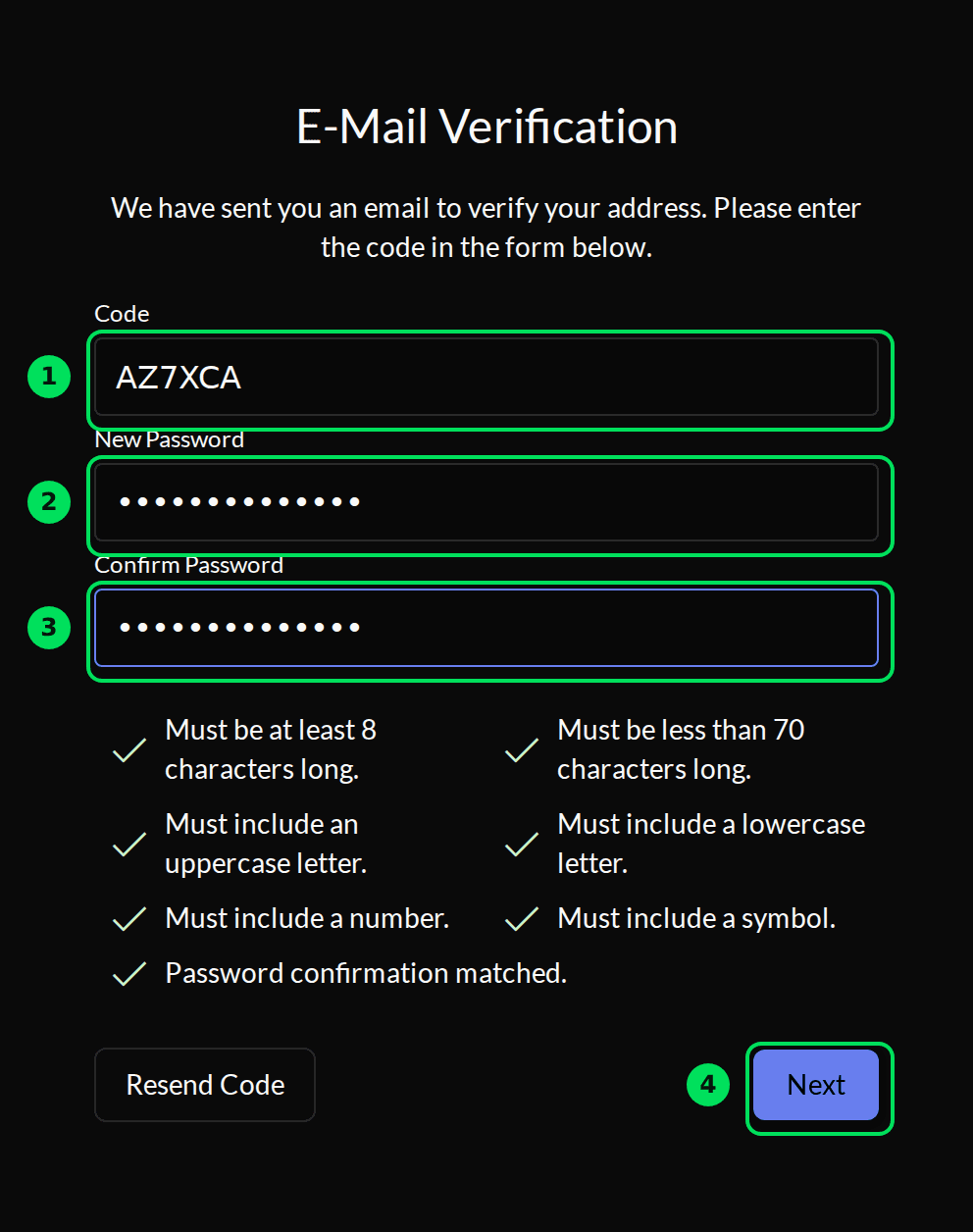
- Code: already filled in.
- New Password: same rules as above.
- Confirm Password.
- Next.
Sign in from the Slate address
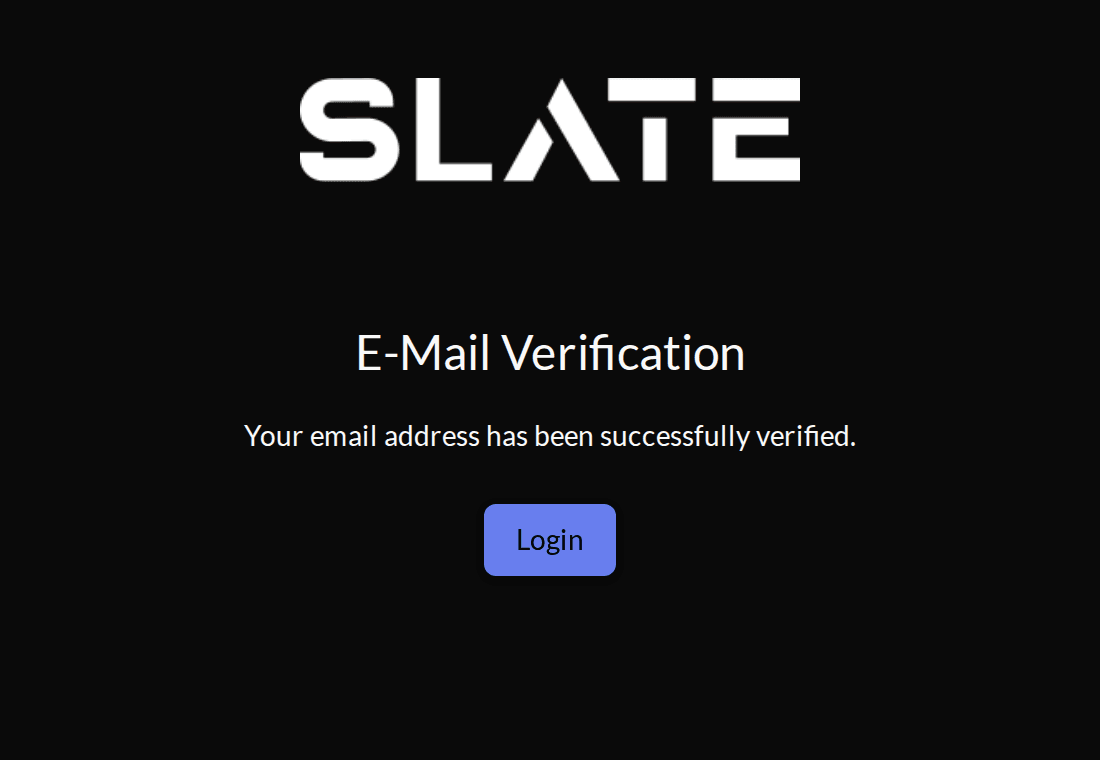
You'll see Your email address has been successfully verified. Don't select Login on this screen: it doesn't lead to Slate. Go to partners-sandbox.tryslatehq.com (or the live address if your company is live) and sign in.
If something goes wrong
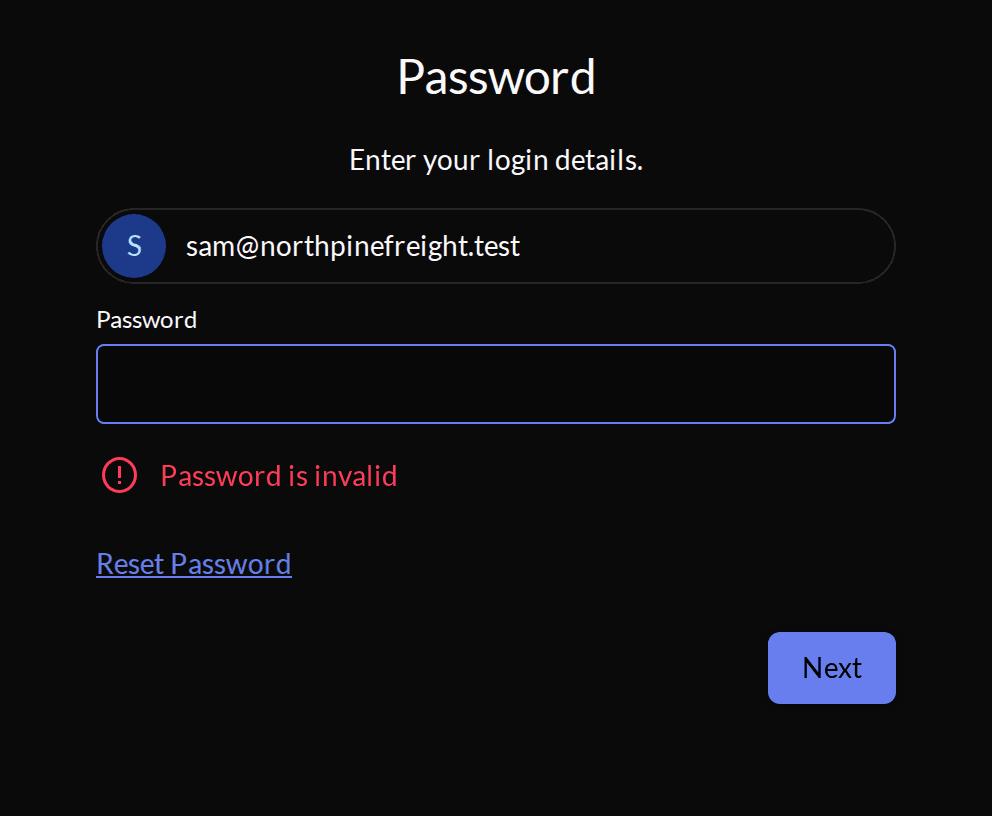
"Password is invalid"
The password doesn't match. Check Caps Lock and try again, or select Reset Password.
I forgot my password
Select Reset Password
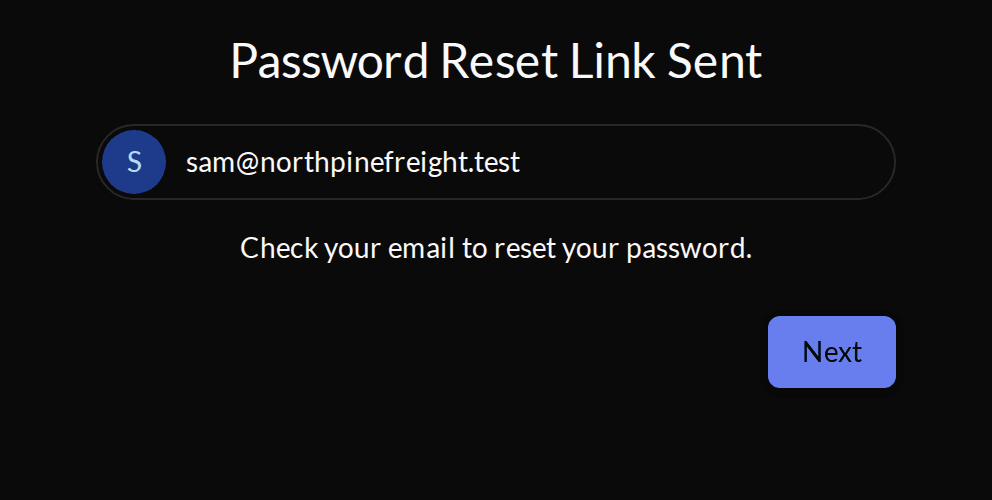
Sign in with your email as usual. On the password screen, select Reset Password. Slate confirms the email is on its way.
Open the email and select its button
Set Password opens with the code filled in. Choose a new password, type it again, and select Next.
Asked more than once? Use the newest email. Older ones stop working.
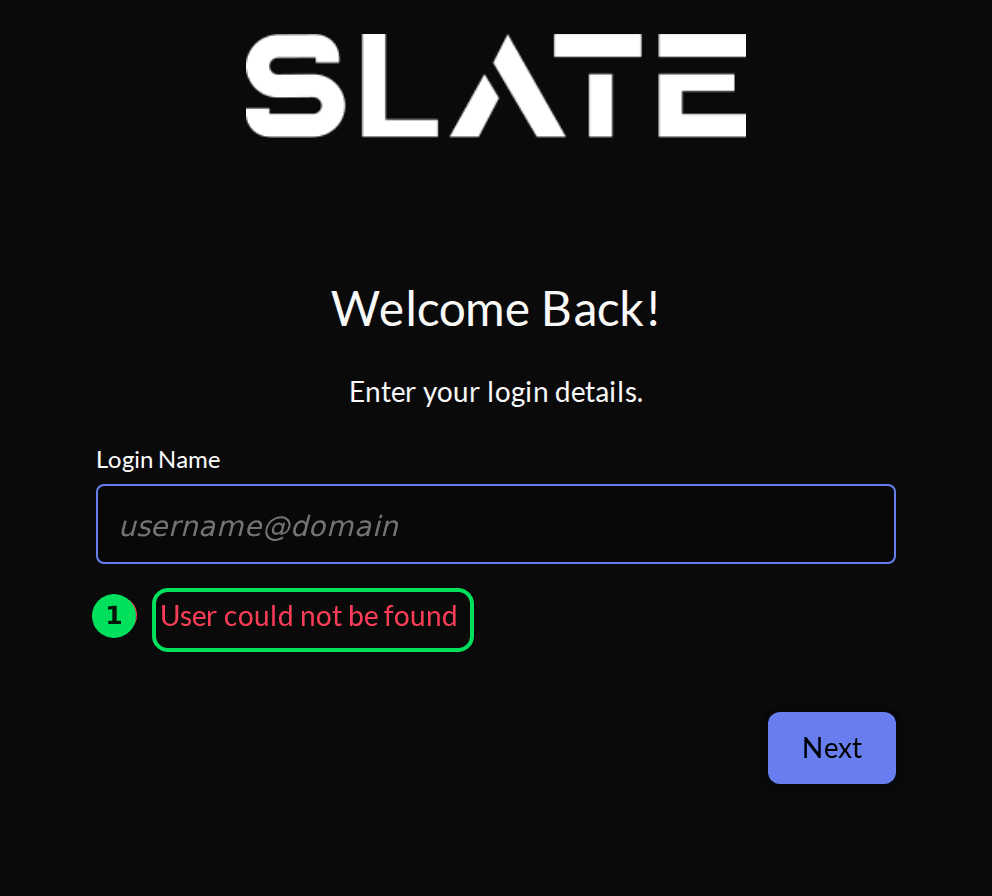
"User could not be found"
Slate doesn't know that email in this dashboard. Usually one of these:
- A typo. Fix it and select Next.
- You're on the live address with a sandbox-only account. Use the sandbox address until Slate turns on live.
- Your company signed up with someone else's email. Ask them to invite you from Team.
The code never arrived
- Wait two or three minutes, then check spam or junk.
- Select Resend Code. Only the newest code works.
- If your company filters email, ask IT to allow mail from tryslatehq.com.
"An organization with this domain already exists"
Someone at your company already signed up. Ask them to invite you from Team.
"Switch to Live Mode" is grey
Live isn't turned on for you yet. Finish the checklist on Home, then select Request production access. See Going live.
Learn more about the Slate platform.
Still stuck? Email [email protected] with your account email and the screen you are on. We reply within 24 business hours.