Help Center / Customers
Send a customer their application link
Create a link a customer can open to apply for the offer they hold. Learn where the button is, how long the link lasts and what your customer sees.
4 min read · Updated November 10, 2026
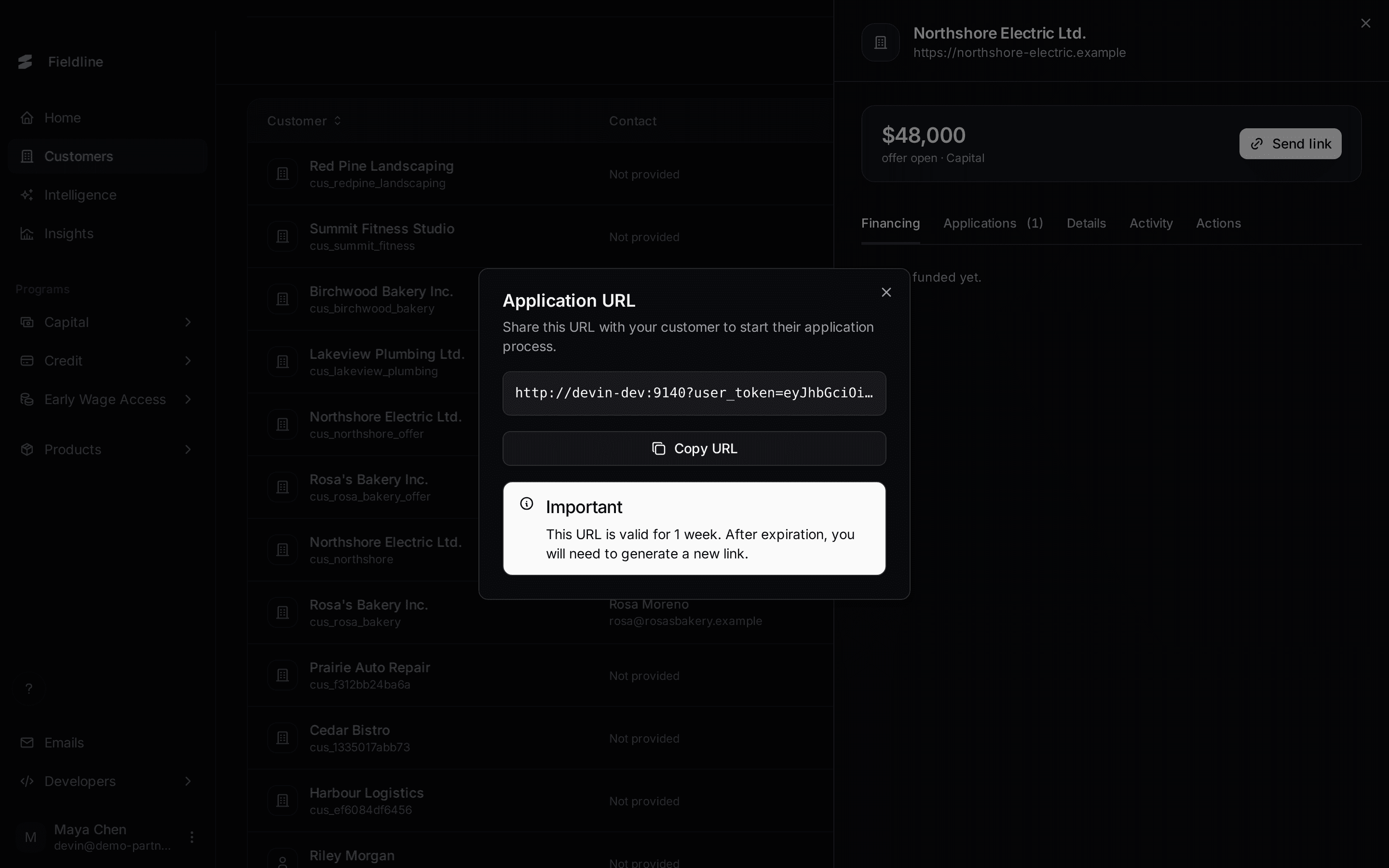
An application link takes a customer straight to their application, with their offer already attached. You create it in the dashboard and send it yourself, by email, text or chat.
You'll need: a customer with an open offer. Their row on the Customers page says Offered and Active offer says Yes.
Create the link
Open the Customers page
Select Customers in the menu on the left.
Open the customer
Select the customer's row. Choose one that holds an offer, such as Northshore Electric Ltd.
Select Send link
The button sits on the offer, next to the amount.
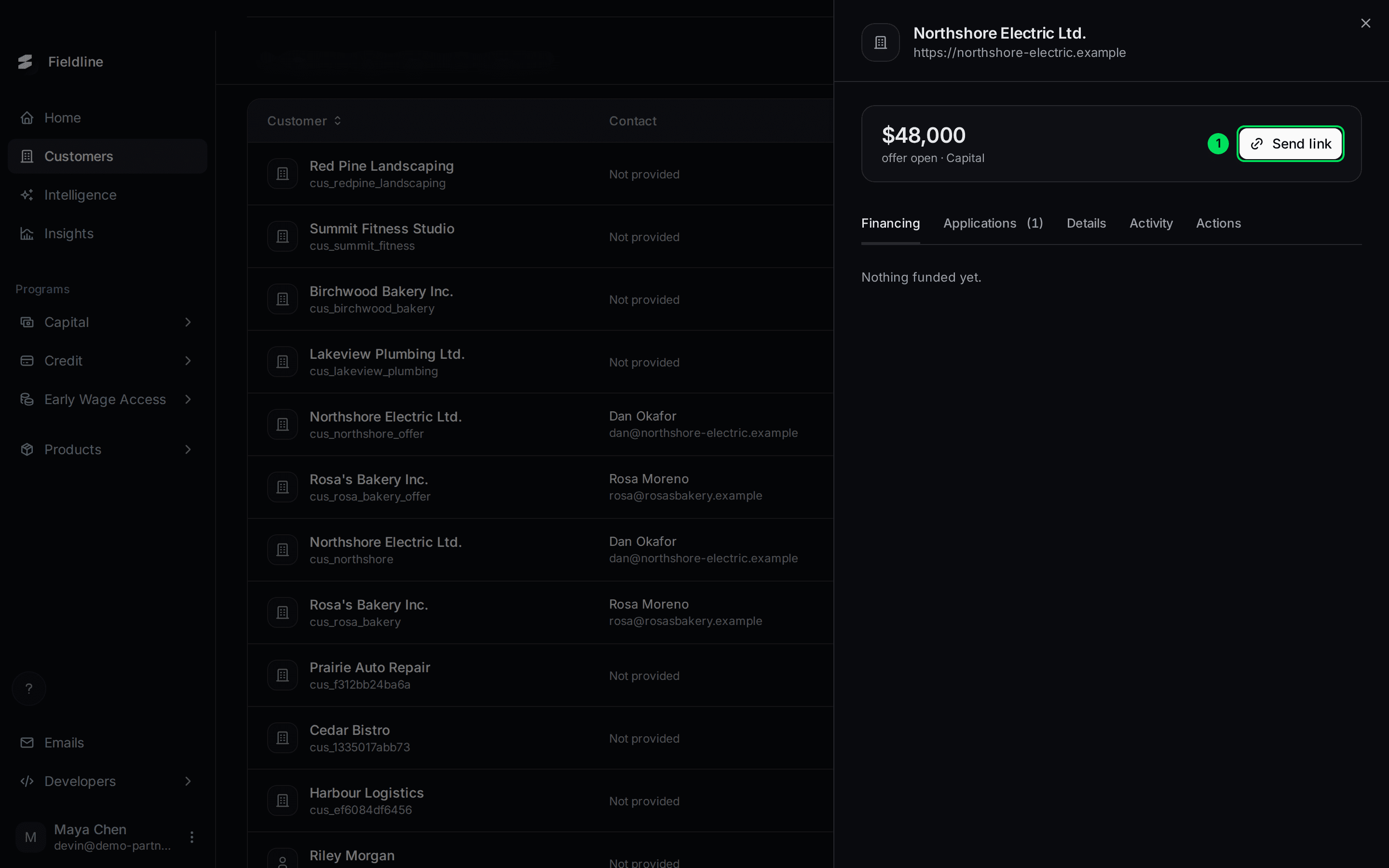
- Send link: creates a new application link for this offer.
Copy the link
A box called Application URL opens. Select Copy URL. You see URL copied to clipboard.
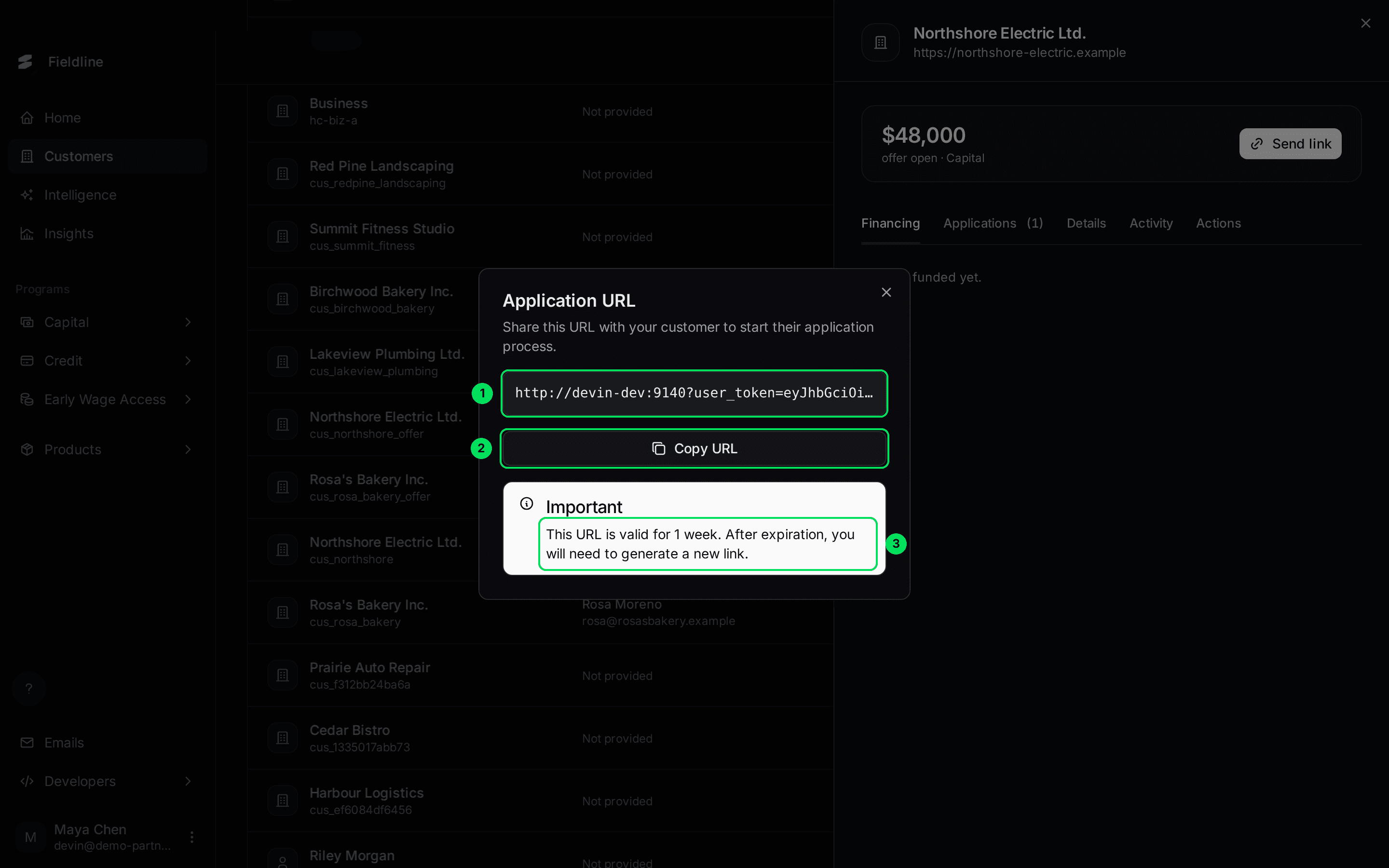
- The link: a web address ending in a long code. The code is what ties the link to this customer and offer.
- Copy URL: copies the whole link.
- The notice: "This URL is valid for 1 week. After expiration, you will need to generate a new link."
Send it to your customer
Paste the link into your own email, text message or chat. Slate does not send it for you.
How long the link lasts
A link works for one week from the moment you create it. After that, select Send link again to make a new one.
What your customer sees
When the customer opens the link, the Slate application opens in their browser. They do not need to sign in first.
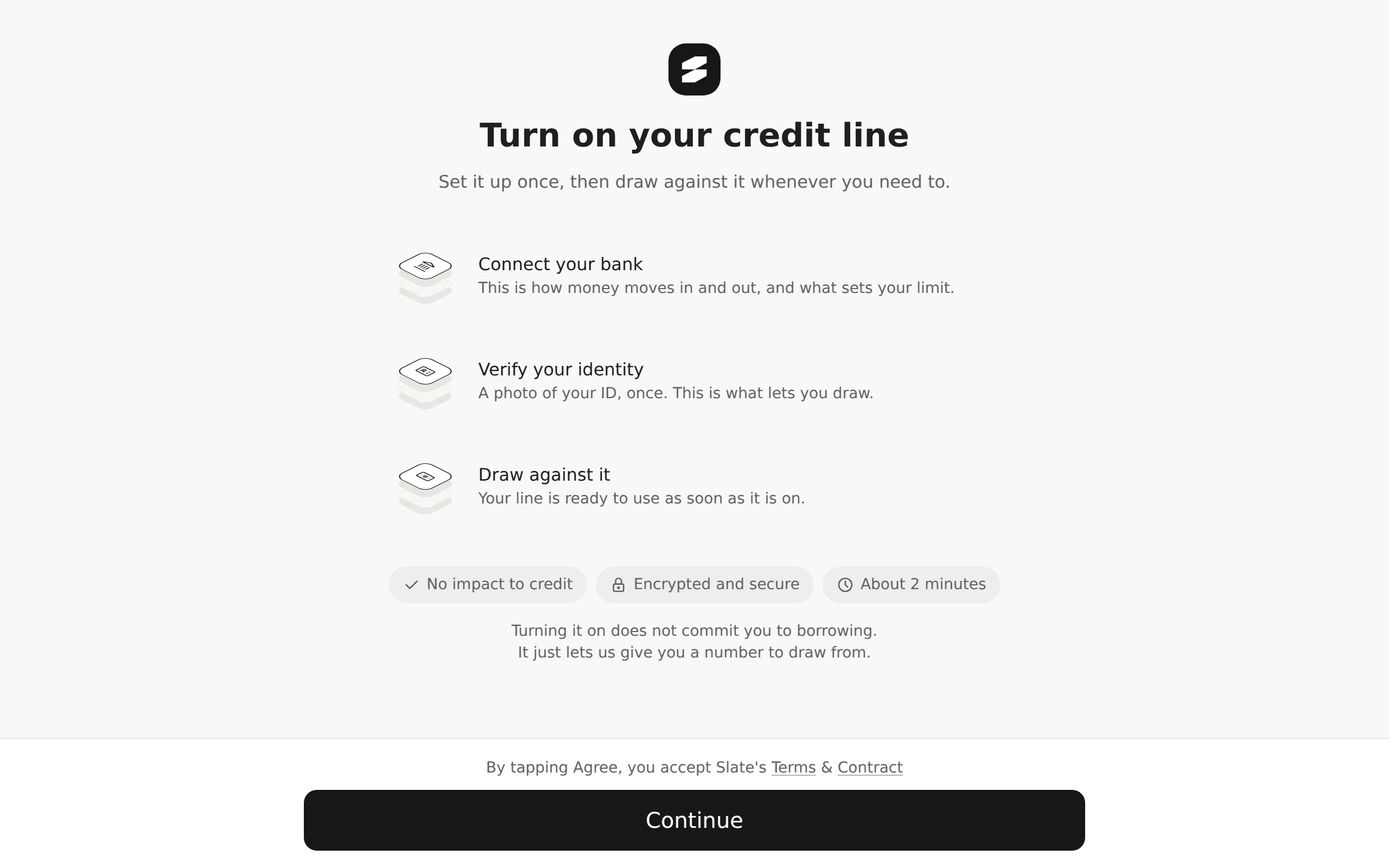
- A new offer: they start at the first screen of the application.
- An application they already began: the link takes them back to the step where they stopped. In our test, Northshore Electric Ltd. had a draft application, so its link opened on "Business address, Step 3 of 5".
The screens depend on the product. A credit line offer opens "Turn on your credit line". A capital offer opens the capital application. To prepare your team for every screen, see What your applicants see.
Another place to find the button
The Offers page has the same action. Open an offer and select Generate Application Link. See Offers.
If something goes wrong
"Failed to generate application URL"
A red message appears at the top of the screen instead of the box.
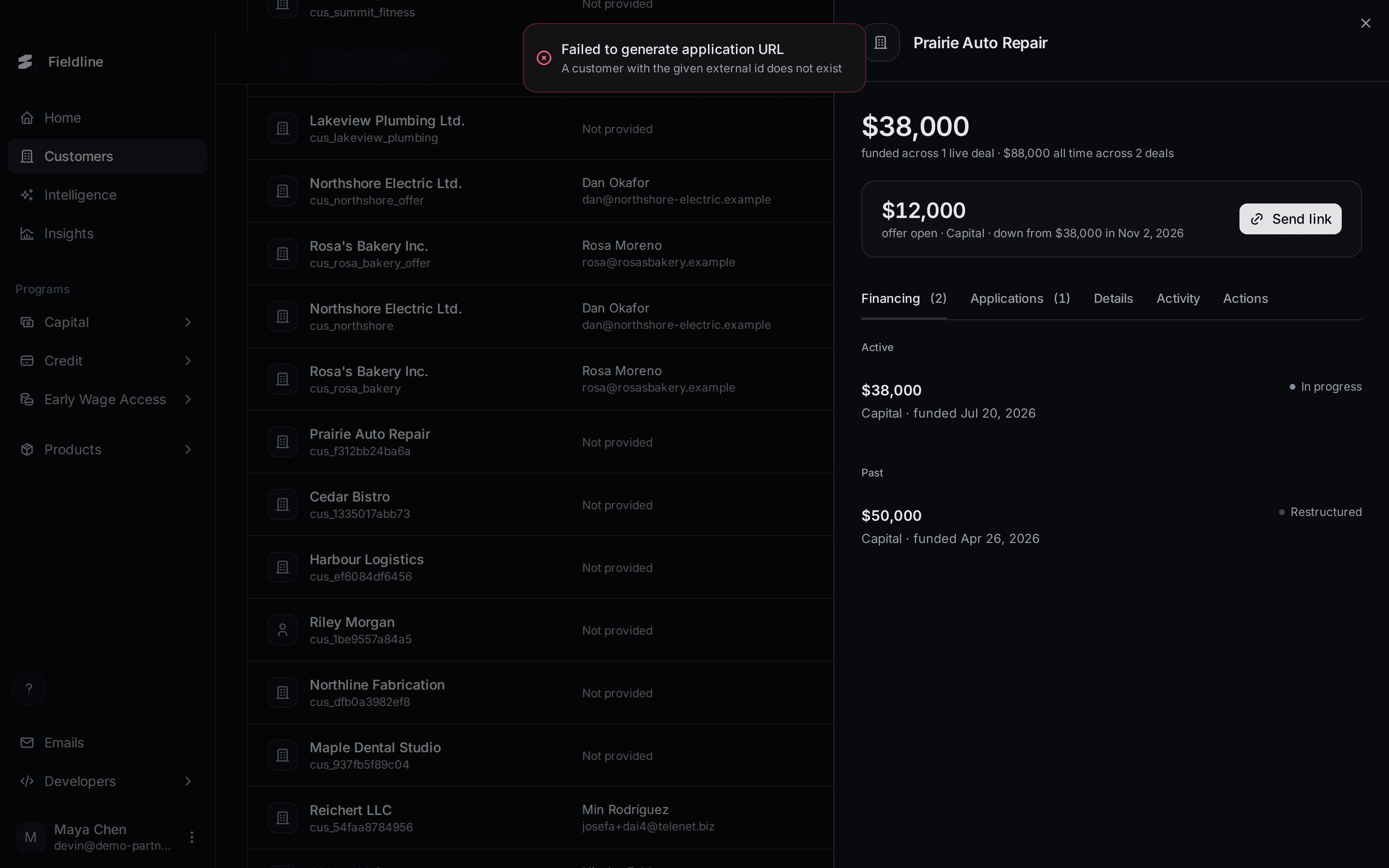
Read the second line of the message. It says why. Two common causes:
- The offer has expired. Slate does not make links for expired offers. Check the customer's status.
- Slate cannot find the customer. The message reads "A customer with the given external id does not exist". Contact Slate support and give them your customer ID.
The customer says the link does not work
Links last one week. Select Send link again and send the new one.
I can't find Send link
The button only shows for customers with an open offer. See Your Customers page.
Learn more about Slate Signals.
Still stuck? Email [email protected] with your account email and the screen you are on. We reply within 24 business hours.