Help Center / Guiding your applicants
The screens at the end: submitted, approved, declined and errors
Every end screen your customer can land on, what it means, and what to say. Includes the expired offer, missing information and error screens.
6 min read · Updated November 10, 2026
When your customer opens their link, Slate shows the screen that matches where their application is. This page lists every end screen, what it means, and what you can tell the customer.
It helps to know the rule. The app always opens the screen for the application's current state. Opening an old link never takes a customer back to an earlier step once they have submitted.
Application Submitted
Your customer sees this right after they finish. It also appears whenever they reopen the link while Slate is reviewing.
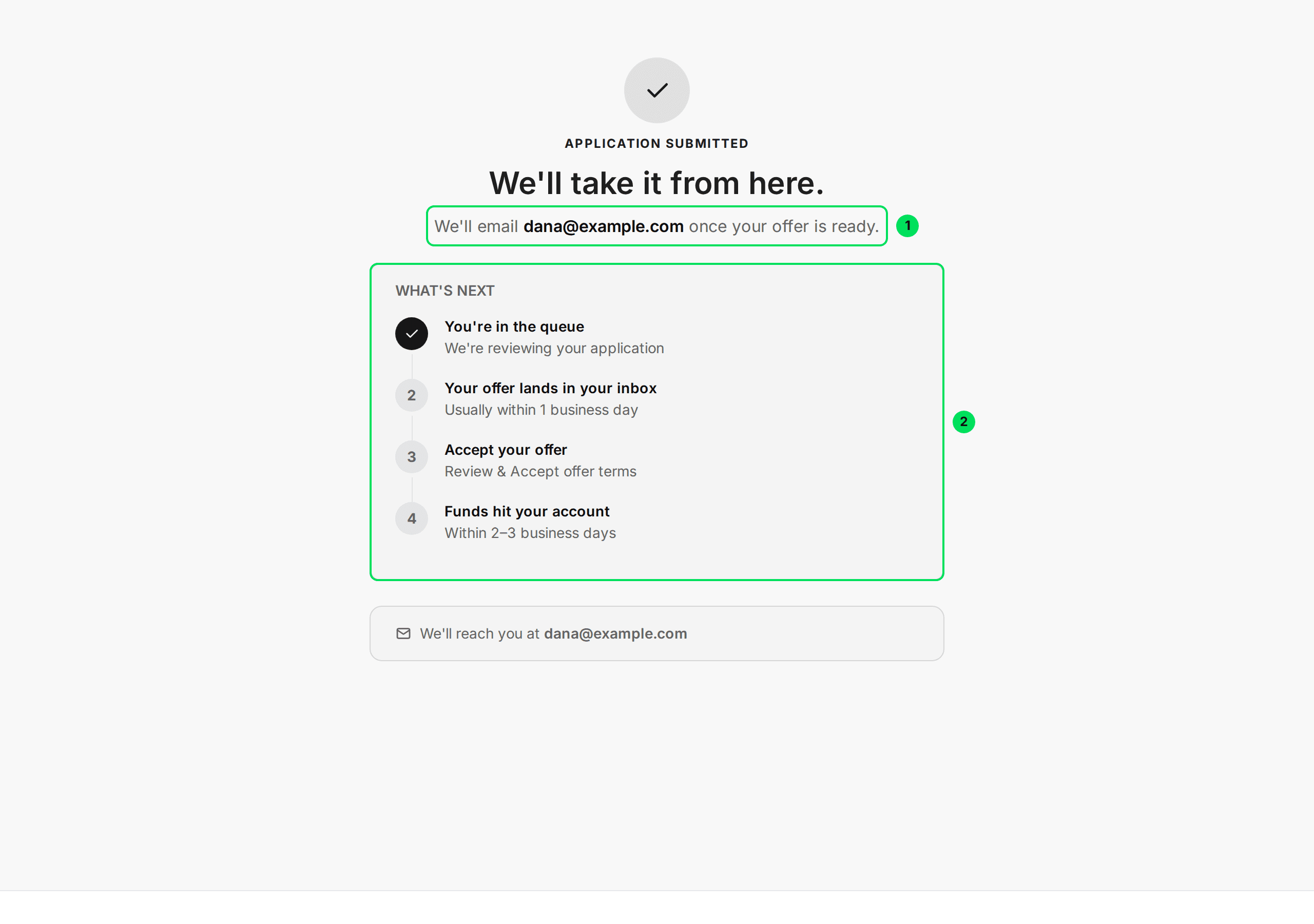
- We'll email the customer's email address once the offer is ready.
- What's Next: four stages. You're in the queue, Your offer lands in your inbox, Accept your offer, and Funds hit your account.
Under the list, a card repeats: "We'll reach you at" and the email.
- Status in your dashboard: Processing.
- What to say: "Your application is in. Slate will email you at the address on the screen. Watch for it, and check junk mail."
- What the screen promises: the offer "usually within 1 business day" and funds "within 2 to 3 business days". Use these as estimates.
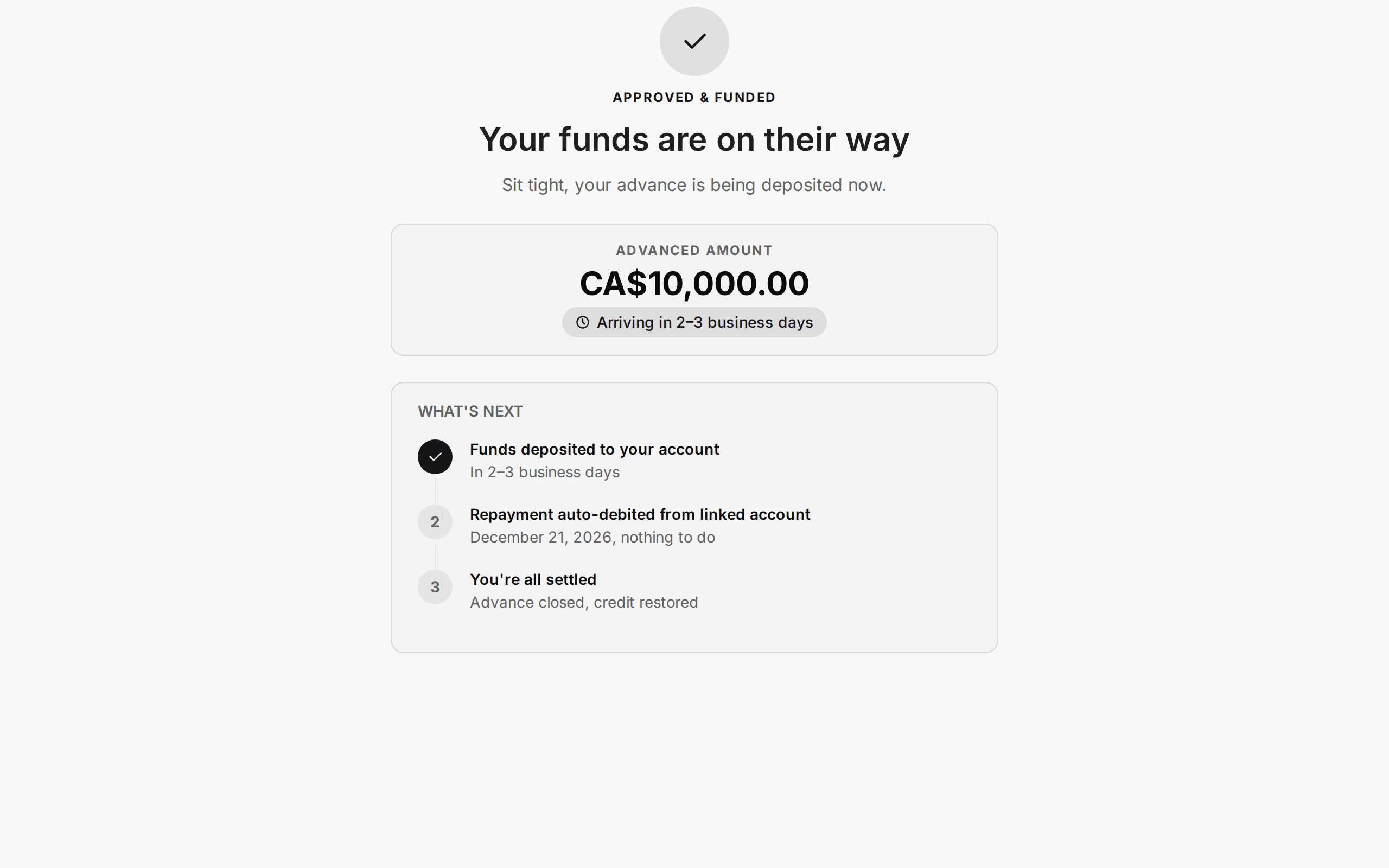
Approved & Funded
This is the final good screen for a capital advance. It appears after your customer signs the agreement.
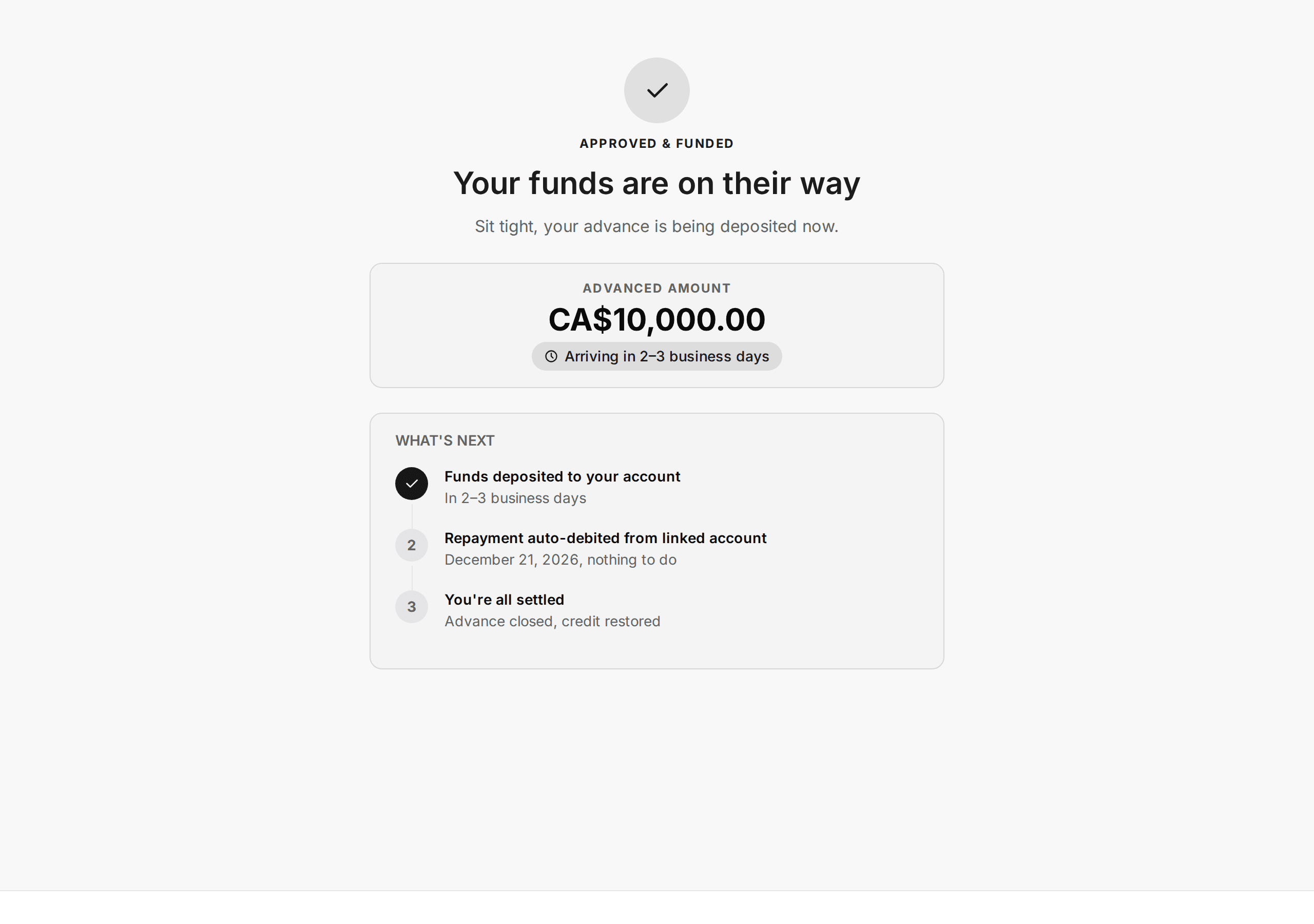
It shows Advanced Amount, "Arriving in 2 to 3 business days", and a What's Next list:
- Funds deposited to your account: in 2 to 3 business days.
- Repayment auto-debited from linked account: the first payment date, "nothing to do".
- You're all settled: the advance is closed once paid.
What to say: "You're done. The money arrives in the account you connected, and payments come out of it automatically."
For a credit line, the screen reads Application Approved and "You've been approved", and explains using the line and paying the balance.
Money on the way
In some applications your customer picks the amount and terms, then submits. They see a short summary instead of the standard Submitted screen.
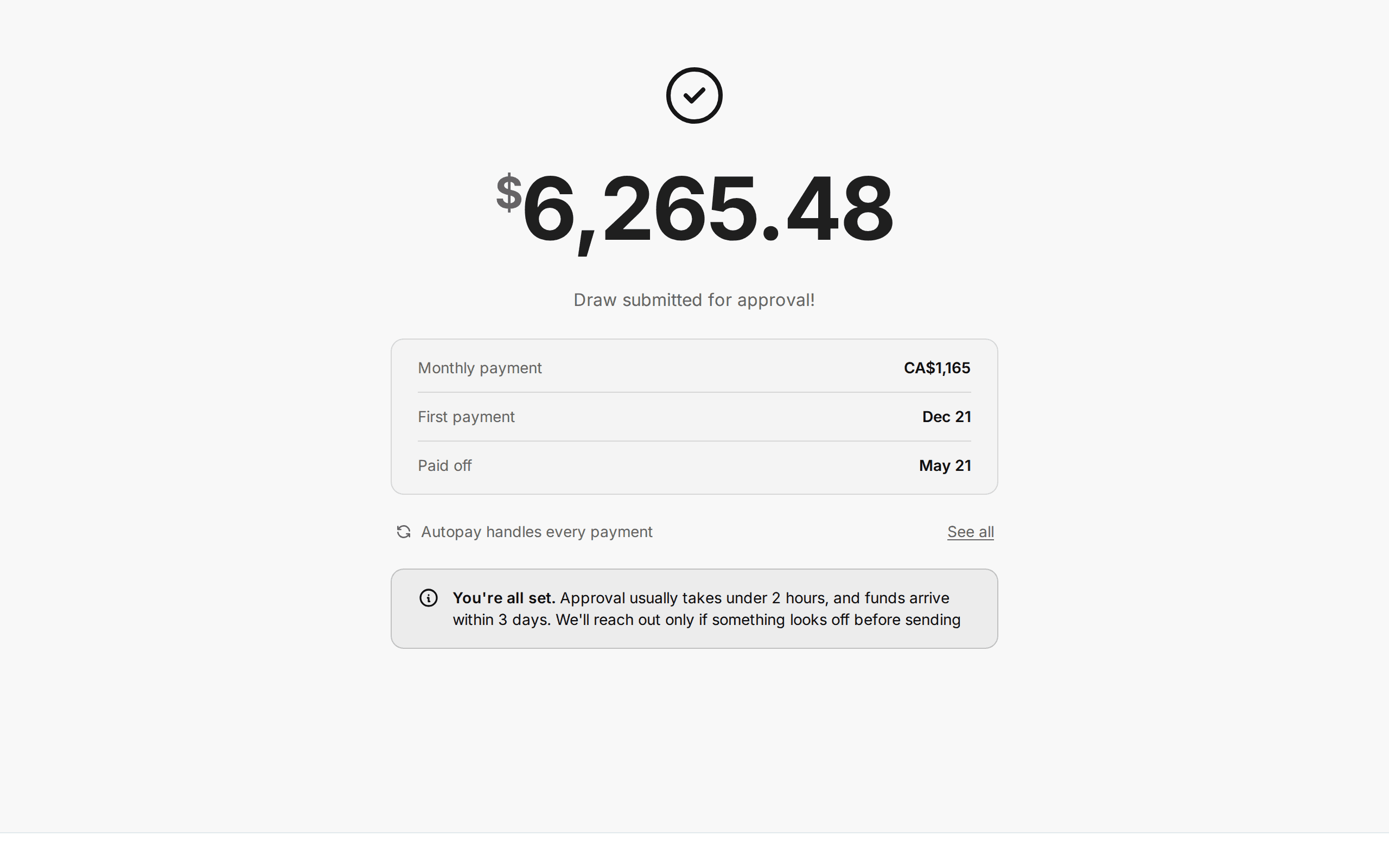
It shows the amount, Monthly payment, First payment and Paid off dates, and "Autopay handles every payment". A box says: "You're all set. Approval usually takes under 2 hours, and funds arrive within 3 days. We'll reach out only if something looks off before sending".
Once approved, the headline changes to "Draw approved" with the same details.
Application Declined
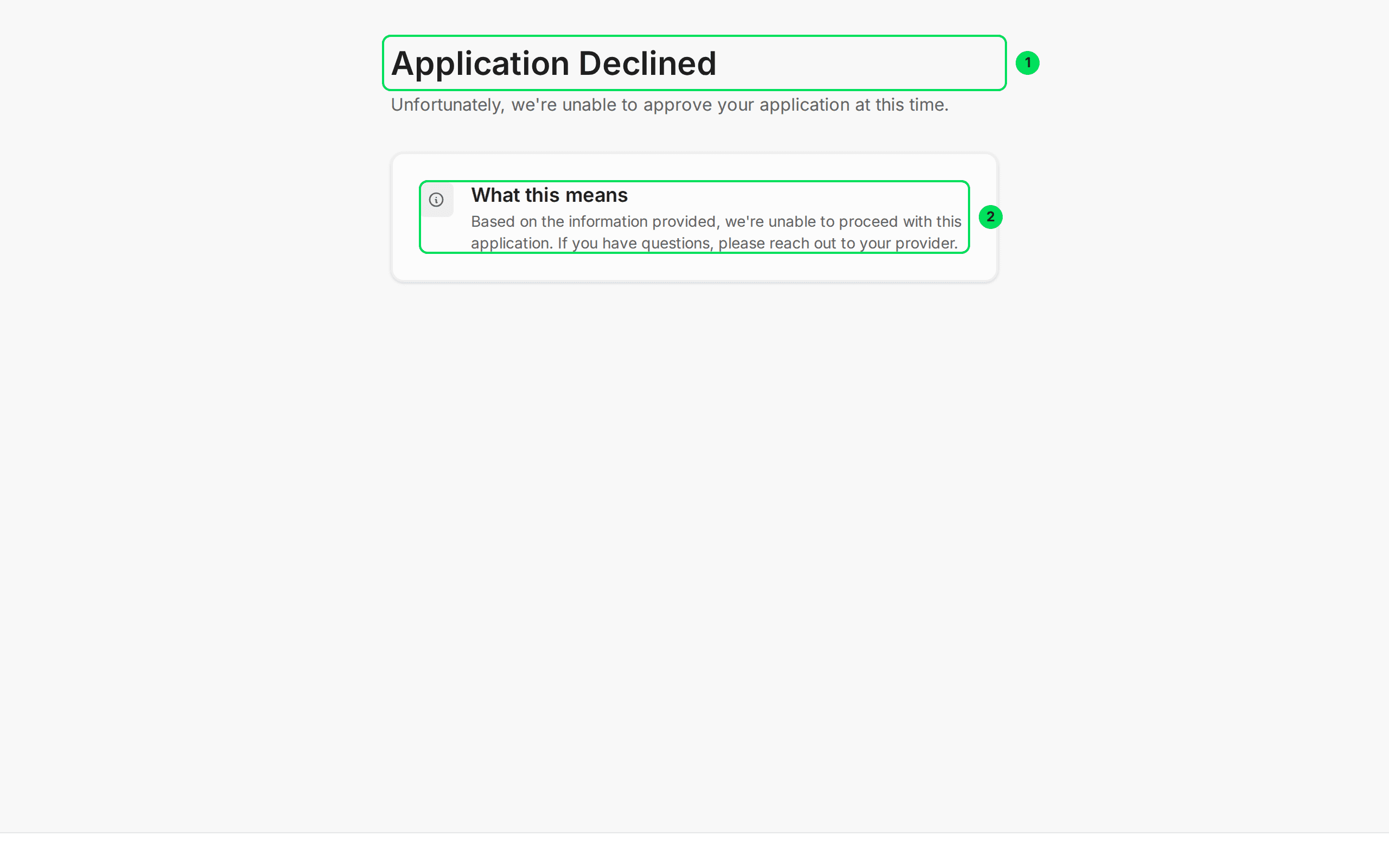
- Application Declined: "Unfortunately, we're unable to approve your application at this time."
- What this means: "Based on the information provided, we're unable to proceed with this application. If you have questions, please reach out to your provider."
The screen gives no reasons. You can see the reasons in your dashboard. See Applications.
- Status in your dashboard: Rejected.
- What to say: "Slate was not able to approve this application. I can see the details on my side." Do not promise a reason.
The rejection email may tell the customer they can apply again after 90 days.
Application Cancelled
A cancelled application shows Application Cancelled with "This application has been cancelled and is no longer active." and No further action needed. It says the request was cancelled, and to contact their provider if they think that was a mistake.
Offer Expired
This screen is headed Offer Expired, with "This offer wasn't confirmed in time and is no longer active."
A card, What this means, adds that the deadline to accept has passed and the application is now closed. It tells the customer to contact their provider to start a new application.
This happens when Slate has sent terms to sign or updated terms and your customer did not confirm in time. The default window is 90 days.
- Status in your dashboard: Expired.
- What to say: "The deadline passed, so this offer closed. I'll ask for a new application."
An expired link is a different problem and does not show this screen. See the next sections.
Missing required information
This screen means the link did not contain its secure code.
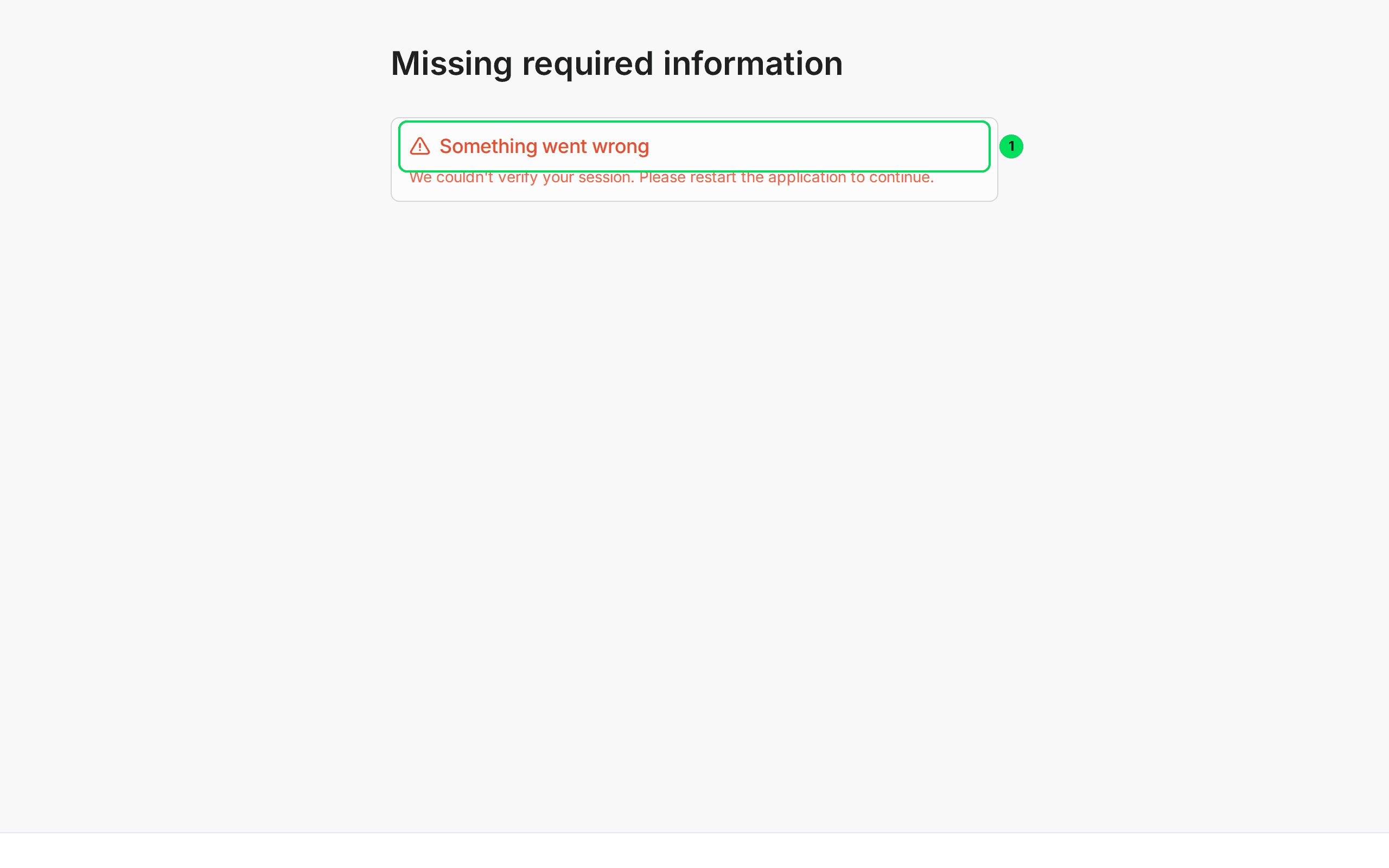
- Something went wrong: "We couldn't verify your session. Please restart the application to continue."
A short message "Something went wrong. Please try again." also flashes at the top.
What to say: "The link looks cut off. Go back to the original email, or text message, and select the whole link. If that doesn't work, I'll send you a new one." Then generate a new link. See Send an application link.
A page that keeps loading
If the link has a secure code but the code is no longer valid, there is no message. The page shows only a spinner and never moves on.
What to say: "That link has expired. I'll send you a new one." Links from the dashboard and from emails last 1 week. Links from an embed last 1 day.
The error and not-found screens
- Something went wrong: "We're sorry, an unexpected error occurred. Please try refreshing the page or contact support if the problem persists." A short message appears under it. Ask your customer to refresh once. If it comes back, ask them to send you the message text.
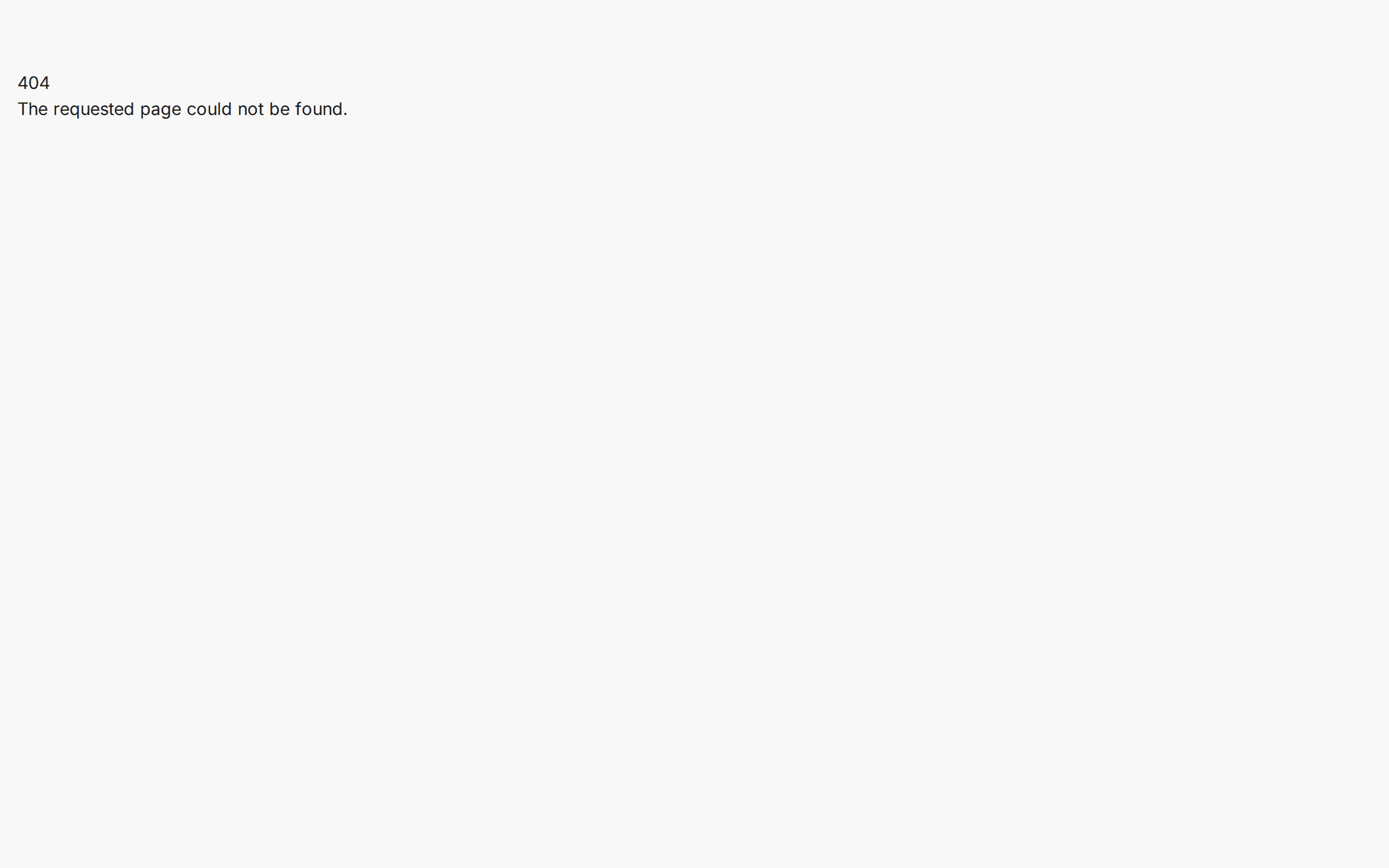
- 404: "The requested page could not be found." The page address is wrong or cut short. Send the link again.
The Done button
When the application is shown inside your own product, final screens can show a Done button. It closes the window. If your product does not listen for it, the button does nothing. See Embed overview.
If something goes wrong
My customer says they see a different screen from what I expect
The app shows the screen for the application's real status. Check the status in your dashboard under Applications. See Applications.
Two tabs show different things
Ask your customer to close one tab and refresh the other. The app warns "This application was updated in another tab or window. Refresh the page to continue."
Learn more about Slate Capital.
Still stuck? Email [email protected] with your account email and the screen you are on. We reply within 24 business hours.