Help Center / Capital
Track your customers' capital applications
Every application status from Draft to Approved, what each pending action means, and how to read an application's progress and timeline.
8 min read · Updated November 10, 2026
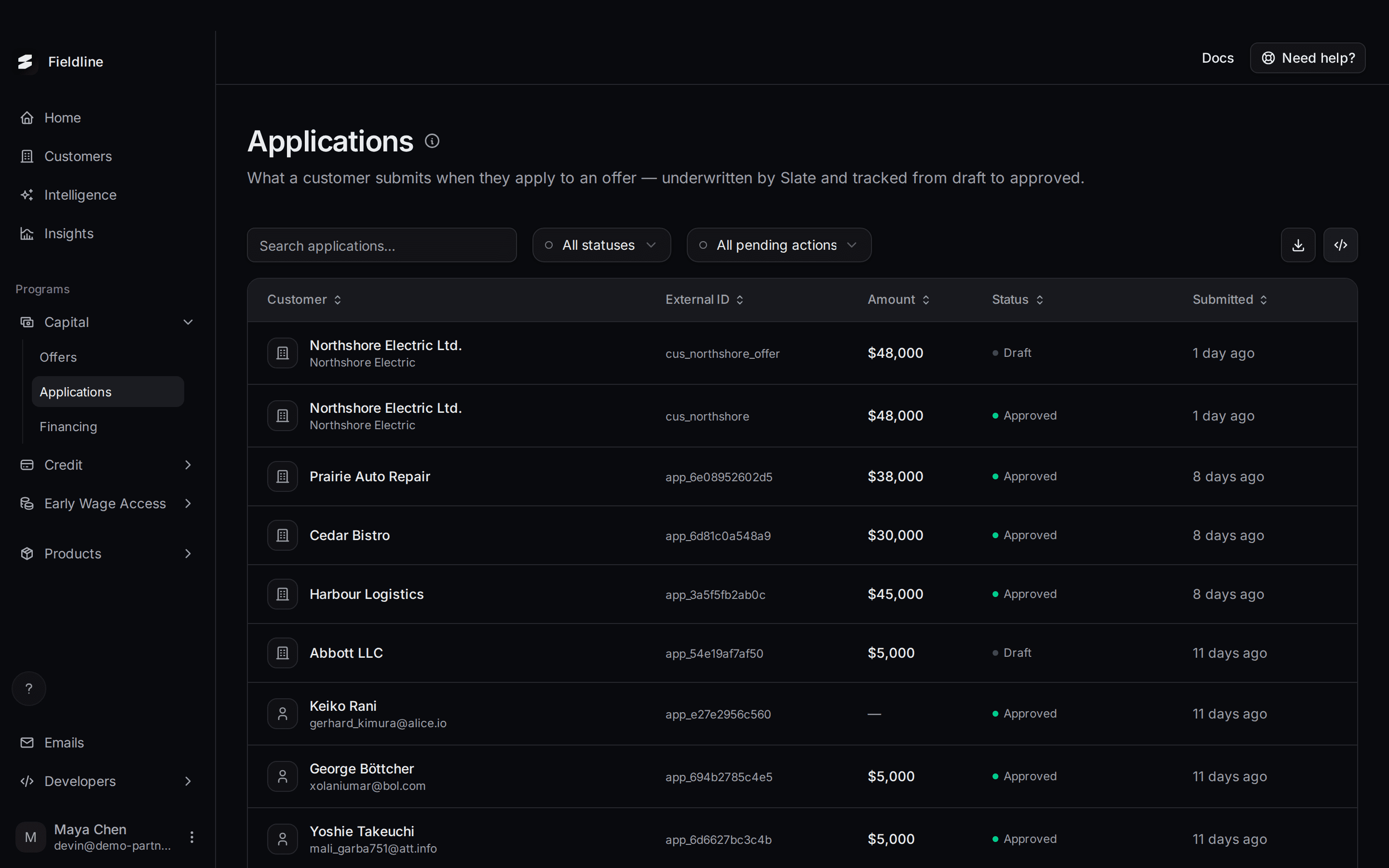
An application is what your customer fills in when they take up an offer. Slate reviews it, and this page shows where each one stands.
Where to find it: open Programs, select Capital, then select Applications.
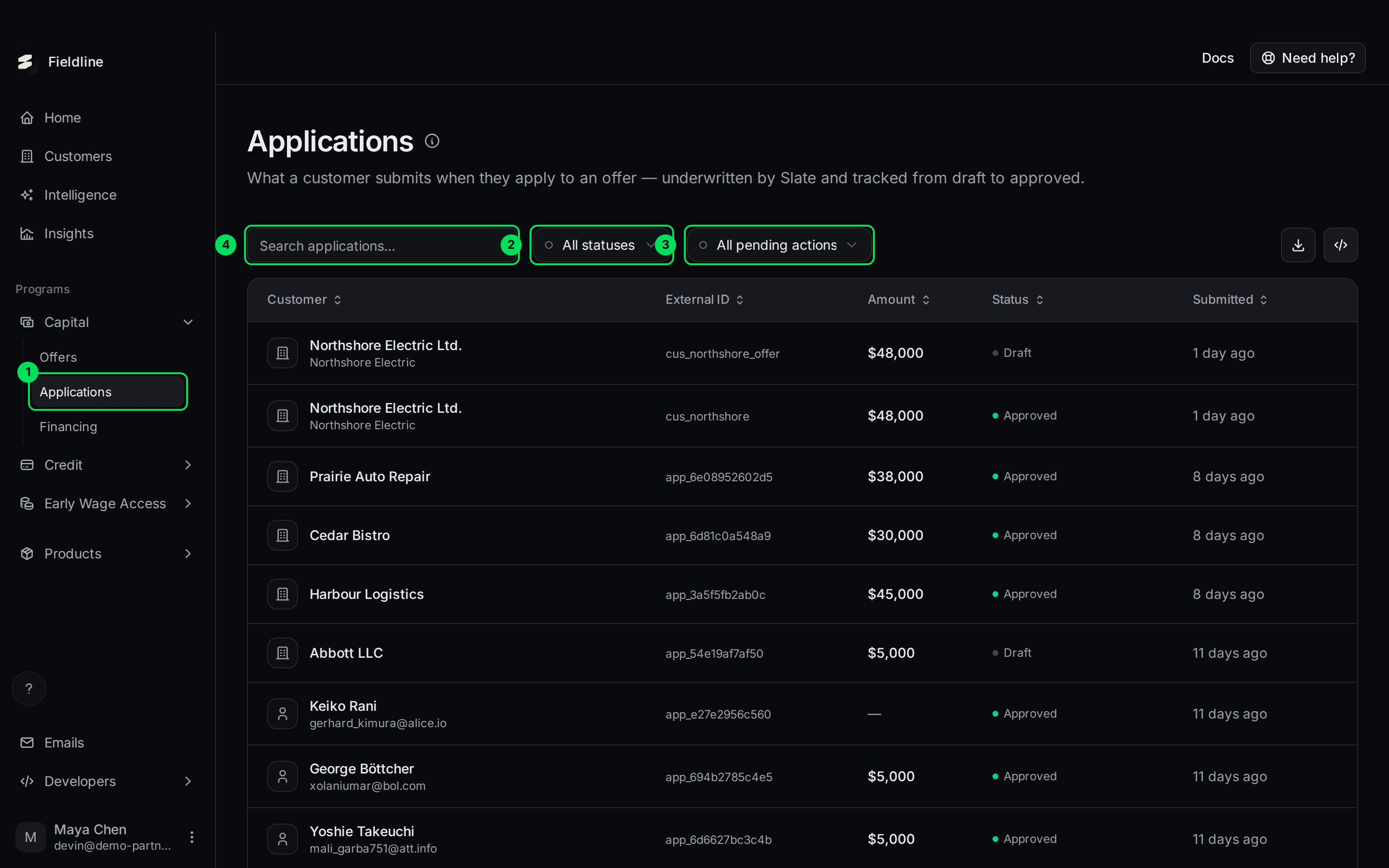
- Applications: the menu item under Capital.
- Search applications...: find an application by customer.
- All statuses: show one status only.
- All pending actions: show applications waiting on one specific task.
The columns are Customer, External ID (your own ID for the customer), Amount (the offer amount), Status and Submitted (when it was started). Select a heading to sort.
What you can and can't do here
This page is for watching. You can search, filter, open an application and export the list.
You can't approve, reject or edit an application. Slate reviews every one. Your customer completes any steps asked of them. When an application needs something, you can remind your customer. The pending action tells you what to ask for.
What each status means
- Draft: your customer started but hasn't submitted. What to do: nothing. If it sits for days, nudge them to finish.
- Processing: submitted. Slate is reviewing it. What to do: nothing. No action is needed from you.
- Needs action: waiting on your customer. Small labels under the status name each task. What to do: ask your customer to complete it. See the next section.
- Approved: the customer accepted the final terms. A financing agreement follows once the money is released. What to do: follow it in Financing.
- Rejected: Slate's review declined it. The customer was told, and the reasons are shown when Slate recorded them. What to do: nothing. The rejection email tells the customer when they can apply again.
- Cancelled: stopped before a decision. For example, a draft is cancelled when you move a customer to another product. What to do: nothing, unless it was a mistake. Then ask Slate.
- Expired: the customer didn't confirm the final terms in time. It's marked as no longer active. What to do: ask Slate for a new offer if the customer still wants one. The default time allowed is 90 days.
Find applications that need something
Choose a pending action to see every application stuck on that one task.
Open the pending action list
Select All pending actions.
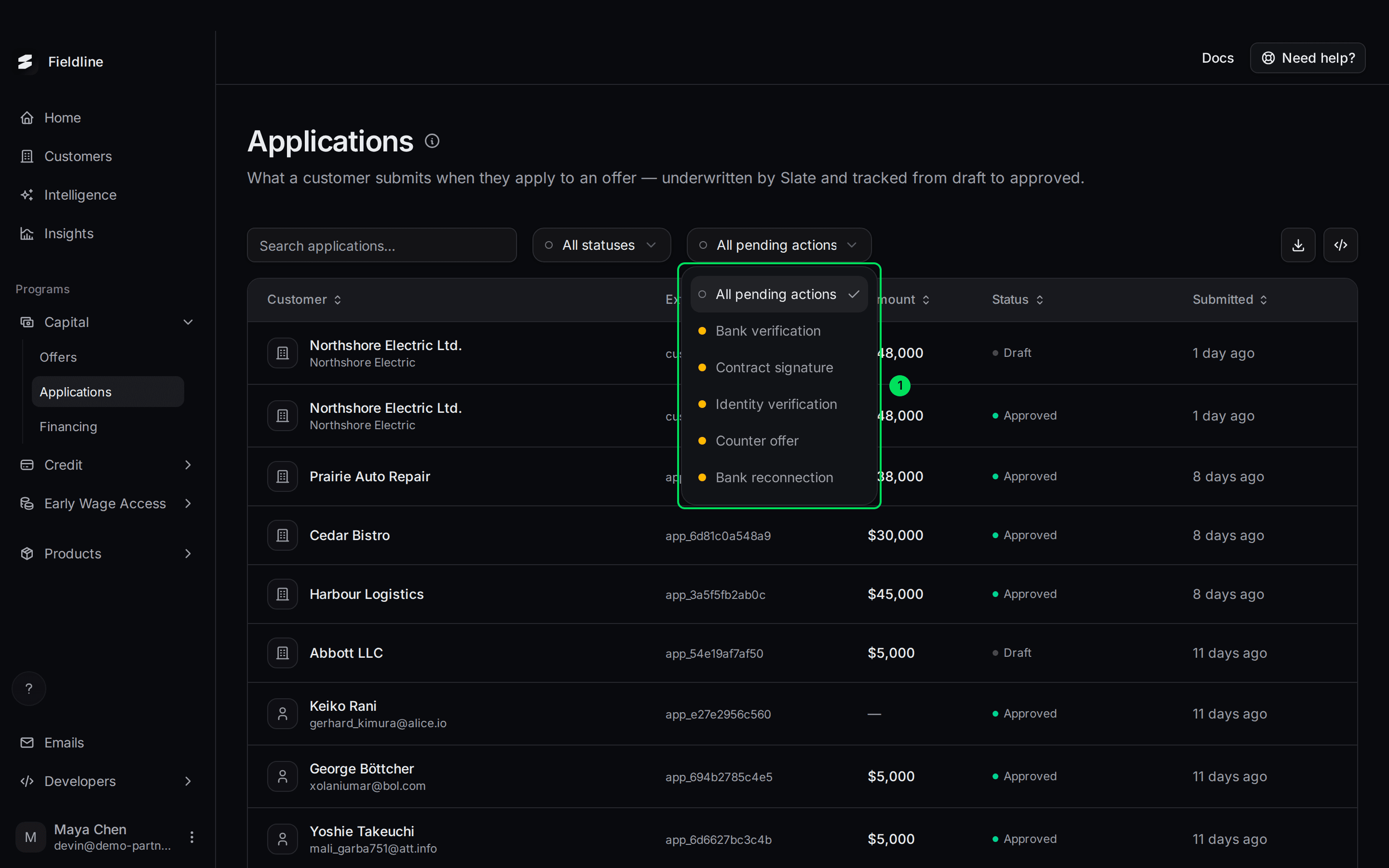
- The five pending actions you can filter by.
Choose one
For example, select Contract signature. The status switches to Requires action by itself.
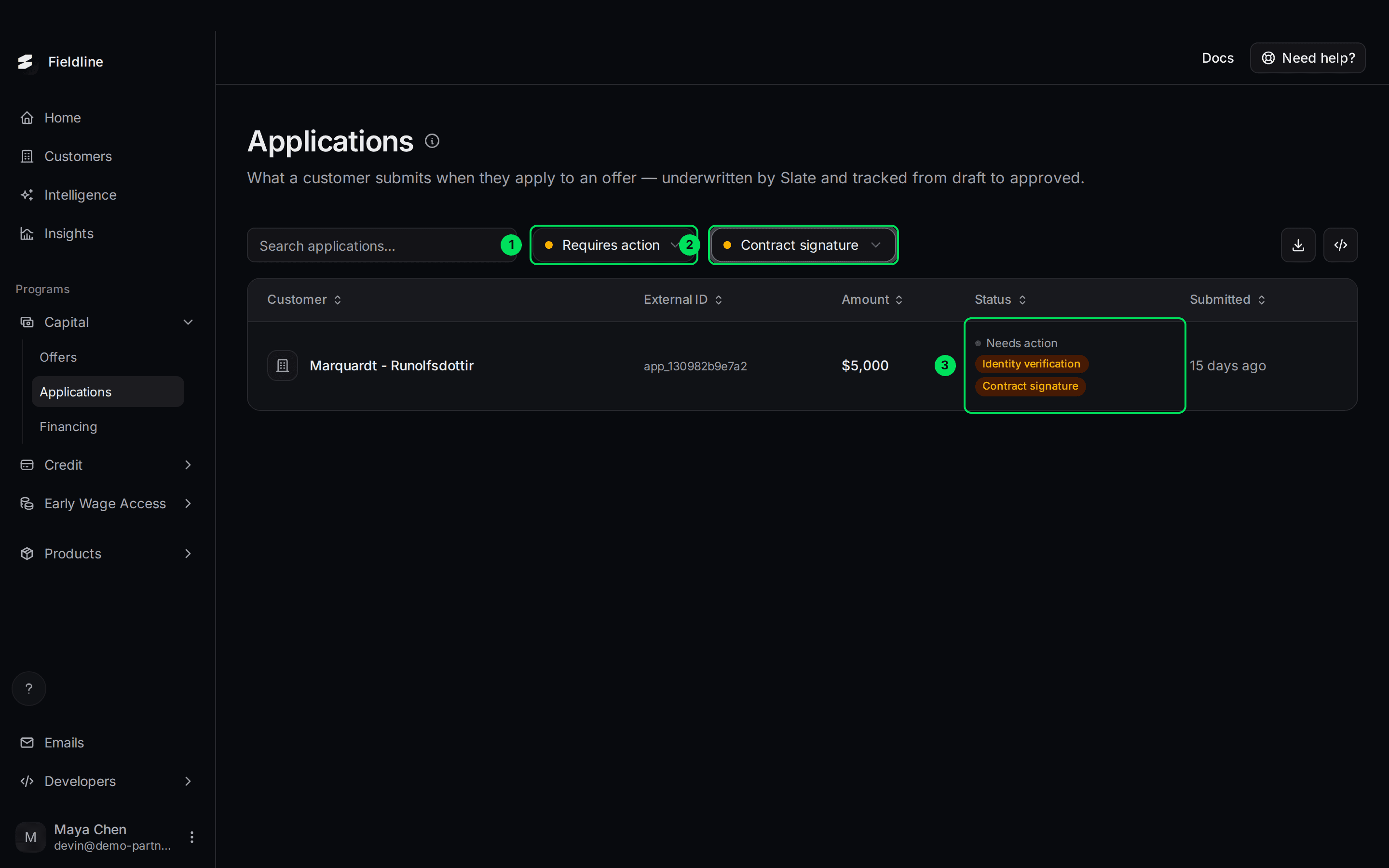
- Requires action: set for you when you pick a pending action.
- Contract signature: the task you filtered by.
- Needs action with its labels: one application can wait on several tasks at once.
To go back, change the status filter. Clearing Requires action also clears the pending action.
What each pending action means
- Bank verification: the customer must verify their bank account. What to do: ask them to complete the bank verification step.
- Contract signature: the customer must sign the financing agreement. What to do: remind them. Nothing is funded until they sign.
- Identity verification: the customer must prove who they are with a photo of their ID. What to do: ask them to complete it.
- Counter offer: Slate sent different terms, such as a smaller amount. The customer must accept them. What to do: tell the customer to check their email and confirm. Nothing moves until they do.
- Bank reconnection: Slate needs the customer to link their bank again. What to do: ask them to reconnect.
For what your customer sees at each step, read Guiding your applicants.
Open an application
Select any row. A panel opens on the right. Here are real examples, one for each state.
A draft
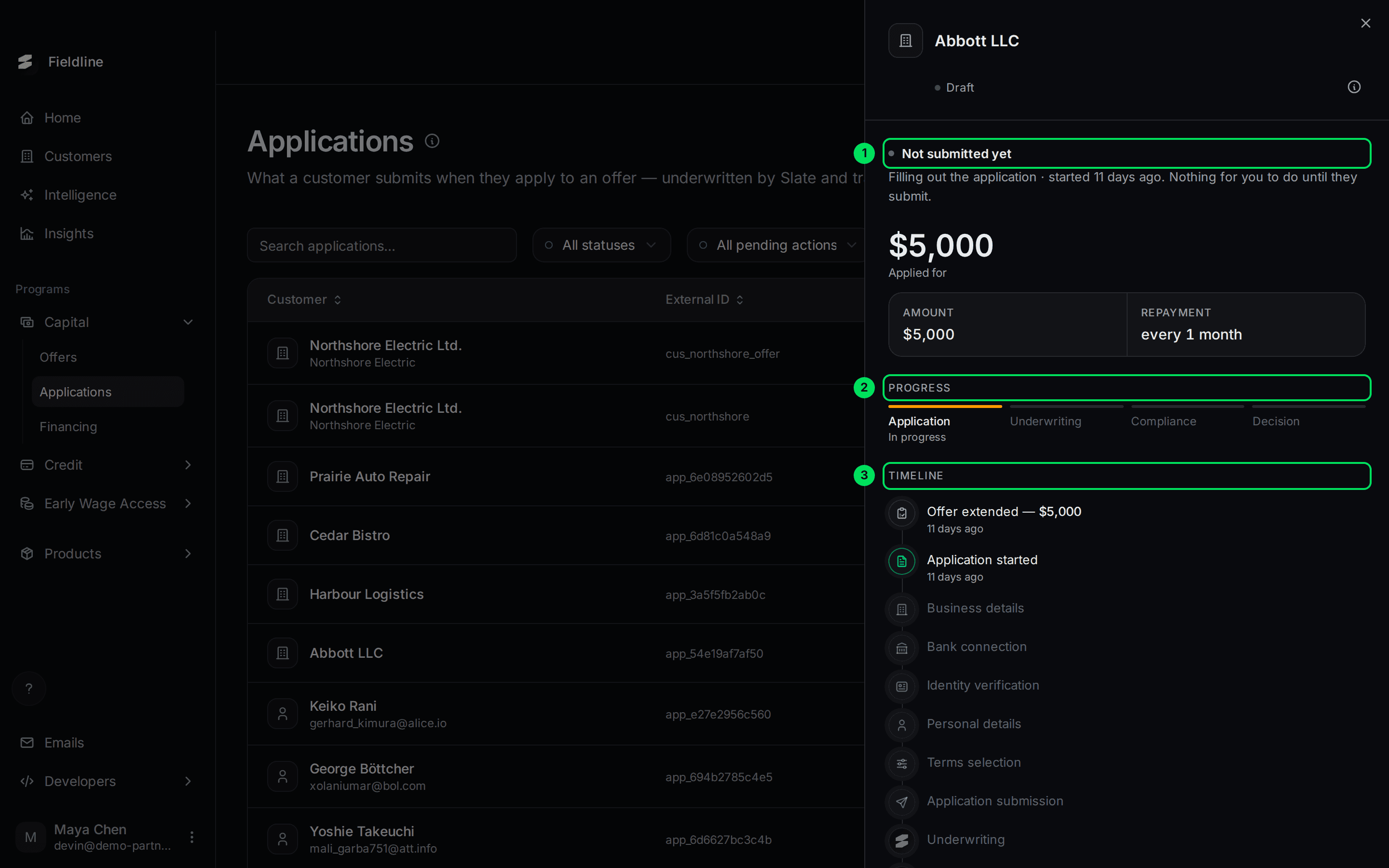
- Not submitted yet: the headline tells you the state and who has to act.
- Progress: four stages, Application, Underwriting, Compliance and Decision. Underwriting is Slate's review of the business's finances. Compliance is Slate's compliance check on the business.
- Timeline: each step the customer has done. Steps not reached yet are greyed out.
Waiting on Slate
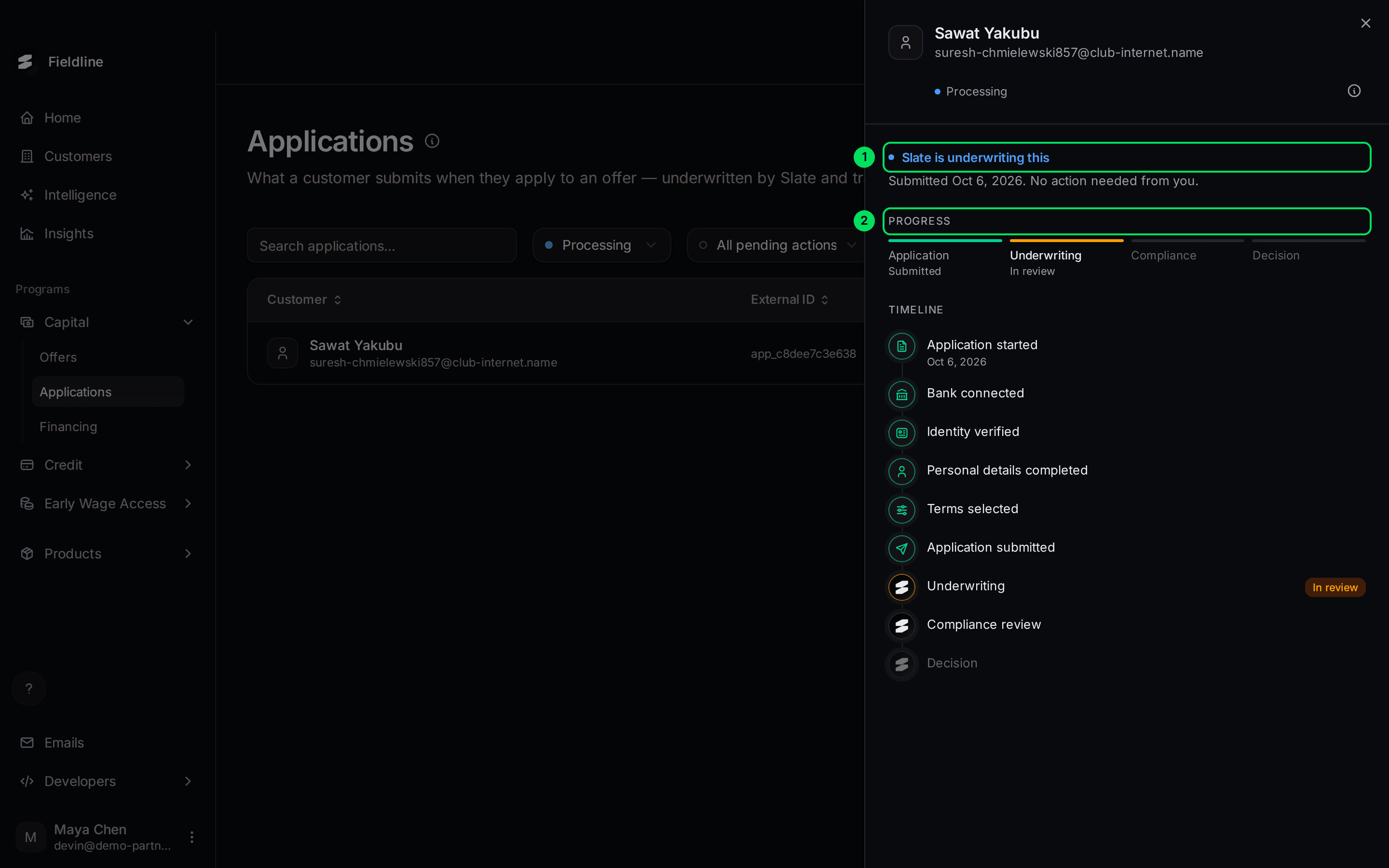
- Slate is underwriting this: no action is needed from you.
- Progress: Underwriting shows In review.
Waiting on the customer
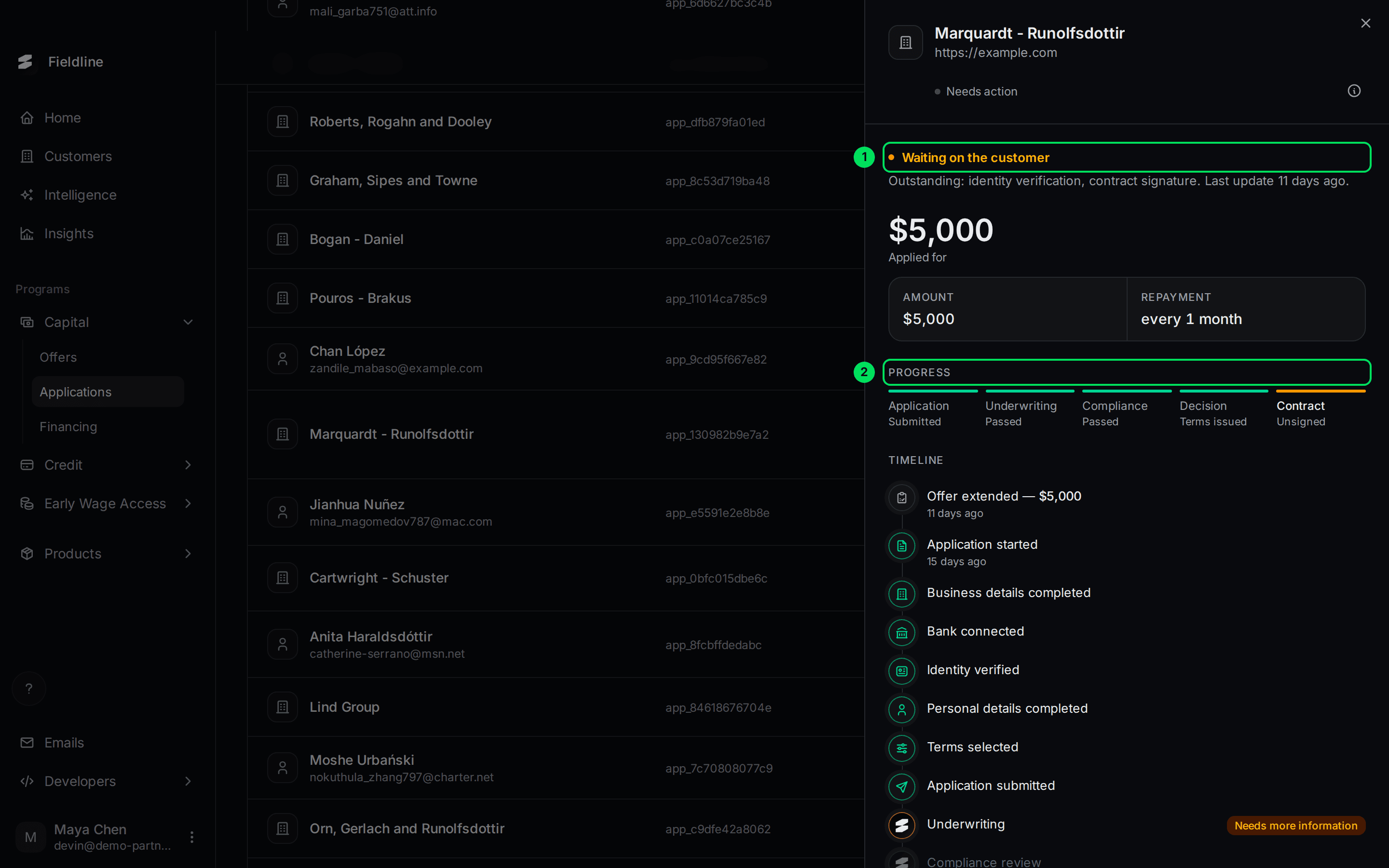
- Waiting on the customer: the sentence under it names the tasks that are Outstanding.
- Progress: the last stage, Contract, shows Unsigned.
An application waiting on a bank check looks like this:
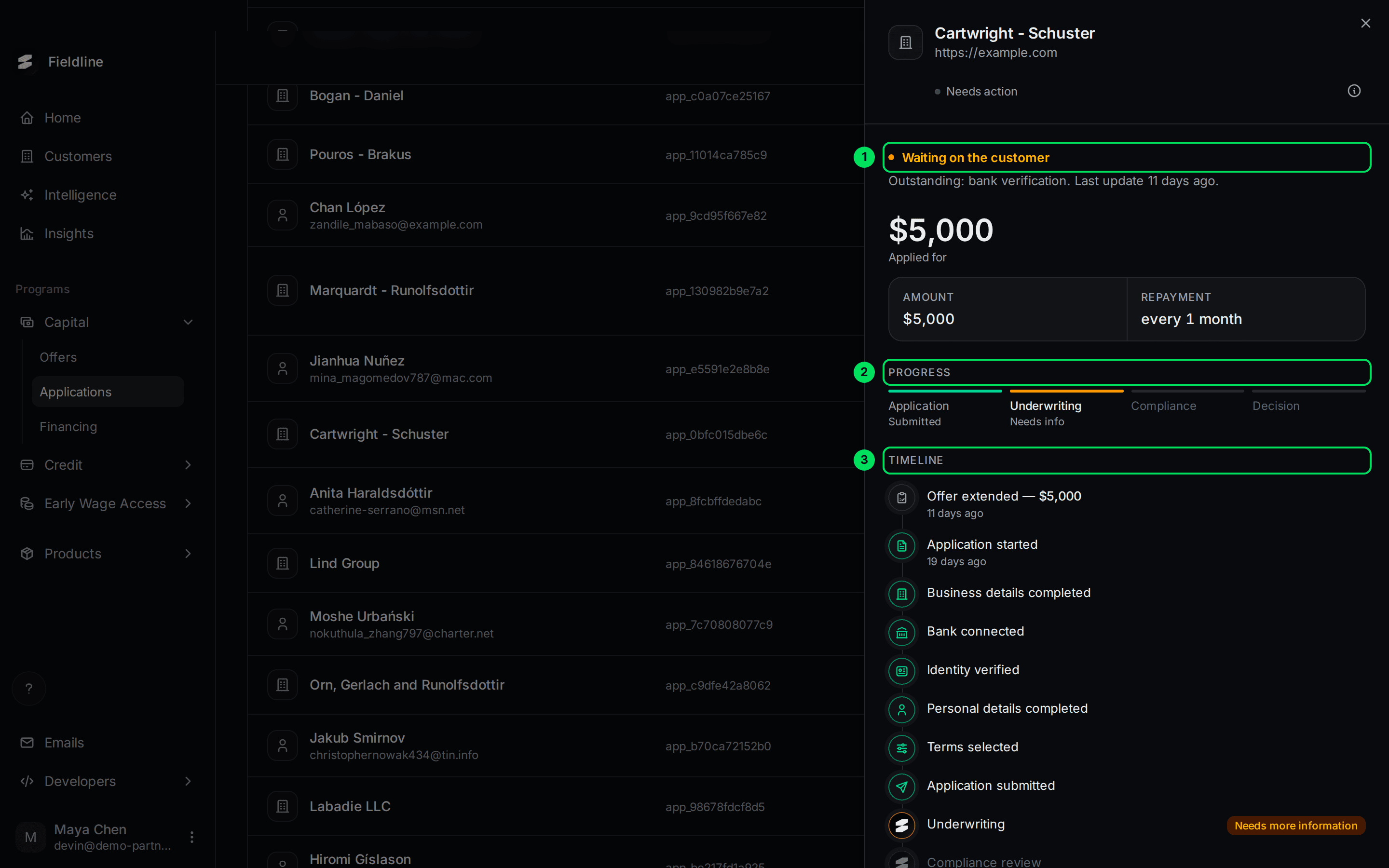
- Waiting on the customer: Outstanding: bank verification.
- Progress: Underwriting shows Needs info.
- Timeline: Underwriting shows Needs more information.
A counter offer
When Slate offers different terms, the panel compares them to what the customer asked for.
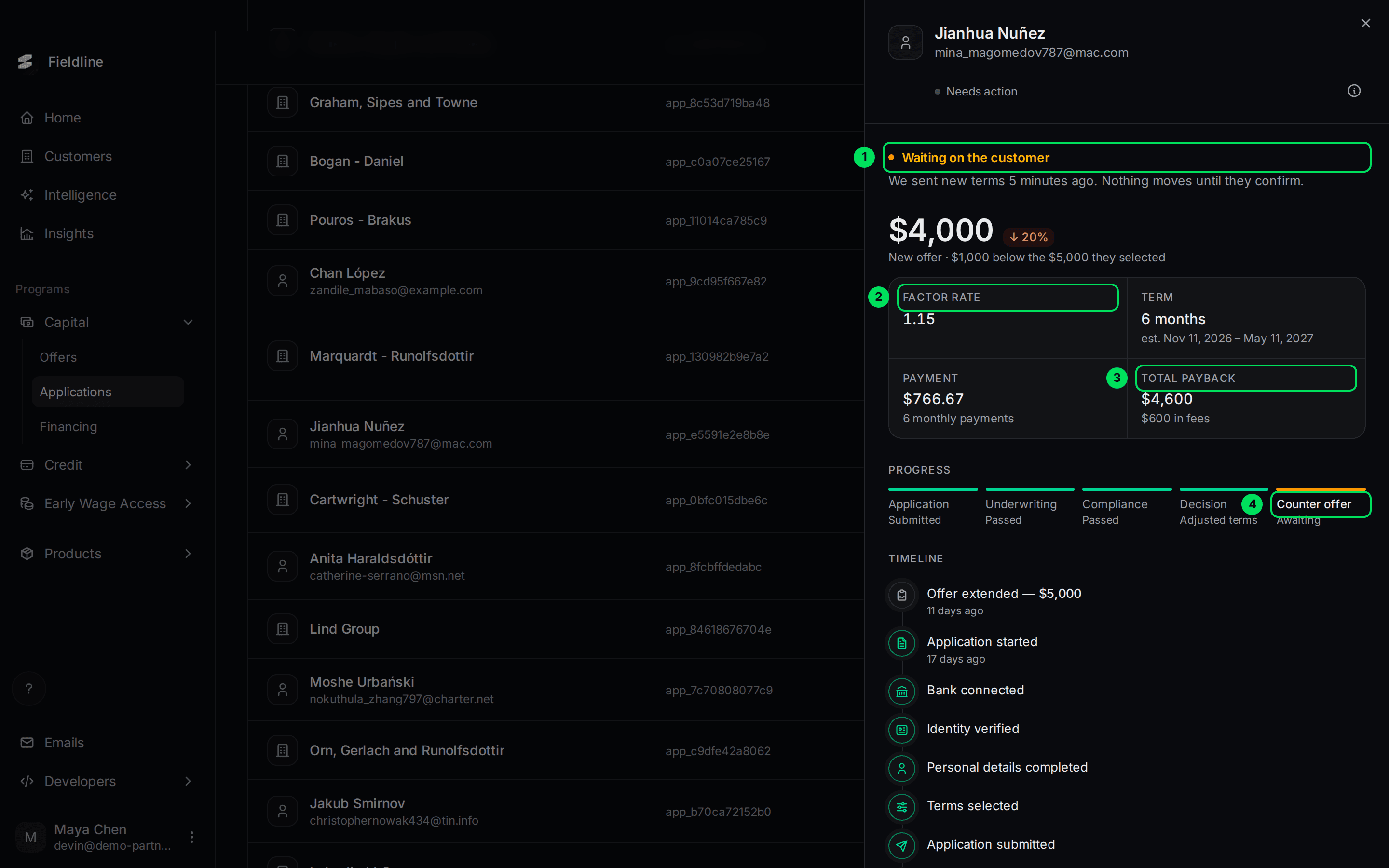
- Waiting on the customer: "We sent new terms ... Nothing moves until they confirm."
- Factor rate: the price of the advance. Multiply the amount by it to get the total paid back. A rate of 1.15 on $4,000 means $4,600 paid back.
- Total payback: the full amount repaid, with the fees in small text underneath.
- Counter offer: shows Awaiting until the customer confirms.
The big number is the new amount. The small chip next to it, such as "20%" with an arrow, shows how far it is from what the customer picked. Term is how long repayment takes. Payment is each instalment and how many there are.
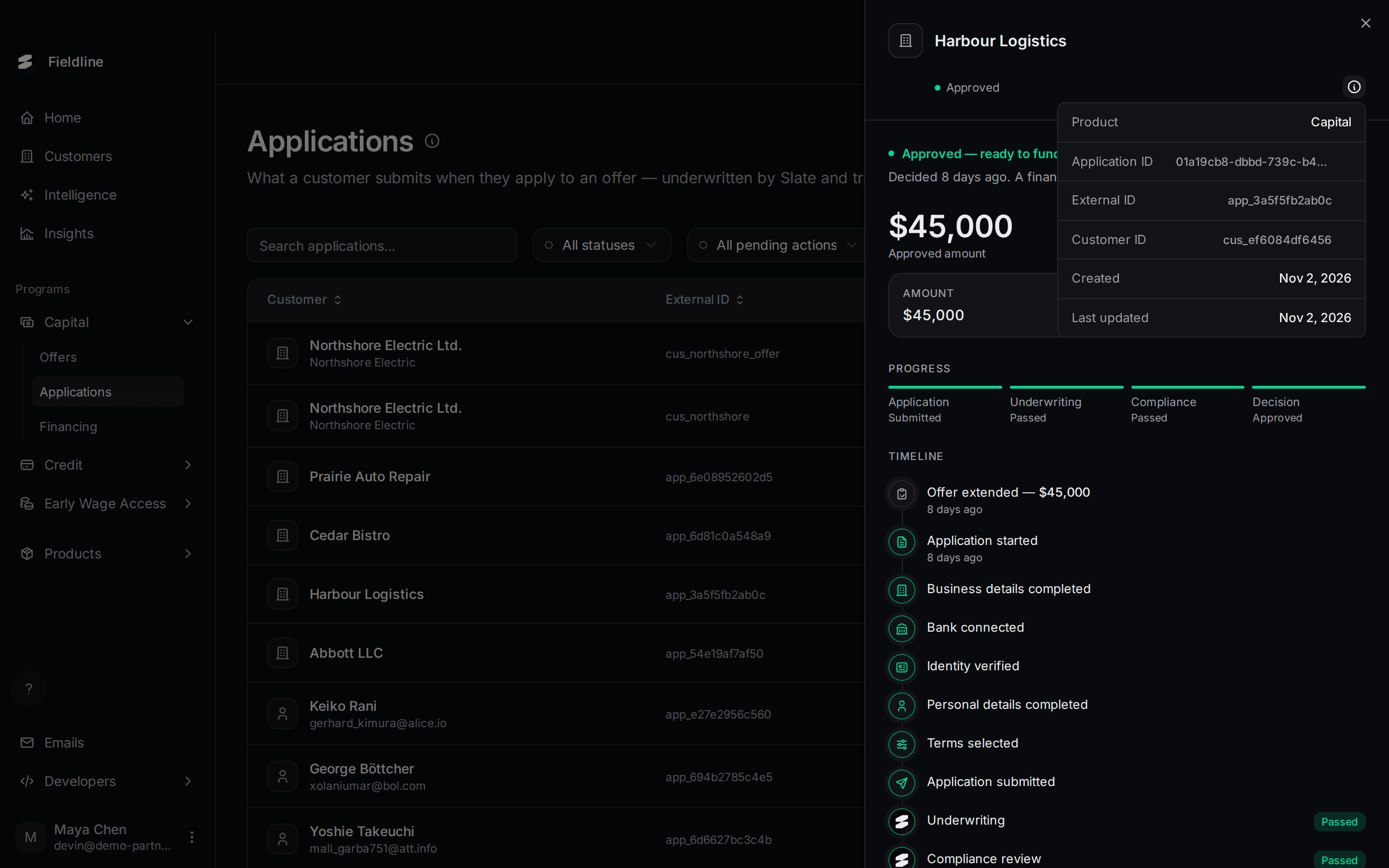
Approved
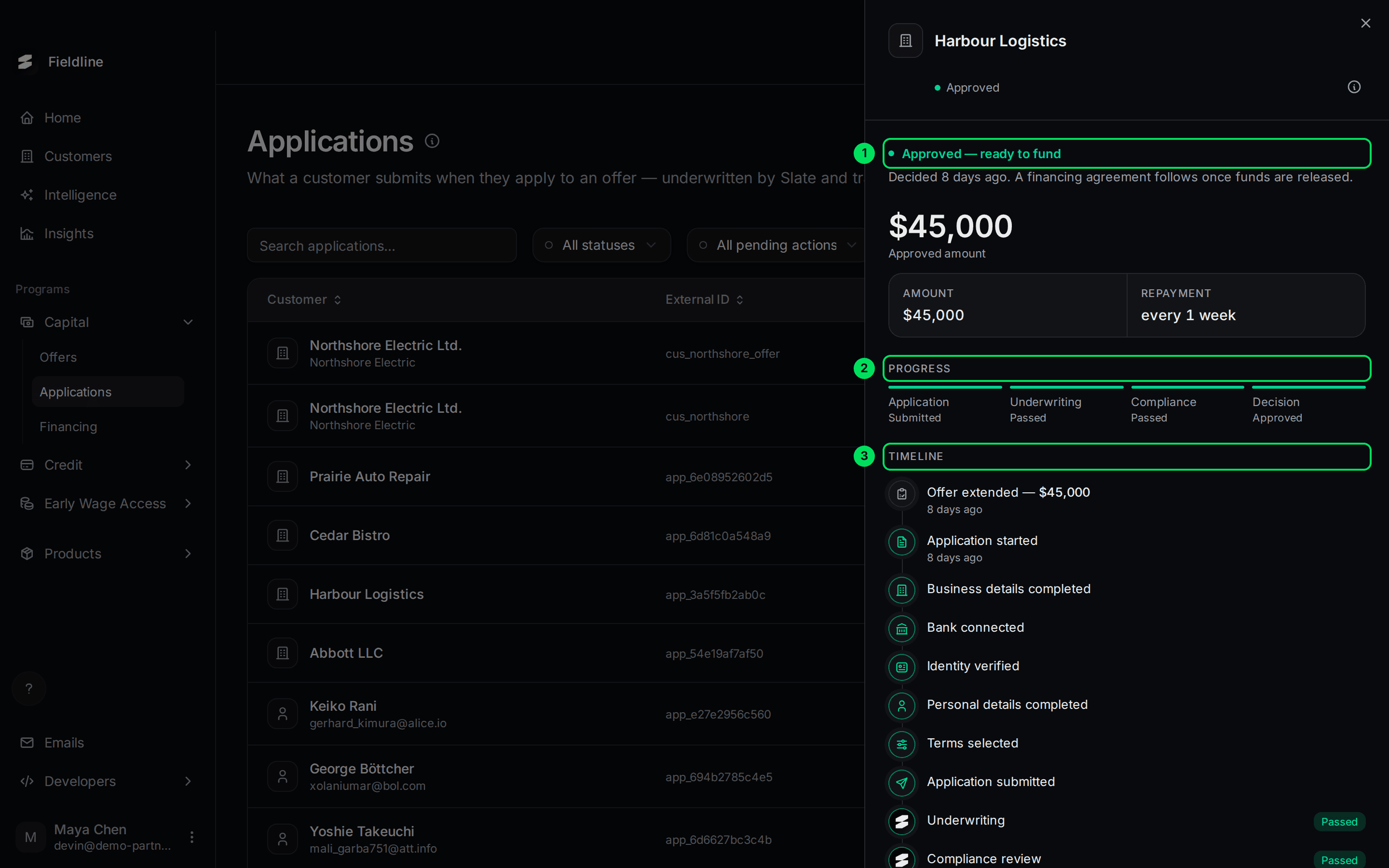
- Approved: "ready to fund". A financing agreement follows once the money is released.
- Progress: every stage is green.
- Timeline: every step, with Underwriting and Compliance review marked Passed.
Rejected
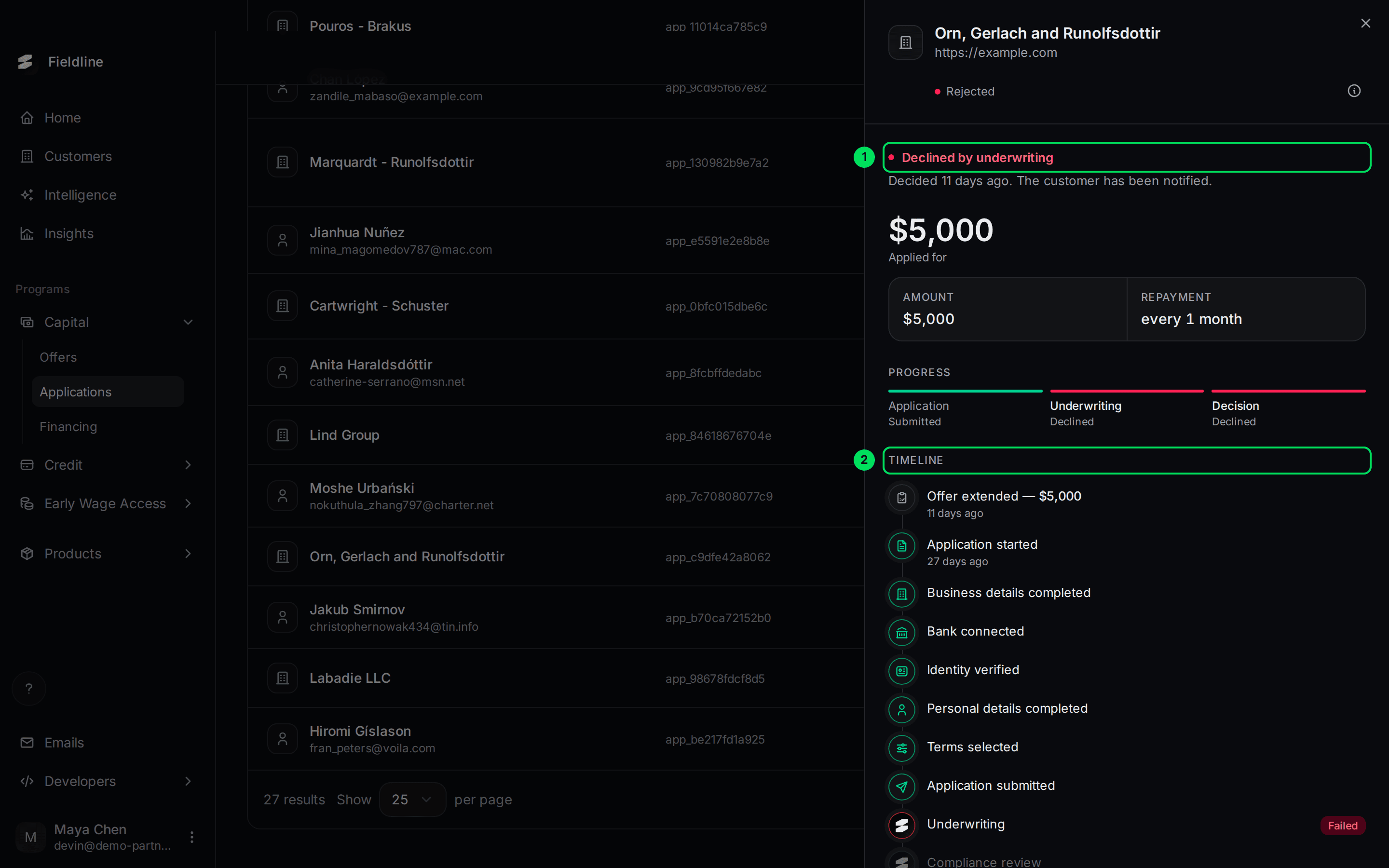
- Declined by underwriting: the customer has been told.
- Timeline: Underwriting shows Failed.
If Slate recorded reasons, a Decline reason(s) list appears below the headline.
Cancelled
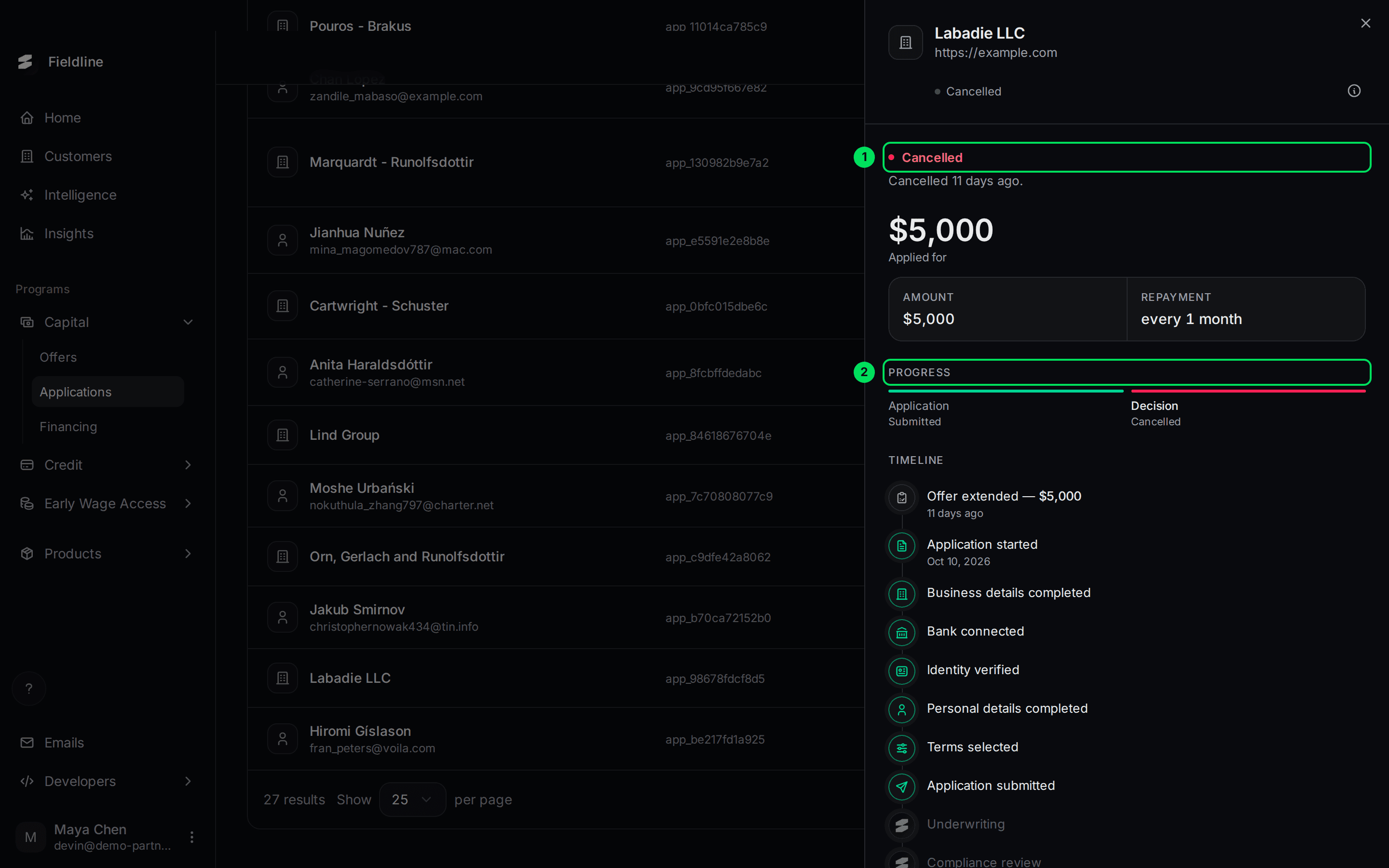
- Cancelled: the application was stopped.
- Progress: the Decision stage shows Cancelled.
Record details
Select the small (i) icon at the top of the panel to see the IDs: Application ID, External ID, Customer ID, and the dates created and last updated. Quote these when you contact Slate.
Export the list
Select the download icon, then Export. The file holds only the rows loaded on the page, so set "Show per page" to 100 first. It includes counter offer columns too.
If something goes wrong
An application has been on Needs action for weeks
Open it and read Outstanding. Ask the customer to finish that task. If it stays stuck, Slate may let it expire.
I can't filter to Cancelled or Expired
The filter doesn't list them. Search for the customer by name instead.
A customer says they never got a counter offer
Slate emails it to the customer. Check the spam folder, then see Customer emails.
Learn more about Slate Capital.
Still stuck? Email [email protected] with your account email and the screen you are on. We reply within 24 business hours.