Help Center / Products you embed
Capital Banner: every state your customers see
The Capital Banner tells a customer where they are, from "You're pre-approved" to "Your funds will arrive". See all eight states and what each one means.
5 min read · Updated November 10, 2026
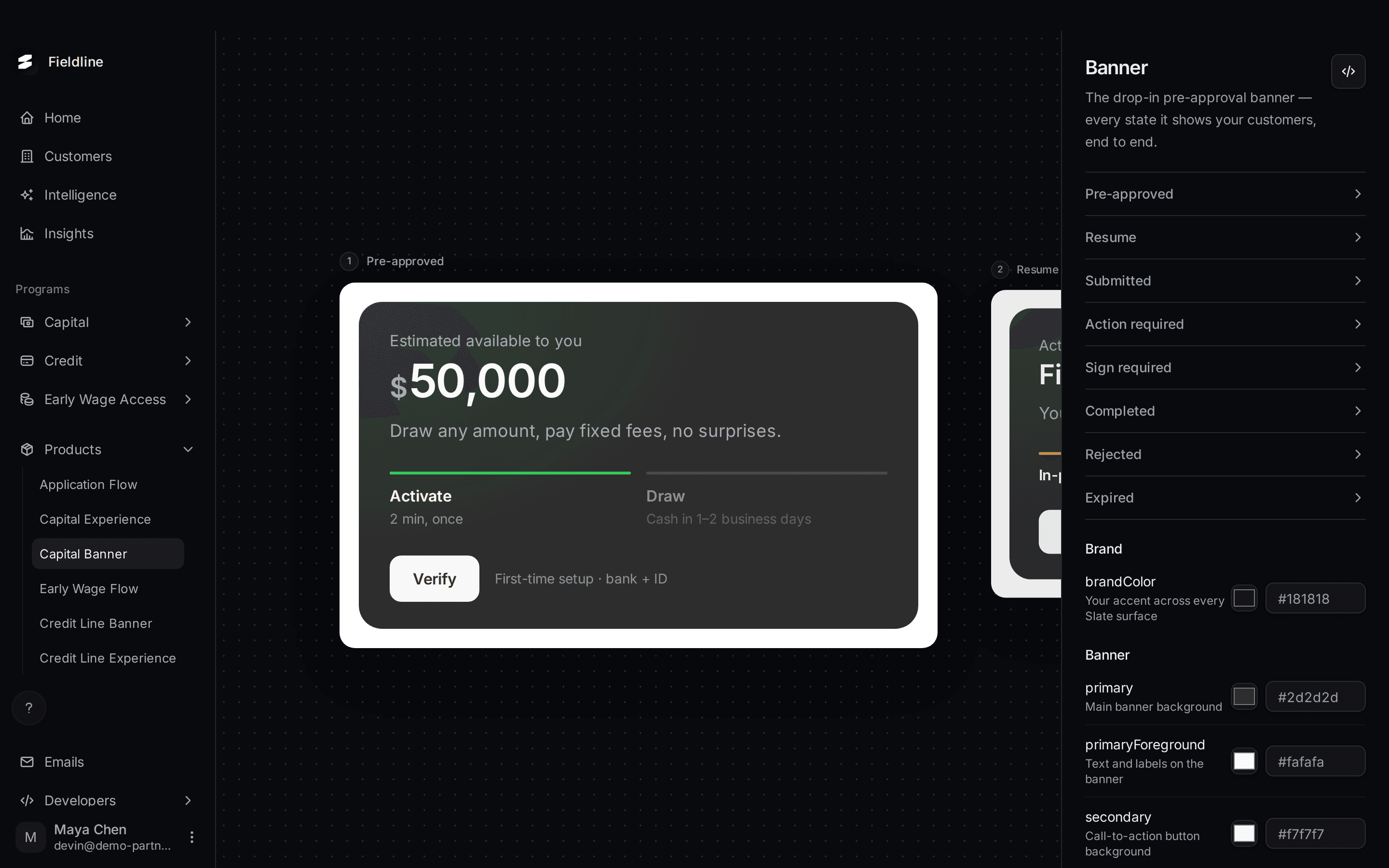
The Capital Banner is a small panel you drop onto a page your customers already use. It reads the customer's offer and application and shows one message at a time, with one button.
You'll find it under Products > Capital Banner. It appears when Capital is on for your account.
Open the preview
Open Capital Banner
Select Products in the menu on the left, then Capital Banner.
Select a state
Select a name in the list on the right. That state moves to the middle of the board. You can also select a state that peeks in at the side.
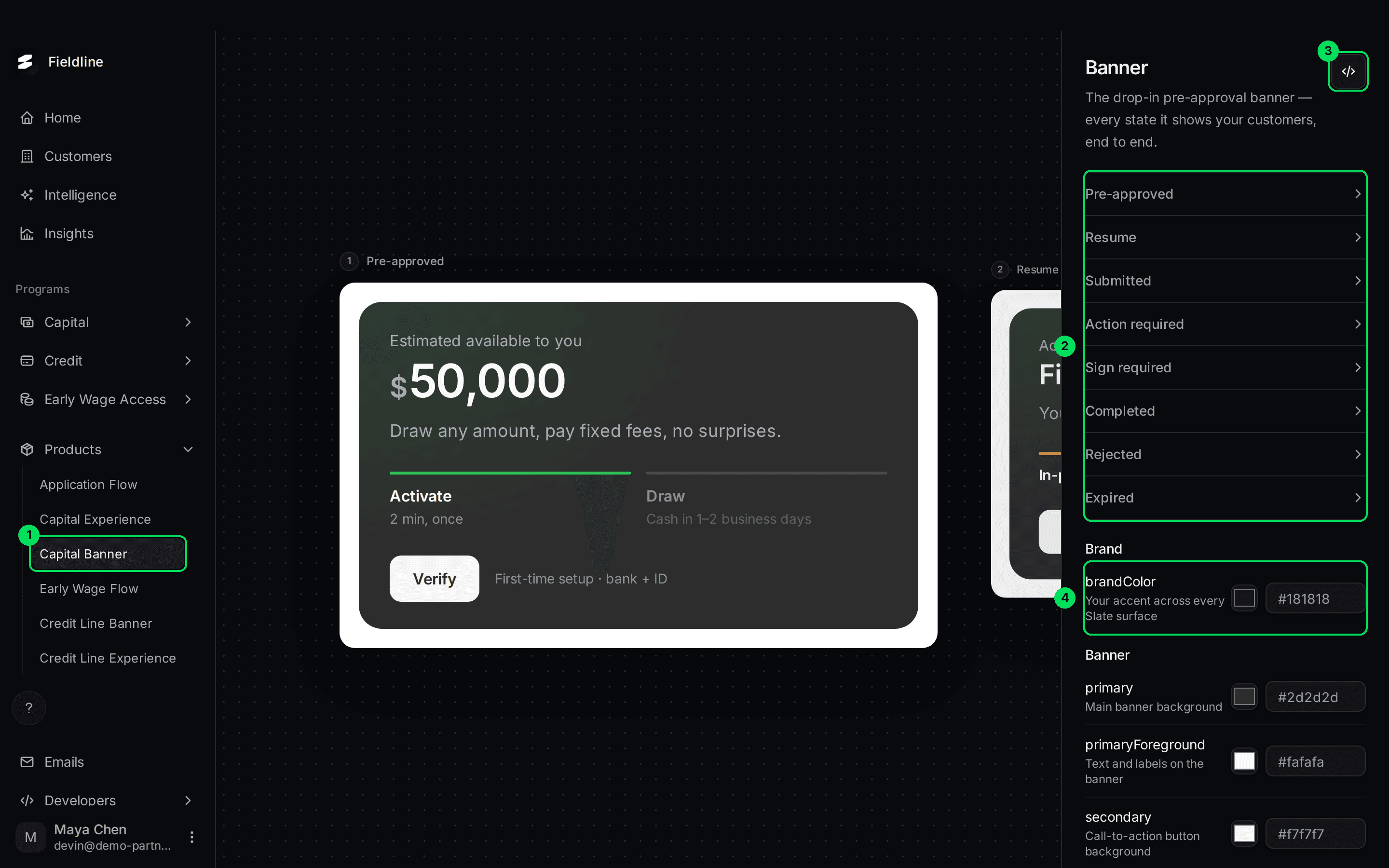
- Capital Banner in the Products menu.
- The list of states. Select one to preview it.
- The Embed code button, shown as
</>. - The brandColor setting. The colour settings continue below it.
The eight states
You don't choose a state. The banner works it out from the customer's offer and application, so each customer sees the one that fits them.
Pre-approved
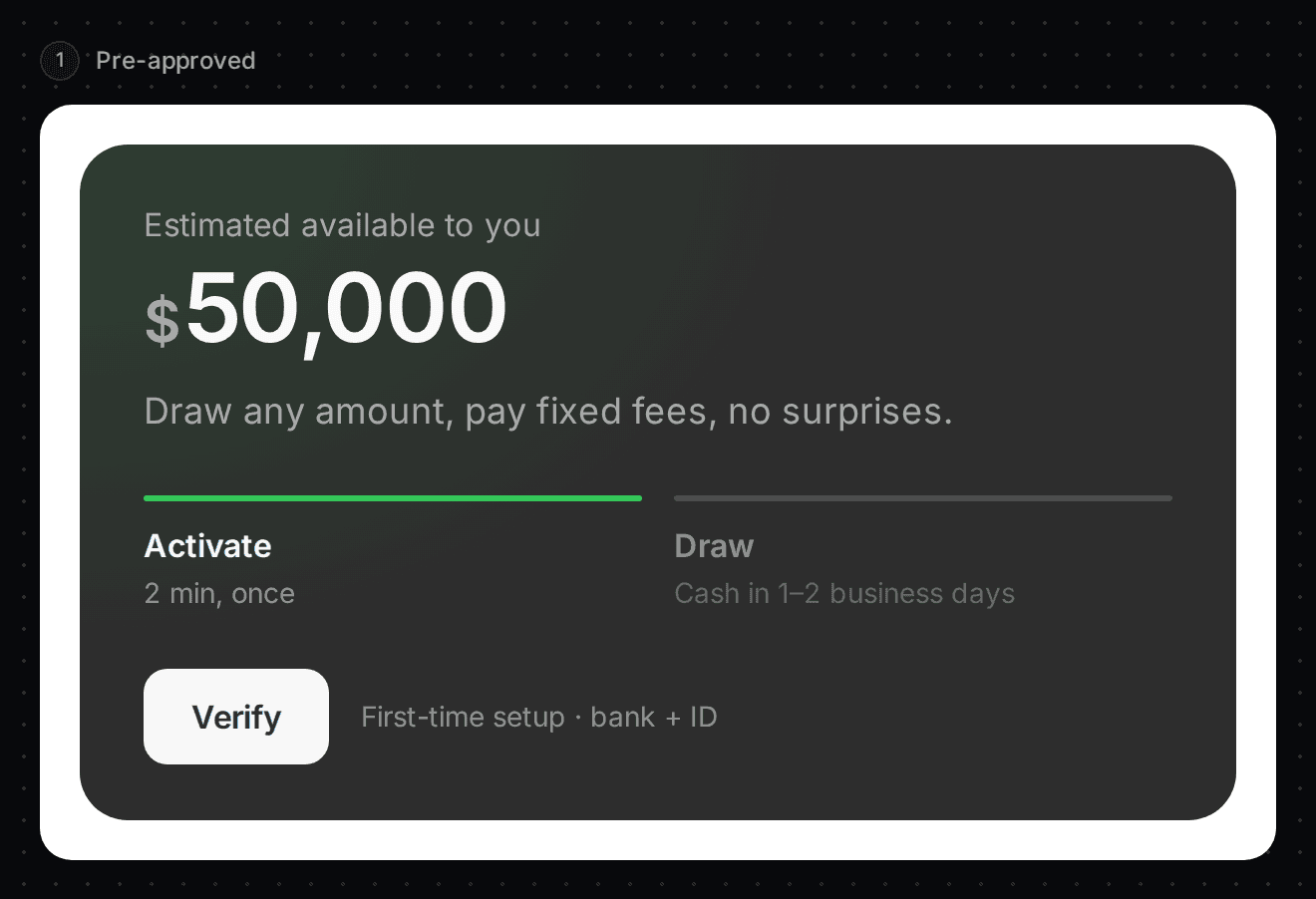
The customer has an open offer. The banner shows "Estimated available to you" and the offer amount, with two steps: Activate (2 min, once) then Draw (cash in 1-2 business days). The button is Verify. Selecting it starts the application.
Resume
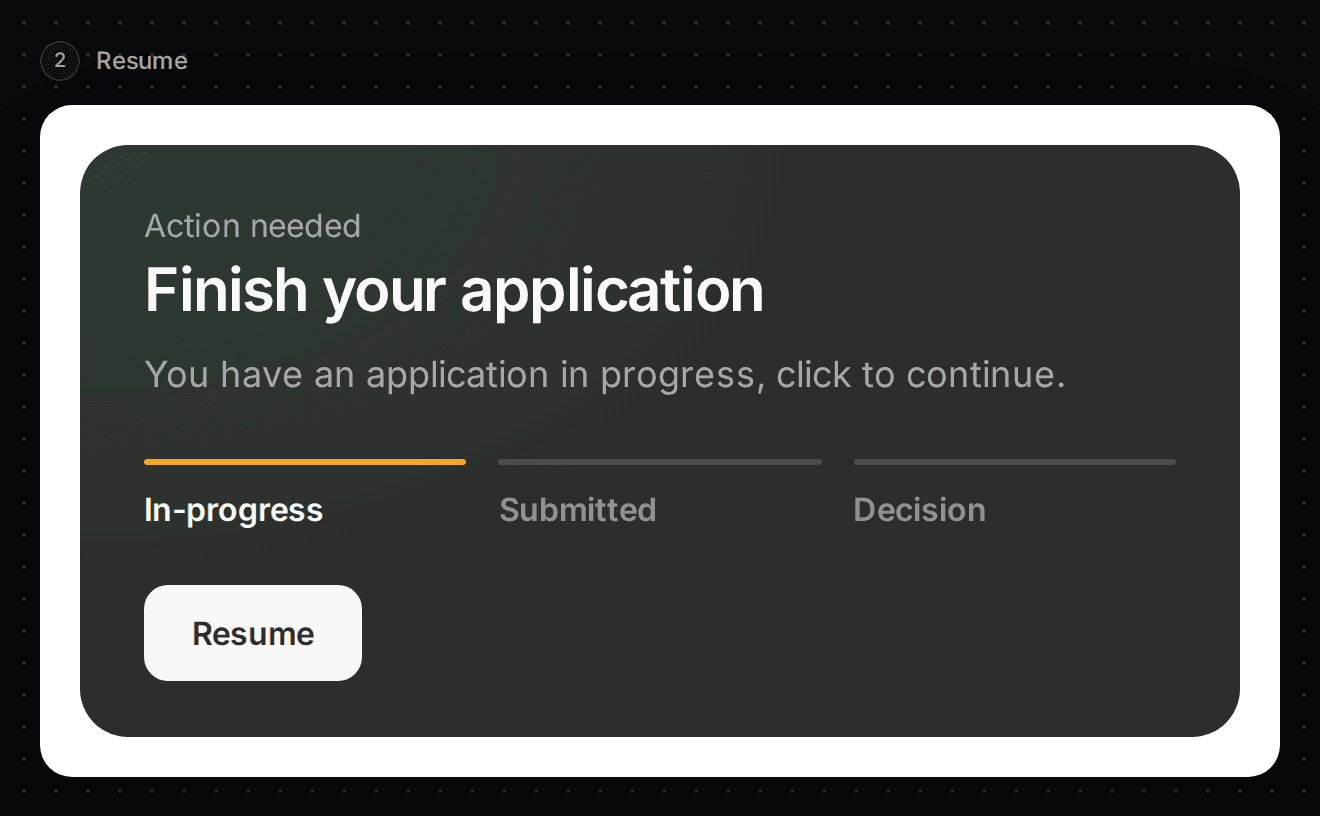
The customer started an application and didn't finish. The banner says "Finish your application". The button is Resume. It takes them back to where they stopped.
Submitted
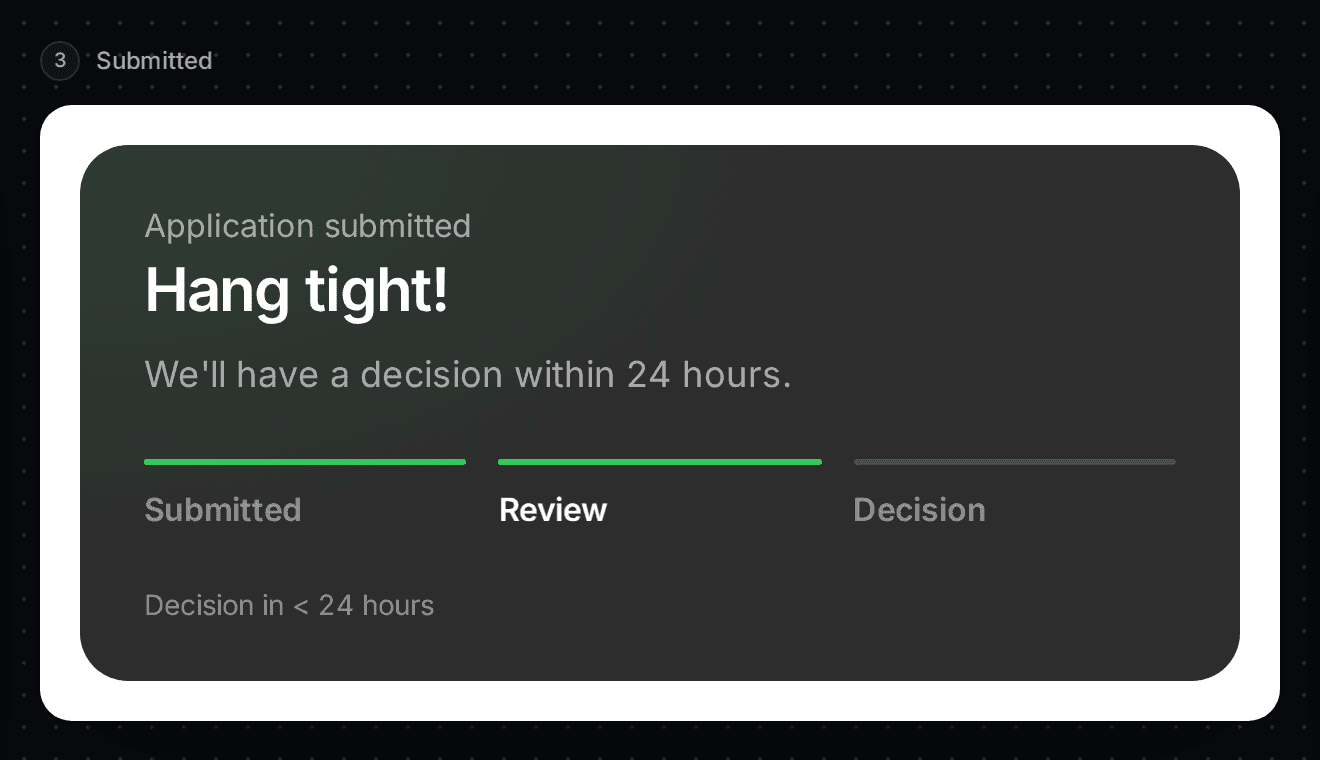
The customer has applied. The banner says "Hang tight!" and "We'll have a decision within 24 hours." There is no button. Nothing for the customer to do.
Action required
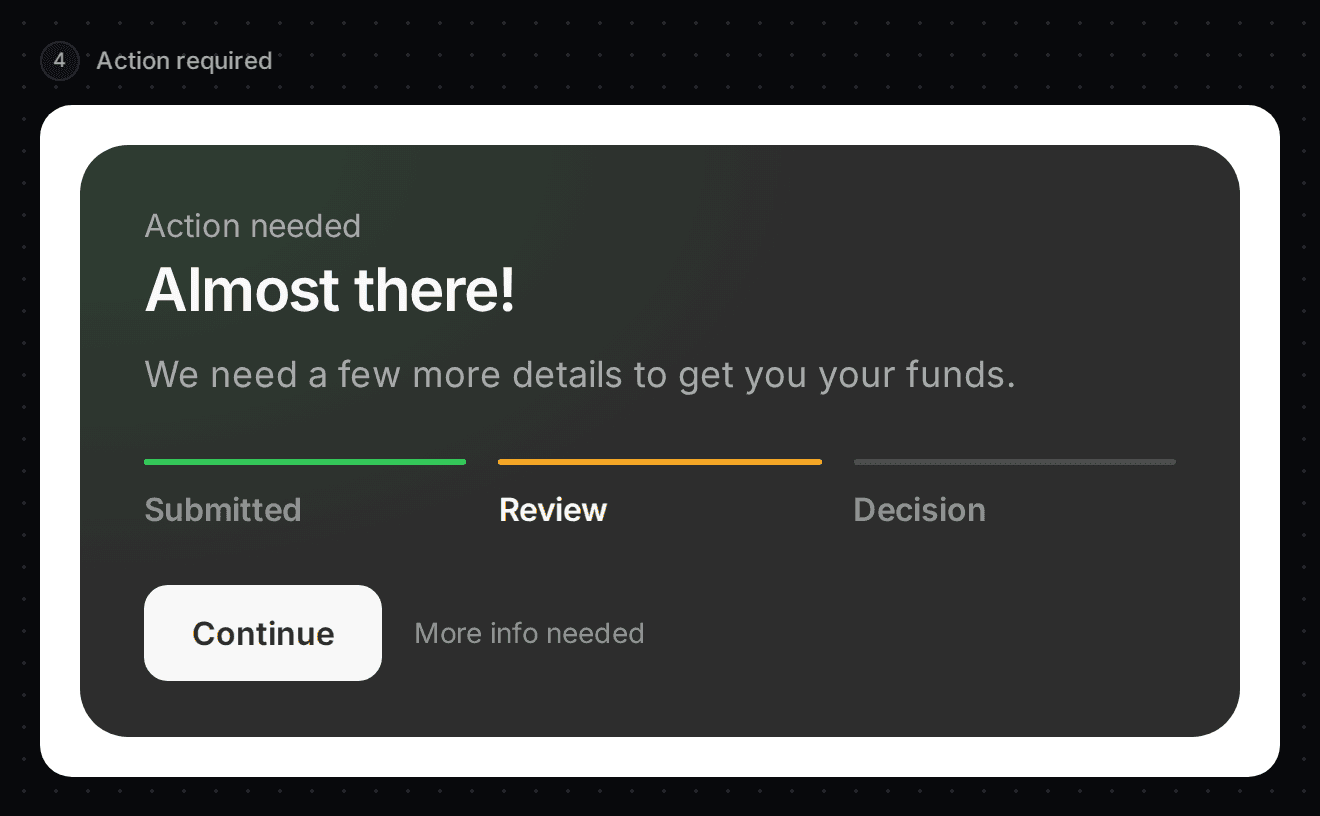
Slate needs more from the customer. The banner says "Almost there!" and "We need a few more details to get you your funds." The button is Continue.
Sign required
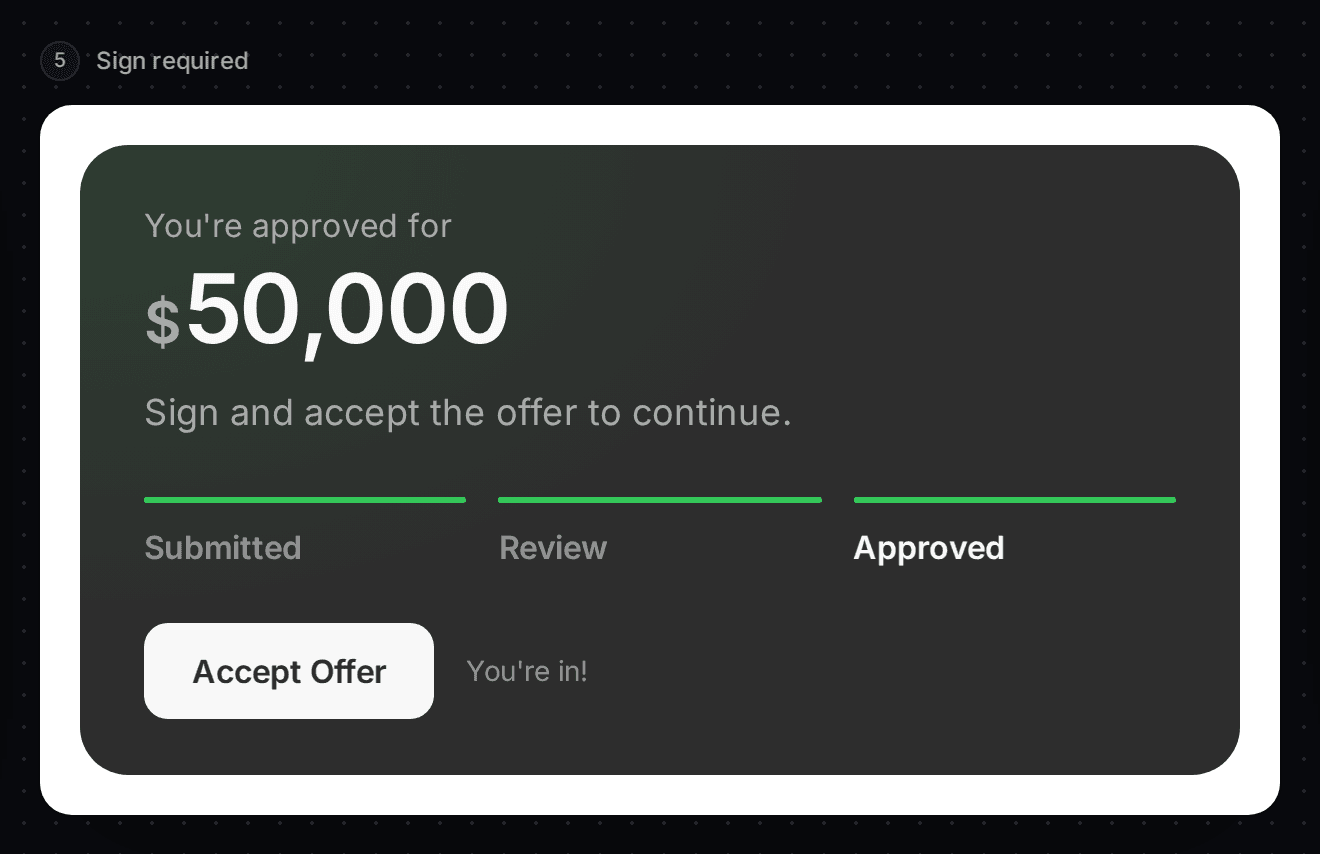
Slate has approved the customer. The banner says "You're approved for" and the amount. The button is Accept Offer. The customer signs the agreement next.
Completed
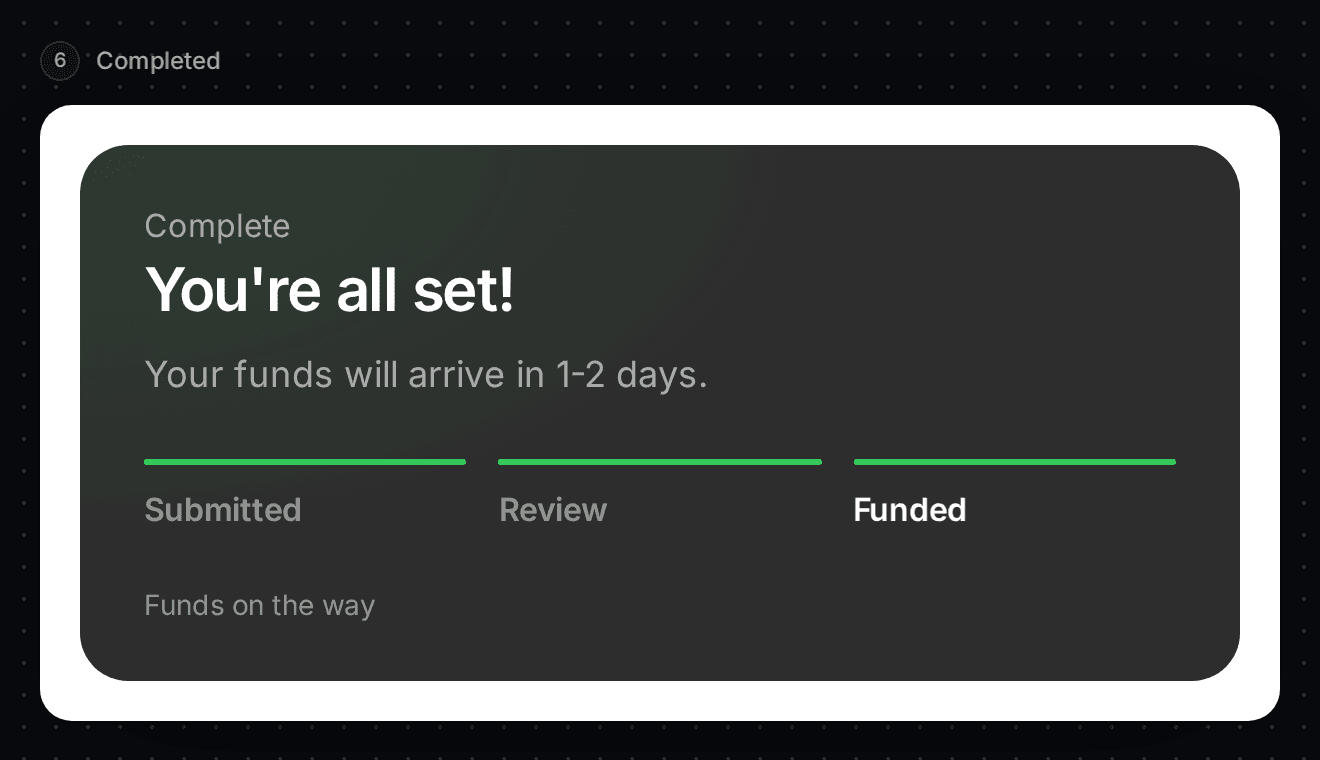
The customer signed. The banner says "You're all set!" and "Your funds will arrive in 1-2 days."
Rejected
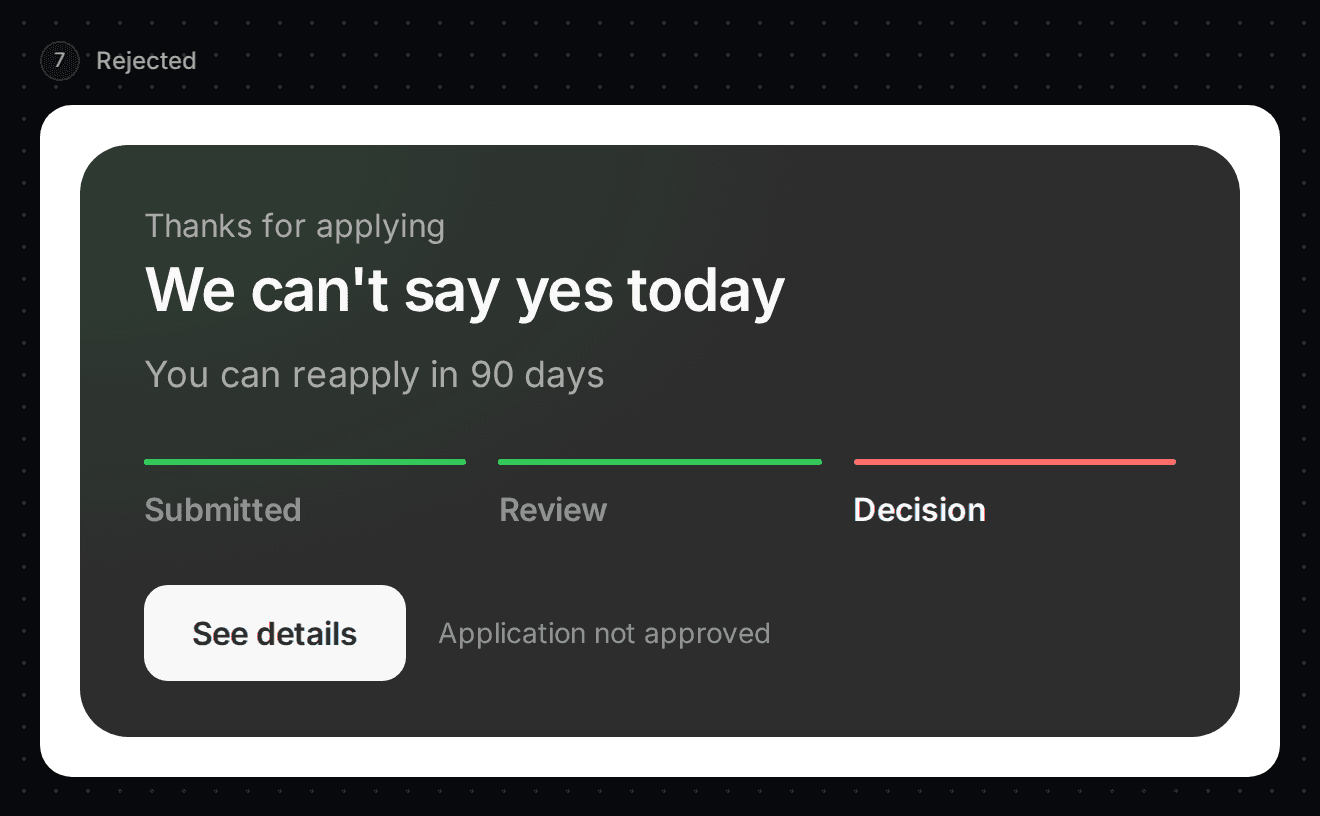
Slate could not approve the application. The banner says "We can't say yes today" and "You can reapply in 90 days". The button is See details.
Expired
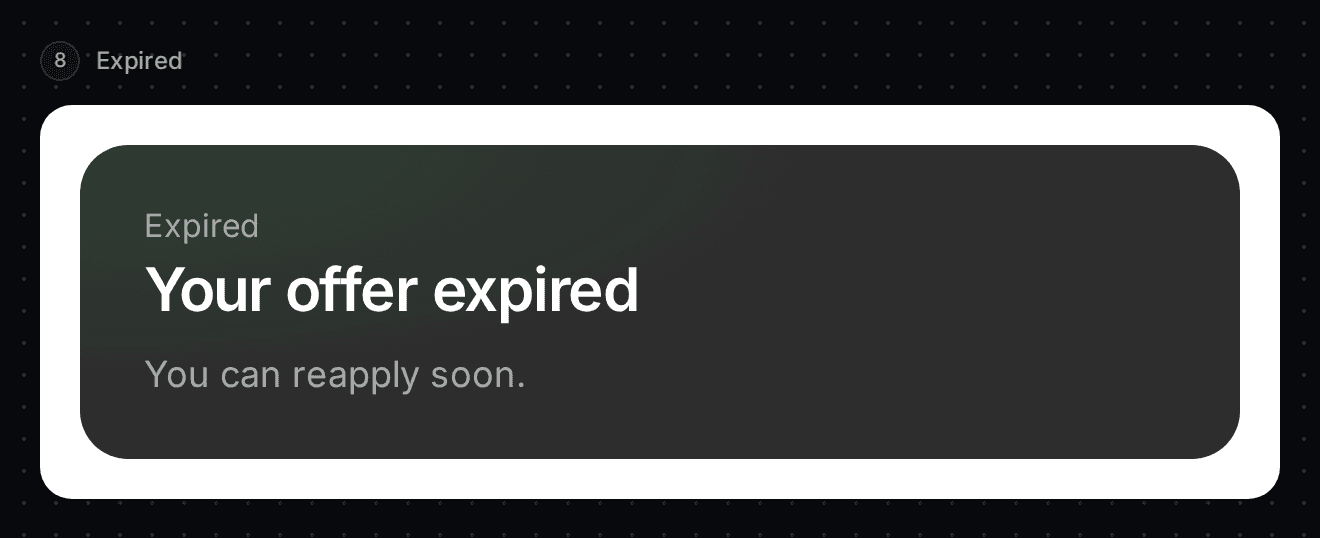
The customer didn't accept the offer in time. The banner says "Your offer expired" and "You can reapply soon."
Two more messages you may see
The board shows eight states, but the banner can also show two more. They appear in real life only.
- Review your updated offer: Slate changed the terms. The button is Review terms.
- Reconnect your bank account: Slate needs a fresh bank connection to finish reviewing the application. The button is Reconnect bank.
How long does a banner stay?
The three ending states, Completed, Rejected and Expired, hide themselves 90 days after the application's last update. The banner shows nothing at all if the customer has no offer, or if the offer is for a credit line. Use the Credit Line Banner for those.
Set the banner colours
The bottom of the right-hand column holds the colour settings for the banner. There are four, plus brandColor.
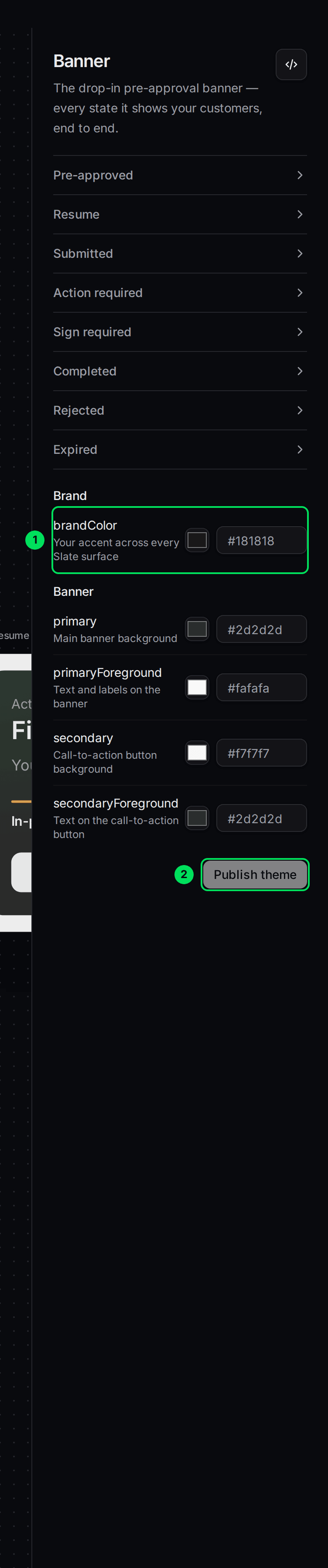
- brandColor: your main brand colour. It does not restyle the banner.
- Publish theme: saves your colours.
- primary: the banner background.
- primaryForeground: the text and labels on the banner.
- secondary: the background of the banner's button.
- secondaryForeground: the text on the banner's button.
Type a six-digit code such as #0b3d91 in a field. The preview changes at once. Select Publish theme to save. See Match Slate to your brand colours.
Embed it on your site
Open the embed panel
Select the </> button at the top of the right-hand column.
Copy the code
Copy section 1 to your server and section 2 to your page. The tag is slate-pre-approval-banner-v2. See How the products you embed work.
Decide who handles the button
By default the banner opens the application in a window on its own. If you want your own screen to open instead, add disable-dialogs and listen for the ctaClicked event.
If something goes wrong
The banner is empty on my page
The customer has no offer, or the offer is for a credit line. The banner shows nothing in both cases.
The banner disappeared
The three ending states hide after 90 days.
The preview shows a state my customer is not in
The board shows sample states. The real banner picks the customer's state by itself. Remove demo and demo-scenario from your code.
Learn more about how Slate goes into your product.
Still stuck? Email [email protected] with your account email and the screen you are on. We reply within 24 business hours.