Help Center / Products you embed
Capital Experience: the whole journey in one screen
Capital Experience is one screen that shows a customer their offer, their application and their advances. Preview all six states here.
5 min read · Updated November 10, 2026
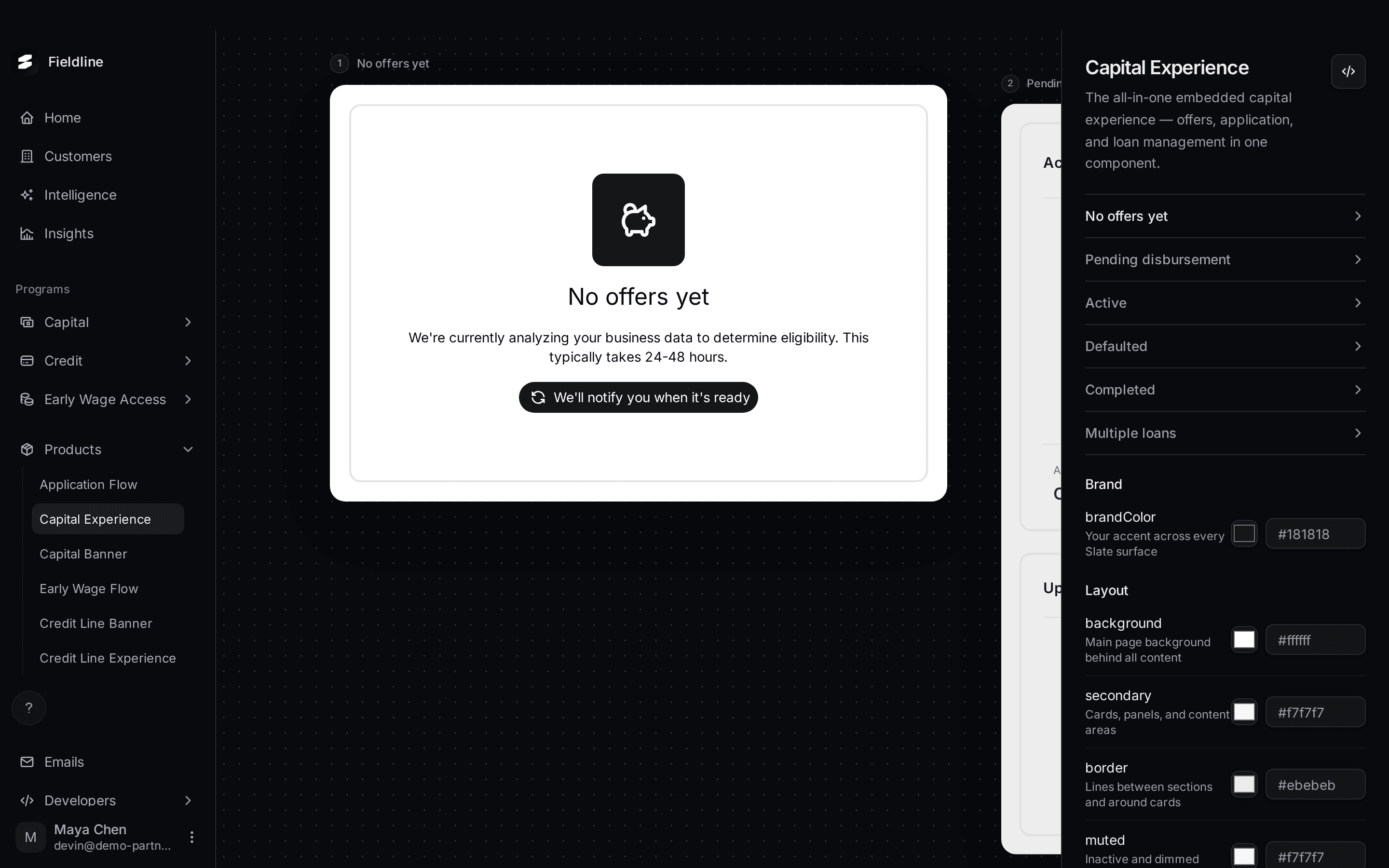
Capital Experience is one component that carries the whole journey. It shows the offer, the application and the customer's advances, and it changes by itself depending on where the customer is. Use it when you want one page for capital inside your product.
You'll find it under Products > Capital Experience. It appears when Capital is on for your account.
Open the preview
Open Capital Experience
Select Products in the menu on the left, then Capital Experience.
Select a state
Select a name in the list on the right. That state moves to the middle of the board. You can also select a state that peeks in at the side.
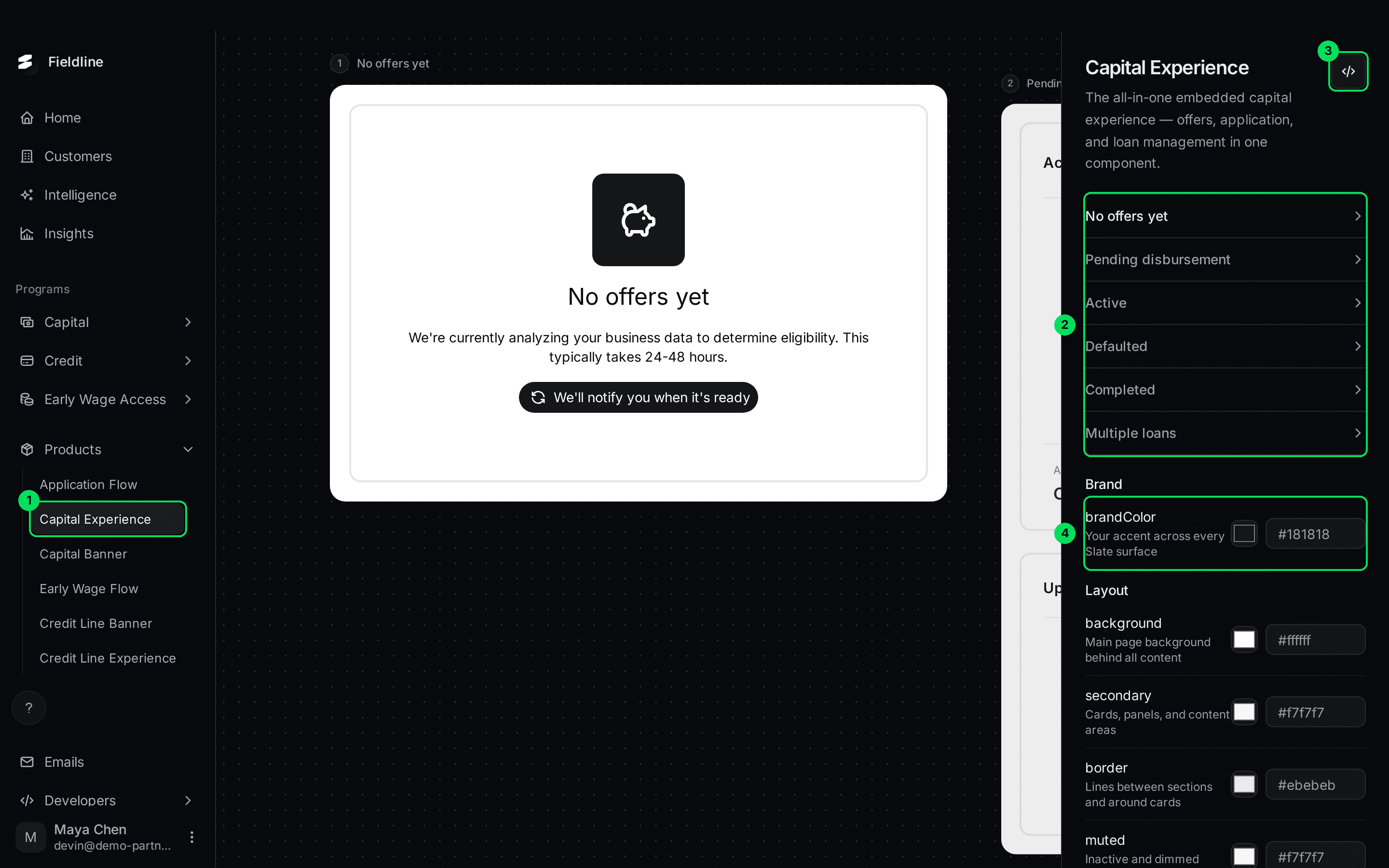
- Capital Experience in the Products menu.
- The list of states. Select one to preview it.
- The Embed code button, shown as
</>. - The brandColor setting. The colour settings continue below it.
The six states
Each state is what a customer sees on their capital page.
No offers yet
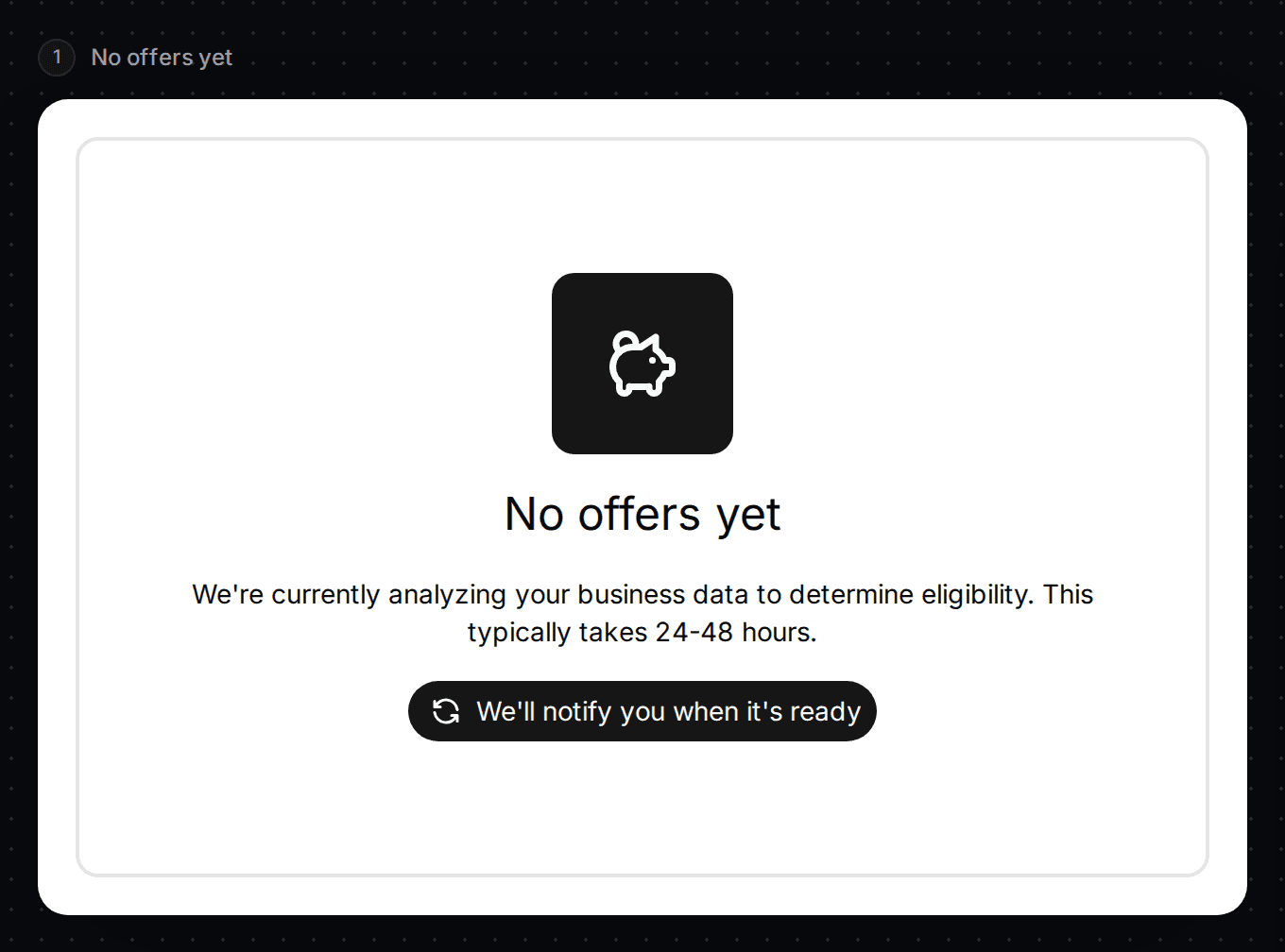
Shown before Slate has decided what to offer. The customer sees "No offers yet" and a note that checking their business data usually takes 24-48 hours. A button reads "We'll notify you when it's ready". Nothing for you to do.
Pending disbursement
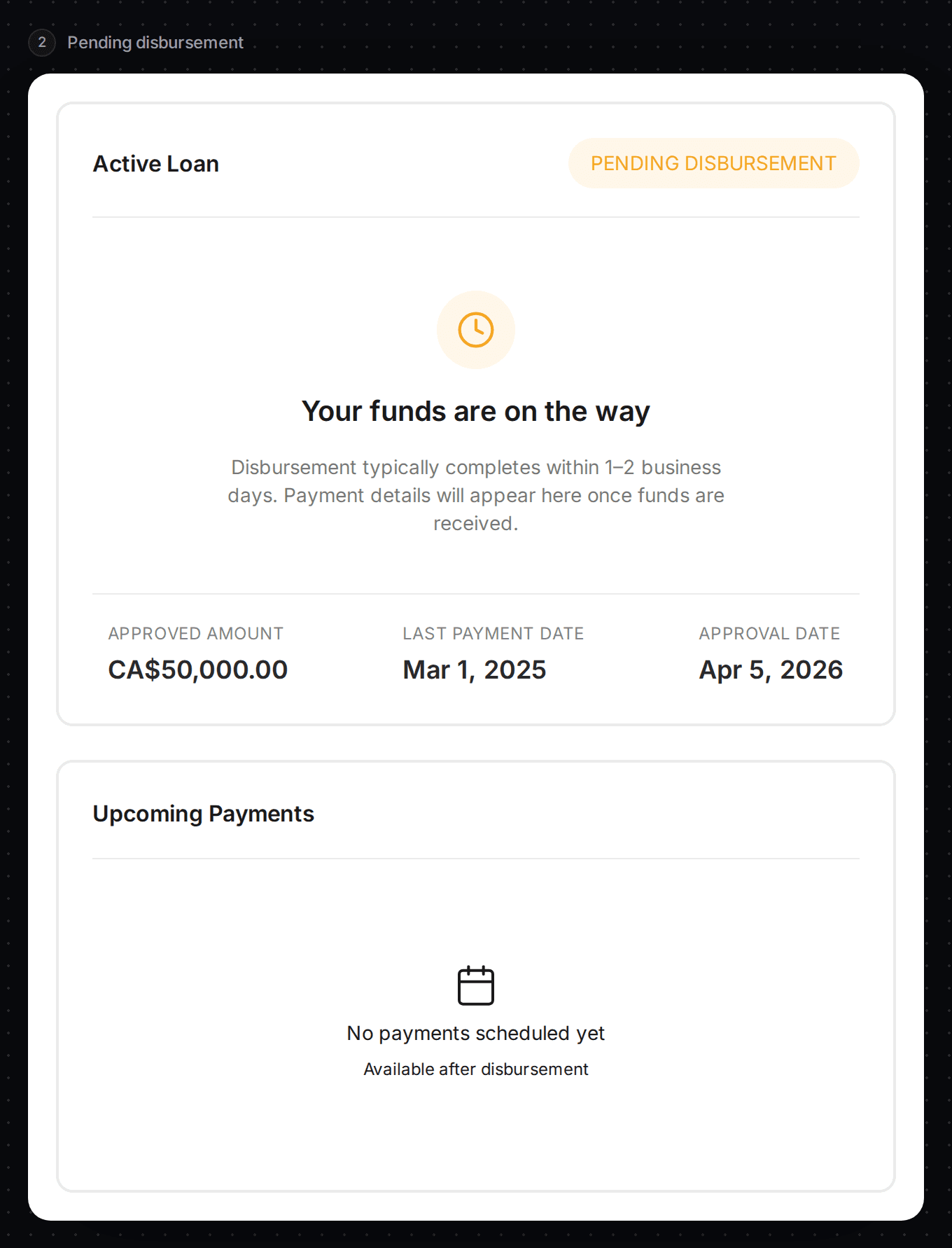
The customer has accepted and the money is on its way. The card says "Your funds are on the way" and shows the approved amount, the last payment date and the approval date. The payment list says "No payments scheduled yet" until the money is sent.
Active
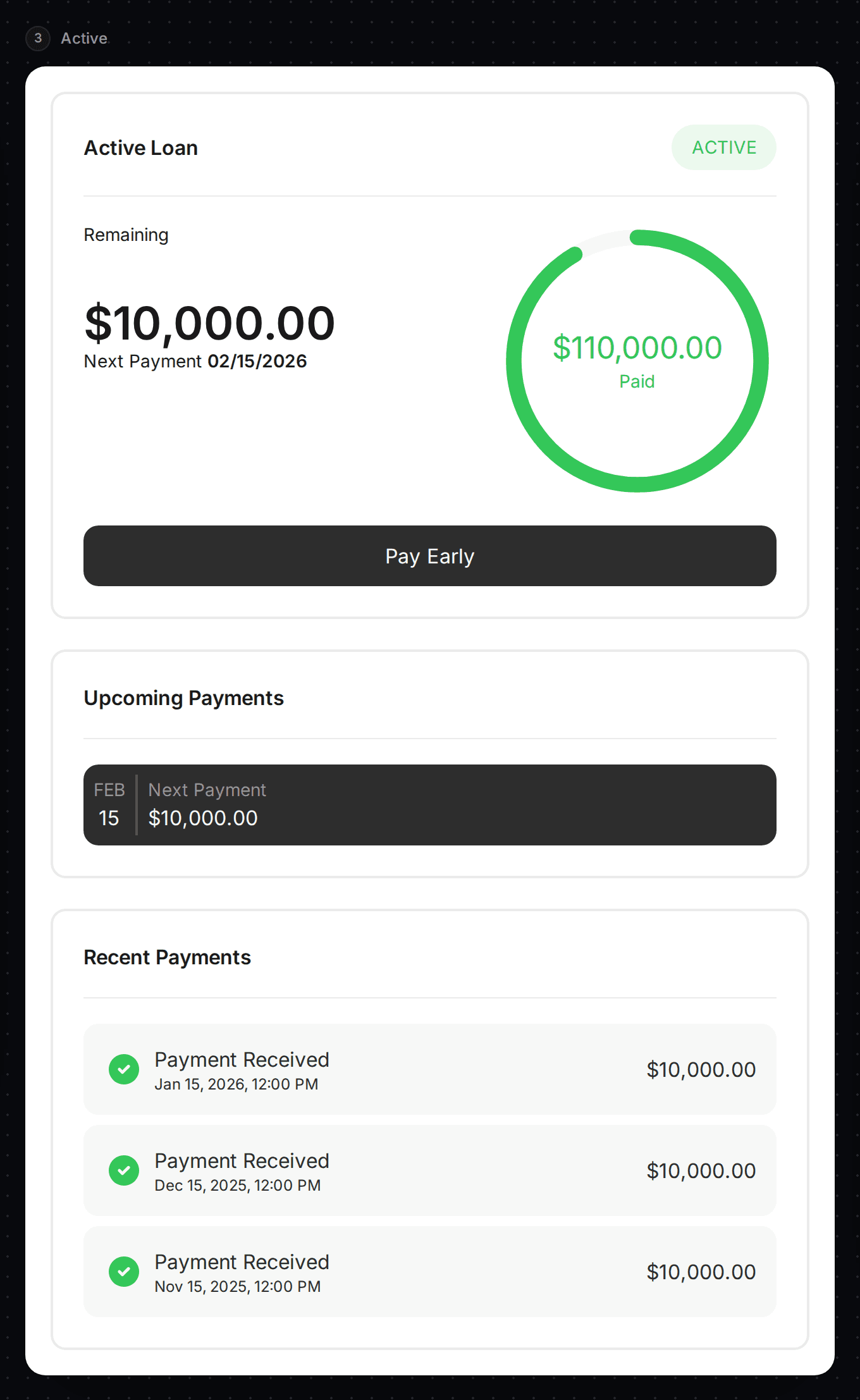
The customer has an advance that is being paid back. The card shows how much is left, the next payment date, a progress ring and a Pay Early button. Below are Upcoming Payments and Recent Payments.
Defaulted
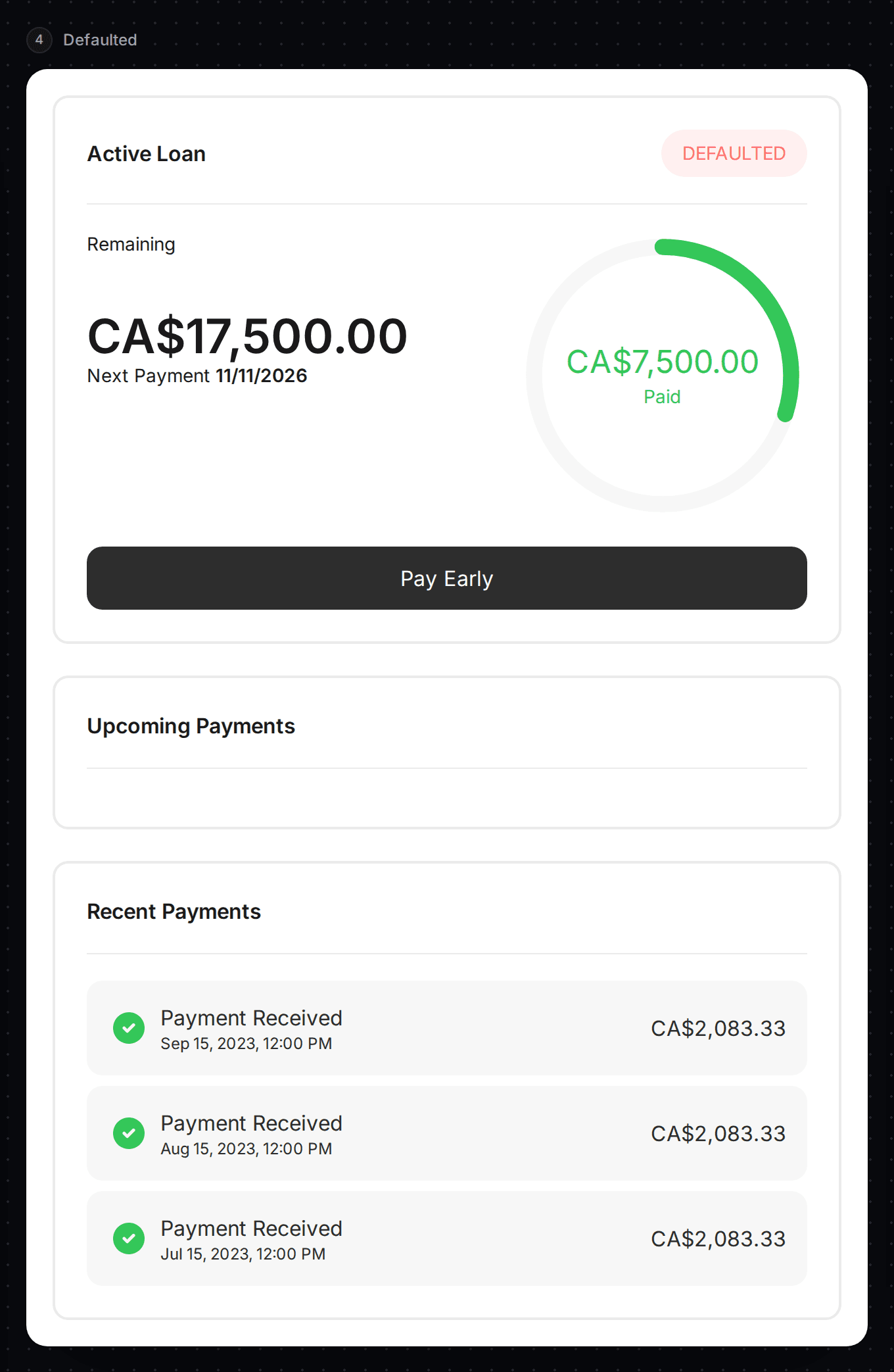
The customer has missed payments. The card shows a red "Defaulted" tag, how much is left and the payments they made.
Completed
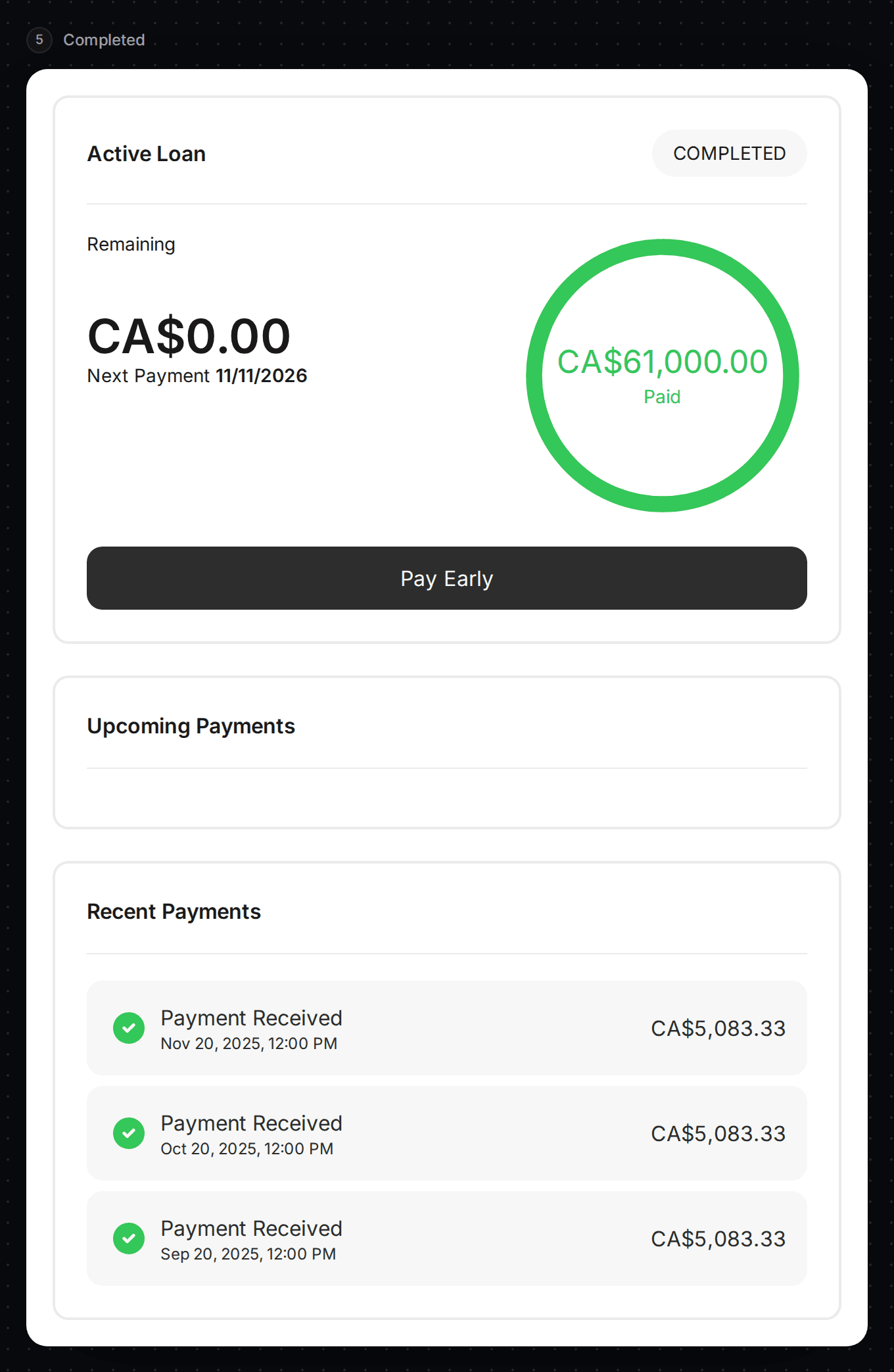
The advance is fully paid. The card shows a "Completed" tag and the full amount paid.
Several advances at once
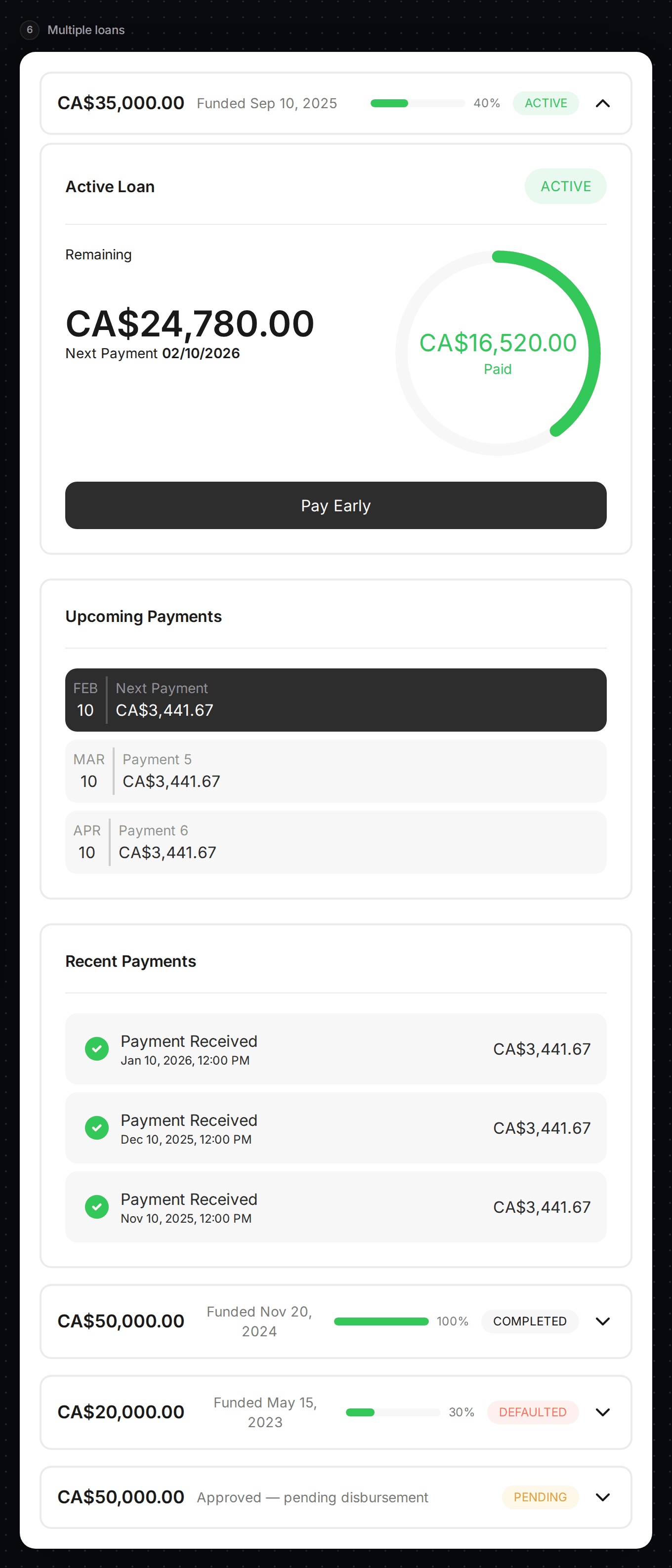
The customer has more than one advance. Each one is a row. Selecting a row opens its details. The row shows the amount, the funded date, how much is paid and a status tag such as Active, Completed or Defaulted.
What the customer can do
- Pay Early opens a payment window. The customer chooses Next Payment, Pay in Full or Custom Amount, confirms, and gets a confirmation number.
- If the customer has an offer, the offer banner appears at the top of the page. It uses the same wording as the Capital Banner.
- By default, payments open in a window on top of your page. Add
disable-dialogsto the component to show the payment form on the page instead.
Set the colours
The bottom of the right-hand column holds the colour settings. Capital Experience has the full set: brandColor, then layout, text, button and status colours.
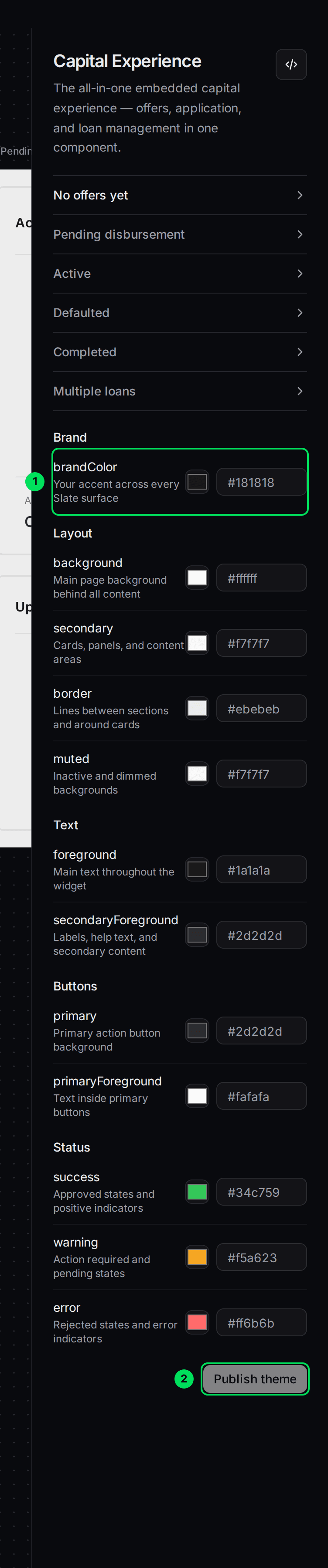
- brandColor: your main brand colour.
- Publish theme: saves your colours. It stays grey until you change one.
Every colour is explained in Match Slate to your brand colours. The same colours are shared with the Capital Banner, so a change here shows up there too.
Embed it on your site
Open the embed panel
Select the </> button at the top of the right-hand column.
Copy the code
Copy section 1 to your server and section 2 to your page. The tag is slate-capital. See How the products you embed work for the full steps.
One component handles everything. The banner, the application and the advance list all appear by themselves, based on where the customer is.
If something goes wrong
The component says "Something went wrong"
Ask your server for a new session token and reload the page. See How the products you embed work.
Customers see "No offers yet"
Slate hasn't created an offer for that customer. Check Capital > Offers.
My colours didn't change
You must select Publish theme. Colours you type are only a preview until then.
Learn more about how Slate goes into your product.
Still stuck? Email [email protected] with your account email and the screen you are on. We reply within 24 business hours.