Help Center / Capital
See the capital offers Slate approved for your customers
What an offer is, what each column and status means, how to find an offer, and how to share the application link with your customer.
6 min read · Updated November 10, 2026
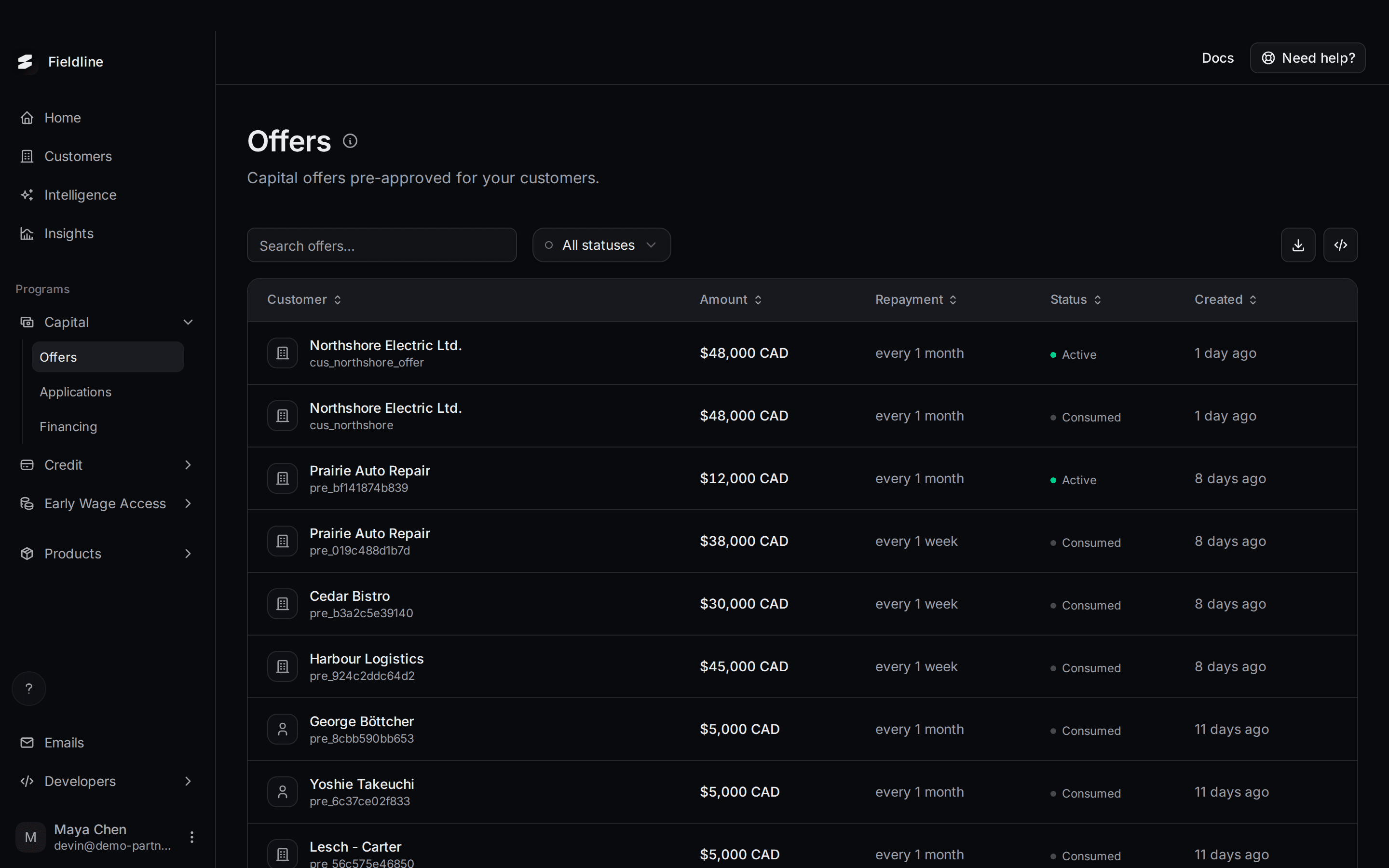
An offer is an amount of capital Slate has approved in advance for one of your customers. The Offers page lists every offer, so you can see who has one and what happens next.
Where to find it: open Programs, select Capital, then select Offers.
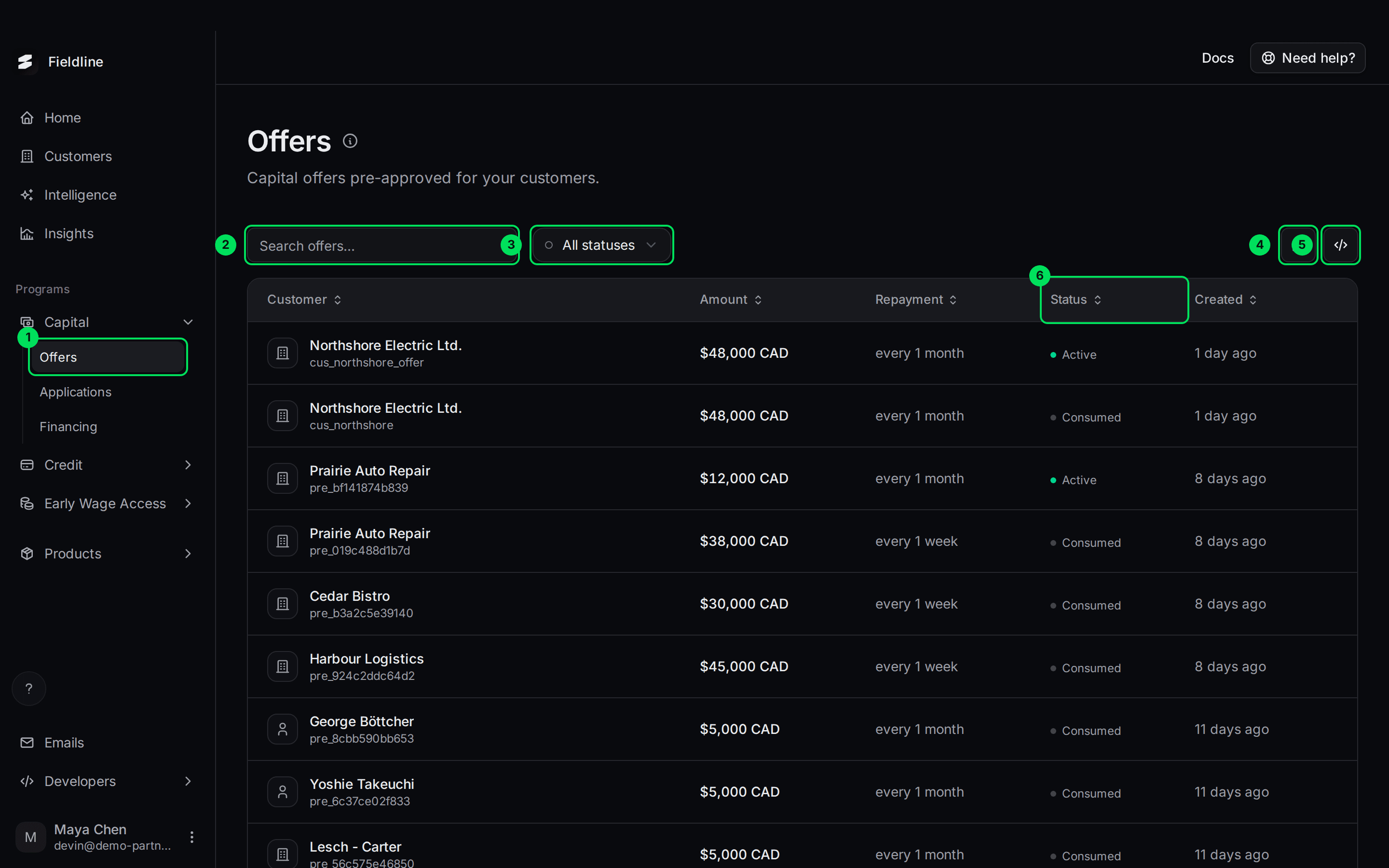
- Offers: the menu item under Capital.
- Search offers...: find an offer by customer.
- All statuses: show only Active, Expired or Consumed offers.
- Export CSV (the download icon): saves the offers on the page to a spreadsheet.
- Offers API (the
</>icon): shows how your developers read offers from code. - Status: where the offer stands right now.
What is an offer?
An offer says: "This customer can take up to this much, repaid on this schedule." Slate has already reviewed the customer, so the customer does not start from zero when they apply.
An offer is not money yet. The customer still has to apply, sign, and be funded. Once that happens, the deal shows up under Financing.
Slate creates offers. You can't create one from the dashboard or the API. Slate builds them from the data you share. Slate can also set one up automatically when you add a customer. Share data with Slate through Import financial data.
What each column means
- Customer: the business or person the offer is for. Under the name you see your own ID for them (your external ID) or an offer ID.
- Amount: how much Slate has approved. This is the most the customer can take.
- Repayment: how often the customer pays back, for example "every 1 month" or "every 1 week".
- Status: see the next section.
- Created: when the offer was made, such as "1 day ago".
Select a column heading to sort by it. Select it again to reverse the order.
What each status means
- Active: the offer is open. The customer can still apply. What to do: send them their application link (see below).
- Consumed: the customer used the offer. Their application was approved. What to do: nothing here. Follow the deal in Financing.
- Expired: the offer is no longer open. It ran out, or Slate replaced it. This also happens when you move a customer to a different product. What to do: wait for Slate to make a new offer, or contact Slate if you expected the customer to still have one.
Find the offers you need
Open the Offers page
Select Capital in the menu on the left, then select Offers.
Pick a status
Select All statuses. Choose Active, Expired or Consumed.
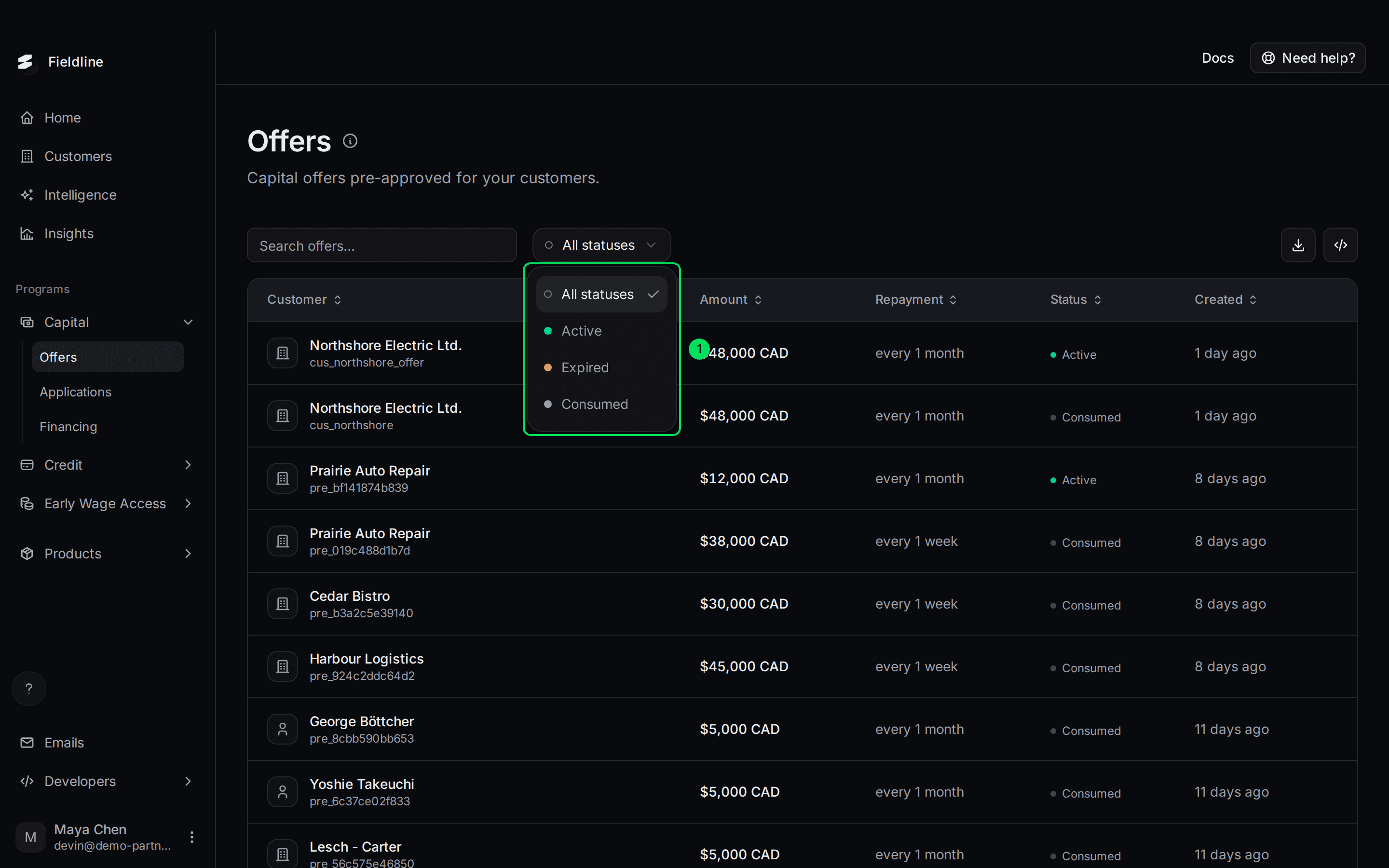
- The status list: All statuses, Active, Expired, Consumed.
Search by name or ID
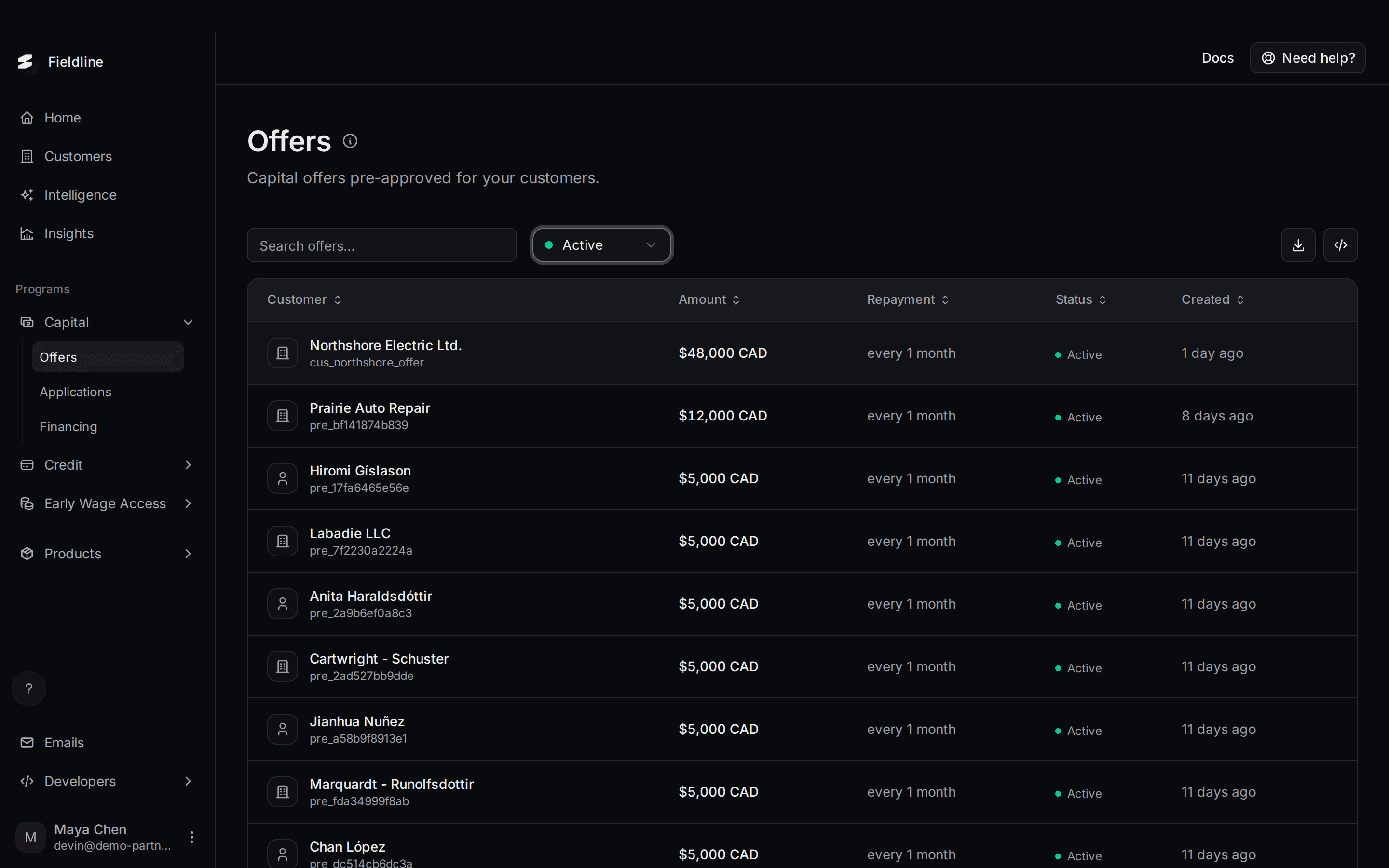
Type a customer name in Search offers.... The list narrows as you type.
Changing a filter takes you back to page 1.
Open an offer and send the application link
Select a row
Select any offer in the table. A panel opens on the right.
Check the details
The panel shows the customer, the amount, the repayment schedule and the date the offer was made.
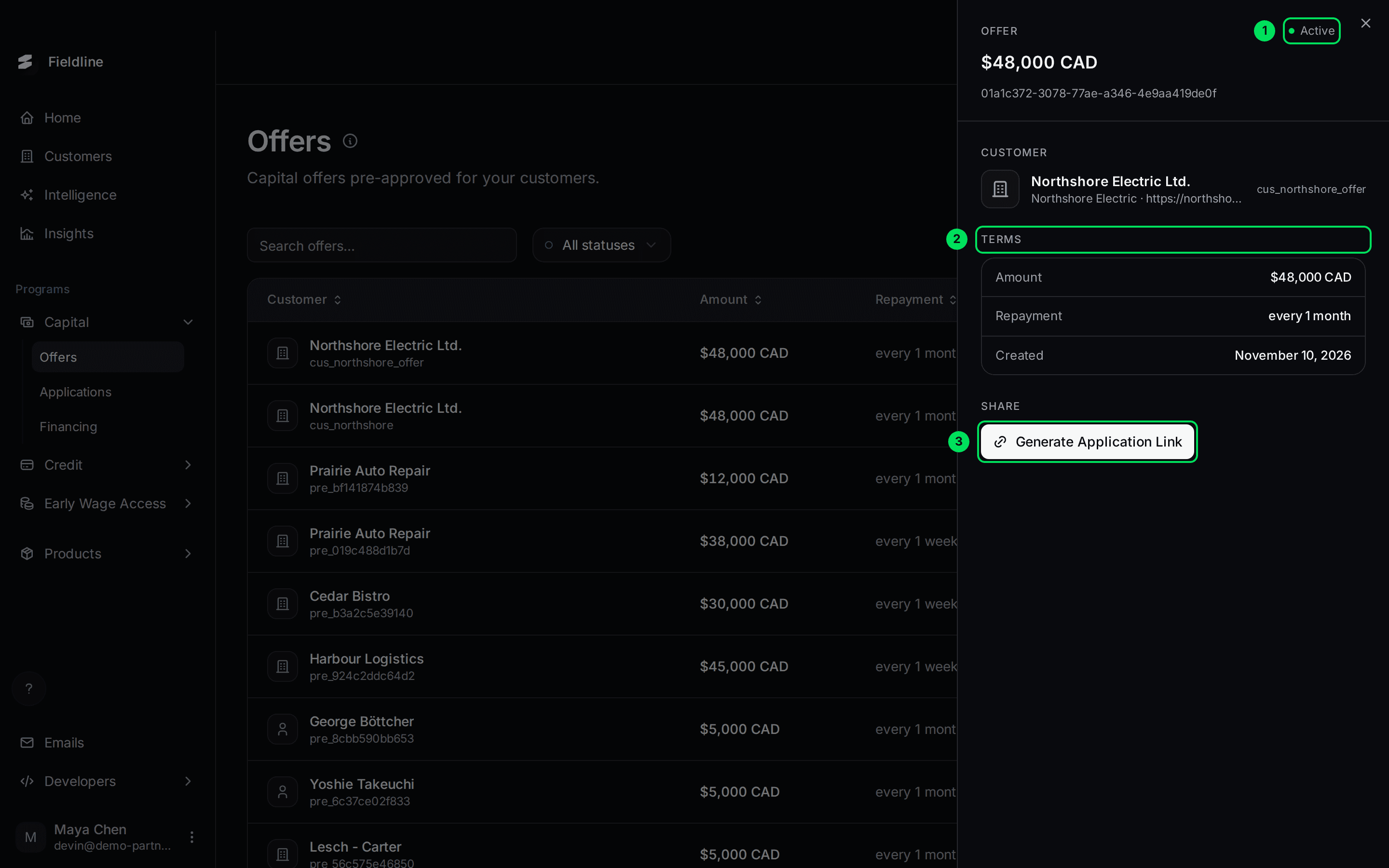
- Active: the offer's status.
- Terms: the Amount, Repayment and Created date.
- Generate Application Link: makes a link your customer opens to apply.
Select Generate Application Link
A window shows the link. Select Copy URL, then send it to your customer yourself. Slate doesn't email it for you.
The link works for one week. After that, generate a new one. Anyone who has the link can open the application, so send it only to the customer. More on this in Send an application link.
The API panel
Select the </> icon to see code samples your developers can use. It runs a read-only call with your dashboard sign-in.
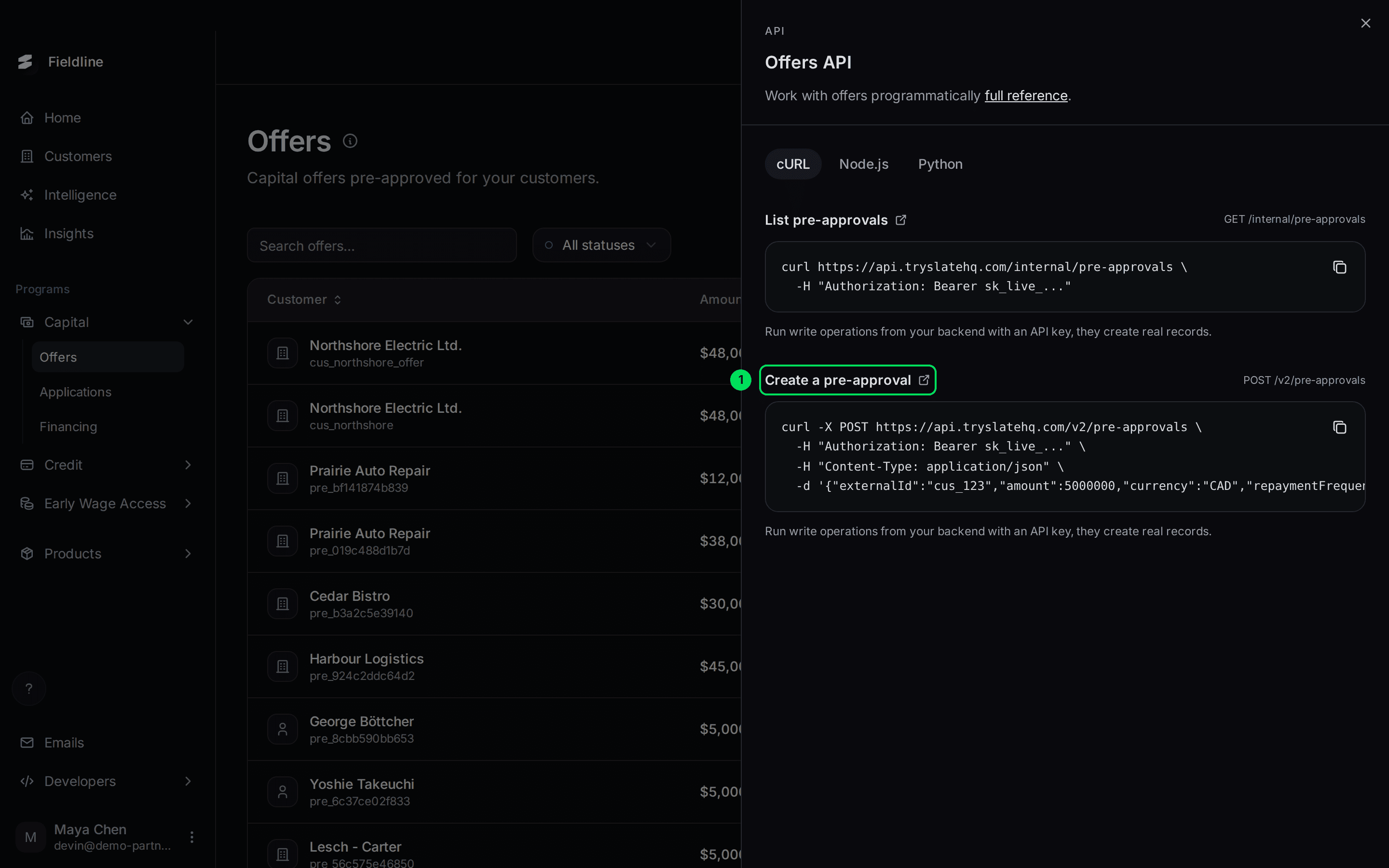
- Create a pre-approval: shown in the panel, but partners can't create offers. Slate does.
Your developers can read offers with GET /v2/pre-approvals. Requests use the x-api-key header, which carries your API key. Some samples in the panel show Authorization: Bearer instead. Use x-api-key. See API keys.
Export offers to a spreadsheet
Select the download icon, then Export. The file holds only the rows loaded on the page, so choose 100 in "Show per page" first if you want more. Columns include the offer ID, your customer ID, amount, currency, status, repayment and date created.
If your list is empty
A new account shows No offers yet, with two cards:
- Send platform data: share data about your customers so Slate can make offers.
- Request a global pre-approval: no data yet? Select Request access and Slate gets your request. Slate approves these by hand. The ticked Requested shows only in the browser where you asked.
If something goes wrong
I can't create an offer
That's expected. Only Slate creates offers. Share more data, or contact Slate.
An offer I expected is Expired
Moving a customer to a different product expires their old offers. Otherwise it may simply have run its course. Ask Slate if you need a new one.
"Failed to generate application URL"
The offer is probably Expired. Check its status, then try again on an Active offer.
My export has fewer rows than I expected
It only includes rows loaded on the page. Raise "Show per page" to 100 and export again.
Learn more about Slate Capital.
Still stuck? Email [email protected] with your account email and the screen you are on. We reply within 24 business hours.