Help Center / Developers
Create and manage API keys
Create an API key, choose full or read-only access, copy it safely, and revoke it. Includes a working example request.
5 min read · Updated November 10, 2026
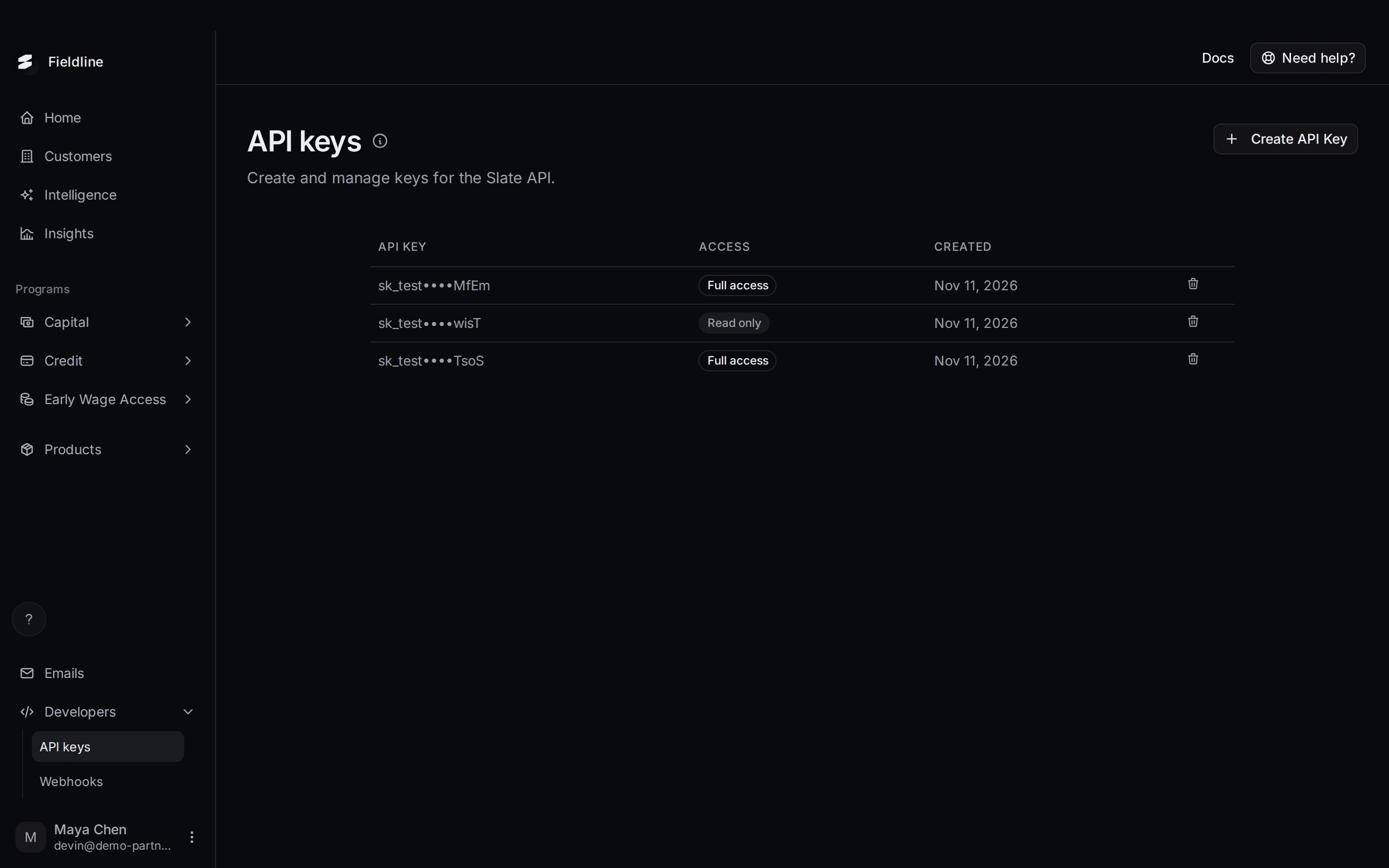
An API key is a password your developers use so your systems can talk to Slate. You create keys here, and your developers put them in your server's code.
Find it in the menu on the left: Developers, then API keys.
Create an API key
Open the API keys page
Select Developers in the menu on the left, then select API keys.
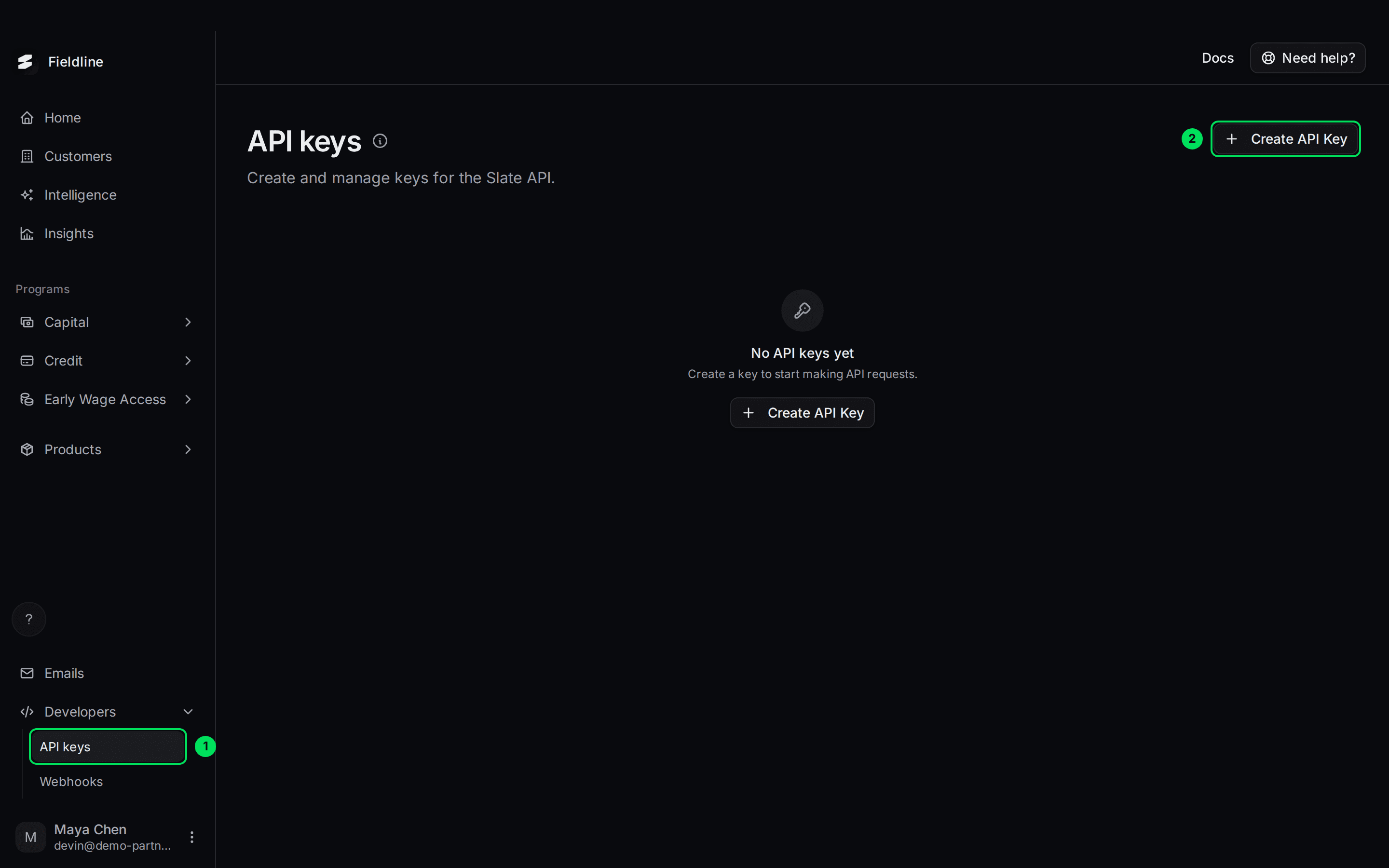
- API keys: the page.
- Create API Key: opens a short menu to choose the access level.
Select Create API Key
A small menu opens with two choices.
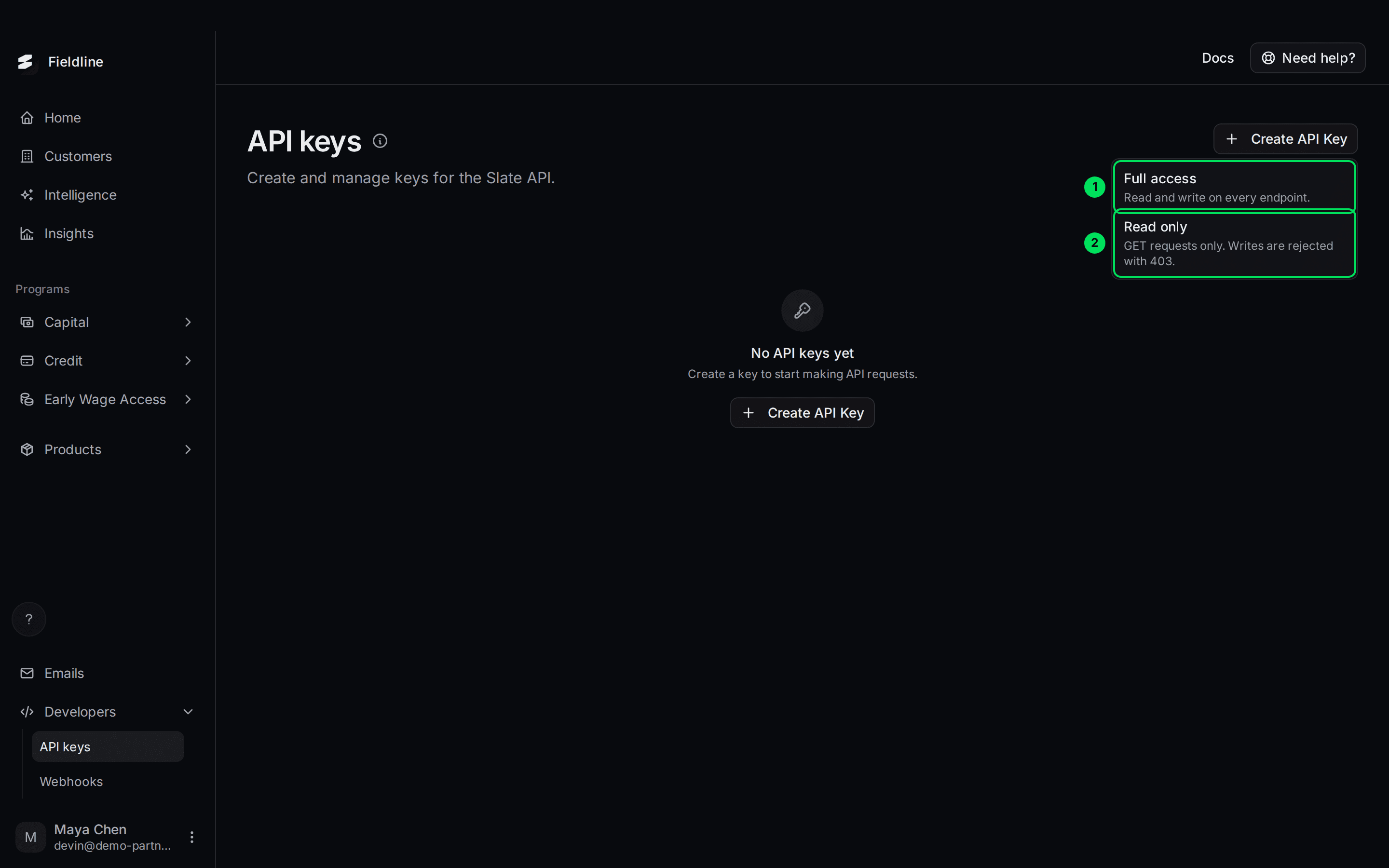
- Full access: can read and write on every endpoint. Use it for systems that create or change things.
- Read only: can only read information. Any attempt to change something is refused. Use it for reports and dashboards.
Choose an access level
Select Full access or Read only. You cannot change a key's access later. To change it, create a new key and revoke the old one.
Copy your key
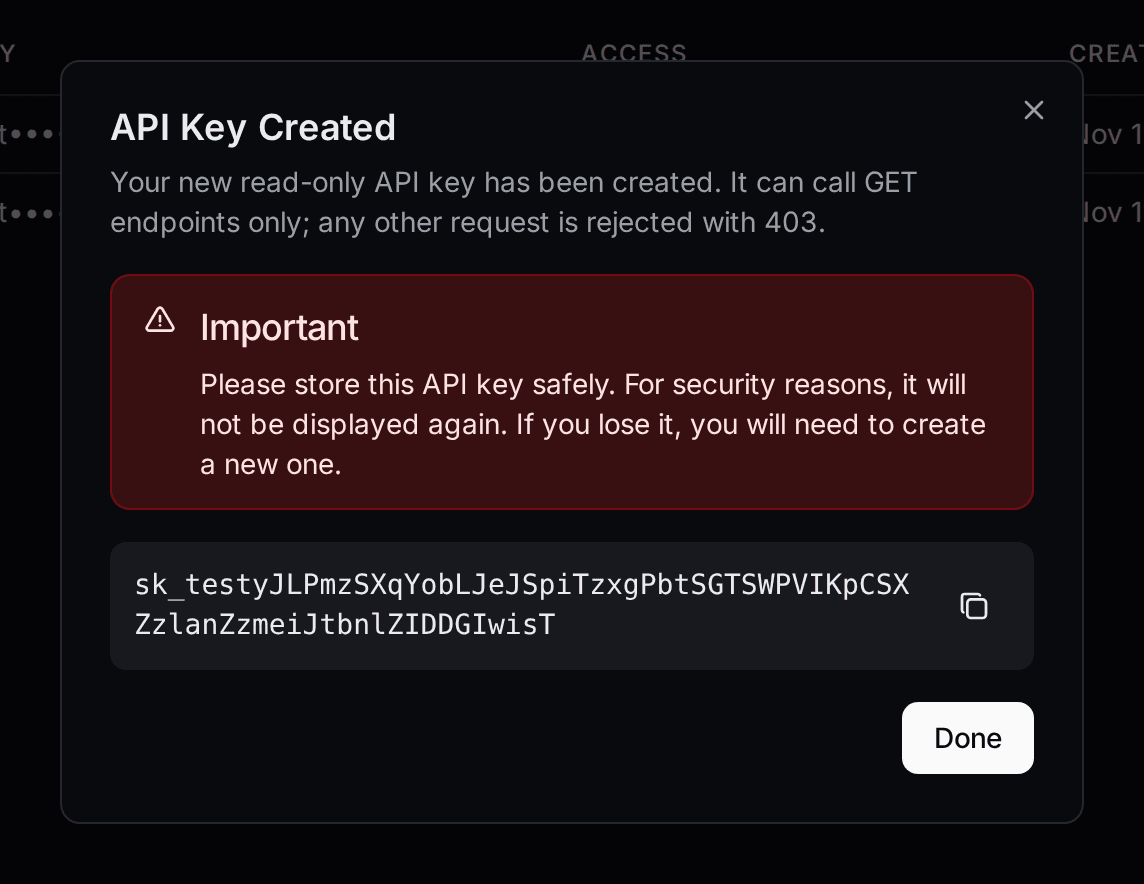
A box called API Key Created shows your key. This is the only time you see all of it.
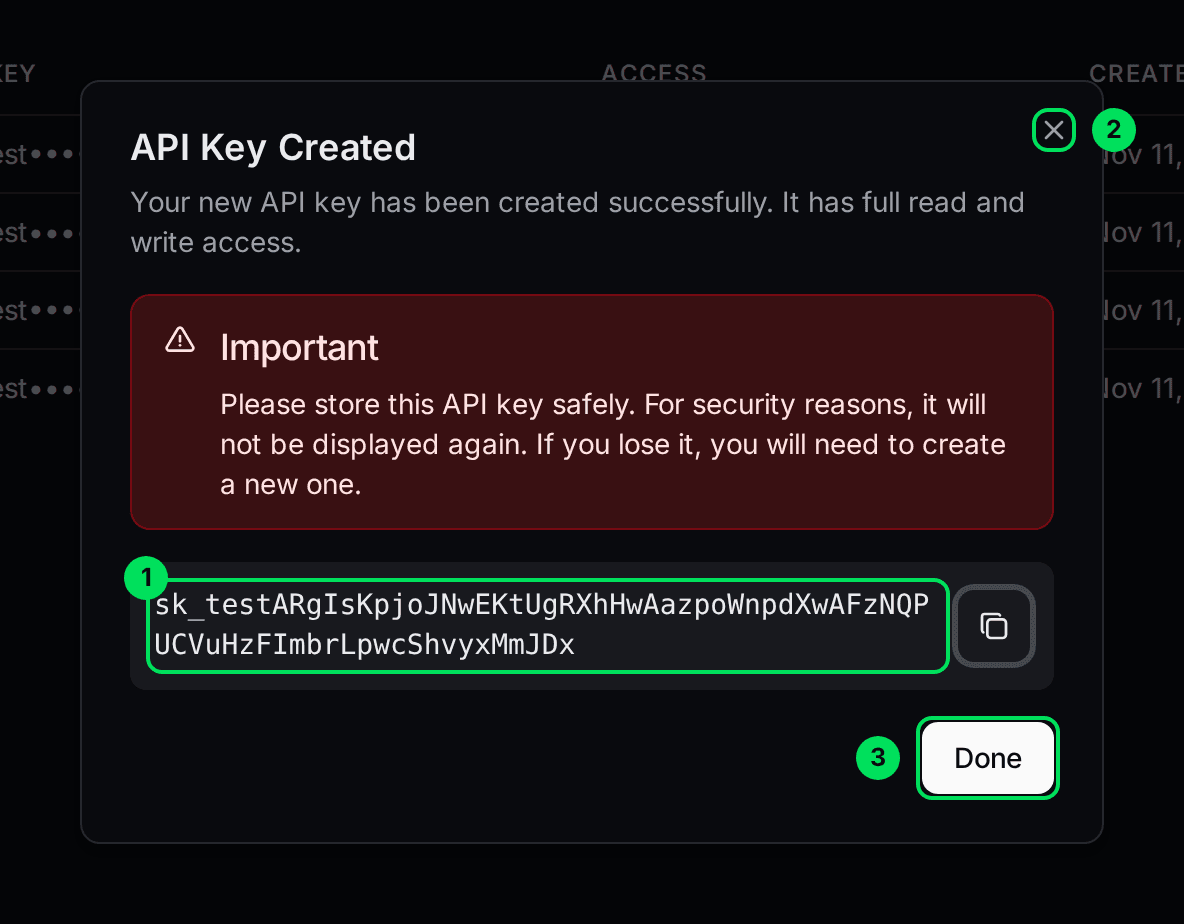
- The key itself. In sandbox it starts with
sk_test. - Copy: copies the key. A message says "API key copied to clipboard."
- Done: closes the box.
Store it, then select Done
Paste the key into your password manager or your server's settings first. Then select Done.
Read-only keys
A read-only key shows a different message: "It can call GET endpoints only; any other request is rejected with 403." Reading works, and anything that creates or changes data is refused.
See your keys
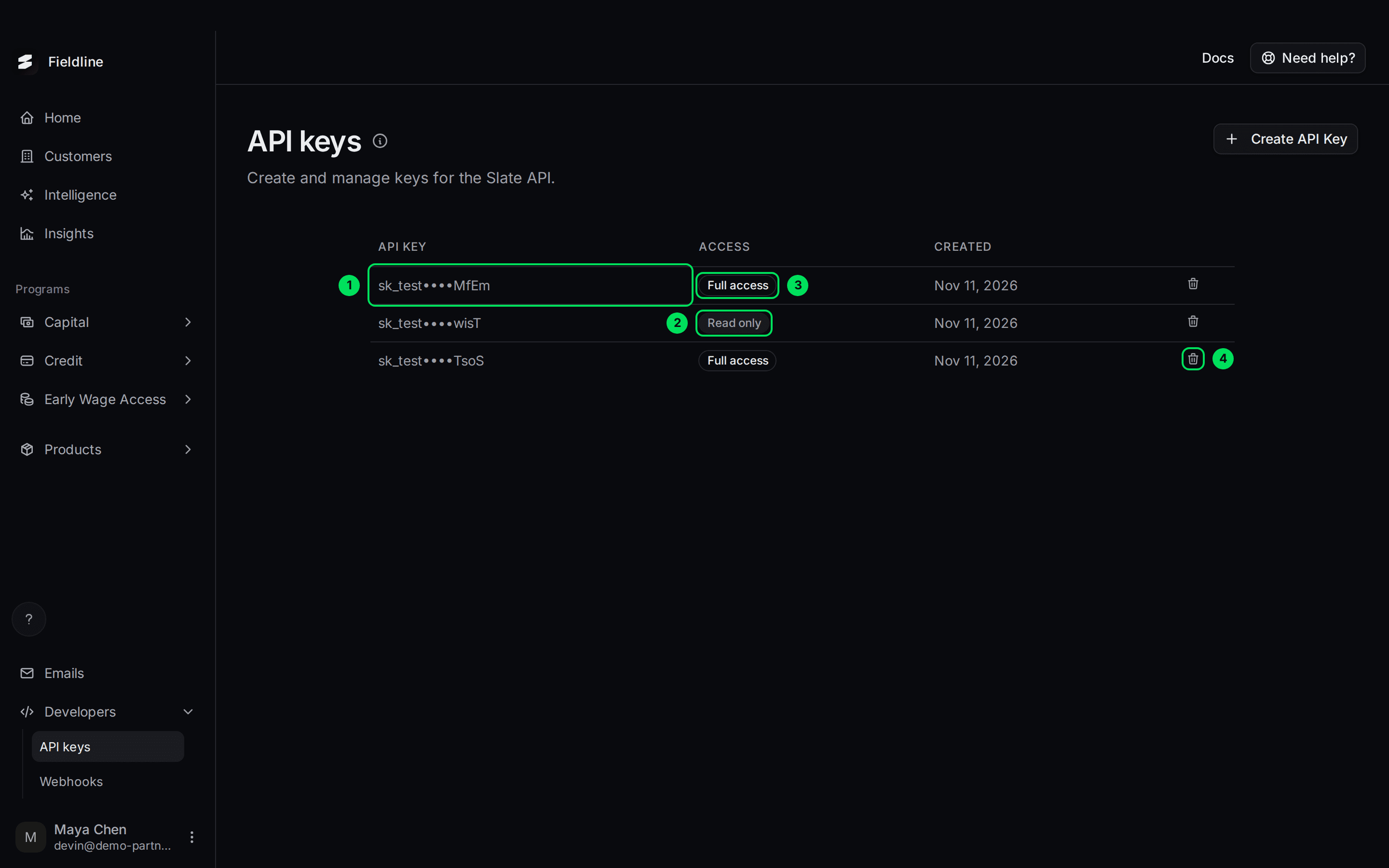
- API Key: only the start and the last four characters are shown, for example
sk_test••••MfEm. This is how you tell keys apart. - Access: Read only.
- Access: Full access.
- Revoke key: the bin icon on the right of each row.
The list also shows when each key was Created. Keys have no names and never expire.
Revoke a key
Revoke a key if it leaked, or if you no longer need it.
Select the bin icon
Select the bin icon on the key's row.
Confirm
A box asks if you are sure.
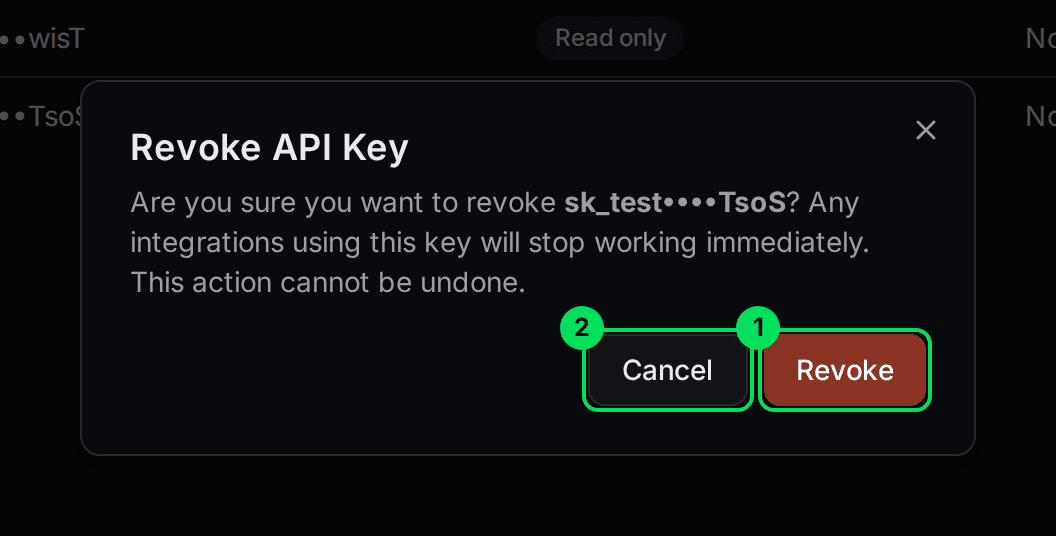
- Revoke: removes the key.
- Cancel: keeps it.
A message says "API key revoked." Any system using that key stops working straight away. This cannot be undone.
Sandbox keys and live keys
Sandbox and live are separate. A sandbox key only works with your sandbox data, and a live key only works with live. Create keys in each dashboard.
- Sandbox keys start with
sk_test. - Sandbox requests go to
https://api-sandbox.tryslatehq.com. - Live requests go to
https://api.tryslatehq.com.
Use a key
Send the key in a header called x-api-key on every request. This example lists your customers in sandbox.
curl "https://api-sandbox.tryslatehq.com/customers?limit=1" \
  -H "x-api-key: sk_test_your_key_here"
A working request returns your customers as JSON. The reply starts like this.
{ "data": [ { "id": "...", "externalId": "...", "productType": "capital", "type": "BUSINESS" } ], "page": 1, "limit": 1, "total": 44, "totalPages": 44 }
If something goes wrong
I get "Missing x-api-key header" (401)
The request has no key. Add the x-api-key header.
I get "Invalid api key" (401)
The key is wrong, was revoked, or belongs to the other environment. A sandbox key does not work on live. Check it, or create a new key.
I get "This API key is read-only" (403)
You used a read-only key to change something. Use a key with Full access for that request.
I lost my key
Create a new key, update your systems, then revoke the old one.
Related guides
Learn more about how Slate goes into your product.
Still stuck? Email [email protected] with your account email and the screen you are on. We reply within 24 business hours.