Help Center / Emails
Copy your team on customer emails (BCC)
Add up to five addresses that get a hidden copy of every email Slate sends your customers.
3 min read · Updated November 10, 2026
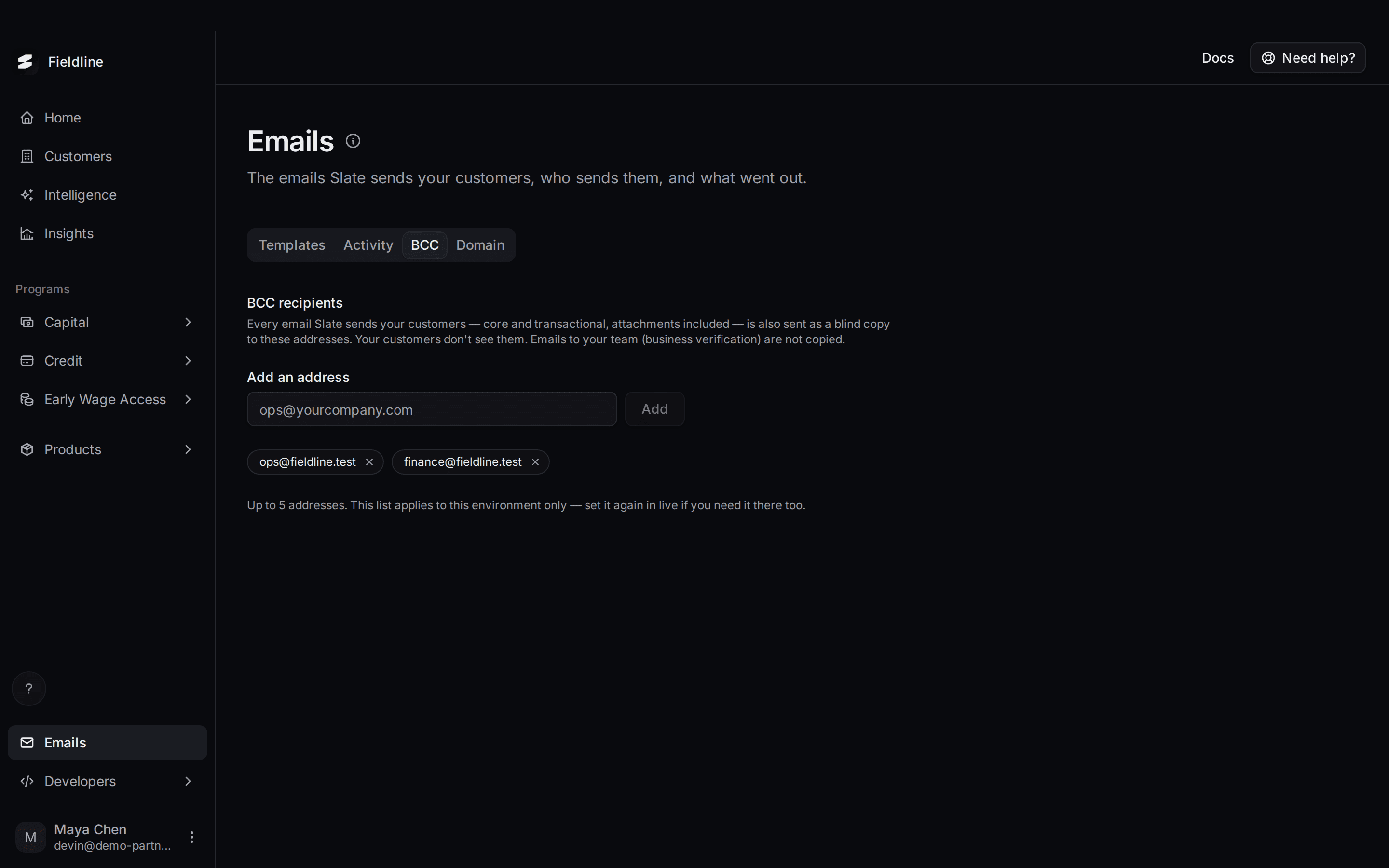
BCC means "blind carbon copy": a copy of an email that the customer does not see. Add your team's addresses here, and they receive a copy of every email Slate sends your customers.
Find it under Emails in the menu on the left, then the BCC tab.
Why use it
- Your support team can see what customers were told, without asking for screenshots.
- Your finance team gets a record of agreements and payment emails.
- You can spot a wrong or confusing email early.
The copy includes the core and transactional emails, and any attachments such as agreement PDFs. Your own team's emails, like the business verification result, are never copied.
Add an address
Open the BCC tab
Select Emails in the menu, then select BCC.
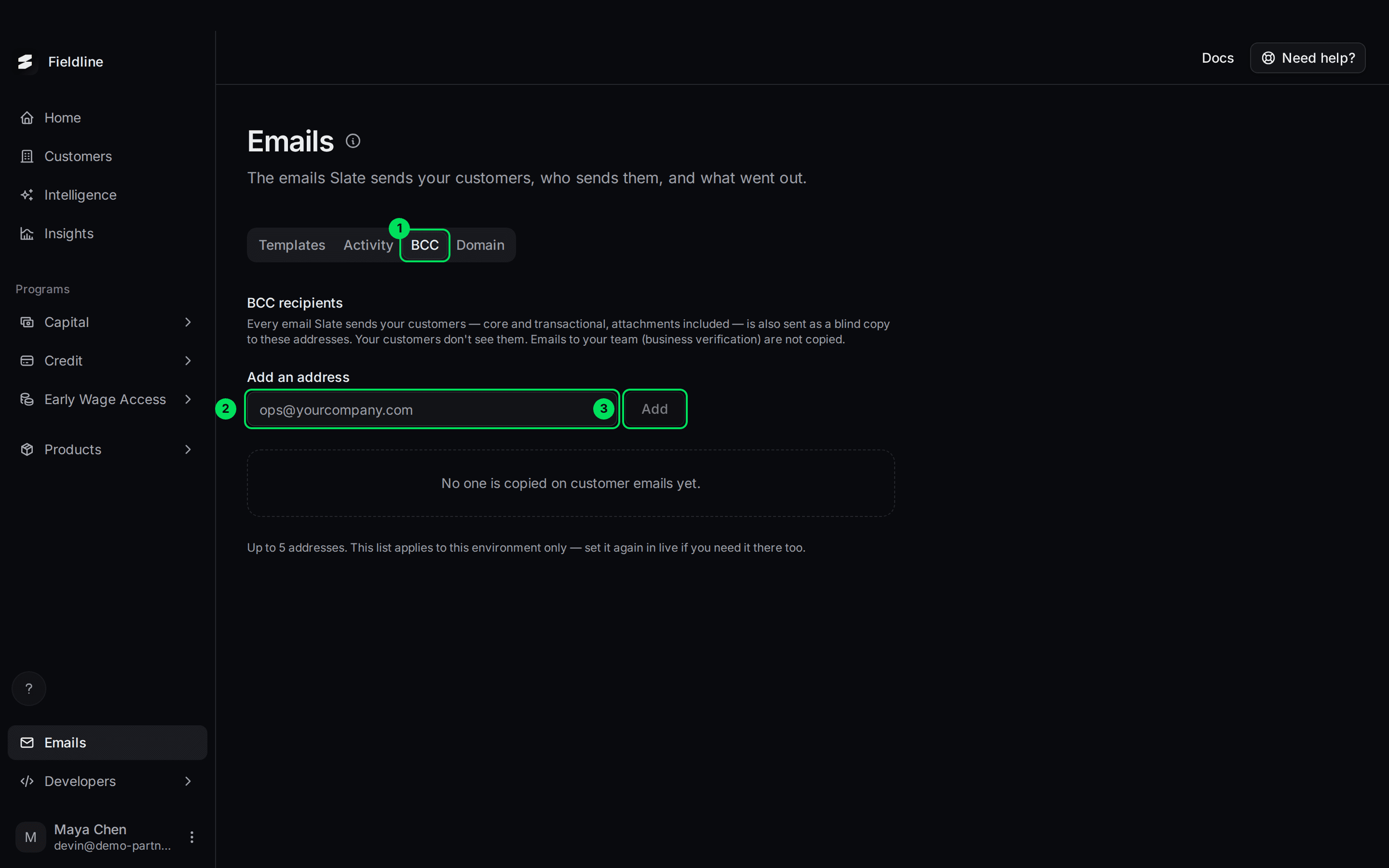
- BCC: the tab.
- Add an address: type the email address here, for example
[email protected]. - Add: saves the address.
Type the address
Click the Add an address box and type the full email address.
Select Add
Select Add, or press Enter. It saves straight away, and a message confirms it, for example "[email protected] added". The address appears below as a small tag.
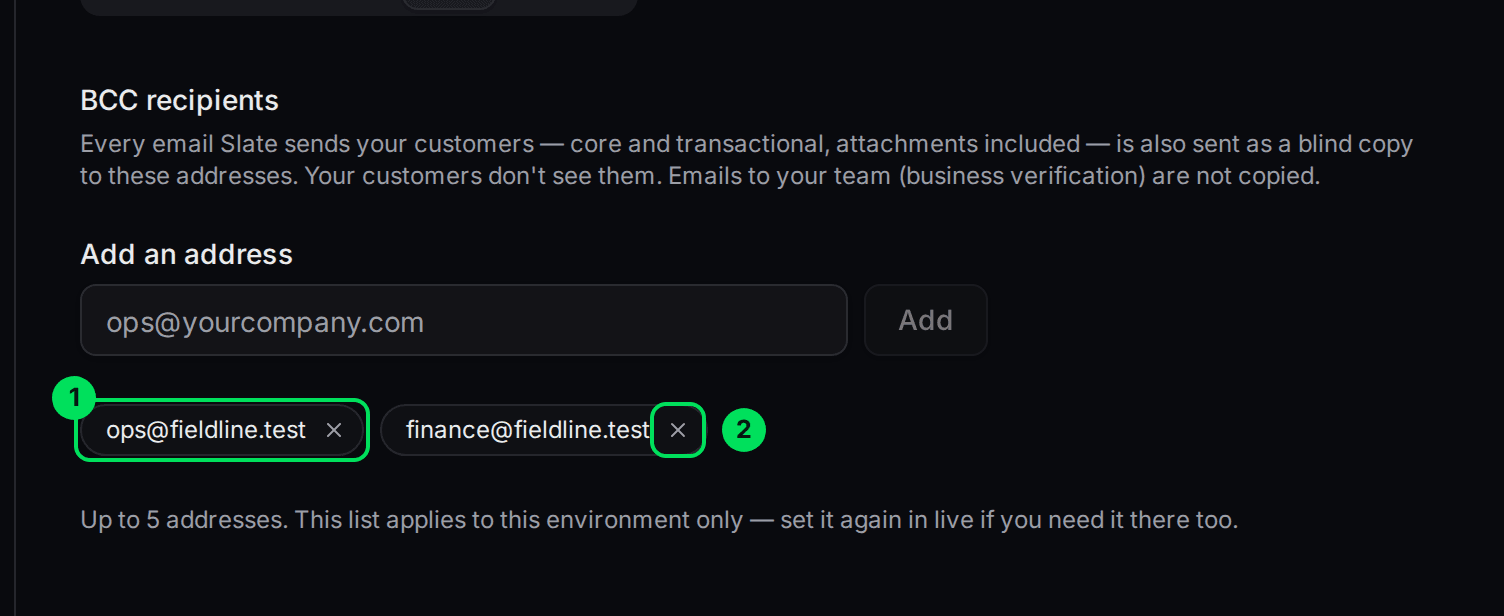
- An address on the list. Every customer email is also sent here.
- X: removes that address.
Addresses are saved in lower case. Customers never see the list.
Remove an address
Find the address
Look for its tag under the Add an address box.
Select the X on the tag
Select the X. It is removed straight away, with a message such as "[email protected] removed". There is nothing to confirm.
The limits
- You can add up to 5 addresses.
- Each address must be a valid email address.
- You cannot add the same address twice.
This list applies to this environment only. Set it again in live if you want it there too.
If something goes wrong
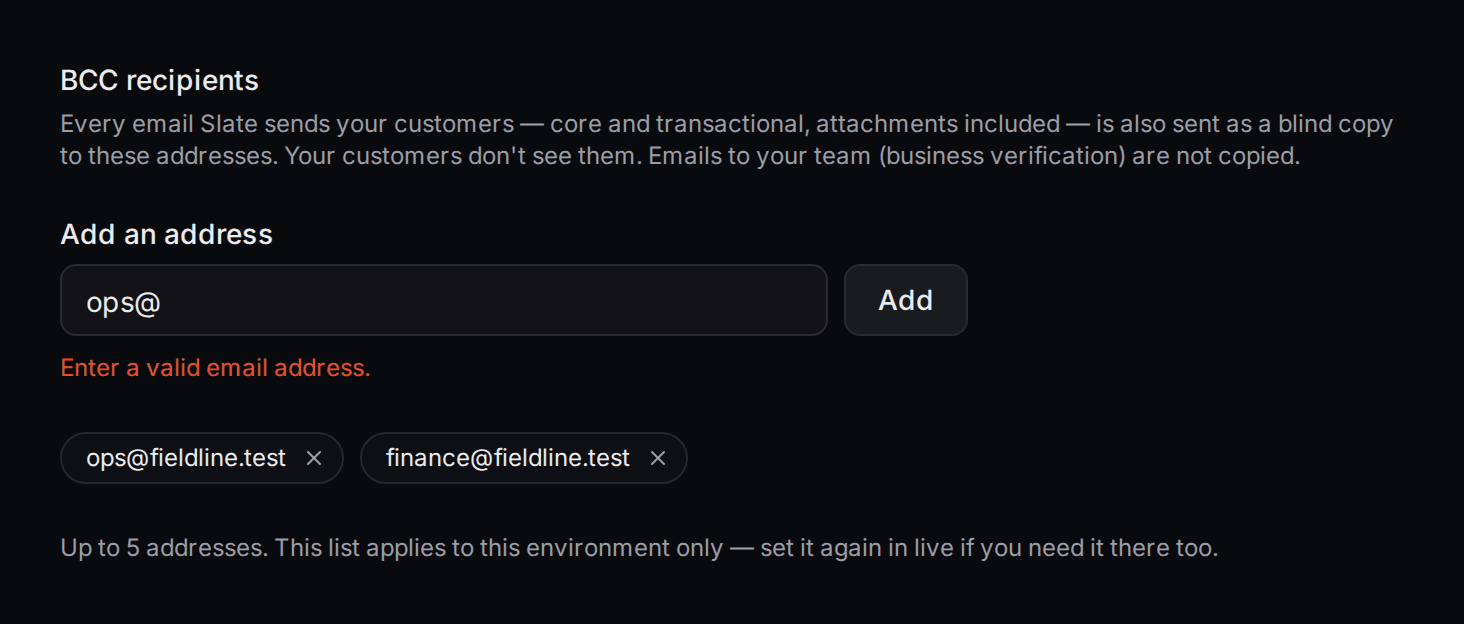
I see "Enter a valid email address."
The address is missing something. It needs a name, an @ sign, and a domain with a dot, like [email protected].
I see "That address is already on the list."
It is already there. Check the tags below the box.
I see "You can copy at most 5 addresses."
Remove one first, then add the new address.
I see "Couldn't load your BCC recipients"
Refresh the page and try again.
Related guides
Learn more about sending from your own domain.
Still stuck? Email [email protected] with your account email and the screen you are on. We reply within 24 business hours.