Help Center / Customers
Export a table to CSV
Save any list in your dashboard as a spreadsheet. Includes the one limit to know about, and how to get more than one page of rows.
4 min read · Updated November 10, 2026
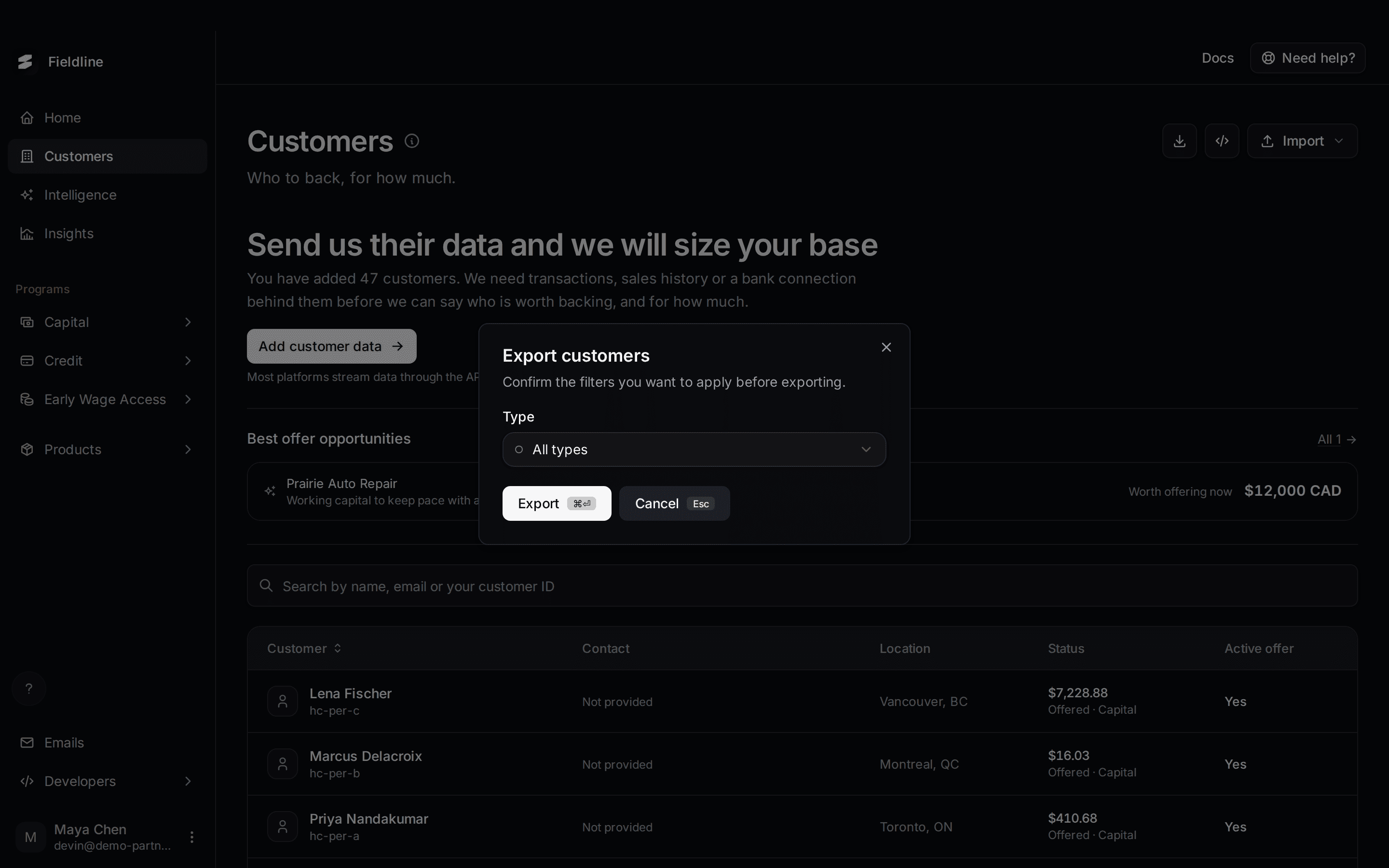
You can save most lists in your dashboard as a CSV file, a spreadsheet that opens in Excel, Numbers or Google Sheets. The export includes only the rows loaded on the page you are looking at.
Export a list
Open the list
For example, select Customers in the menu on the left.
Show more rows per page
Scroll to the bottom of the table. Next to Show, choose 100. See the next section for how.
Select the Export icon
It is the download icon at the top right of the page.
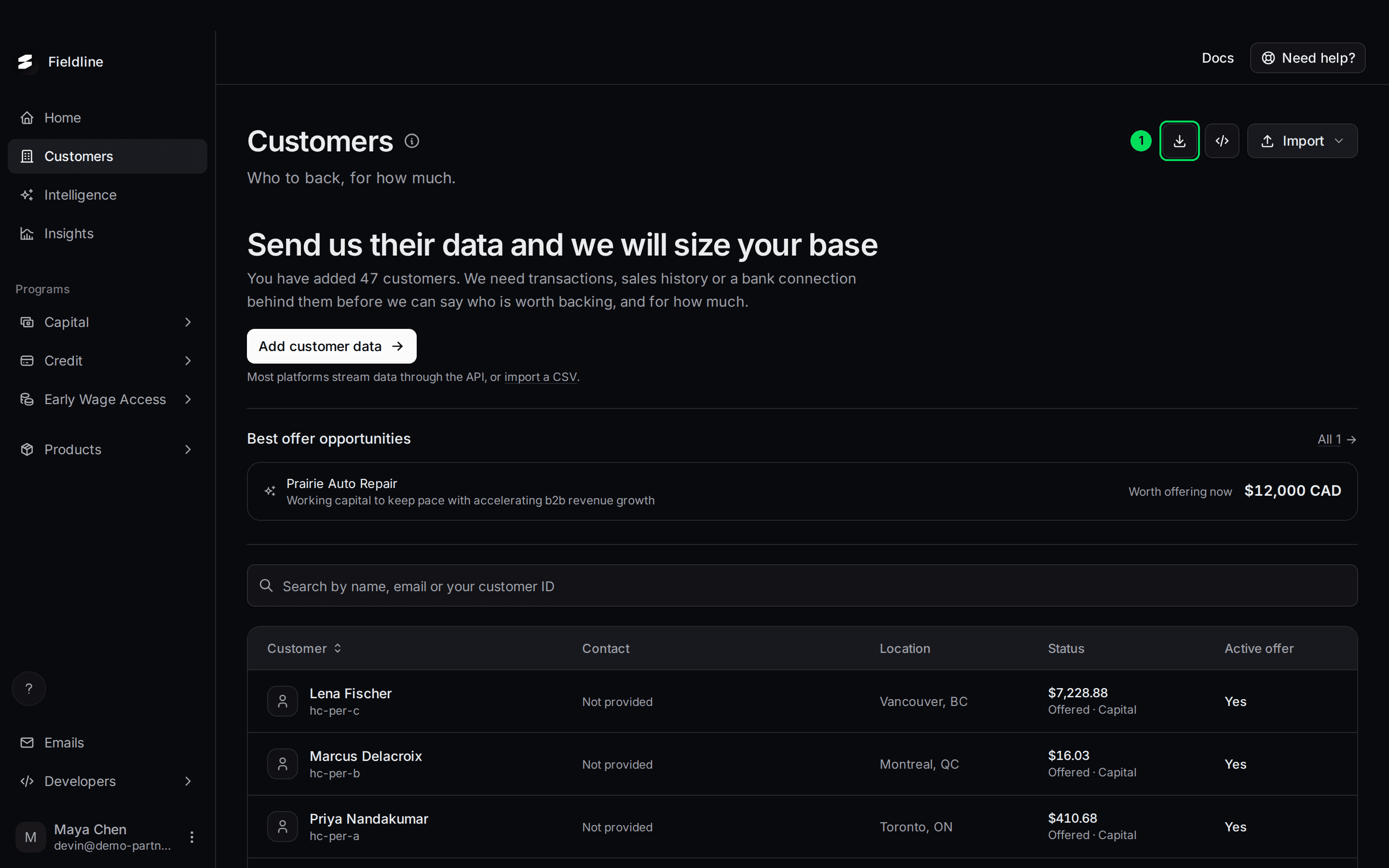
- Export (download icon): opens the export box. Its tooltip reads "Export CSV".
Choose your filter and select Export
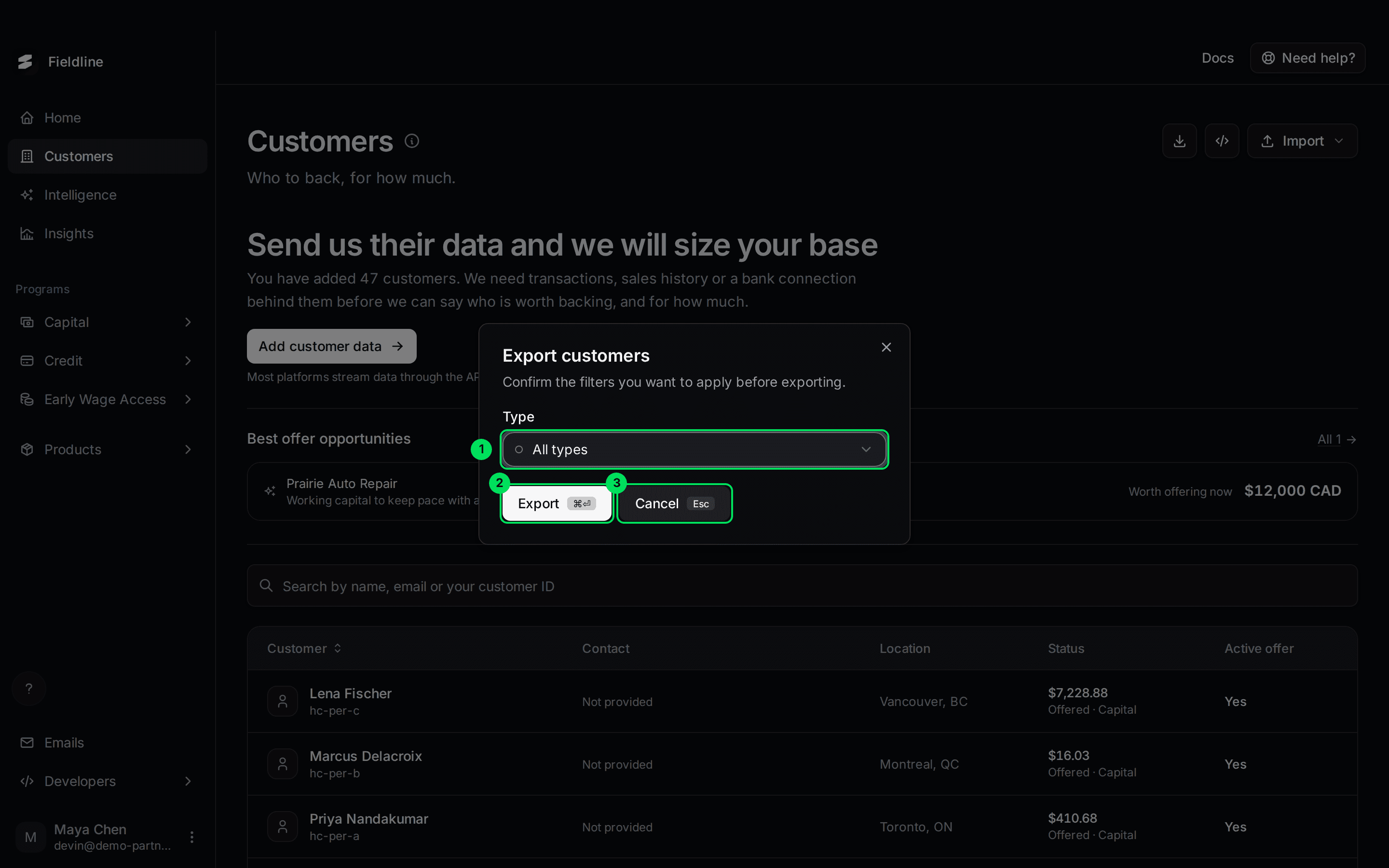
- Filter: on Customers this is Type. Choose All types, Businesses or Persons. Other lists filter by Status.
- Export: saves the file. The shortcut is Cmd+Enter on a Mac, or Ctrl+Enter on Windows.
- Cancel: closes the box. The shortcut is Esc.
Open the file
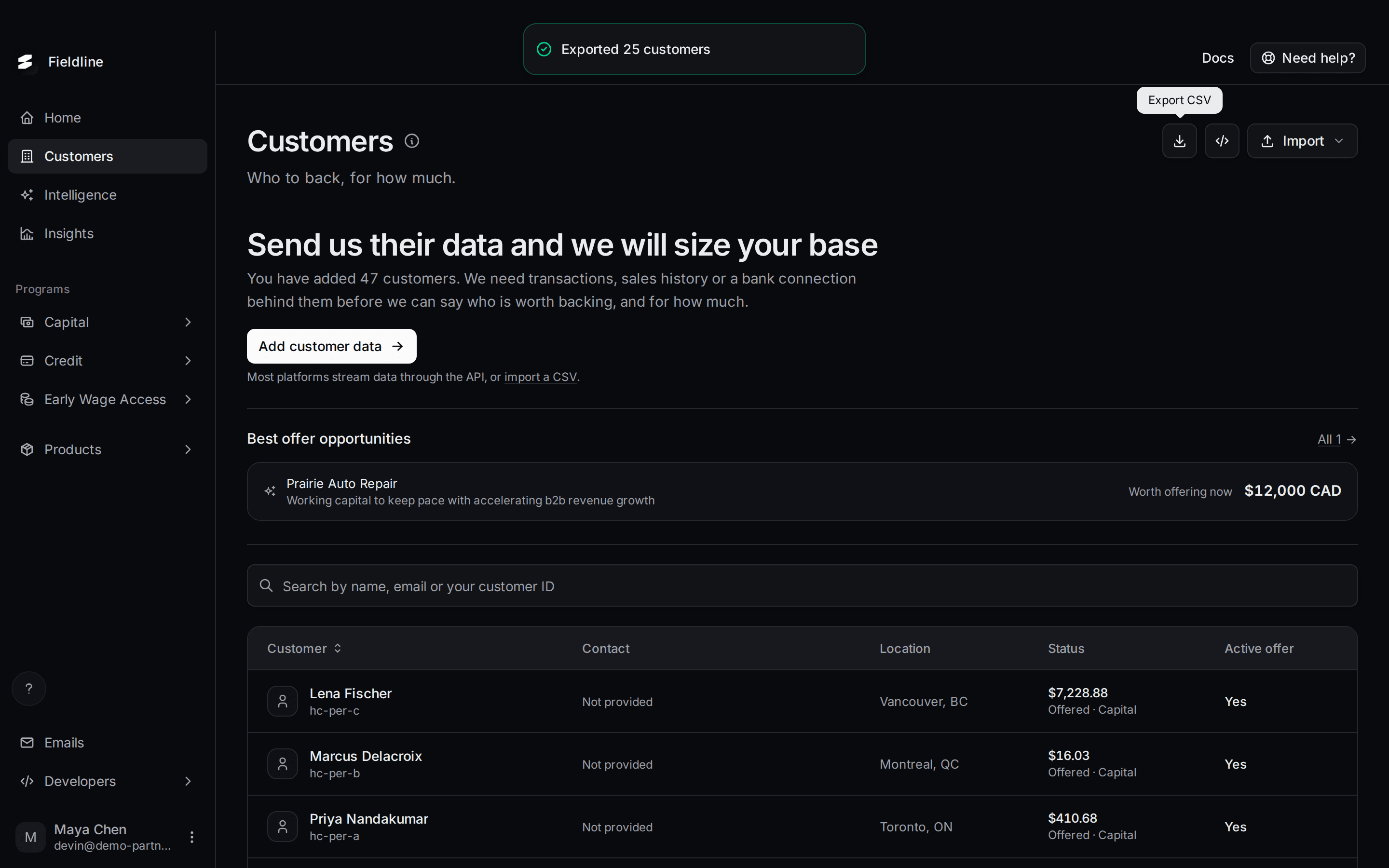
Your browser downloads the CSV. A message at the top confirms how many rows it holds, for example Exported 25 customers.
Get more than 25 rows
Raise the page size to 100
At the bottom of the table, find Show 25 per page.
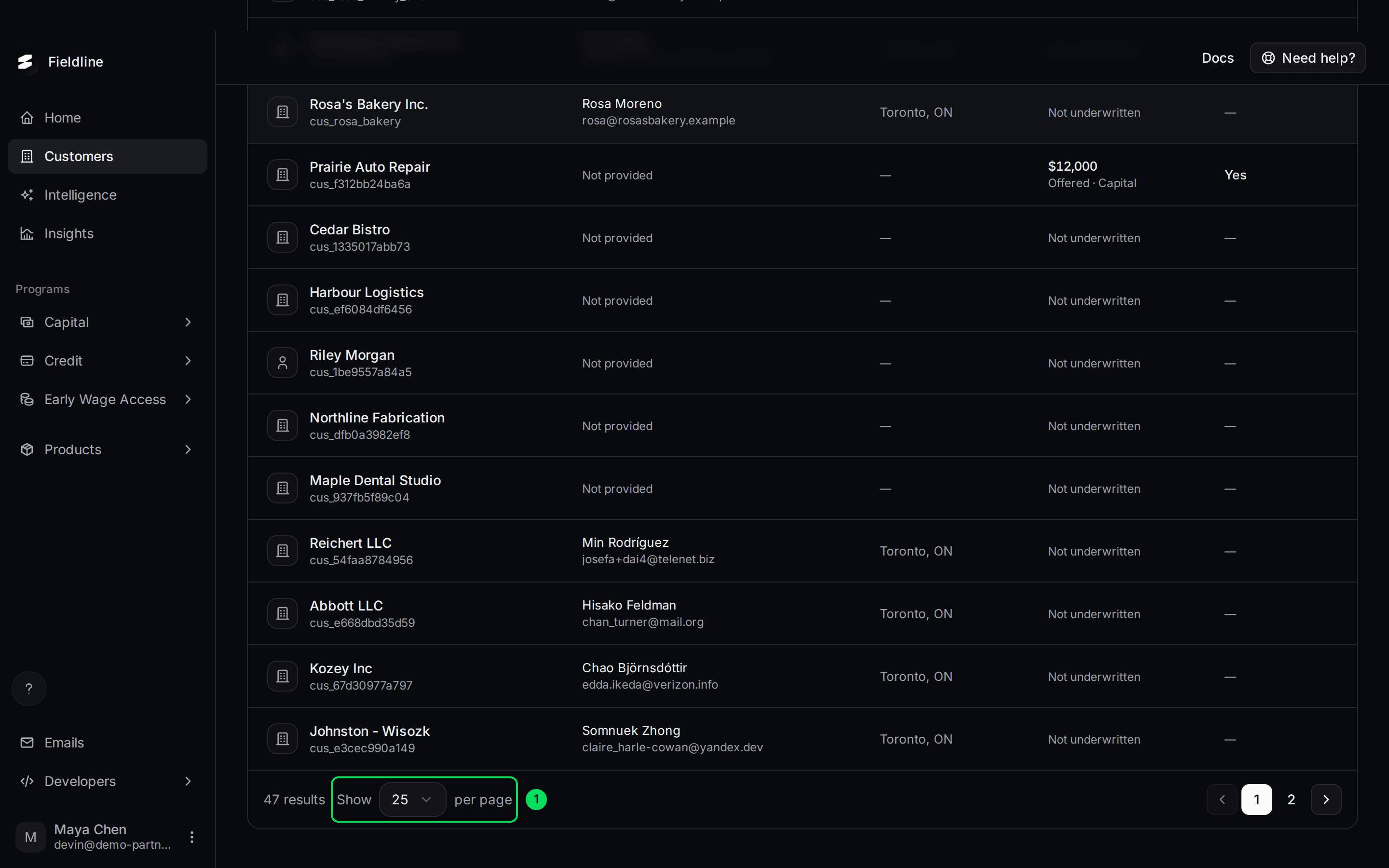
- Show [number] per page: the number of rows loaded. Choose 10, 25, 50 or 100.
Open the picker and choose 100.
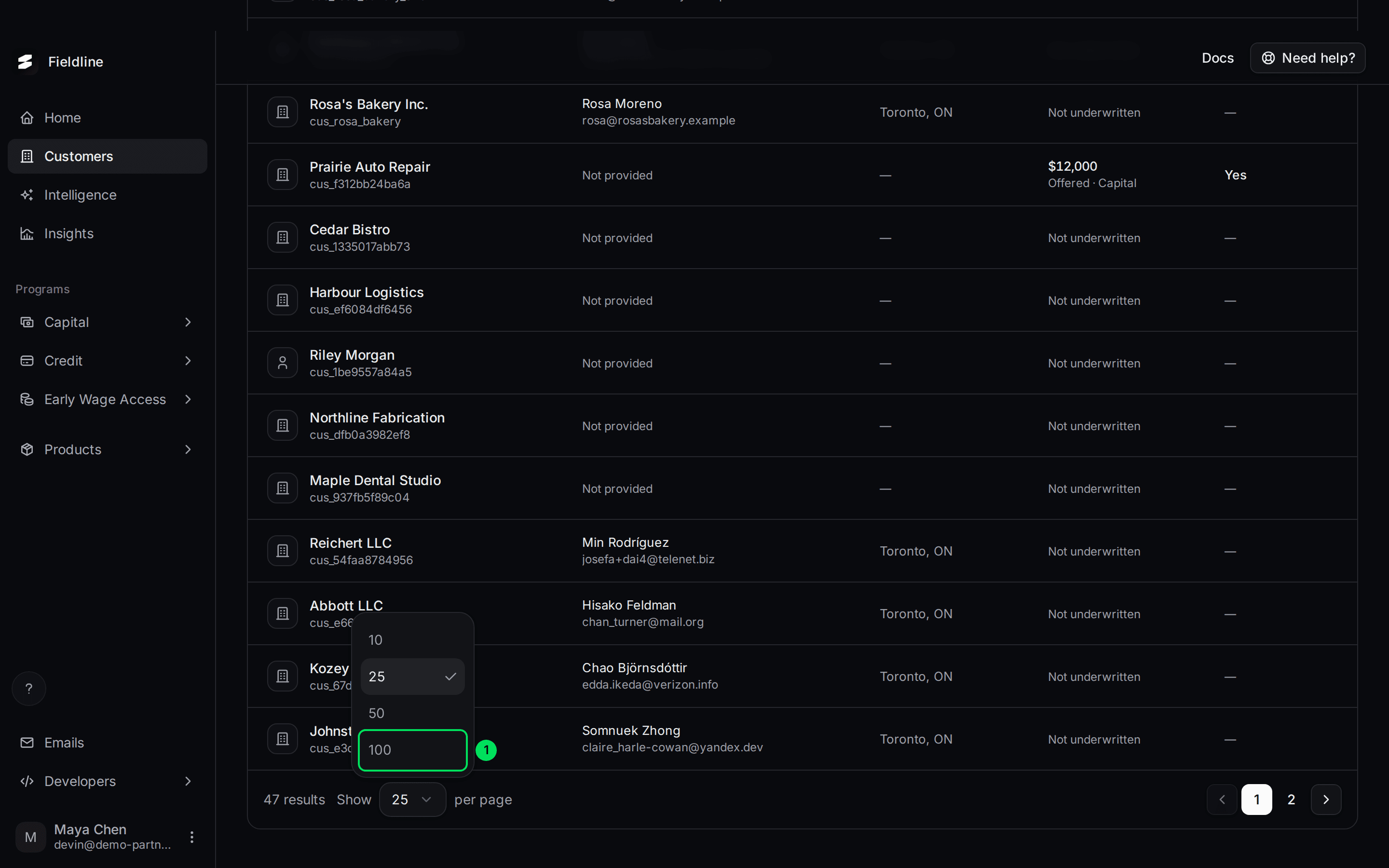
- 100: the most rows one page can hold.
Then select the Export icon as before. In our test, the same list exported 25 customers at 25 per page, and all 47 at 100 per page.
If you have more than 100 rows
Export one page at a time:
- Set Show 100 per page.
- Select Export and save the file.
- Select page 2 at the bottom of the table.
- Select Export again.
- Repeat until the last page, then join the files in your spreadsheet.
Which lists have an Export button
- Customers
- Offers (Capital and Credit)
- Applications (Capital and Credit)
- Financing (Capital), and Financing under Credit, where the box says Export draws
- Credit accounts, where the box says Export credit lines
Intelligence, Early Wage Access, Team and Webhooks have no export.
What is in the file
The first row holds the column names. The file is plain text with UTF-8 encoding, so accents and symbols open correctly in Excel.
The Customers file has these columns: id, external_id, type, name, email, phone, product, status, active_offer, offer_amount, offer_product, offer_expires, offer_message and underwritten_at.
If something goes wrong
"Nothing to export"
The message reads "No rows match these filters." Change the filter in the export box, or check that the list is not empty.
My file has fewer rows than my list
The export is the current page only. Raise per page to 100 and export again, or export page by page.
Related guides
Learn more about Slate Signals.
Still stuck? Email [email protected] with your account email and the screen you are on. We reply within 24 business hours.