Help Center / Getting started
Go live
The three things you need before Slate turns on live access, how to request it, what you'll see while Slate reviews, and what to do once you're live.
6 min read · Updated November 10, 2026
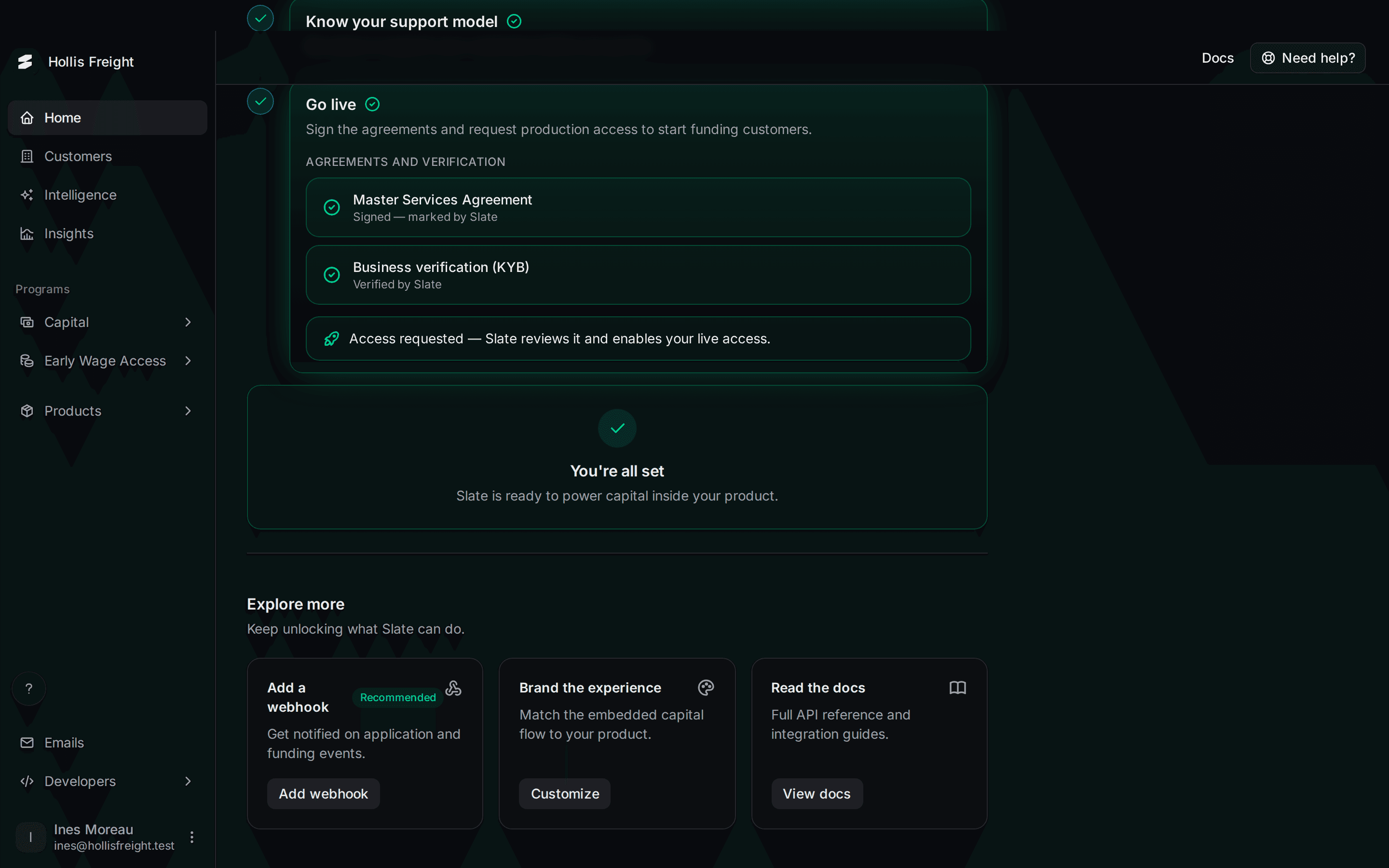
Going live means switching from the sandbox to your real program. You ask for it from the last step of your checklist, and Slate turns it on by hand.
Where to find it: on Home, step 10, Go live.
You'll need three things done first:
- Steps 1 to 9 of the checklist, all green. See Get started with the setup checklist.
- The Master Services Agreement signed. Slate marks it for you.
- Business verification approved. See Verify your business.
Check where you are
Step 10 shows two rows and a button.
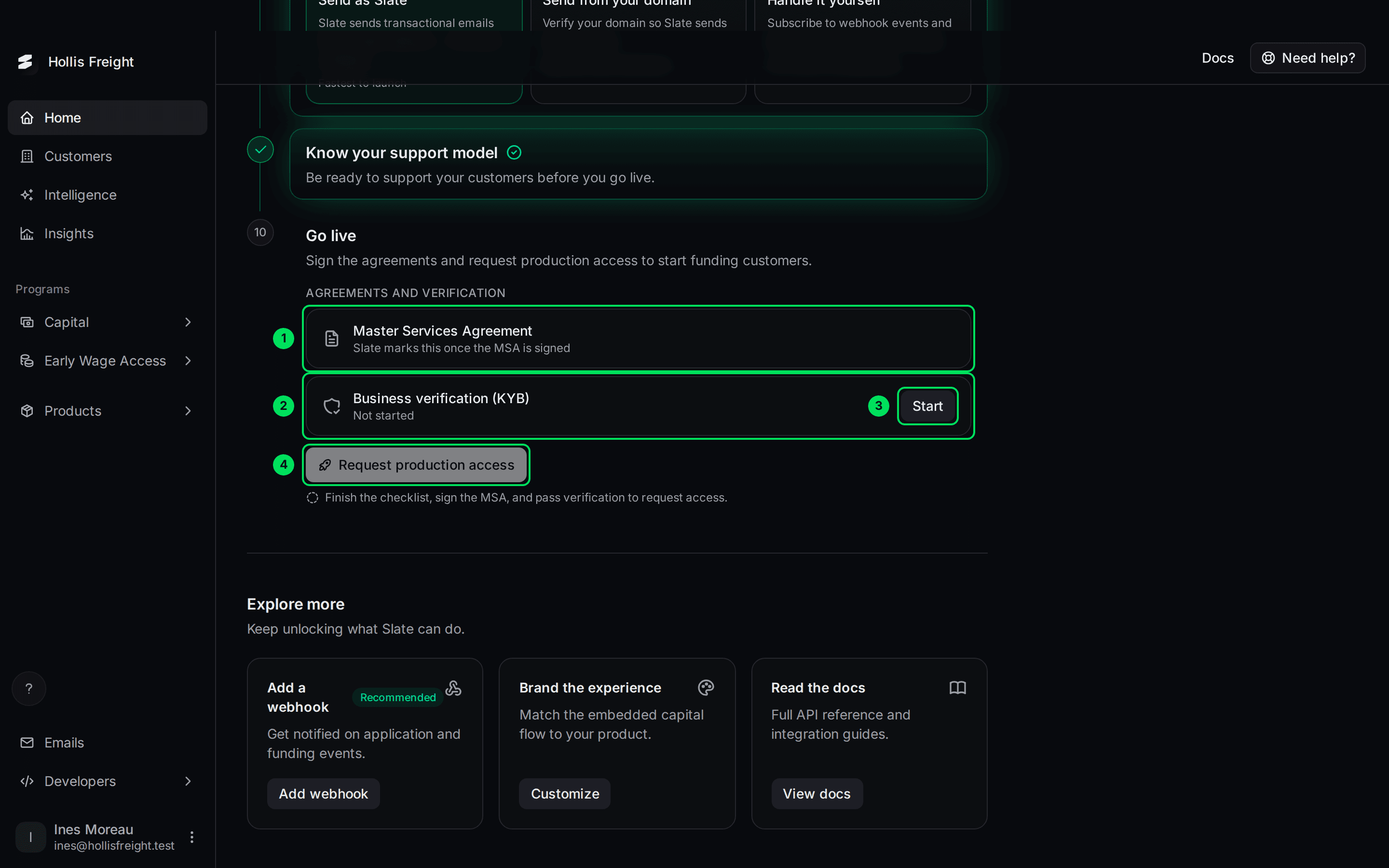
- Master Services Agreement: says "Slate marks this once the MSA is signed" until it's done.
- Business verification (KYB): says "Not started" until you begin.
- Start: opens the verification form.
- Request production access: greyed out until all three things above are done. A note under it says "Finish the checklist, sign the MSA, and pass verification to request access."
The agreement
The Master Services Agreement is the contract between your company and Slate. You can't sign it on this page. Slate marks it as signed once it's done, and the row turns green and says it was signed and marked by Slate. If you haven't signed one yet, contact Slate support.
The verification
The Business verification (KYB) row shows where your verification stands. Select Start, or View once you've sent it.
- Not started: you haven't sent anything. Select Start.
- Under review by Slate: Slate is checking. Nothing to do.
- Slate requested changes: open it, fix what Slate asked, and send it again.
- Verification rejected: contact Slate support.
- Verified by Slate: done. The row turns green.



For each field and what to do with a note from Slate, see Verify your business.
Request production access
Make sure everything is green
Steps 1 to 9 are ticked, the agreement row is green and says it was marked by Slate, and verification says "Verified by Slate".
Select Request production access
The button is under the two rows. It's the same button that was greyed out before.
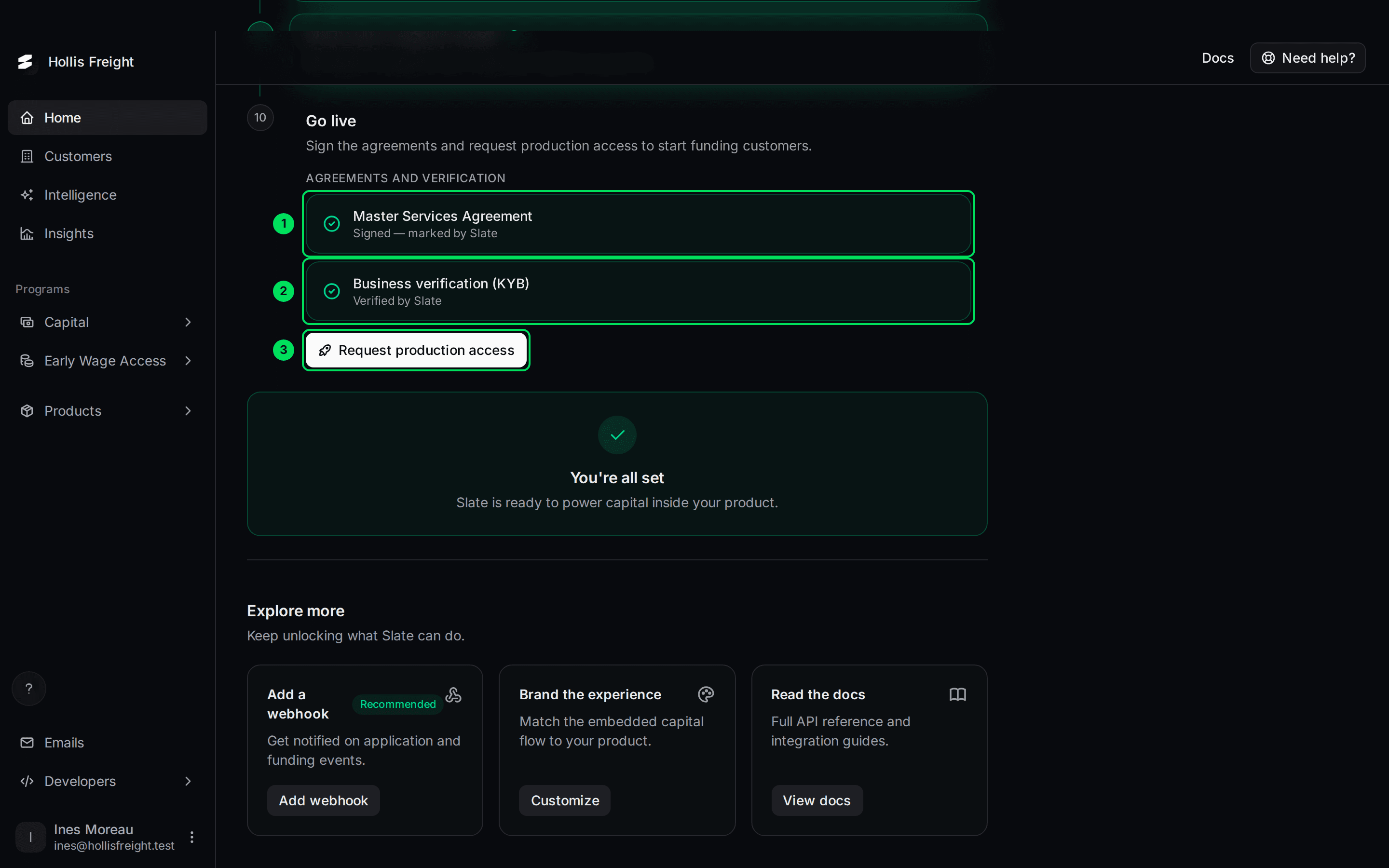
- Master Services Agreement: green, signed.
- Business verification (KYB): green, verified.
- Request production access: now ready to select.
Look for the confirmation
A message appears: "Production access requested. Slate reviews it and enables your live access."
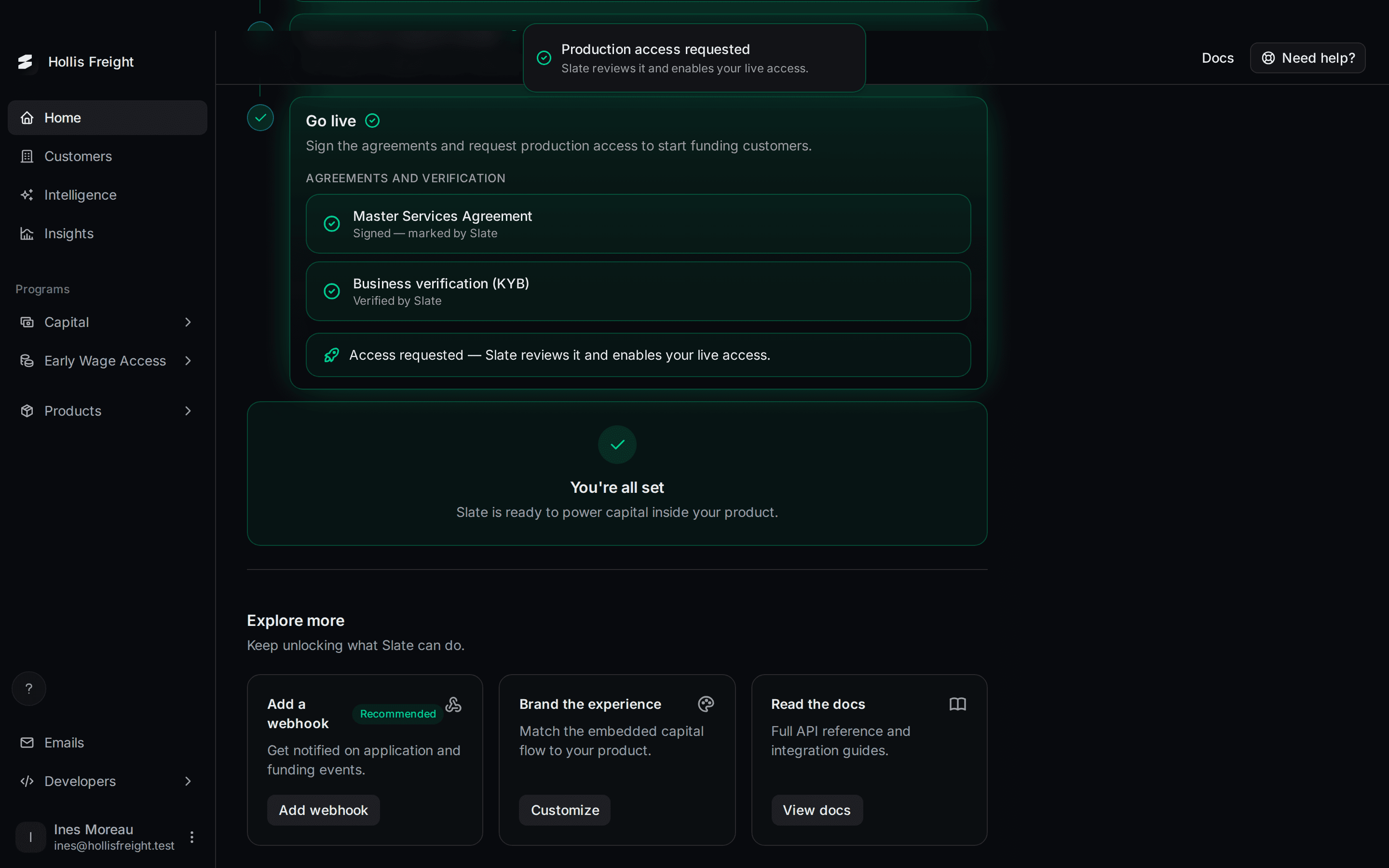
What you see while Slate reviews
The button is replaced with a green row that says "Access requested. Slate reviews it and enables your live access." Under the checklist, a card says You're all set. It means you've done your part and Slate is ready to power capital inside your product.
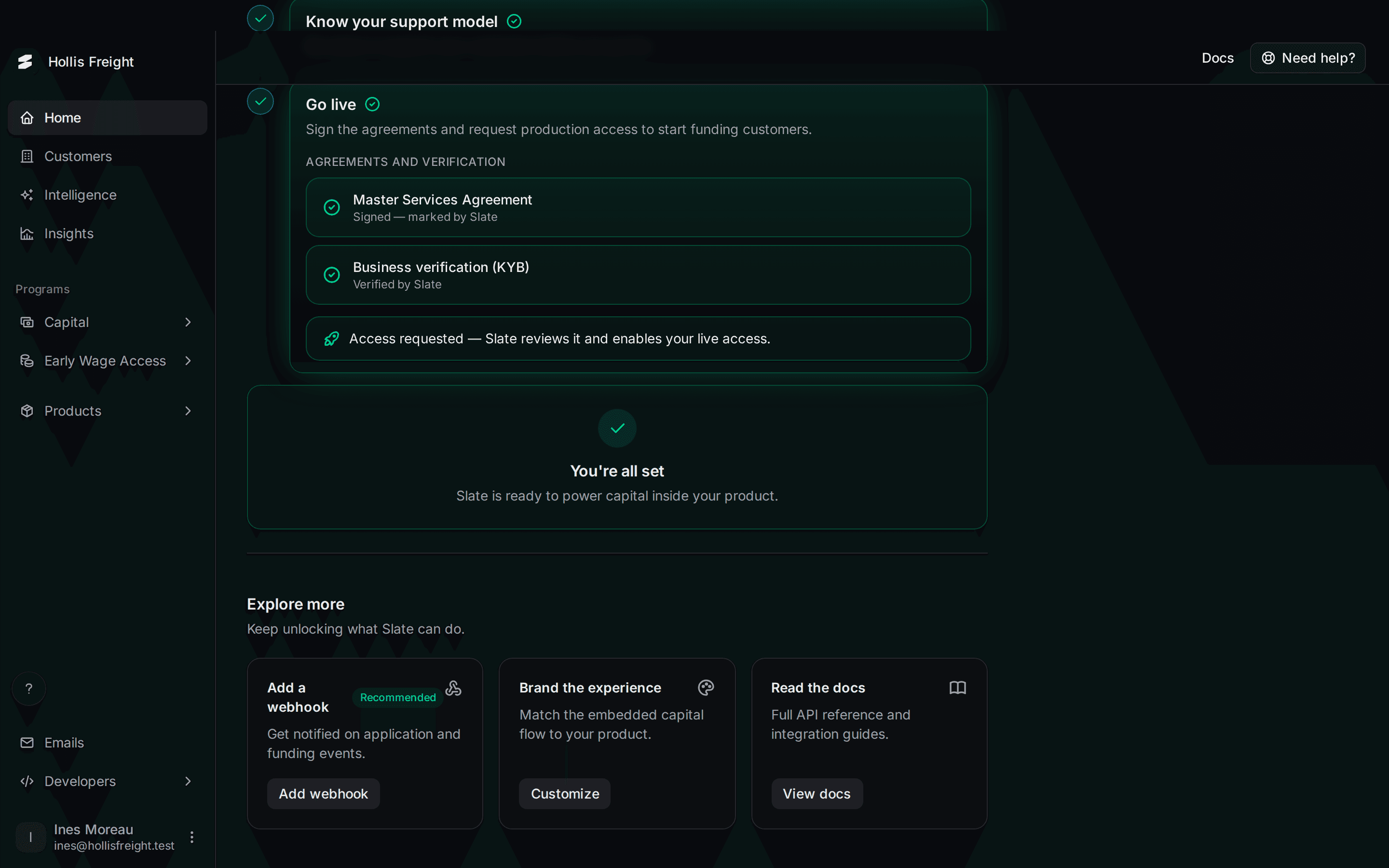
You don't need to do anything else. Slate reviews your request and turns on live access for you.
What you see once you're live
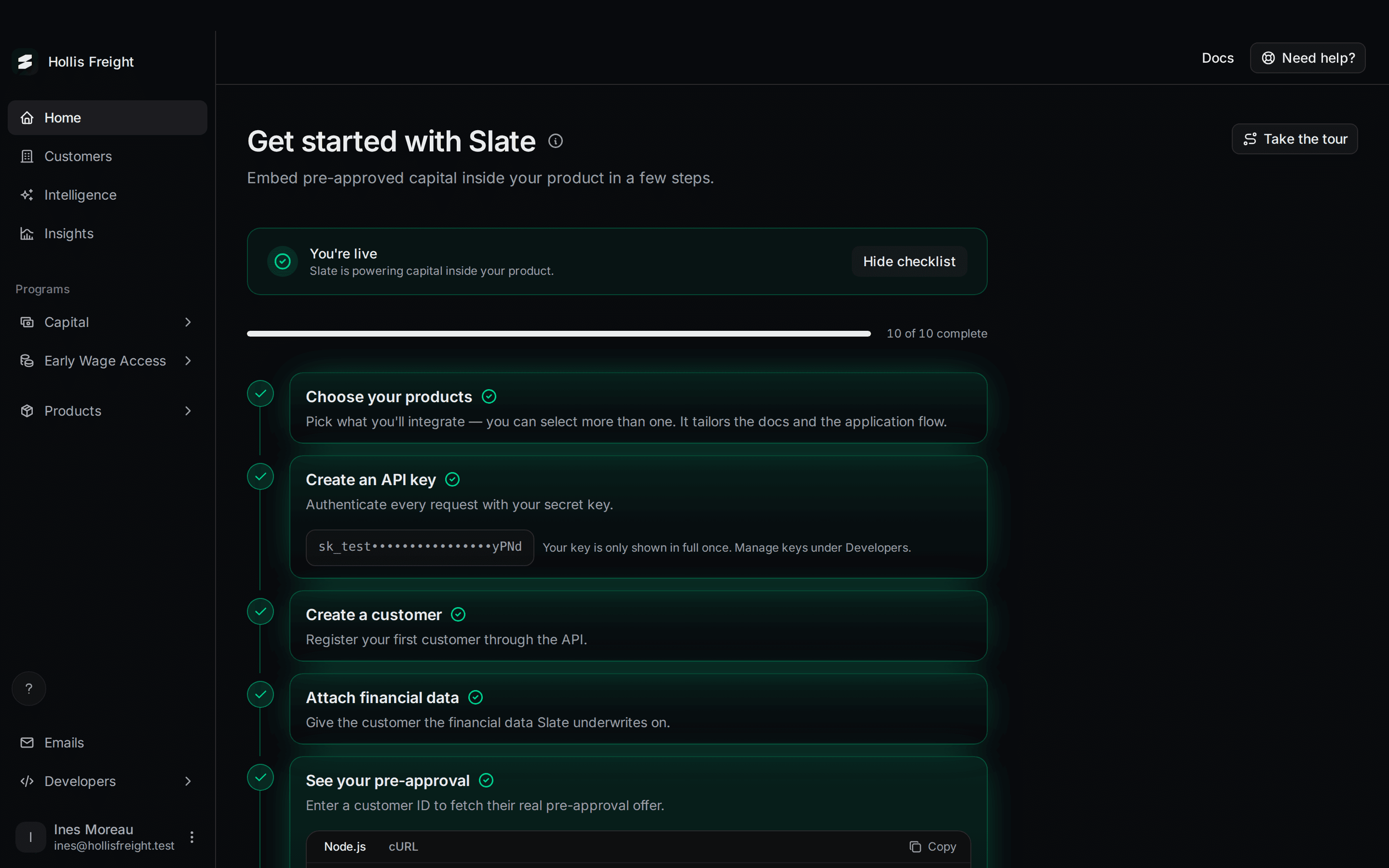
When Slate has turned on live access, the checklist folds up behind a banner at the top of Home. Every step shows as done.
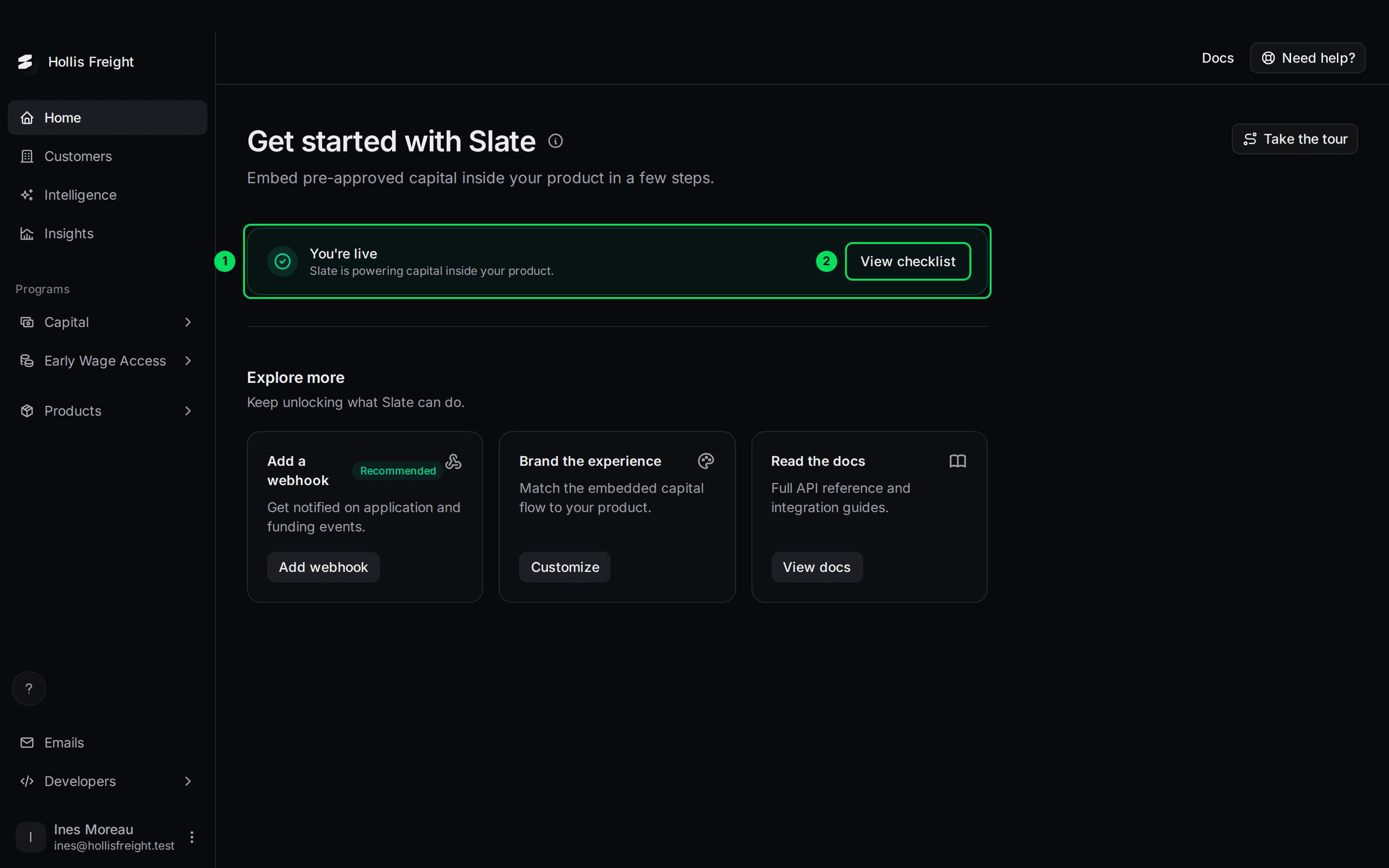
- You're live: "Slate is powering capital inside your product."
- View checklist: shows the checklist again. The button then says Hide checklist.
What to do after you're live
Live is a separate dashboard. Nothing from the sandbox comes with you. See Sandbox and live.
Switch to live
Open the account menu and select Switch to Live Mode. You may need to sign in again. The live dashboard is at partners.tryslatehq.com. See Create your account and sign in.
Create a live API key
Keys are separate in live. See API keys.
Set up the rest again
Add your webhook endpoint, brand colours and email choices in live. See Webhooks, Brand colours and Customer emails. To send emails from your own domain, see Email domain. That only works in live.
Add your team
Invite your teammates in live too. See Add your team.
Point your product at live
Use the live API address, api.tryslatehq.com, and set env="live" where you embed Slate.
In live, Home is gone and the dashboard opens on Customers.
If something goes wrong
Request production access is greyed out
At least one of three things isn't done: steps 1 to 9 aren't all green, the agreement isn't marked signed, or verification isn't approved. The note under the button says so. Scroll up to find the step that still has a number instead of a tick.
The agreement still says "Slate marks this once the MSA is signed"
You can't sign it here. Contact Slate support and ask where your agreement stands.
My verification was rejected or needs changes
See Verify your business. For a rejection, contact Slate support.
It says "You're live" but Switch to Live Mode is greyed out
Live access is given to each person, as well as to your company. Ask Slate to check that your own user has live access.
I requested access and nothing has changed
Slate reviews each request by hand. The Access requested row stays until Slate turns on live access. If it's been a while, contact Slate support.
Learn more about the Slate platform.
Still stuck? Email [email protected] with your account email and the screen you are on. We reply within 24 business hours.