Help Center / Getting started
Verify your business
Fill in your company details, add your owners, upload two documents and send them to Slate for review. What each review result means and what to do next.
6 min read · Updated November 10, 2026
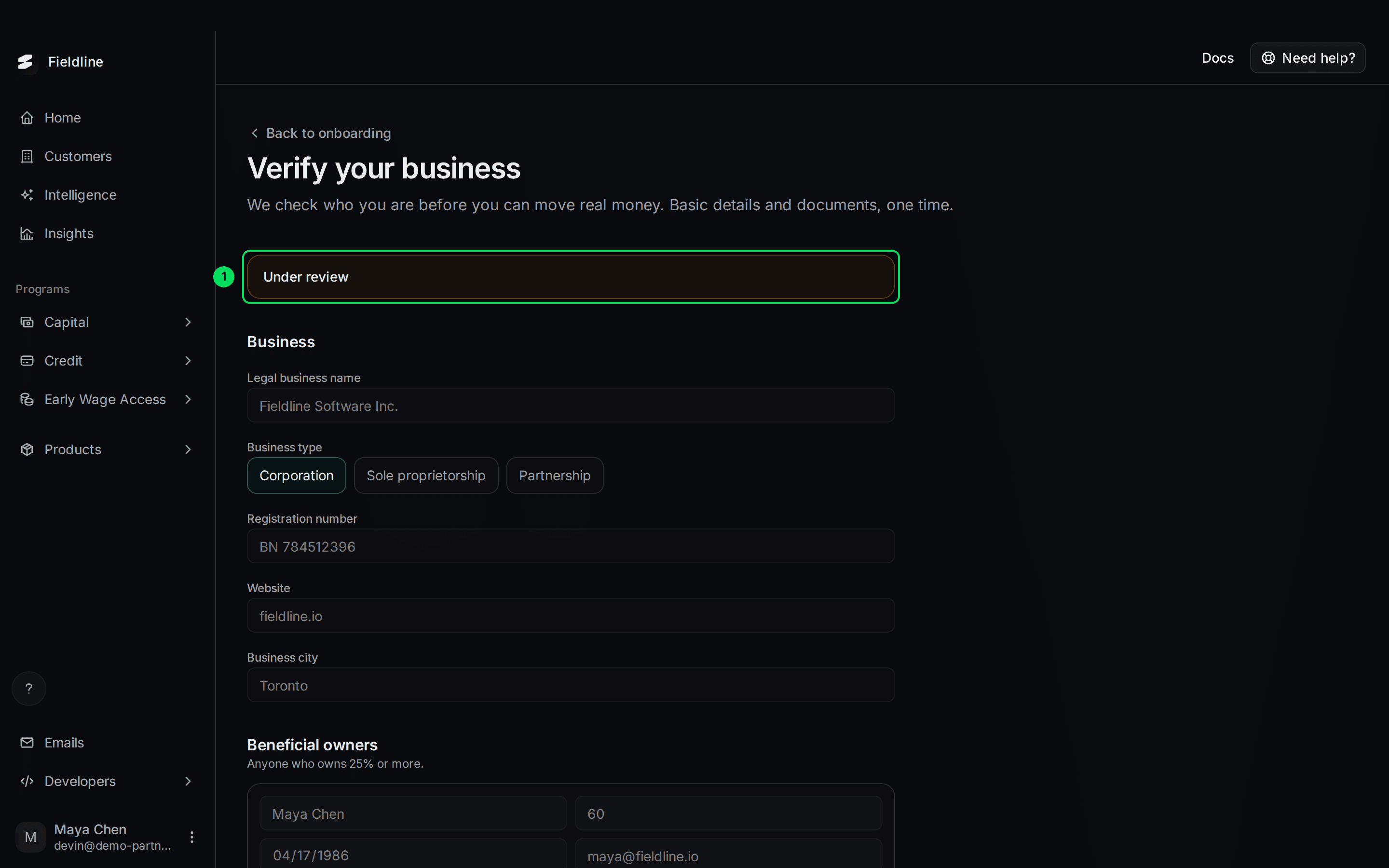
Business verification is a one-time check of who you are before you can move real money. You send basic details and two documents, and Slate reviews them by hand. It's also called KYB, short for "know your business".
Where to find it: on Home, go to step 10, Go live. Select Start next to Business verification (KYB). If you've already sent it, the button says View.
You'll need:
- Your company's legal name, registration number, website and city.
- For each owner of 25% or more: full name, share owned, date of birth and email.
- A certificate of incorporation, as a PDF or image.
- Proof of business address, as a PDF or image. A utility bill or lease from the last 90 days works.
Fill in and send your verification
Open the verification page
On Home, select Start in step 10. The page is called Verify your business. A Back to onboarding link at the top takes you back to Home.
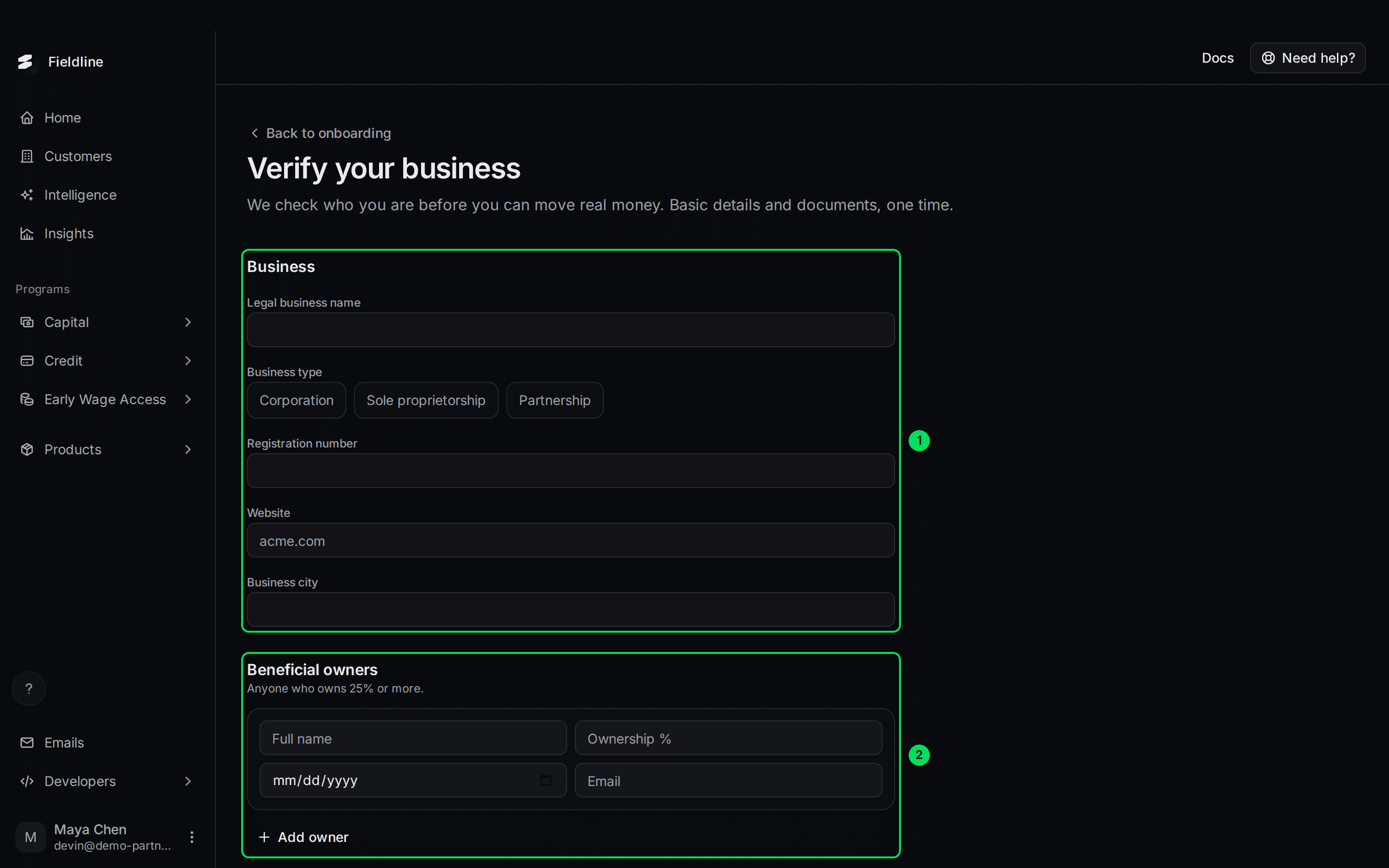
- Business: your company details.
- Beneficial owners: the people who own 25% or more.
There's also a Documents section further down.
Fill in the Business section
Every field is required. Select your business type from the three buttons.
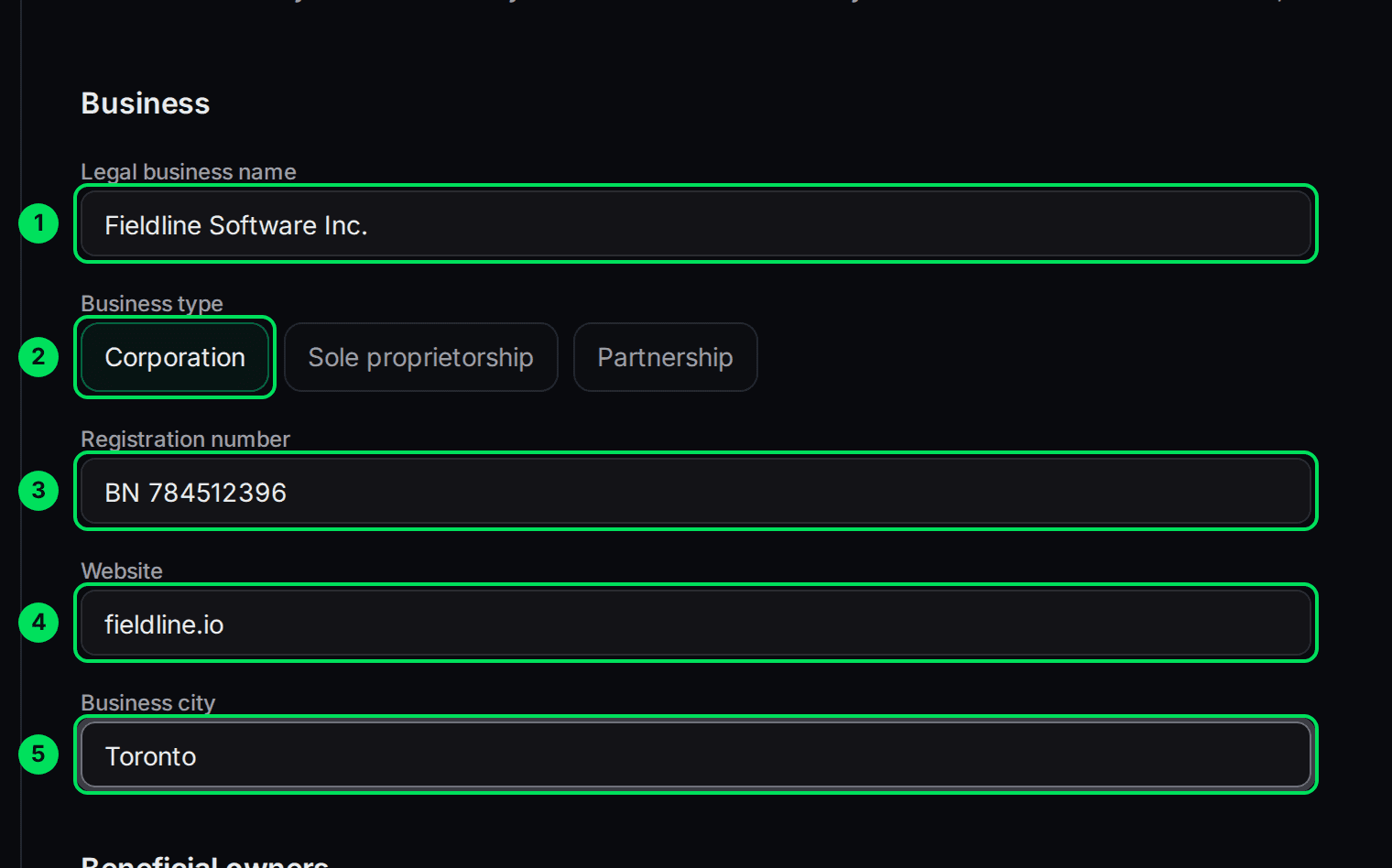
- Legal business name: your company's full legal name, as registered.
- Business type: Corporation, Sole proprietorship or Partnership.
- Registration number: the number on your registration papers.
- Website: your company's website, such as
acme.com. - Business city: the city only. Slate doesn't ask for a street address.
Add your first owner
Under Beneficial owners, fill in the first owner. A beneficial owner is anyone who owns 25% or more of the company. You need at least one.
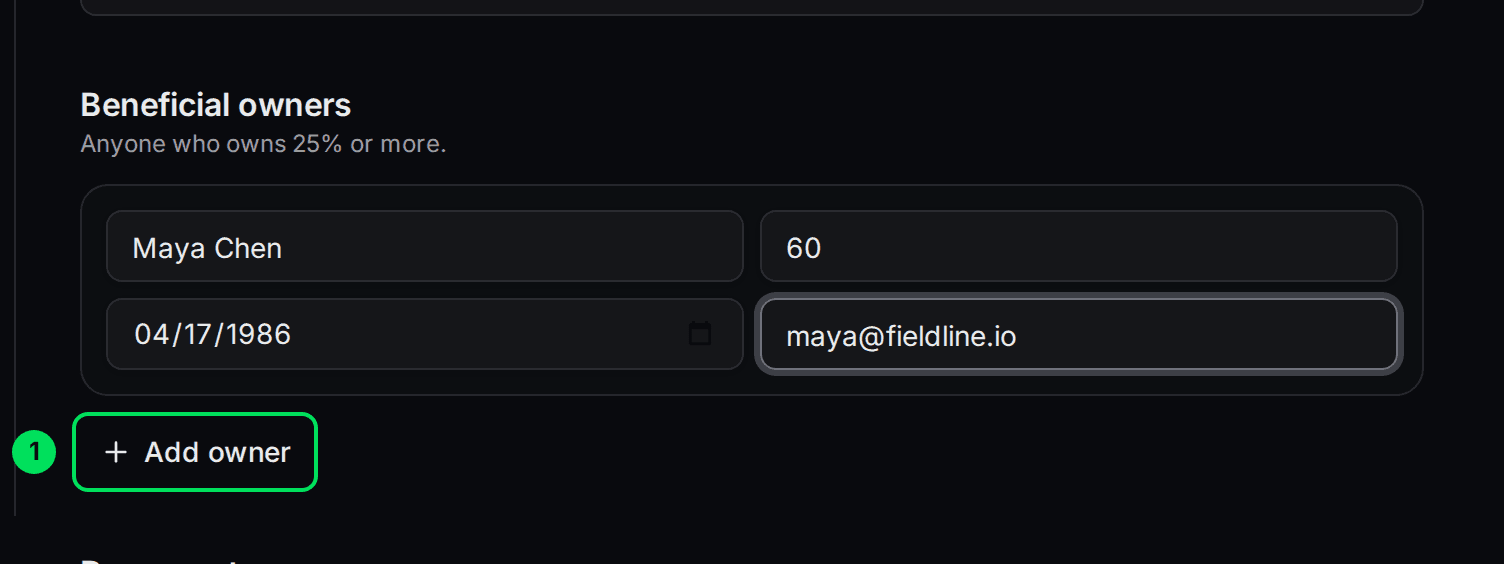
- Add owner: adds a box for another owner.
Each owner needs a Full name, Ownership % (a number from 1 to 100), a Date of birth and an Email. The date uses your browser's date picker.
Add any other owners
Select Add owner for each person who owns 25% or more.
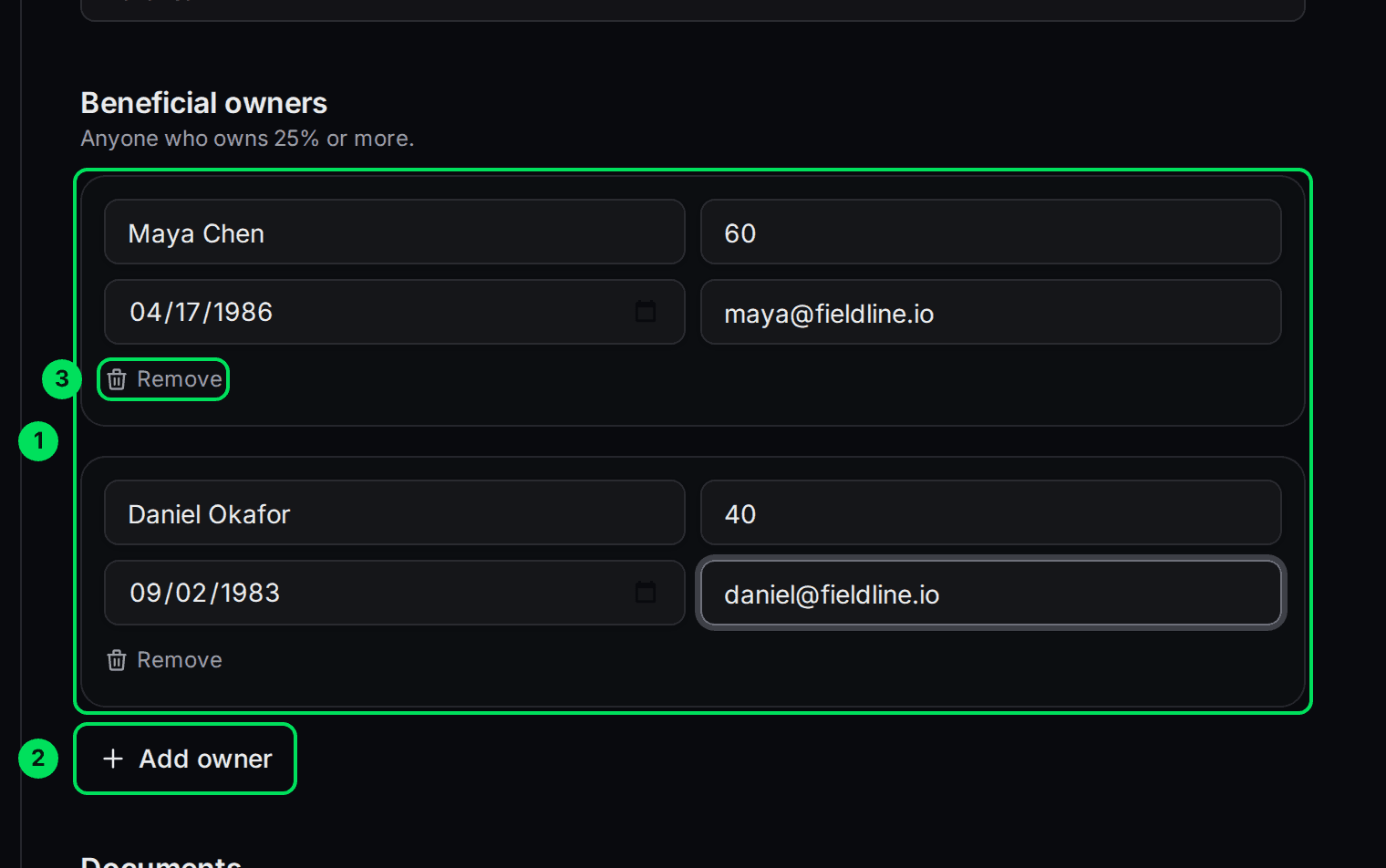
- Owner boxes: one box per owner, each with name, ownership percentage, date of birth and email.
- Add owner: adds another owner.
- Remove: deletes that owner's box. It only shows when you have more than one owner.
Upload your two documents
Under Documents, select Upload next to each one and pick a file from your computer.
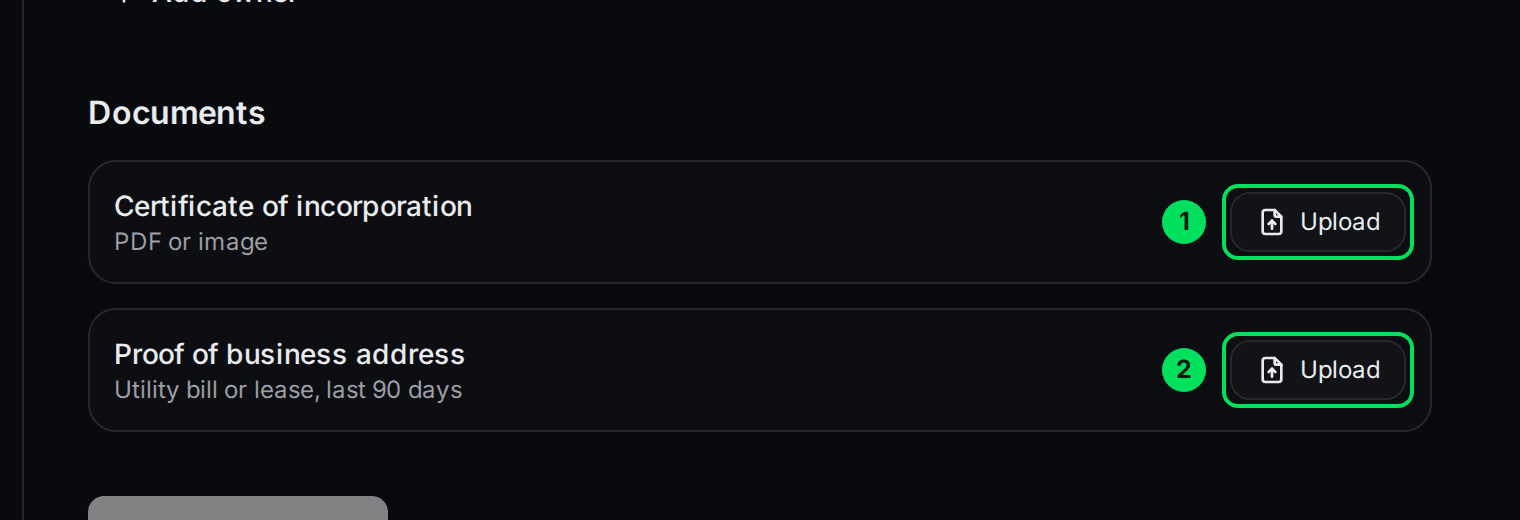
- Upload (Certificate of incorporation): a PDF or image.
- Upload (Proof of business address): a utility bill or lease from the last 90 days.
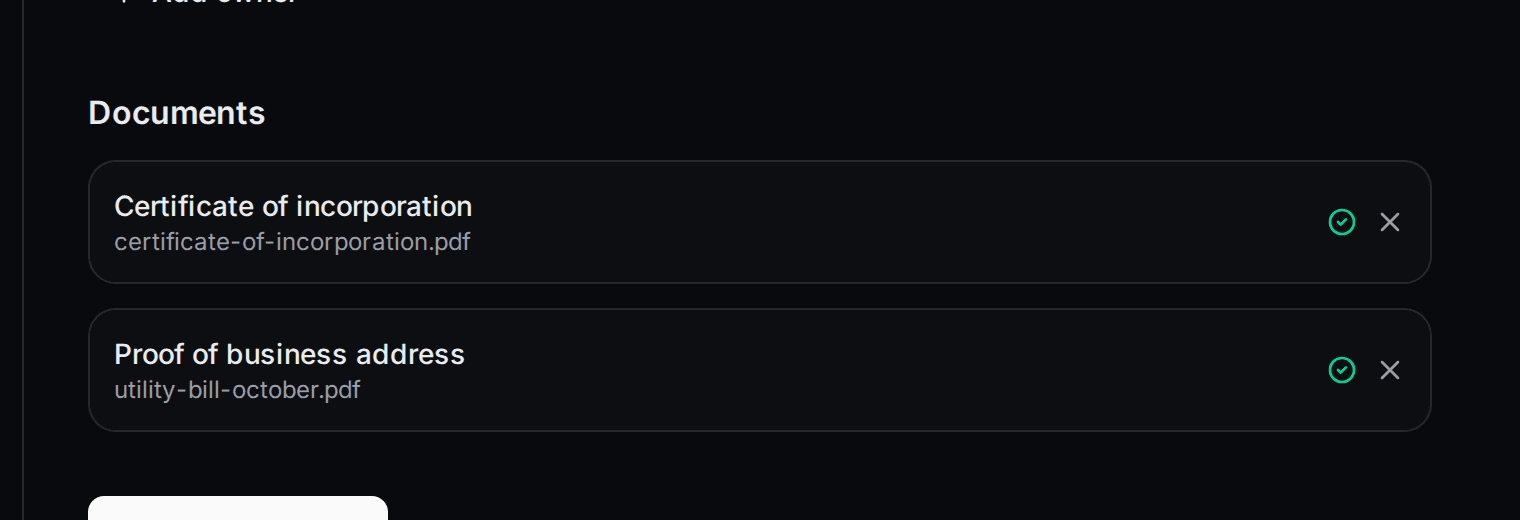
When a file is in, its name shows with a green tick. Select the X to remove it and pick another.
Select Submit for review
The button is at the bottom of the page. It stays greyed out until every field, every owner and both documents are filled in.
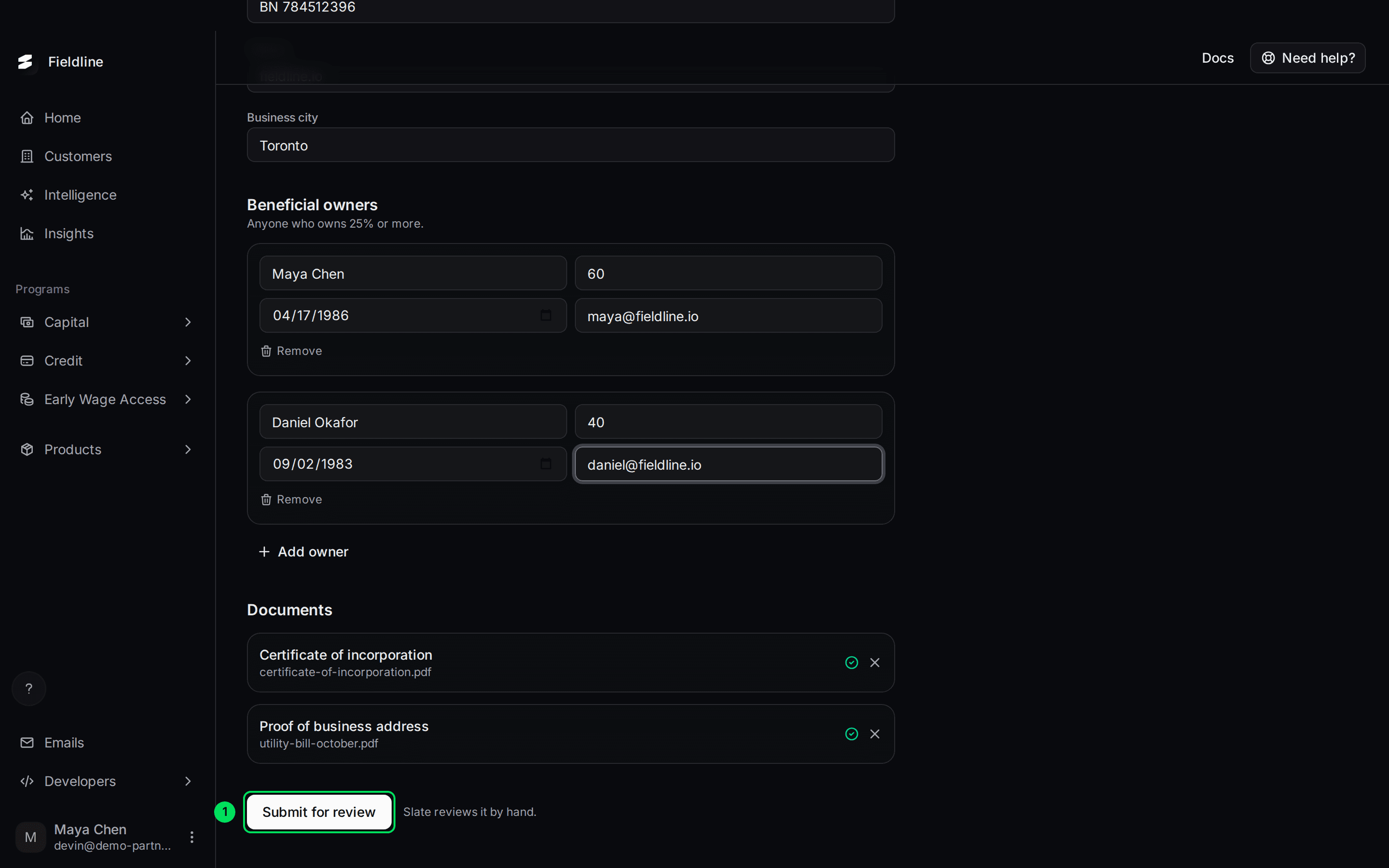
- Submit for review: sends everything to Slate. A message says "Submitted for review. Slate reviews it by hand."
What happens after you submit
The page locks and shows a status bar at the top. Your answers stay on screen but you can't edit them.
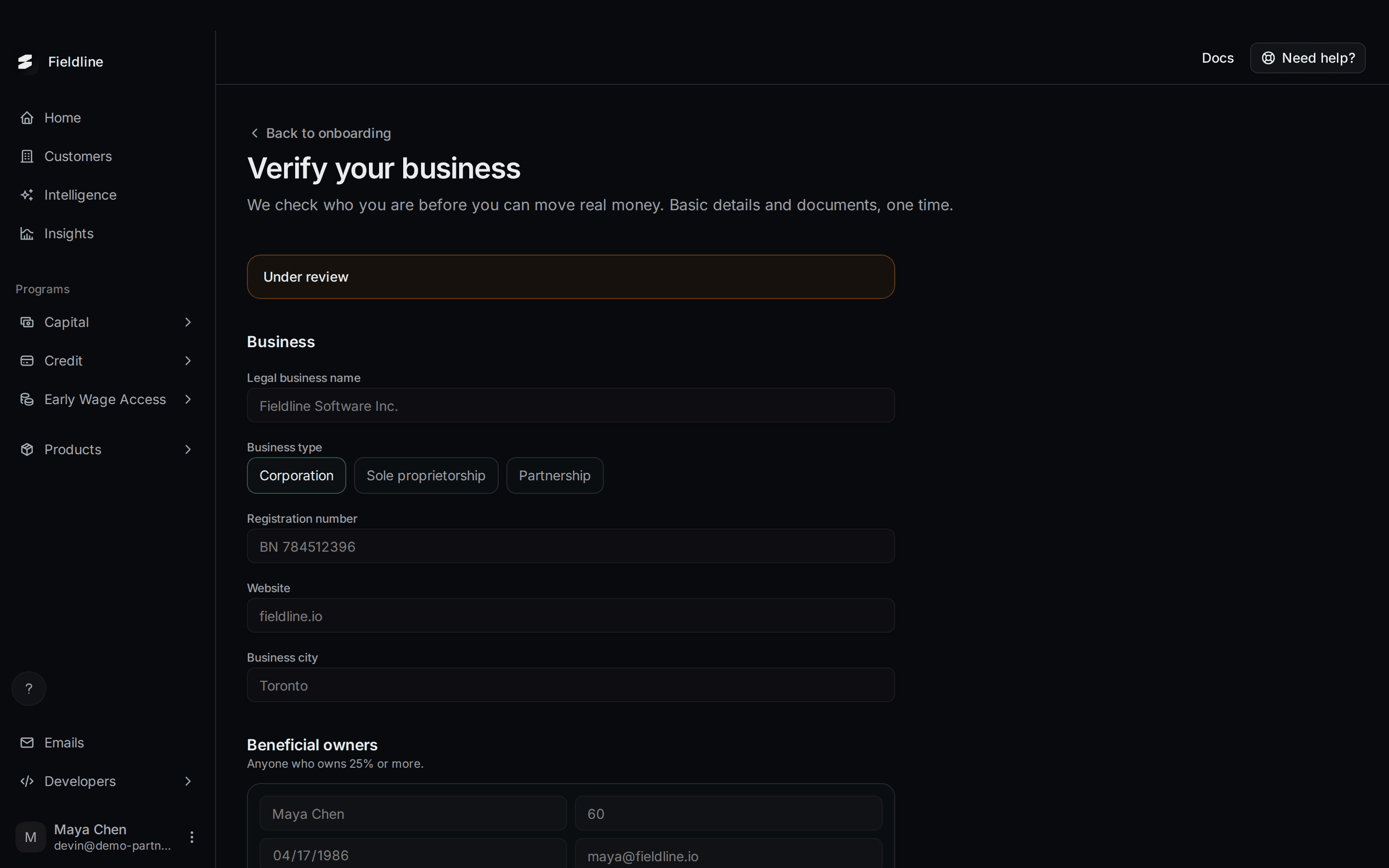
Slate reviews your details by hand and then emails the result to the first owner you listed. On Home, the Business verification (KYB) row shows the same result.
What each review status means
The bar at the top of the page, and the row on Home, show where you are.
- Under review (Home says Under review by Slate): Slate is checking your details. Nothing to do. You can't edit the form.
- Changes requested (Home says Slate requested changes): Slate needs something fixed. Read the note in the bar, fix it and send it again. See below.
- Approved (Home says Verified by Slate): you passed. This is one of the three things you need to request live access.
- Rejected (Home says Verification rejected): Slate couldn't verify you. The form is read-only. Contact Slate support to talk about next steps.
- Not started (Home only): you haven't sent anything yet.



Answer a Changes requested note
The bar shows Slate's note. For example: "Please upload a clearer copy of the certificate of incorporation."
Read the note
It's in the bar at the top of the page.
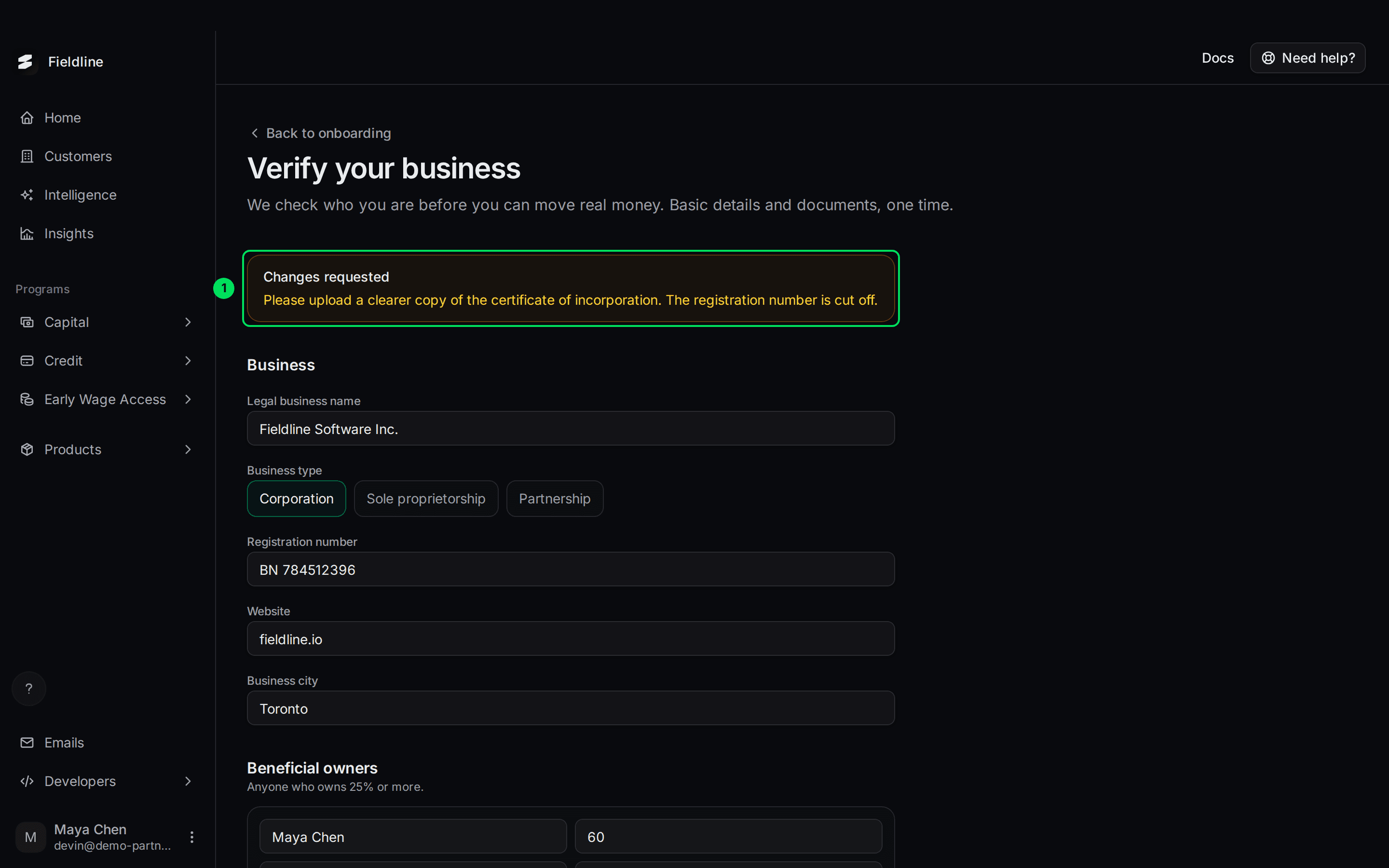
- Changes requested: the bar with Slate's note.
Fix the problem
The form opens for editing again. To replace a document, select the X next to it, then Upload a new file.
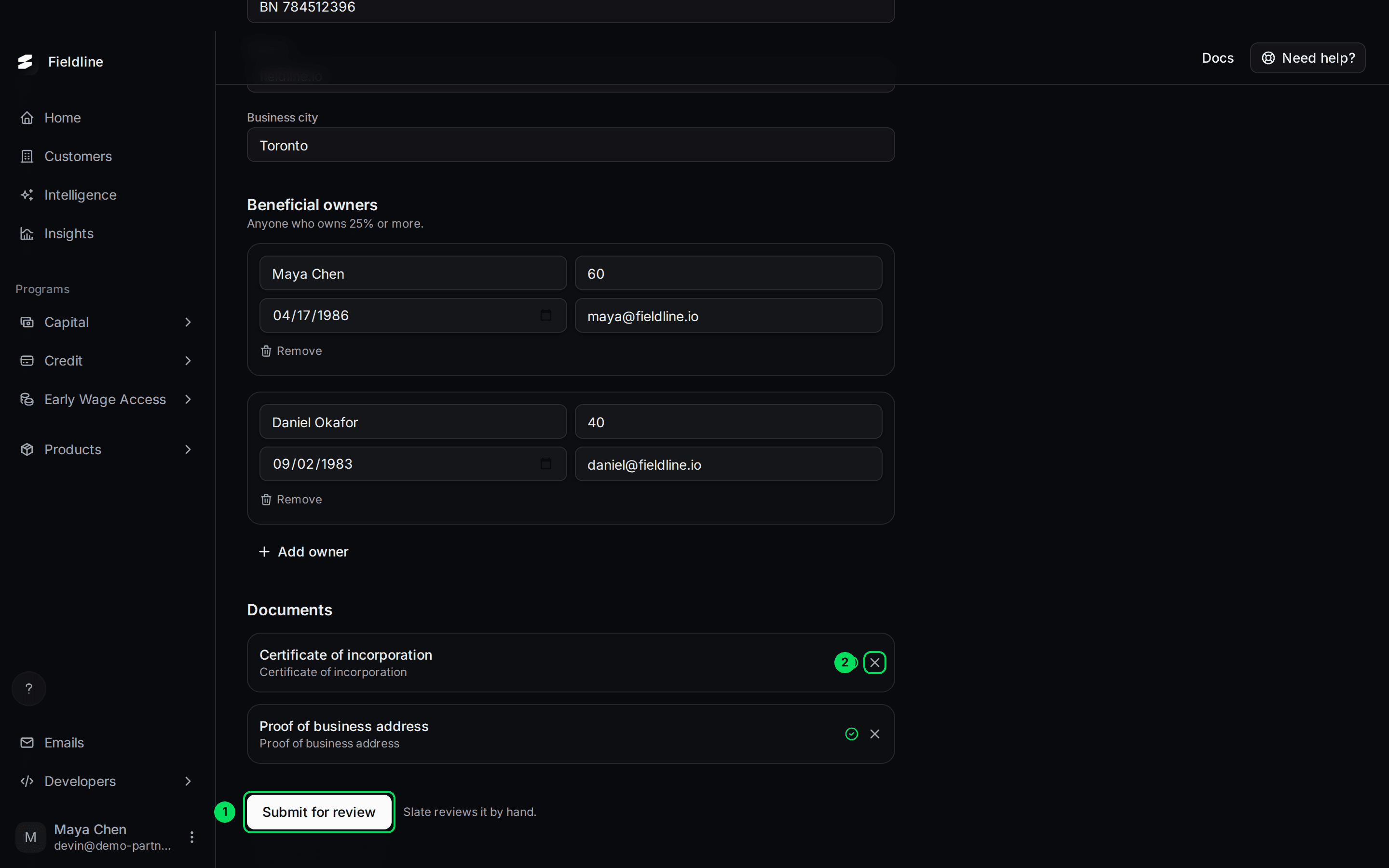
- Submit for review: sends it again.
- X: removes a document so you can upload a new one.
Your earlier files show under their document names, such as "Certificate of incorporation", not the file names.
Select Submit for review
Slate reviews it again.
If something goes wrong
Submit for review is greyed out
Something is missing. Check every field in Business, every owner box, and both documents. Each owner needs an ownership percentage from 1 to 100.
I see "Upload failed. Please try again."
The file didn't reach Slate. Check your connection and try again. Use a PDF or an image.
I can't find the verification page
It has no menu item. Open it from Home, step 10, in the sandbox.
I made a mistake after submitting
While the status is Under review you can't edit. Contact Slate support and ask for changes. If Slate asks for changes, you can fix it yourself.
Related guides
Learn more about the Slate platform.
Still stuck? Email [email protected] with your account email and the screen you are on. We reply within 24 business hours.