Help Center / Developers
Get notified when things happen (webhooks)
Turn on webhooks so your systems hear about new applications, approvals, payments and more as they happen. Includes every event, the message format and how to check it is really from Slate.
6 min read · Updated November 10, 2026
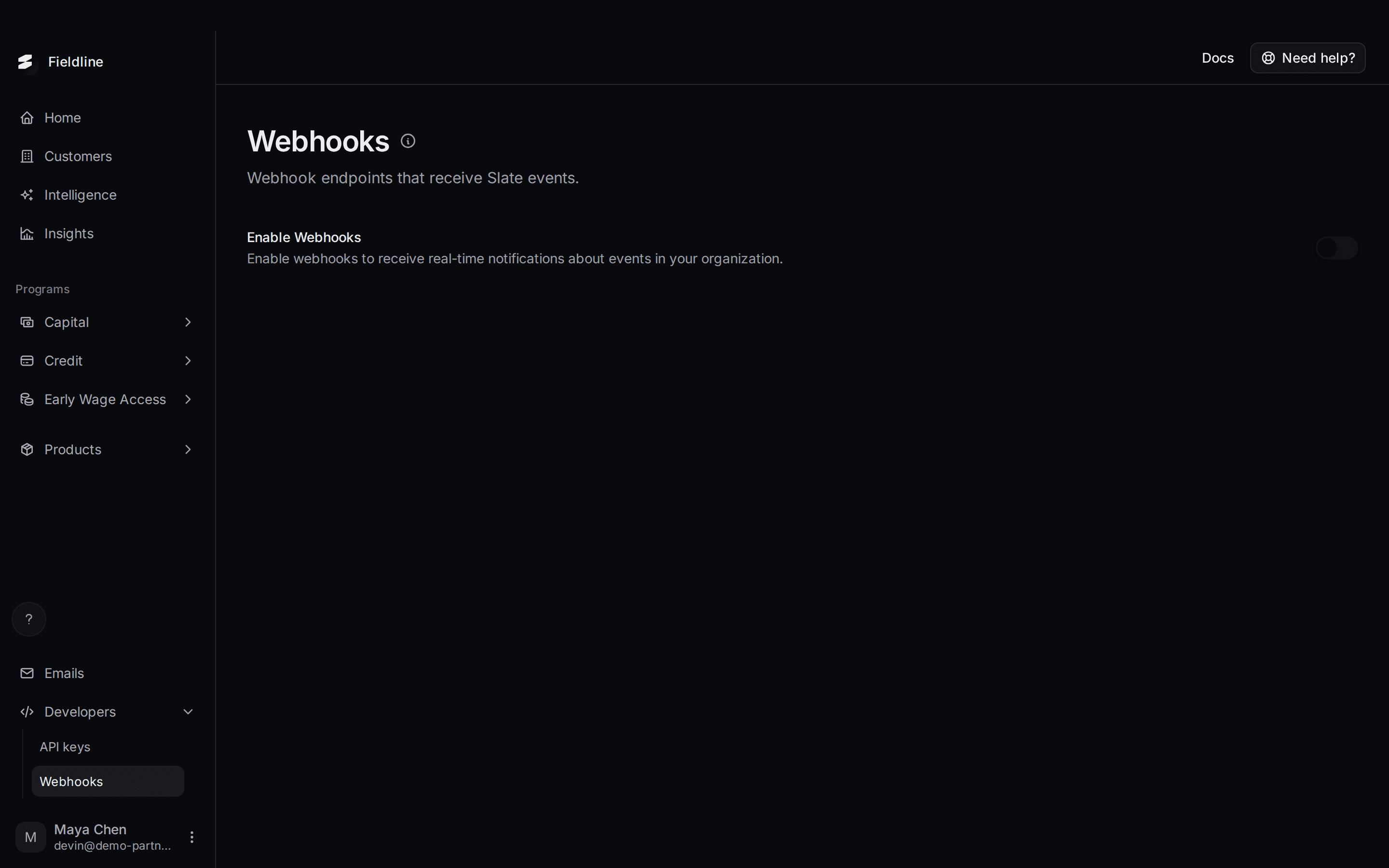
A webhook is a message Slate sends to your system the moment something happens, such as an application being approved. Your developers set up a web address to receive these messages.
Find it in the menu on the left: Developers, then Webhooks. You'll need a web address (URL) on your server that can receive messages.
Turn on webhooks
Open the Webhooks page
Select Developers in the menu on the left, then select Webhooks. Webhooks are off until you switch them on.
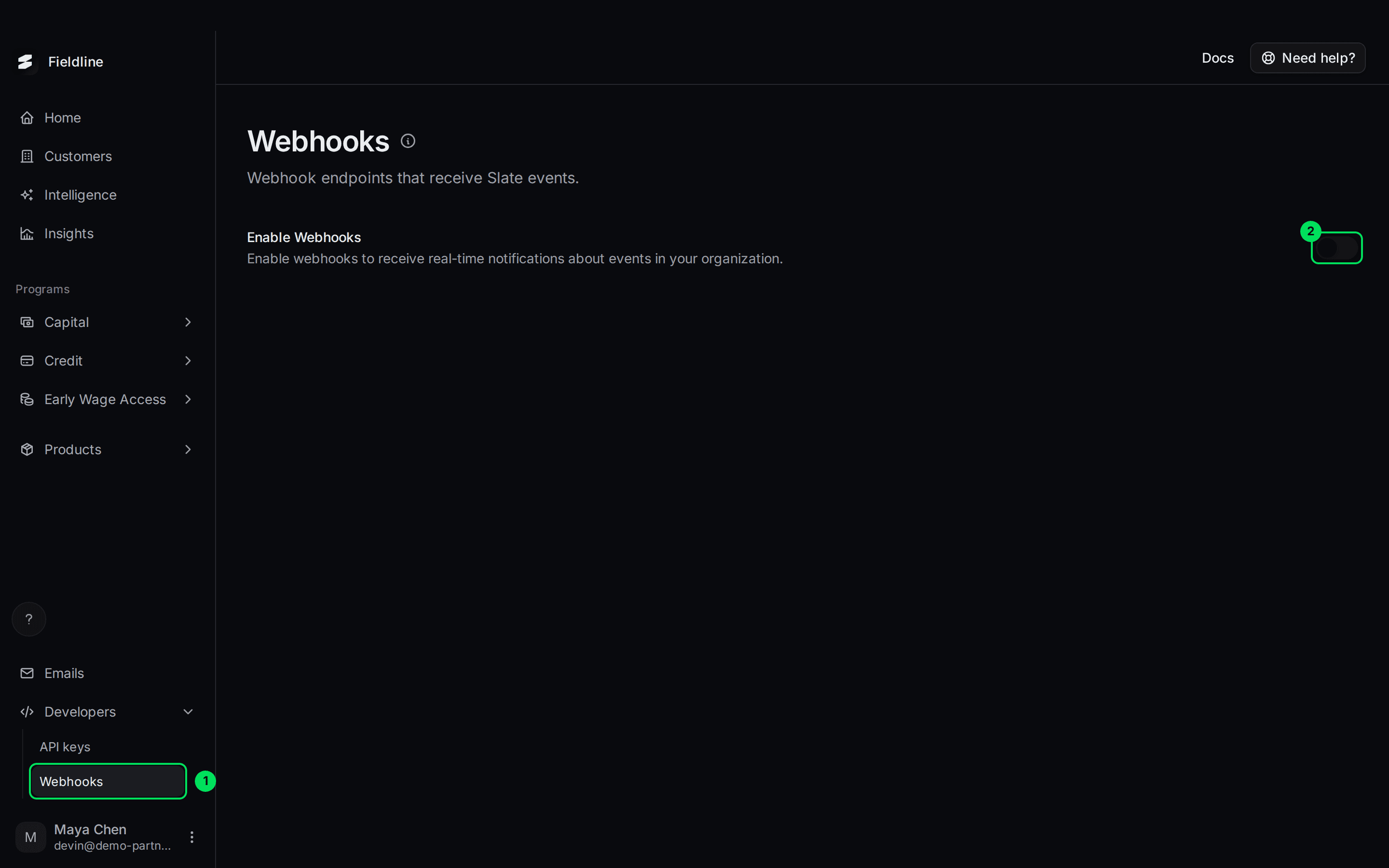
- Webhooks: the page.
- Enable Webhooks: turns notifications on for your organization.
Select Enable Webhooks
Turn the switch on. A panel loads below it, where you manage your endpoints.
Add an endpoint and choose events
An endpoint is the web address Slate sends messages to. In the panel below the switch, you can:
- Add an endpoint by entering its URL. For a test, you can use a placeholder such as
https://example.com/webhooks/slate. - Choose which events that endpoint receives. Pick only the ones you need.
- See each endpoint's signing secret. It starts with
whsec_. - See the messages Slate sent, and whether they arrived.
The panel is provided by Svix, Slate's webhook partner, and follows your light or dark theme. Its screens may look slightly different from the rest of the dashboard.
What a message looks like
Every event has the same shape.
{
  "event_type": "application.approved",
  "data": { "id": "123e4567-e89b-12d3-a456-426614174000" },
  "timestamp": "2026-01-01T00:00:00Z"
}
event_type: which event happened.data.id: the ID of the customer, application, agreement or other item the event is about.timestamp: when it happened.
Some events add more fields inside data. They are listed below. Money amounts are in cents.
Check that a message is really from Slate
Every message is signed. Your developers should check the signature before trusting a message. Each request carries three headers:
svix-id: a unique ID for the message. It stays the same if the message is sent again.svix-timestamp: when it was sent.svix-signature: the signature.
Your developers use the endpoint's whsec_ signing secret to verify these. Svix provides ready-made libraries for most languages, and its guide is at docs.svix.com/receiving/verifying-payloads/how.
If your system is down
Slate retries failed messages automatically. The dashboard describes webhooks as "automatically retried on failure". Make your endpoint reply quickly with a success status, and fetch details afterwards.
Every event
Customers and businesses
customer.created: a customer was added.customer.updated: a customer's details changed.customer.product-changed: a customer moved between Capital and Credit line. AddspreviousProductTypeandproductType.business.created: a business was added.business.updated: a business's details changed.business.financial-data.attached: financial data was added to a business.
Offers
preapproval.created: a new offer was made for a customer.preapproval.expired: an offer ran out of time.preapproval.consumed: an offer was used by an approved application.opportunity.offer.created: Slate spotted a good moment and published an offer. Comes withpreapproval.created, and addscustomerIdanddescription.
Applications
application.created: an application was started.application.submitted: the customer submitted it.application.bank.verified: the customer's bank account was verified.application.ready-to-accept: the customer can now review and sign.application.terms-countered: Slate offered different terms. Adds the newamount,term,termUnit,paymentFrequency,paymentAmount,numberOfPayments,totalAmountandexpiresAt. Sent again for every new counter.application.approved: the application was approved.application.rejected: the application was turned down. AddsrejectedReasons.application.expired: the customer did not confirm the terms in time.
Financing agreements
financing-agreement.created: an agreement was created.financing-agreement.disbursed: the funds were sent.financing-agreement.payment.initiated: a payment was started. Addsamountandcurrency.financing-agreement.repayment: a payment was received.financing-agreement.payment.failed: a payment was returned or cancelled by the bank. Addsamountandcurrency.financing-agreement.completed: the agreement was fully paid.financing-agreement.defaulted: the agreement went into default.
Credit lines
credit-line.approved: a credit line application was approved. AddsapprovedFacilityLimit.credit-line.created: the credit line was set up.credit-line.statement-ready: a billing statement is ready.credit-line.suspended: the line was suspended, for example after an unpaid amount.credit-line.reinstated: a suspended line is active again.credit-line.limit-changed: Slate raised or lowered the limit. AddspreviousFacilityLimit,facilityLimitandcurrency.credit-line.bank-reconnection-requested: the customer must link their bank again. Addsdeadline.credit-line.bank-reconnected: the customer linked their bank again.credit-line.draw.created: a draw was started on the line. AddsfinancingAgreementId.credit-line.draw.funded: a draw was funded.credit-line.draw.repaid: a draw was paid back. AddsfinancingAgreementId.
Early Wage Access requests
finance-request.created: a request was created.finance-request.in-progress: the worker started the application.finance-request.submitted: the application was submitted.finance-request.approved: the request was approved.finance-request.declined: the request was declined.finance-request.canceled: the request was cancelled.finance-request.expired: the request ran out of time.
If something goes wrong
The switch will not turn on
You see "Something went wrong. Please try again." Try once more. If it keeps happening, contact Slate support from the Need help? button.
The panel below the switch is blank
Reload the page. The panel's sign-in link is renewed automatically, but it can fail to load. If it stays blank, contact Slate support.
My messages are not arriving
Check that the URL is public and spelled correctly, and that your endpoint replies with a success status. Then look at the message list in the panel to see what Slate tried.
Related guides
Learn more about how Slate goes into your product.
Still stuck? Email [email protected] with your account email and the screen you are on. We reply within 24 business hours.