Help Center / Guiding your applicants
Support playbook: what to say when a customer is stuck
The most common customer problems with the application, each with what to ask, what to say and what to do.
6 min read · Updated November 10, 2026
Keep this page open when a customer calls. Each problem has a short script to say and the steps to take. Everything here matches how the application behaves today.
Before you start, ask two questions. They save time on almost every call.
- "What do you see on your screen right now?" Ask for the heading.
- "Are you on a phone or a computer?"
Then find the matching heading below.
Links and loading
"My link doesn't work"
Ask what they see.
- A blank page with a spinner that never stops. The link has expired or was damaged. Say: "That link has run out. I'll send you a new one." Generate a new link: open the offer, select Generate Application Link, and send the whole link. Links last 1 week from the dashboard and emails, and 1 day from an embed.
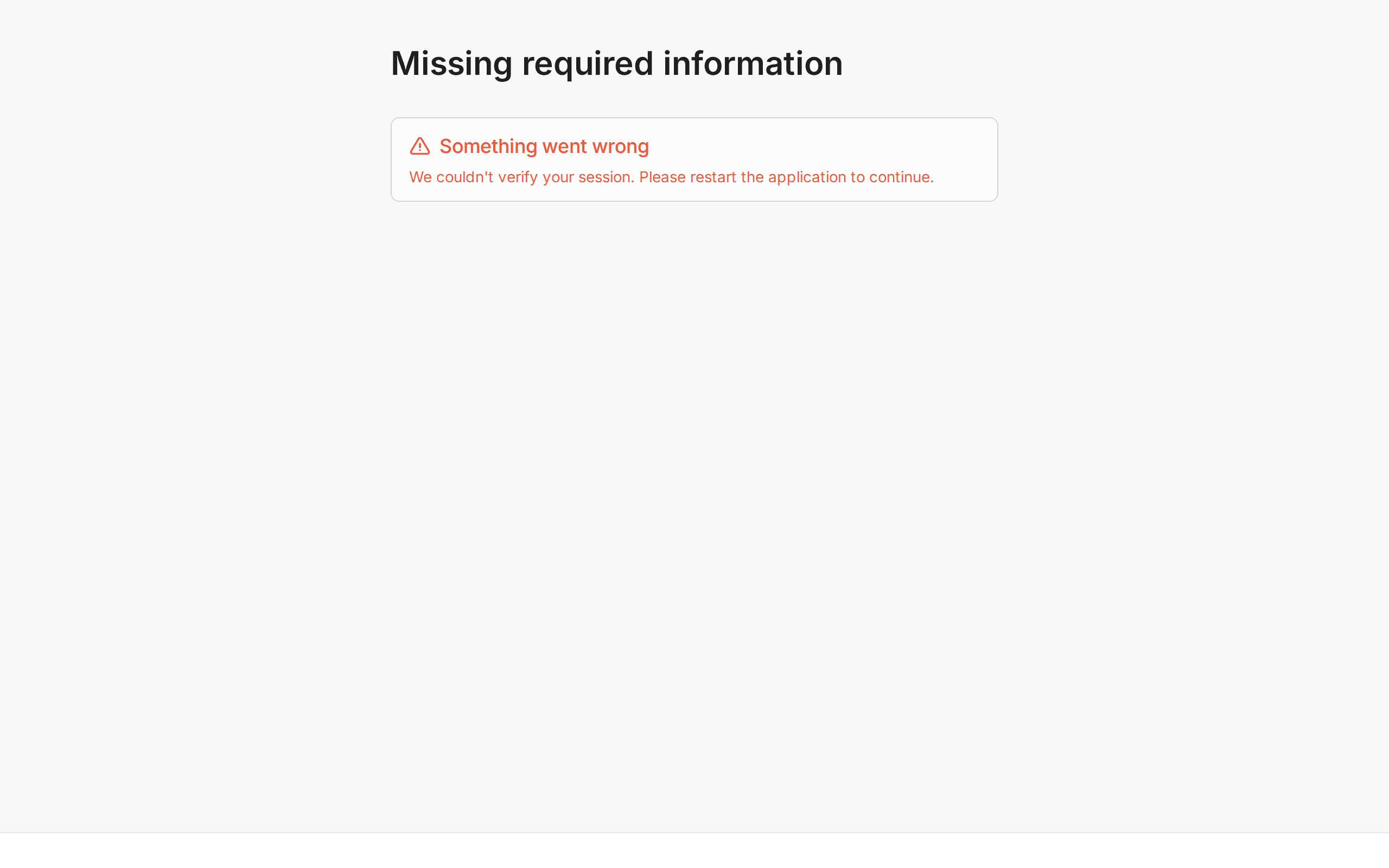
- "Missing required information". The link was cut off. Go to the next item.
- "404". The page address is wrong. Send the link again.
"It says Missing required information"
Say: "Go back to the original message and select the whole link. Some email programs cut long links in half. If it still fails, I'll send a new one."
Then send a fresh link. You will find the steps in Send an application link.
"It's stuck loading"
Ask how long. Wait a few seconds first. If the page is still a bare spinner, the link is no longer valid. Send a new one.
If the stuck screen is the bank step after connecting, see "I connected my bank but nothing happened".
"I opened it in two tabs"
The app warns "This application was updated in another tab or window. Refresh the page to continue." Say: "Close one of the tabs, then refresh the other one." Nothing is lost.
"Can I stop and finish tomorrow?"
Yes. Say: "Your answers save at every step. Open the same link and you'll land where you stopped." If more than a week has passed, send a new link. After they submit, the screens give no way to edit the application.
About the customer's details
"The business name is wrong"
If the name is greyed out with "We already have this on file", say: "Select 'Not right? Change it' under the name, then type the correct one."
If the name was not on file, they search by name and pick from the list. If it is not found, they select Enter it manually and type it.
If they already submitted, the screens do not offer a way to change it. Contact Slate, as described at the end of this page.
"My business isn't in the list"
Say: "Select 'Enter it manually' and type the name as it appears on your registration." Slate searches the Canadian registry only, so US businesses always type it.
"It won't let me continue"
Ask them to scroll up and read the red messages. The common ones:
- Legal name is required, Full name is required, Email address is required, Phone number is required: a box is empty.
- Please enter a valid email address (e.g., [email protected]): the email is missing an @ or domain.
- Country is required: they have not selected Canada or United States.
- Address line 1 is required, City is required, Postal / ZIP code is required: the address is incomplete.
"I'm not the owner" or "I don't handle the bank"
Say: "On the bank screen, select 'I'm not the right person for this', type your colleague's email, and select Send link. They'll get a secure link." They can also copy the link and send it themselves.
The bank step
"My bank isn't listed" or "it says Not available"
Say: "Close that window. Select 'Upload statements instead'." Tell them it takes 1 to 2 business days longer. Early Wage Access customers see Enter details manually instead. See Connecting a bank account.
"I connected my bank but nothing happened"
Say: "Give it a few seconds. The page updates by itself." The app checks every 5 seconds. If Bank Connected does not appear after a minute, ask them to refresh. The app returns them to the bank step. If the connection never completes, use Upload statements instead.
"It won't take my statements"
Check, in order:
- They are PDF files.
- Each is under 10MB.
- There are 6 or more. A red message tells them how many to add.
- The files show the account number and transactions.
If a file says Upload failed, tell them to select Retry.
After they apply
"I submitted. Where is my offer?"
Say: "Slate emails you at the address you gave. The screen says usually within 1 business day." Look up the application in Applications in your dashboard. If it reads Processing, Slate is reviewing. If it reads Needs action, the customer has a task waiting. See After approval: the tasks.
"The camera won't work for my ID"
Say: "Allow camera access when your browser asks. If you're on a computer with no camera, open the same link on your phone." If the check says they couldn't be verified, ask for a clearer photo of a valid ID in good light.
"I want less than the amount shown"
On the signing screen, they select change the amount and move the slider down. They cannot go above what Slate approved.
"It says my offer expired"
Say: "The deadline to accept passed, so that offer closed. I'll ask for a new application." The screen tells customers to contact their provider. See Outcomes.
"I was declined. Why?"
The screen gives no reason. Say: "I can't give a reason from here. The decision is made by Slate." You can see the reasons on Applications. Share only what you have been cleared to share.
When to contact Slate
Contact Slate when:
- A customer says they entered the wrong details after submitting.
- A screen shows an error you cannot fix with a new link.
- A customer is stuck after trying the steps above.
Include the customer's name, the screen heading, and the time it happened.
Slate replies within 24 business hours. The address is under Need help? at the top of your dashboard.
Learn more about Slate Capital.
Still stuck? Email [email protected] with your account email and the screen you are on. We reply within 24 business hours.