Help Center / Products you embed
Early Wage Flow: what your workers see
Early Wage Flow is the short application for a worker who takes part of their pay early. Preview its five screens and copy the code.
5 min read · Updated November 10, 2026
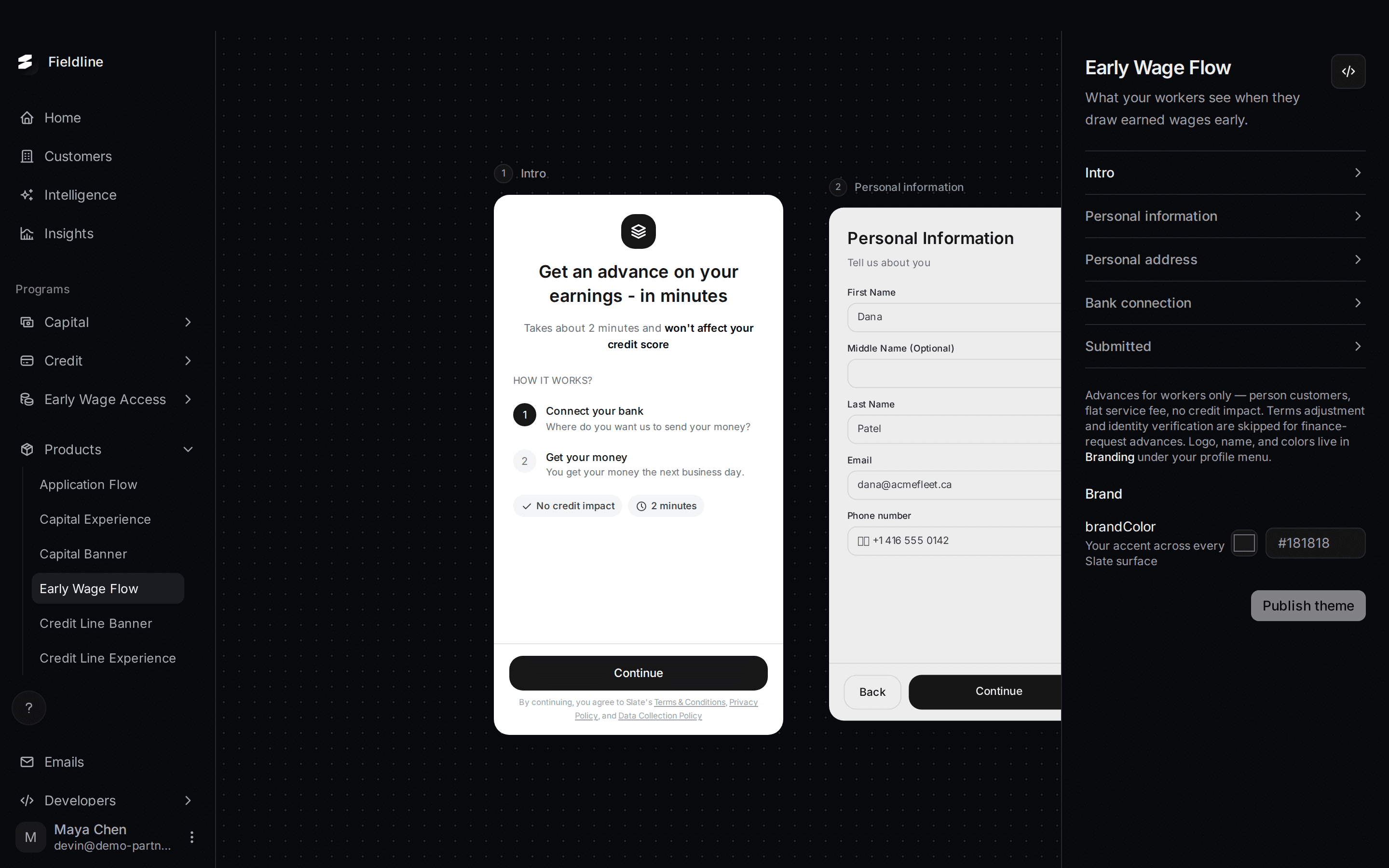
Early Wage Flow is the screen your workers use when they take part of their earned pay early. It is a short application: a welcome screen, a few details, a bank connection and a confirmation.
You'll find it under Products > Early Wage Flow. It appears when Capital is on for your account. For how the programme works day to day, see Early Wage Access.
Open the preview
Open Early Wage Flow
Select Products in the menu on the left, then Early Wage Flow.
Select a state
Select a name in the list on the right. That state moves to the middle of the board. You can also select a state that peeks in at the side.
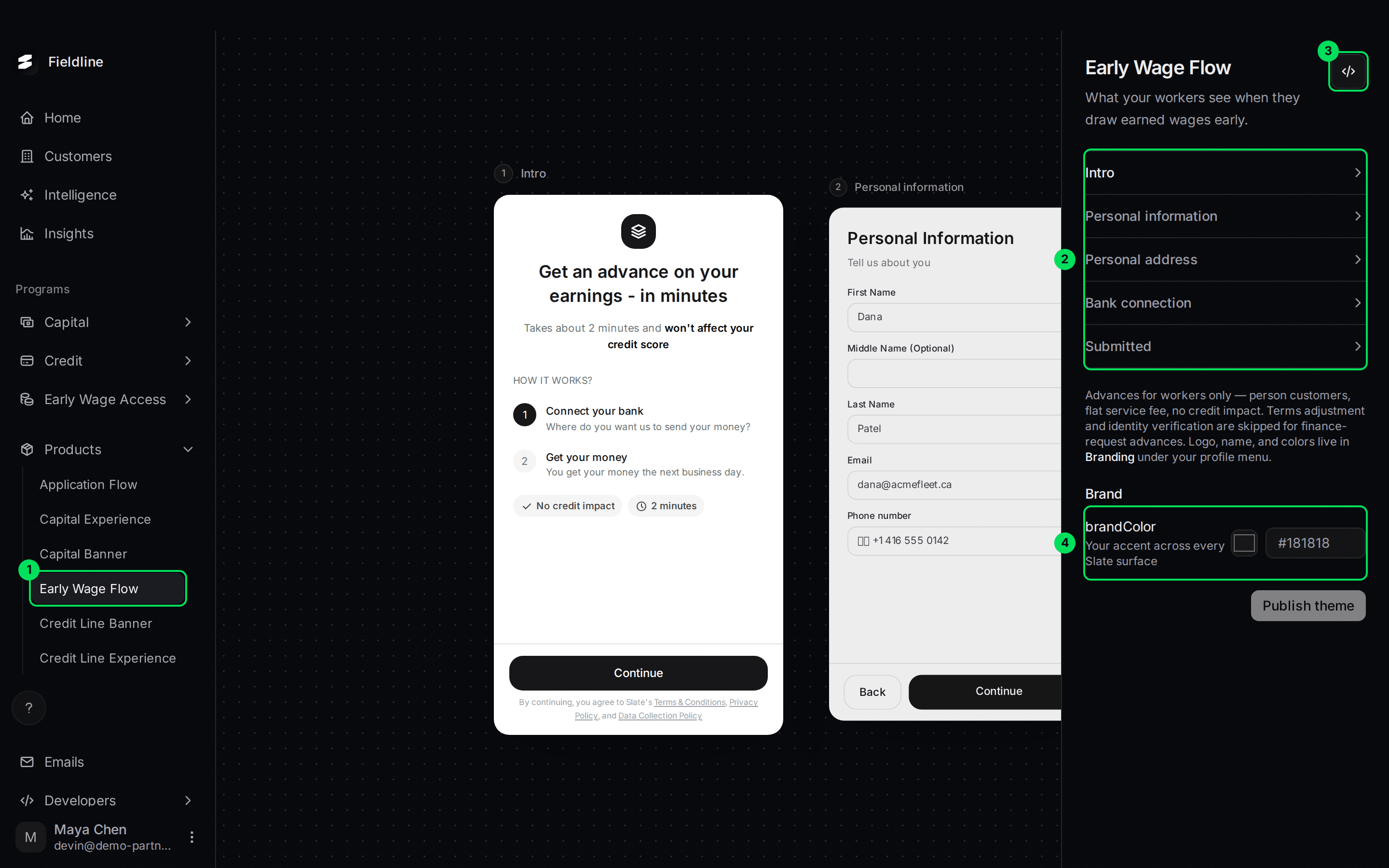
- Early Wage Flow in the Products menu.
- The list of screens. Select one to preview it.
- The Embed code button, shown as
</>. - The brandColor setting. The colour settings continue below it.
The five screens
Intro
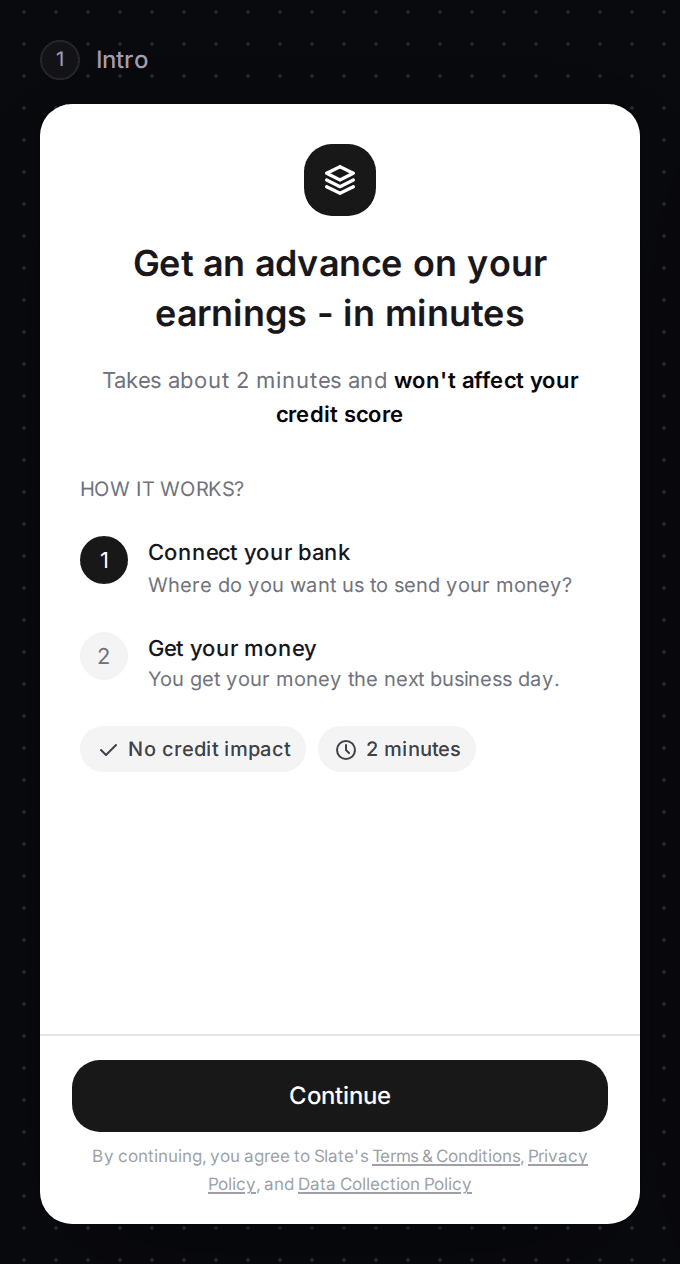
"Get an advance on your earnings - in minutes." It says the application takes about 2 minutes and won't affect the worker's credit score. Two steps follow: connect your bank, then get your money the next business day. Two chips read No credit impact and 2 minutes.
Personal information
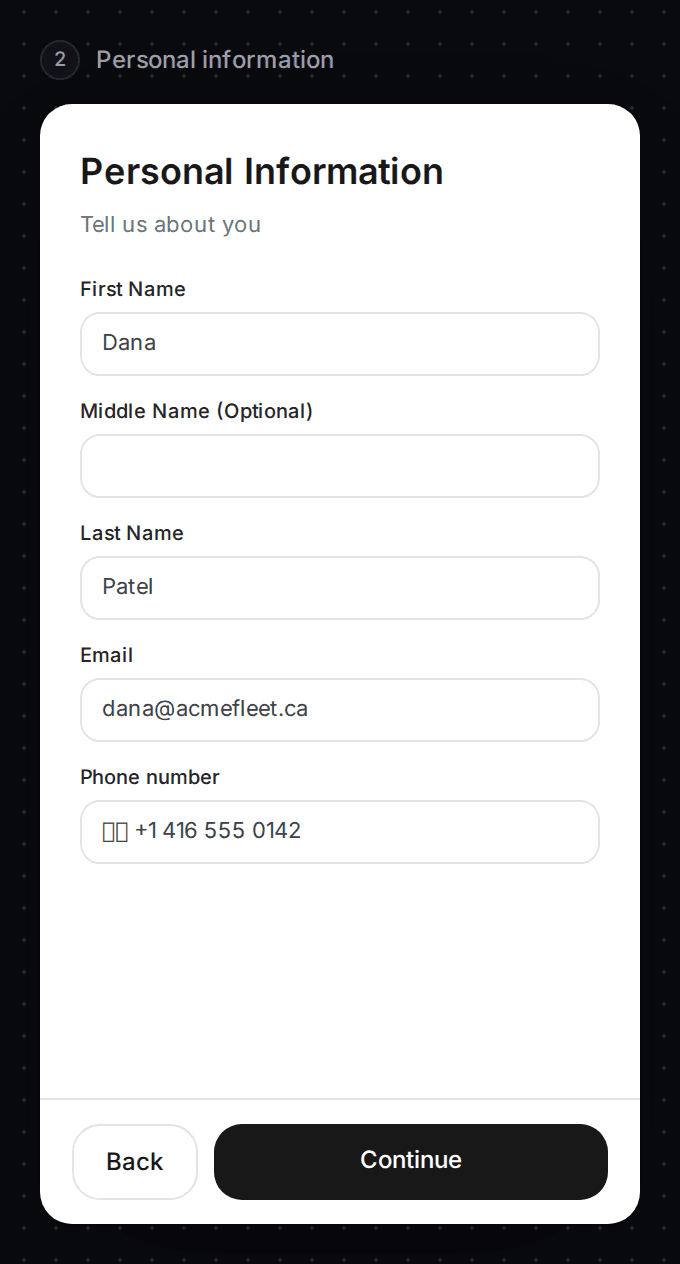
First name, last name, email and phone number. The worker only sees this screen when their details are incomplete.
Personal address
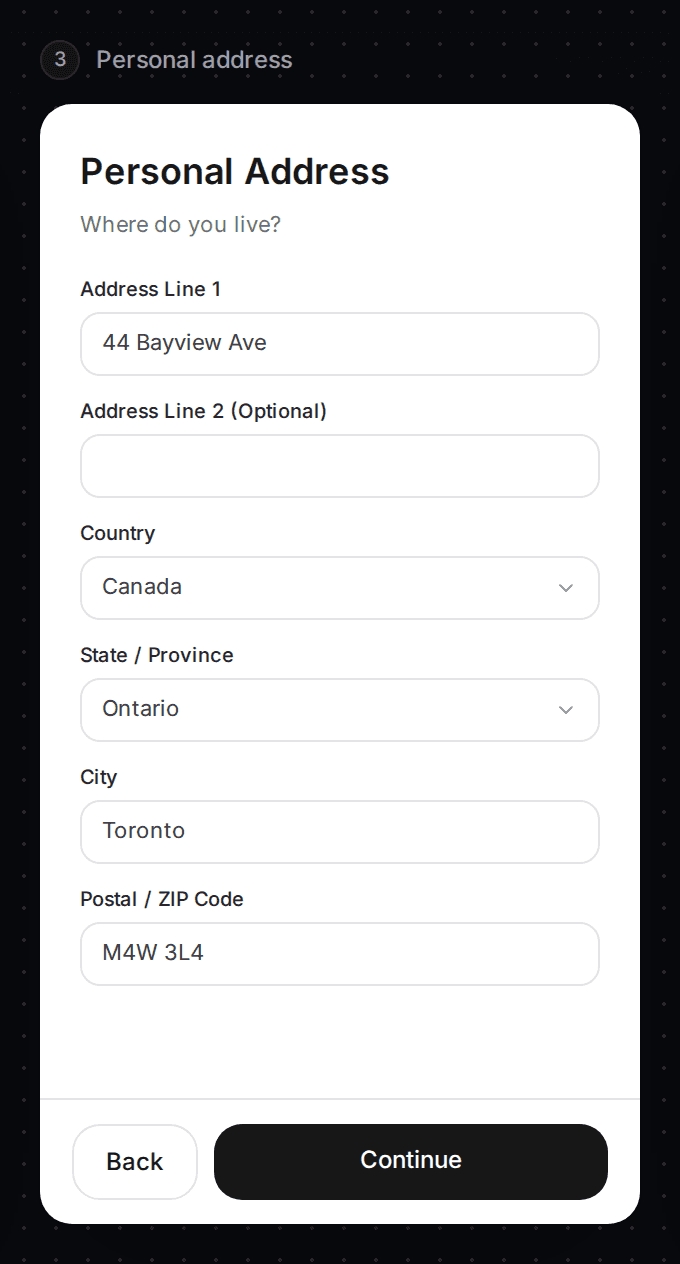
Home address. Like the screen before it, it is only shown when the address is missing.
Bank connection
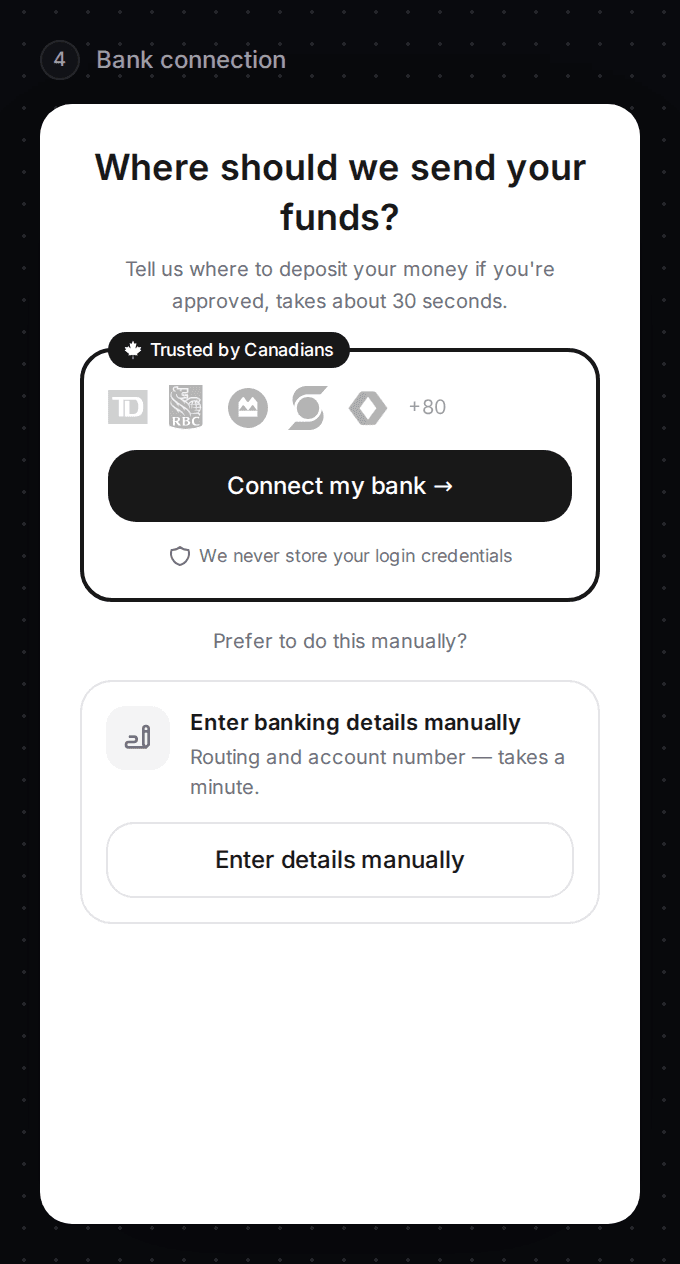
"Where should we send your funds?" The worker selects Connect my bank to link their account through a secure window. Workers who can't connect a bank can use Enter details manually to type their banking details.
Submitted
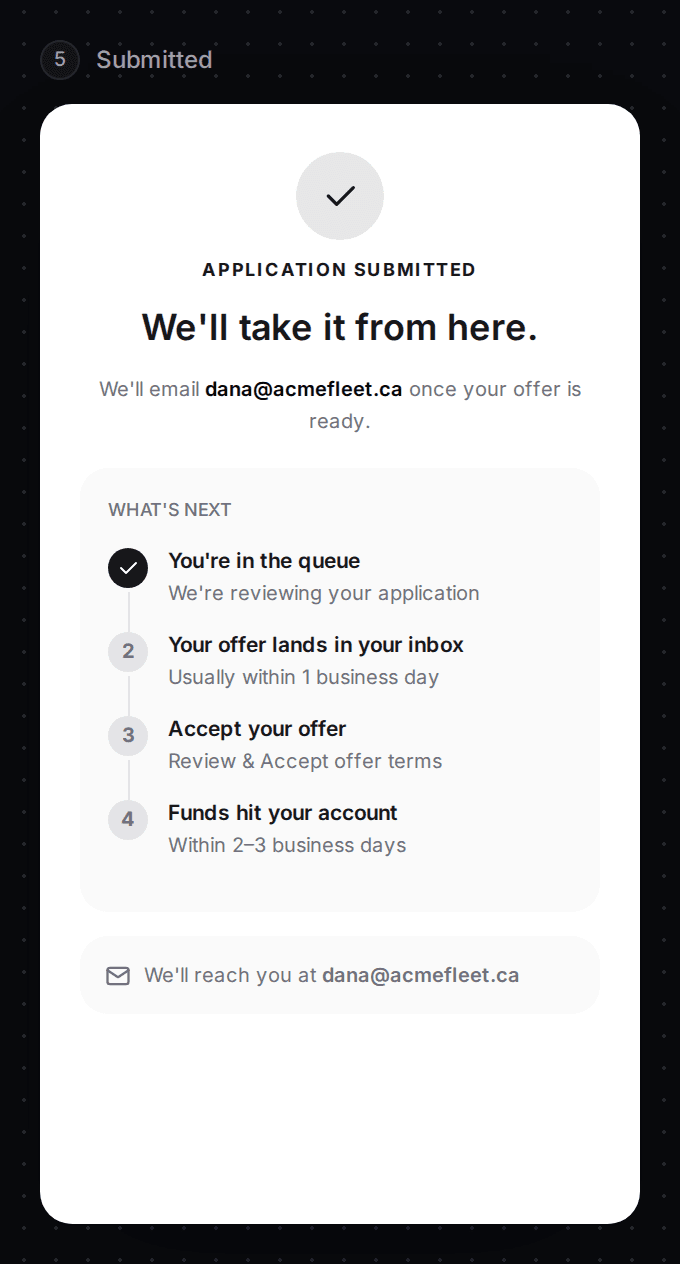
"We'll take it from here." It confirms the email address Slate will write to and lists what happens next.
What is different about this flow
- It is for workers only. They are individual people, not businesses.
- The fee is a flat service fee, and there is no credit impact.
- The page says terms adjustment and ID verification are skipped for these advances.
- Repayment comes out of the next pay run automatically. There is nothing for you to set up.
Set your brand colour
The right-hand column has one colour setting, brandColor. It colours the buttons and accents on the worker's screens.
Find brandColor
Scroll the right-hand column to Brand.
Type a colour
Type a six-digit code such as #0b6e4f, or pick a colour with the square. The buttons in the preview change at once.
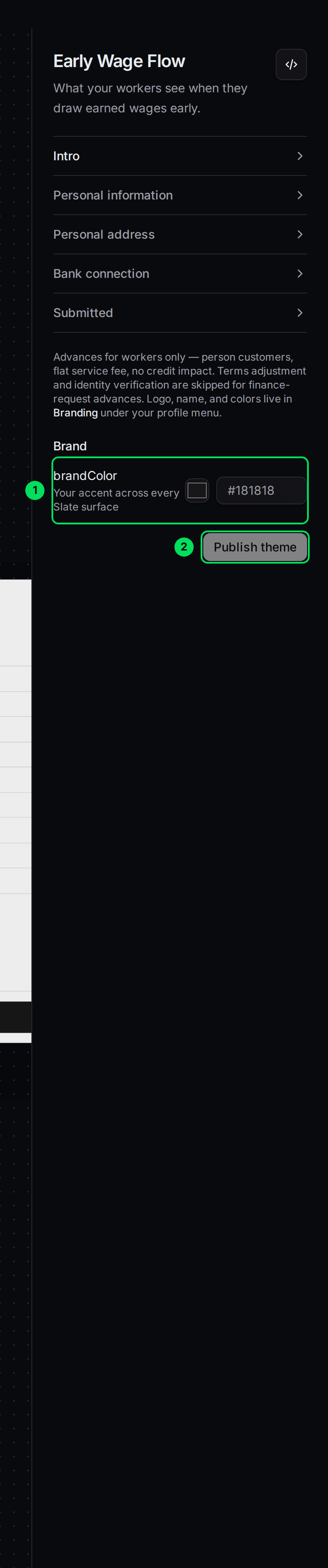
- brandColor: your brand colour.
- Publish theme: saves your colour.
Select Publish theme
Select Publish theme. You see "Theme published". See Match Slate to your brand colours for what publishing changes.
Embed it in your product
Each advance starts on your server. Your server creates a finance request for the worker, then passes the request's ID to the component.
Create the request on your server
Send POST /finance-requests with type: "ewa", the worker's customer ID, the amount and the shift details. Use your API key in the x-api-key header. The reply includes the request's ID.
Add the component to your page
Select the </> button and copy section 2. The tag is slate-application-form. Set finance-request-id to the ID from step 1.
<slate-application-form
  env="sandbox"
  user-token="TOKEN_FROM_YOUR_SERVER"
  finance-request-id="THE_REQUEST_ID"
></slate-application-form>
Listen for the end of the flow
The component sends a submit event when the worker finishes, and a load event when it has loaded. See How the products you embed work.
The worker connects a bank once. After that, the money moves the next business day.
If something goes wrong
The component doesn't open the advance I expected
Check the finance-request-id. It must be the ID that came back when your server created the request for this worker.
The page shows Capital pages I don't use
Early Wage Access appears in the menu whenever Capital is on, even if you don't offer it. The pages are empty until you do.
Learn more about how Slate goes into your product.
Still stuck? Email [email protected] with your account email and the screen you are on. We reply within 24 business hours.