Help Center / New products
Send follow-up emails to applicants who haven't signed
Turn on Slate Rally to email applicants who have an offer but haven't signed. Learn when follow-ups go out, what they say, and how to see what was sent.
10 min read · Updated November 10, 2026
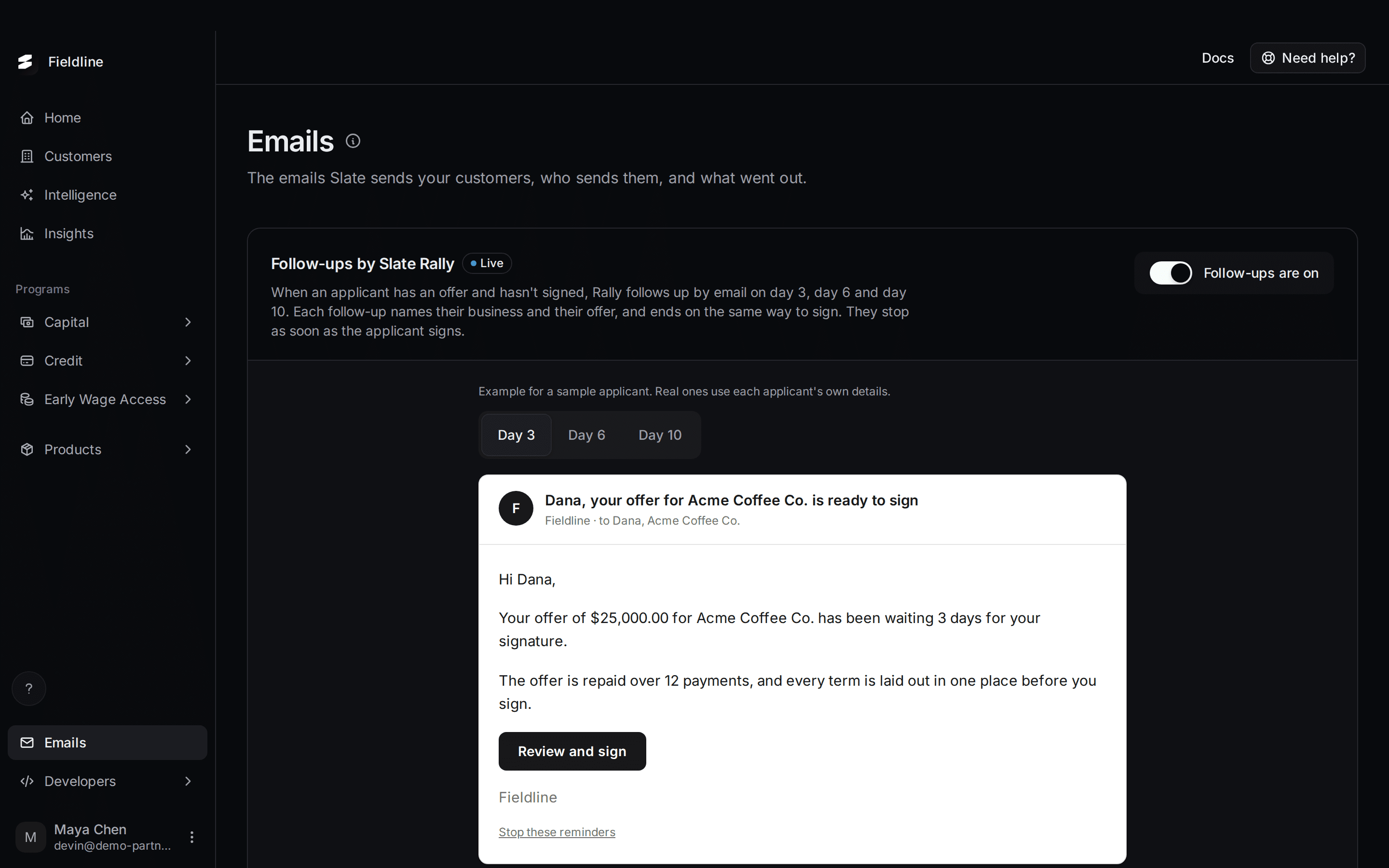
Some applicants get to their final terms and stop, one signature away. Slate Rally emails them up to three times to bring them back. You turn it on with one switch.
You'll find it at the top of Emails in the menu on the left. It is off until you turn it on.
What Slate Rally follow-ups do
When an applicant has an offer and hasn't signed, Rally emails them. By default that is on day 3, day 6 and day 10.
Each email is about that applicant: it names their business and their offer, and it ends with a button to sign. Slate Rally, Slate's AI writer, writes the wording. Slate fills in the business name, the amount, the term and the signing link itself, from the application. The writer never types those.
Follow-ups stop on their own when the applicant signs, is declined, or the offer expires. They also stop if a newer signature request replaces the old one, if the applicant opts out, or after the third email.
Turn on follow-ups
Open Emails
Select Emails in the menu on the left.
The Follow-ups by Slate Rally card is the first thing on the page. A grey New badge means follow-ups are off.
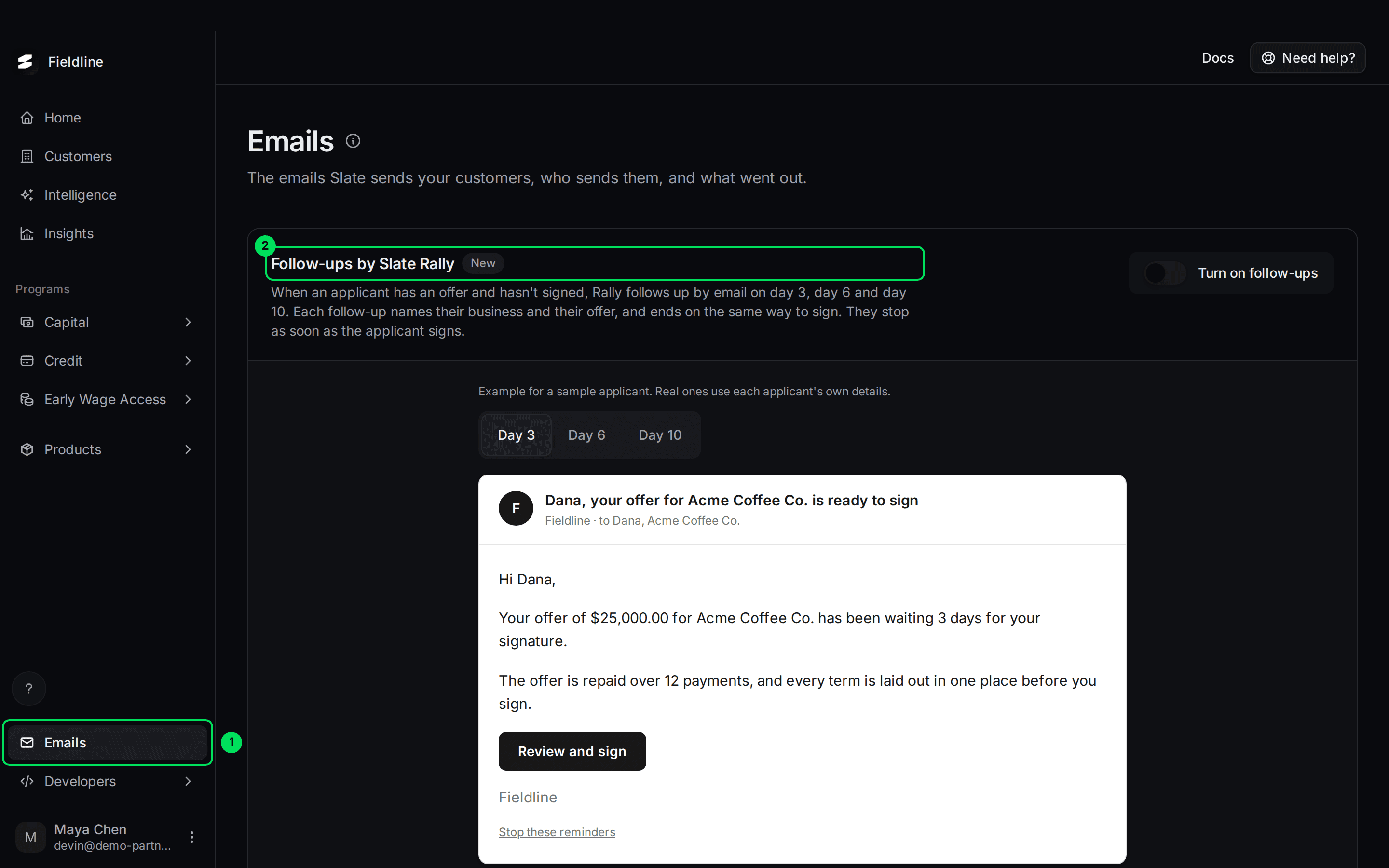
- Emails: the menu item that opens the page.
- Follow-ups by Slate Rally: the card. It says when follow-ups go out and what they contain.
Preview the three emails
Under the card text you'll see an example email for a made-up applicant.
Select Day 3, Day 6 and Day 10 to read each one. The example uses sample details. Real follow-ups use each applicant's own.
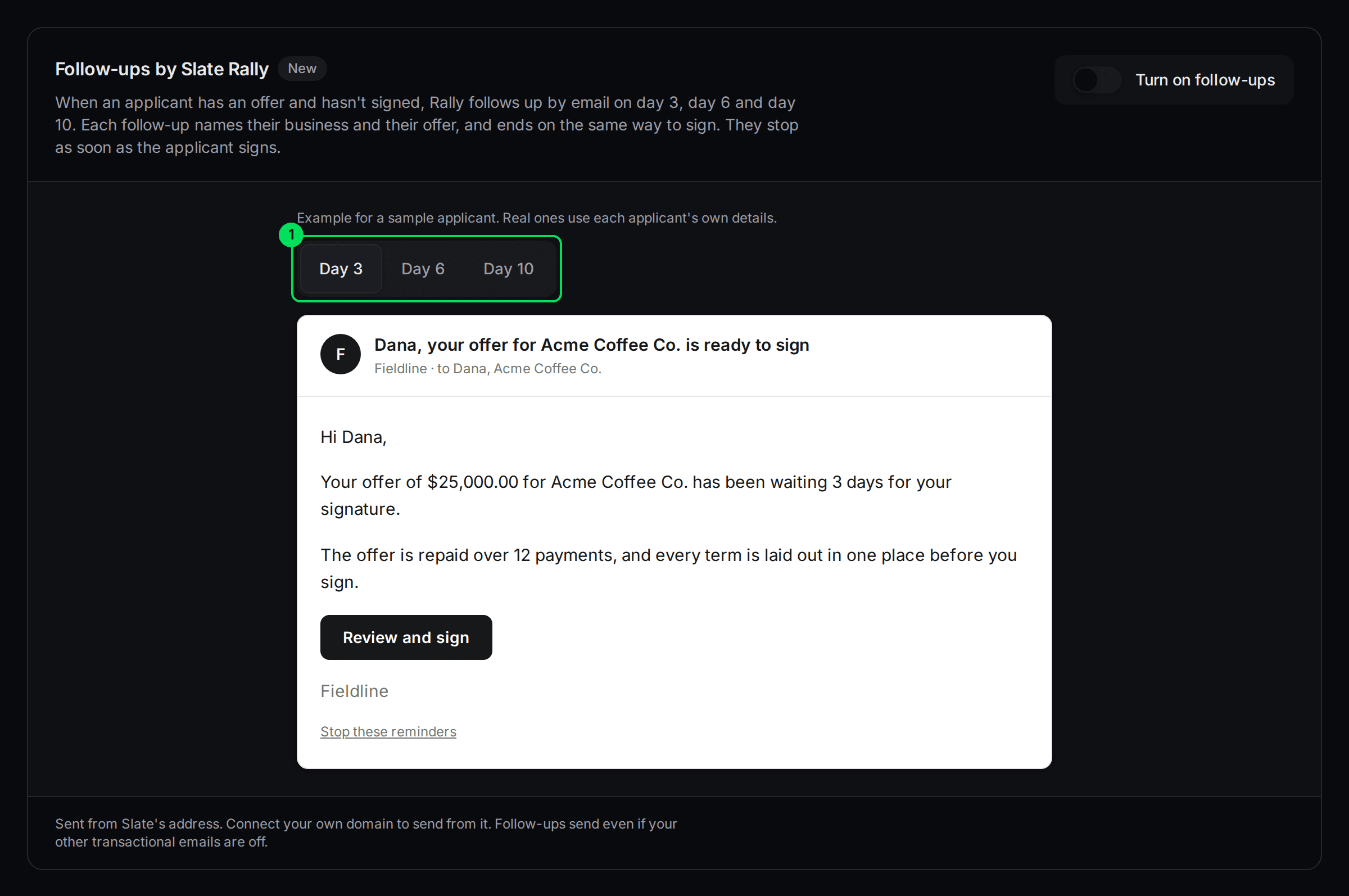
- Day 3, Day 6, Day 10: one example email for each follow-up.
Turn on the switch
Select the switch labelled Turn on follow-ups.

- Turn on follow-ups: starts follow-ups for every applicant who is waiting to sign.
Check that it says Live
The badge turns to Live. The label next to the switch changes to Follow-ups are on. A short message confirms it.

- Live: follow-ups are on.
- Follow-ups are on: select the switch again to turn them off.
What each follow-up says
The previews show the style. The three examples are short and calm: a reminder that the offer is ready to sign, a second note that everything needed to decide is on the signing page, and a last note that the offer is open when the applicant is ready.
Every email ends with the same Review and sign button, your company name, and a Stop these reminders link.
The card also tells you if follow-ups use anything from the applicant's bank data. By default they don't: each one is written from the application alone.
If Slate can't produce an email that passes its own checks, it sends a short standard message instead. It never sends nothing, and the standard messages contain no numbers.
When follow-ups are sent
- Spacing: the second follow-up goes out on day 6 and at least 3 days after the first was delivered. The third goes out on day 10 and at least 4 days after the second.
- Hours: Monday to Friday, 9:00 to 17:00 Toronto time. Outside those hours, due follow-ups wait for the next window.
- Sender: your verified domain if you have connected one. Otherwise Slate's address. To send from your own domain, see Send emails from your own domain.
- Your other settings: follow-ups send even if your other transactional emails are off.
See what was sent
The card shows how many follow-ups went out in the last 30 days, and a button to see them.
Check the count
Look at the bottom of the card. It says, for example, 5 follow-ups sent in the last 30 days. If none have gone out yet, it says You're live. Your first follow-ups will show in Activity.

- 5 follow-ups sent in the last 30 days.: the count for the last 30 days.
- See them in Activity: opens the list of sent follow-ups.
Open Activity
Select See them in Activity. The Activity tab opens with the email filter already set to Follow-up to sign. Each row has a Slate Rally badge.
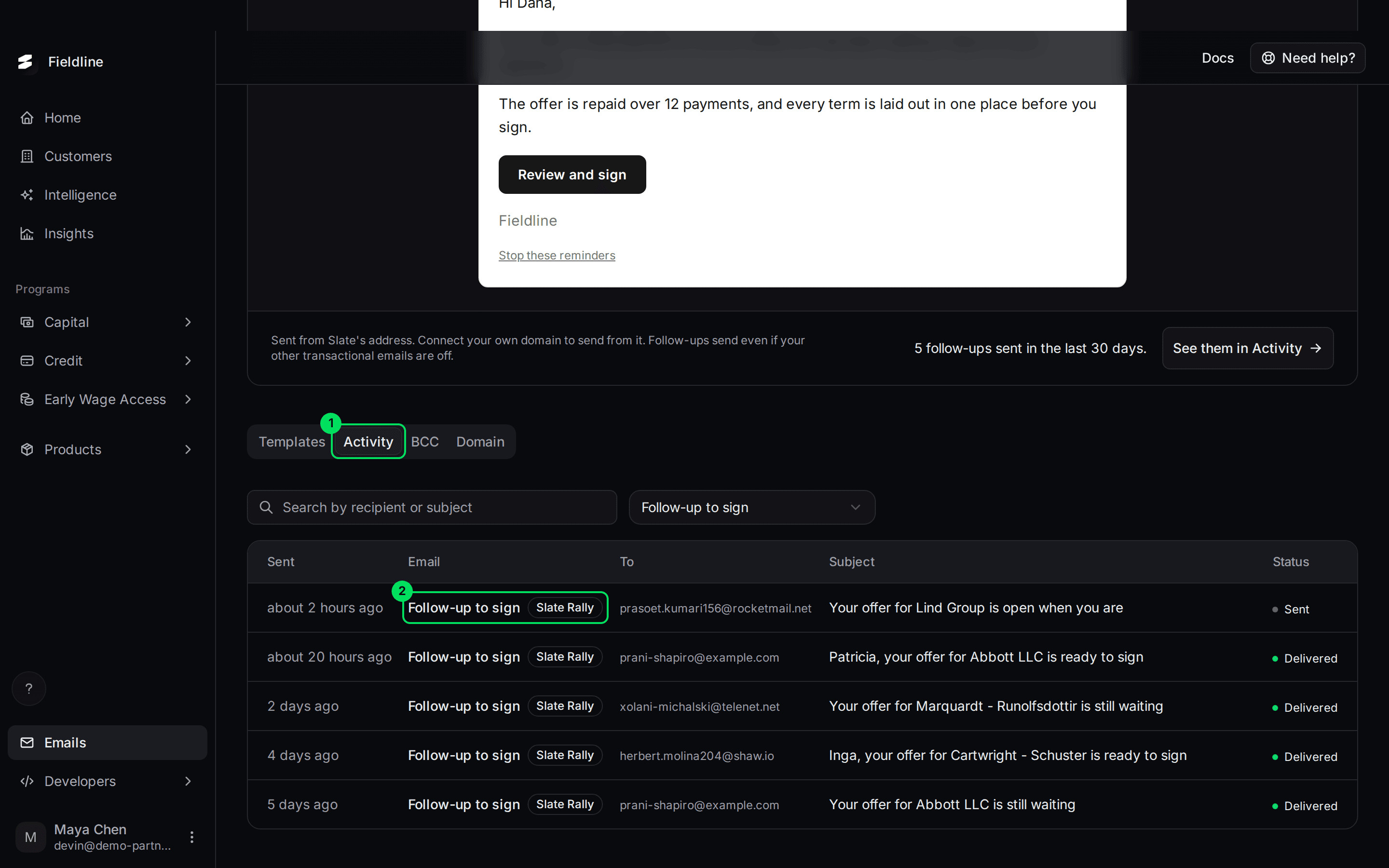
- Activity: the tab.
- Follow-up to sign with the Slate Rally badge: one row for each follow-up sent.
Read an email
Select a row. The email opens on the right, exactly as the applicant received it.
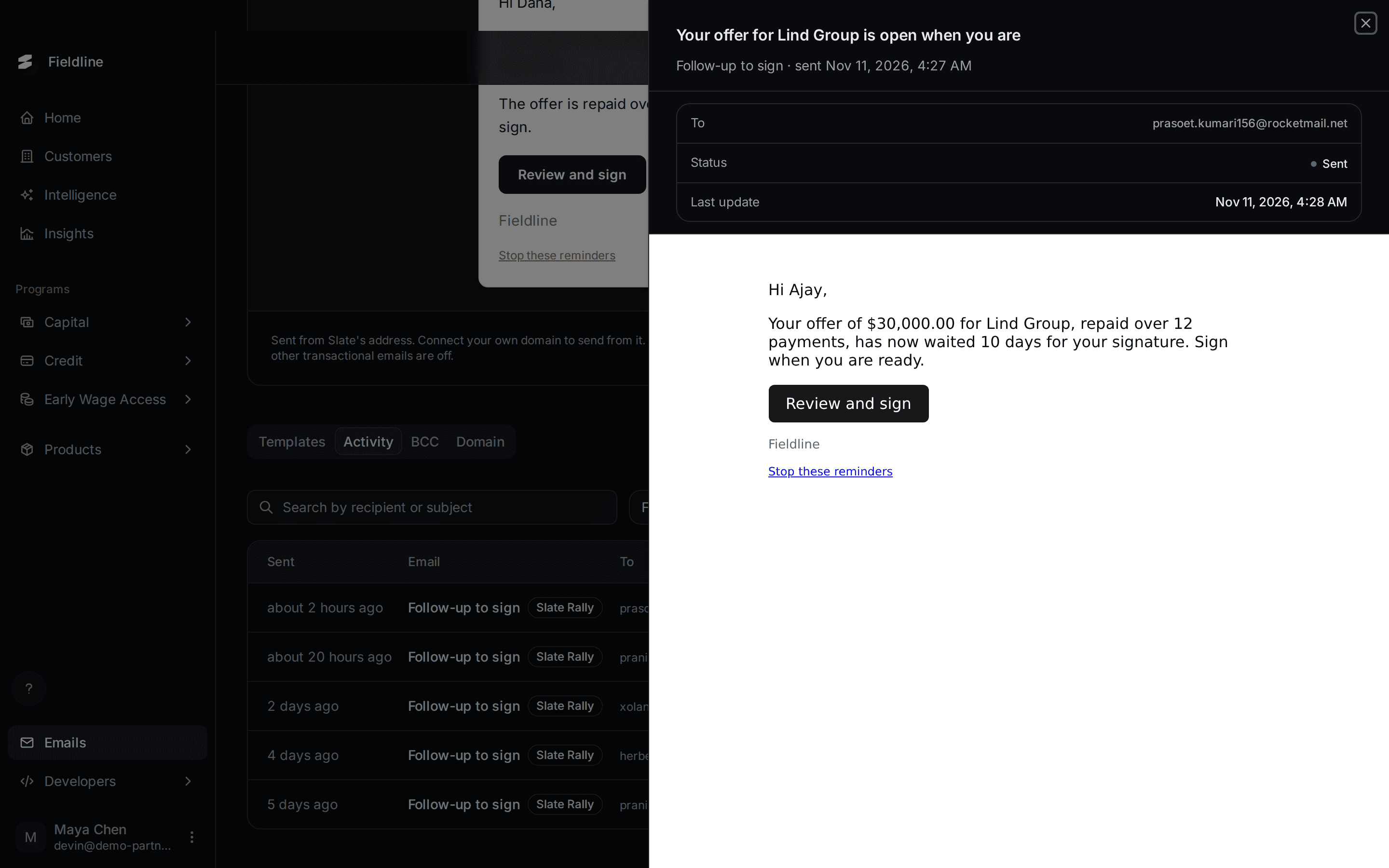
Rows use the same statuses as your other emails. For what Sent, Delivered and the rest mean, see Check which emails were sent.
Check how it's going
When something unusual has happened in the last 30 days, a line appears at the bottom of the card. It shows only the items that are not zero.

- In the last 30 days: the line that lists what went differently.
- application(s) stopped reminders: the applicant used the Stop these reminders link. Nothing for you to do.
- follow-up(s) couldn't be sent: Slate tried three times and gave up on that email. Nothing was delivered.
- follow-up(s) couldn't be confirmed as sent: the email service didn't answer, so Slate can't tell if it went out. Slate does not try again, so the applicant is never emailed twice. The reminders for that application stop.
There is no list or alert for these yet. If the numbers worry you, tell your Slate contact.
See the email in your templates
Follow-up to sign is also listed on the Templates tab, in a Follow-ups group above your other emails. It has its own switch, and it is the same switch as the card.
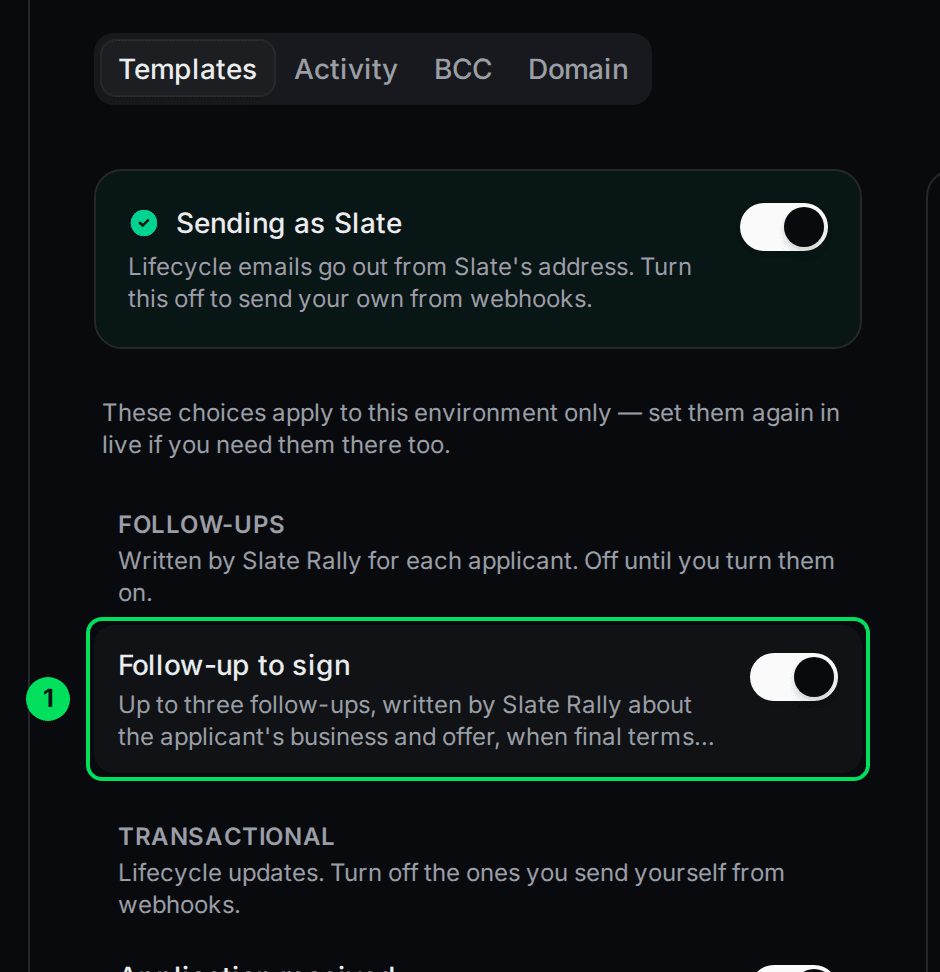
- Follow-up to sign: turns follow-ups on or off, same as the card.
What your applicant sees
Every follow-up ends with a Stop these reminders link. It stops the signing reminders for that one application. Their other emails about the application keep coming.
Opening the link only asks the question. Nothing stops until the applicant selects the button.
The applicant opens the link
They see a page with your company name.
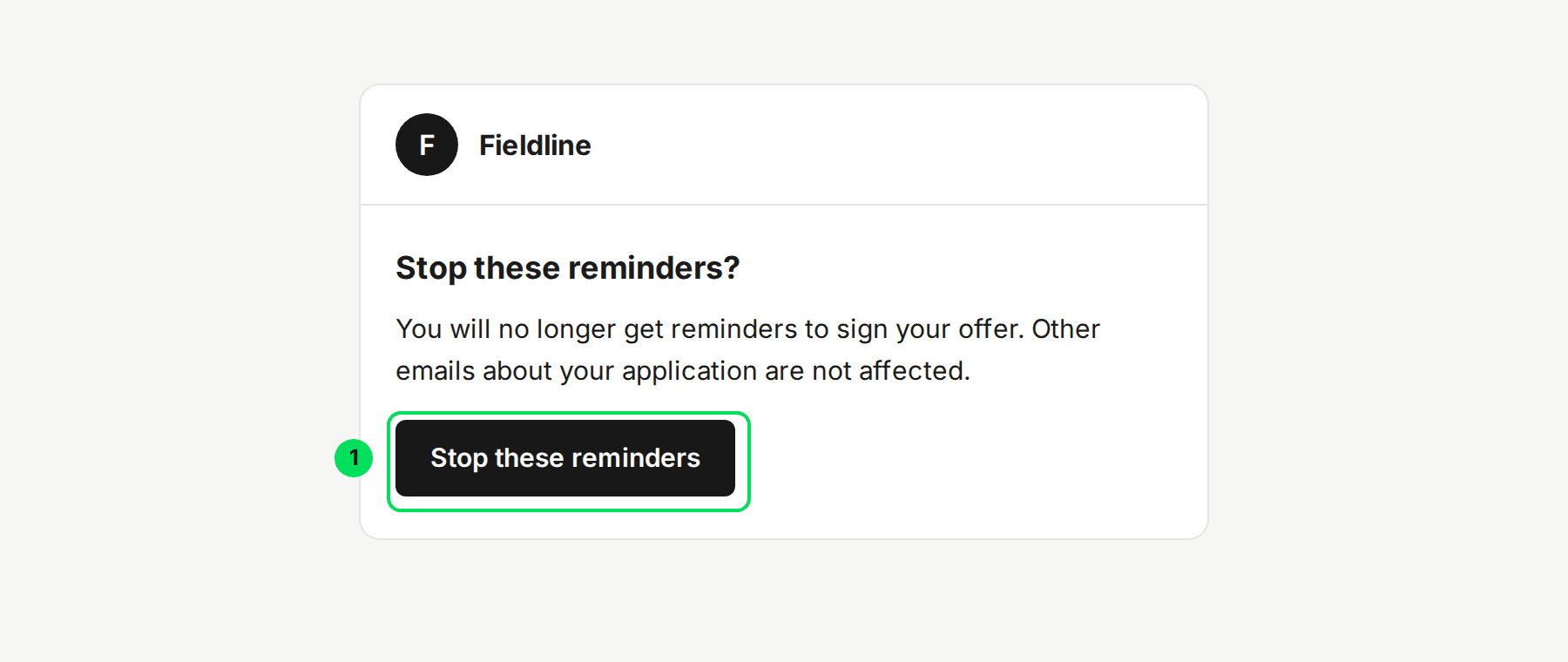
- Stop these reminders: confirms. Reminders for this application stop.
They see the confirmation
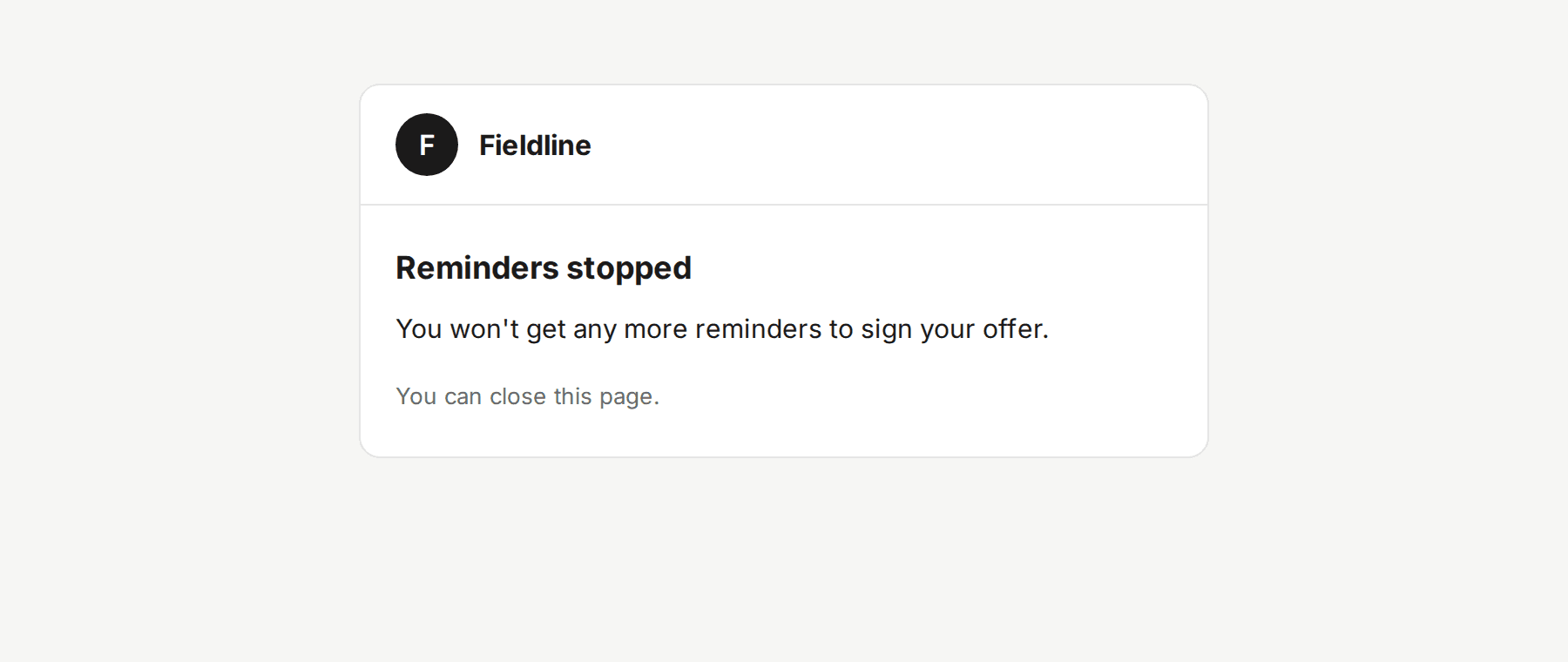
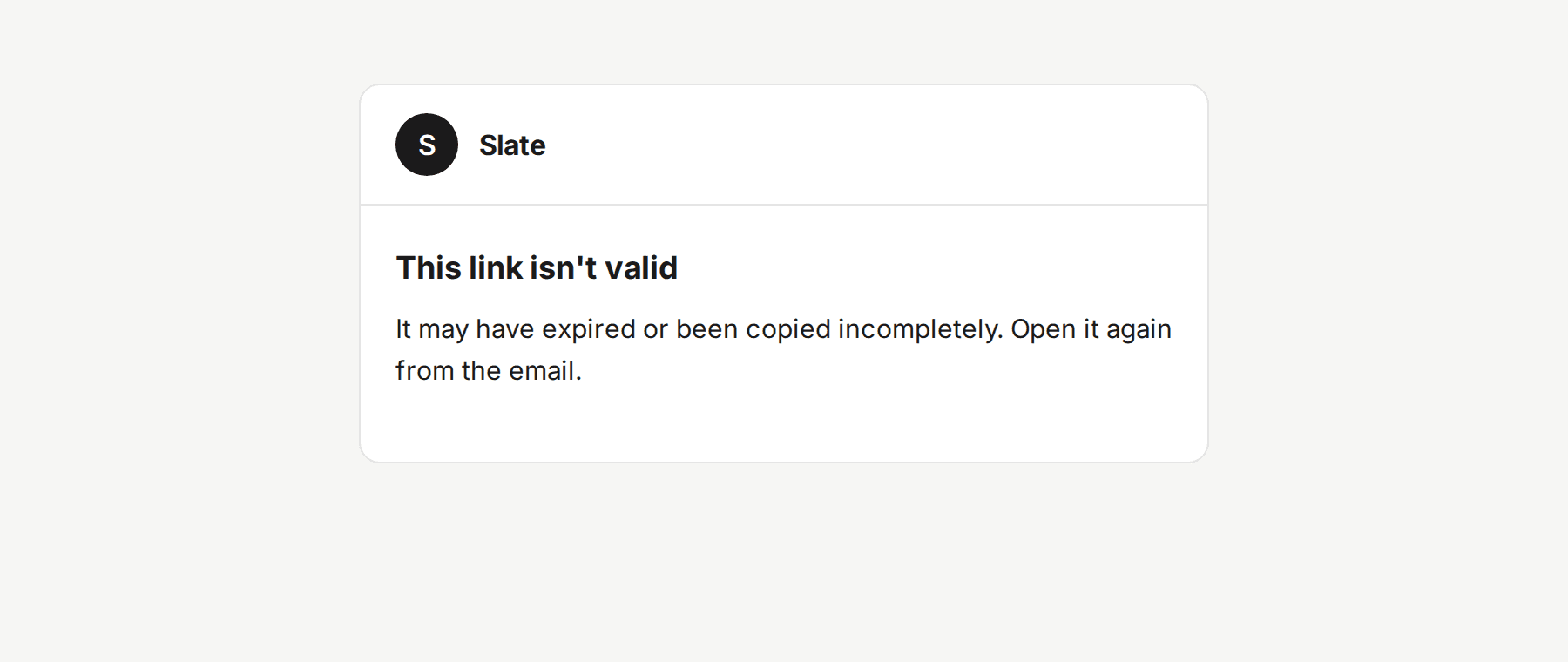
The link works for 90 days from the start of that applicant's reminders. After that, or if the link is copied wrongly, the applicant sees this instead:
Turn follow-ups off
Select the switch again, on the card or in Templates. It reads Follow-ups are on while they are running. Slate stops sending follow-ups.
Use Rally from your own tools
Your developers can also ask Rally for an email through the Slate API, for applicants at any stage, not only those waiting to sign. This is separate from the dashboard switch, and Slate turns it on per account. Ask your Slate contact.
- Create a follow-up with
POST /follow-ups. Read one withGET /follow-ups/{id}, and list them withGET /follow-ups. - Slate tells your system when one is ready with the
follow-up.readywebhook. When a bank statement has been read, it sendsfollow-up.statement.read. - Requests use your private API key in the
x-api-keyheader. See Create and manage API keys and Set up webhooks.
If something goes wrong
Why can't I see the follow-ups card?
The card is hidden in two cases.
- Your program has no capital product. Follow-ups are for applicants with a capital offer.
- Slate hasn't finished switching it on for your account. Ask your Slate contact.
Why didn't an applicant get a follow-up?
Check these in order.
- Is the switch on? It should read Follow-ups are on.
- Has the applicant signed, been declined, or had the offer expire? Follow-ups stop.
- Is the offer new? Follow-ups only start for a signature request that is less than 14 days old.
- Has it been 3 days since the offer, or since the last follow-up?
- Is it Monday to Friday, between 9:00 and 17:00 Toronto time? Follow-ups wait outside those hours.
- Did the applicant select Stop these reminders? Look for application stopped reminders on the card.
An applicant says they keep getting reminders
Ask them to use the Stop these reminders link at the bottom of any follow-up. There is no way to stop one application from the dashboard today.
An applicant says the stop link doesn't work
Links expire 90 days after the reminders start, and break if they're copied wrongly. Ask the applicant to open the link again straight from the email. If it still fails, tell your Slate contact.
Learn more about Slate Rally.
Still stuck? Email [email protected] with your account email and the screen you are on. We reply within 24 business hours.