Help Center / Getting started
Find your way around the dashboard
A guided look at the Slate partner dashboard: the left menu, the top bar, the help panel, tables, status dots and the account menu.
10 min read · Updated November 10, 2026
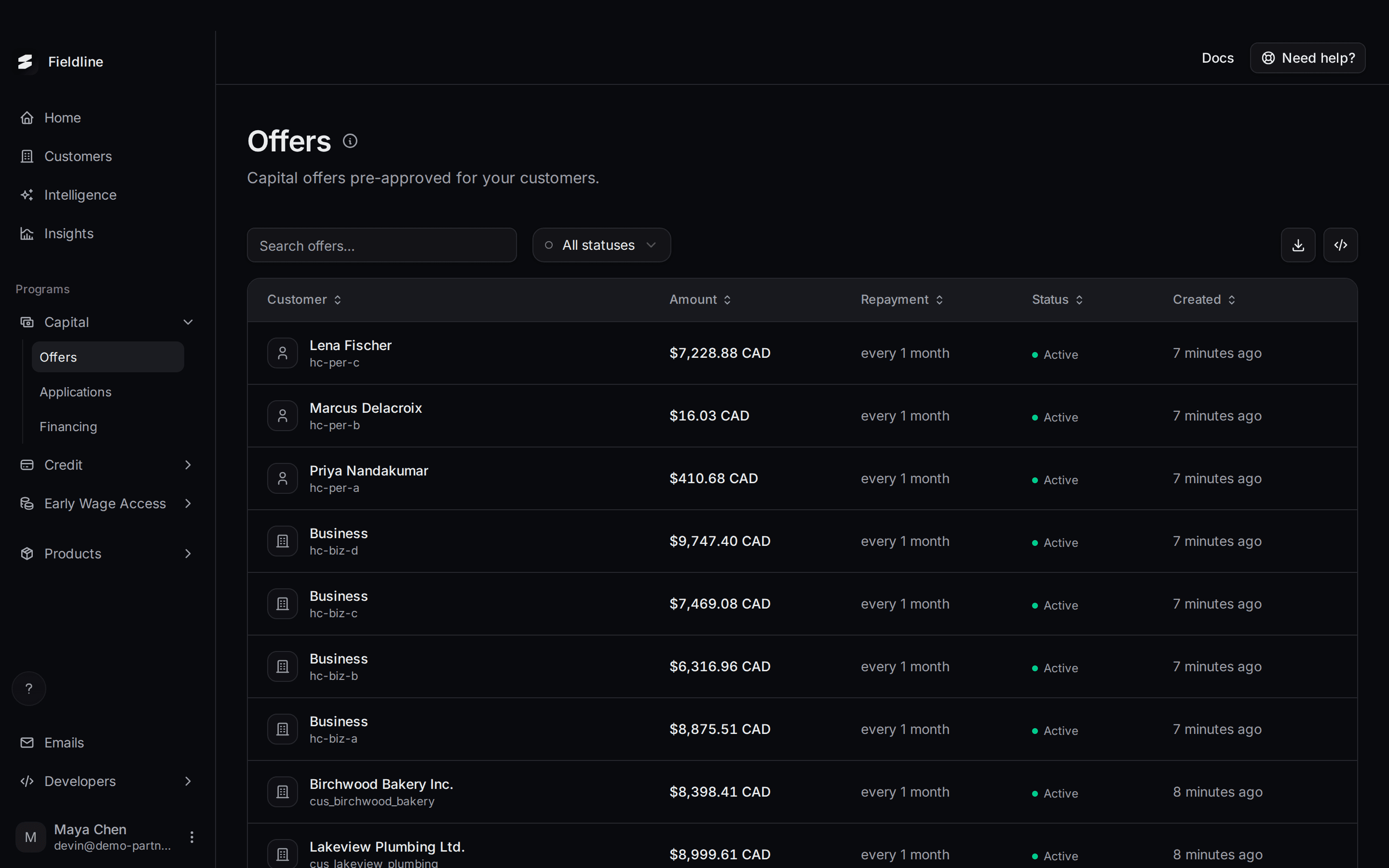
This page shows you where everything is in the Slate dashboard. Read it once and you'll know where to click for the rest of the Help Center.
The dashboard has the same layout on every page: a menu on the left, a thin bar across the top, and the page itself in the middle.
What the left menu does
The menu on the left is how you move around. Some items only show for certain programs, so your menu may look a little different from the one below.
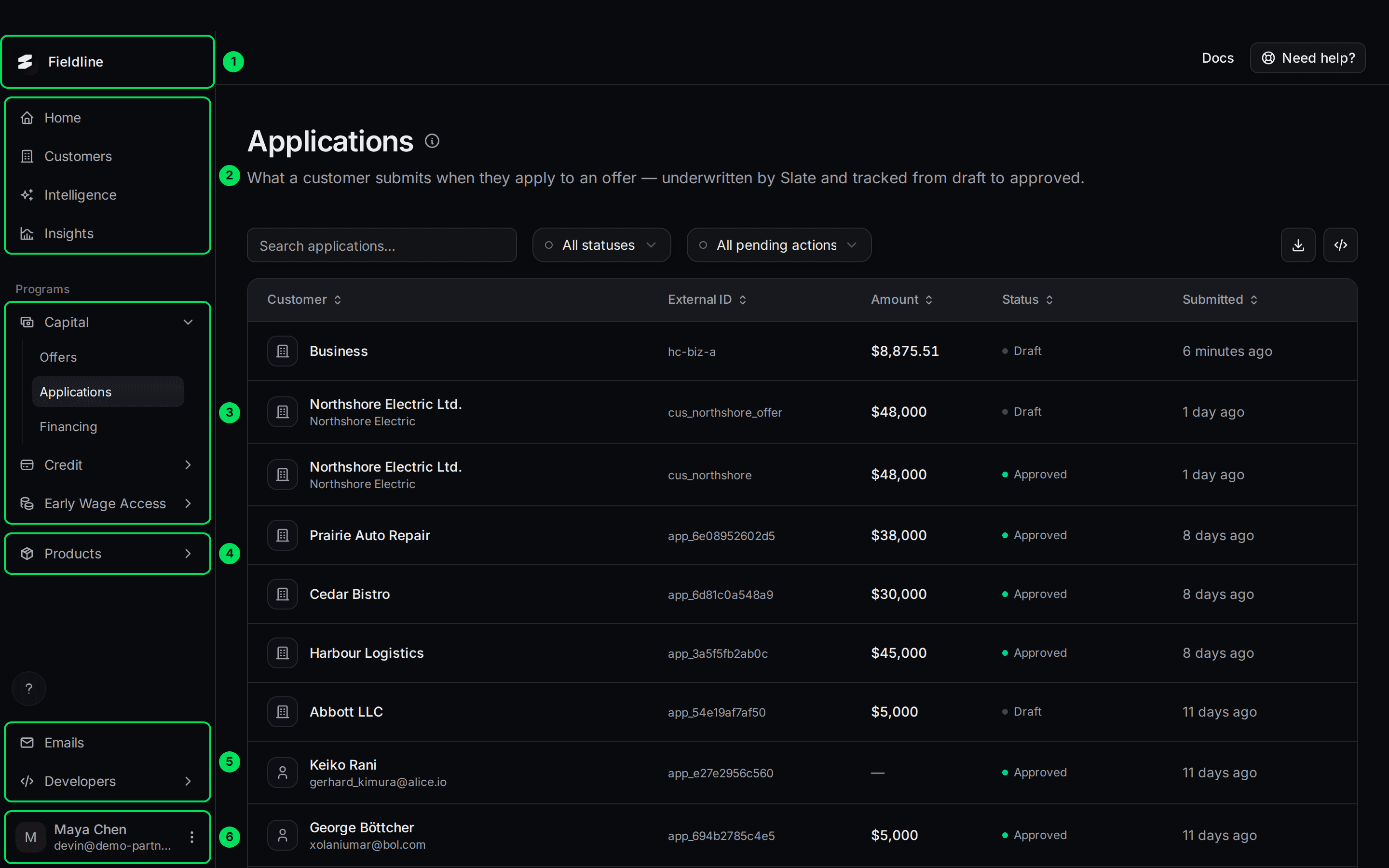
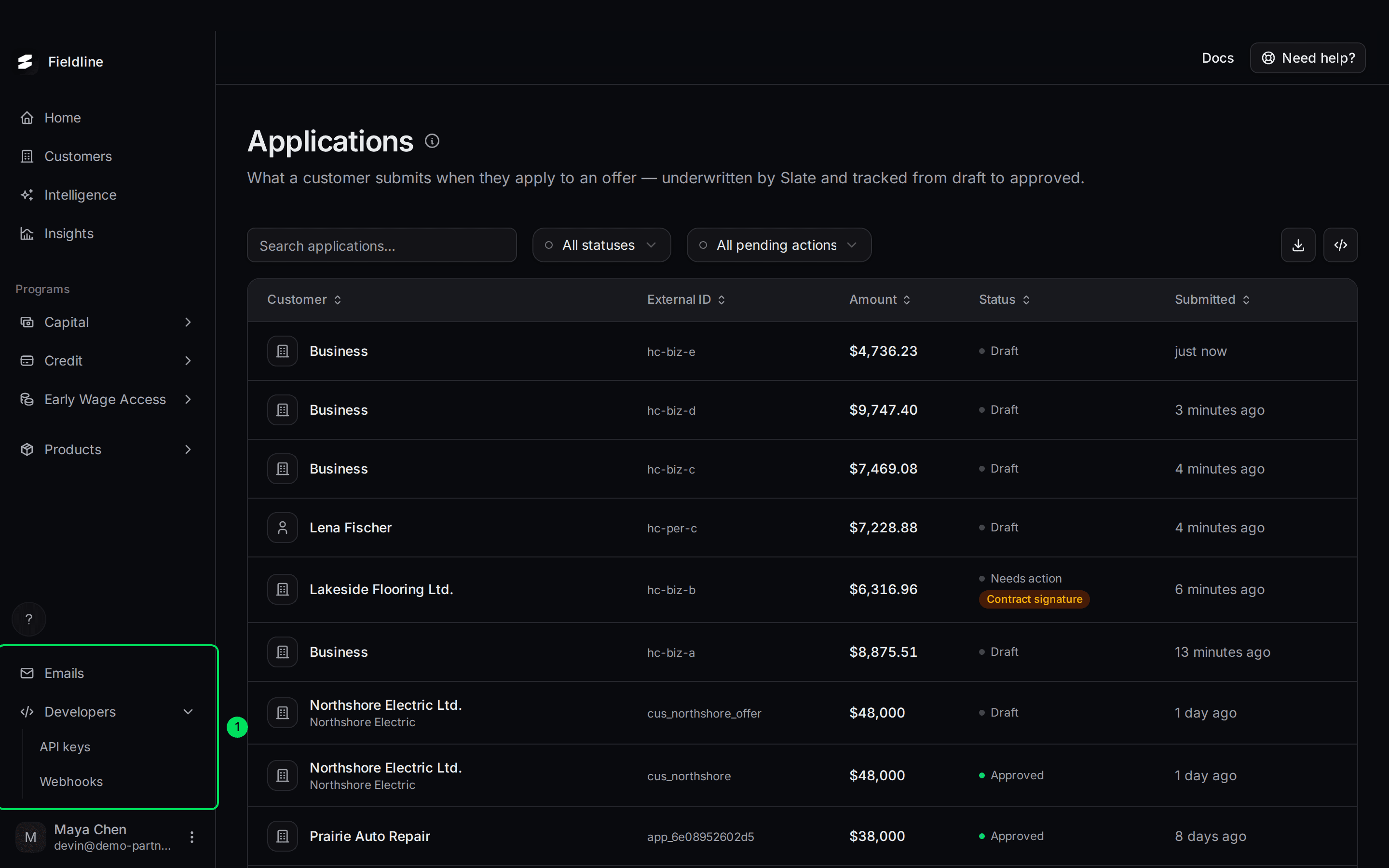
- Your company name: the organization you're signed in to. It isn't a button.
- Home, Customers, Intelligence, Insights: the pages you'll use most.
- Programs: Capital, Credit and Early Wage Access.
- Products: the screens your customers see, and how they look.
- Emails and Developers: customer emails, API keys and webhooks.
- Your name and email: opens the account menu.
Home, Customers, Intelligence and Insights
- Home: your "Get started with Slate" checklist. It only exists in sandbox. In live, Home is gone and you land on Customers. See Get started with the setup checklist.
- Customers: every business or person you've brought to Slate.
- Intelligence: customers Slate thinks are ready for an offer, and the signal that showed it.
- Insights: how your capital program is doing.
Programs
Programs are the kinds of financing you offer. A program only shows if Slate has switched it on for you.
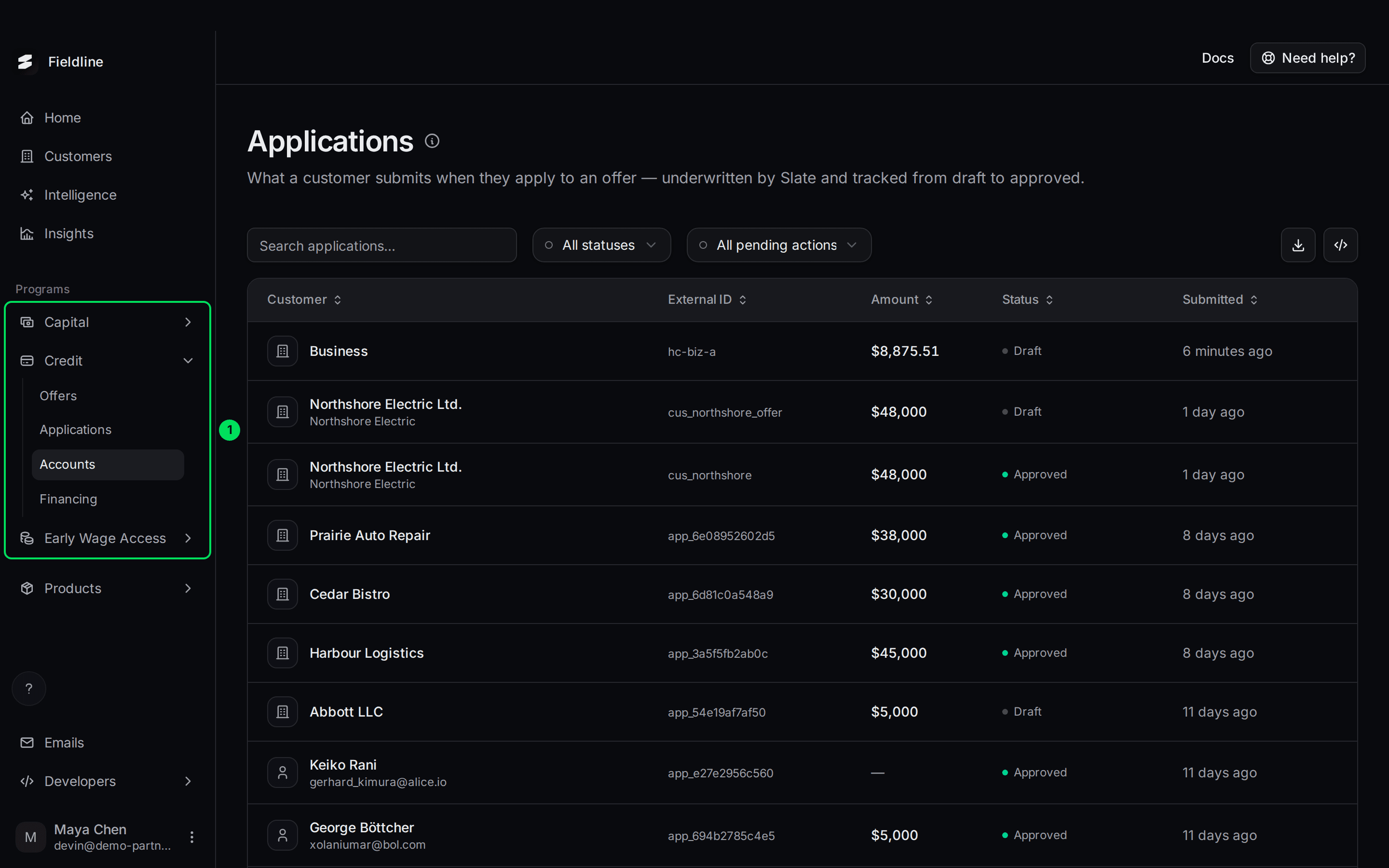
- Capital: Offers, Applications and Financing. This is the main program.
- Credit: Offers, Applications, Accounts and Financing. It only shows if you offer a credit line.
- Early Wage Access: Advances. It shows for every Capital partner. If you don't offer it, the page is empty.
Only one section of the menu stays open at a time. Opening a new one closes the last.
Products
Products holds the screens you can embed in your own product, and how they look. It always shows Application Flow. The rest depend on your program.
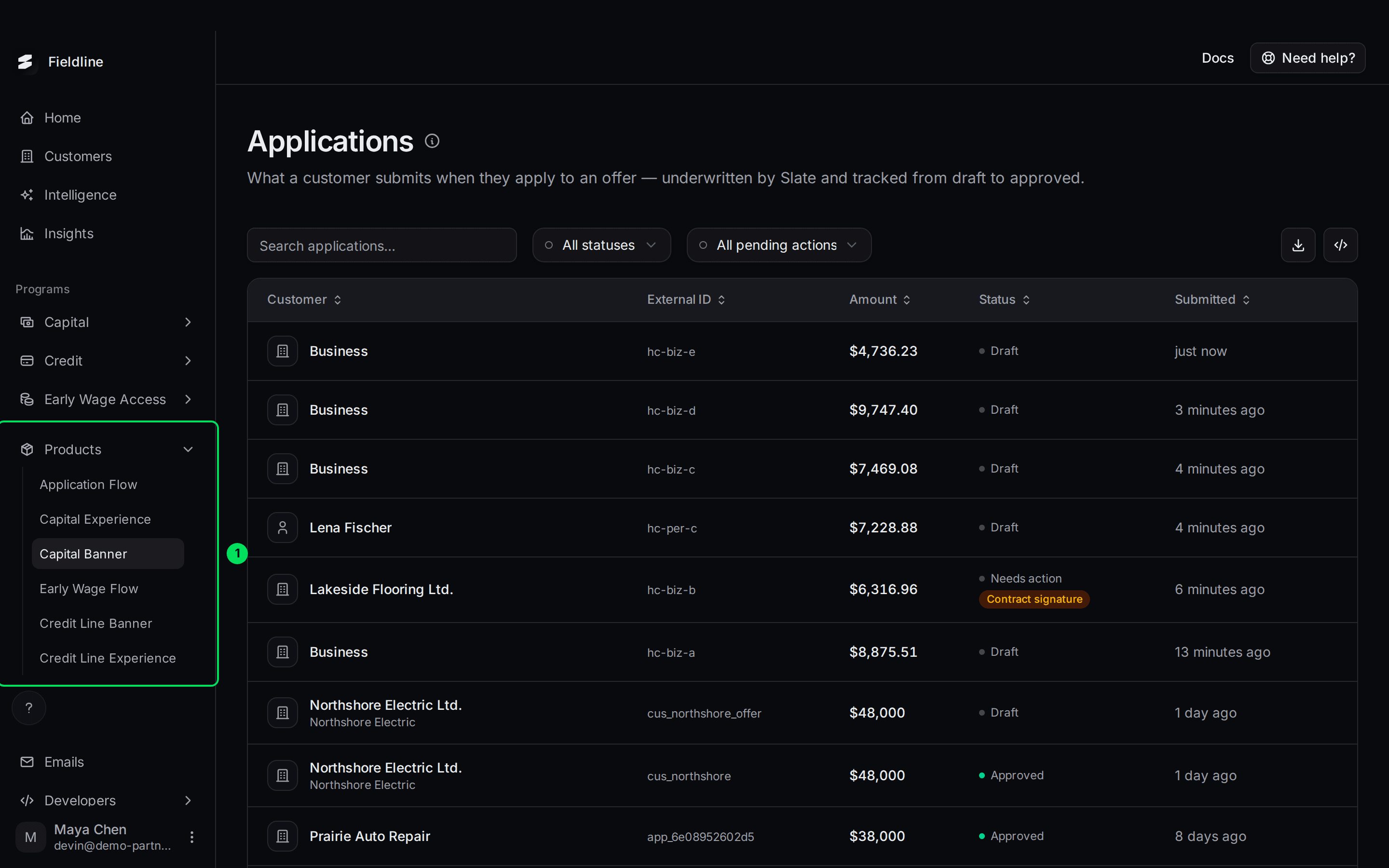
- Products: Application Flow, Capital Experience, Capital Banner, Early Wage Flow, Credit Line Banner and Credit Line Experience.
Credit Line Banner and Credit Line Experience only show for credit lines your customers draw from. Capital Experience, Capital Banner and Early Wage Flow show for Capital partners.
Emails and Developers
- Emails: what Slate sends your customers, who sends it, and what went out.
- Developers: API keys and Webhooks. Hand this part to your engineer.
What the top bar does
The top bar has two buttons on the right: Docs and Need help?. The page title sits just below it.
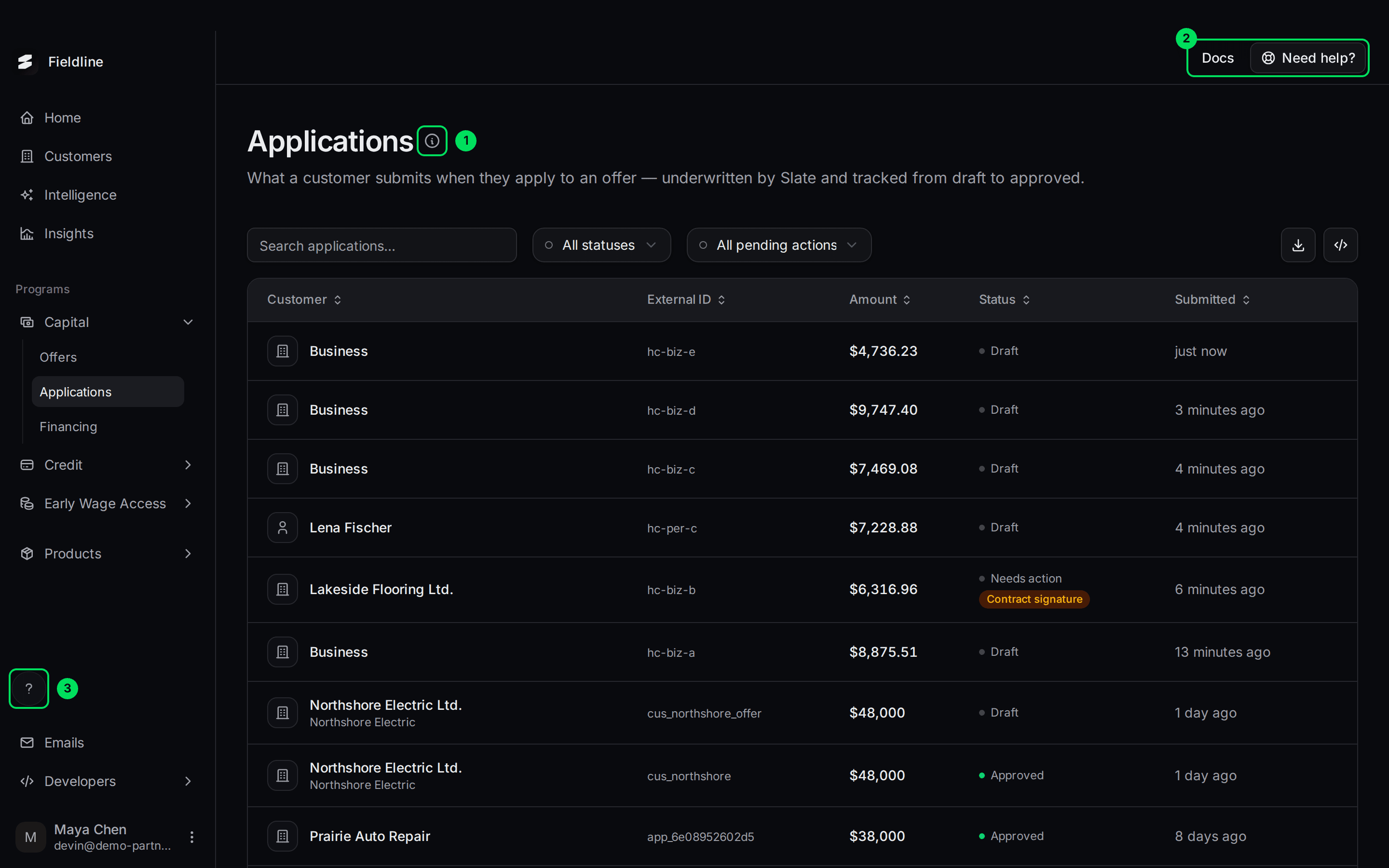
- About (the small i): explains the page you're on.
- Docs and Need help?: documentation and the help panel.
- The round ? button: a short help menu, bottom left.
The top bar is hidden on the six pages under Products. The round ? button is still there.
Open the Need help? panel
Select Need help?
It's the outlined button at the top right of any page.
Pick a link
The panel slides in from the right. Each link opens in a new tab.
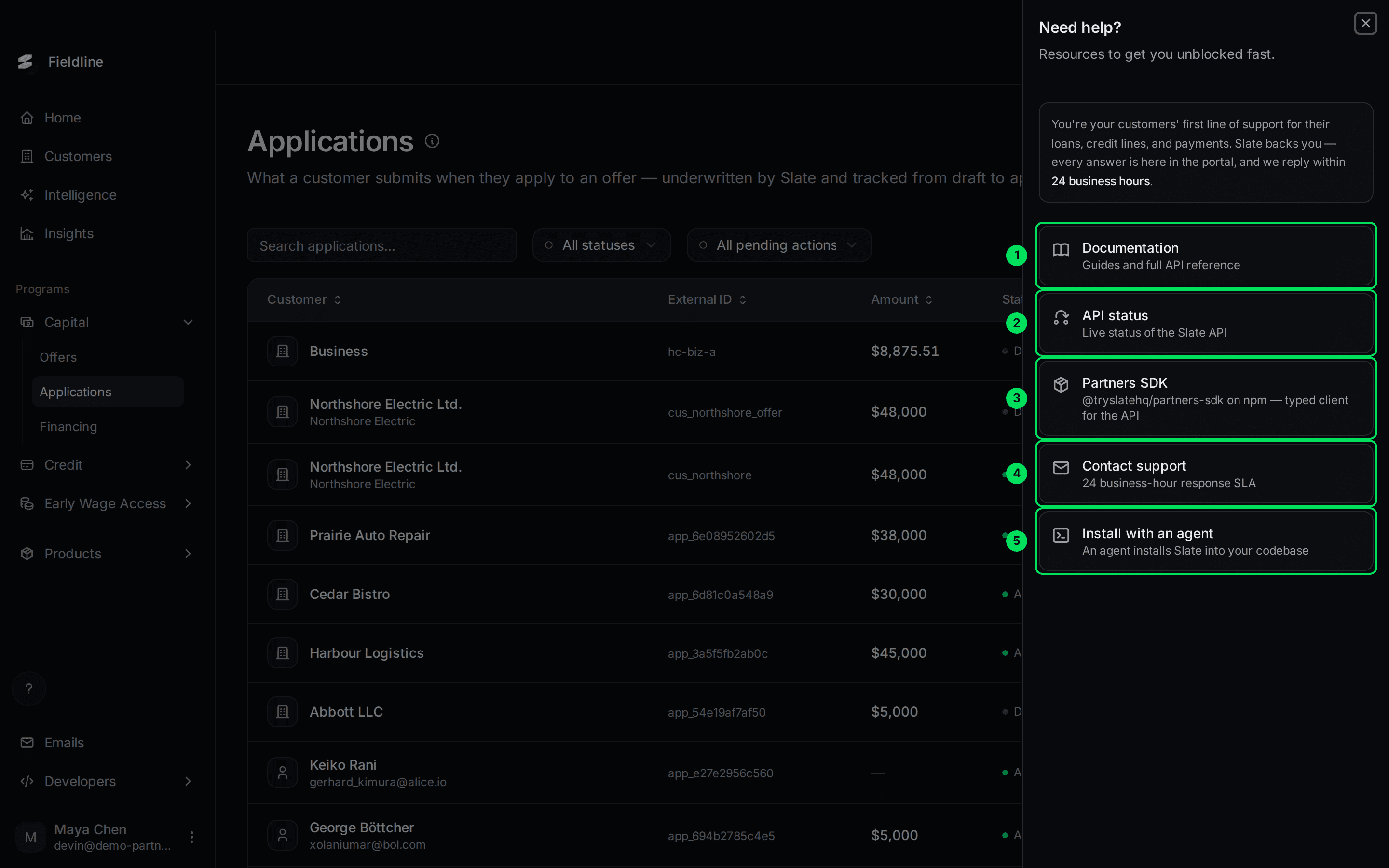
- Documentation: guides and the full API reference.
- API status: the live status of the Slate API.
- Partners SDK: a ready-made code package for your developers.
- Contact support: opens an email to Slate. We reply within 24 business hours.
- Install with an agent: an AI agent installs Slate into your code.
The panel also reminds you that you're your customers' first line of support. Slate backs you, and every answer is in the portal.
Use the round ? menu
The round ? button sits at the bottom left, above Emails. Select it for four shortcuts.
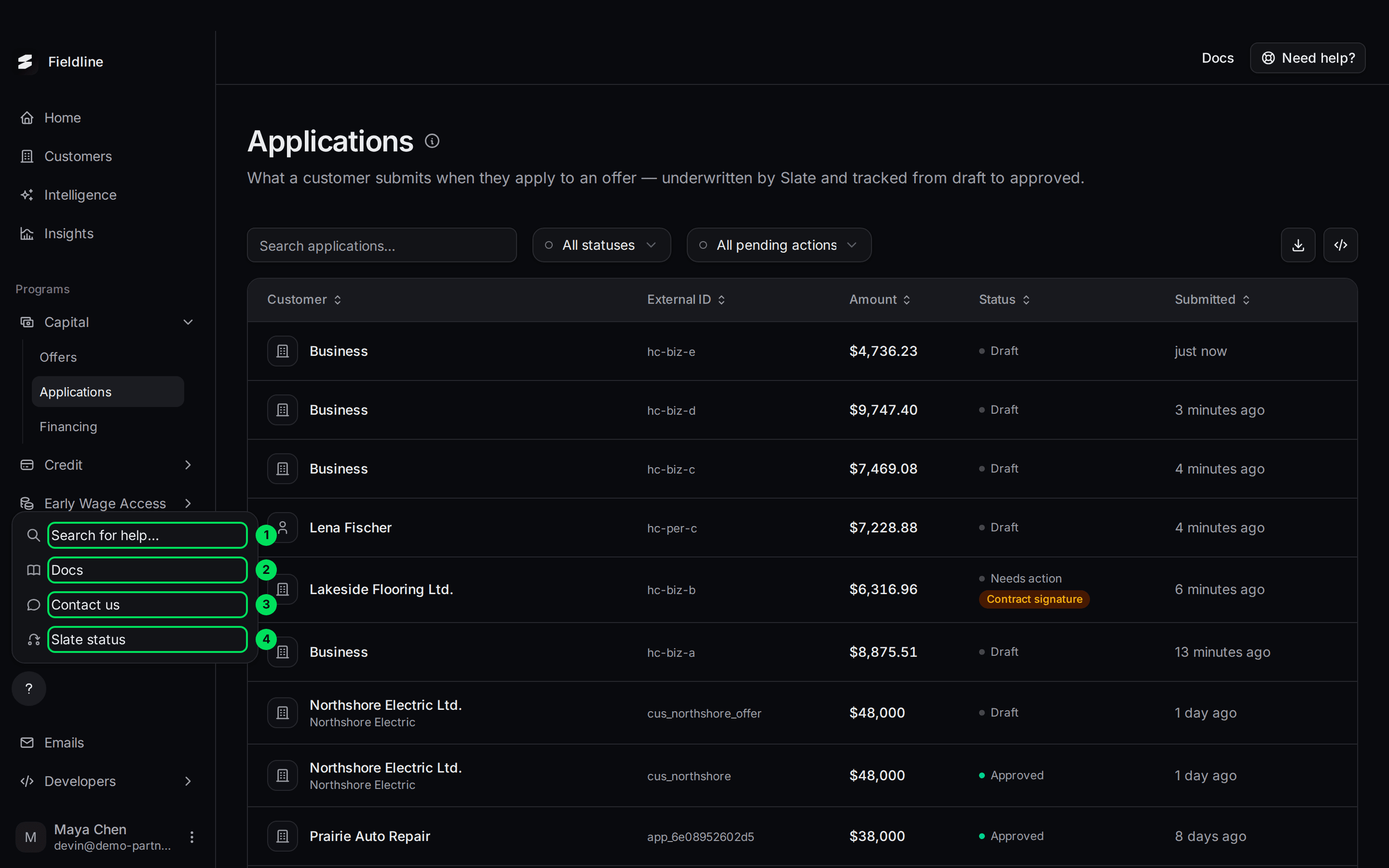
- Search for help…: opens the same Need help? panel.
- Docs: opens the documentation.
- Contact us: opens an email to Slate.
- Slate status: opens the status page.
Read the About note on a page
Most pages have a small i next to the title. Select it to see what the page is for and what the main terms mean.
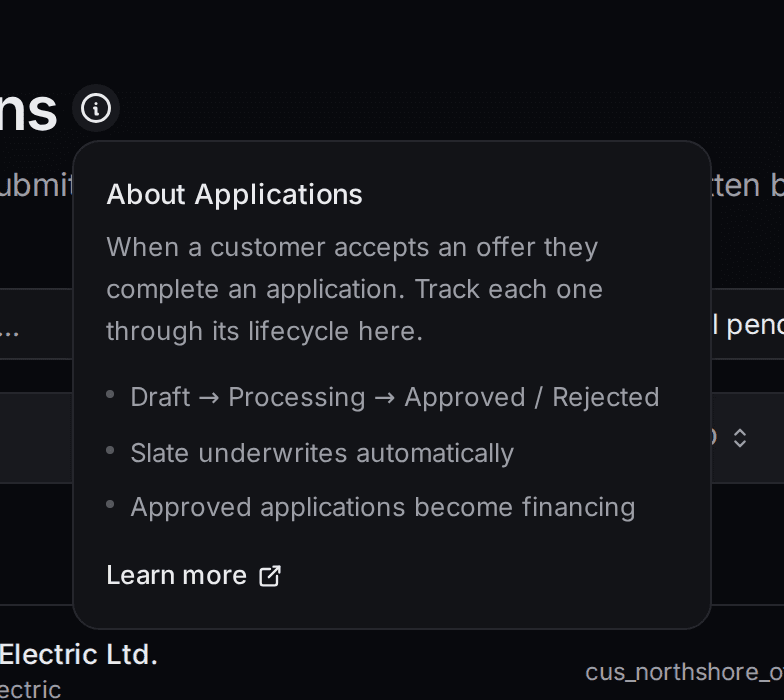
Select Learn more for the full guide. Select the i again, or click anywhere else, to close it.
Open the account menu
Select your name at the bottom left to open the account menu. For signing in and switching environments, see Create your account and sign in.
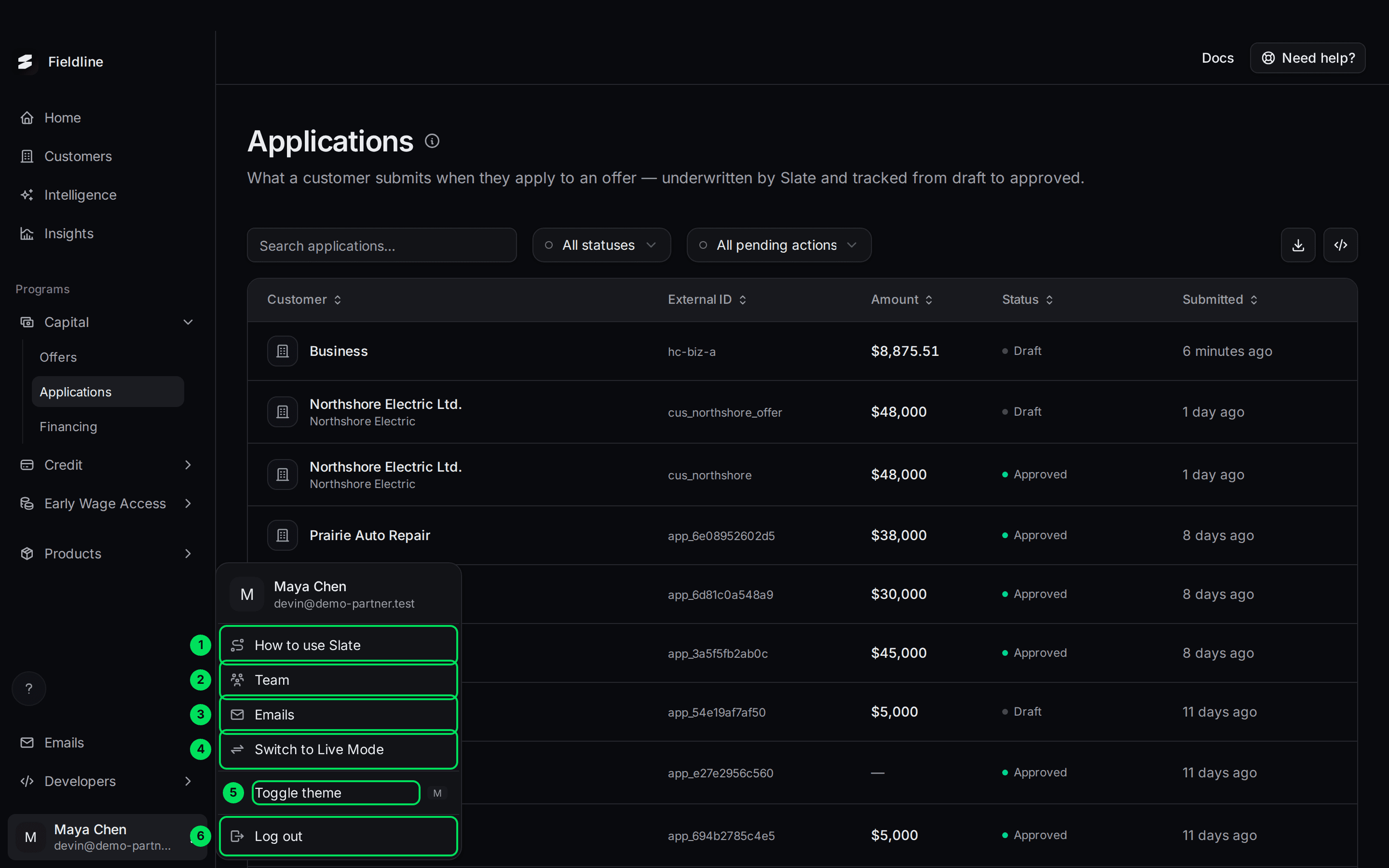
- How to use Slate: starts the narrated tour.
- Team: add and remove people. See Add your team.
- Emails: the same page as Emails in the menu.
- Switch to Live Mode: changes environment. See Sandbox and live.
- Toggle theme: switches between light and dark. The keyboard shortcut is M.
- Log out: signs you out.
Work with tables
Customers, Offers, Applications, Financing and most other pages show a table. They all work the same way.
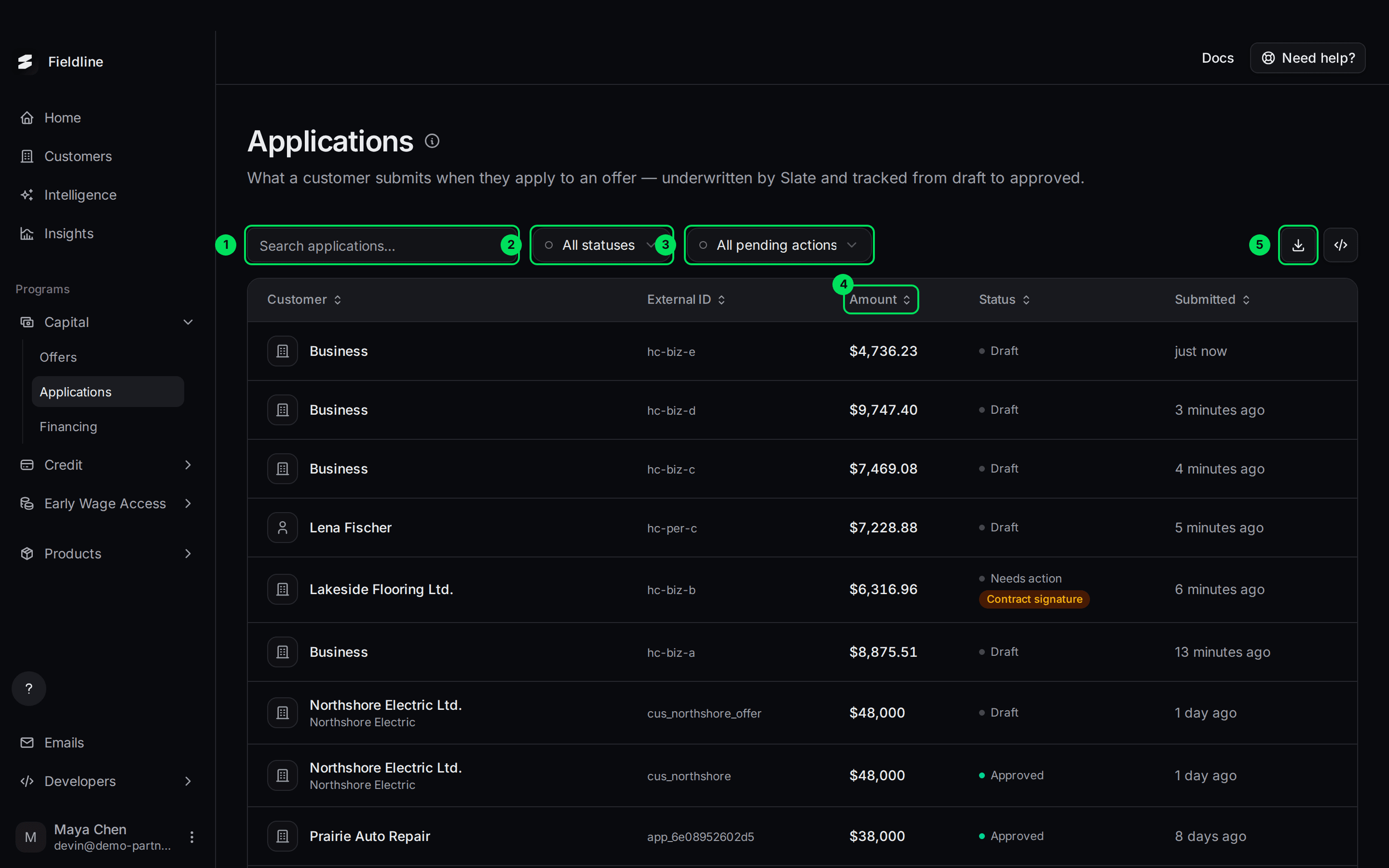
- Search: type a name, email or ID. The table narrows as you type.
- Status filter: show only one status.
- Second filter: on Applications, show only applications waiting on a certain next step.
- Column headers with arrows: select one to sort. Select it again to flip the order.
- Export: downloads the table as a spreadsheet. See Export to CSV.
Changing a search or a filter always takes you back to page 1.
Show more rows and move between pages
The bottom of the table shows how many results there are, and how many rows show per page.
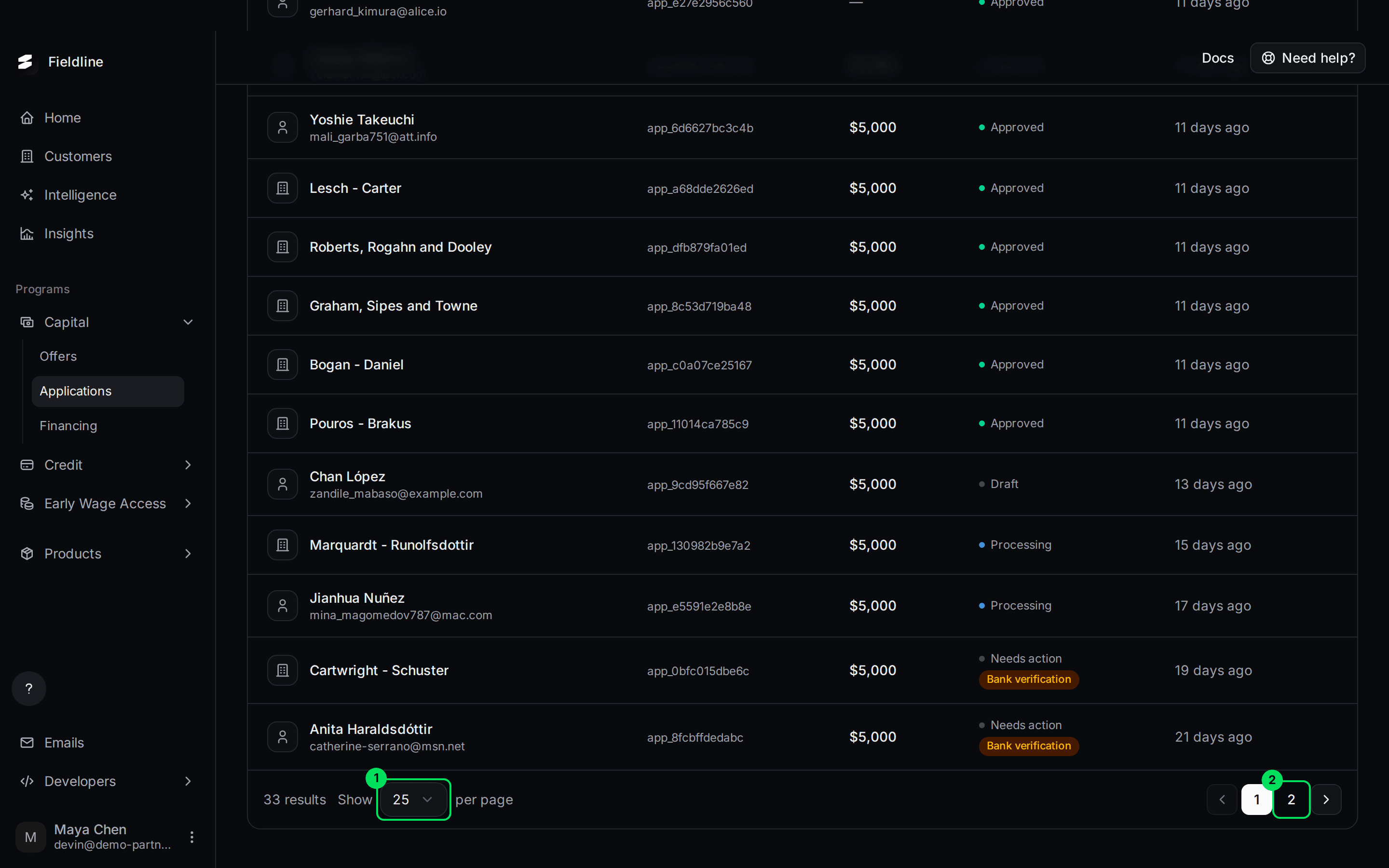
- Show … per page: choose 10, 25, 50 or 100. The default is 25.
- Page numbers and arrows: move to another page.
Open a row to see the details
Select any row. A panel slides in from the right with everything about that record.
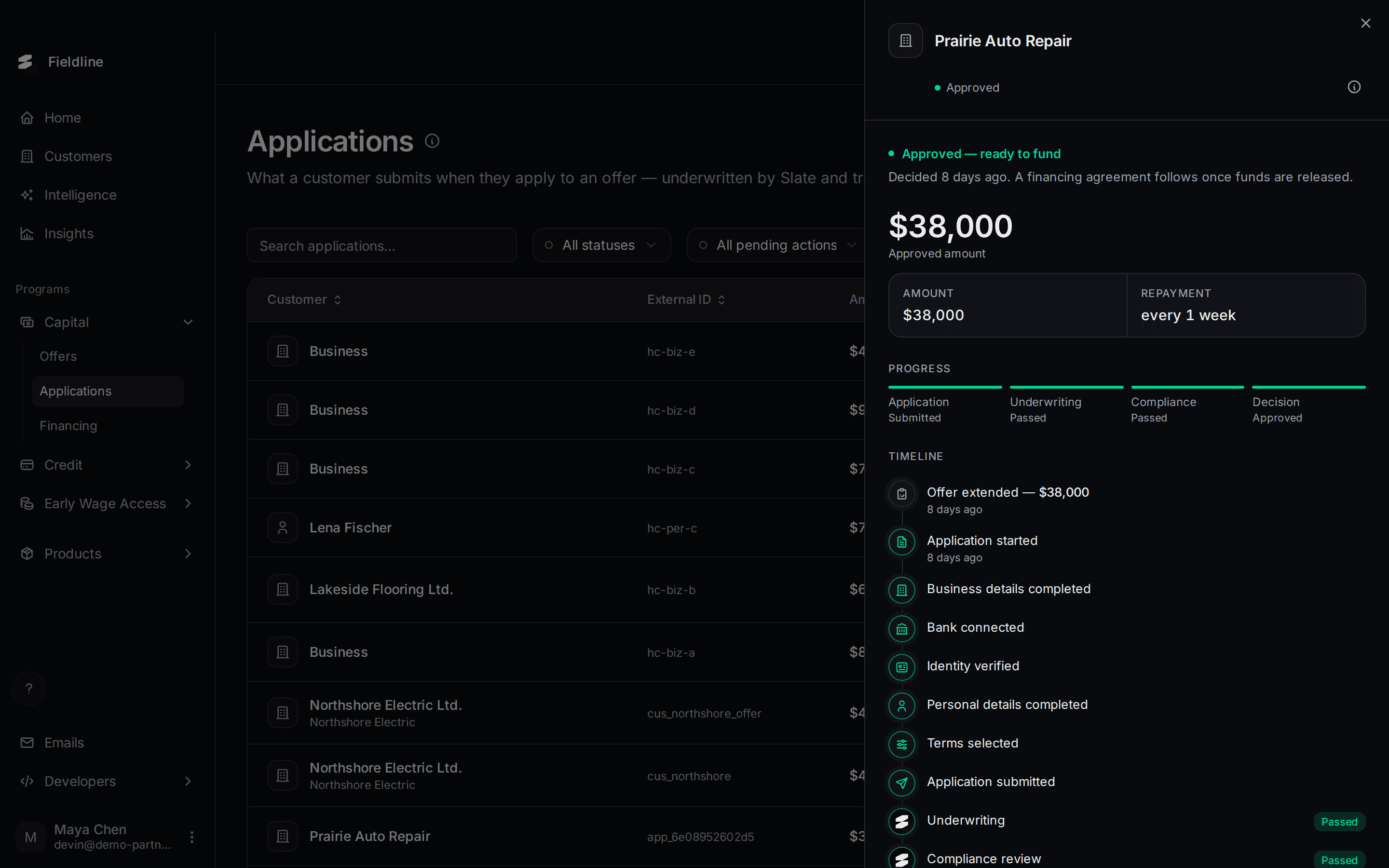
The panel keeps the table behind it, so you can close it and open the next row quickly.
Read the status dots
A small coloured dot sits next to every status. The colour tells you at a glance if something is fine, moving, or stuck.
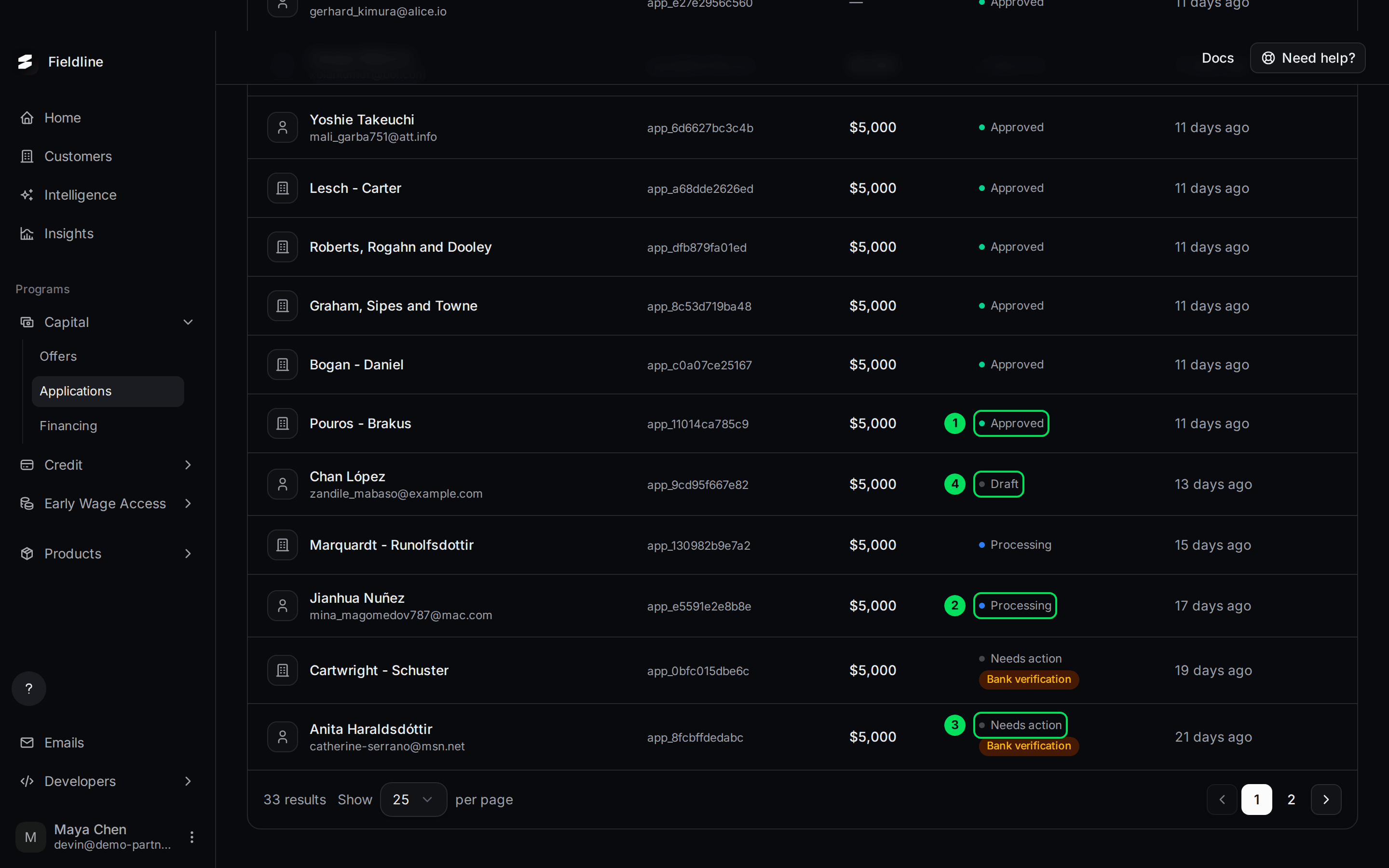
- Approved: a green dot.
- Processing: a blue dot.
- Needs action: waiting on someone. A small tag underneath says what, such as Bank verification or Contract signature.
- Draft: a grey dot.
Colours mean the same thing on every page:
- Green: good or finished, such as Active, Approved, Completed or Paid.
- Blue: in progress, such as Processing, Open or In review.
- Amber: waiting or needs attention, such as Pending, At risk or Due.
- Red: a problem, such as Rejected, Failed, Past due or In collection.
- Grey: not active, such as Draft, Consumed or Cancelled.
Each page's own article explains what its statuses mean.
Take the narrated tour
The narrated tour walks you through the main pages with a voice and on-screen text. It has 12 stops, and it skips stops that don't apply to you.
Start the tour
Open the account menu
Select your name at the bottom left.
Select How to use Slate
The tour starts on Home in sandbox. It moves you from page to page as it goes.
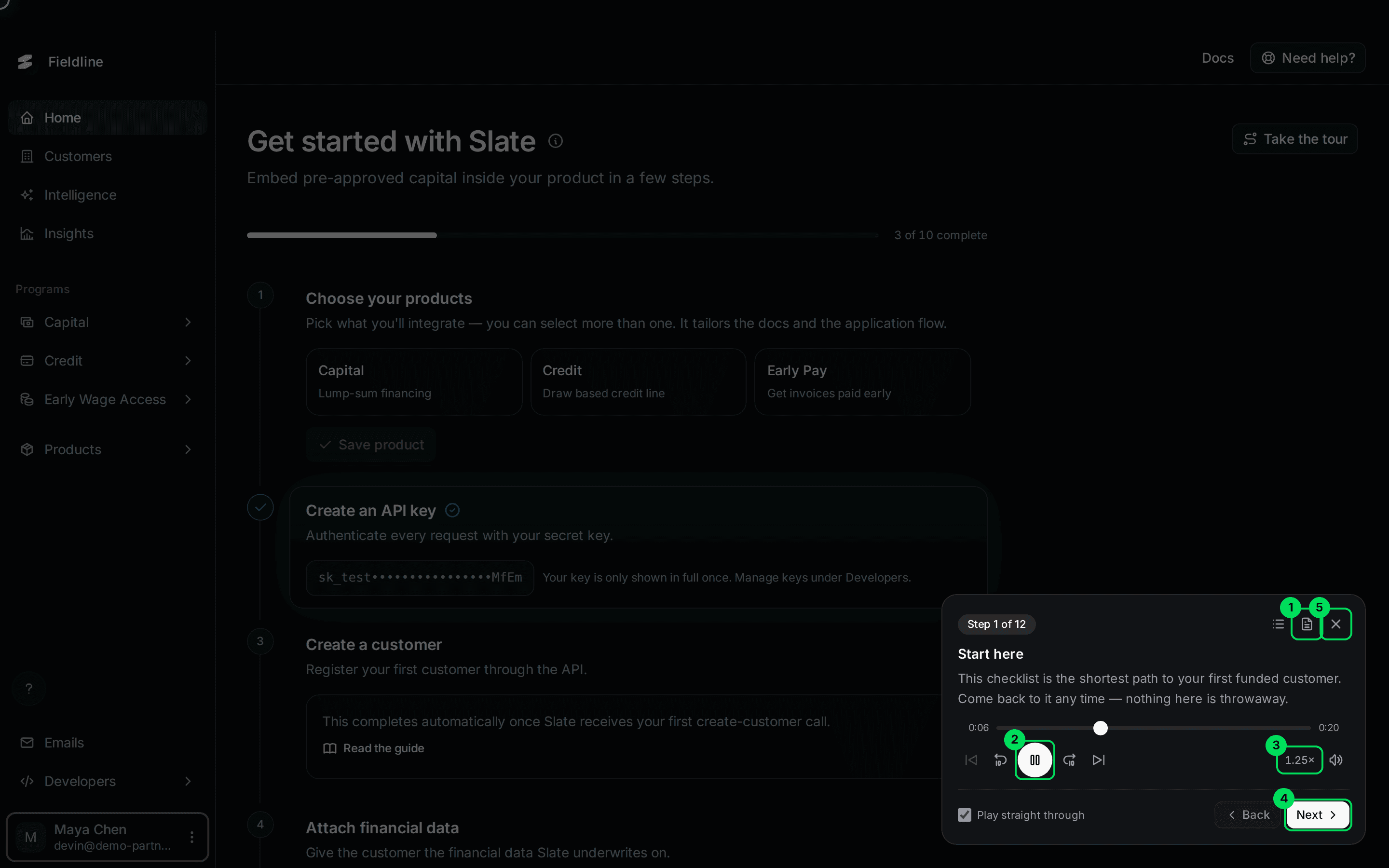
- Show transcript: shows the words being spoken.
- Pause narration: pauses and plays the voice.
- Playback speed: changes how fast it talks. The default is 1.25x.
- Next: jumps to the next stop.
- Close the tour: ends it. You can also press Esc.
Sound is recommended, but the words are always on screen. The tour downloads about 4 MB of audio when it opens.
The first-time offer
The first time you open the dashboard, a card offers the tour.
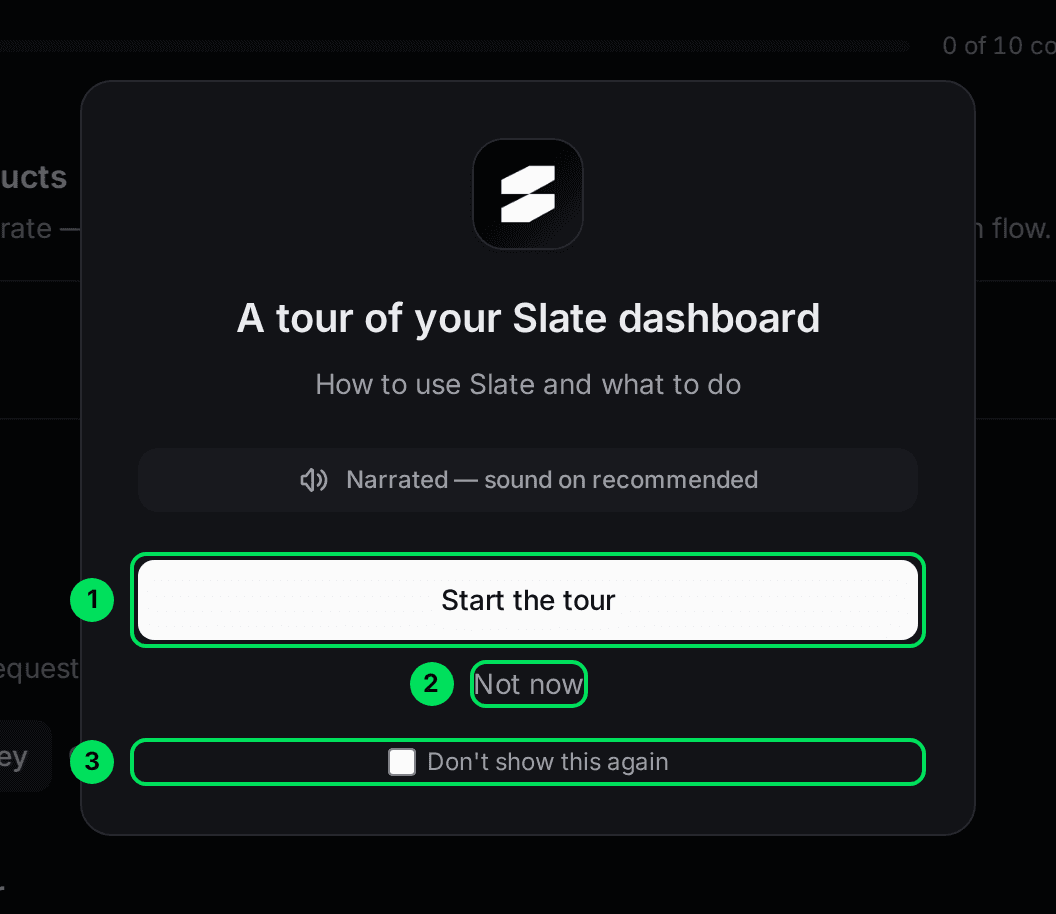
- Start the tour: begins the tour now.
- Not now: closes the card. It can appear again in a new browser session.
- Don't show this again: stops the card for good, on every browser.
If you close the card, the Product tour button stays at the bottom right of the page. Select it any time to start again.
If something goes wrong
I can't find Home
Home only exists in sandbox. In live, Customers is your first page. Switch with the account menu. See Sandbox and live.
The Credit menu or the Credit Line pages are missing
They only show for credit lines your customers draw from. If you expect them, ask Slate to check your program.
My export has fewer rows than the table says
An export holds only the rows on the page you're looking at. Raise per page to 100, or export page by page. See Export to CSV.
Switch to Live Mode is greyed out
Slate hasn't turned on live access for you yet. See Go live.
Learn more about the Slate platform.
Still stuck? Email [email protected] with your account email and the screen you are on. We reply within 24 business hours.